Doastly ERP — User Manual
Version: 2026-07 (Draft) | Status: DRAFT — IN PRODUCT REVIEW Each section earns a Verified mark only after product sign-off against the live application. Audience: Salon Owners, Managers, Groomers, Bathers, Receptionists, and Pet Families Portal: manual.doastly.us | Downloadable PDF: doastly-user-manual.pdf
What is Doastly?
Doastly is an all-in-one, AI-powered business platform built for pet grooming salons and pet service businesses. It replaces the patchwork of spreadsheets, paper appointment books, and disconnected point-of-sale tools with a single system that handles everything from booking to payment — and layers real artificial intelligence on top to help groomers do their best work.
Who uses Doastly?
- Salon Owners and Managers — run the whole business from one screen: appointments, live pet tracking, payments, staff, analytics, and AI-generated insights.
- Groomers and Bathers — see their schedule, track active pets in real time, and get an AI Copilot brief before every appointment.
- Receptionists — check pets in and out, manage the appointment calendar, and look up customer information.
- Pet Families (Customers) — track their pet's groom live from their phone, receive automated notifications, view past sessions, and book future appointments.
The Doastly Difference
Unlike competing platforms (MoeGo, Groomer.io, DaySmart Pet), Doastly embeds real AI assistance directly into the daily workflow — not as a marketing feature but as a core operational tool:
- AI Groomer Copilot — before every appointment, the system surfaces breed notes, health flags, coat history, and seasonal care suggestions specific to that pet at your location. The brief is scoped strictly to your salon's own grooming history for that pet — the AI never sees records from other salons the pet may have visited.
- AI Report Card Narrator — after each groom, a narrative report card is written by AI, covering what was done and flagging any health concerns the groomer noted. The platform uses a full reasoning model (not a fast-but-shallow summary model) for this task, because surfacing a groomer's health flag — such as "found a lump, see vet" — over a sea of positive attributes requires genuine judgment. A deterministic safety guard backs this up: if the narrative omits a flagged concern, the system falls back to a verbatim description rather than risking false reassurance.
- AI Booking Notes — when a pet family books online, the system generates personalized notes based on their pet's history. Shown at Step 3 of the booking flow (service + groomer selection), using a fast model cached per pet-location pair for 24 hours.
How to navigate this manual
This manual reads as a story — a salon's day with Doastly, then the same day from the pet parent's side. Read it front to back, or use the index on the left to jump to a part.
| If you want to… | Go to… |
|---|---|
| Set the salon up — signup, dashboard, rules | Part One — Opening Your Doors |
| See the core loop — check-in, groom, AI report card, checkout | Part Two — Your First Groom |
| Run the business — analytics, loyalty, marketing, team, other verticals | Part Three — Running the Business |
| See the app from the customer's side | Part Four — The Pet Parent's Story |
| Look up a permission, term, or notification rule | Appendix — Reference |
Manual generated July 2026 · Doastly ERP · © Doastly, Inc.
How to Use This Manual
If you are new at the front desk, on the grooming floor, or in the kennels, start here. This manual follows one salon through a working day on Doastly, from opening the doors to the last pickup, and then tells the same day from the pet owner's side. Read it straight through on your first day, or use the menu on the left when you need one answer fast.
Where to look
| You want to… | Go to |
|---|---|
| Set the salon up: signing up, the main dashboard, house rules | Part One — Opening Your Doors |
| Learn the daily loop: check-in, the groom, the report card, checkout | Part Two — Your First Groom |
| Run the business: reports, loyalty, marketing, staff, and the other services | Part Three — Running the Business |
| See what the customer sees: booking, live updates, report cards, rewards | Part Four — The Pet Parent's Story |
| Look up a permission, a term, a text-message rule, or a fix | Appendix — Reference |
Every chapter walks through its screens in order, one step at a time, with a screenshot for each step.
Who this is for
This is the public user manual. It covers what a salon owner, manager, receptionist, groomer, kennel technician, or pet owner needs day to day.
It does not cover Doastly's own internal administration or monitoring tools. Those are in a separate, confidential manual for Doastly staff.
Roles: why some screens are missing for you
Doastly shows each person the screens their job needs and hides the rest. A receptionist does not see payroll; a groomer does not see the analytics pages. This is on purpose. It keeps the menu short on a busy morning and keeps sensitive pages away from people who do not need them.
Rather than a separate chapter for each role, each role appears where it does its work: the owner setting up in Part One, the groomer at the table in Part Two, the pet owner throughout Part Four. When a section applies only to certain roles, it is marked like this:
This section applies to Owners and Managers only.
No role box means it applies to everyone. The full list of who can see what is in the Appendix.
"No access" means two things at once. The page is not in your menu, and if you type its address directly the server refuses and sends you back to your home screen with a "You don't have permission" message. If you need a page you cannot reach, ask your owner or manager to change your role.
Services and "Coming Soon"
One Doastly subscription can cover Grooming, Boarding, Daycare, Mobile Grooming, and Pet Training. Your salon may not have all of them switched on, so some chapters may describe screens you do not have. Anything not yet available everywhere is marked:
This feature is in development or not yet available in all accounts.
About the screenshots
Every screenshot comes from a real demo salon with realistic data, in light mode on a desktop screen.
Quick fix if your screen looks different. Check two things first: that you are logged in with the right role, and that the service you are looking for is switched on for your salon (Settings → Verticals & Billing). Those two account for most "my screen doesn't have that" questions.
Conventions and Legend
This page explains the icons, callouts, and screenshot annotations used throughout the manual.
Callout styles
The manual uses four types of callout boxes:
Coming Soon
This feature is either not yet built, or is available only in certain account plans. It will not appear in your account until it is released. Check the Doastly changelog for updates.
Role restriction
This passage applies only to users with the roles listed. If your role is not listed, you will not see this screen or feature in your account.
Tip
A helpful shortcut, best practice, or time-saving suggestion.
Warning
An important caution. Ignoring this may result in data loss, incorrect charges, or a blocked workflow.
Screenshot annotations
Screenshots throughout this manual use the following overlays:
| Annotation | Meaning |
|---|---|
| Teal circle with number | Step number in a sequence — follow the numbers in order |
| Teal rectangle outline | The specific button, field, or area being described |
| Yellow highlight | Key information to read carefully |
| Red border | Something that should not be done, or an error state |
All screenshots are taken from a seeded demo salon ("Doastly Grooming Co.") in light mode at a 1440-wide desktop viewport unless noted otherwise.
Terminology
| Term | Meaning |
|---|---|
| Salon Group | Your business entity — the top-level account that owns one or more locations |
| Location | A physical branch, mobile van, or service area within your salon group |
| Vertical | A service category — Pet Grooming, Boarding, Daycare, Mobile Grooming, etc. |
| Session | A single service appointment from check-in to checkout (one pet, one visit) |
| Tracker mode | How detailed the real-time tracking is: BASIC (4 stages) or DETAILED (per-service stages) |
| OTP | One-Time Password — the 6-digit code Doastly texts or emails you to log in (no passwords in Doastly) |
| Copilot | The AI Groomer Assistant that surfaces pet-specific notes before each appointment. Data scoped to your salon's own history only. |
| Report Card | The AI-generated narrative summary sent to the pet family after a groom |
| BYOA | Bring Your Own Account — you connect your own Stripe or Square account; Doastly never holds your money, never acts as a payment processor |
| RLS | Row-Level Security — the database-level rule that prevents any salon from ever seeing another salon's data, enforced at the database layer rather than only in application code |
| Check-in | The act of recording that a pet has arrived and is ready to begin services |
| Checkout | The act of completing a session: confirming services, collecting payment, and releasing the pet |
| Compliance gate | A checkpoint that blocks checkout if required documents (waivers) or vaccines are missing or expired |
| Override | An Owner, Manager, or Super Admin action that bypasses a compliance gate with a logged reason |
| BASIC mode | The default tracker mode: four fixed stages (Checked In → Grooming → Ready → Checked Out) |
| DETAILED mode | Optional tracker mode: individual service stages (Bath, Dry, Haircut, etc.) with per-stage notes and photos |
| Pay-ahead | A payment collected before the groom is complete, at the customer's request, via SMS payment link |
| Discount | A reduction applied to the subtotal at checkout: either a fixed dollar amount or a percentage of the subtotal |
| Late pickup fee | An automatically calculated fee charged when a pet is not collected within the configured grace period after being marked Ready |
Screenshot key — quick reference
Part One — Opening Your Doors
What Doastly is
Doastly is the software a pet-care business runs on. It handles the whole of the work a salon does in a day: booking appointments, checking pets in, tracking each groom as it happens, taking payment, sending the owner their pet's report card, and keeping the books. One salon or a group of locations, one service or several — grooming, boarding, daycare, mobile grooming, training — all of it lives in a single account.
Three ideas run through everything that follows, and it helps to have them straight from the start.
The first is how a business is shaped. At the top is a salon group — the company. Inside it are one or more locations — a storefront on Main Street, a second branch across town, a grooming van. Each location has its staff (owners, managers, groomers, bathers, receptionists, drivers) and serves its pet families — the customers and their pets. Almost everything you do in Doastly happens at the level of a location.
The second is that a pet's records belong to the pet, not to the salon. A dog that visits two different salons carries one health profile — its breed, its vaccines, its medications — visible to both, because a groomer needs to know a dog is up to date before handling it. What each salon did with the pet, though — the grooming notes, the report cards, the payments — stays private to that salon. The customer sees all of it in their own app; no salon sees another's.
The third is the part no competitor offers: real AI, built on Anthropic's Claude, doing genuine work inside the product. It briefs the groomer before a session, writes each pet's report card in warm and honest language, and helps the owner understand and grow the business. It is not a novelty bolted on the side — it runs through the daily workflow, and a later chapter is devoted to it.
Chapter A1 — Signing up
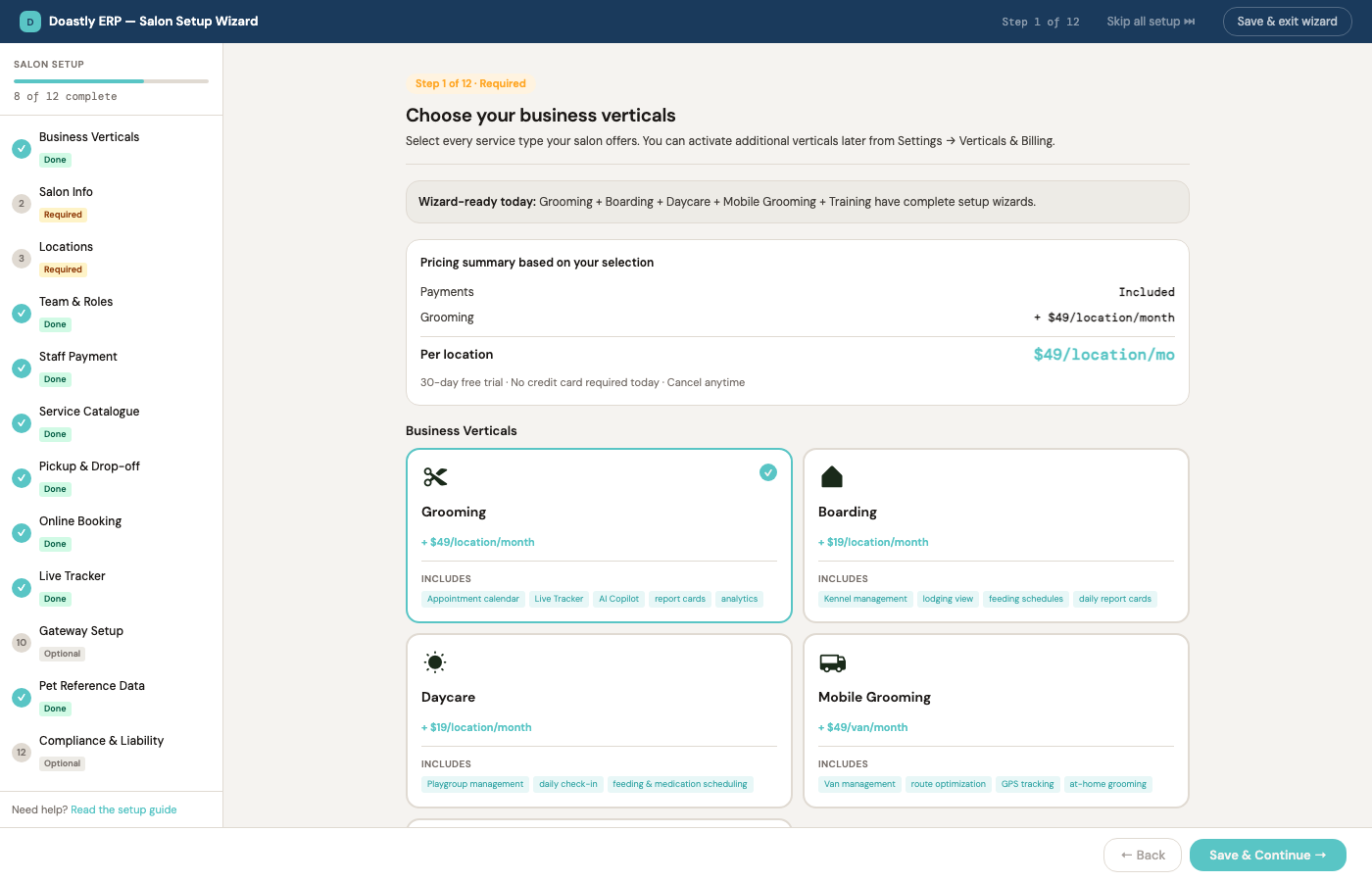
Everything starts with setup, and Doastly gets a new salon through it in a single guided pass called the Salon Setup Wizard. It has twelve steps. A panel down the left lists them all and marks each one required or optional; a bar at the top shows how far along you are. You can move between steps freely, skip the optional ones, and come back later — the wizard saves your progress, so closing the browser and returning leaves your answers exactly where you left them. Nothing here is a one-way door.
The example we follow is a new studio called Barkside Grooming Studio opening its account for the first time.
Step 1 of 12 — Business Verticals. The wizard opens by asking what kind of work the salon does. Each service type is a card with its monthly price per location — Grooming, Boarding, Daycare, Mobile Grooming, and Pet Training — and you select every one you offer. A pricing summary updates as you choose, showing the running per-location total against a thirty-day free trial with no card required to start. Payments processing is included with every plan, so there is nothing to add for it. (Retail and Pickup & Drop-off are add-ons configured elsewhere, not verticals chosen here.) Barkside selects Grooming.
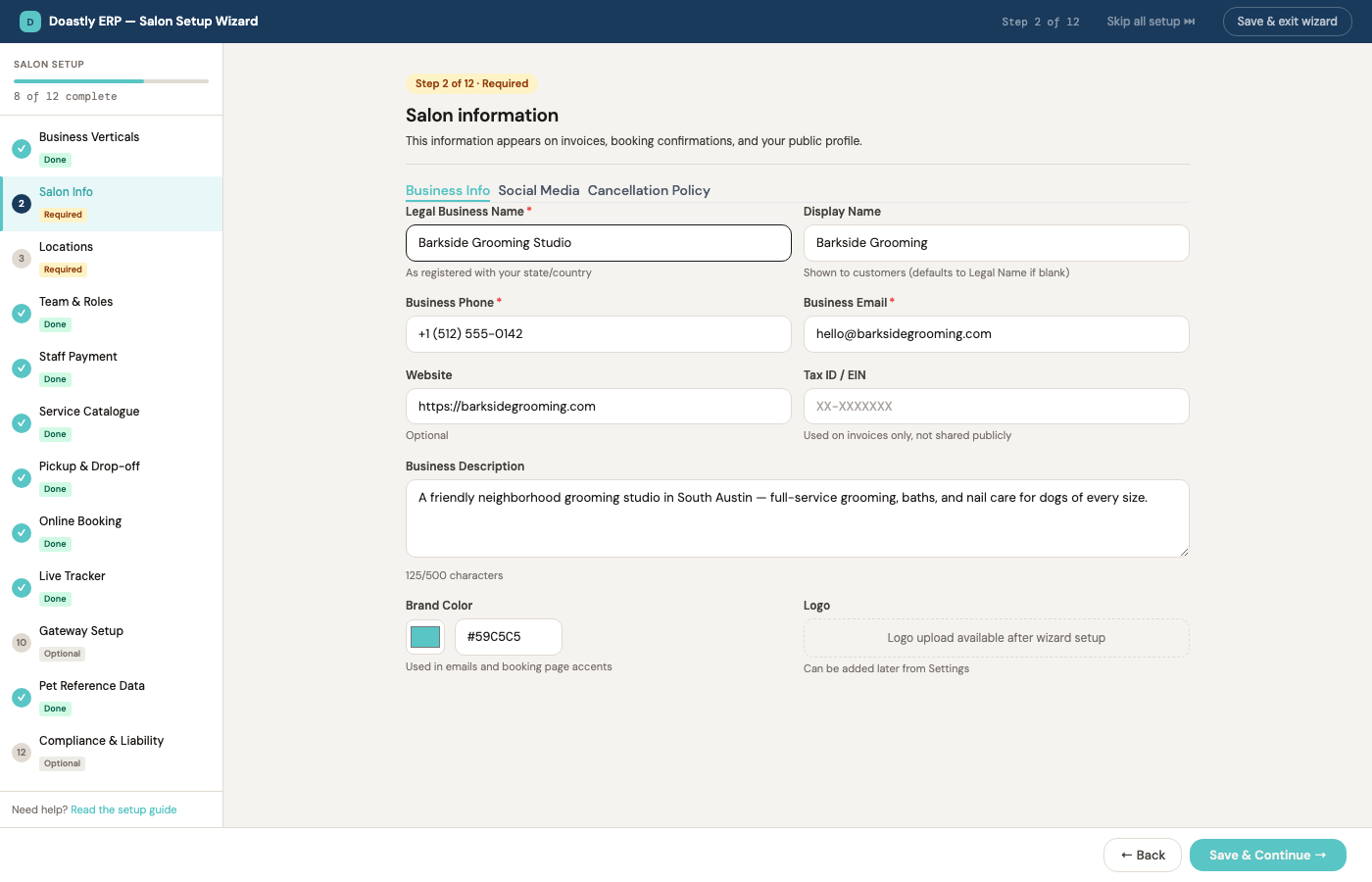
Step 2 of 12 — Salon Info. Next the salon describes itself, across three tabs. The Business tab holds the essentials a customer and a receipt need — legal and display names, phone, email, website, tax ID, and a short description. The Social tab connects Instagram, Facebook, and the Google Business profile that later feed review syncing and marketing. The Cancellation tab is where the salon writes the cancellation policy customers will see on their booking confirmations, and picks a brand color for customer-facing materials.
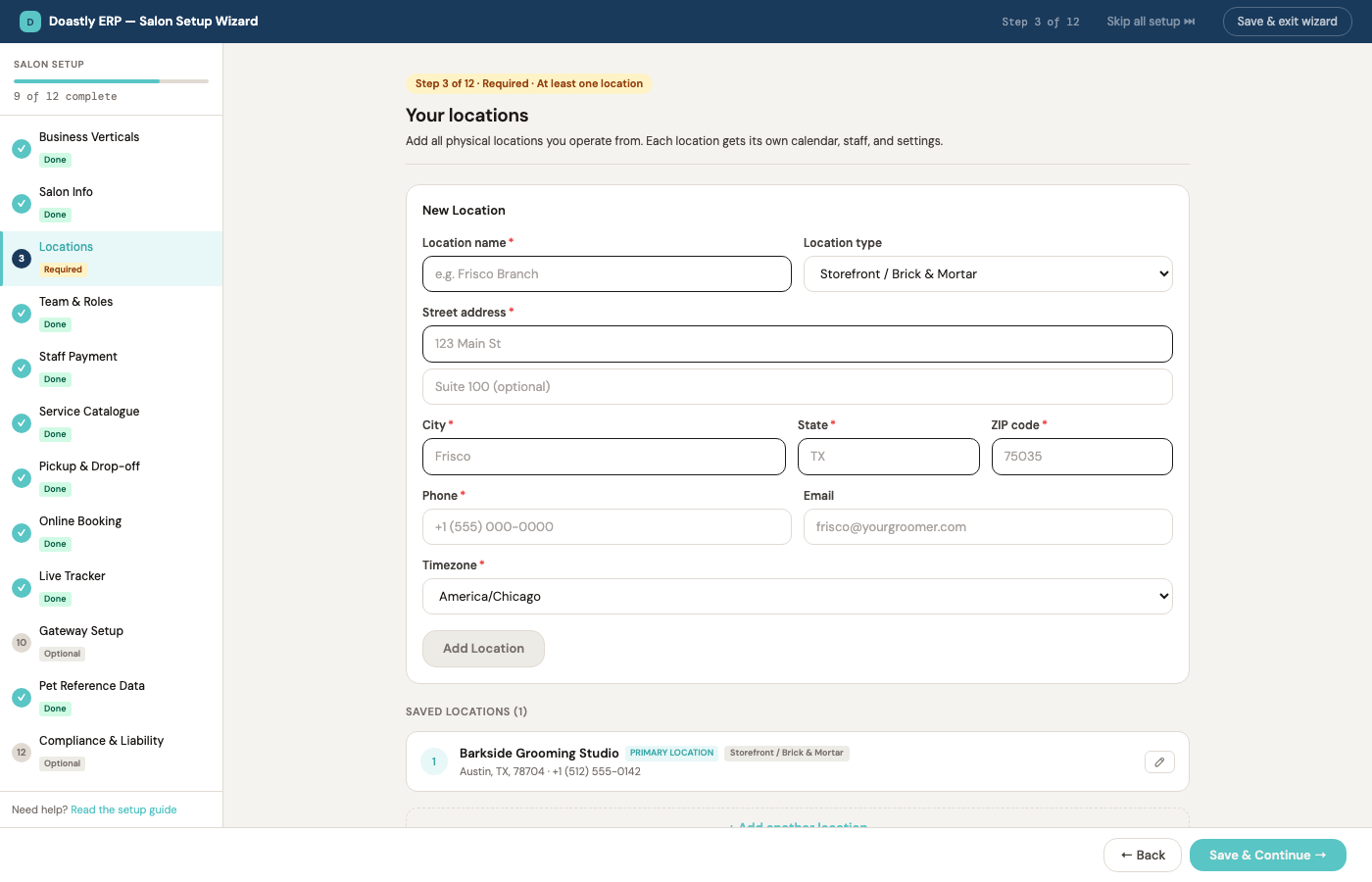
Step 3 of 12 — Locations. Here the salon tells Doastly where it operates. Each location gets a name, full address, phone, email, time zone, and a type — Storefront / Brick & Mortar, Mobile Van, or Home-Based. One location is marked primary. More can be added later from Settings, and because each location is billed separately, this step is also where the subscription total takes its final shape.
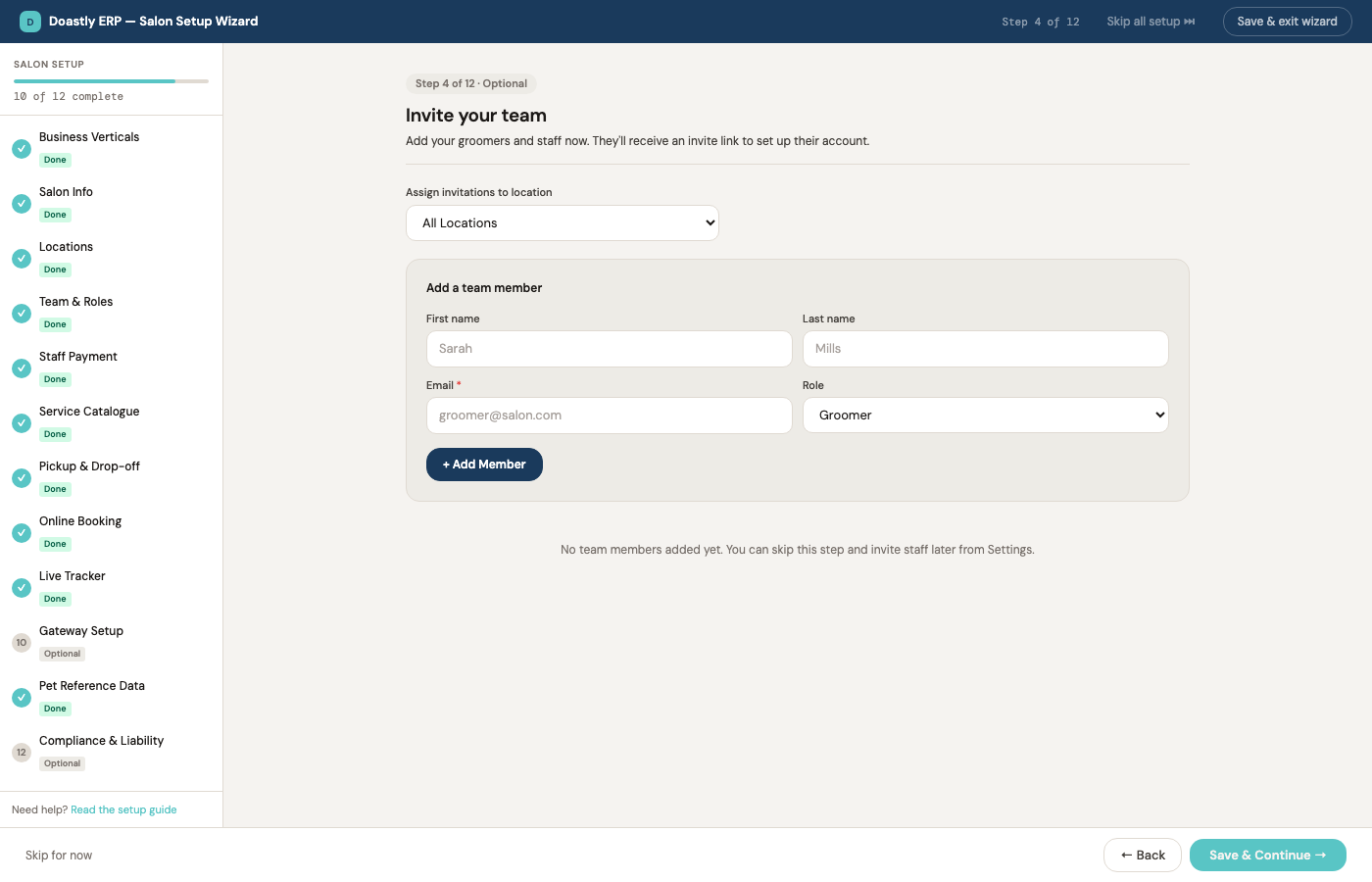
Step 4 of 12 — Team & Roles. The salon can invite its staff now or later — this step is optional. Each invite takes a name, an email, and a role: Owner, Manager, Groomer, Bather, Receptionist, or Driver. Everyone invited receives an email with a sign-in link and can set up their own account while the owner keeps going through the wizard.
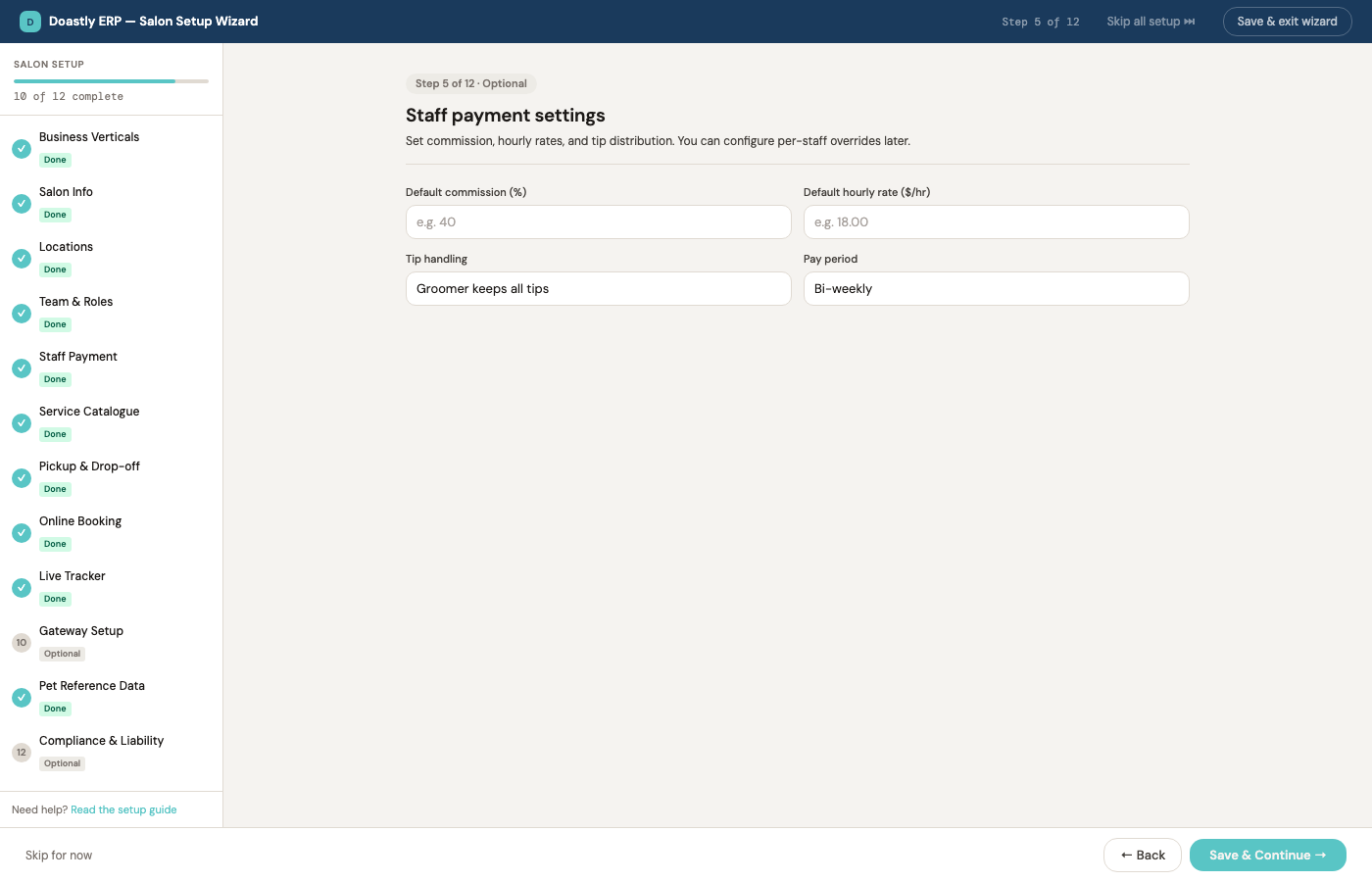
Step 5 of 12 — Staff Payment. This optional step sets the default way groomers are paid. There are three pay types — commission (a percentage of each session's revenue), hourly (a rate per hour, which asks staff to clock in and out), and fixed (a flat amount per pay period) — plus how tips are handled and how often payroll runs. These are defaults for new staff; any individual can be set differently later.
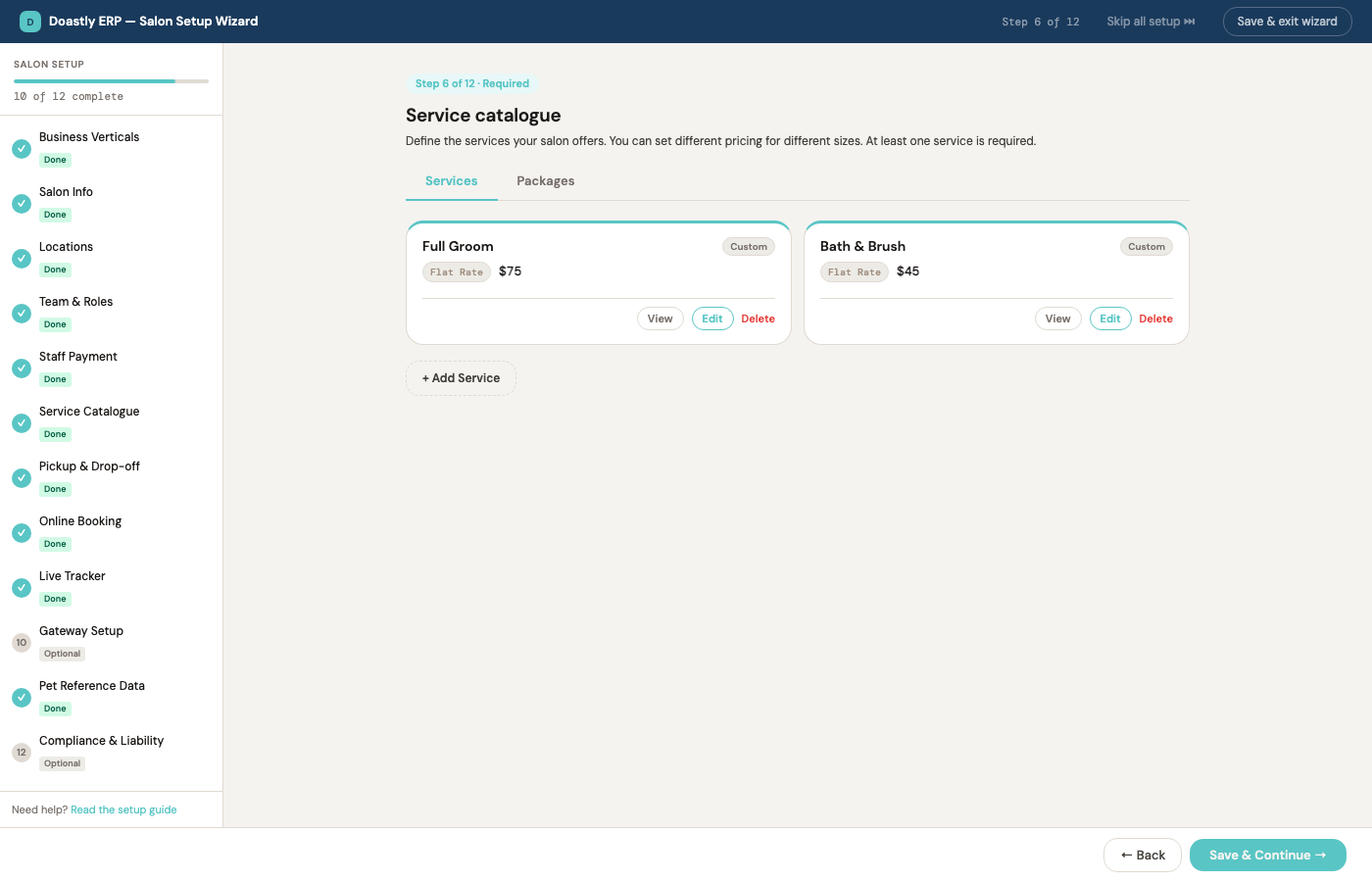
Step 6 of 12 — Service Catalogue. Now the salon builds its menu. Three common services come pre-filled — Full Groom, Bath Only, Nail Trim — ready to edit or replace. Each service has a name, a duration, and a price, and the price can follow whatever model the salon uses: a flat rate, a rate by size, by coat type, by size-and-coat grid, by breed, by weight, or by time. Services can also be bundled into packages sold at a set price.
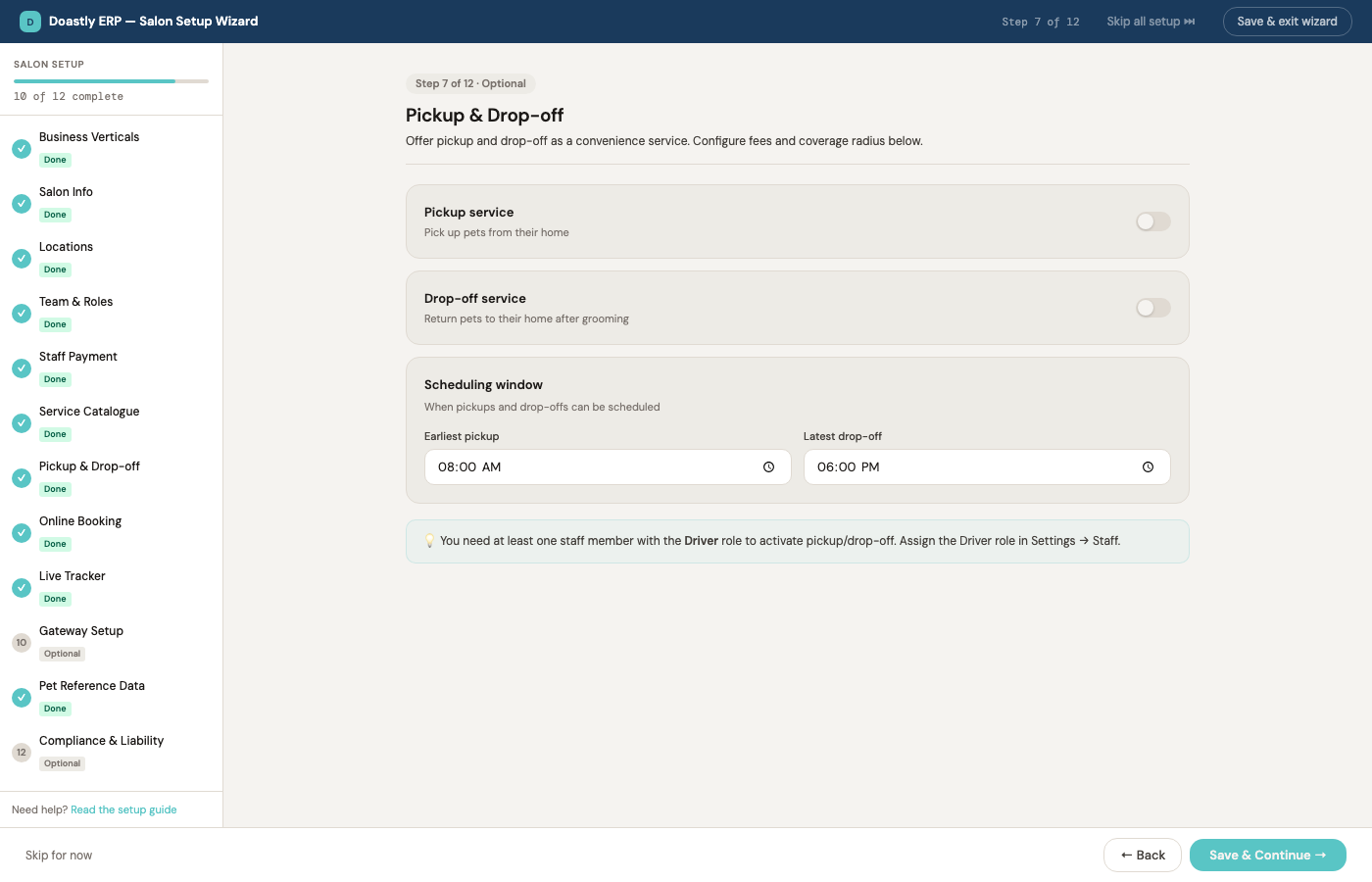
Step 7 of 12 — Pickup & Drop-off. If the salon collects and returns pets, it sets that up here — the service radius in miles, a home-visit fee, and the earliest pickup and latest drop-off times. Salons that don't offer it skip the step and can turn it on later from Settings.
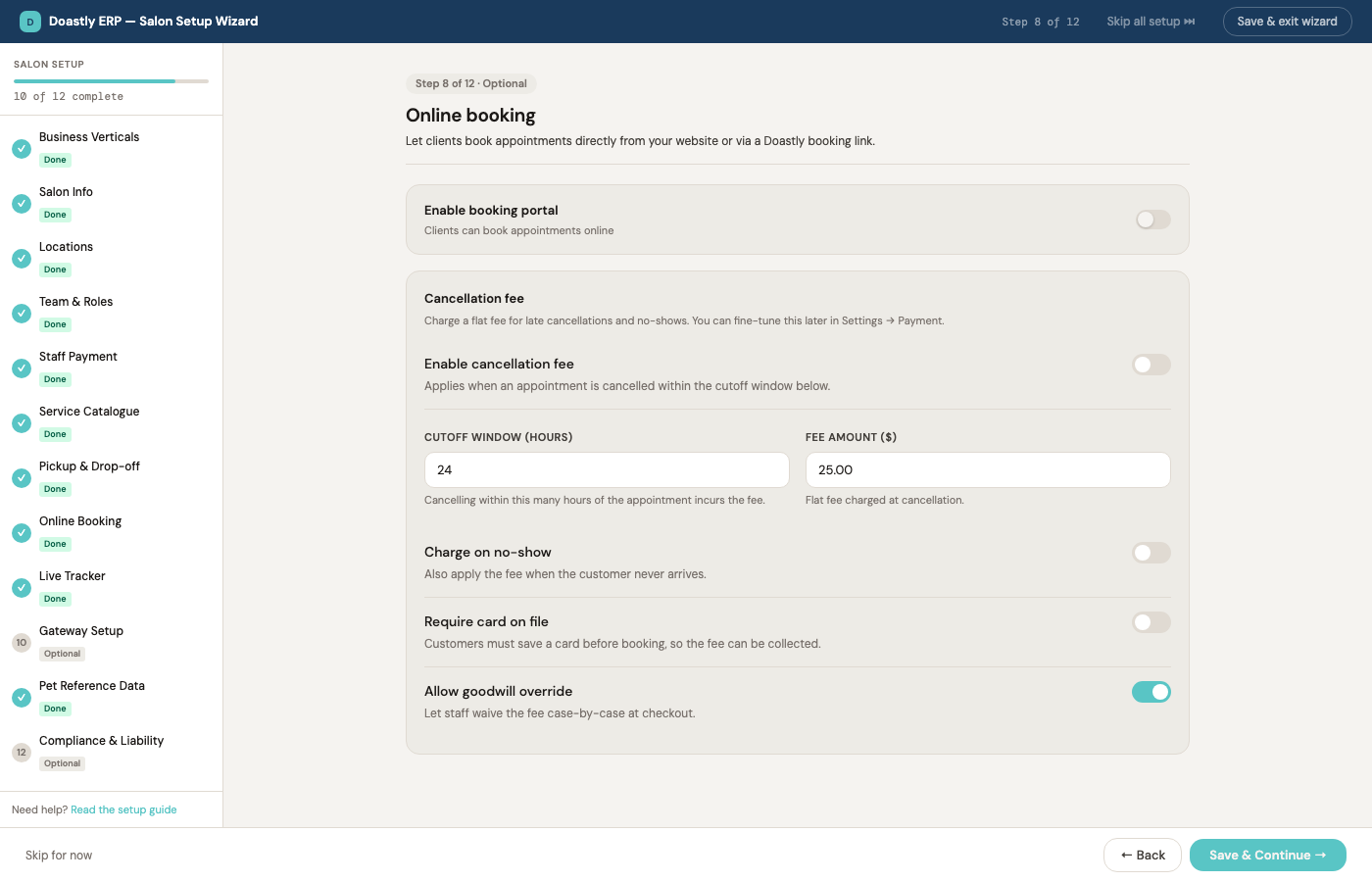
Step 8 of 12 — Online Booking. This step turns on the customer-facing booking page and sets its rules: whether bookings confirm instantly or wait for the salon's approval, how far ahead customers may book, how much advance notice a booking needs, whether a deposit is collected, and what a late cancellation costs.
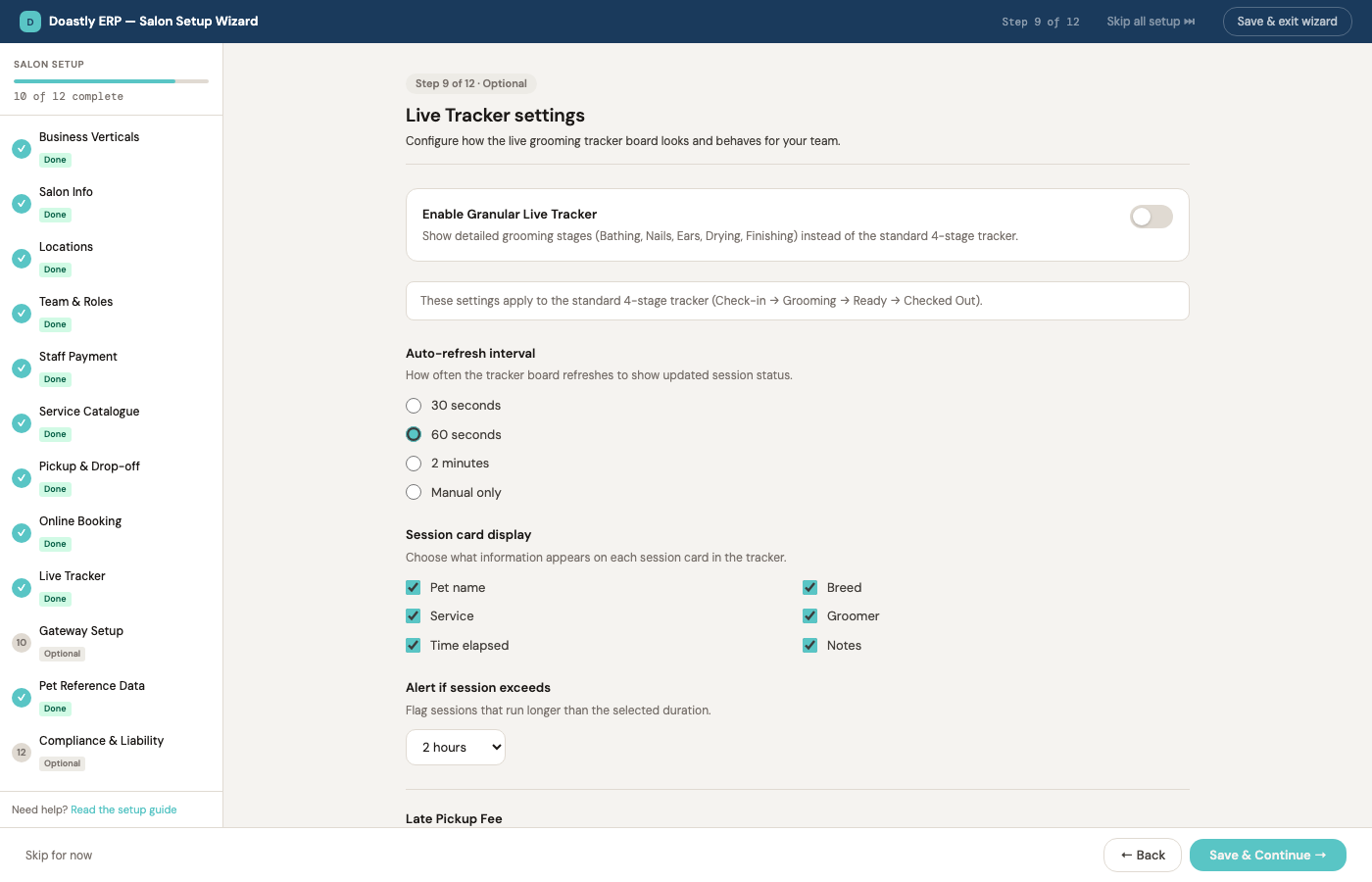
Step 9 of 12 — Live Tracker. The Live Tracker is the real-time view a customer watches while their pet is in the salon, and this step chooses how much of it they see. In Basic mode they see four stages — Checked In, Grooming, Ready, Checked Out — and a text message goes out twice: when grooming starts and when the pet is ready. In Detailed mode they see each individual service stage, with optional notes and photos from the groomer; the text messages still fire only at the start and at Ready, never on the stages in between. Detailed mode also lets the salon choose which stages appear and set an alert for sessions running long.
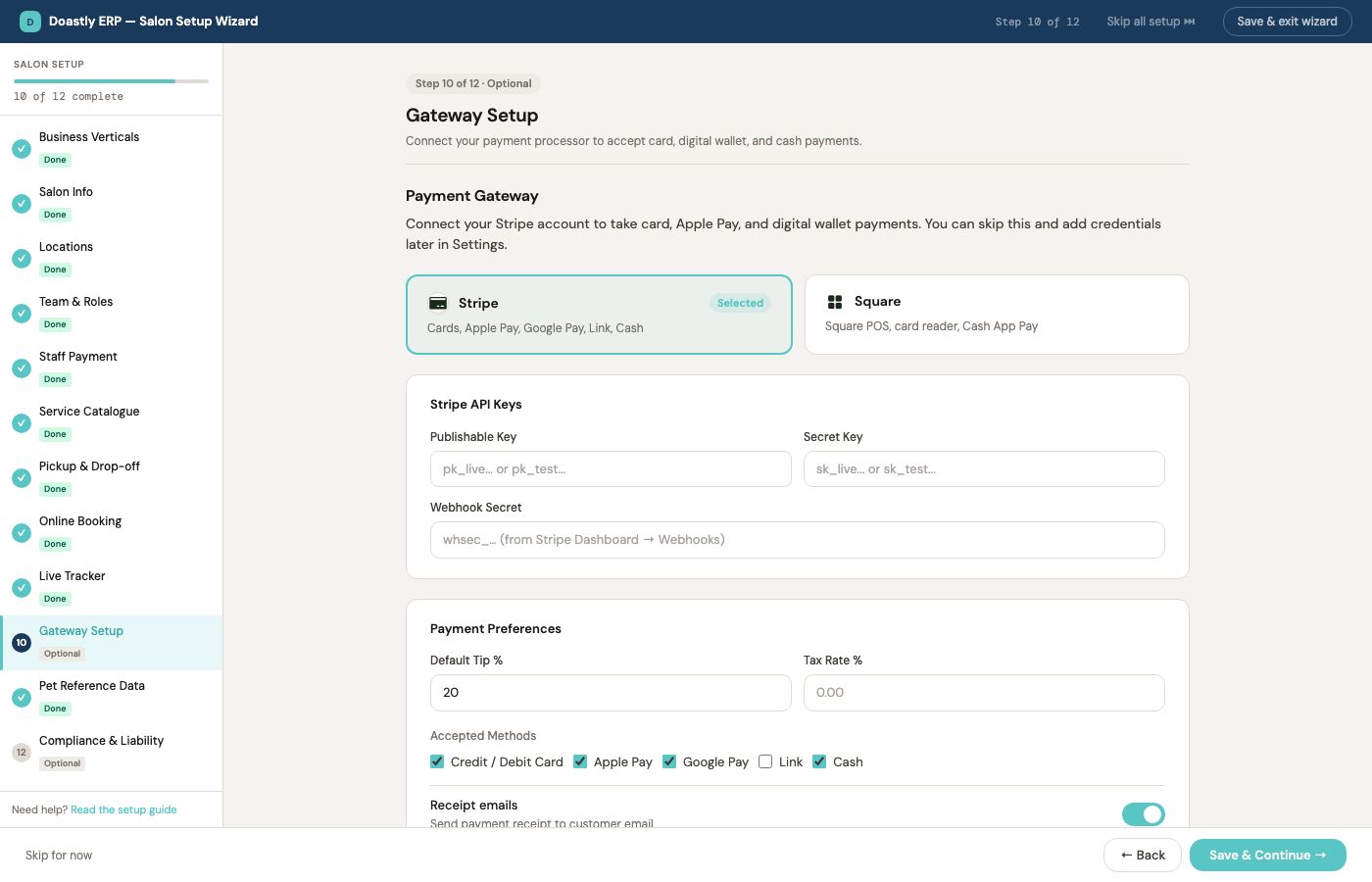
Step 10 of 12 — Gateway Setup. Doastly never holds a salon's money. Instead the salon connects its own payment processor — Stripe or Square — and funds flow straight to its account. This step takes those credentials, and Doastly checks them with the processor on save, returning a plain-language message if a key is wrong. The same step sets the default tip percentages shown at checkout, which payment methods to accept, whether receipts email automatically, and whether customers may pay ahead of pickup.
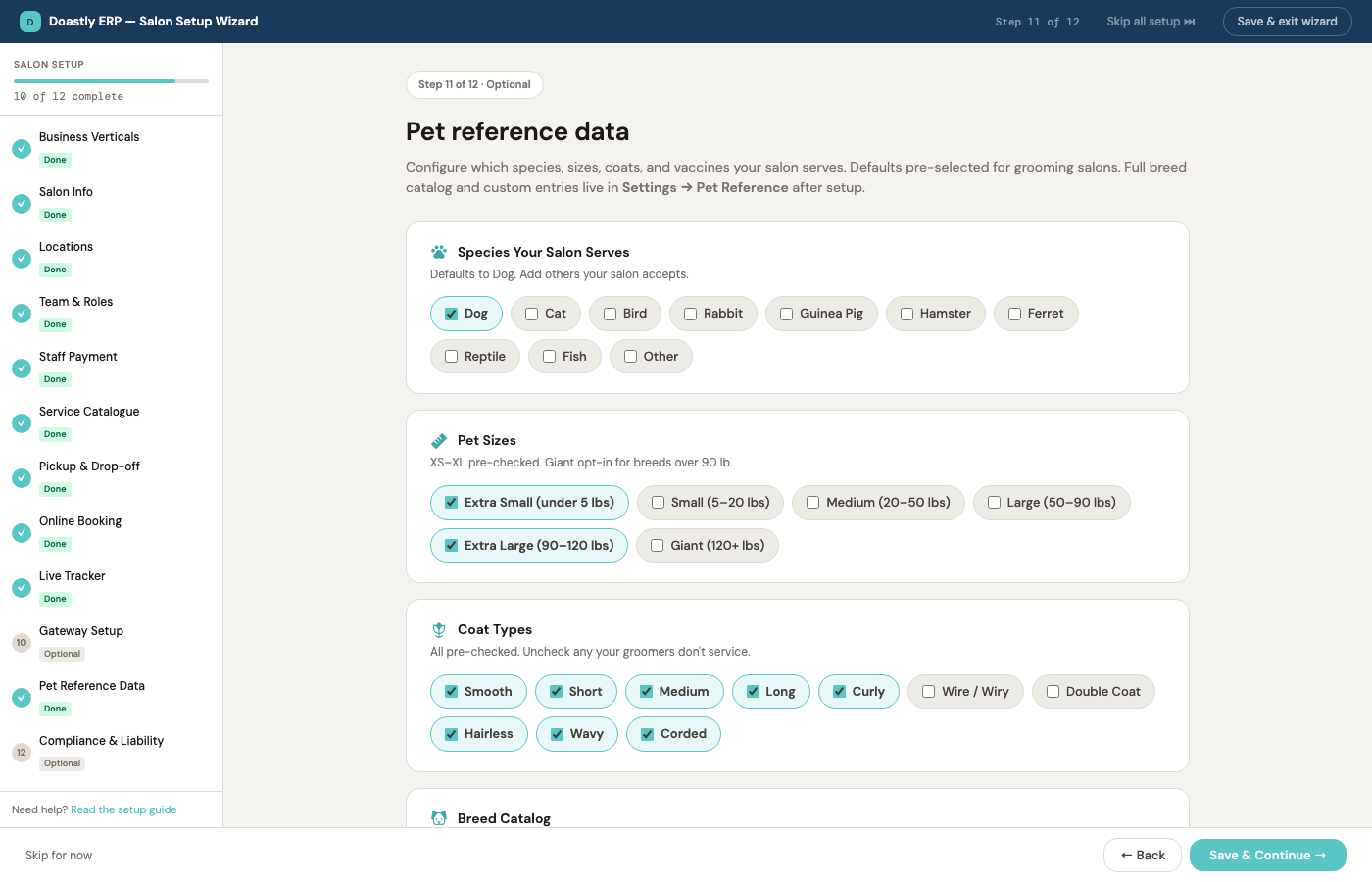
Step 11 of 12 — Pet Reference Data. This step defines what the salon accepts — which pet types, sizes, and coat types appear on the check-in form — and, importantly, which vaccines a pet must have on file. The vaccines chosen here are the ones enforced at the check-in gate later. Sensible defaults come pre-selected, ready to adjust to the salon's real intake.
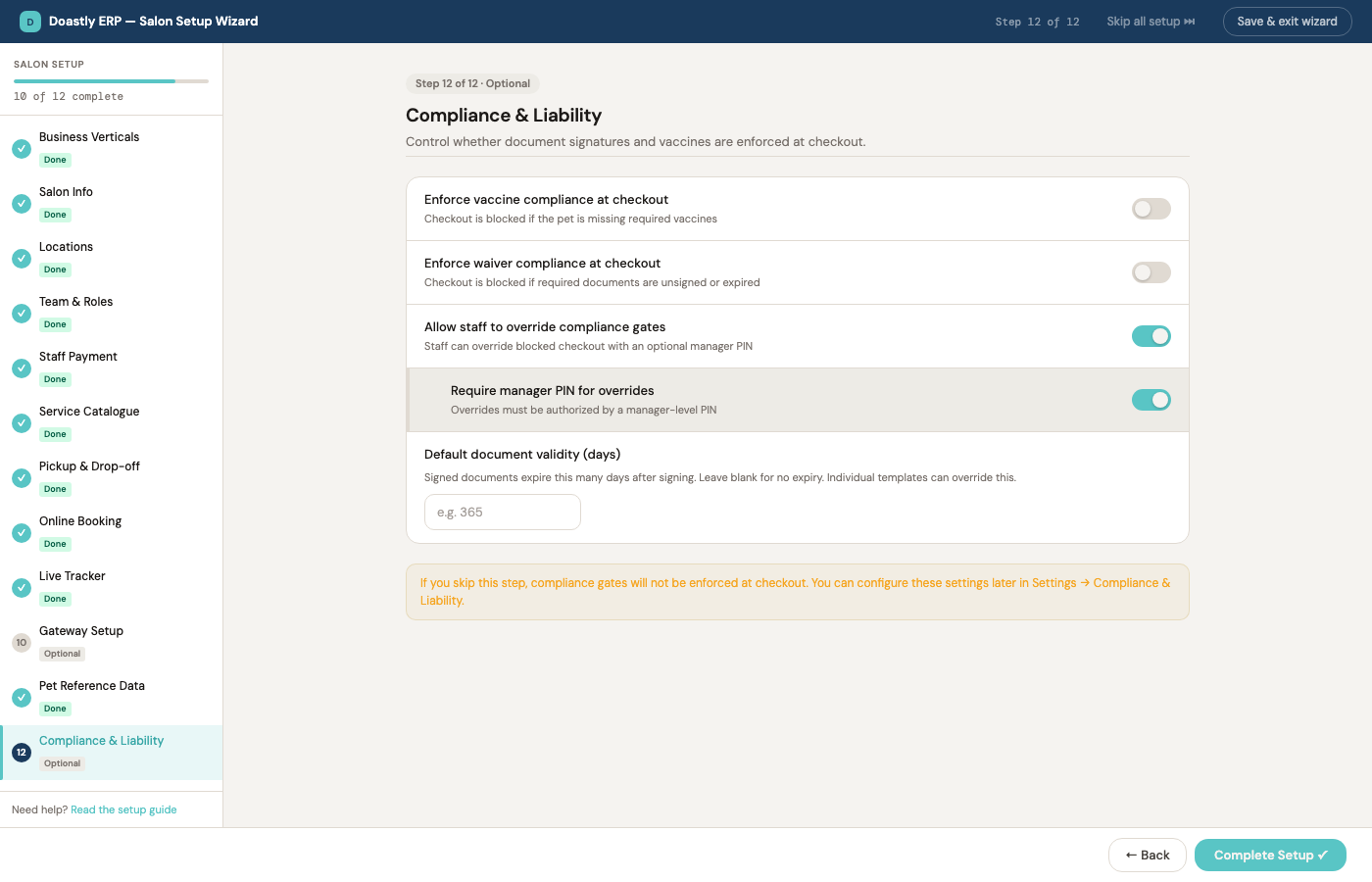
Step 12 of 12 — Compliance & Liability. The final step sets the safety and legal checks that apply at check-in: whether customers must sign a liability waiver in their app before each visit, a maximum number of pets per staff member on shift, and the vaccine gate — the rule that blocks check-in for a pet whose required vaccines are missing or expired. These settings, like all the others, can be changed any time from Settings.
Once the required steps are complete, a Complete Setup button appears. Selecting it creates the salon group and opens the owner dashboard — the screen from the start of this part — and Barkside Grooming Studio is open for business. Everything set here remains available, individually, in Settings, so nothing chosen in fifteen minutes of setup is ever locked in.
Chapter A2 — Your command center
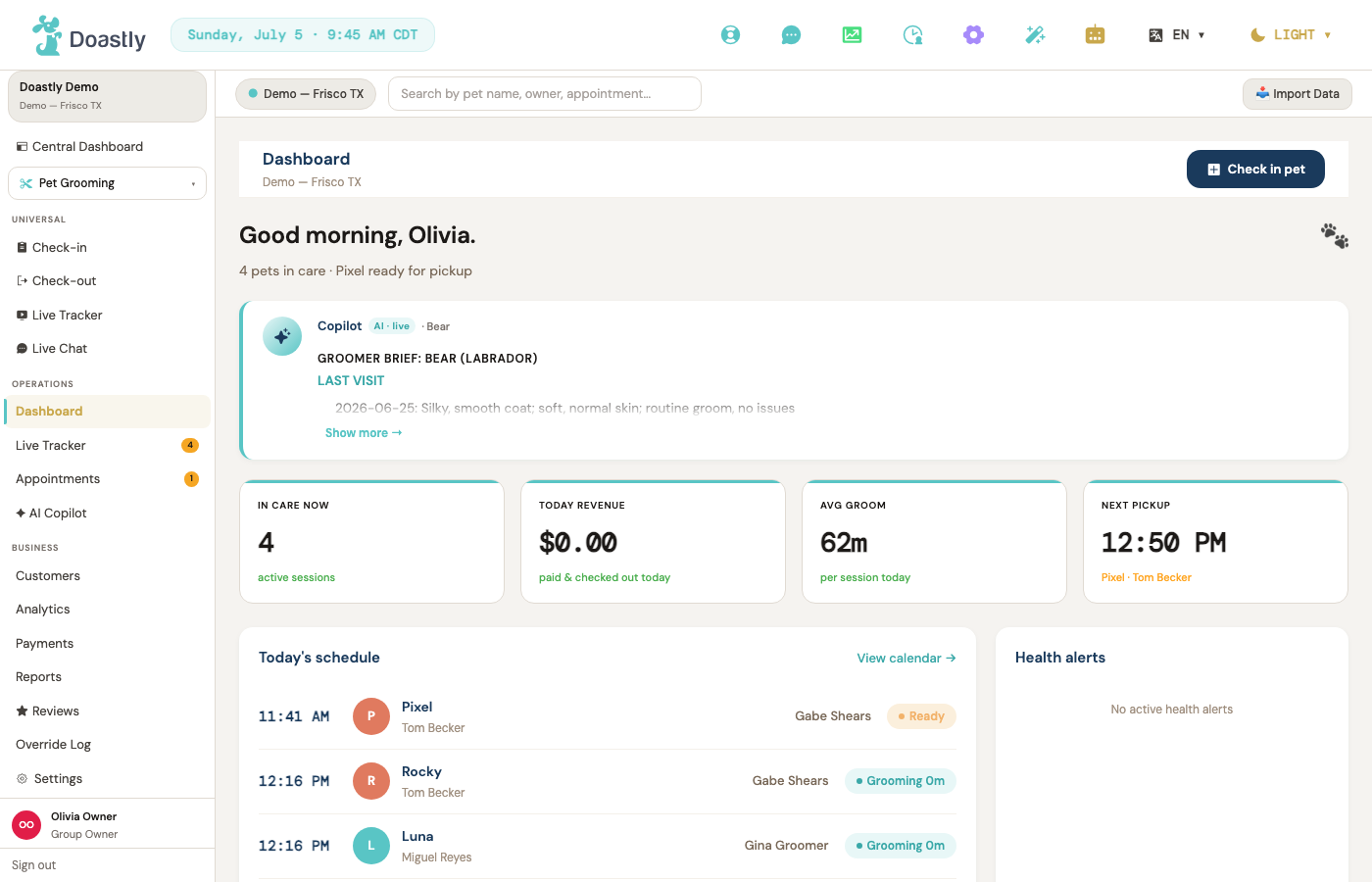
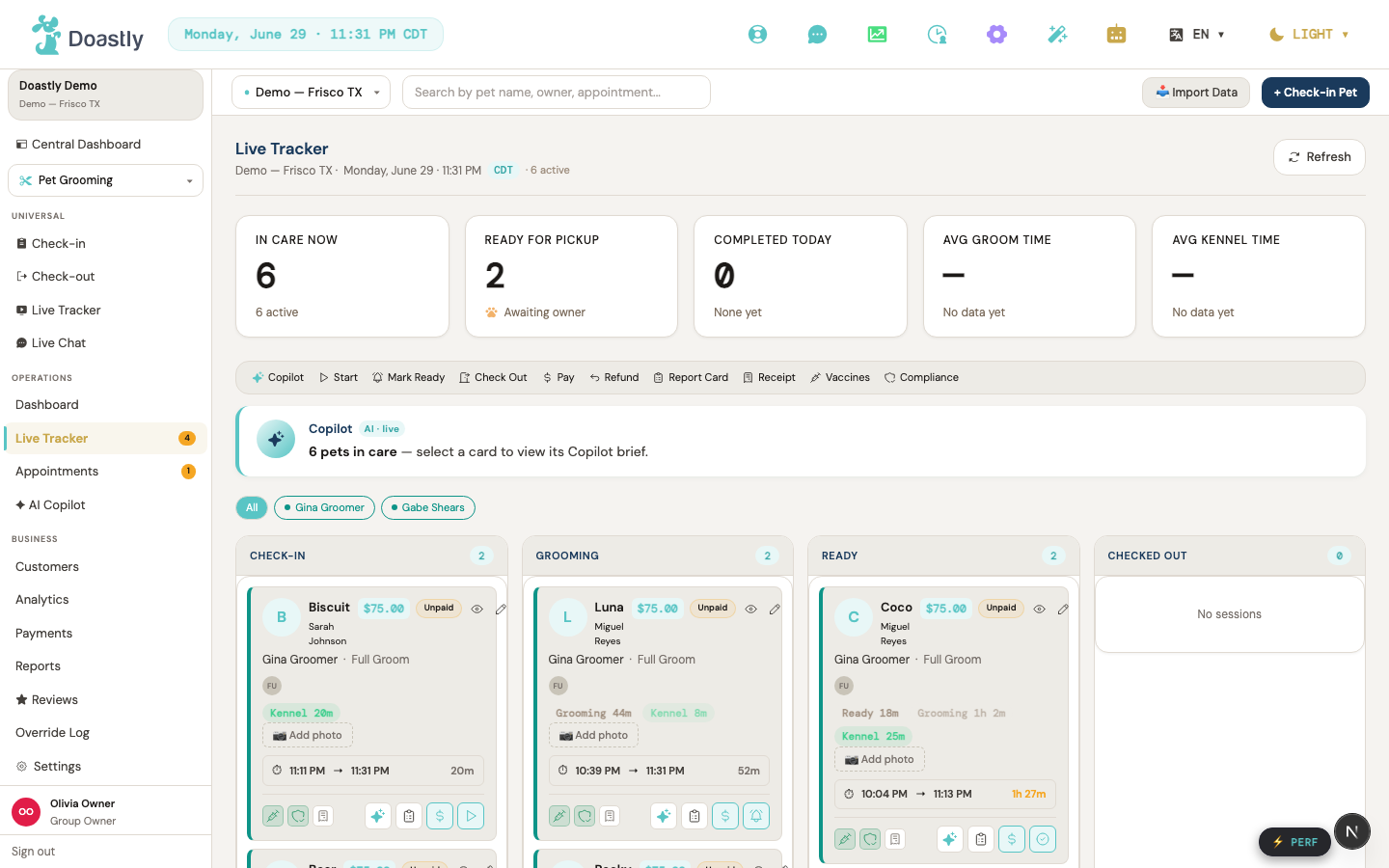
Signing in lands the owner on the dashboard shown at the start of this part, and it is worth a moment because it is the screen a salon opens to every morning. Across the top sit the numbers that answer "how are we doing right now": how many pets are in care, revenue collected and checked out today, the average groom time, and who is next for pickup. Below them are the day's schedule, any health alerts flagged on today's pets, and a Copilot card that fills with AI insight once sessions are running. It is a single glance that tells an owner whether the day is on track.
Getting anywhere else is done from the panel down the left. It is grouped the way a salon thinks: the everyday actions at the top — Check-in, Check-out, the Live Tracker, Live Chat — then Operations (the dashboard, appointments, the AI Copilot), then the business side (customers, analytics, payments, reports, reviews), and settings at the foot. The panel is role-aware: a groomer signing in sees the tools a groomer needs and not the owner's financial pages, so everyone lands in a workspace scoped to their job. A location switcher at the top lets an owner with more than one branch move between them without signing out.
Chapter A3 — Setting your rules
Before the first pet arrives, three settings are worth getting right, because they decide how the salon protects itself and how it talks to its customers. All three were touched in the wizard and all three live permanently under Settings, ready to change whenever the salon's practice changes.
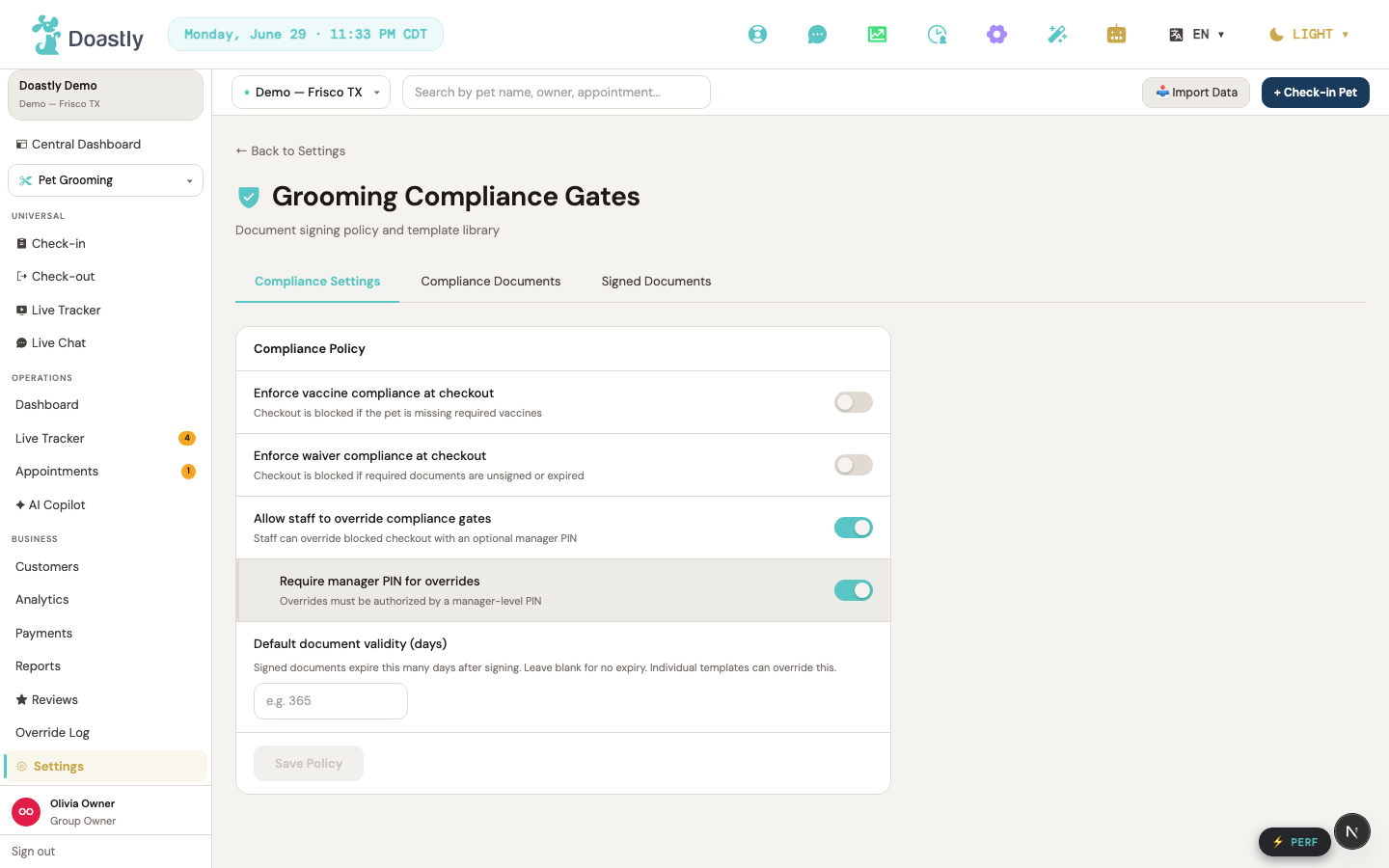
The first is the compliance gate — the salon's safety rules for who may be checked in. This is where the salon marks which vaccines are mandatory and turns on the vaccine gate, the rule that blocks check-in for any pet whose required vaccines are missing or expired. The same screen sets whether customers must sign a liability waiver, and whether a manager may override a block by recording a reason. These rules are the promise the next chapter pays off: with the gate on, a pet that is not up to date simply cannot be checked in until the records are fixed.
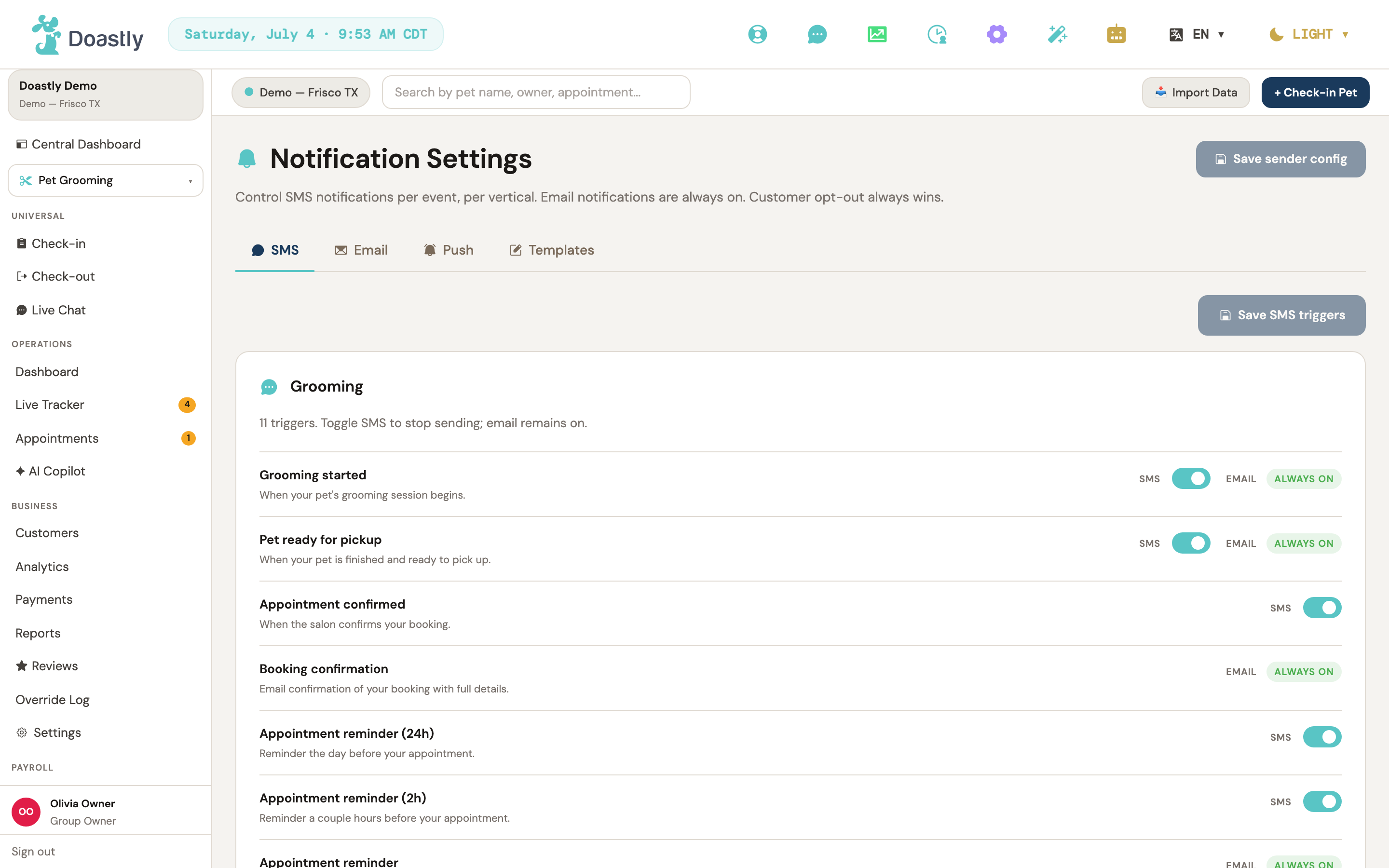
The second is which messages go out. Doastly texts a customer at only a few carefully chosen moments — when their pet's groom begins, when it is ready for pickup, to confirm or remind about an appointment, and a small number of others — and never on the small stage-by-stage changes in between. This screen is where the salon switches each message type on or off for the whole location. It is deliberately restrained: the point is to keep the customer informed at the moments that matter, not to fill their phone.
The third is the Live Tracker mode, set per location. Basic mode shows the customer four stages and sends the two texts; Detailed mode shows every service stage as it happens, with the same two texts and nothing extra in between. A salon can start on Basic and move to Detailed whenever it wants a richer live view for its customers — the choice is a single setting and takes effect on the next session.
With the salon set up, the team in place, the menu priced, the money wired, and the rules in force, Barkside is ready for its first customer — which is where the next part begins.
Part Two — Your First Groom
Barkside is set up; now we step into a salon already busy with a day's work and follow the pets who come through its door. Part Two moves through a working salon's real day — a customer and their pet arriving, a check-in past the safety gate, a groom crossing the live board, a report card going out, a paid receipt — in the order the day presents them. Every screen a salon touches in a normal day appears here.
Chapter A4 — A customer and their pet
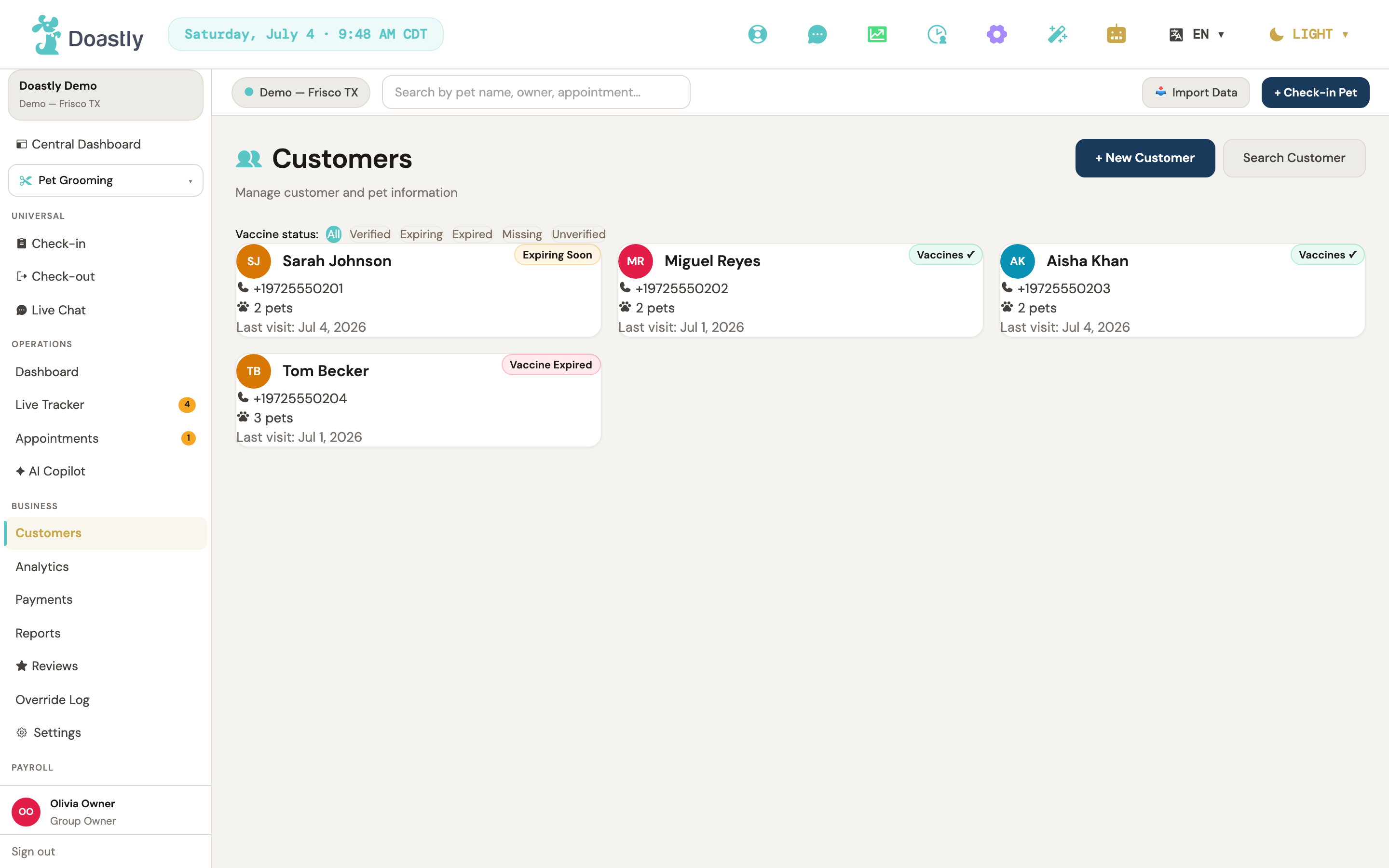
A new customer starts on the Customers page. It lists everyone the salon serves, with a search box across the top and a New Customer button that opens a short, two-part form — the customer first, then their pet.
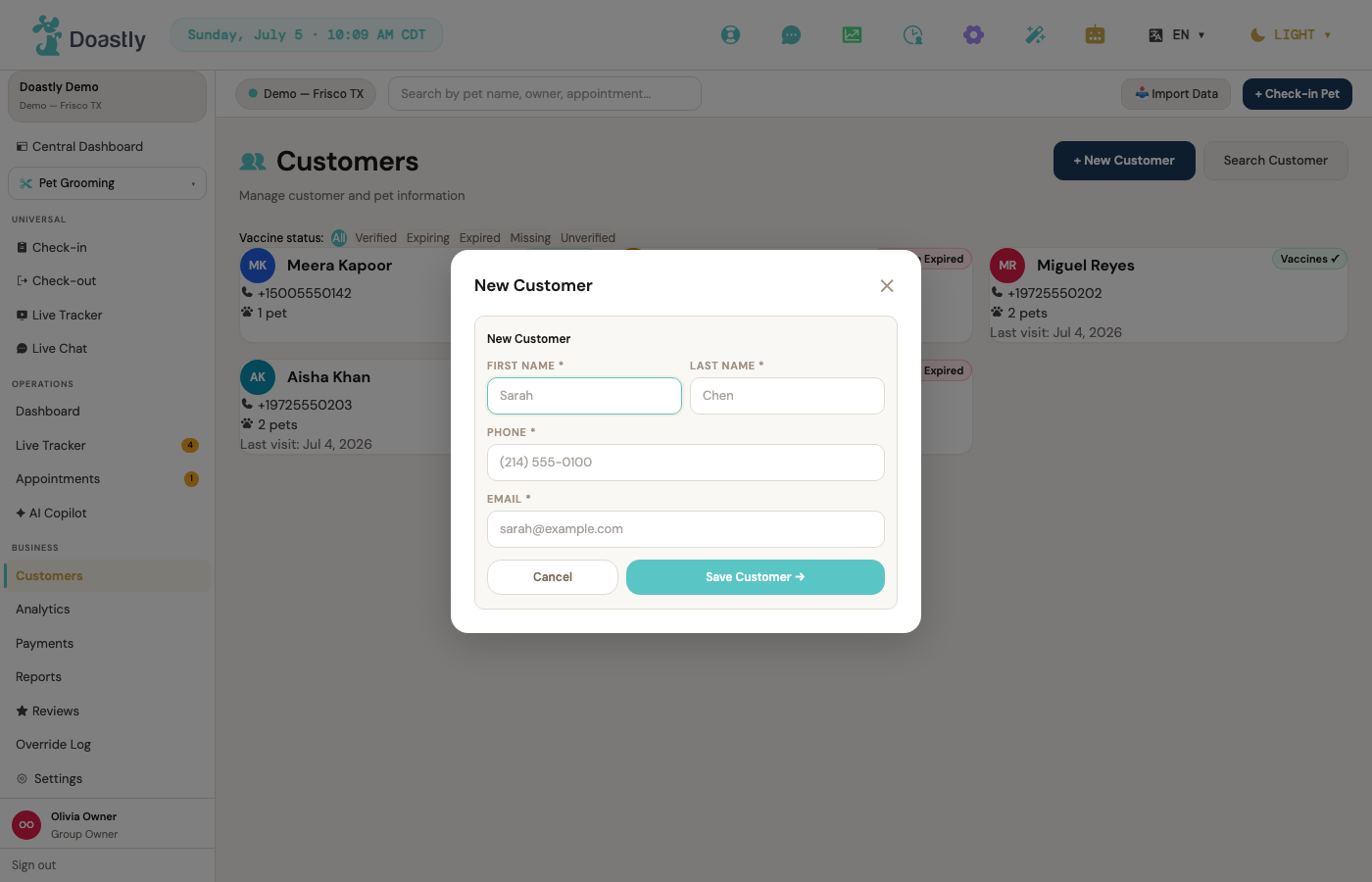
The first part captures the owner: their name, phone number, and email. Phone and email are how the salon later reaches them with appointment reminders and the pet's report card, so they matter. Saving the owner moves the form straight to the second part.
The second part builds the pet's profile — the record the groomer and the AI both read before a session. Beyond the pet's name, breed, size, and coat, this is where handling matters most: medications, allergies, diet notes, and anything about the pet's temperament the salon should know before it puts hands on the dog. A thorough profile here is what makes the Copilot brief in Chapter A7 genuinely useful; a thin one gives the groomer little to go on.
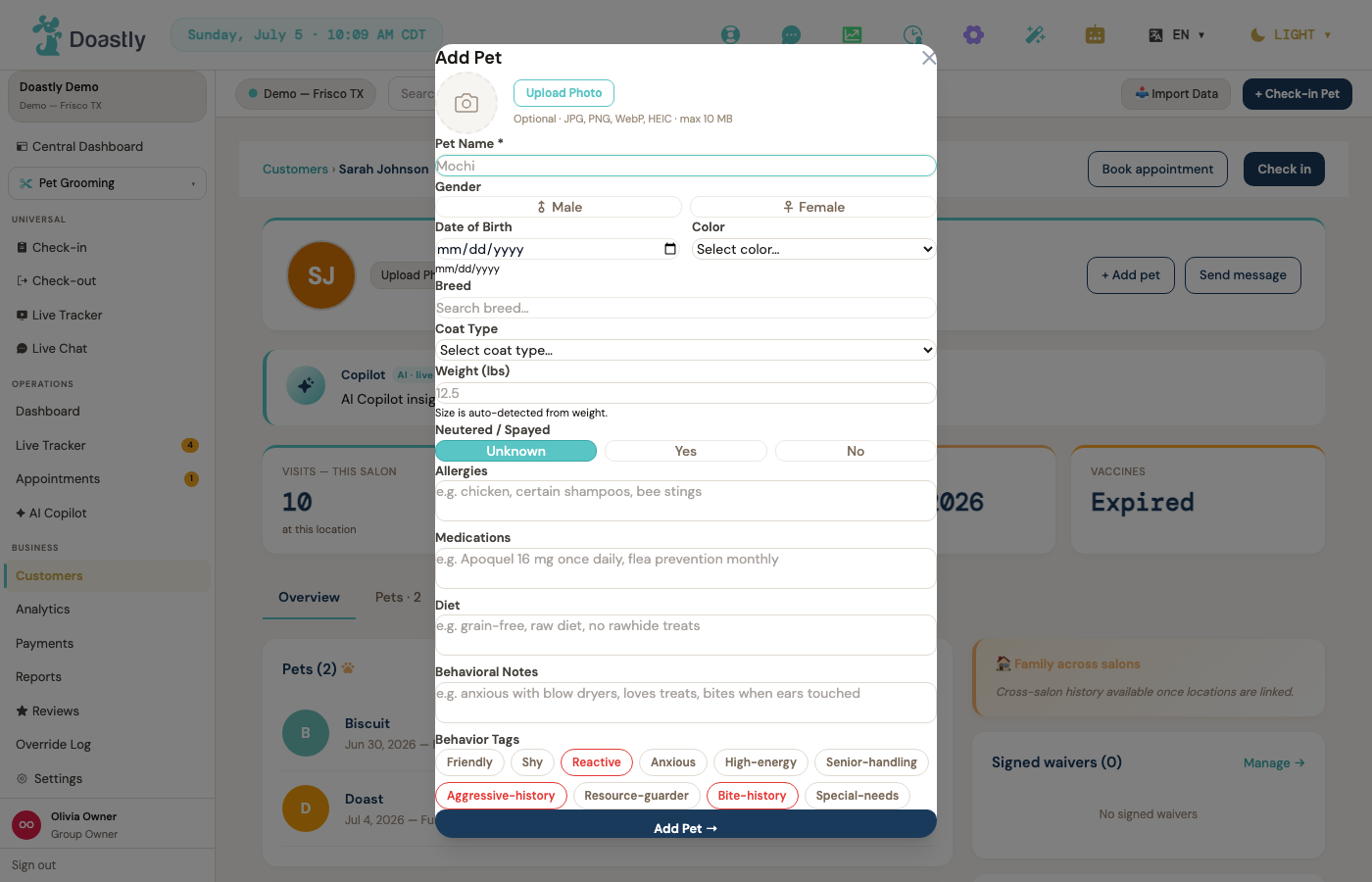
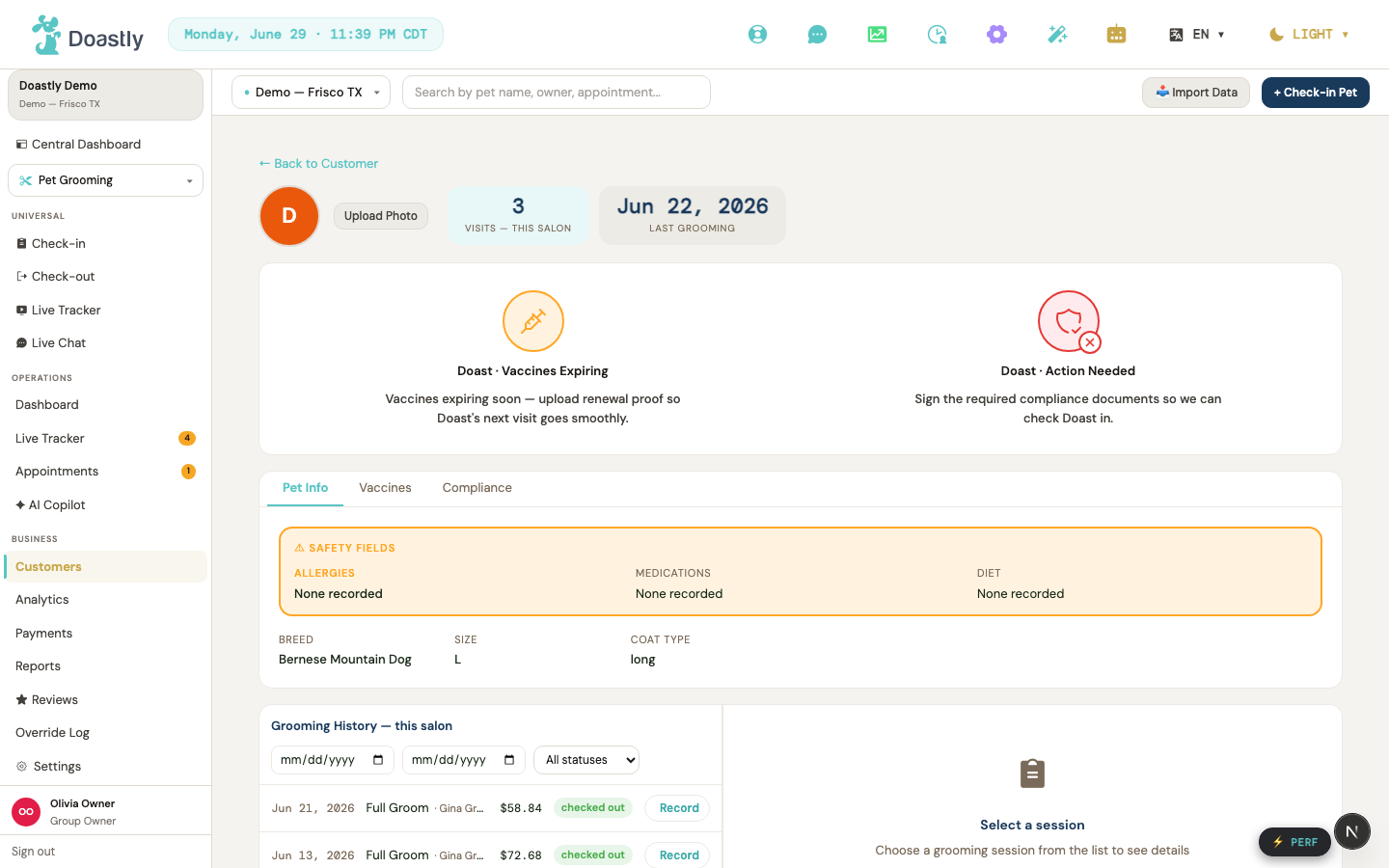
With the customer and pet saved, the salon lands on the pet's record, where its vaccines are added — the certificates that the safety gate in the next chapter checks. Staff can upload them here, or the customer can add them from their own app before they arrive; either way the records are visible to any salon serving the pet. The pet is now known to the salon, and ready to be checked in.
Chapter A5 — Check-in: the safety gate
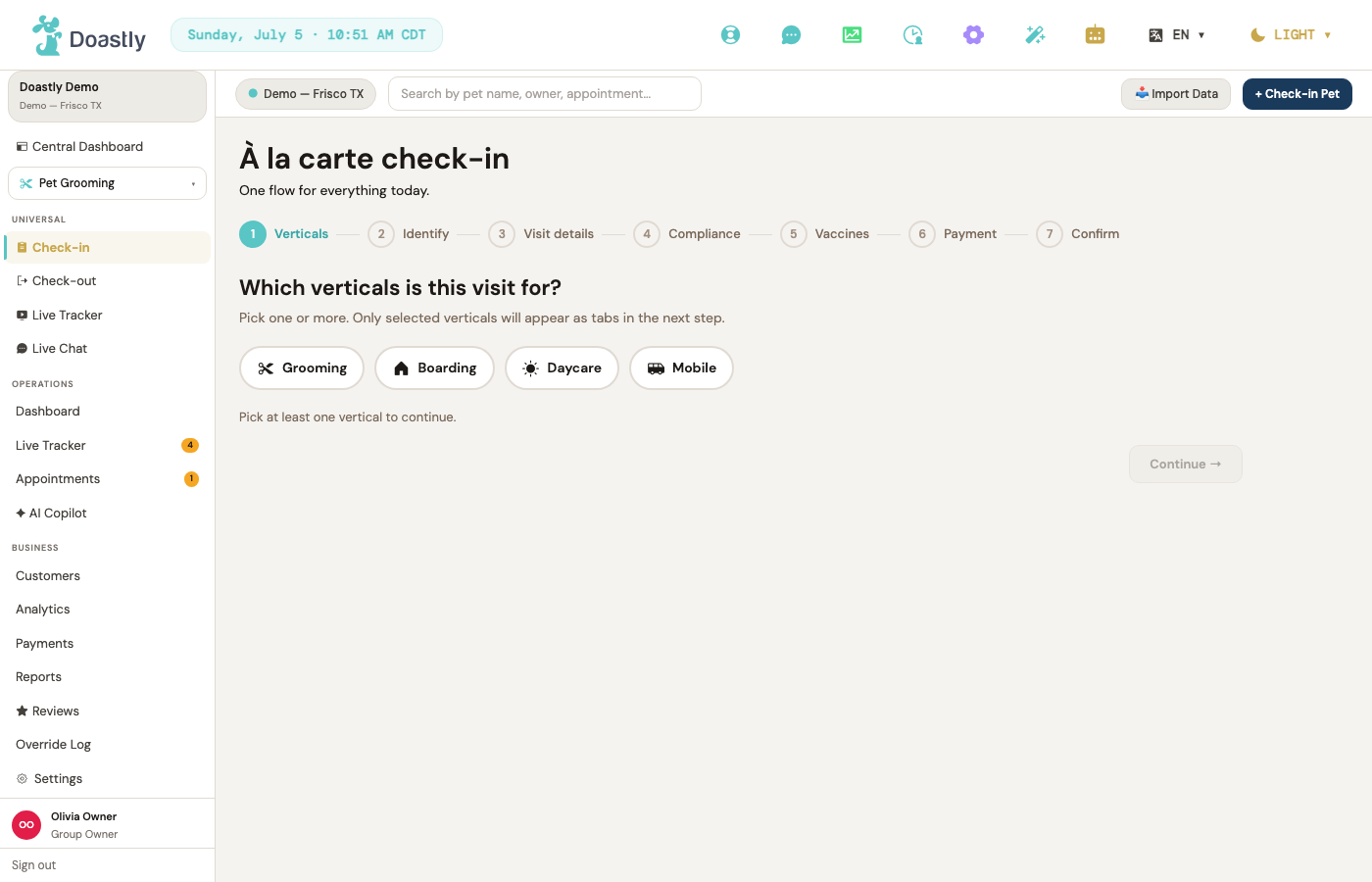
Checking a pet in is a short, guided flow, and it is the moment the salon's safety rules do their work. The flow has up to seven steps, shown along the top so staff always know where they are.
The first step, Verticals, asks which service this visit is for — grooming, boarding, daycare — and appears only at salons that offer more than one; a grooming-only salon never sees it and starts on the next step.
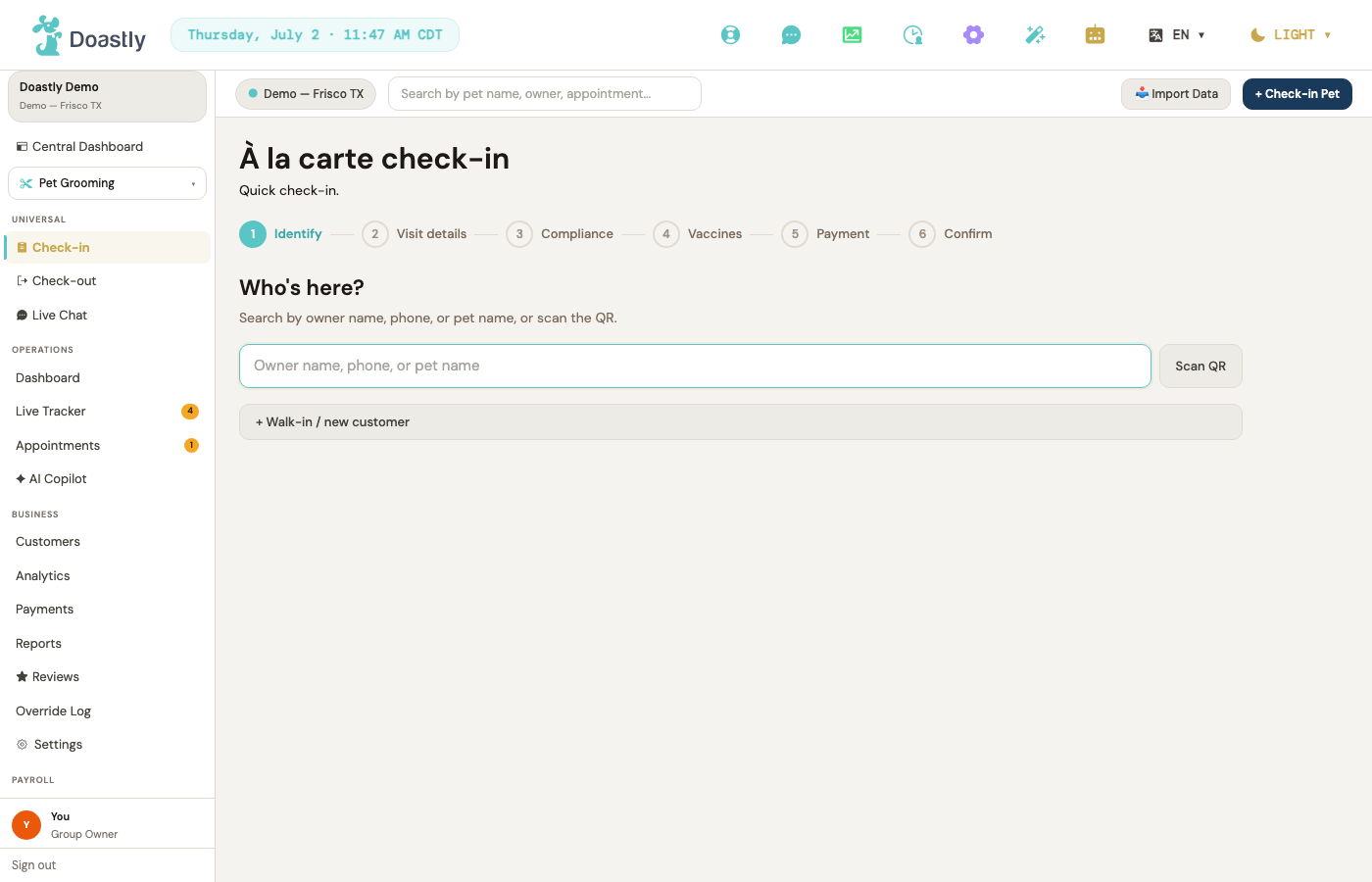
Next is Identify: staff find the pet by searching the owner's name, phone, or the pet's name, scan a QR code, or add a walk-in on the spot.
With the pet found, Visit details confirms the service and any notes for the day.
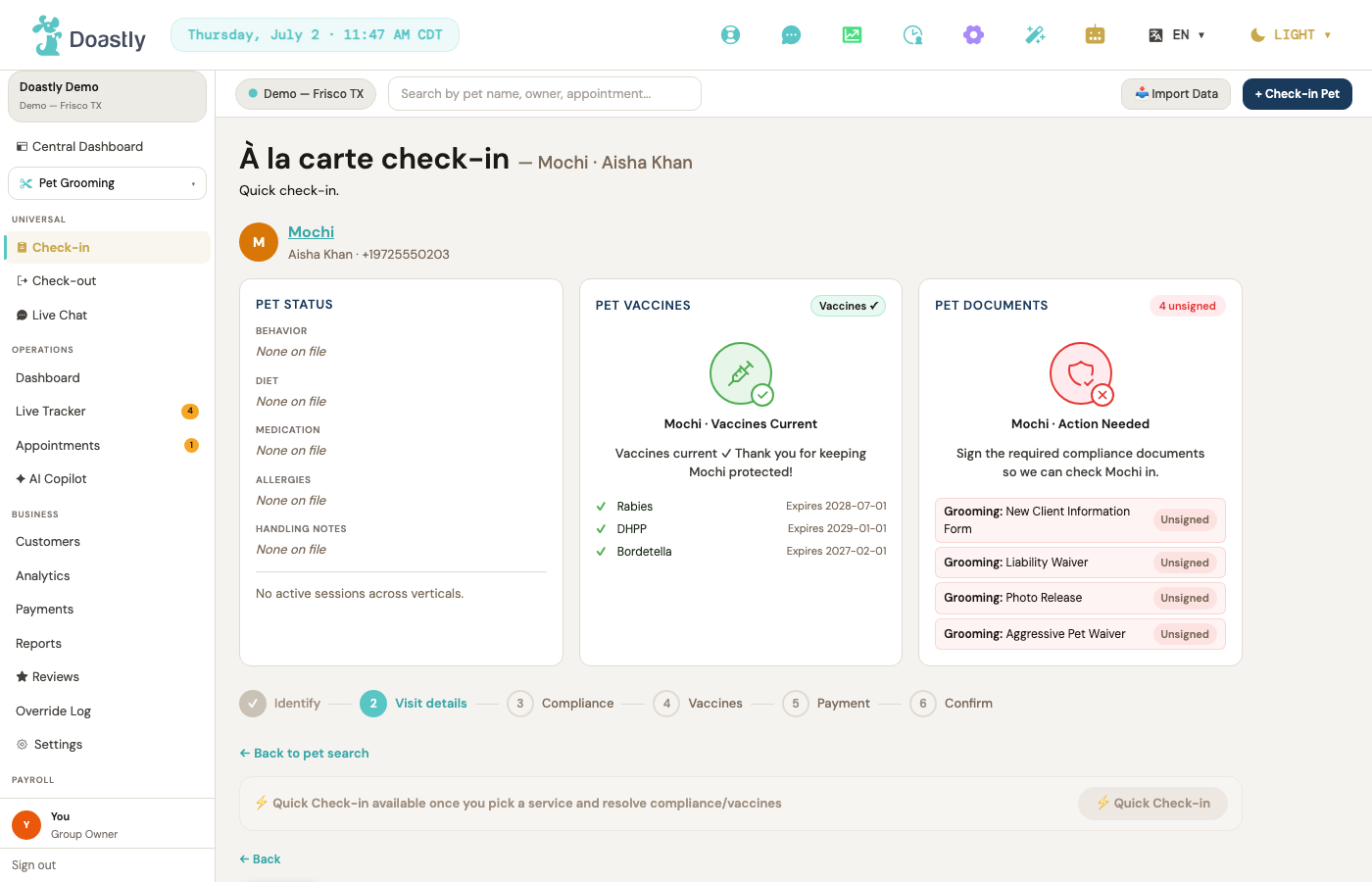
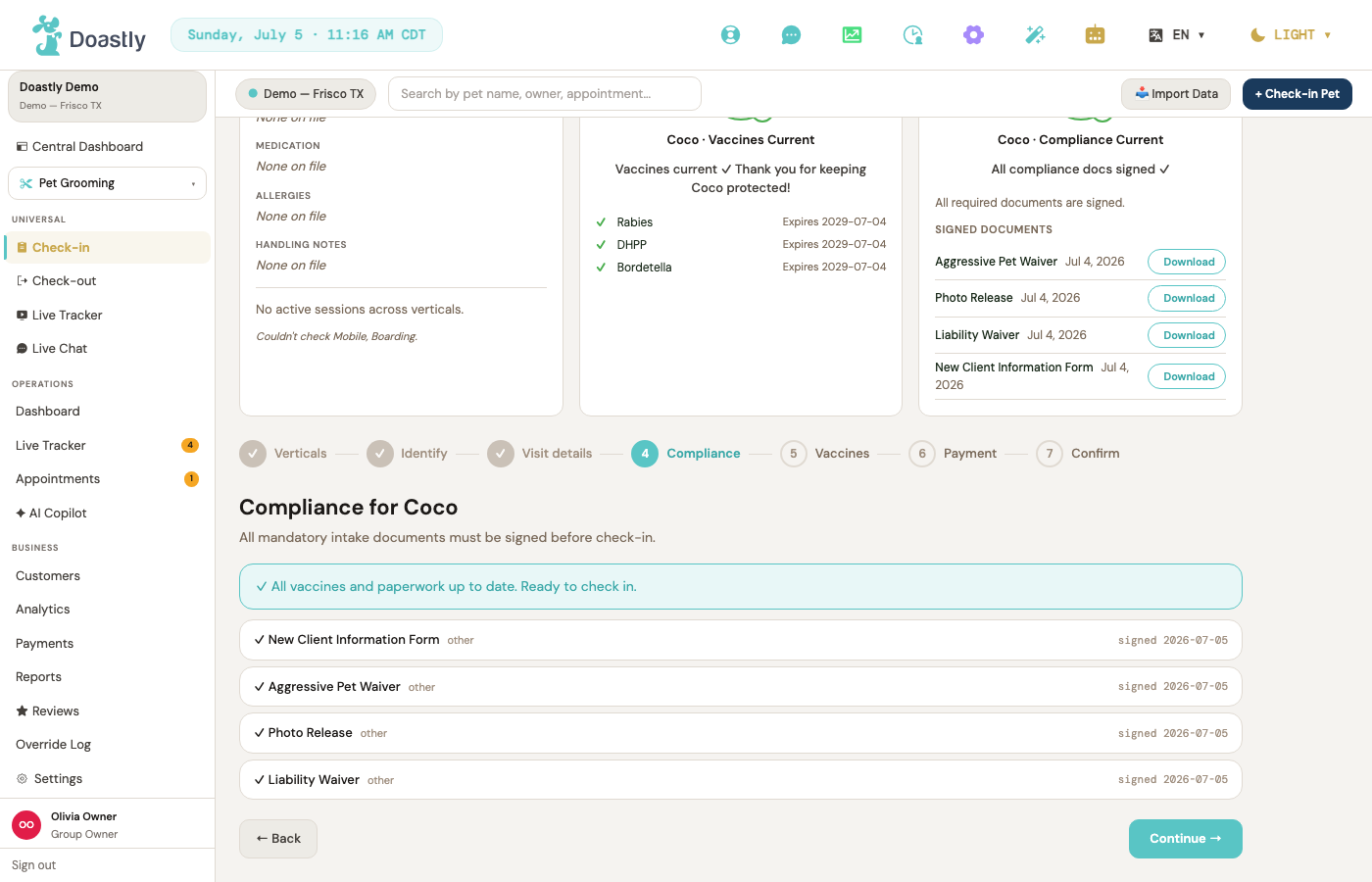
Then come the two checks that can stop a check-in. Compliance looks at the paperwork: any mandatory document the customer has not signed blocks the check-in until it is signed, while optional documents are shown as reminders but never block.
And Vaccines is the safety gate itself — the heart of this chapter.
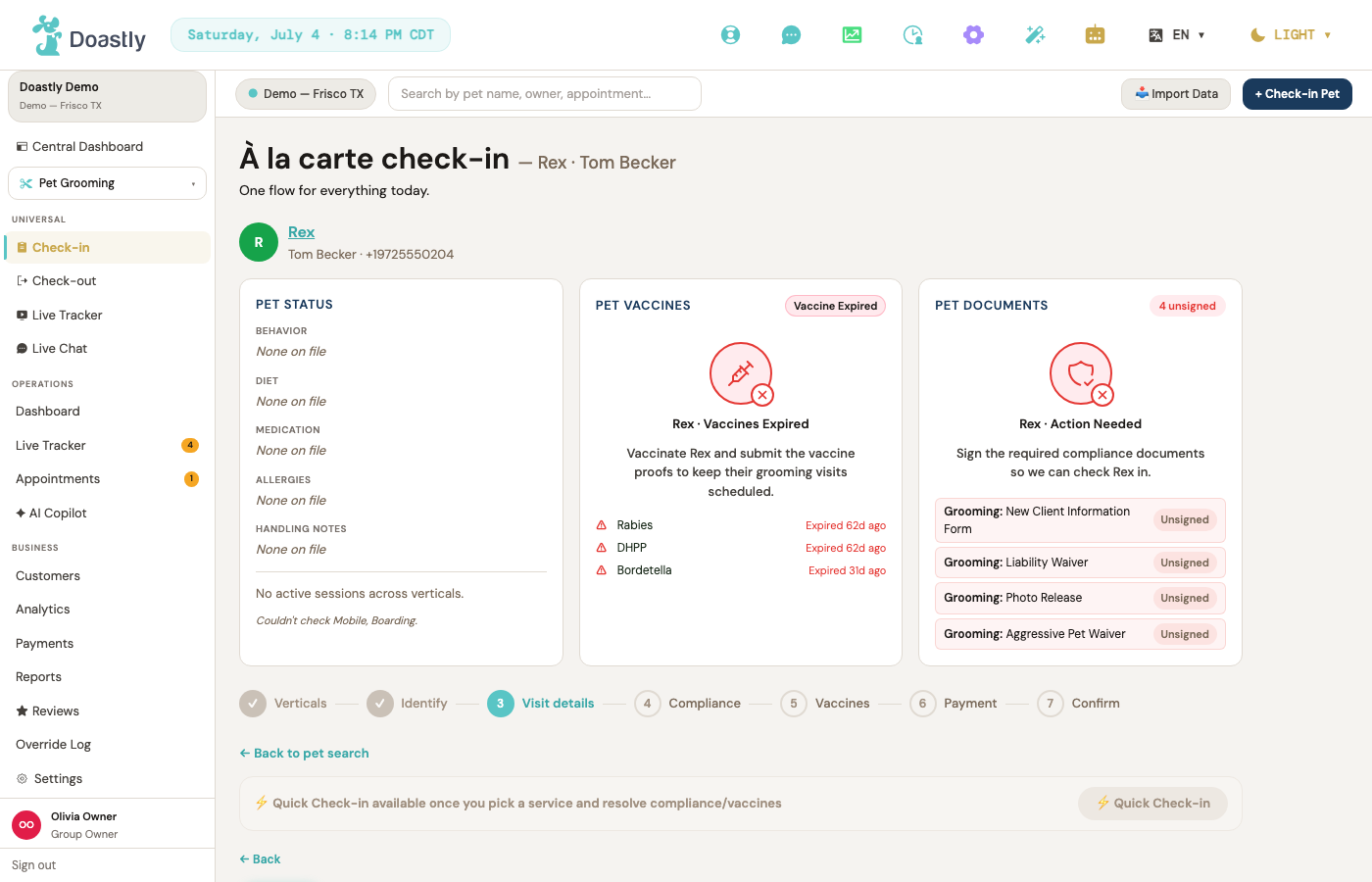
This is where the rule set in Chapter A3 earns its place. Consider two dogs arriving the same morning. Rex is due for everything: his Rabies, DHPP, and Bordetella have all lapsed. The Vaccines step shows each one in red with the date it expired, and the check-in cannot proceed — the pet is blocked at the door until the records are made current, or a manager overrides the block with a recorded reason. This is not a suggestion the staff can wave past; it is enforced. And the owner already knew it was coming, because Doastly texts the thirty-day expiry warning automatically.
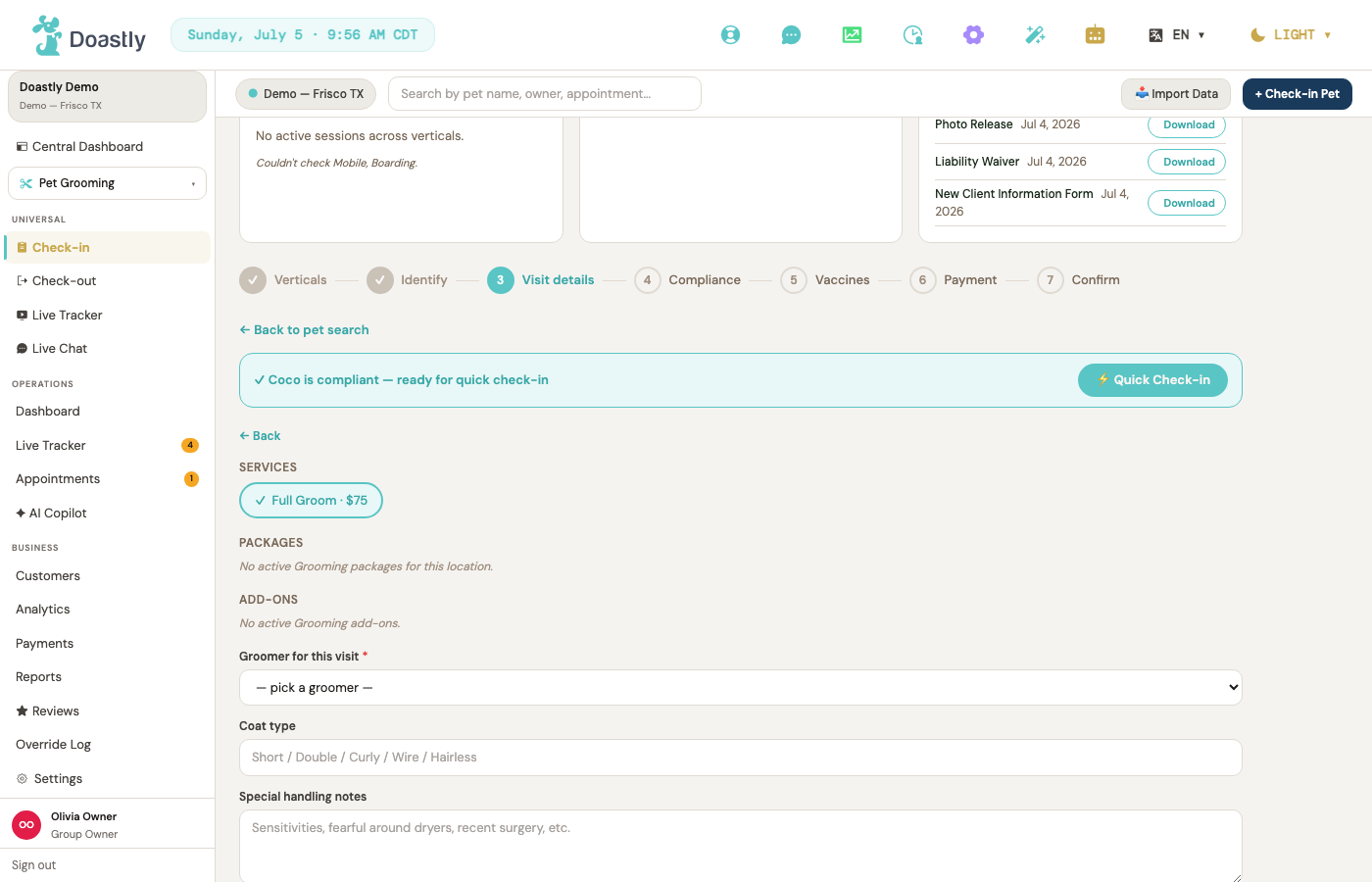
Coco arrives the same morning with every vaccine current. Her Vaccines step is green, nothing stands in the way, and her check-in proceeds straight through. Same gate, same rules — one dog stopped for its own safety, one waved through. That is the whole point: the salon never has to remember to check, because the software will not let an out-of-date pet through.
Past the gate, Payment handles any deposit or pre-authorization the salon collects at check-in.
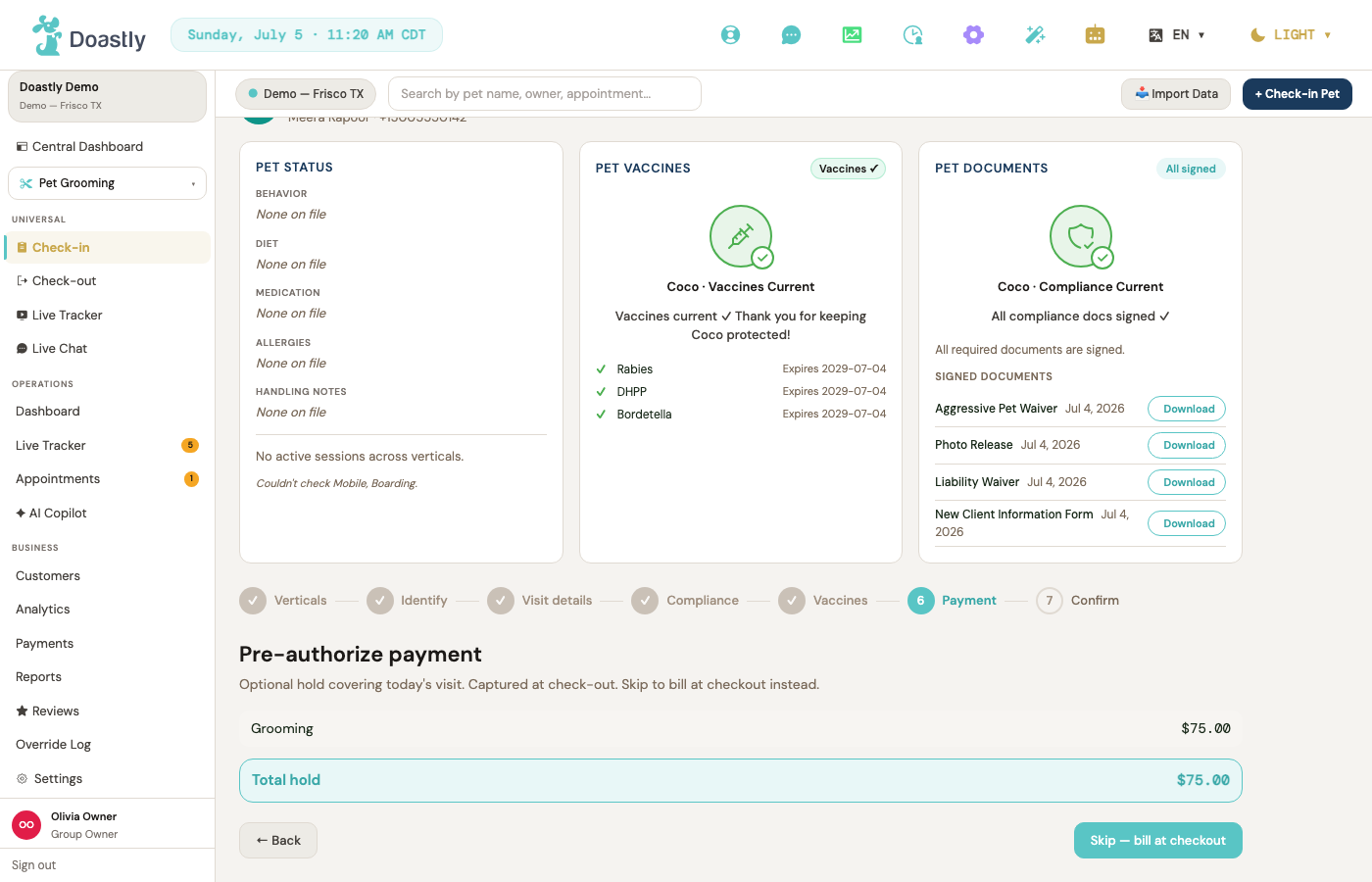
Confirm finishes the flow. The pet's status flips to Checked In and it appears on the live board — which is where the next chapter picks up. No message goes to the owner yet: the salon texts sparingly, and the first text waits for the moment grooming actually begins.

Chapter A6 — The groom in motion
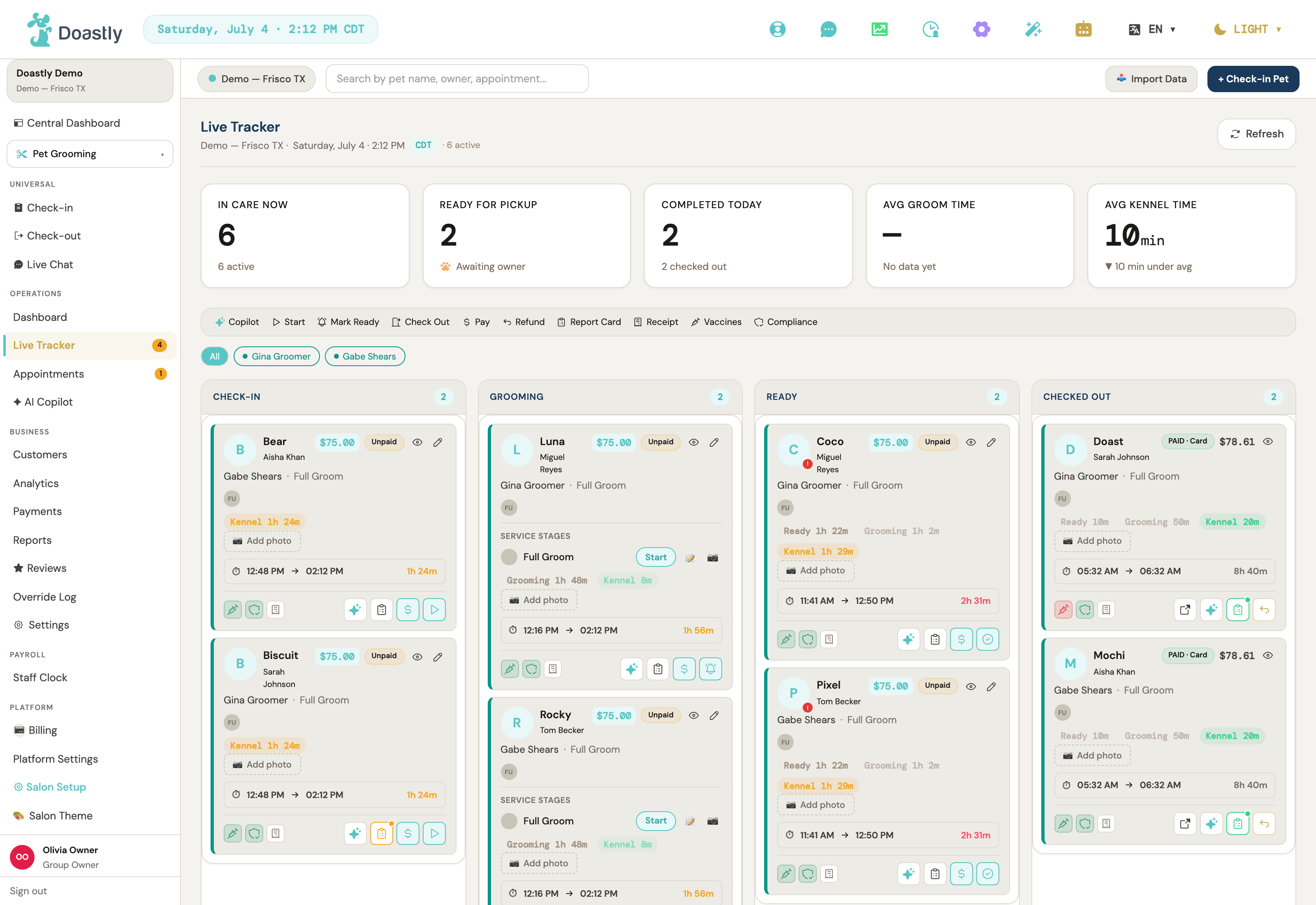
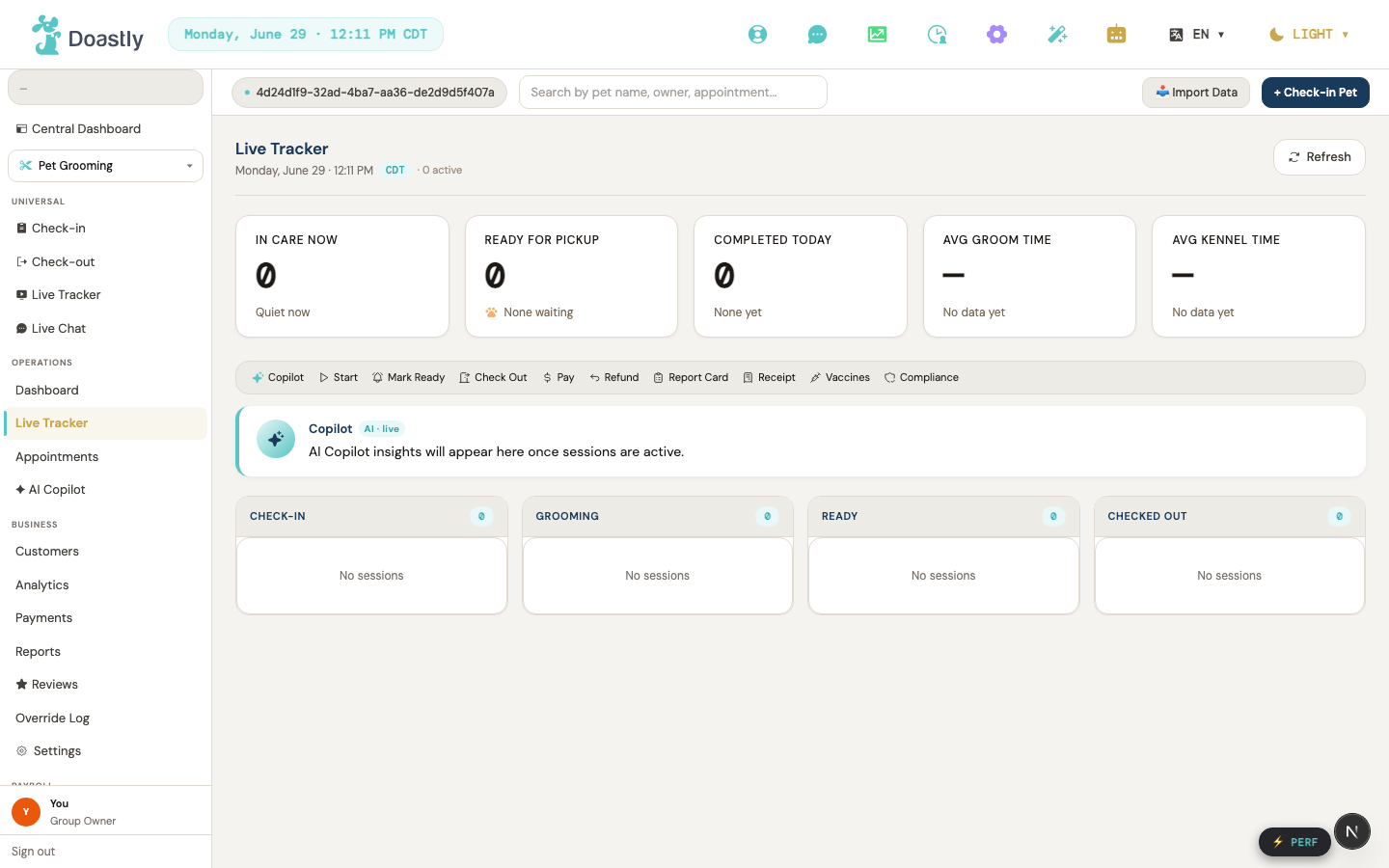
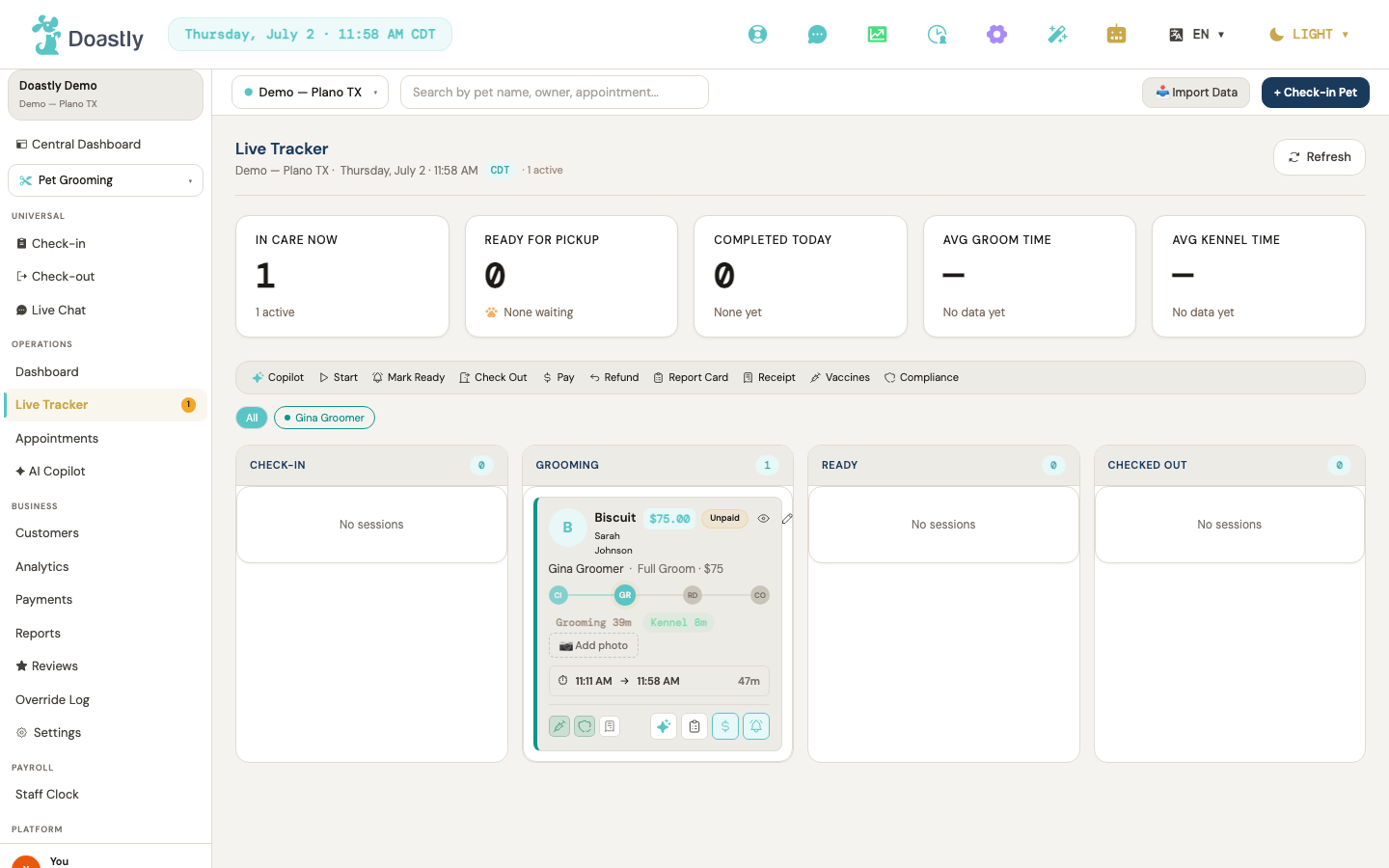
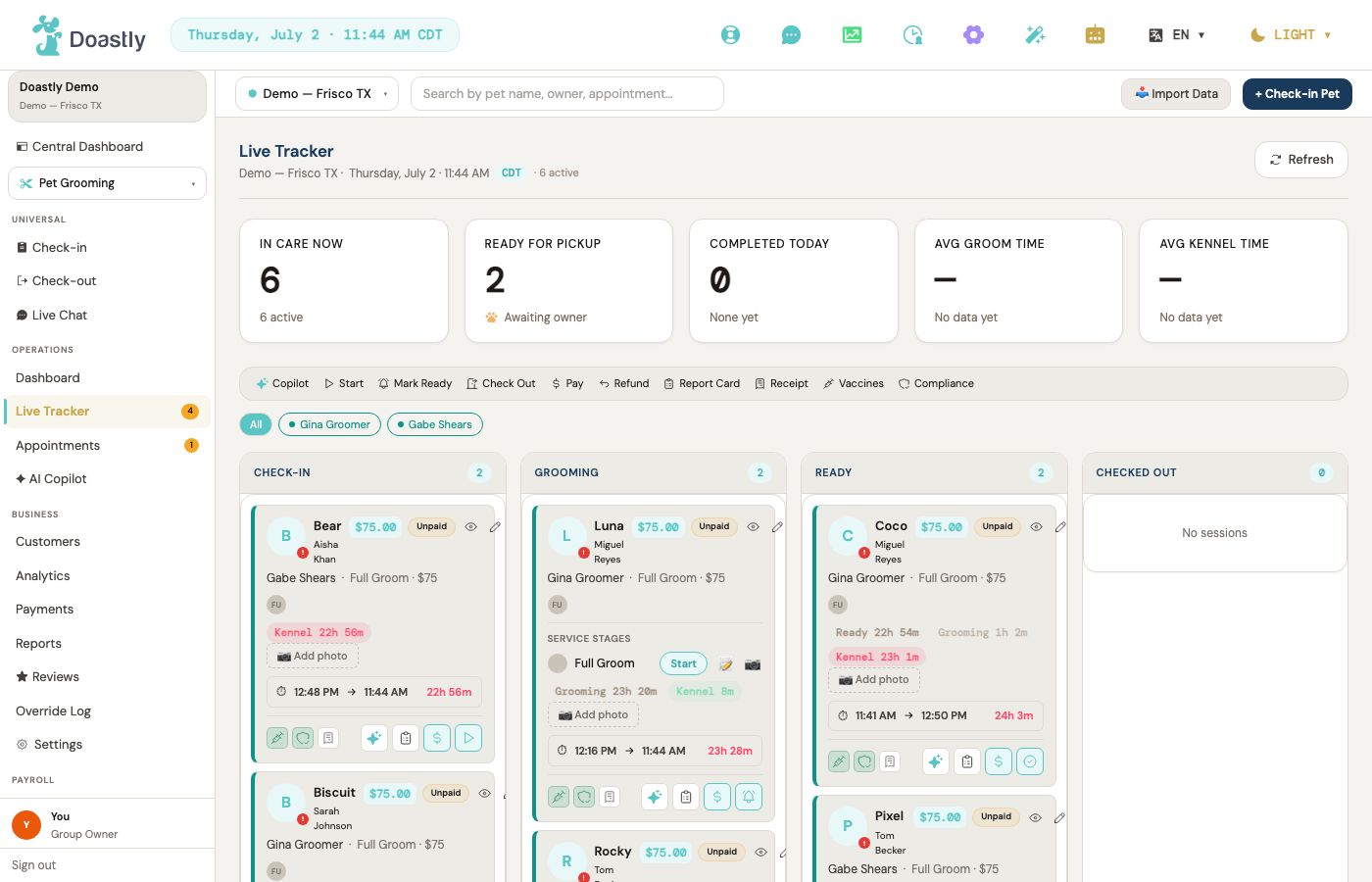
Once pets are checked in, the day runs on the Live Tracker — a single board that shows every pet in the salon and exactly where each one is. Its columns follow the arc of a visit: Checked In, Grooming, Ready, and Checked Out. A glance tells the whole room who is waiting, who is on the table, and who is ready for their owner.
Two moments on this board send the owner a text, and only two. When a groomer starts the groom — moving the pet from Checked In into Grooming — the first text goes out: their pet's groom has begun. When the pet is finished and marked Ready, the second goes out: their pet is ready for pickup. Between those two points, nothing is sent. This is deliberate and it is a firm rule: a customer hears from the salon when work starts and when it is done, and is never buzzed for every small step in between.
How much of those in-between steps the customer sees depends on the tracker mode set back in the salon's settings. In Basic mode the board keeps to the four stages, and the customer following along at home sees the same four.
In Detailed mode the groomer can advance the pet through each individual service — bath, blow-dry, nails, ears — adding a note or a photo at any stage, and the customer watches those stages update live on their phone. Even here the rule holds: those per-stage updates reach the customer as a quiet in-app update, never as a text. The two texts still fire only at the start and at Ready. Detailed mode gives the customer a richer window into the visit without turning their phone into a stream of alerts.
Chapter A7 — The AI briefs the groomer
Before a groomer puts a hand on a dog, the Copilot tells them what to know. On the pet's card, a short brief is generated for the session — not a canned tip sheet, but a read of this specific pet drawn together from several places at once: the pet's profile and any handling notes, its vaccines and health records, and what happened at its recent visits to this salon. It reads the whole picture and hands the groomer a paragraph or two of what matters today.
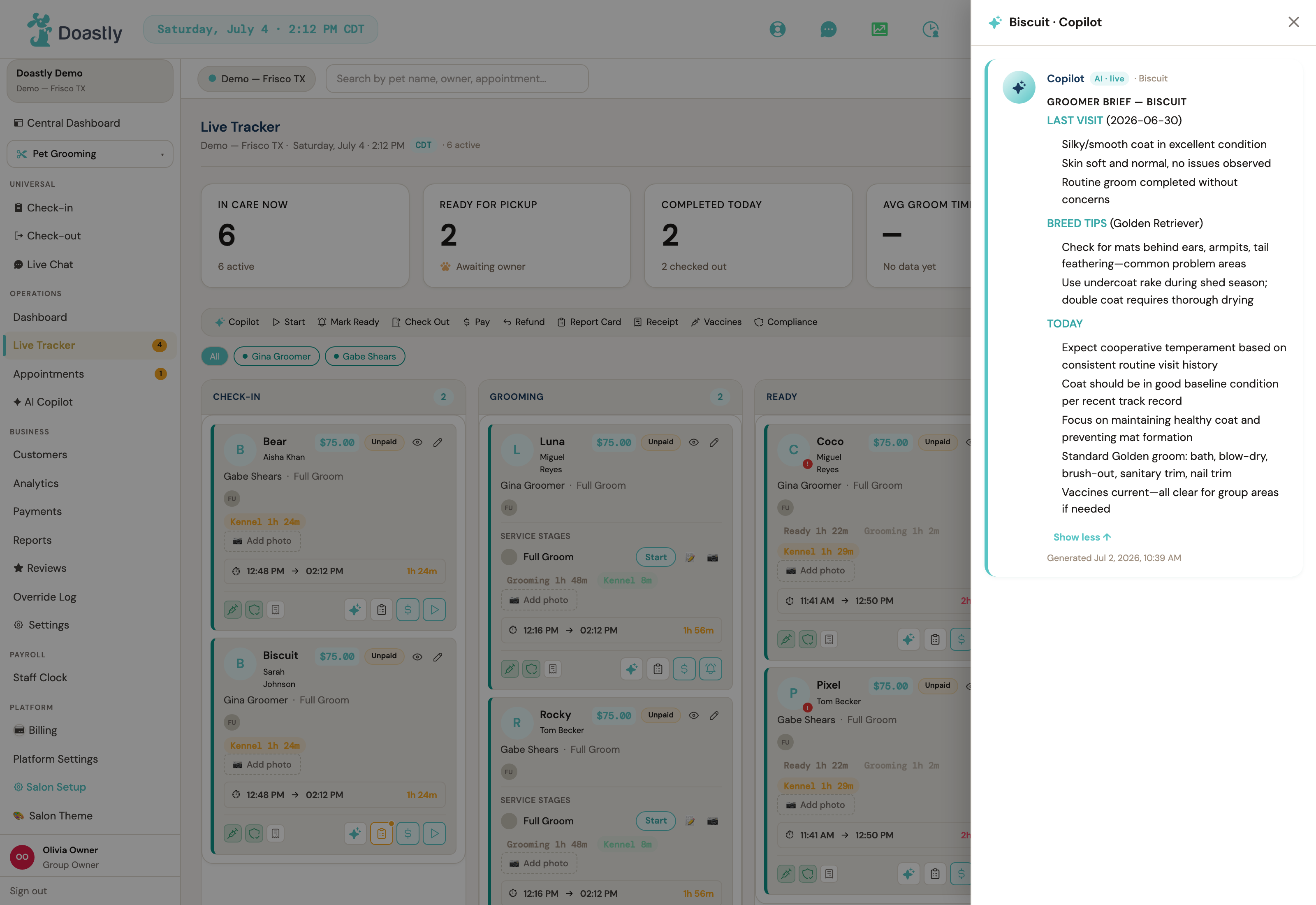
Two things about that brief are worth understanding. The first is where its information comes from. A pet's health facts — breed, weight, medications, allergies, vaccines — are read across every salon that serves the pet, because a groomer needs them regardless of who entered them. But the pet's grooming history — what was done, the notes a groomer left, past report cards — is read from this salon only. What another salon did with the pet is never part of the brief. The dog's health travels with it; the salon's record of its work does not.
The second is why this particular brief runs on Doastly's more capable AI model rather than the fast, inexpensive one. A handling note like a bruise behind the ears or a history of anxiety is not something to simply repeat back — it needs to be turned into a real adaptation for today's groom, and quietly missing it would be worse than useless. That is reasoning, and it is the same judgment the report card in a later chapter depends on. The brief is generated once per session and reused, so the care costs the salon almost nothing.
Chapter A8 — The report card writes itself
This is the feature that sells the platform. When a groom is finished, the groomer fills out a report card — not free-form, but a quick set of findings across the things an owner cares about: eyes, ears, coat, skin, nails, teeth, nose, mood, and behavior, with a note wherever something needs one. It takes a groomer a few taps.
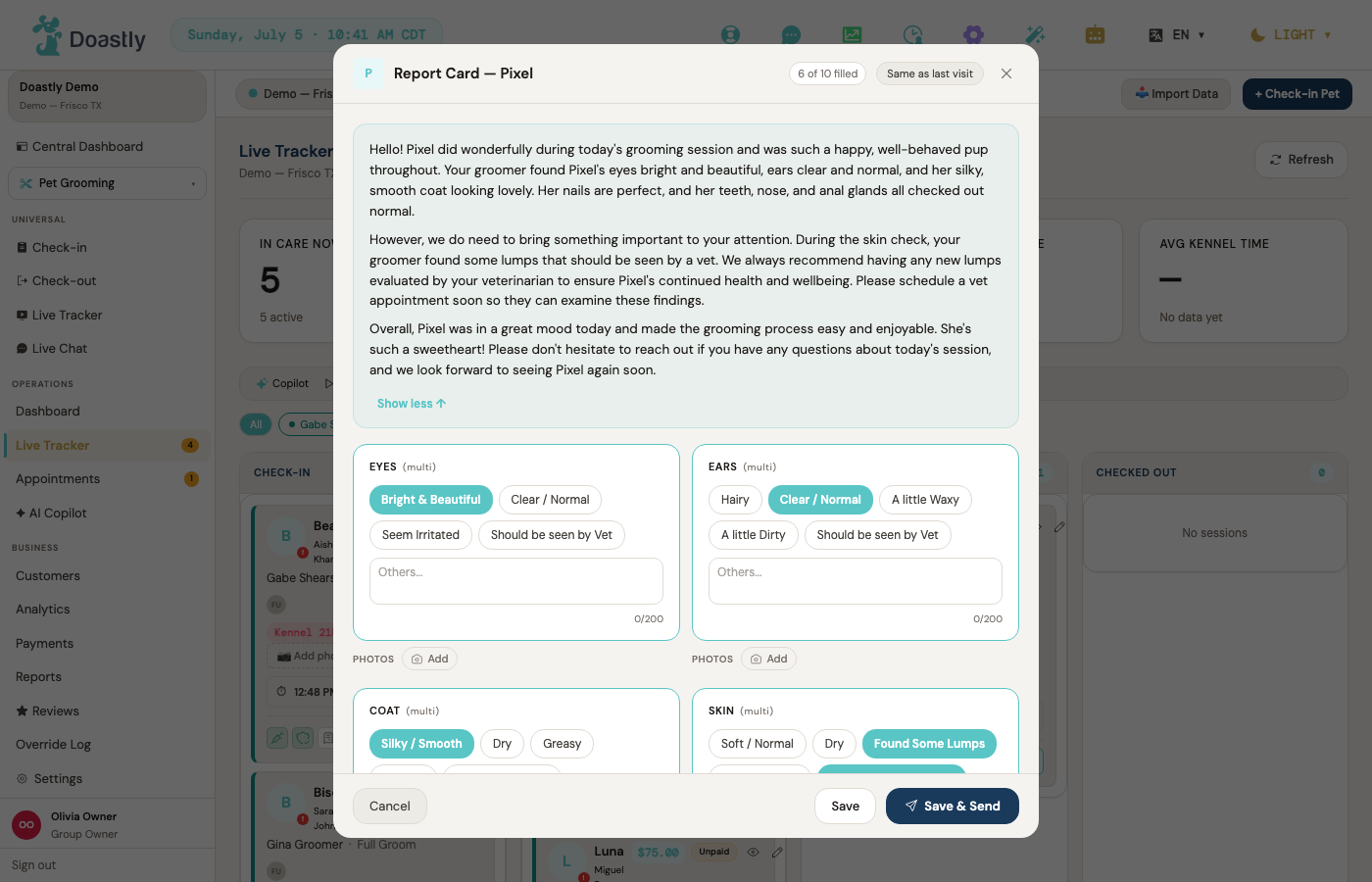
What the owner receives is not that grid of checkboxes. It is a warm, plain-English note about their pet's day, written by the AI from exactly those findings — and the difference between the two is the whole point of this chapter.
Take a real example. Doast, a Bernese Mountain Dog, had a lovely session on nearly every measure: bright eyes, clear ears, a silky coat, perfect nails, a happy mood, faultless behavior. But during the skin check the groomer found something and flagged it — possible lumps, should be seen by a vet — and noted a little tartar on the teeth. Eight good findings, one that genuinely matters. The danger with any cheerful summary is that the one thing the owner needs to act on gets lost in the praise.
It does not get lost. The narrative opens warmly, then — before the good news, not buried after it — surfaces the concern in its own paragraph: "During our skin check, I found some lumps that must be seen by a vet…" It explains why it matters, folds in the dental note, gives the reassuring news last, and closes with a clear instruction to book a vet appointment. A pet parent reading it cannot miss what to do next. That is the difference between summarizing and reasoning, and it is why this runs on Doastly's more capable model.
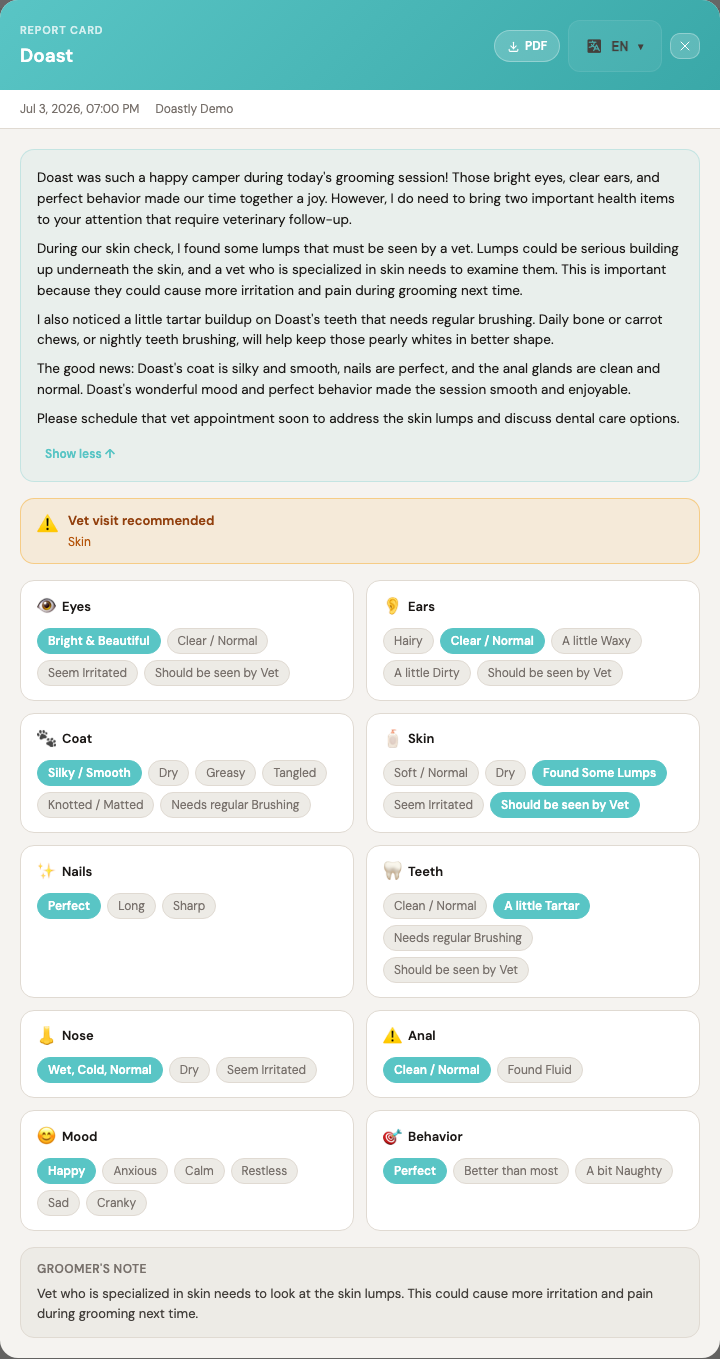
Two guardrails make this safe to trust. The model was deliberately chosen after an earlier, cheaper one was seen to write a glowing summary that dropped a flagged concern — exactly the failure that would matter most. And beyond the model's own judgment, the system checks the finished narrative: if a groomer flagged something for the vet and the narrative somehow does not mention it, Doastly appends the groomer's own words before it ever reaches the owner. The concern cannot be lost, by the model or by anything else.
The report card reaches the pet parent in their app and by email. For the salon it is automatic — a few taps from the groomer become a message that reads as if a caring professional wrote it by hand for that one dog, every single time.
Chapter A9 — Checkout and getting paid
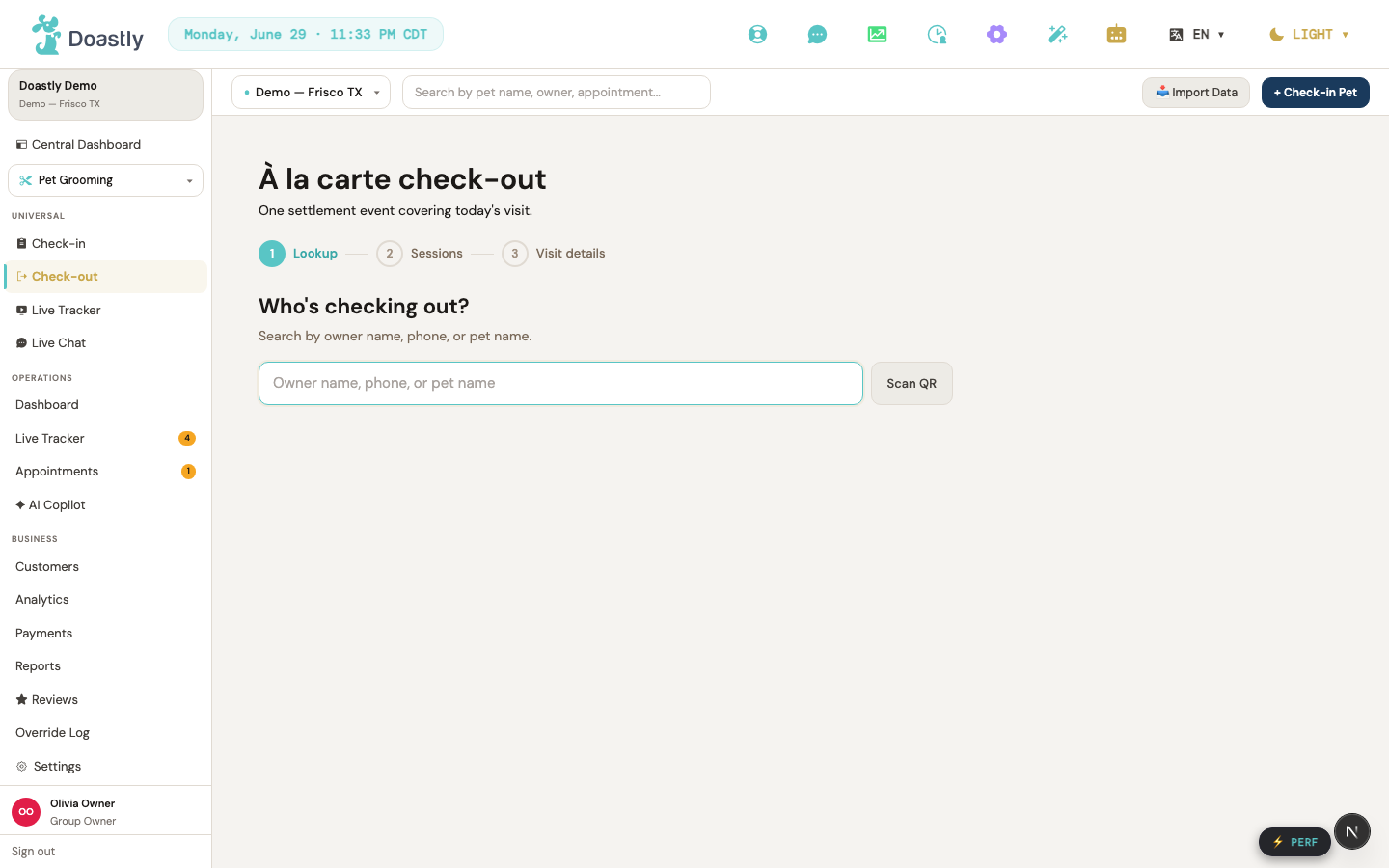
The pet is ready, the owner has arrived, and the visit ends where it began — with a short guided flow. Checkout starts with Lookup: find the pet or owner who is leaving.
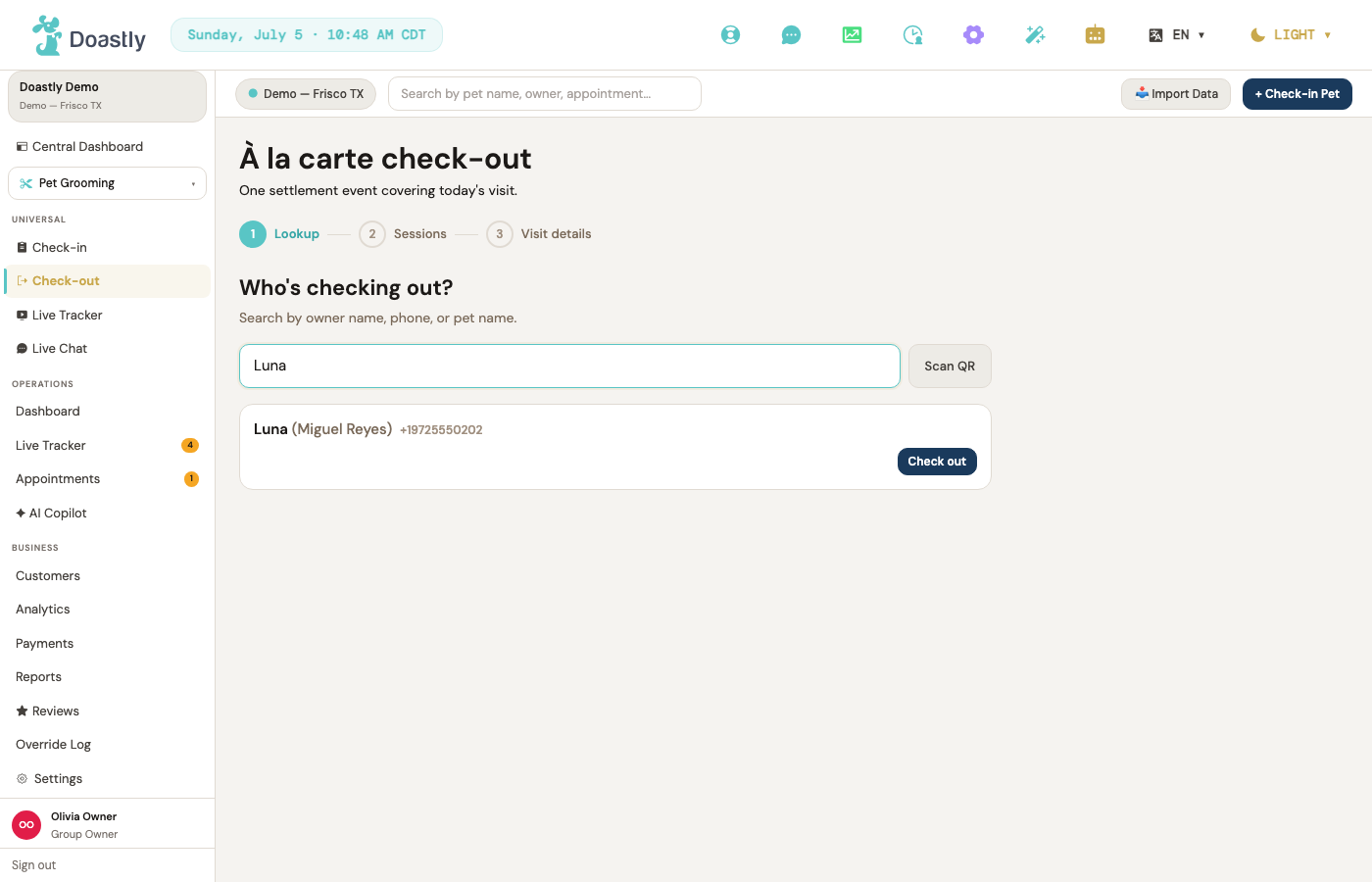
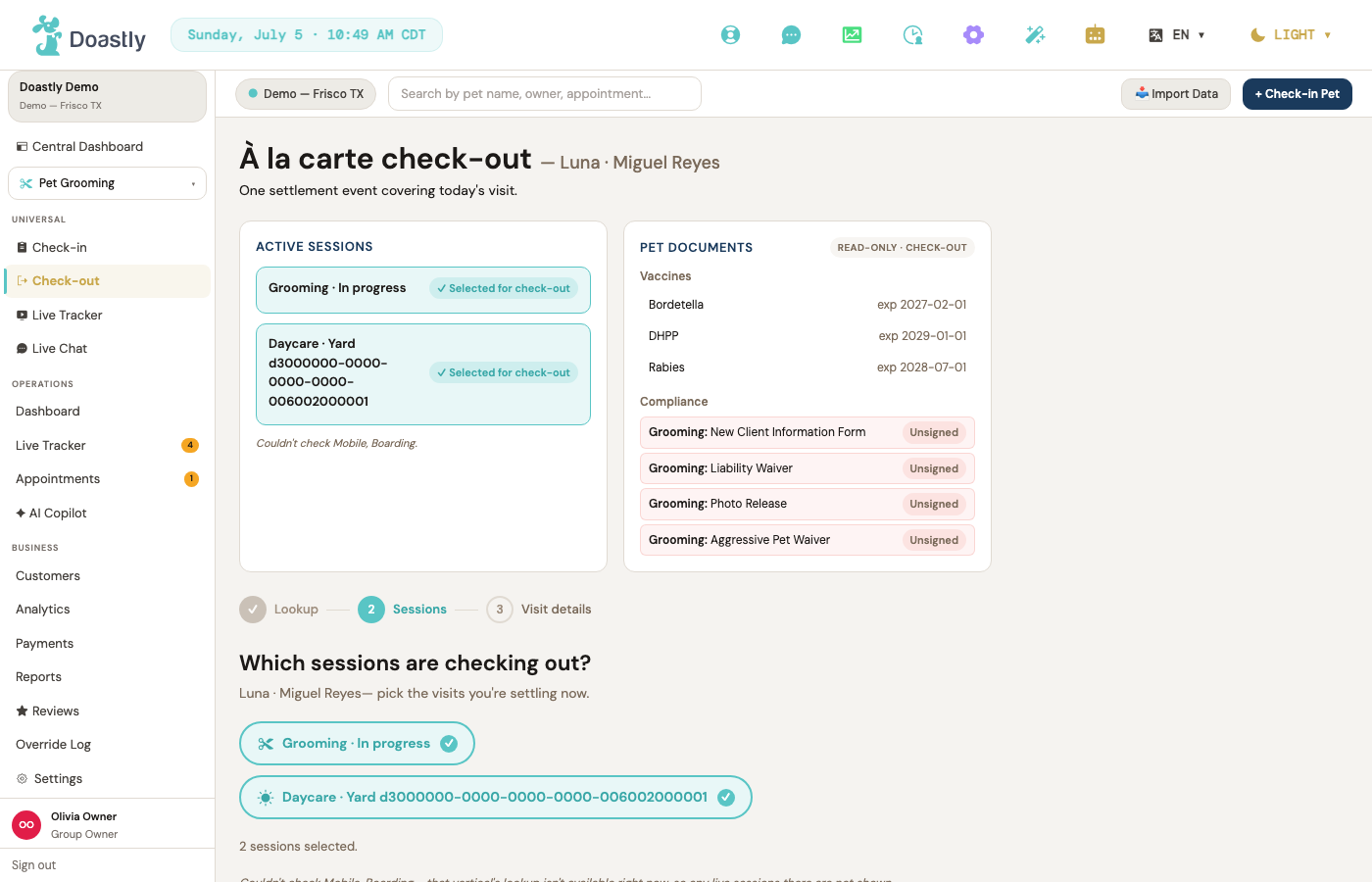
If a customer has more than one pet finishing at once, a Sessions step lets staff pick which ones to check out together; a single pet skips straight past it. Then Visit details brings up everything owed for the visit — the services, any add-ons, tax as the salon's own processor calculates it, and a place for a tip — so the total is in front of both the staff member and the customer before anyone pays.
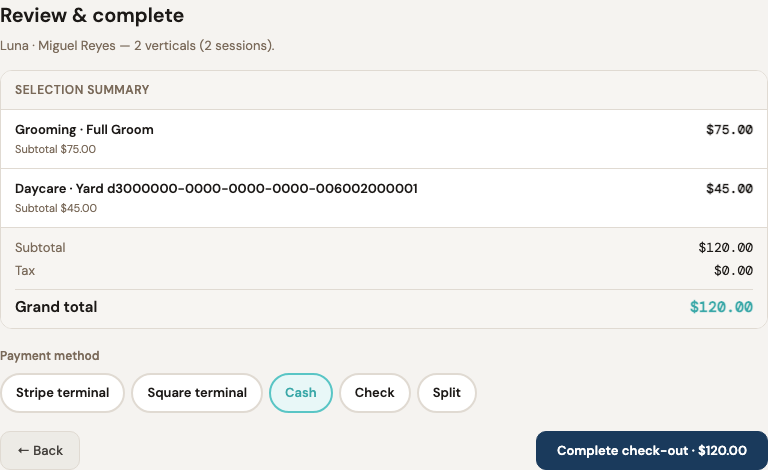
Payment is where Doastly's promise to stay out of the money shows. The salon takes payment through its own Stripe or Square account — card, or cash — and the funds go straight to the salon; Doastly never holds them. A session that was Unpaid on the board becomes Paid the moment payment settles, and if a refund is ever needed it is issued here too and recorded as Refunded, so a visit's payment state is always one unambiguous word.
Finally, Review confirms the visit and produces the receipt, which emails to the customer automatically if the salon has that turned on. The receipt itemizes exactly what was charged — the same figures shown a moment earlier, with no surprise between the preview and what actually settles. With that, the pet is Checked Out, the board is clear, and the visit that began as a new customer in Chapter A4 is complete.
Part Three — Running the Business
A single groom is one thing; running a salon week after week is another. This part covers the tools a salon uses between and around the grooms — seeing the shape of the day, keeping customers coming back, growing the top line, and managing the people who do the work.
Chapter A10 — Your day at a glance
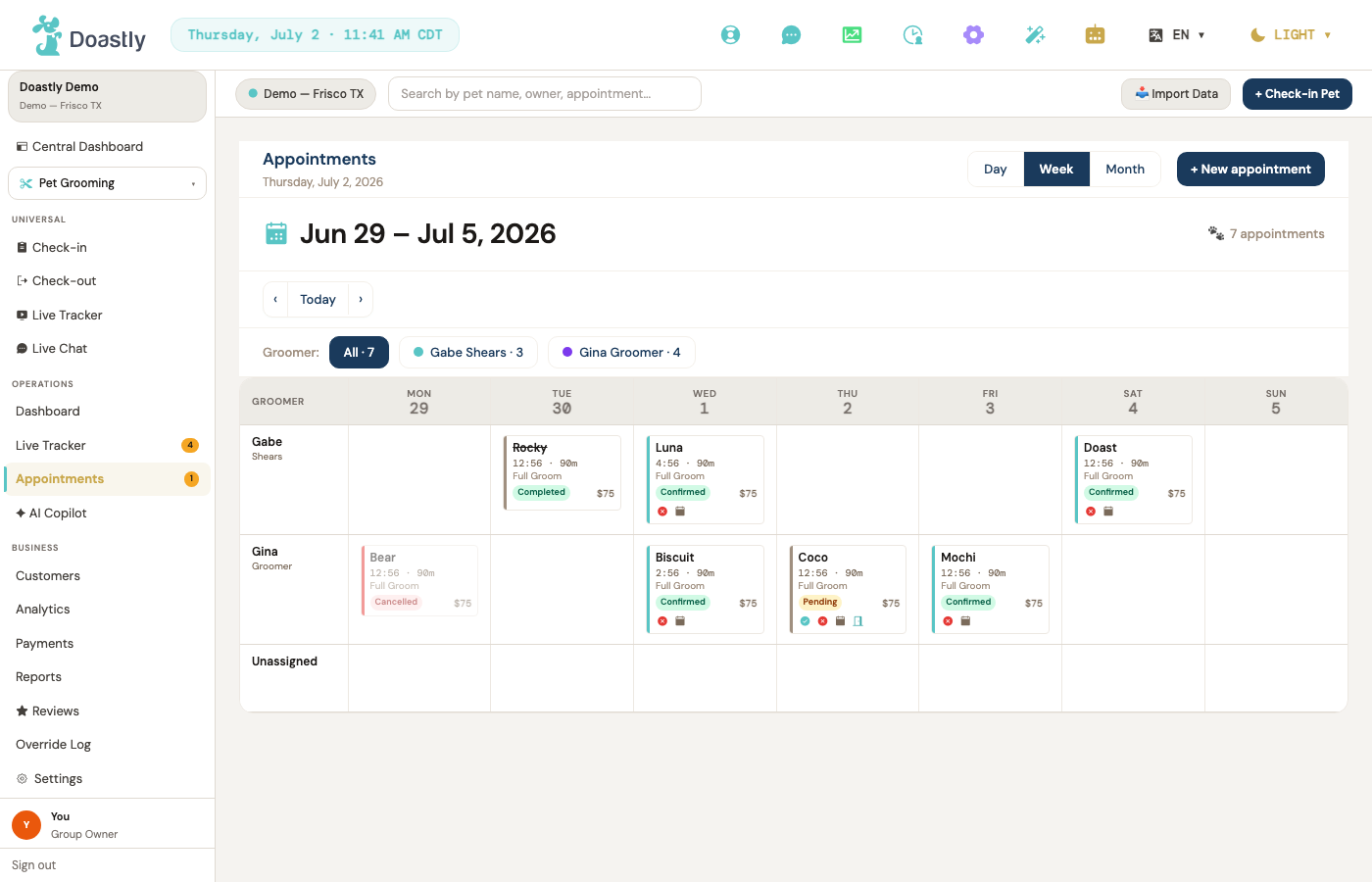
Two screens tell an owner how the business is doing. The calendar is the forward view: every appointment, in day, week, or month layout, with click-through to any booking's detail. It is how a salon sees what is coming and fills the gaps.
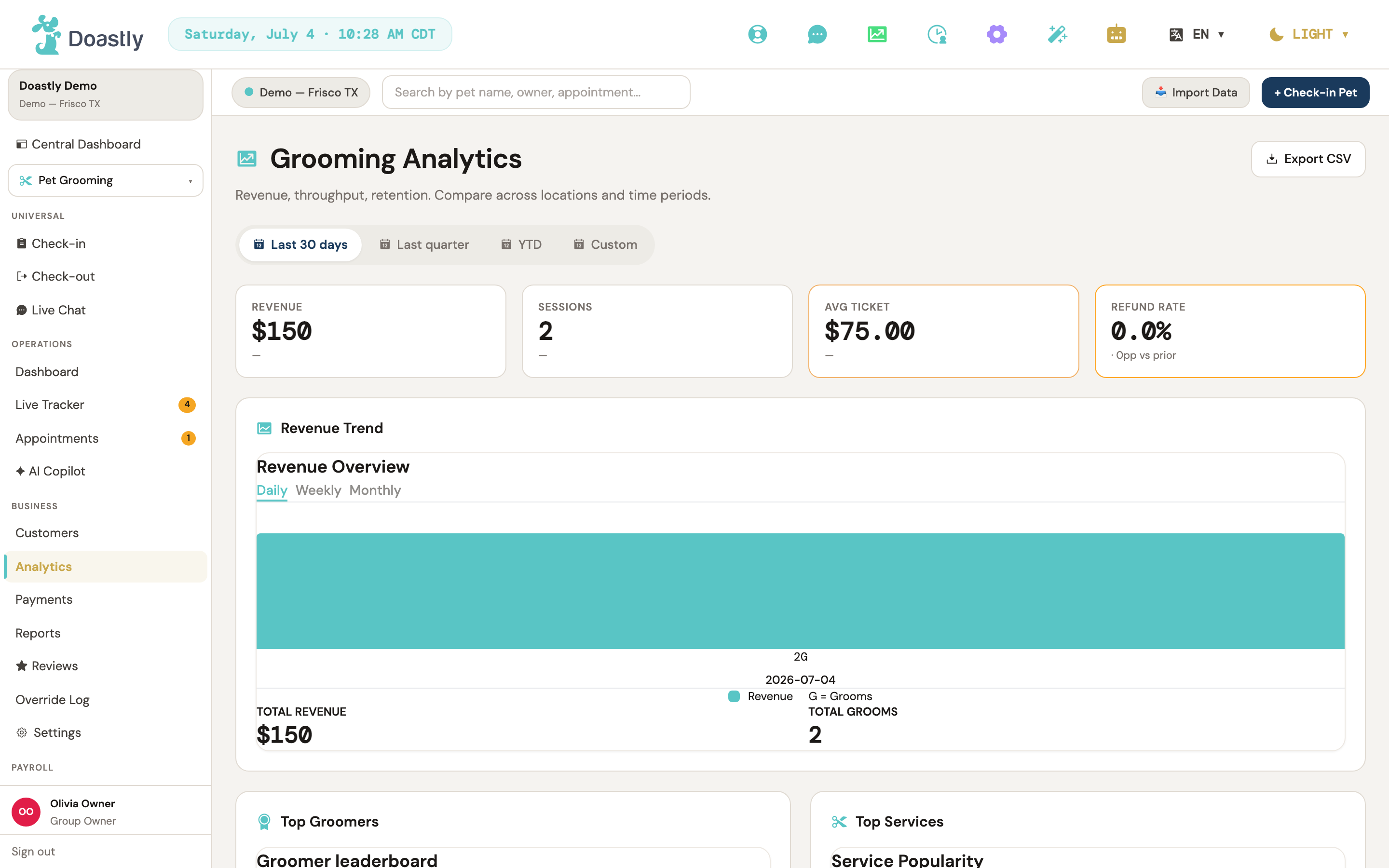
Analytics is the backward view: revenue over time, the busiest days, which services sell, and which customers are drifting away. Where the dashboard gives a live pulse, Analytics gives the trend — the numbers an owner uses to decide what to promote, when to staff up, and who to win back.
Chapter A11 — Keeping them coming back
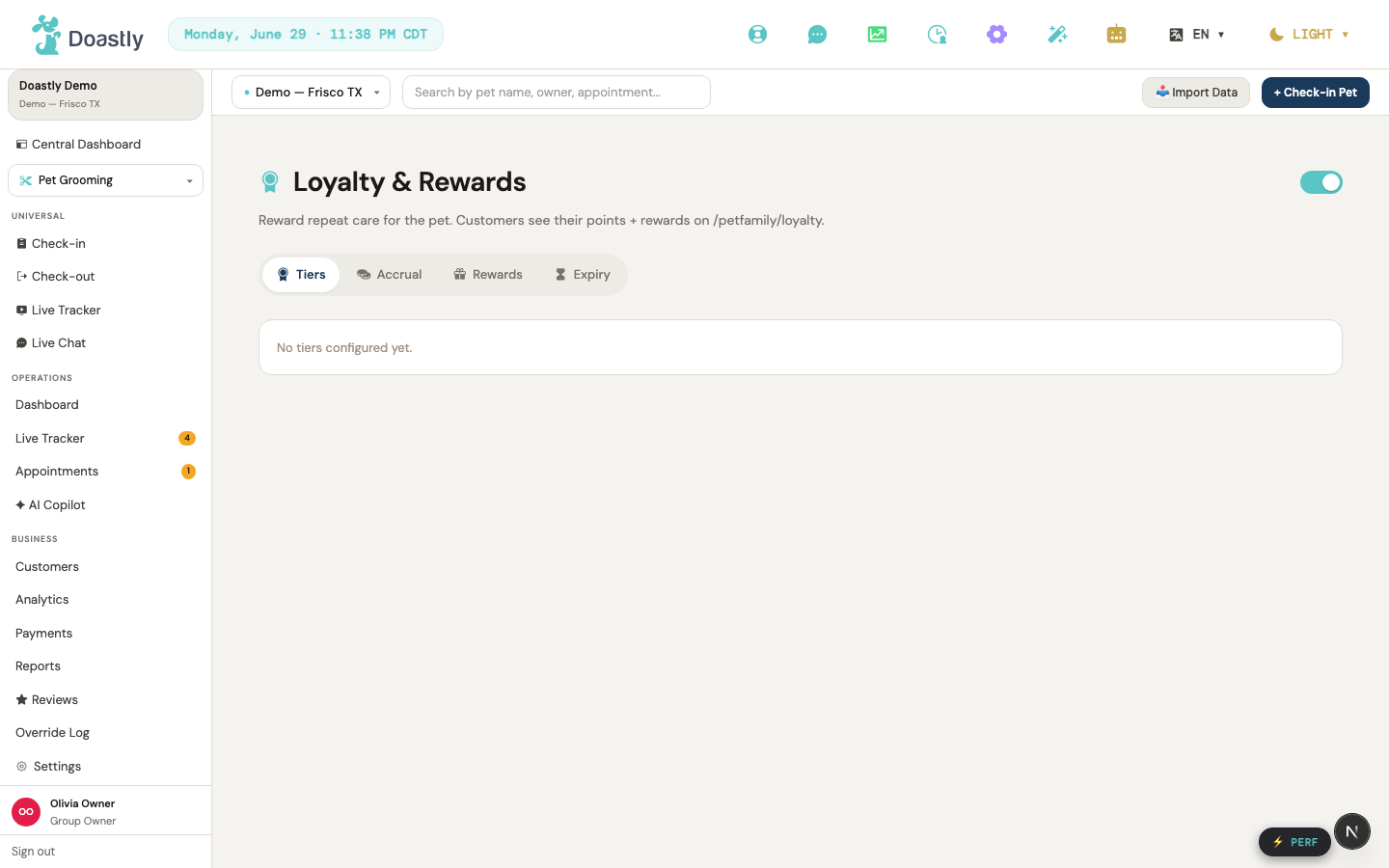
The cheapest customer is the one who returns, and Doastly gives a salon two ways to earn that. The first is loyalty: customers earn points as they visit and spend, and redeem them for rewards the salon defines. The salon sets how points accrue and what they are worth; the earning and redeeming then happen on their own, quietly rewarding the regulars.
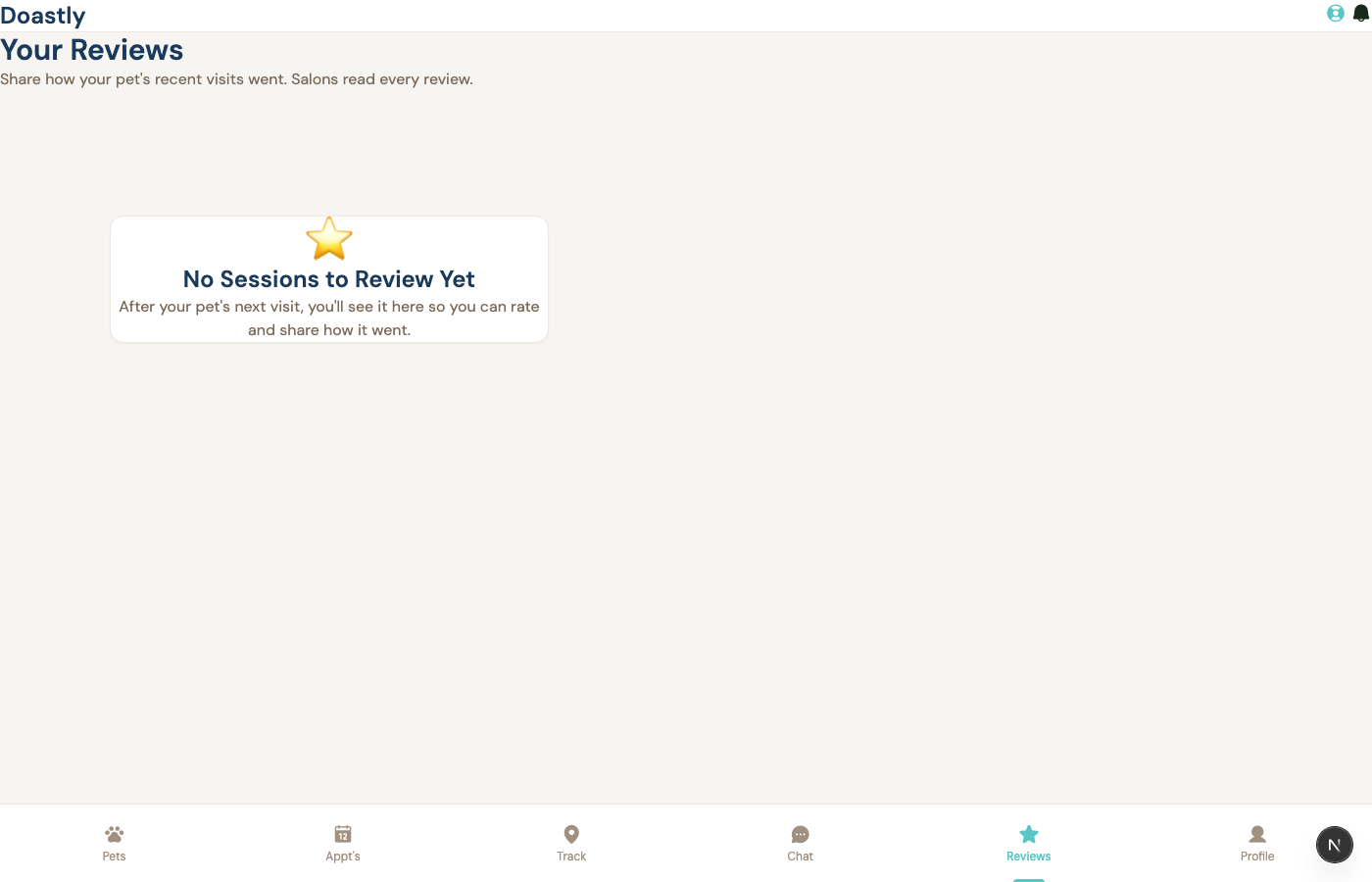
The second is reviews. After a visit, Doastly can ask the customer for a review, collect it, and — this is the part no competitor offers — draft the salon's reply with AI, ready for an owner to glance at, adjust, and post. A salon stays on top of its reputation without a manager writing every response from scratch.
Chapter A11b — Growing the top line
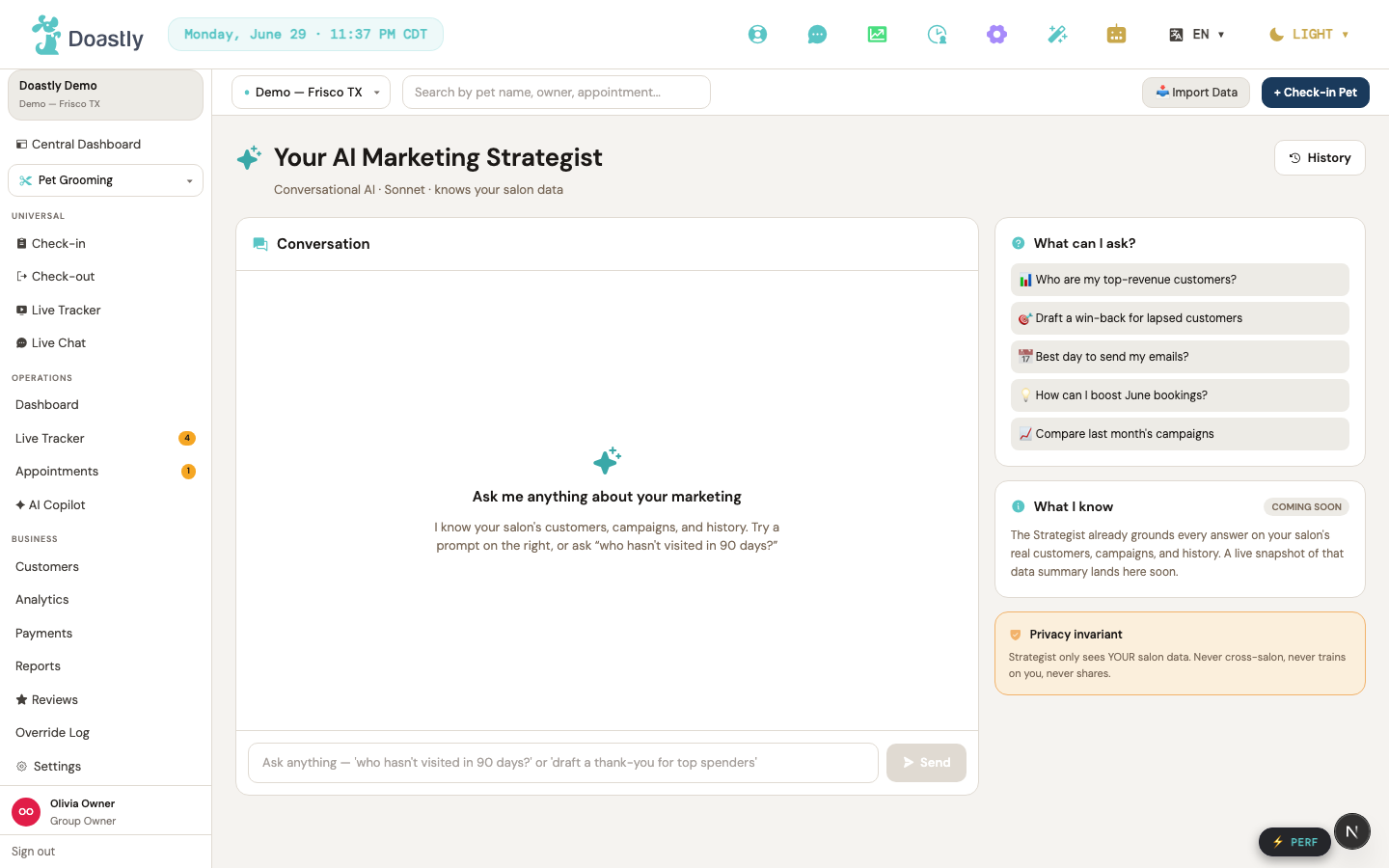
Beyond keeping customers, Doastly helps a salon find new revenue, and it leans on AI to do it. The Marketing Strategist is a chat an owner can simply ask: which customers have not visited in three months, how to promote boarding for the holidays, which services do well with doodle owners. It answers from the salon's own data, with real numbers — and says so plainly when it does not have the answer.
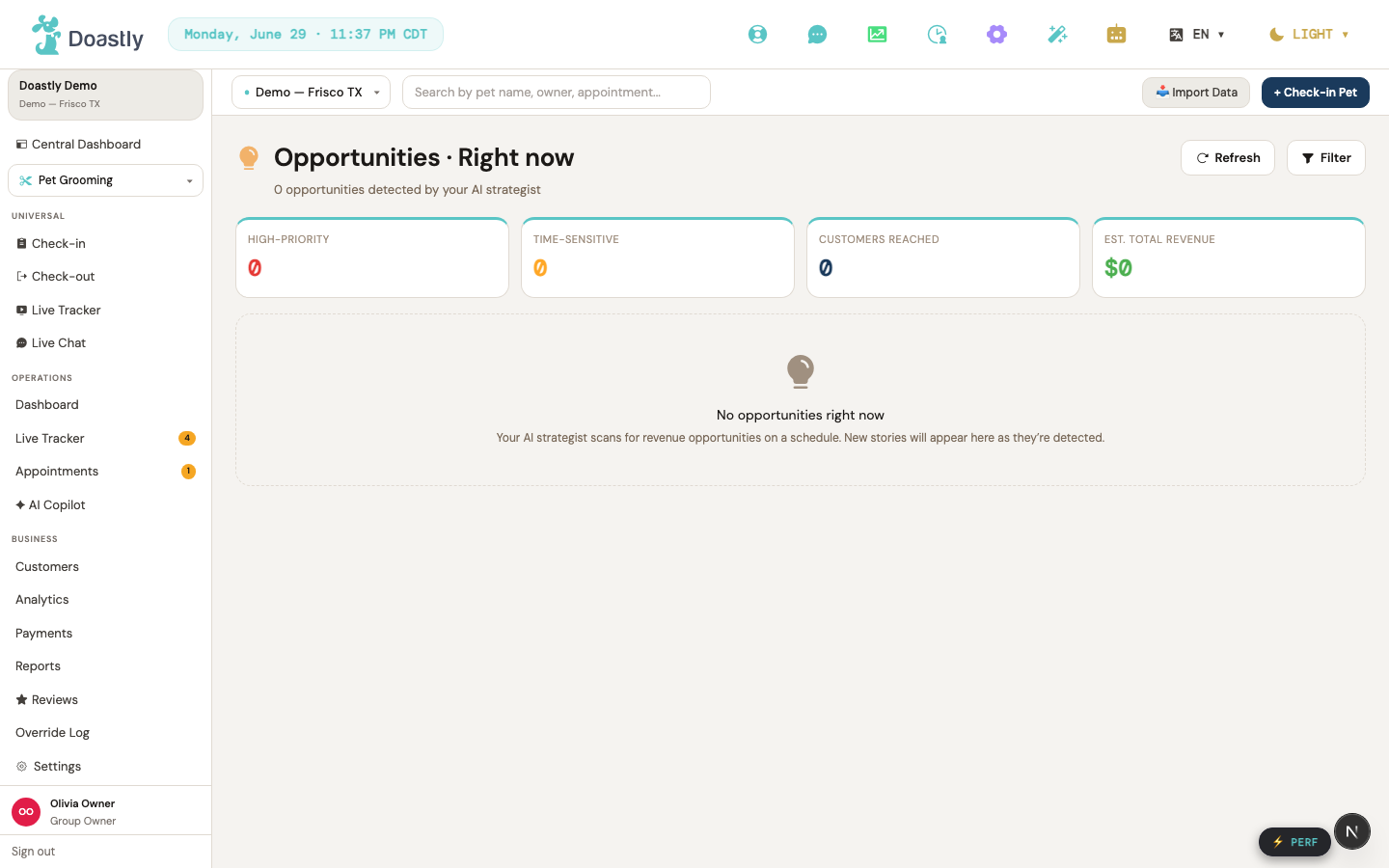
Alongside it, Opportunities surfaces revenue the salon might be leaving on the table — a cluster of double-coated dogs overdue for a groom, a Saturday that fills faster than the calendar allows — each written up in plain English with an estimated value. And a campaign builder drafts the subject line and message for a targeted send.
The campaign builder is a working preview today, not yet a working send: your edits to the subject and message live only in the form as you work (they are not saved to a draft), and the final "Submit" button on the last step does not yet call anything — clicking it silently does nothing, with no "Coming Soon" message shown. Building and sending a real campaign from here is on the roadmap.
Chapter A12 — Your team
A salon runs on its people, and Doastly manages them from one place. Staff are invited and given a role — Owner, Manager, Groomer, Bather, Receptionist, Driver — and each role sees only the tools its job needs, the same scoping the owner met in Chapter A2. Each staff member carries their pay setup (commission, hourly, or fixed), and hourly staff clock in and out, which feeds payroll directly.
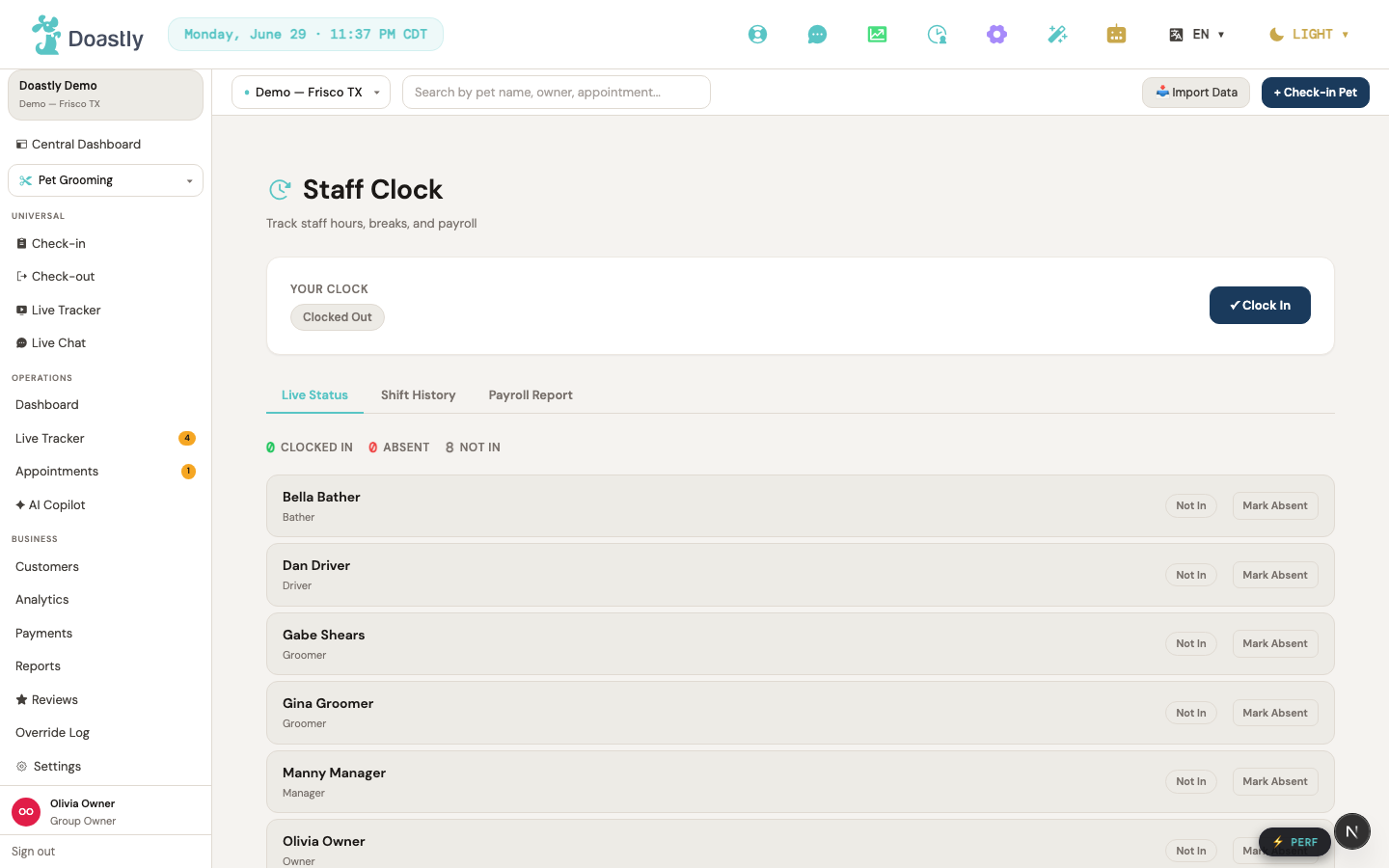
With the team in place and the business tools in hand, a salon can run its grooming operation end to end. What remains is everything grooming is not — the other services a salon can switch on — which the rest of this part covers.
Chapter A13 — Beyond grooming
Everything so far has followed grooming, because grooming is the fullest example. But a salon that also boards, runs daycare, sends out a grooming van, or teaches training classes turns those on the same way it chose grooming at signup — a single switch in settings — and gets the same shell around them: the same dashboard, the same customers, the same safety gate, the same billing. What changes from one vertical to the next is only the shape of the work itself, and the chapters that follow show just that shape — not the parts already learned.
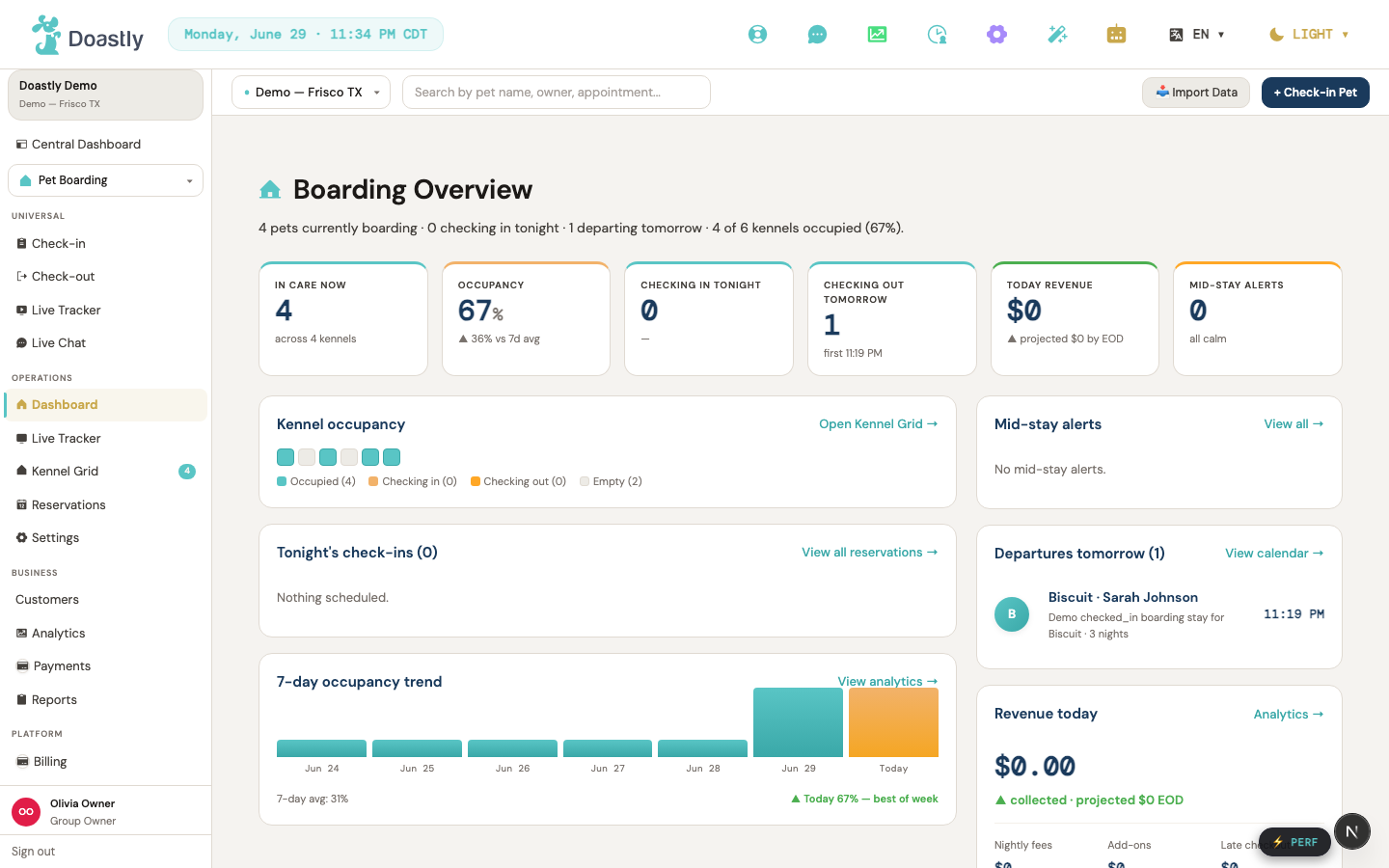
Chapter A14 — Boarding
Grooming is a visit that starts and ends the same day. Boarding is a stay — a pet arrives, lives at the salon for a stretch of nights, and goes home later — and everything different about boarding follows from that one fact.
The work is organized around reservations rather than appointments. A reservation is booked for a date range, confirmed, and then, when the pet arrives, checked in to begin the stay; it stays open across the nights and is checked out at the end. A boarding board therefore tracks stays in progress, not grooms in progress.
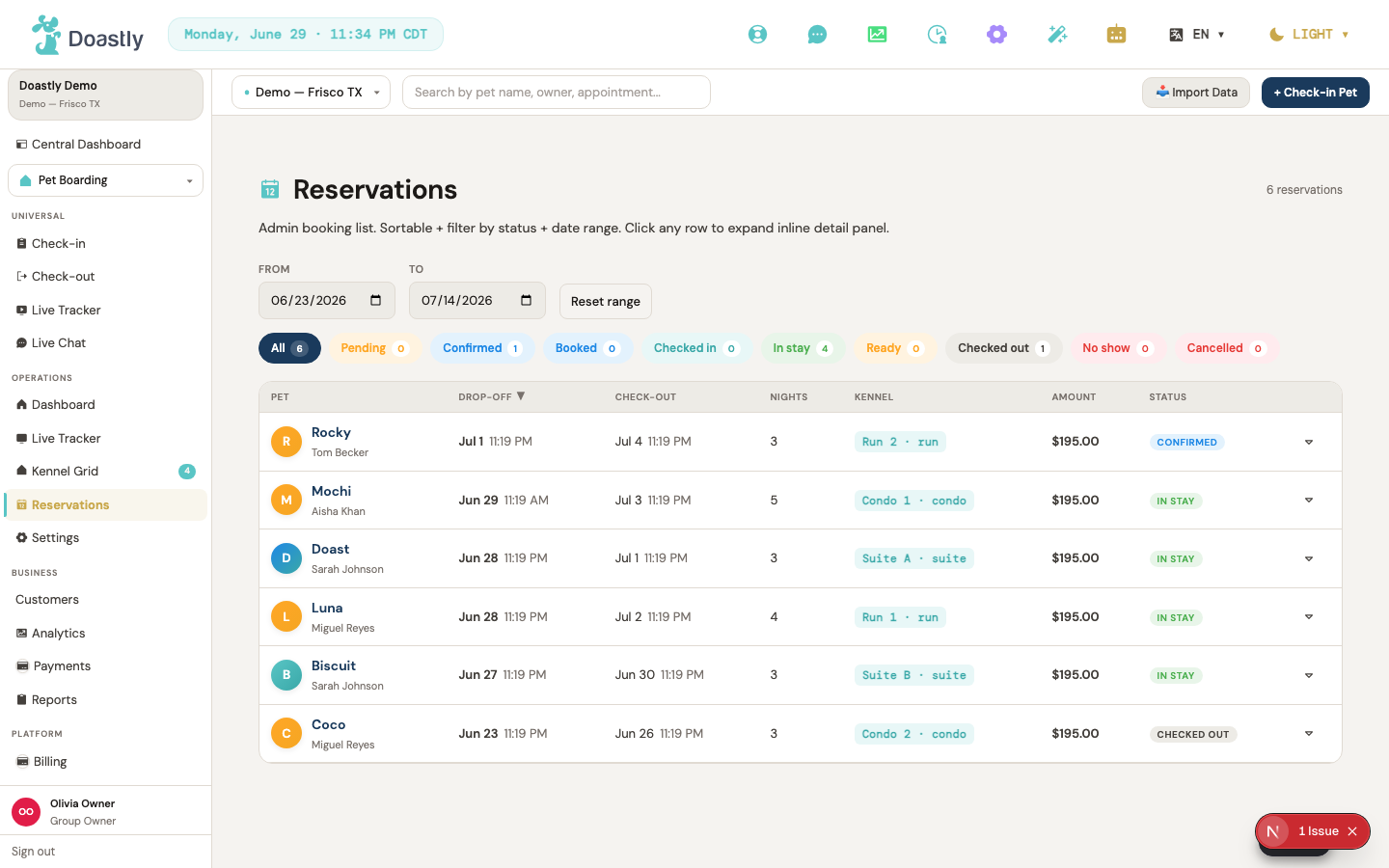
Inside a stay, the differences are the ones an overnight guest needs. Each pet is assigned a kennel. Feeding and medication run on a schedule across the days, not a single pass. And instead of one report card at the end, boarding is built to send the owner a daily update — a note on how their pet slept, ate, and played — so a family away from home can hear from their pet every day of the stay. (As of this writing, that daily pipeline isn't running for most active stays yet — a data-pipeline issue being fixed, not a missing feature — so read "every day" here as the design the product is built for, not a guarantee of today's experience.)
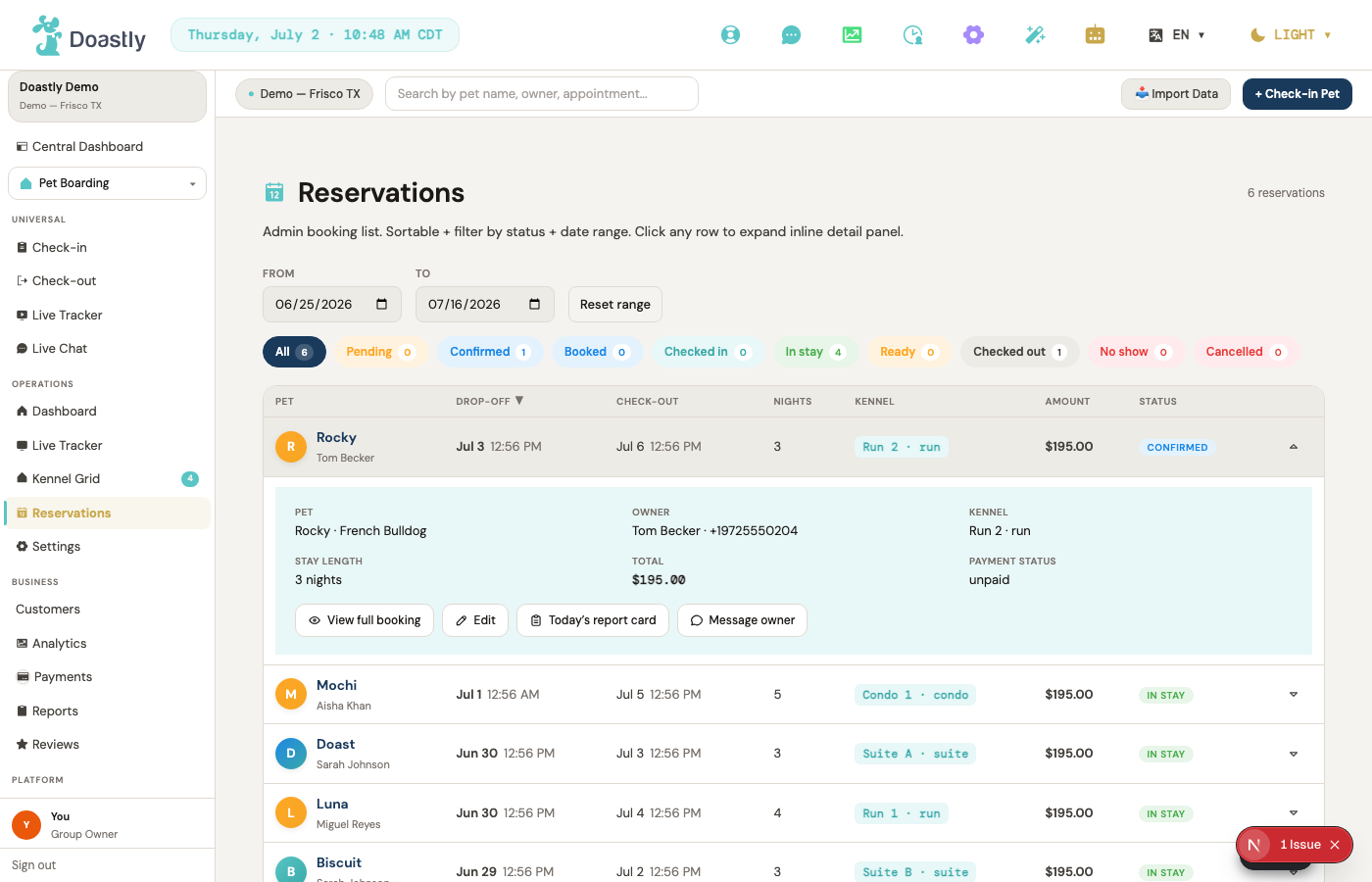
Everything else a salon already knows carries straight over: the same customers and pets, the same vaccine gate at check-in, the same payment and receipts at checkout. Boarding simply adds the shape of a multi-day stay on top.
Chapter A15 — Daycare
Daycare is a same-day rhythm: pets are dropped off in the morning and picked up in the evening, and the salon tracks attendance rather than grooms or stays. An attendance is booked, the pet is checked in on arrival, and checked out at pickup — a full turn every day, often for the same familiar faces several days a week.
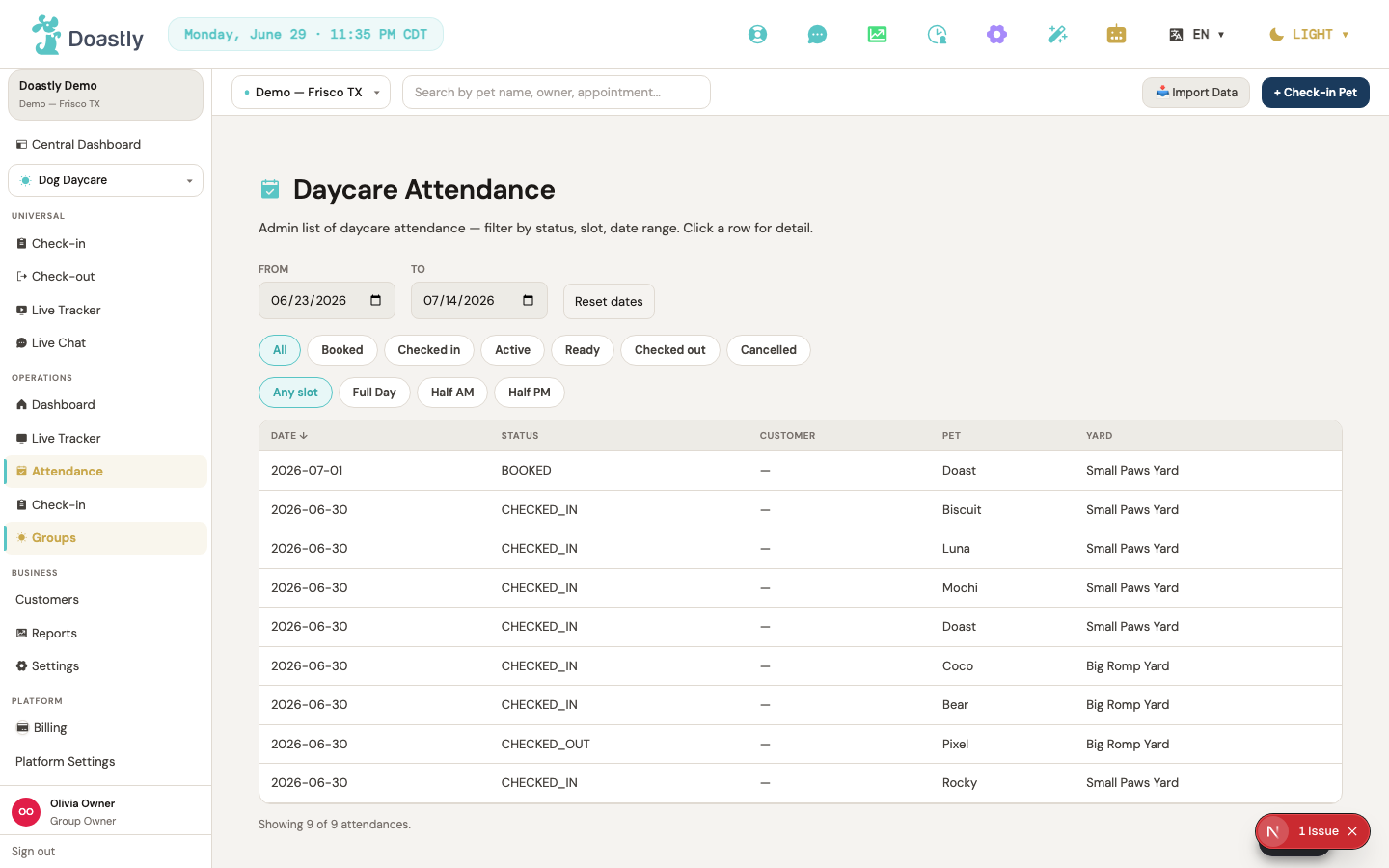
Two things set daycare apart. Because regulars come often, daycare sells passes and packages — a book of days bought up front and drawn down per visit — rather than a price per appointment. And because daycare is group play, it watches the staff-to-pet ratio: set a maximum number of pets per staff member on shift, and the system warns the moment a check-in would cross it, so the yard never quietly becomes unsafe.
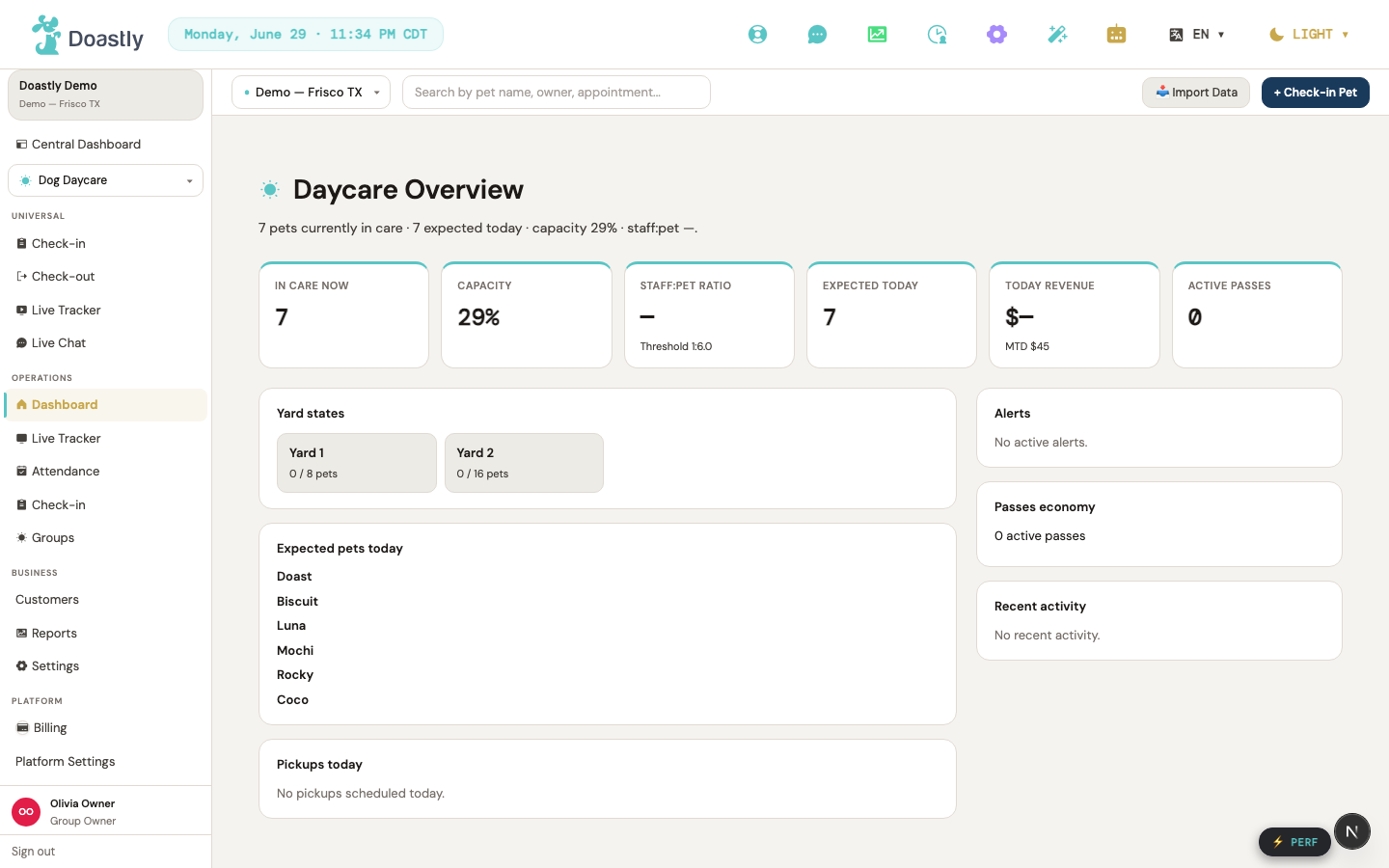
As with boarding, the rest is familiar — same customers, same vaccine gate, same payment. Daycare adds the daily in-and-out and the safety of watching the ratio.
Chapter A16 — Mobile Grooming
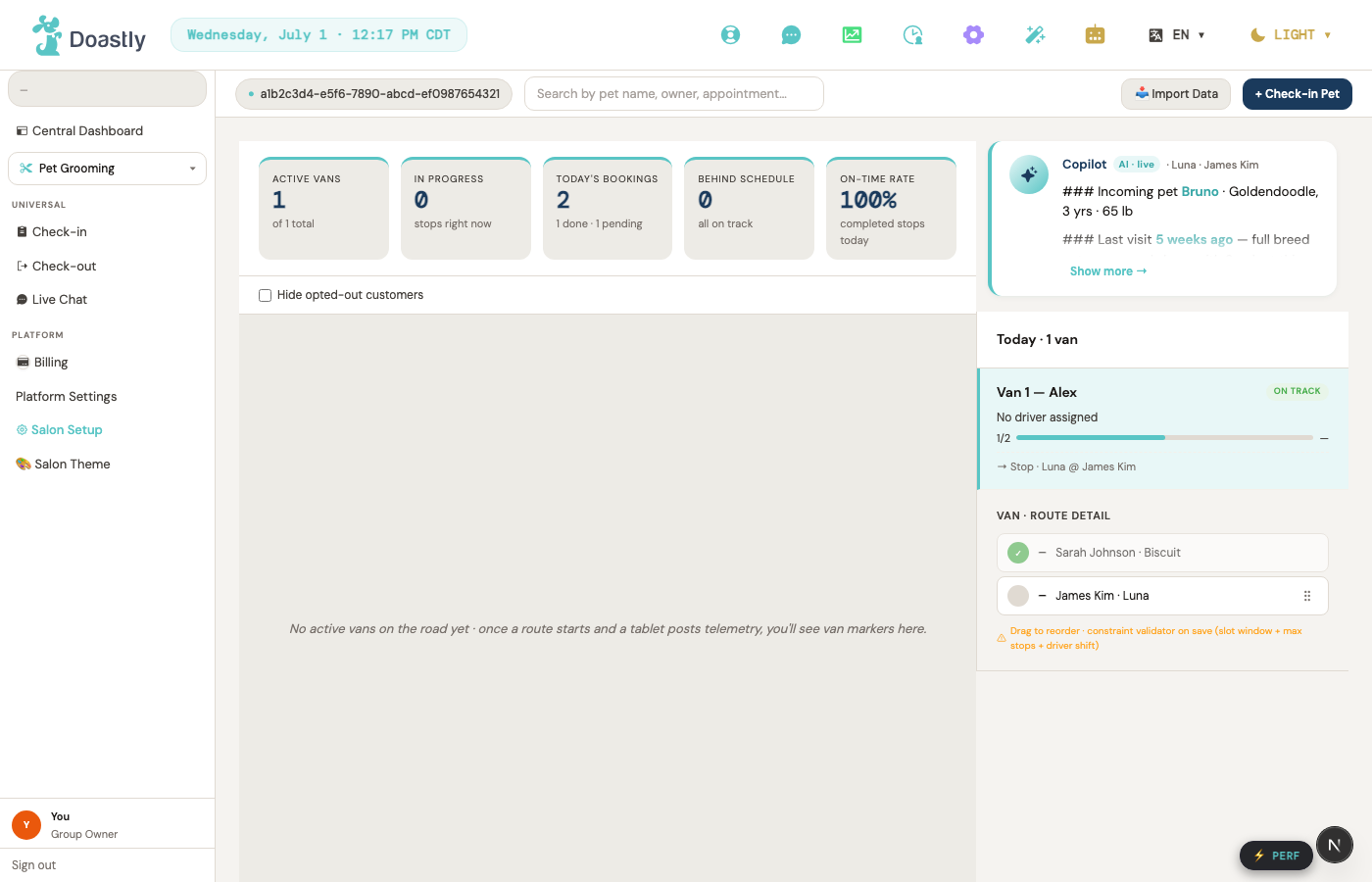
Mobile Grooming flips the whole model around: instead of the pet coming to the salon, the salon drives to the pet. That single change reshapes the day around a route — a sequence of home visits a van works through, one stop after another.
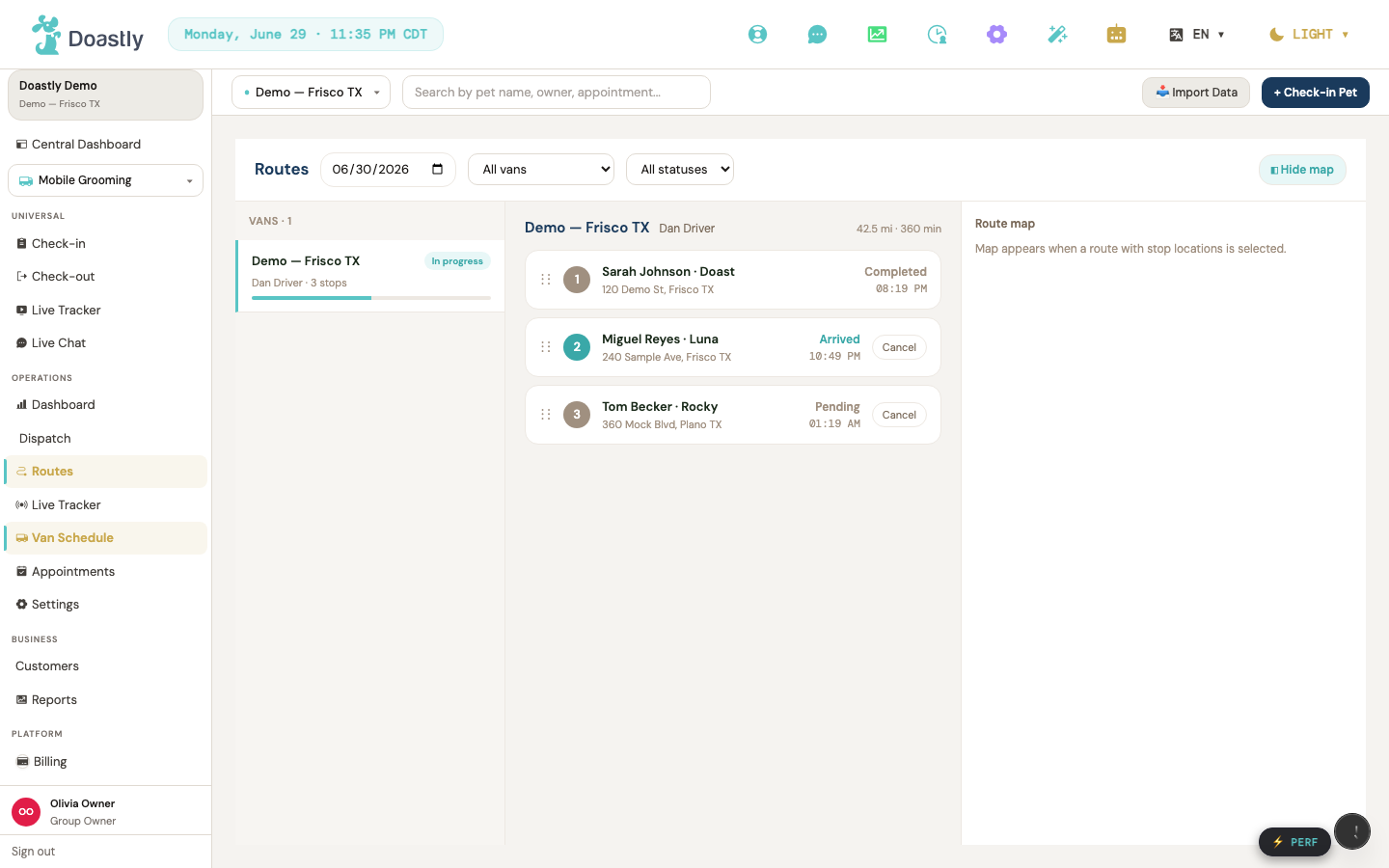
A route is planned as a map, so stops fall in a sensible order and the day's driving stays efficient. Each stop is a single pet's visit at its own address, moving from booked, to in service when the groomer begins, to completed when the van pulls away.
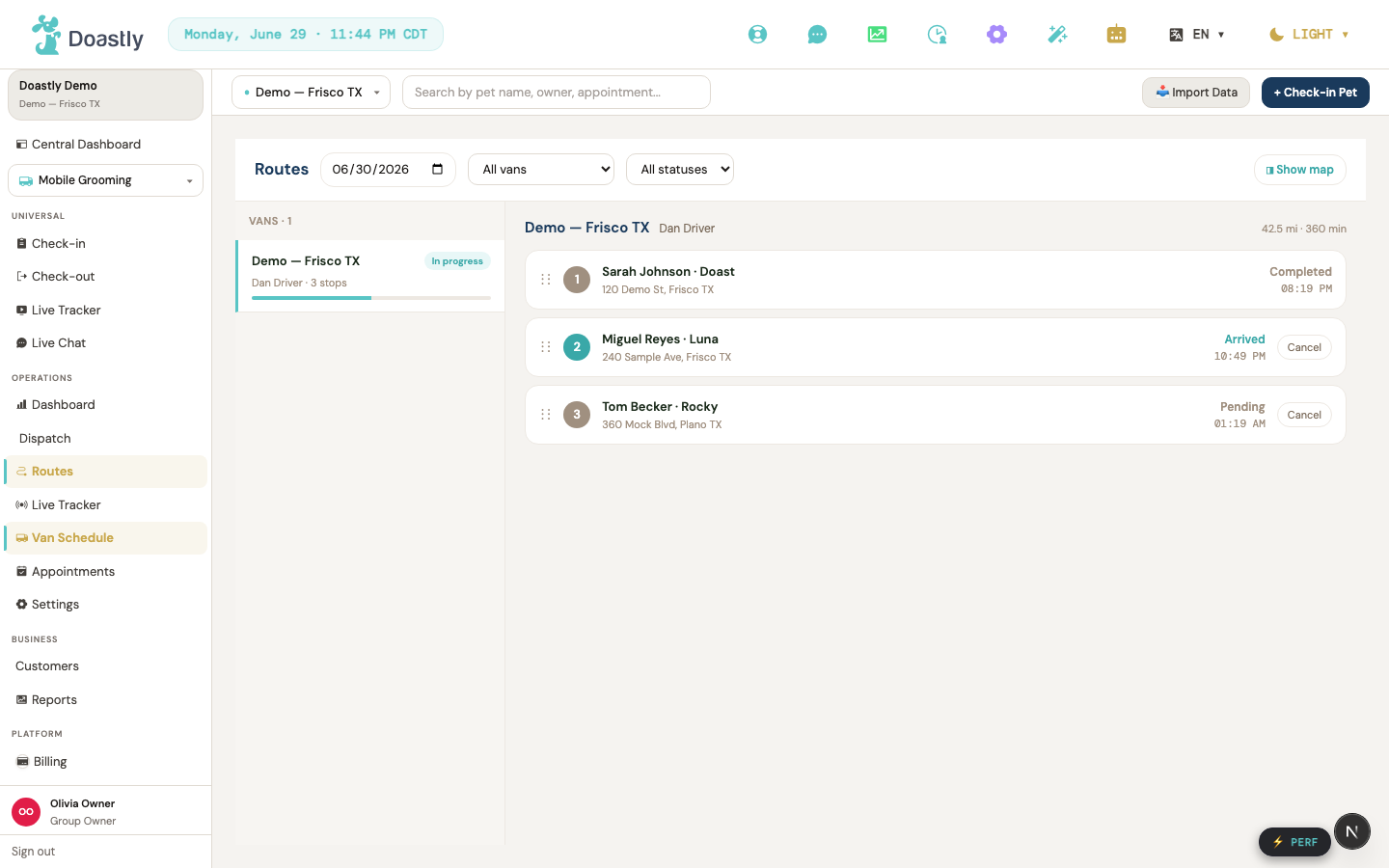
The other difference is quieter but real: a mobile groomer works alone, at a stranger's home, with no salon around them for backup. So the per-stop tools lean safety-first — the pet's profile, handling notes, and any warnings surface before the groomer knocks. The visit itself — the groom, the report card, the payment — works exactly as it does in the salon; only the setting, and the care taken because of it, is different.
Chapter A17 — Pet Training
The other verticals are all a single service, done and finished. Training is a course — a pet enrolls in a program, attends a series of class sessions over weeks, and works up through a set of skills — so the unit of work here is a curriculum, not a visit.
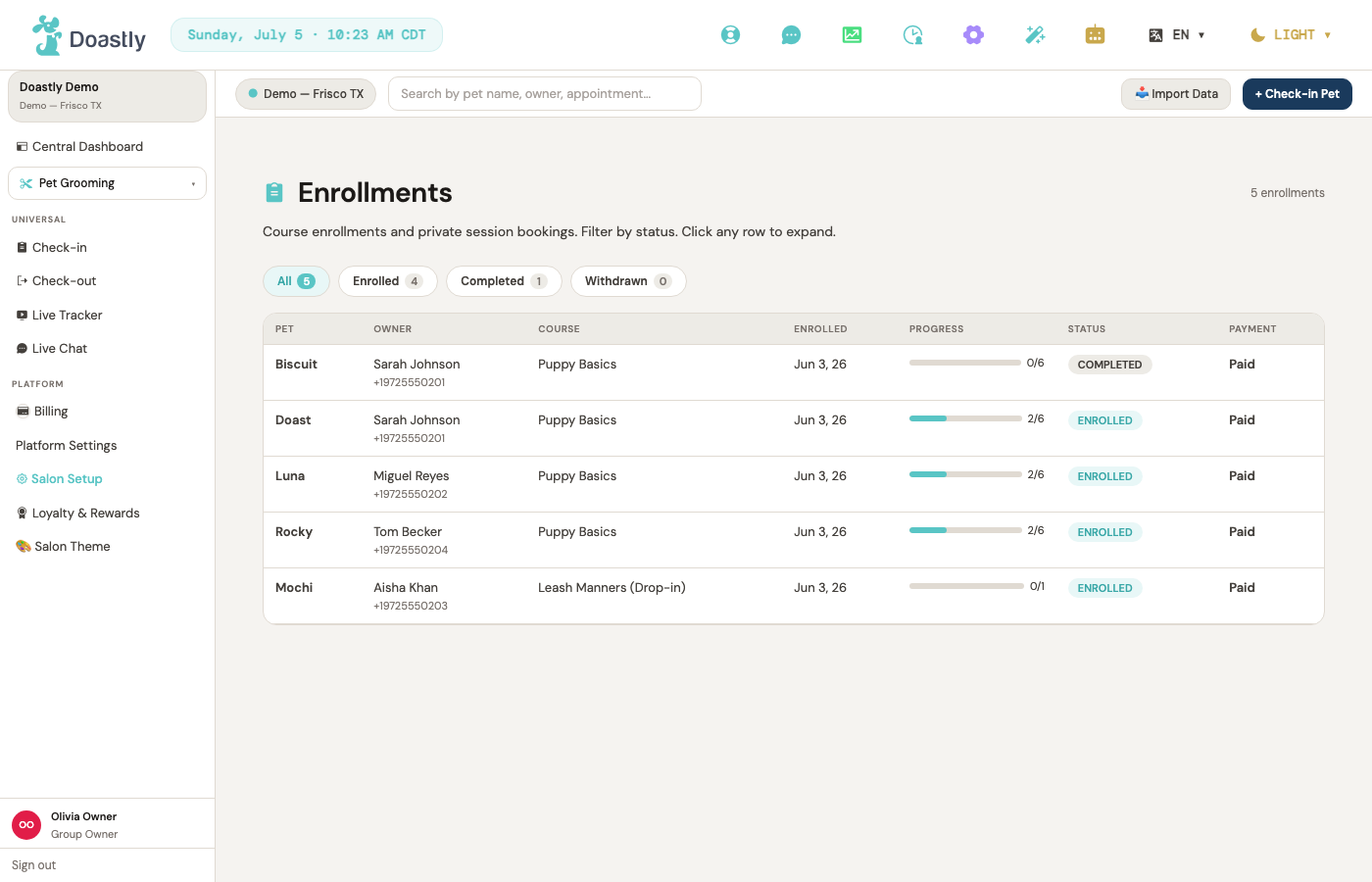
A salon runs training from its enrollments: which pets are in which courses, and how far along each one is. A pet is enrolled, moves through the sessions, and the enrollment closes as completed when the program is done.
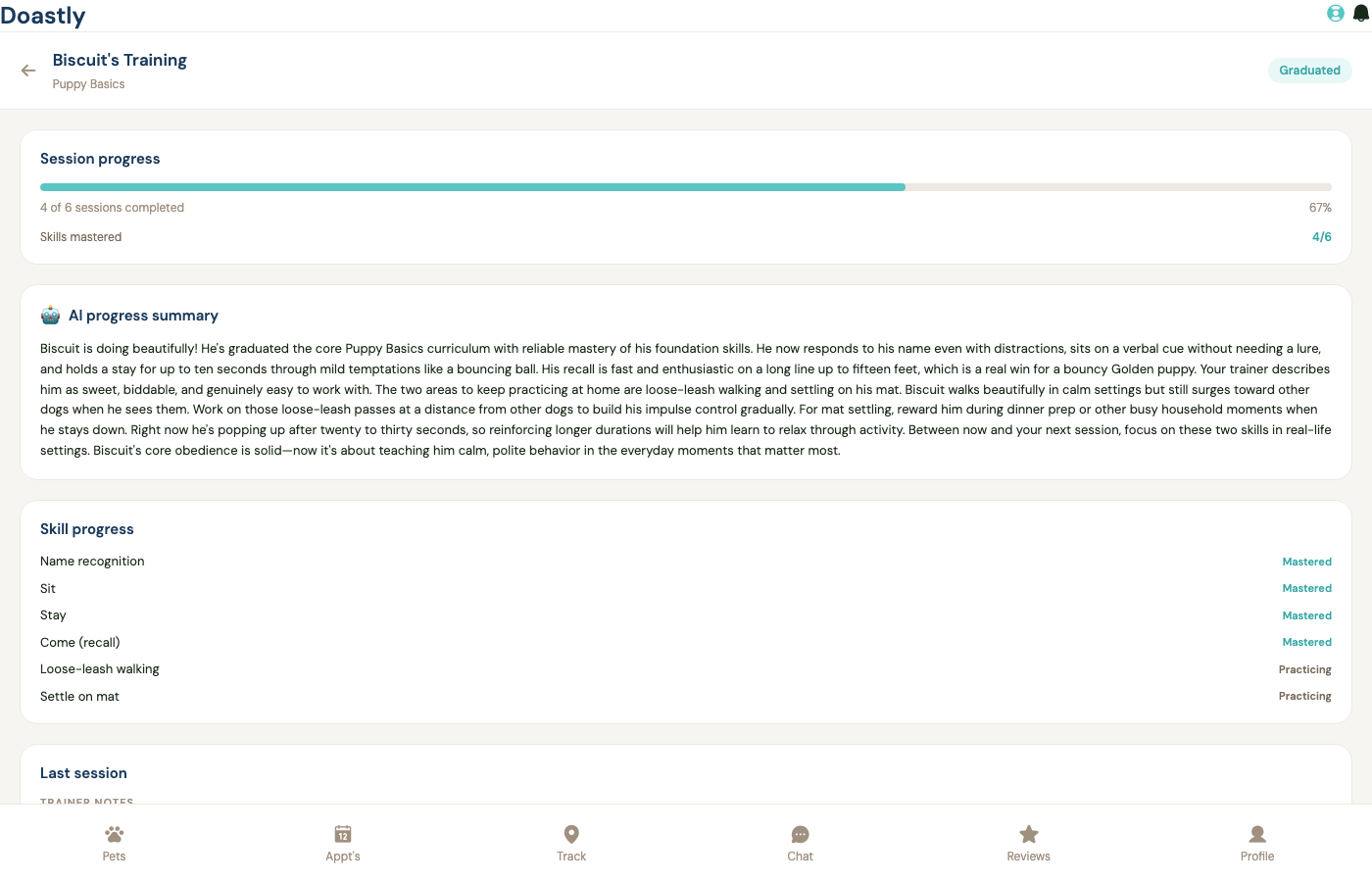
What makes training distinctive is how the owner hears about it. After sessions, the trainer records each skill's progress along with notes and homework, and the AI turns that into a plain-English progress narrative for the family — what the pet has mastered, what to practice at home, what is coming next. This runs on Doastly's more capable model for the same reason the report card does: a trainer flagging aggression, a bite risk, or a regression is exactly the kind of concern a lesser model would soften or skip, and here it must be reasoned into honest, useful guidance instead.
Chapter A18 — Pickup & Drop-off
Not everything a salon offers is a vertical. Pickup & Drop-off is an add-on — a paid option a salon switches on inside grooming, boarding, or daycare — that lets the salon collect a pet from home and return it, rather than asking the owner to make the trip.
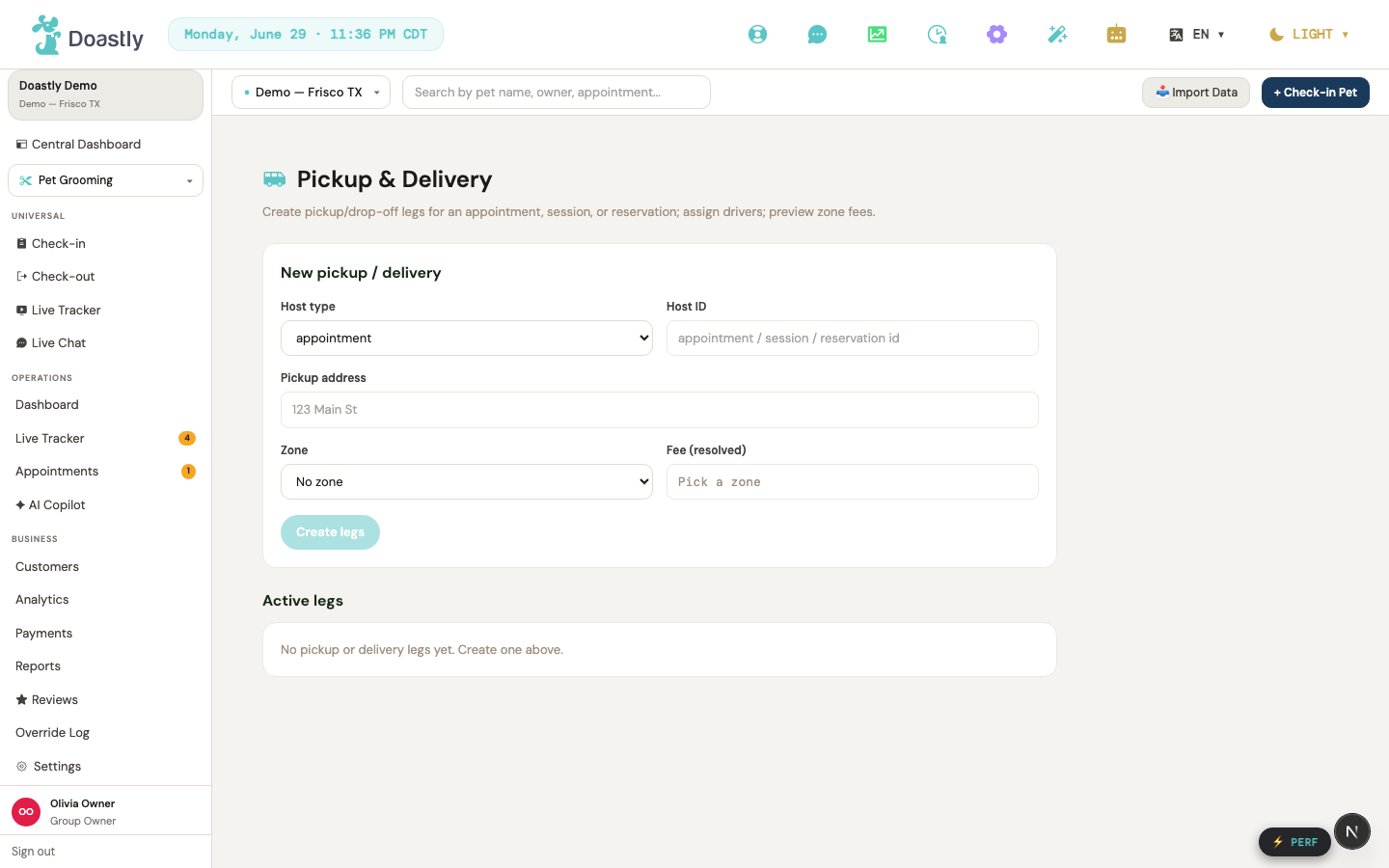
Once it is on (its service area, home-visit fee, and time windows were set back in the wizard, and live in settings), the work it adds is dispatch: scheduling which driver collects which pet, when, and in what order, so a run of pickups is planned much like a mobile route.
It changes nothing about the groom, stay, or daycare day itself — it simply adds the leg that gets the pet there and back. This is the last of the ways a salon can shape its services; the rest of the manual turns from the salon's side of the glass to the customer's.
Part Four — The Pet Parent's Story
Everything so far has been the salon's side of the glass. The same day looks different from the other side — the customer's — and it has its own app, the pet-family portal. This part follows a pet parent through the visit the salon just delivered: finding the salon, booking, getting ready, watching the day happen, and hearing how it went.
Chapter B1 — Finding your salon
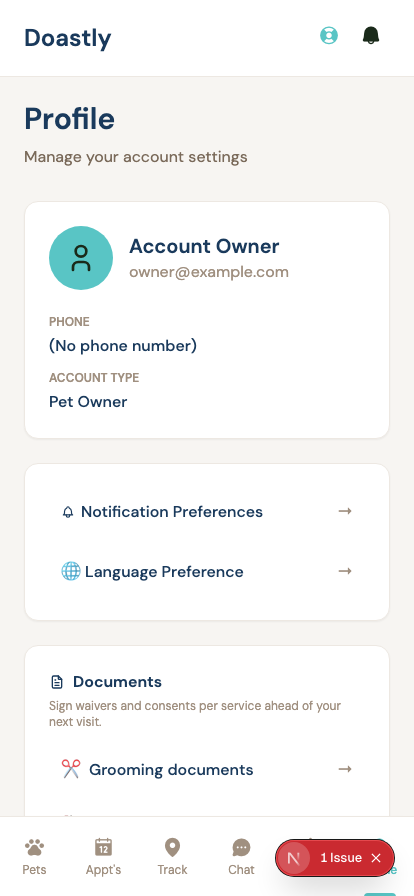
A pet parent gets into Doastly the simplest way there is. When a salon adds them as a customer, or when they book online, they reach the pet-family portal and sign in with a one-time code sent to their phone — no password to invent or forget. Inside, they see their own pets, their history, and everything the salon has shared with them, and nothing that belongs to anyone else.
Chapter B2 — Booking a visit
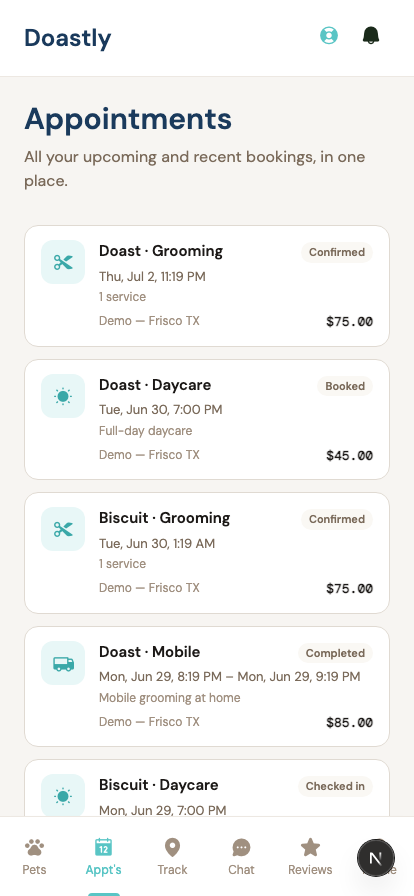
Booking online is a few steps: pick the service, the groomer, and a time. What makes it Doastly is a small card that appears along the way — a note written for this pet. It pulls together the health reminders that matter (a vaccine coming due, a note from the profile) and the pet's own pattern at this salon (the usual service, roughly how often), so the parent books with the useful things in front of them rather than from memory.
Chapter B3 — Getting your records ready
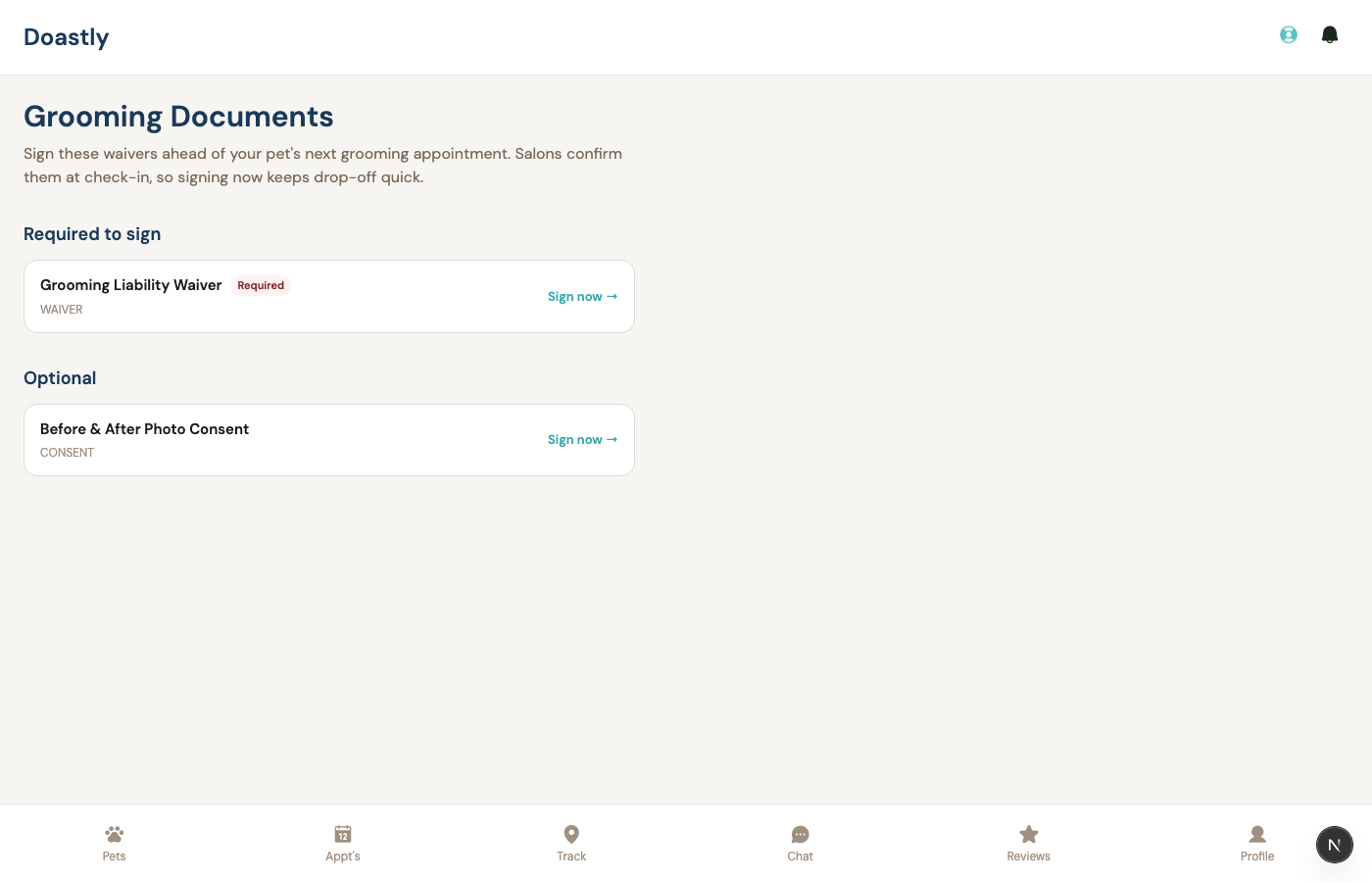
The gate the salon relies on at check-in is easiest to clear before anyone leaves the house. From the portal, a parent can upload the pet's vaccine certificates and sign the salon's waivers ahead of time. Do that, and drop-off is instant — the paperwork the salon would otherwise stop for is already done.
Chapter B4 — Watching the visit live
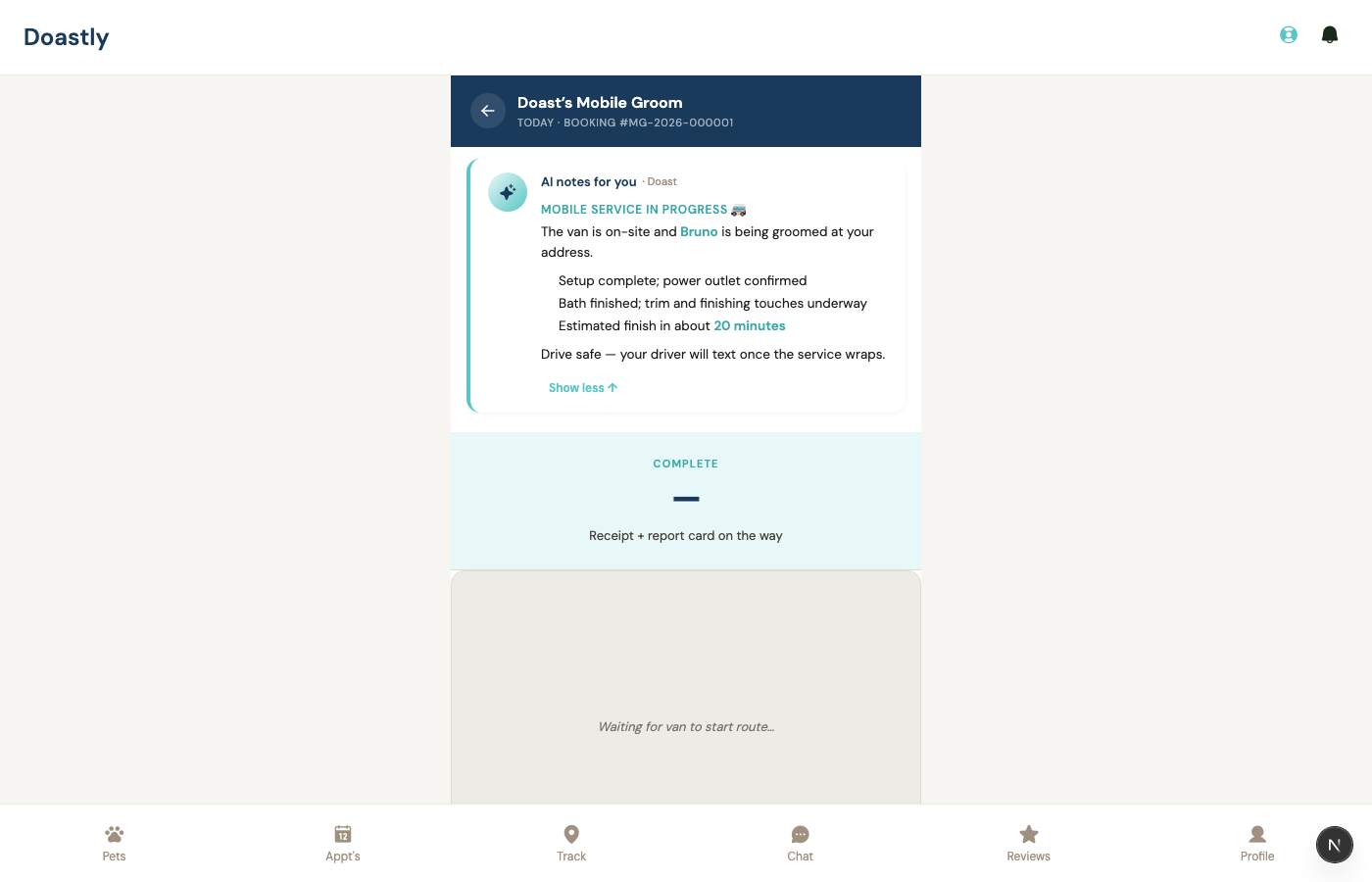
On the day, the parent can follow along. The same board the salon works from appears in the app as a simple live status: their pet is checked in, then being groomed, then ready. Two text messages punctuate it — one when the groom begins, one when the pet is ready for pickup — and, if the salon runs the detailed view, the parent can watch each stage tick by in the app, with the occasional photo, without a single extra text.
Chapter B5 — The report card arrives
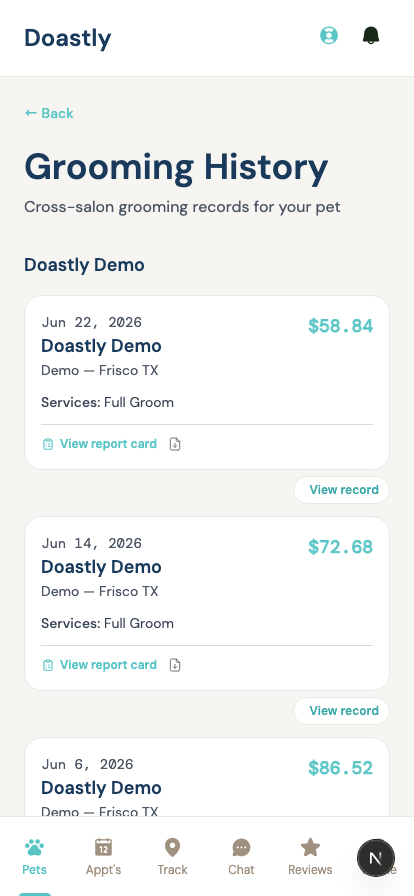
When the groom is done, the report card lands — in the app and by email. This is the same narrative the salon generated back in Chapter A8: the warm, honest note about the pet's day, with any real concern surfaced rather than buried. From the parent's side it simply shows up under the pet's history, ready to read, keep, and act on.
Chapter B6 — Staying loyal
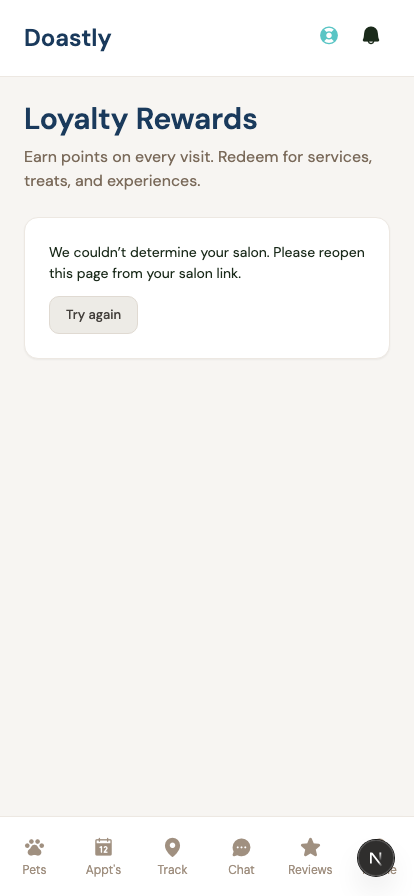
Over time, the visits add up to a relationship. The parent can see their loyalty points grow with each visit and redeem them for the rewards the salon offers — the same program the salon set up in Chapter A11, seen from the earning end. It is the quiet payoff of coming back to a salon that remembers the pet, keeps its records safe, and tells the truth about how each visit went — which is the whole of what Doastly is built to do.
Role and Capability Permissions Matrix
This table lists every significant action in Doastly and which staff roles can perform it. The six salon roles are: Owner, Manager, Groomer, Bather, Receptionist, and Trainer. The Driver role is specific to Mobile Grooming and Pickup/Drop-off.
Manager permissions are nearly identical to Owner. The differences are highlighted in the "Manager vs Owner" section at the bottom. In all other cases, Manager = Owner.
How access is enforced: "No" in this table means the action is hidden from navigation AND blocked at the API level. Navigation hiding is the first layer; the API enforces the restriction as the authoritative gate. A staff member with a "No" entry cannot perform the action even if they type the URL directly — the server returns a permission error. "Own only" restrictions are enforced at the database level using Row Level Security.
Legend
| Symbol | Meaning |
|---|---|
| Yes | Role has access — action appears in navigation and the API permits it |
| No | Role is blocked — action is hidden from navigation AND rejected by the server |
| Own only | Role sees only records they created or are assigned to (enforced server-side) |
| Location-scoped | Role sees data only for their assigned location(s) — enforced via JWT + Row Level Security |
1. Authentication and Account
| Action | Owner | Manager | Groomer | Bather | Receptionist | Driver |
|---|---|---|---|---|---|---|
| Log in via OTP | Yes | Yes | Yes | Yes | Yes | Yes |
| Update own profile | Yes | Yes | Yes | Yes | Yes | Yes |
| Change own notification preferences | Yes | Yes | Yes | Yes | Yes | Yes |
2. Staff Management
| Action | Owner | Manager | Groomer | Bather | Receptionist | Driver |
|---|---|---|---|---|---|---|
| View staff list | Yes | Yes | No | No | No | No |
| Invite staff (Groomer/Bather/Receptionist) | Yes | Yes | No | No | No | No |
| Invite Manager | Yes | No | No | No | No | No |
| Invite Owner | Yes | No | No | No | No | No |
| Edit staff role | Yes | Managers only (not Owners) | No | No | No | No |
| Deactivate staff | Yes | Yes | No | No | No | No |
| Configure staff pay rates | Yes | Yes | No | No | No | No |
| View payroll reports | Yes | Yes | No | No | No | No |
3. Customer and Pet Management
| Action | Owner | Manager | Groomer | Bather | Receptionist | Driver |
|---|---|---|---|---|---|---|
| View customer list | Yes | Yes | Yes | Yes | Yes | No |
| Add new customer | Yes | Yes | Yes | Yes | Yes | No |
| Edit customer contact info | Yes | Yes | No | No | Yes | No |
| Delete customer record | Yes | Yes | No | No | No | No |
| View pet profile | Yes | Yes | Yes | Yes | Yes | No |
| Edit pet profile (breed, weight, coat) | Yes | Yes | Yes (limited) | No | Yes (limited) | No |
| Add/edit health notes on a pet | Yes | Yes | Yes | Yes | No | No |
| Upload vaccine records | Yes | Yes | Yes | No | Yes | No |
| Mark vaccine as expired or override | Yes | Yes | No | No | No | No |
4. Check-In and Check-Out
| Action | Owner | Manager | Groomer | Bather | Receptionist | Driver |
|---|---|---|---|---|---|---|
| Check in a pet | Yes | Yes | Yes | Yes | Yes | No |
| Select services at check-in | Yes | Yes | Yes | Yes | Yes | No |
| Assign a groomer | Yes | Yes | Yes | No | Yes | No |
| Override vaccine gate at check-in | Yes | Yes | No | No | No | No |
| Override compliance gate at check-in | Yes | Yes | No | No | No | No |
| Check out a pet | Yes | Yes | Yes | Yes | Yes | No |
| Add or remove services at checkout | Yes | Yes | Yes | Yes | Yes | No |
5. Session and Tracker
| Action | Owner | Manager | Groomer | Bather | Receptionist | Driver |
|---|---|---|---|---|---|---|
| View Live Tracker (all sessions) | Yes | Yes | Yes | Yes | Yes | No |
| Advance session status (Checked In → Grooming → Ready) | Yes | Yes | Yes | Yes | Yes | No |
| Add session notes | Yes | Yes | Yes | Yes | No | No |
| Upload per-service photos (Detailed mode) | Yes | Yes | Yes | Yes | No | No |
| Re-assign groomer mid-session | Yes | Yes | No | No | No | No |
| Edit or void a completed session | Yes | Yes | No | No | No | No |
6. Report Cards and AI Copilot
| Action | Owner | Manager | Groomer | Bather | Receptionist | Driver |
|---|---|---|---|---|---|---|
| View AI Groomer Copilot brief | Yes | Yes | Yes | Yes | No | No |
| Create/edit Report Card | Yes | Yes | Yes | Yes | No | No |
| Generate AI narrative on Report Card | Yes | Yes | Yes | Yes | No | No |
| Delete a Report Card | Yes | Yes | No | No | No | No |
| View AI Copilot proposal inbox | Yes | Yes | No | No | No | No |
| Approve or dismiss AI proposals | Yes | Yes | No | No | No | No |
7. Payments
| Action | Owner | Manager | Groomer | Bather | Receptionist | Driver |
|---|---|---|---|---|---|---|
| Process a payment (money in) | Yes | Yes | No | No | Yes | No |
| Issue a full refund | Yes | Yes | No | No | No (returns 403) | No |
| Issue a partial refund | Yes | Yes | No | No | No (returns 403) | No |
| Override a price or discount | Yes | Yes | No | No | No | No |
| Apply a late pickup fee | Yes | Yes | No | No | Yes | No |
| Send a pay-ahead request link | Yes | Yes | No | No | Yes | No |
| Connect/disconnect payment gateway (Stripe/Square) | Yes | No | No | No | No | No |
| View payment history | Yes | Yes | No | No | No | No |
8. Appointments
| Action | Owner | Manager | Groomer | Bather | Receptionist | Driver |
|---|---|---|---|---|---|---|
| View appointments calendar | Yes | Yes | Own only | No | Yes | No |
| Create an appointment | Yes | Yes | Yes | No | Yes | No |
| Edit an appointment | Yes | Yes | Own only | No | Yes | No |
| Cancel an appointment | Yes | Yes | No | No | Yes | No |
| Apply cancellation fee | Yes | Yes | No | No | No | No |
| Waive cancellation fee | Yes | Yes | No | No | No | No |
9. Settings
| Action | Owner | Manager | Groomer | Bather | Receptionist | Driver |
|---|---|---|---|---|---|---|
| Edit salon name, address, phone | Yes | Yes | No | No | No | No |
| Edit business hours | Yes | Yes | No | No | No | No |
| Add or edit service catalogue | Yes | Yes | No | No | No | No |
| Configure tracker mode (Basic/Detailed) | Yes | Yes | No | No | No | No |
| Manage compliance templates | Yes | Yes | No | No | No | No |
| Configure notification settings | Yes | Yes | No | No | No | No |
| Configure payment gateway | Yes | No | No | No | No | No |
| Manage subscription and billing | Yes | No | No | No | No | No |
| Customize theme and branding | Yes | Yes | No | No | No | No |
| Configure pet reference data / breed notes | Yes | Yes | No | No | No | No |
10. Analytics and Reports
| Action | Owner | Manager | Groomer | Bather | Receptionist | Driver |
|---|---|---|---|---|---|---|
| View revenue reports | Yes | Yes | No | No | No (returns 403) | No |
| View staff efficiency reports | Yes | Yes | No | No | No (returns 403) | No |
| View quality/review reports | Yes | Yes | No | No | No | No |
| Export CSV or PDF reports | Yes | Yes | No | No | No (returns 403 for financial exports) | No |
| View payroll reports | Yes | Yes | No | No | No | No |
11. Reviews and Reputation
| Action | Owner | Manager | Groomer | Bather | Receptionist | Driver |
|---|---|---|---|---|---|---|
| View all customer reviews | Yes | Yes | No | No | No | No |
| Reply to a review | Yes | Yes | No | No | No | No |
| View review analytics and insights | Yes | Yes | No | No | No | No |
12. Mobile Grooming (day-of route work)
Whoever is out with the van runs the day. Doastly treats Groomer and Driver identically for every day-of route action below — the person doing the visit does not need a particular job title to record it. Building and dispatching routes stays with Owners and Managers.
| Action | Owner | Manager | Groomer | Bather | Receptionist | Driver |
|---|---|---|---|---|---|---|
| View assigned route for the day | Yes | Yes | Yes | No | No | Yes* |
| Mark a stop as arrived | Yes | Yes | Yes | No | No | Yes |
| Check in a pet at a stop | Yes | Yes | Yes | No | No | Yes |
| Check out a pet at a stop | Yes | Yes | Yes | No | No | Yes |
| Mark a stop as completed | Yes | Yes | Yes | No | No | Yes |
| View mobile route map | Yes | Yes | Yes | No | No | Yes* |
| Create or edit a route | Yes | Yes | No | No | No | No |
| Dispatch a route | Yes | Yes | No | No | No | No |
**\* Known limitation for staff whose only role is Driver.** These two rows describe what a Driver is permitted to do, and the permission is correct. In the current release a Driver-only account cannot actually open the day's route — the route belongs to the van, while the account belongs to your salon location, and the two do not yet line up. The practical effect: the route list comes up empty for a Driver-only account. The remaining rows in this table are unaffected in themselves, but a driver reaches them through the route list, so in practice they are held up by the same thing. What to do today: have an Owner or Manager open the day's route — their accounts cover every location, so the route list loads for them. This is a known gap and we are tracking it; contact support if it is blocking you.
Manager vs Owner — Key Differences
Managers can do nearly everything an Owner can do. The four things that require Owner role:
- Grant the Owner role to another staff member
- Connect or disconnect Stripe or Square payment gateways
- Manage the platform subscription (add or remove verticals, update billing card)
- View Doastly billing invoices for the platform subscription
The Manager role is designed for a trusted senior employee or general manager. All financial operations (taking payments, viewing revenue reports, and issuing refunds) are available to Managers. Only platform-level account changes (subscription, gateways, billing invoices) and granting the Owner role are restricted to the Owner.
Calculations Reference
Every number displayed in Doastly is computed by a specific formula. The table below documents the key formulas so you can verify totals, understand reports, and answer customer questions accurately.
Payments and Receipts
| Displayed value | Formula | Where it appears |
|---|---|---|
| Checkout total | services_subtotal + add_ons_subtotal − discount_amount + tip_amount + late_fee_amount — confirmed accurate for boarding on the unified/UOUT-V2 checkout path (multi_vertical_checkout_service.py::_build_breakdown, final_cents = base + tip + late_fee − discount); a second, separate boarding checkout code path has no tip handling at all, so this formula does not describe every boarding checkout — which FE surface routes to which backend path is not traced here (boarding-51 has the fuller picture). Not independently checked for grooming/daycare/mobile. | Checkout review step; receipt email |
| Late pickup fee | max(0, (minutes_since_ready − grace_period_minutes)) × per_minute_rate where grace period and per-minute rate are set in Grooming Settings > Fees | Session card in Live Tracker; checkout total |
| Groomer commission (commission mode) | checkout_total × commission_rate_percent / 100 | Payroll report |
| Groomer pay (hourly mode) | hours_clocked × hourly_rate | Payroll report |
| Pay-period total pay | Sum of all sessions in the period (commission) + total hours × rate (hourly) | Payroll report |
| Cancellation fee | Flat amount OR percentage × original_booking_total / 100, depending on how the salon configured the fee type | Checkout when a cancellation fee is applied |
Boarding
| Displayed value | Formula | Where it appears |
|---|---|---|
| Boarding estimated total | nightly_rate × nights where nights = pick-up date − drop-off date (minimum 1) | Boarding booking confirmation; reservation detail |
| Deposit | estimated_total × 0.25 (rounded to nearest cent) — displayed only; confirmed no gateway charge occurs and no deposit is recorded when a reservation is created via the pet-family booking flow (backend/app/services/petfamily/pf_boarding_service.py::create_pf_reservation has no payment call and does not pass a deposit value through at all) | Boarding booking done screen |
| Final boarding receipt total | (nights × per_night_rate) + late_fee − deposit_credit — holiday_surcharge and multi_pet_discount are configured per location but confirmed unread by any pricing code path (#636/#649); drop them from this formula until that's wired, or the figure it implies is wrong | Stay page final receipt section |
Daycare
| Displayed value | Formula | Where it appears |
|---|---|---|
| Day booking cost | $0.00 if using a day pass; otherwise full_day_price_cents / 100 or half_day_price_cents / 100 as configured per location | Daycare booking Step 2 |
| Pass per-day price | package_price_cents / pass_count | Packages page |
Analytics and Reports
| Displayed value | Formula | Where it appears |
|---|---|---|
| Occupancy rate | kennels_occupied / total_kennels × 100% | Boarding dashboard; boarding analytics |
| Staff:pet ratio | pets_in_yard / staff_in_yard — alert fires when ratio exceeds the per-vertical threshold configured in Settings | Daycare live tracker per-yard panel |
| Review average | sum_of_all_ratings / total_review_count (arithmetic mean, not weighted) | Reviews analytics; salon dashboard KPI card |
| Revenue trend | Running sum of checkout_total per calendar day, plotted over the selected date range | Grooming analytics revenue chart |
| Churn-risk threshold | Customers who have not had a session in > X days where X is 60 days by default (configurable) | Grooming analytics churn-risk list |
Security, roles and the audit trail
This chapter is for owners and managers of groups with several locations. It answers three questions: who can do what, what gets written down when someone overrides a safety or money check, and whose data this is. It describes what the platform does today. Where something is not built yet, it says so.
Who can do what
Every staff login has one role at each location. The role decides which screens appear in the menu and which actions the server will accept. For the money and staff actions listed below, both are enforced: the page is hidden from the menu, and the server refuses the request if someone types its address, with a "You don't have permission" message. Not every hidden page is also refused by the server; one known case is listed under "Known gaps" at the end of this chapter. Do not rely on a page being hidden as the only control for something that matters.
The salon roles
| Role | Who it is for |
|---|---|
| Owner | The person accountable for the business. The only role that can connect a payment gateway, and the only role that can make someone else an Owner. |
| Manager | Runs a location day to day. Can invite and manage staff, see revenue and analytics, issue refunds, and override check-in gates with a recorded reason. |
| Groomer | Works the grooming floor. Sees their own schedule and their own sessions. |
| Bather | Bath and prep staff. Same shape of access as a Groomer, on their own work. |
| Receptionist | Front desk. Books, checks in, checks out, takes payment. Does not see revenue reports or payroll. |
| Driver | Mobile grooming routes. Sees their route and the stops on it. |
| Trainer | Training classes and private sessions. |
Above these sits Super Admin, which is Doastly's own platform role and is never assigned to salon staff. Pet owners log in to a separate family app with a customer role; they never see salon screens.
The full action-by-action table is the Permissions Matrix. Four rows worth knowing without opening it:
- Connecting Stripe or Square is Owner only. A Manager cannot change where the money settles.
- Refunds are Owner or Manager. Front-desk staff cannot refund.
- Revenue reports and analytics are Owner or Manager.
- Overriding a vaccine or document block at check-in is Owner or Manager, and it is recorded (next section).
The Permissions Matrix does not yet carry a Trainer column; the role was re-added to the platform after the matrix was written. Until it is updated, treat Trainer like Groomer for the training screens and ask Doastly if a specific action matters to you.
Location scope. A staff member sees only the locations they are assigned to. This is not a filter in the screen; it is enforced in the database itself (row-level security), so a report, a search or a direct request for sessions, appointments, stays, attendance or payments cannot return another location's records even if the address is guessed.
The one deliberate exception: pet profiles. A pet's profile, vaccine records and health documents are readable by any signed-in salon staff member, at any salon, because a pet may be boarded at one salon and groomed at another and the next salon needs the vaccine record before it lets the pet in. Session history, stays and payments are not shared this way. If your policy requires that pet profiles be visible only to the salon that serves them, know that the platform does not enforce that today.
Staff turnover. Removing a staff member's access is done by the Owner or Manager on the Staff page. Their past actions stay in the record under their name; the audit rows below reference the user, not a free-text name, so a departed employee's overrides remain attributable.
What is written down when someone overrides a check
Doastly stops a check-in when a required vaccine is missing or expired, when a mandatory document is unsigned, or (daycare) when a yard would go over its staff-to-dog ratio. An Owner or Manager can push through. When they do, the platform writes a record that the app has no screen to edit or delete. Each record carries the user's ID and a server timestamp, not a name someone typed.
What each record contains
| Situation | Record | What is stored |
|---|---|---|
| Boarding check-in pushed through a vaccine or document block | boarding check-in override | the reservation, the location, who overrode, the reason (required), which checks were bypassed, the state of the vaccine gate at that moment, and a signature if one was captured |
| Daycare check-in pushed through a yard-capacity or vaccine block | daycare override event | the attendance record, the yard, who acted, the type (ratio or vaccine), the reason (required), and the numbers at that moment: dogs present, attendants on shift, the configured ratio |
| Mobile grooming stop checked in over a block | mobile route check-in override | the route, the location, who overrode, the reason, which checks were bypassed, signature if captured |
| Grooming checkout completed over a payment or compliance block | checkout override | the session, the location, the type (payment or compliance), who overrode, the reason, notes, and whether a manager PIN was verified |
| Groomer schedule changed over a conflict | groomer schedule override | the appointment, the groomer, who overrode, the scheduled time, the reason |
| Every login attempt | login audit | who, when, from where, and the outcome, including failed attempts before anyone is signed in |
| Doastly platform staff acting on your account | platform admin audit | what Doastly's own administrators did, and when |
Step by step: overriding a vaccine block at boarding check-in
- The Vaccines step lists what is missing or expired and the Continue button stays grey.
- If the owner has the certificate, add it on the spot and the block clears; nothing is overridden.
- If not, an Owner or Manager (or, on your behalf, a Doastly platform Super Admin) chooses the manager override on that step. Groomers, bathers and receptionists do not see it, and the server refuses it from them. The reason must be at least a few words; an empty reason is rejected.
- A reason is required. The record is written in the same action that completes the check-in, so an override and its check-in cannot exist without each other.
- The reservation proceeds; the record stays.
Why it is built this way: an out-of-date vaccination is a risk to every animal in the building. The block makes proceeding a manager's decision, on the record, with the reason next to it.
Step by step: a daycare ratio override
- The yard's staff-to-dog ratio is computed live from dogs present and attendants clocked in and shown on the dashboard and live tracker. It is a visibility indicator: passing it does not by itself block a check-in.
- What blocks is the yard's capacity limit (Settings → Yard Management). A check-in that would exceed it is refused with "Yard is at capacity."
- A Manager or Owner may override, where your policy allows it. The reason is required, and the record stores the measured counts and the configured ratio at that moment, so "what was the ratio when she let the twenty-first dog in" has a stored answer, not a recollection.
How to read these records today. Owners and Managers have an Override Log in the grooming menu listing checkout overrides. Boarding, daycare and mobile override records appear on the affected reservation, attendance or route; login audit is available to Doastly on request. There is no single audit screen across all of these tables yet; a consolidated audit view for group owners is on the roadmap.
Not logged today
Stated plainly so nobody plans a control around something that does not exist:
- Cash drawer opens. The platform records a cash drawer count; it does not record each time the drawer is opened or by whom.
- Refund approvals. Refunds are recorded with their amounts and the transaction they reverse, and only Owners and Managers can issue them. There is no separate approval record naming a second approver.
- Manual price adjustments. Discounts and adjustments at checkout are stored with the checkout; there is no separate audit row naming who applied a price change and why.
Each of these is a roadmap item. If any of them is a condition of your operating policy, ask before you rely on it.
Whose data it is
Your customer records, pet records, health documents, stay and session history, and transaction history belong to you. Doastly stores and processes them to run your business; it does not sell them, and it does not use one salon's records to serve another. A pet's profile and vaccine documents can be seen by any salon currently caring for that pet, because that is a safety matter; a salon's session history is visible only to that salon.
Money never sits with Doastly. Card payments settle into your own Stripe or Square account. If you leave, the account, the customer cards on file and your negotiated rate are already yours.
What you can export today, as CSV:
- Sessions (grooming), from the Sessions page
- Payroll, from the Payroll page: hours, shifts, sessions, revenue, tips, pay type and payout per staff member
- Staff clock report
- Boarding analytics
What you cannot export today: a complete, one-click export of the whole account (every customer, pet, document, stay and transaction across all verticals). That is a roadmap item. If you need a full export before it ships, ask Doastly and it is done for you.
Formal statements about data ownership, retention and deletion are made in Doastly's Terms of Use and Privacy Policy, not in this manual. Where the two differ, those documents govern.
Known gaps
Recorded here so that a control is not planned around them. Each has a ticket; the manual is updated when it closes.
- The checkout Override Log can be read by any staff member who calls the API directly. The menu entry is shown only to Owners and Managers, but the server does not currently check the role on that request. A groomer or receptionist cannot see it in the app; one who addresses the API directly can read it. Reading is the exposure; the records cannot be changed. Tracked as #1877.
Glossary
Every Doastly-specific term a new user might encounter, in plain English.
A
Active Vertical The business category a salon has currently enabled. For example, a salon with Grooming and Boarding subscriptions has two active verticals. Your active vertical determines which sidebar navigation items appear and which features are unlocked.
AI Booking Notes A short AI-generated paragraph shown to a pet family customer during the grooming booking flow (Step 3 — Services). It summarises the pet's health profile and any relevant history at that salon to help the customer mention important details to the groomer. Generated by Claude Haiku; cached for 24 hours per pet-per-salon.
AI Groomer Copilot An AI-powered brief shown to groomers on the Live Tracker and on the Copilot page. It summarises the pet's breed characteristics, health notes, vaccine status, and recent grooming history at this salon. Generated by Claude Sonnet. See also: Copilot Brief.
AI Report Card Narrator The AI feature that reads a groomer's attribute ratings and notes after a session and writes a customer-friendly narrative paragraph. Runs on Claude Sonnet. If a groomer flagged a health concern in their notes, the AI always surfaces it in the narrative — it never softens or omits health flags.
Anniversary An annual SMS that fires on the anniversary of a pet's first visit to a salon. Sent once per year per salon.
Appointment A scheduled visit booked in advance, as opposed to a walk-in. Appointments appear on the appointments calendar and in the groomer's daily schedule on the dashboard.
B
Basic Tracker Mode The default session tracking mode. Four stages: Checked In, Grooming, Ready, Checked Out. A maximum of two SMS messages fire per session (Grooming Started and Pet Ready). This is the mode all new locations start in. Contrast with Detailed Tracker Mode.
Bather A staff role responsible for bathing and drying pets. Bathers can check in pets, advance session stages, add notes, and add service photos but cannot process payments or access management settings.
Belonging (Boarding) An item the pet owner lists during the boarding pre-check as accompanying their pet during the stay — for example, a favourite blanket, toy, or medications. Boarding staff track the status of each belonging (with salon / returned / lost) on the reservation detail page.
Birthday SMS An SMS that fires automatically on a pet's recorded birthday. Sent once per year per salon. Respects the customer's opt-out preference.
Breadcrumb (Mobile Grooming) The GPS trail of a mobile grooming van's recent path, displayed as a line on the live tracking map. Updated on every 30-second poll. Customers see only the current day's trail — the live tracking page does not expose earlier days.
BYOA (Bring Your Own Account) Doastly's payment model. Each salon connects their own Stripe or Square merchant account. Doastly never holds customer payments — funds go directly from the customer's card to the salon's bank account.
C
Check-In The process of registering a pet's arrival at the salon and starting a session. Opens at /salon/checkin. The check-in flow identifies the pet, selects services, assigns a groomer, handles compliance signatures, and creates the grooming session record.
Check-Out The process of completing a session, collecting payment, and releasing the pet to the owner. Opens at /salon/checkout. The check-out flow reviews services, processes payment, and triggers the receipt email and report card delivery.
Checked In The first session status. The pet has arrived and the session has been started, but grooming has not yet begun.
Checked Out The final session status. The pet has left the salon and payment has been collected.
Compliance Gate A check-in requirement that blocks a session from proceeding unless the customer has signed the required waiver or compliance document. Owners and Managers can override the compliance gate with a log entry. Groomers and Receptionists cannot override it.
Compliance Template A digital waiver or release form configured by the salon under Settings > Compliance. Customers sign these during check-in. All signed records are preserved permanently even if the template is later edited or archived.
Copilot Brief The AI-generated summary that appears on a session card in the Live Tracker and on the Groomer Copilot page. Contains pet health, breed, and history information relevant to the current groom. Scoped to this salon's history only.
Copilot Proposal An AI-generated suggestion shown in the Copilot inbox (not the brief). Examples: "Biscuit is overdue for their 8-week groom" or "Cooper historically prefers the afternoon slot." Proposals require Owner or Manager approval to act on.
Customer A pet owner who brings their pets to a Doastly salon. Also called Pet Family. In the database and throughout the app, "customer" refers to the person; "pet" refers to their animal.
D
Daily Report Card (Boarding) A per-day summary card generated for a multi-night boarding stay, combining logged medication/feeding/activity/incident data into an AI-generated narrative. Visible to the pet owner on their stay dashboard. Distinct from a Grooming Report Card. This is a real, built capability (§25-verified end to end) — but it is currently generating no cards for most active stays system-wide, a data-pipeline issue (root-caused, being fixed), not a missing feature. Distinct also from the salon-staff "Daily Card Form" entry screen in the Kennel Grid (mood/feeding/walks staff enter manually) — that form's own narrative-generation code path is separately non-functional (unwired, not a data-pipeline gap) and does not feed this card; see the check-in/live-tracker reference pages for that distinction.
Day Pass A credit that a daycare customer purchases in a package deal and redeems for a single daycare attendance day. Passes have a balance (number remaining) and an expiry date. See also: Package.
Deposit (Boarding) A portion of the estimated boarding total intended to secure the kennel at booking. The booking confirmation screen displays estimated_total × 25% (rounded to the nearest cent) — but confirmed no gateway charge occurs and no deposit is recorded when a reservation is created through the pet-family booking flow (verified by reading pf_boarding_service.py::create_pf_reservation directly: no payment call, no deposit value passed through at all). The checkout-time credit mechanism (subtracting any stored deposit from the balance due) IS correctly built and works when a deposit value exists on the reservation — it simply has nothing to subtract today, since nothing gets stored at booking. In practice, the full stay amount is paid at checkout, not a remaining balance after a deposit.
Detailed Tracker Mode An optional per-location tracker mode that tracks each service individually within a session. Groomers can mark Bath started, Bath done, Haircut started, etc., and add per-service photos and notes. SMS still fires only at Grooming Started and Pet Ready — never at individual service-stage transitions. Enabled per location under Settings > Tracker.
Dispatch Board (Mobile Grooming) The salon-side operational view at /salon/mobile/dispatch for managing active mobile grooming vans and routes on a given day. Shows a two-column layout with a map panel and a route detail panel. Distinct from the Live Tracker (/salon/mobile/live) which is a monitoring view.
Doastly The platform. Doastly ERP is the full product name. The customer-facing brand name is Doastly.
Driver A staff role specific to Mobile Grooming and Pickup/Drop-off. Drivers can view their assigned route, mark stops as arrived, and check pets in and out at each stop. Drivers do not have access to salon-side management features.
E
Email Trigger An event in Doastly that fires an automatic email. Examples: Grooming Started, Pet Ready, appointment confirmation, receipt after checkout, report card delivery, pay-ahead request. Each trigger can be toggled on or off by the salon under Settings > Notifications.
F
Full Groom A common service type that typically includes bath, dry, haircut, and nail trim. The exact definition depends on how the salon has configured their service catalogue.
G
Gateway Short for Payment Gateway. The Stripe or Square merchant account a salon connects to accept card payments. Each salon brings their own (BYOA model). Configured under Settings > Payment or in Wizard Step 10.
Groomer A staff role responsible for performing grooms. Groomers can check pets in and out, advance session stages, add notes and report cards, and view the AI Copilot. Groomers cannot process refunds, change settings, or manage staff.
Grooming Record The full record of a grooming session, including services performed, payments, groomer notes, report card, and AI narrative. Visible to salon staff and to the pet owner in their pet family app. Route: /salon/grooming/sessions/[id] (salon) or /petfamily/sessions/[id] (customer).
Grooming Session A single grooming visit. Created at check-in and closed at check-out. Contains the status, services, groomer assignment, notes, report card, and payment record.
Grooming Started An SMS notification trigger. Fires when a session status advances from Checked In to Grooming. Text: "Grooming has started for [Pet Name] at [Salon Name]!"
GUC (Grand Unified Context) A PostgreSQL session variable (for example, app.location_ids) used internally by Doastly's Row Level Security system to scope all database queries to the correct tenant location. Not visible to end users; referenced here for completeness.
H
Health Flag A note added by a groomer to a session indicating a potential health concern (for example, "Found a lump on the left shoulder"). Health flags appear prominently in the AI Copilot brief for all future groomers who see the pet, and in the report card narrative so the customer is notified.
J
JWT (JSON Web Token) The authentication token stored in your browser after you log in. Contains your user ID, role, salon group, and active locations. Doastly uses this token to enforce role-based access and multi-location data scoping. Not visible to end users; referenced here for completeness.
K
Kennel The physical unit in a boarding facility where a pet stays during a reservation. Each kennel has a name/number, a size category (Small, Medium, Large, Suite), and a nightly rate. Kennels are managed in the salon's Boarding Settings > Kennel Management.
Kennel Grid The visual layout in the boarding Live Tracker that shows all kennels in the facility, colour-coded by status rather than nights remaining: teal = Occupied, orange = Checking in, amber = Checking out, red = Alert (LiveKennelGrid.tsx's own legend).
L
Late Checkout Fee (Boarding) A fee for picking up a boarding pet after the agreed checkout time. Not yet available: Boarding Settings doesn't have a control for this fee yet (the Ops tab shows "Coming soon"), so no late checkout fee is charged on boarding stays today. When the setting ships, the fee will appear as a line item on the final boarding receipt.
Late Pickup Fee (Grooming) A grooming-specific fee that accrues per minute after the configurable grace period expires following a session being marked Ready. Formula: max(0, (minutes_since_ready − grace_period_minutes)) × per_minute_rate. Configured in Grooming Settings > Fees.
Live Tracker (Grooming) The real-time operational view at /salon/grooming/tracker showing all active grooming sessions as a Kanban board with columns for each status. Available to all salon roles.
Live Tracker (Boarding) The boarding operational view at /salon/boarding/live-tracker showing the kennel grid with occupancy status and a chronological events feed of check-ins, daily updates, and check-outs.
Live Tracker (Daycare) The daycare operational view at /salon/daycare/live-tracker showing per-yard panels with the pets currently in each yard, staff count, and staff:pet ratio badges.
Location A physical salon branch. Each location operates independently: its own staff, schedule, sessions, settings, and compliance templates. A Salon Group can have multiple locations.
Location ID The unique identifier for a salon location. All session and appointment data is scoped to a location ID at the database level using Row Level Security.
M
Manager A senior staff role with nearly identical permissions to Owner, with four exceptions: Managers cannot grant the Owner role, connect payment gateways, manage the platform subscription, or view platform billing invoices. Managers CAN issue refunds — the refund endpoint's role gate is Owner and Manager both (require_role("OWNER","MANAGER","SUPER_ADMIN")). Designed for a trusted general manager.
Milestone (Mobile Grooming) One of the six chronological events in a mobile grooming booking: confirmed, day_started, en_route, arrived, service_started, completed. Milestones are shown on the customer live tracking page and in the salon's route management view.
Mobile Grooming A vertical where grooming is performed at the customer's address by a van equipped with grooming tools. The salon manages vans, routes, and stops from /salon/mobile/. Customers book at /petfamily/book/mobile.
Multi-Location Owner A salon Owner who manages more than one branch. The Location Switcher in the top navigation bar lets them switch between locations. Data for each location is kept separate.
N
Necklace Beads The step indicator design pattern used in the Doastly onboarding wizard and booking flows. Completed steps show as soft grey, the current step shows as teal with a pulse animation, and future steps show as an outlined ring.
O
OTP (One-Time Password) The 6-digit code Doastly sends to your email or phone to verify your identity. Used for both signup and login. Doastly uses OTP-only authentication — there are no passwords to remember.
Owner The highest-level salon staff role. Owners have full access to all features including payment gateways, refunds, staff management, and subscription management. Every salon has at least one Owner.
Onboarding Wizard The 12-step guided setup flow that new salon owners complete after creating their account. Covers business verticals, salon info, locations, team, services, tracker mode, payment gateway, and more. Route: accessed from the dashboard banner or Settings.
P
Package (Daycare) A bundle of day passes sold to a daycare customer at a discounted rate. Examples: "5-Day Bundle ($125 = $25/day)" or "Monthly Unlimited ($299)." Configured by the salon in Daycare Settings > Packages. Customers browse available packages at /petfamily/daycare/packages. Online purchase is Coming Soon — passes are currently added by salon staff at the desk.
Pass (Daycare) A single credit within a daycare package. Each attendance booking can redeem one pass. Pass balances and expiry dates are shown on the packages page and in Step 2 of the daycare booking flow.
Pay-Ahead Request An SMS message containing a secure payment link, sent to a customer before their appointment so they can pay in advance. Useful for reducing wait time at checkout.
Payment Gateway See Gateway.
Per-Night Rate The cost per night for a boarding kennel, set by the salon in Boarding Settings > Kennel Management. Formula for a reservation total: per_night_rate × nights.
Pet Family The term Doastly uses for a pet-owning customer. A Pet Family account gives access to /petfamily/ routes: booking, live tracking, session history, and more.
Pet Ready An SMS notification trigger. Fires when a session is marked Ready. Text: "Your pet [Pet Name] is ready for pickup at [Salon Name]!" Also has an equivalent for boarding and daycare.
pgvector The PostgreSQL extension Doastly uses to store AI embedding vectors for semantic search. Not visible to end users.
Pre-Check (Boarding) An optional set of detailed care instructions a pet owner provides when booking a boarding stay: feeding instructions, medications, emergency contacts, and belongings list. Stored on the reservation record and visible to boarding staff at check-in. Entered in the boarding booking flow Steps 4–7.
R
Receptionist A staff role responsible for front-desk operations. Receptionists can check pets in and out, process payments (money in only), and manage appointments. They cannot issue refunds or access management settings.
Report Card A post-session summary sent to the pet owner after checkout, containing attribute ratings (coat, behaviour, condition) and an AI-generated narrative. Delivered by email and available in the pet family app.
Review Request An SMS sent approximately 1 hour after checkout asking the customer to leave a review. Fires once per session maximum.
RLS (Row Level Security) PostgreSQL's built-in access control mechanism. Doastly enforces RLS on all salon data tables so that each location's data is visible only to authenticated users with that location in their JWT. Not visible to end users.
S
Salon Group The top-level entity representing a salon business (for example, "Paws and Claws Holdings Inc"). A Salon Group contains one or more Locations. Billing is at the Salon Group level.
Service Catalogue The list of services a salon offers, with names and prices. Configured under Wizard Step 6 or Settings > Services. Each service can have breed-specific price overrides.
Session See Grooming Session.
SMS Trigger See Email Trigger (same concept for SMS).
Square One of two supported payment gateways (the other is Stripe). Salons with an existing Square account can connect it under Settings > Payment.
Stripe One of two supported payment gateways (the other is Square). Salons with an existing Stripe account can connect it under Settings > Payment.
Supabase The authentication and storage provider Doastly uses. Handles OTP delivery, user accounts, and media file storage. Not visible to end users in normal operation.
T
Tenant A single salon group. Doastly is a multi-tenant platform — each salon's data is completely isolated from every other salon's data at the database level.
Tracker Mode See Basic Tracker Mode and Detailed Tracker Mode.
Tracker Colour The colour chip assigned to each groomer, shown on their session cards in the Live Tracker. Configurable per groomer under Settings > Staff. Makes it easy to see at a glance which groomer is handling which pet.
V
Vaccine Gate A check-in feature that checks whether the pet's required vaccines are current before allowing the session to proceed. If a vaccine is expired or missing, a warning is shown. Owners and Managers can override the gate with a log entry.
Vertical A business service category: Grooming, Boarding, Daycare, Mobile Grooming, Retail, Pickup/Drop-off. Each vertical has its own subscription, settings, and operational workflows. Salons subscribe to one or more verticals.
W
Waiver A compliance document (such as a grooming release form) that customers sign before or during check-in. See Compliance Template.
Walk-In A pet visit with no prior appointment. Walk-ins go through the same check-in flow as appointments.
Wizard See Onboarding Wizard.
⚠ Open accuracy item — the Boarding SMS section below is WRONG. Boarding DOES send a customer SMS on check-in today. Verified against code, not against a screen (Tara, 2026-08-14, vs
origin/master). The doc states "Boarding sends no customer SMS today" and lists "Pet Checked In (Boarding) — Planned, not sent today." In factboarding/backend/services/reservation_service.py:537calls_fire_checkin_sms(), which sendsSMSTrigger.BOARDING_CHECKINat:560— inside the live check-in service path, after commit, ungated (wrapped intry/exceptonly, so failure is non-fatal but the send is unconditional). A salon owner reading this page would believe boarding customers receive no SMS, and they do. The other four Boarding rows (Reservation Confirmed, 24h Reminder, Ready for Pickup, Pay-Ahead) are correctly marked not-sent — each has zero firing call sites.
Notification Trigger Reference
This page lists every notification type in Doastly — when it fires, which channel it uses, who receives it, and whether it can be disabled.
Notifications are controlled at two levels. The salon level (Settings > Notifications) controls whether any customer at that location receives the notification type. The customer level (/petfamily/settings/notification-prefs) is a personal opt-out. The customer's opt-out always wins over the salon setting.
How to Configure Notifications (Salon Side)
Go to Settings > Notifications (/salon/settings/notifications). The page has four tabs:
| Tab | What it controls |
|---|---|
| SMS | Toggle each SMS trigger on or off; configure quiet hours |
| Configure the sender display name; toggle email triggers | |
| Push | Coming Soon — push notification settings |
| Templates | Coming Soon — custom notification copy |
Quiet Hours: In the SMS tab, you can set a "quiet window" (for example, 9 PM to 8 AM) during which no SMS messages are sent. Reminders that would fire during quiet hours are held until the window ends.
SMS Notifications
SMS messages go to the pet owner's phone number. A 60-minute deduplication window prevents the same notification from being sent twice to the same customer within an hour.
Grooming SMS Triggers
| Trigger | When It Fires | Can Salon Disable? | Can Customer Opt Out? |
|---|---|---|---|
| Grooming Started | Session status advances from Checked In → Grooming | Yes | Yes |
| Pet Ready for Pickup | Session is marked Ready | Yes | Yes |
| Appointment Confirmed | Grooming appointment approved or confirmed by salon | Yes | Yes |
| Appointment Reminder (24 hours) | 24 hours before scheduled appointment | Yes | Yes |
| Appointment Reminder (2 hours) | 2 hours before scheduled appointment | Yes | Yes |
| Pay-Ahead Request | Staff sends a pre-payment link via the tracker | Yes | Yes |
| Review Request | ~1 hour after session checkout; once per session | Yes | Yes |
| Vaccine Expiry Warning | 30 days before a pet vaccine expires | Yes | Yes |
| Document Expiry Warning | 30 days before a signed compliance document expires — fires for all four verticals | Yes | Yes |
| Birthday | On the pet's recorded birthday; once per year per salon | Yes | Yes |
Anniversary SMS is in the notification policy (§8) but is not yet wired — only Birthday SMS currently fires — tracked as #925.
Boarding SMS Triggers
Current status (2026-07): Boarding sends no customer SMS today. The triggers below are planned but not yet enabled — pending the notification-policy decision (§8). Boarding currently notifies customers by email (daily report cards and payment receipts).
| Trigger | Status today |
|---|---|
| Reservation Confirmed | Planned — not sent today |
| Pet Checked In (Boarding) | Planned — not sent today |
| Boarding Reminder (24 hours) | Planned — not sent today |
| Pet Ready for Pickup (Boarding) | Planned — not sent today |
| Pay-Ahead Request (Boarding) | Planned — not sent today |
Daycare SMS Triggers
Daycare sends two customer SMS today. All other daycare updates are delivered by email, not SMS.
| Trigger | When It Fires | Can Salon Disable? | Can Customer Opt Out? |
|---|---|---|---|
| Pet Checked In (Daycare) | Pet arrives and is checked in for the day | Yes | Yes |
| Late Pickup Fee | A late-pickup fee is applied at checkout (fee greater than 0) | Yes | Yes |
Attendance confirmation, drop-off, and ready-for-pickup updates are delivered by email (not SMS). A 24-hour daycare reminder SMS is planned but not yet enabled.
Mobile Grooming SMS Triggers
| Trigger | When It Fires | Can Salon Disable? | Can Customer Opt Out? |
|---|---|---|---|
| Van En Route | Groomer marks the appointment as en_route (departing for your address) | Yes | Yes |
| Van Arrived | Groomer marks arrival at the customer address | Yes | Yes |
| Mobile Service Complete | Groomer marks the appointment complete at the customer's address | Yes | Yes |
Mobile Review Request has no separate dedicated trigger — Mobile Grooming appointments have no review-request path of their own the way Grooming does. But as of #860 (landed 2026-08-11), the Mobile Service Complete SMS body itself now carries the review ask and link ("Your pet's service is complete! Thank you — we'd love a review: {review_url}") — so a customer functionally does get asked to review, via the existing trigger's copy rather than a new one. Mobile appointment confirmation and the 24-hour reminder are still not sent today by any channel — see the Email section below. The no-link-in-the-app gap is also closed (#860, same date): the Appointments list now shows a "Track live →" link on the row once a mobile appointment goes en route, and a "Leave a review →" link once it's complete — both mirrored in the corresponding SMS. See the Mobile Grooming FAQ.
Cross-Vertical SMS (All Verticals)
| Trigger | When It Fires | Can Salon Disable? | Can Customer Opt Out? |
|---|---|---|---|
| Vaccine Expiry Warning | 30 days before a required vaccine expires — fires once per vaccine per salon | Yes | Yes |
| Document Expiry Warning | 30 days before a signed compliance document expires — fires once per customer per 30-day window (not once per document), across all four verticals | Yes | Yes |
| Birthday | On the pet's birthday; once per year per salon | Yes | Yes |
Anniversary SMS is in the notification policy (§8) but is not yet wired — only Birthday SMS currently fires — tracked as #925.
SMS Hard Rules — These Never Fire via SMS
The following events do not trigger SMS regardless of salon settings. These are architectural constraints, not configuration choices.
| Event | Why Not SMS |
|---|---|
| Individual service stage transitions (Bath started, Haircut started, Nail Trim done, etc.) | Never. Not in any tracker mode. Push notification to the customer app only. |
| Report card delivery | Email only. |
| Payment receipt after checkout | Email only. |
| Admin and system events | Internal only, never customer-facing. |
| Deduplication-blocked repeat | Same event to the same customer within 60 minutes is always suppressed, regardless of settings. |
Email Notifications
Email notifications go to the pet owner's email address. Some email types cannot be disabled because they serve as financial or care records.
Email Triggers — Grooming
| Trigger | When It Fires | Can Salon Disable? | Can Customer Opt Out? |
|---|---|---|---|
| Grooming Started | Session advances to Grooming | Yes | Yes |
| Pet Ready for Pickup | Session marked Ready | Yes | Yes |
| Appointment Reminder | Shared 24h + 2h template; one email, not two | Yes | Yes |
| Pay-Ahead Request | Staff sends a pre-payment link | Yes | Yes |
| Report Card Delivery | After checkout when a report card is saved | No — always sends | No — safety-critical care record |
| Payment Receipt | After a successful payment is processed | No — always sends | No — financial record |
Email Triggers — Boarding
| Trigger | When It Fires | Can Salon Disable? | Can Customer Opt Out? |
|---|---|---|---|
| Reservation Confirmation | Boarding reservation created/confirmed | Yes | Yes |
| Drop-off Reminder (24 hours) | 24 hours before drop-off date | Yes | Yes |
| Boarding Daily Report Card | After a daily report card is generated for the stay (automatically each evening, or on demand by staff) | Yes | Yes |
| Final Receipt (Boarding) | After the boarding checkout is processed | No — always sends | No — financial record |
⚠ Boarding Daily Report Card — accuracy note: this trigger is real and built, but currently fires for very few stays — the automatic generation path is not running for most active stays system-wide (a data-pipeline issue, root-caused, being fixed), so most families are not receiving this email today even though the mechanism works whenever a card exists.
Email Triggers — Daycare
| Trigger | When It Fires | Can Salon Disable? | Can Customer Opt Out? |
|---|---|---|---|
| Attendance Confirmation | Daycare attendance booking created | Yes | Yes |
| Daycare Day Reminder (24 hours) | 24 hours before the booked daycare date | Yes | Yes |
| Daycare Daily Summary | After the daily AI summary is generated (end of day) | Yes | Yes |
| Payment Receipt (Daycare) | Not automatic (known gap, fix in progress — see note below) — daycare does not currently send a receipt after payment; staff send it on demand from the attendance record (up to 3×) | N/A — manual send | N/A — manual send |
⚠ Payment Receipt (Daycare) — this is a known gap, not intended design. Daycare was built with a resend action and no original send, so a customer who pays receives nothing unless a staff member sends it by hand. The automatic send has been built and is awaiting wiring; this row will change to "after the daycare checkout is settled" in the same release that turns it on. Recorded here explicitly because an honestly-documented gap can otherwise read as a deliberate product decision, and stop being reported.
Email Triggers — Mobile Grooming
| Trigger | When It Fires | Can Salon Disable? | Can Customer Opt Out? |
|---|---|---|---|
| Mobile Service Receipt | Not automatic — mobile grooming does not send a receipt after payment; staff resend it on demand from the appointment record (up to 3×) | N/A — manual resend | N/A — manual resend |
Mobile Appointment Confirmed is not sent today — the email template exists in code, but no booking flow calls it yet. There is no Mobile Appointment Reminder (24 hours) trigger in code at all today.
SMS Hard Rules — These Never Fire via SMS
The following events do not trigger SMS regardless of salon settings, vertical, or configuration. These are architectural constraints.
| Event | Why Not SMS |
|---|---|
| Individual service stage transitions (Bath started, Haircut started, Nail Trim done, etc.) | Never — not in any tracker mode, not in any vertical. Push notification to the customer app only. |
| Daily boarding report card delivery | Email only |
| Daycare daily AI summary delivery | Email only |
| Payment receipt (any vertical) | Email only |
| Report card delivery (grooming) | Email only |
| Admin and system events | Internal only — never customer-facing |
| Same event to same customer within 60 minutes | Deduplication window suppresses the second send |
Notification Control Hierarchy
Two levels control whether a customer receives a notification. Both must allow it.
| Level | Who Controls It | Rule |
|---|---|---|
| Salon level | Owner or Manager via Settings > Notifications | Disabling a type prevents ALL customers at this location from receiving it |
| Customer level | Pet owner via /petfamily/settings/notification-prefs | Opting out prevents that customer from receiving the type at any salon |
The customer opt-out always wins. A customer who has opted out of Appointment Reminders will not receive them even when the salon has the type enabled.
Notification Preferences — Pet Family Side
Pet owners manage their preferences at /petfamily/settings/notification-prefs. The page lists all notification types with on/off toggles organized by vertical (Grooming, Boarding, Daycare, Mobile Grooming). For types that support both SMS and email, a channel selector lets the customer choose SMS, Email, or Both.
Changes take effect immediately.
Per-Vertical Deduplication Rules
| Vertical | Dedup window | Special rule |
|---|---|---|
| Grooming | 60 minutes — same event, same customer | Review Request: once per session; never re-sent even after 60 min |
| Boarding | 60 minutes — same event, same reservation | "Pet Checked In" and "Pet Ready" fire once per reservation only |
| Daycare | 60 minutes — same event, same attendance | Daycare summary email fires once after the day ends |
| Mobile Grooming | 60 minutes — same event, same booking | Service Complete: once per visit, when the groomer marks the stop complete. No Review Request path today (Grooming-only feature); no Appointment Confirmed / Reminder email today |
| Cross-vertical: Birthday | Once per year per salon per pet | |
| Cross-vertical: Anniversary | Once per year per salon per pet | |
| Cross-vertical: Vaccine Expiry | Once per vaccine-expiry event; 30 days before expiry | |
| Cross-vertical: Document Expiry | Once per customer per 30-day window; 30 days before expiry |
Review Request — Special Rules
The Review Request SMS has extra constraints beyond the standard deduplication:
- Fires exactly once per session/booking. If the customer does not respond, no follow-up is sent.
- Fires approximately 1 hour after checkout/service completion, not immediately.
- If the customer has already submitted a review for this session, the review page shows the existing rating in read-only mode.
- Can be disabled by the salon or opted out of by the customer.
Birthday and Anniversary — Special Rules
- Birthday: fires on the date stored in the pet's profile as their birthday. Once per year per salon per pet.
- Anniversary: fires on the calendar anniversary of the pet's first recorded session at that salon. Once per year per salon per pet.
- Both are SMS-only.
- Both respect the customer's opt-out preference.
Frequently Asked Questions
Answers to the questions new salon owners and pet families ask most often.
For Salon Owners
Getting Started
Do I need a Stripe or Square account to use Doastly?
No. You can start using Doastly for check-in, tracking, and report cards without a payment gateway. You will need a Stripe or Square account to process card payments through Doastly. Cash payments can always be recorded without a gateway. Connect your gateway under Settings > Payment or in Wizard Step 10.
Can I have multiple locations on one account?
Yes. Add additional locations in the onboarding wizard or later under Settings > Location. Each location has its own staff, settings, schedules, and data. Your billing covers all locations under one Salon Group account.
How do I add my staff?
Go to Settings > Staff and click "Invite Staff." Enter their name, email, and role. They receive an email invitation and set up their own login. You can also invite staff during the onboarding wizard in Step 4.
Can a groomer see another location's data?
No. Staff see only the data for the location(s) they are assigned to. A groomer at your Frisco branch cannot see sessions or customers from your Dallas branch.
What does "BYOA" mean?
BYOA stands for "Bring Your Own Account" — it means you connect your own Stripe or Square merchant account. Your customers' card payments go directly to your bank account. Doastly never holds, processes, or touches your funds.
The Onboarding Wizard
Do I have to complete all 12 wizard steps before using Doastly?
No. Only steps marked "Required" (Business Verticals, Salon Info, Locations, and Service Catalogue) must be completed before accepting customers. Optional steps (Team, Staff Payment, Online Booking, Tracker Mode, Gateway, Pet Reference, Compliance) can be filled in any time. You can close the wizard and return to it from the dashboard banner.
I closed the wizard and now I cannot find it. Where is it?
Click the "Finish setting up your salon" banner on the Dashboard, or go to the Settings menu. The wizard is accessible any time until you click Complete Setup.
Why does the "Complete Setup" button say it is disabled?
One or more required steps have not been saved. Look for steps without a checkmark in the wizard left rail. Required steps have a red dot next to them. Complete all required steps before clicking Complete Setup.
Check-In and Check-Out
What is the vaccine gate and can I disable it?
The vaccine gate checks whether a pet's required vaccines are current before completing check-in. If a vaccine is expired or missing, it displays a warning. Owners and Managers can override the gate (with a reason logged automatically). Groomers and Receptionists cannot override it. You cannot disable the warning entirely — it is a safety feature — but you can override it per check-in.
A customer is at the desk but their pet is not in the system yet. What do I do?
Use the Walk-In / New Customer button in the Check-In flow. When you do not find the pet in the search results, click "Walk-in / New Customer." An inline form opens directly in the check-in flow where you enter the owner's name, phone, email, and the pet's details. Doastly creates both the customer and pet records and returns you to the check-in immediately — no need to leave the check-in page.
Can I add services after check-in?
Yes. At check-out you can add or remove services before processing payment. The final price is calculated at check-out.
A customer has not picked up their pet for a long time. Is there a late fee feature?
Yes, if your salon has configured a late pickup fee under Grooming Settings > Fees. Once the grace period expires, a countdown appears on the session card in the Live Tracker and the fee begins accruing. The fee is added automatically to the checkout total.
SMS and Notifications
How many SMS messages does a customer receive per groom?
A maximum of two SMS messages per session in Basic Tracker Mode: one when grooming starts, one when the pet is ready. In Detailed Tracker Mode the same two SMS messages fire — individual service-stage updates are push-notification only (in the pet family app), never SMS.
Can I send customers an SMS reminder before their appointment?
Yes. Doastly automatically sends appointment reminders at 24 hours and 2 hours before the appointment time. Enable these under Settings > Notifications.
Can I stop a specific customer from receiving SMS messages?
You can disable a notification type for your entire location under Settings > Notifications, but you cannot disable it for just one customer from the salon side. Customers can opt themselves out from their own notification preferences in the pet family app.
Do customers get an email with the report card?
Yes. The report card and receipt are emailed after checkout. These emails cannot be disabled — they are financial and care records.
Payments
Can I process a refund?
Yes, if you are an Owner or a Manager. Go to the session record, click "Issue Refund," and specify the amount. Full and partial refunds are supported, across all verticals. (Groomers, Bathers, and Receptionists cannot issue refunds.)
A customer's card was declined. What do I do?
Try a different card, use cash, or ask the customer to contact their bank. You can save the transaction as "Cash" and collect payment later, or send the customer a pay-ahead payment link via SMS.
My Stripe connection is showing an error. How do I fix it?
Go to Settings > Payment and click "Reconnect Stripe." This takes you through the Stripe OAuth flow again. If the issue persists, contact Stripe support — Doastly's connection depends on your Stripe account being in good standing.
AI Features
What is the AI Groomer Copilot?
The AI Groomer Copilot is a brief shown on each session card in the Live Tracker. It summarises the pet's breed characteristics, health notes, vaccine status, and previous grooming history at your salon. It is generated by AI to give groomers relevant context before they start a groom.
Does the Copilot see data from other salons?
No. The Copilot brief only includes sessions and notes from your salon. If the pet also visits another salon, you will not see those records and they will not see yours.
Can the AI miss a health flag?
We have designed the AI to always surface health flags. The Report Card Narrator (which generates the customer-facing narrative) is built so that if a groomer flagged a concern in their notes, the AI includes it prominently in the narrative — it does not soften or omit health flags. The system also has a fallback: if the AI narrative does not mention a flagged concern, the system substitutes a verbatim note from the groomer instead.
For Pet Families
Getting Started
How do I create a pet family account?
Go to doastly.us/signup and click "I'm a Pet Owner." Enter your email or phone, verify with the 6-digit code, enter your name, and click Create Account.
I received an error when verifying my code. What should I do?
The 6-digit code expires after a short time. Go back to the "Create Account" step and click "Try again" to request a new code. Make sure you are entering the most recent code.
Can I have more than one pet on my account?
Yes. After signing in, go to Pets in the sidebar and click "+ Add Pet" for each of your pets.
Booking
How do I book an appointment?
Go to Book > Grooming in the sidebar and follow the six-step booking flow: choose a salon, choose your pet, select services, pick a date and time, confirm, and you are done.
Why can I not see my usual salon in the booking list?
Online booking must be enabled by the salon. If your salon does not appear, they may not have enabled online booking. Call the salon directly to book.
Can I cancel an appointment I booked online?
You can request a cancellation through the app at /petfamily/appointments. Whether a cancellation fee applies depends on the salon's policy, which is shown during the booking flow before you confirm.
Live Tracking
How do I know when my pet is ready?
You will receive an SMS when grooming starts and another SMS when your pet is ready for pickup. You can also open the Track page in the app to see the progress in real time.
What does "Detailed" mode look like in the tracker?
Some salons use Detailed Tracker Mode, which shows individual service stages (Bath, Haircut, Nail Trim). You may see push notifications as each service stage updates. This does not change the SMS behaviour — you still only receive SMS at Grooming Started and Pet Ready.
Records and Reports
Where can I see my pet's grooming history?
Go to History in the sidebar. All sessions across all salons are listed. Click "View Record" on any session to see the full report card, services, payment, and groomer notes.
Can I download the grooming record?
Yes. On any session record page, click "Download PDF" to save the record to your device.
What does the AI Report Card say?
The AI Report Card Narrator reads your groomer's notes and ratings and writes a one-paragraph summary in plain English. It tells you how the groom went, the pet's coat and behaviour, and any observations the groomer made. If your groomer flagged a health concern, it will always appear in the narrative.
Boarding (For Pet Families)
How do I book a boarding stay?
Go to Book > Boarding in the sidebar and follow the three-step flow: choose your dates, location, and pet; choose a kennel; and confirm. You can add detailed care instructions (feeding, medications, emergency contact) in the optional pre-check path at Step 3.
What is the deposit and when is it collected?
The booking confirmation screen shows a deposit figure — a fixed 25% of your estimated total, not a salon-set amount. As of this writing, that figure is not actually charged when you book — no payment is taken at that step. In practice, the full stay total is collected at checkout when you pick up your pet, the same as the remaining-balance step described below always was.
How do I sign the boarding waivers?
Go to /petfamily/boarding/compliance or follow the "Sign Documents" link in your confirmation email. You can sign digitally from your phone before drop-off. Required waivers must be signed before the salon can check your pet in.
How do I know how my pet is doing during the stay?
Your stay page shows a status pill, a photos section, and collapsible daily report cards for each day of the stay. How to reach it is worth being precise about: confirmed (frontend/app/petfamily/appointments/page.tsx::AppointmentRow) that rows on the Appointments list are not clickable — no link, no navigation, at all — so "find it in your Appointments list" is not a working path today. Whether the confirmation/reminder communication links directly to the stay page was not something I could confirm one way or the other. Both the photos and the daily report cards are real, built features — but as of this writing they are producing very little for most active stays: the automatic report-card generation isn't running for most stays system-wide (a data-pipeline issue, being fixed, not a missing feature), and most stays will show few or no photos. The page itself is honest about this — it won't claim a photo or card exists when one doesn't. Some facilities also provide a live webcam.
When do I get the final receipt?
The final receipt appears on your stay page after the salon checks your pet out. A receipt email is also sent automatically.
Daycare (For Pet Families)
How do I book a daycare day?
Go to Book > Daycare. Choose your date, location, and pet (Step 1). Choose Full Day or Half Day, and optionally apply a day pass if you have one (Step 2). Confirm (Step 3). You are done.
What is a day pass and how do I use one?
A day pass is a pre-purchased credit from a daycare package. If you have active passes at the selected location, they appear in Step 2 of the booking flow under "Use a Day Pass." Select a pass and the booking cost drops to $0.00.
How do I buy a daycare package?
Online purchase is not yet available in the app. Contact your daycare or ask staff to add a package to your account at check-in. Once added, your pass balance appears automatically in the booking flow.
Can I watch my dog at daycare?
If your daycare has a camera on the yard your dog is in, a live view appears on that day's page. It shows only while your dog is checked in — before drop-off and after pick-up the page says the camera is not available, which is normal rather than a fault. Not every yard has a camera, and it is your daycare that sets one up, so ask them if you do not see it.
How do I see what my pet did at daycare?
Open the attendance record at /petfamily/daycare/[attendanceId]. Your Appointments list does not link to it — the rows there are not clickable — so reach it from a link your daycare sends you, or by opening that address directly with the day's id. The page shows a chronological activity timeline of everything staff logged (naps, play groups, feedings, notable moments), plus a written summary of the day when staff have completed one for that visit.
Mobile Grooming (For Pet Families)
How do I book a mobile grooming appointment?
Go to Book > Mobile in the sidebar. Enter your pet and home address (Step 1) — the app checks which vans can reach you. Choose a van and arrival window (Step 2). Choose your service and add any access notes (Step 3). Confirm.
How do I track the van on the day of my appointment?
Open your Appointments list — once the van is en route, that row carries a "Track live →" link straight to the tracking page (shows the van's live GPS position on a map, an ETA countdown, the groomer's card, and a milestone timeline). A "Leave a review →" link appears the same way once the visit is marked complete. You'll also get an SMS at those two moments with the same links. (This closed a real gap — #860, landed 2026-08-11 — where neither path existed and a customer had to ask the salon directly; if your account is older than that, make sure you're on the current app.)
Can I opt out of GPS tracking?
Yes. On the live tracking page, look for Live tracking and tap Turn off. The map stops showing the van and displays a notice instead. Your service is not affected. Tap Turn on to start seeing the van again.
What is the ETA countdown based on?
The ETA comes from the salon's live van GPS data and refreshes every 30 seconds. The progress bar is an estimate of how far along the trip is: once the van sets off, Doastly compares how long it has been travelling against its current estimated arrival time, and re-does that comparison on every refresh. Because the arrival estimate moves with traffic, the bar can slow down, pause, or occasionally step back — that is the estimate updating, not an error.
Privacy
Can Salon A see my pet's records at Salon B?
No. Each salon can only see the sessions that happened at their own location. Your pet's health profile (breed, weight, medications, vaccines) is shared for safety purposes — any Doastly salon serving your pet can see this profile information. But no salon can see another salon's session records, boarding stays, daycare attendance, or mobile appointment history.
Can I delete my account?
Contact Doastly support to request account deletion. Doastly performs a soft delete plus PII scrub — reversible by support, not an irreversible hard delete of every record.
Troubleshooting
Plain-English solutions for the most common "it didn't work" situations.
Login and Access
"I entered my code but it says it is invalid."
The 6-digit code expires after a short time. Go back to the login screen, click "Try again" or "Resend Code," and use the new code that arrives.
If you continue to see this error:
- Make sure you are entering the code from the most recent email or SMS (older codes are immediately cancelled when a new one is sent).
- Check your spam folder if using email.
- Try using the phone number option if email is not working.
"I am being redirected back to the login page every time I try to open the app."
Your session has expired. Log in again. If this happens frequently within a single session, your browser may be blocking cookies. Make sure cookies are enabled for doastly.us.
"I see 'You don't have permission' when I try to open a page."
You are signed in, but your role does not have access to that page. For example, groomers cannot access Settings pages. Contact your salon Owner or Manager if you believe you should have access.
"I can see data from one location but not another, even though I work at both."
Your second location may not have been added to your staff profile. Ask your Owner or Manager to go to Settings > Staff, click your name, and confirm that both locations are listed under your assigned locations.
Check-In
"I searched for a pet but nothing came up."
- Double-check the spelling of the pet's name or the owner's phone number.
- Try searching by the owner's email instead of phone.
- The customer may not have been added to the system yet. Go to Customers in the sidebar, click "+ Add Customer," add the owner and their pet, then return to Check-In.
"Check-In is stuck on the compliance step."
A required waiver document has not been signed. Either:
- Have the customer sign digitally on the screen.
- If you are an Owner or Manager, click "Override" and select a reason (a log entry is recorded automatically).
- If you are a Groomer or Receptionist, fetch a Manager to perform the override.
"The vaccine warning appeared but the customer says their pet's vaccines are current."
The pet's vaccine records in Doastly may not be up to date. Upload the current vaccine certificate under the pet's profile (Customers > [pet] > Vaccines). If you are an Owner or Manager, you can override the vaccine gate with a reason. Groomers cannot override the vaccine gate.
"I accidentally checked in the wrong pet. How do I undo it?"
If the session has not advanced beyond Checked In, contact your Owner or Manager to void the session. If the session has advanced, the Manager or Owner will need to edit or close the session manually and create a new one.
Live Tracker
"The Live Tracker is not updating."
The tracker refreshes every 30 seconds automatically. If it appears frozen:
- Click the refresh icon in the top right of the tracker page.
- Check your internet connection.
- If the issue persists, refresh the browser tab (press F5 or Cmd+R).
"A session disappeared from the tracker but the pet has not left."
If a session moved to "Checked Out" in error, contact your Owner or Manager. They can reopen or amend the session record.
"I cannot find my session in the tracker."
Use the Groomer Filter Strip at the top of the tracker to make sure you are not accidentally filtering to another groomer's sessions. Click your name to show only your sessions, or click "All" to show everyone's.
Check-Out and Payments
"The payment failed. The customer's card was declined."
Common reasons and solutions:
- Insufficient funds: ask the customer to use a different card.
- Card expired: ask the customer to use a different card.
- Wrong CVV or ZIP: re-enter the card details carefully.
- Payment gateway not connected: go to Settings > Payment and check that your Stripe or Square account is connected. If not, reconnect it.
If the customer cannot pay by card right now, record the session as "Cash" to complete the check-out, and arrange to collect payment separately.
"I processed a payment but the customer received no receipt."
Receipts are sent by email after a successful payment. Check that the customer's email address is correct in their profile under Customers > [customer name]. If the email address is wrong, update it and ask the customer to check their inbox again.
Also check the customer's spam folder.
"I need to issue a refund but the Refund button is greyed out."
Refunds require the Owner or Manager role. If the Refund button is greyed out, you are signed in as a Groomer, Bather, or Receptionist — ask an Owner or Manager to issue the refund.
"I applied the wrong services at check-out. Can I change them?"
If payment has not yet been processed, edit the service list on the check-out page before clicking "Complete Check-Out."
If payment has already been processed, an Owner or Manager can issue a partial refund for the over-charged amount and manually note the correction. Contact your Owner for this.
SMS and Notifications
"A customer said they did not receive their SMS."
Check the following in order:
- Go to Settings > Notifications and confirm the SMS type is toggled on.
- Check the customer's phone number in their profile — confirm there are no typos and the number is a US mobile number.
- The customer may have opted out of this notification type. The customer's opt-out preference overrides salon settings. Ask the customer to check their notification preferences in the pet family app.
- The 60-minute deduplication rule may have suppressed a duplicate. If the same event fired twice within an hour, only the first is delivered.
"We are sending too many SMS messages. Can we reduce them?"
Go to Settings > Notifications and disable the types you do not want to send. You can turn off Appointment Reminders, Birthday messages, Vaccine Expiry Warnings, and Review Requests individually. The two core in-session SMS messages (Grooming Started and Pet Ready) are the minimum.
AI Features
"The AI Copilot brief is blank or says 'No history available.'"
The Copilot brief requires at least one completed session at your salon for the pet. If this is the pet's first visit, the brief will only show the breed profile and health notes (no grooming history section). This is expected behaviour.
"The AI Report Card narrative did not include a health concern my groomer noted."
This should not happen — the system is designed to always include health flags in the narrative. If you see a case where a health flag was omitted, the system includes a fallback: the groomer's verbatim note should appear in its place. If neither appeared, contact Doastly support and include the session ID so we can investigate.
"The AI Booking Notes card is not showing for a customer during booking."
AI Booking Notes appear only when there is relevant history at the selected salon. First-time visitors at a salon will see only the health profile section (vaccines, medications). The notes section appears starting with the second visit.
Onboarding Wizard
"The 'Complete Setup' button is disabled."
One or more required steps have not been saved. Required steps are marked with a red dot in the left navigation. Click each required step without a green checkmark, fill in the details, and click Save. Once all required steps are saved, the button will become active.
"I keep getting an error when I click 'Complete Setup.'"
This usually means a payment gateway is selected in the wizard but the connection was not completed. Go back to Wizard Step 10 (Gateway Setup) and either complete the connection or skip the step. Then try Complete Setup again.
Pet Family App — Grooming
"I cannot see my pet's grooming history."
Session history appears only after at least one completed checkout session. If you are a new customer, your first session history entry will appear after your first completed groom.
If you have previous sessions and they are not showing, make sure you are logged in with the same email or phone number you gave the salon at check-in.
"The live tracking page says 'No active sessions.'"
Live tracking only shows sessions that are currently in progress (Checked In, Grooming, or Ready status). If your pet has not been checked in yet, or if they have already been checked out, the page will show this message. Wait until the salon checks your pet in and the page will update automatically.
"I received a review request SMS but the link takes me to an error page."
The review link is session-specific. If you visit it more than once after submitting a review, it will show your submitted review in read-only mode (not an error). If you have not submitted a review and still see an error, try opening the link in a different browser or contact the salon to confirm the session completed correctly.
Boarding (Salon Side)
"A boarding pet's reservation is showing the wrong checkout date."
Go to Boarding > Reservations, open the reservation, and check the pick-up date. If it was entered incorrectly at booking, contact Doastly support to adjust the reservation dates. Notify the pet owner so they can update their expectations.
"A pet's belongings item is marked as 'Reported lost' but we found it."
Open the reservation at /salon/boarding/reservations/[reservationId]/pets/[petId] and update the belonging status to "Returned" with the current time. The pet owner will see the updated status on their stay page the next time it refreshes.
"The boarding Live Tracker shows a kennel as occupied but the pet checked out."
Check the boarding session status. If the system still shows CHECKED_IN, go to the reservation and click "Check Out." If the status appears stuck, refresh the page. If it persists, contact Doastly support with the reservation ID.
Pet Family App — Boarding
"I booked a boarding stay but I cannot see it in my app."
Open the Appointments page at /petfamily/appointments. If the reservation does not appear:
- Confirm you are logged in with the same email or phone number you used when the salon created your account.
- Check the confirmation email for the reservation ID and share it with the salon — they can confirm the booking is linked to your account.
"The stay photos are not updating."
The Today's photos section auto-refreshes every 15 minutes. Pull down to force a manual refresh, or leave the page and return. If no photos appear after the first full day of the stay, contact the salon — some facilities add photos only at certain times of day.
"The daily report card for today hasn't appeared."
The section does not show a "Being prepared" or pending state — if no card exists yet for today, the page says so plainly ("No daily cards yet." or "No daily report cards have been posted for this stay.," or, if earlier cards exist but today's is missing, "No report card posted since Day N."). A day with no logged activity does not block a card from generating — the system is built to still produce a card that honestly says nothing was logged that day, rather than invent one. So "no card" does not mean "not enough was logged" — as of this writing, most active stays are not receiving automatic daily cards at all, a data-pipeline issue being fixed, not something caused by how much staff logged. If a card is missing, this is expected right now rather than a sign something needs to be done differently; contact the salon if you want to know how your pet's day went in the meantime.
Pet Family App — Daycare
"My daycare day pass balance shows 0 but I know I have passes left."
The packages page loads pass balances from the location you selected. Make sure you are viewing the correct location in the URL (?location_id=...). If the balance is still wrong, contact your daycare and ask them to check your account — a staff member may need to adjust the balance.
"I tried to redeem a pass at booking but it did not appear as an option."
Passes only appear if they are: (a) active (not expired), and (b) associated with the selected location. If a pass was added by a different location's staff, it may not appear for a different location. Contact your salon to confirm the pass is correctly assigned.
"The daycare daily summary says 'No summary available yet' even though the day ended."
The AI daily summary requires at least some logged activities during the day. If the staff did not log any activities (naps, feedings, play, etc.), there is no data for the AI to summarize. Contact the daycare and ask them to add activity entries so the summary can be generated.
Pet Family App — Mobile Grooming
"The live tracking map is not showing the van's position."
Check the following:
- The appointment must be in "en route" or later status — the van GPS only appears after the groomer clicks "Depart to next stop" in the salon's app.
- If you turned live tracking off, the map shows a notice instead of the van. Look for Live tracking off on the tracking page and tap Turn on to resume.
- The GPS position updates every 30 seconds. If the van has moved but the dot on the map has not, wait one refresh cycle.
- If the map is blank entirely, check your internet connection.
"The ETA countdown is not moving."
The countdown updates every 30 seconds. If the number is frozen, the van's GPS may have gone offline temporarily — this is normal in areas with weak signal. If it stays frozen for more than 10 minutes, contact the salon directly using the phone number shown on the Groomer Card.
"I did not receive the review request for my mobile grooming appointment."
Mobile Grooming doesn't have a separate dedicated review-request text the way salon-based Grooming does — but the SMS you get when your service is marked complete carries a review link in its own text ("Your pet's service is complete! Thank you — we'd love a review: …"). If you didn't get that text at all, check that SMS notifications are enabled for your account. You can also open your Appointments list — once a mobile visit is complete, the row shows a "Leave a review →" link straight to the review page.
Getting More Help
If your issue is not listed here:
- Chat with us: click the chat icon in the bottom-right corner of any Doastly page.
- Email: [email protected]
- For urgent issues: describe the problem in chat and we will escalate it.
When contacting support, it helps to include: the salon name, the customer or session ID if relevant, and a brief description of what you expected to happen vs. what actually happened.
Marketing Home
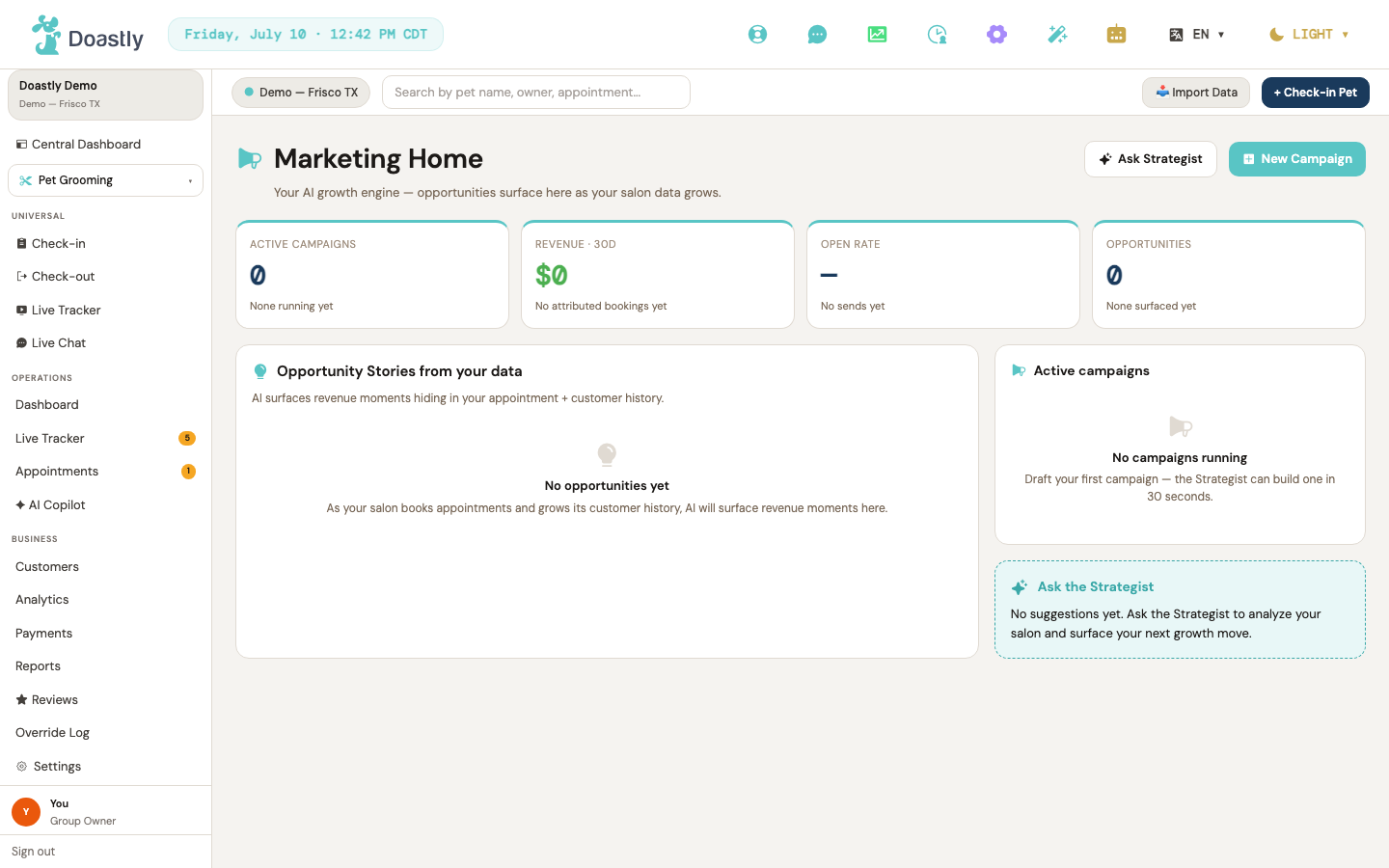
(dark mode also captured)
Marketing Home / Dashboard (AIM.1)
The Marketing Home dashboard is your starting point for AI-powered marketing. It surfaces top revenue opportunities, active campaigns, proactive Strategist suggestions, and quick paths to start a conversation or build a campaign. Note that several opportunity, campaign, and suggestion elements are display-only in the current build and do not yet trigger an action.
| Control | What it does |
|---|---|
| Ask Strategist | Opens the conversational AI Strategist. |
| New Campaign | Opens the 5-step Campaign Builder wizard. |
| Opportunity Story primary action ("Draft campaign") | Per-opportunity primary button, shown for each of the top three opportunity stories. The label is fixed ("Draft campaign"). Currently display-only, with no action wired. |
| Opportunity Story secondary action ("View list") | Per-opportunity secondary button on each top-three opportunity story. The label is fixed ("View list"). Currently display-only, with no action wired. |
| +N more · <opportunity headlines> | Static text listing the count and the headlines of opportunity stories beyond the top three. Not a link — it does not navigate. |
| Active campaign row (per active campaign) | Shown in the "Active campaigns" card for each active or scheduled campaign. Displays name · channel, a metrics line (clicks · booked · revenue attributed), and a status pill. Display-only — the row is not clickable and has no action wired. When no campaigns are active, an empty state prompts you to draft a first campaign. |
| Strategist suggests — primary CTA ("Open Strategist") | Primary button on the proactive Strategist suggestion card, shown when a prior Strategist conversation exists (the quoted text is drawn from your latest Strategist message). The button label itself ("Open Strategist") is fixed. Currently display-only, with no action wired. |
| Strategist suggests — secondary/dismiss CTA ("Not now") | Secondary/dismiss button on the Strategist suggestion card. The label is fixed ("Not now"). Currently display-only, with no action wired. |
| Ask the Strategist (empty-state CTA card) | Fallback card shown only when no Strategist suggestion exists (it never appears alongside the "Strategist suggests" card). The entire card is a link to the Strategist. |
AI Marketing — Coming Soon placeholder (legacy route)
The legacy AI Marketing landing shows a static Coming Soon placeholder. The COMING SOON badge and feature grid are non-interactive; the only working control is the support email link.
| Control | What it does |
|---|---|
| [email protected] | Opens your mail client to email support. |
AI Strategist
The AI Strategist is a conversational copilot that answers plain-English questions about your salon's marketing — top customers, win-back drafts, send timing, and campaign comparisons. Ask a question in the composer or tap a suggested prompt, and the strategist replies using only your salon's data.
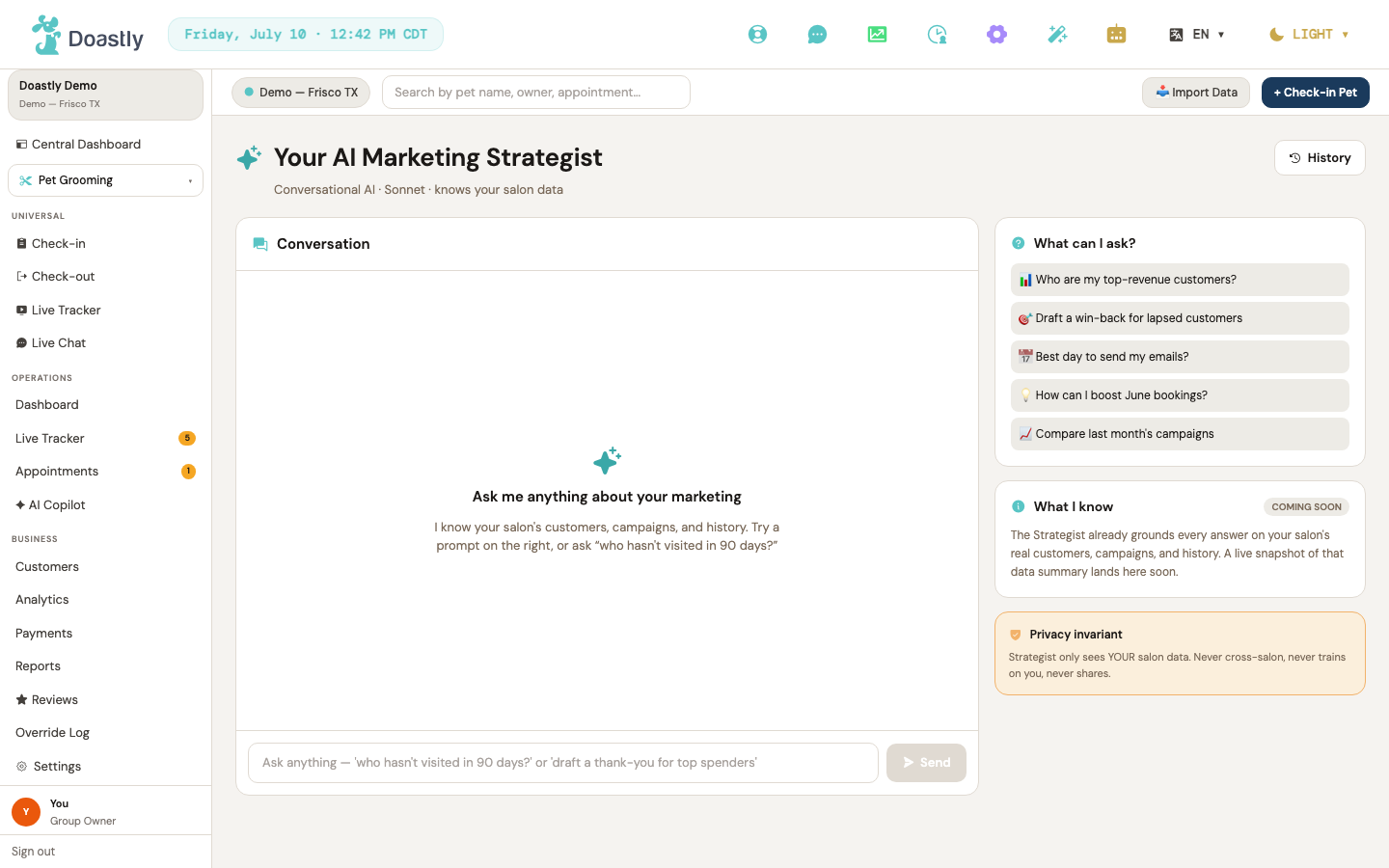
(dark mode also captured)
AI Strategist — Conversational Copilot
A chat-style workspace with a conversation timeline on the left and a right rail of suggested prompts, a data-privacy card, and a "What I know" summary.
| Control | What it does |
|---|---|
| History | Header button (clock icon + "History"). Currently inert — clicking does nothing yet. Intended to open past conversations; not yet available. |
| Conversation timeline (scroll region) | Scrollable feed of message bubbles. Loads your prior conversation on open (oldest turn first) and auto-scrolls to the newest turn as you chat. |
| Loading skeleton (3 placeholder bars) | Non-interactive. Shown briefly while your conversation first loads. |
| Error message | Non-interactive. Plain-English notice shown if the conversation fails to load ("Could not load your conversation. Please refresh.") or a message fails to send ("The strategist could not respond just now. Please try again."). |
| Empty state ("Ask me anything about your marketing") | Non-interactive. Shown when you have no messages yet; points you to the suggested prompts and the composer to get started. |
| "Strategist is thinking…" indicator | Non-interactive. Shown while the strategist prepares its reply after you send a message. |
| Message input (pill) | Type your question here. Press Enter to send. (It is a single-line field — Shift+Enter does not insert a line break here.) Disabled while a reply is in progress. |
| Send | Sends your question to the strategist, then adds your message and the strategist's reply to the timeline. Disabled when the input is empty or a reply is already in progress. |
| Suggested prompt: "📊 Who are my top-revenue customers?" | Sends this question to the strategist immediately (it does not just fill the input). The emoji prefix is stripped before the question is sent. |
| Suggested prompt: "🎯 Draft a win-back for lapsed customers" | Sends this question to the strategist immediately. Emoji prefix stripped before sending. |
| Suggested prompt: "📅 Best day to send my emails?" | Sends this question to the strategist immediately. Emoji prefix stripped before sending. |
| Suggested prompt: "💡 How can I boost June bookings?" | Sends this question to the strategist immediately. Emoji prefix stripped before sending. |
| Suggested prompt: "📈 Compare last month's campaigns" | Sends this question to the strategist immediately. Emoji prefix stripped before sending. |
| "What I know" card | Non-interactive. Marked "Coming soon" — the salon-data summary is not available yet, so the card shows placeholder copy rather than live stats. |
| Privacy card | Non-interactive. Static reminder that the strategist only sees your own salon's data ("Strategist only sees YOUR salon data. Never cross-salon, never trains on you, never shares."). |
| Inline draft card — primary button | Appears only when a reply includes a draft action (for example, "Create Campaign"). Currently dormant and not shown in practice, since replies do not yet carry draft actions. |
| Inline draft card — secondary button | The secondary action on a draft card. Same status as the primary button: dormant and not shown in practice. |
Campaigns list
The Campaigns list (AIM.3) shows every marketing campaign the salon has created and provides the entry points to build a new one. When no campaigns exist yet, an empty state takes over the page and offers its own way to get started.
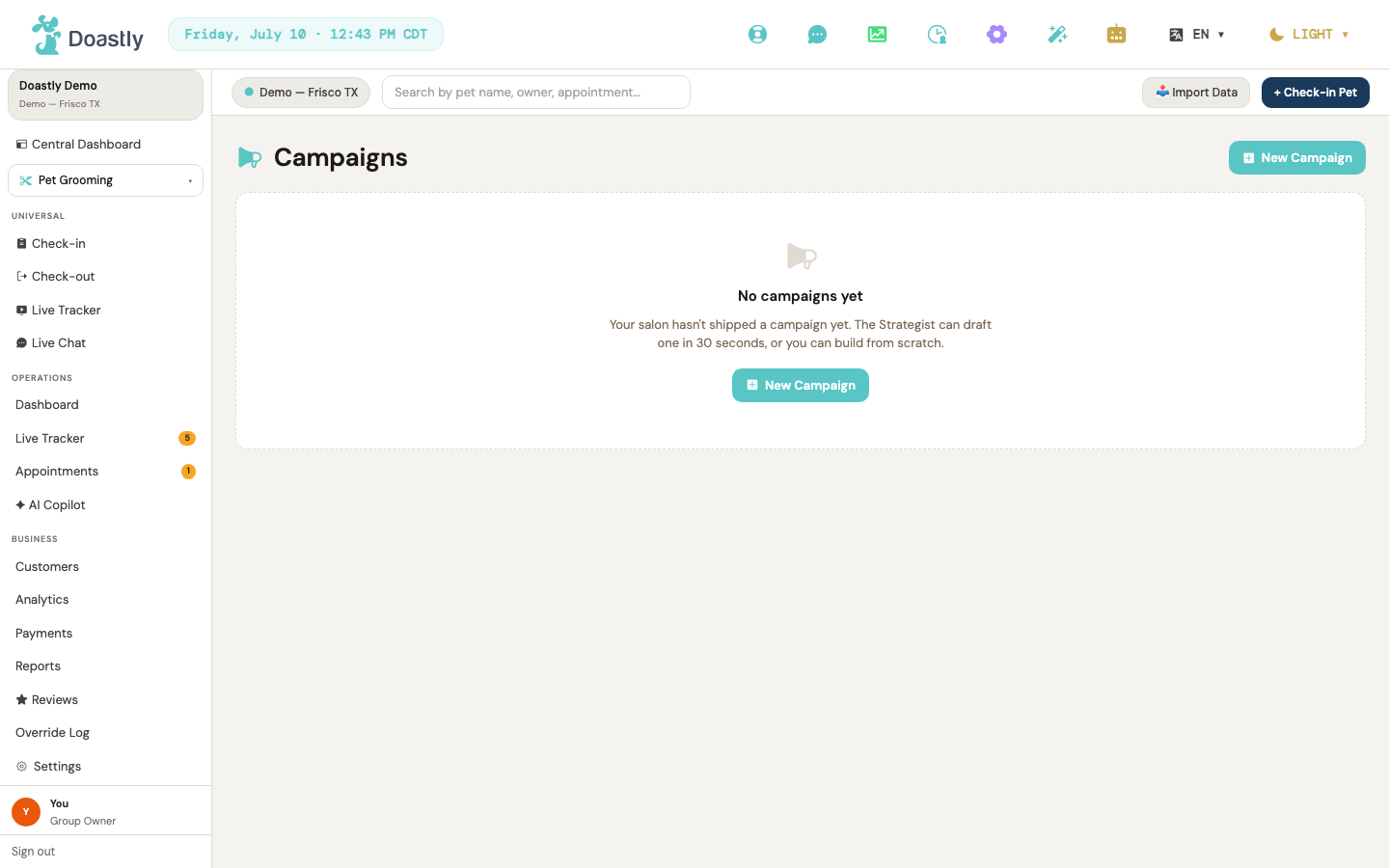
(dark mode also captured)
| Control | What it does |
|---|---|
| New Campaign (header CTA) | Opens the Campaign Builder wizard. This teal rounded button with a plus icon sits in the page header and is always visible, whether or not the salon has any campaigns yet. |
| New Campaign (empty-state CTA) | Also opens the Campaign Builder wizard. This second entry point appears only inside the "No campaigns yet" empty state, shown when the salon has zero campaigns. |
Note: When one or more campaigns exist, the page renders a list of campaign rows (name, campaign type, clicks/bookings/attributed-revenue metrics, and a status badge — Draft / Scheduled / Active / Completed / Paused / Cancelled). These rows are display-only in the current build — they are not clickable and contain no interactive controls, so no per-row control is documented. The header "New Campaign" button is the only control present when campaigns exist.
Campaign Builder
Campaigns List (Builder entry point)
The entry point to campaign creation. Lists your existing campaigns with performance metrics, and provides the button to start a new one.
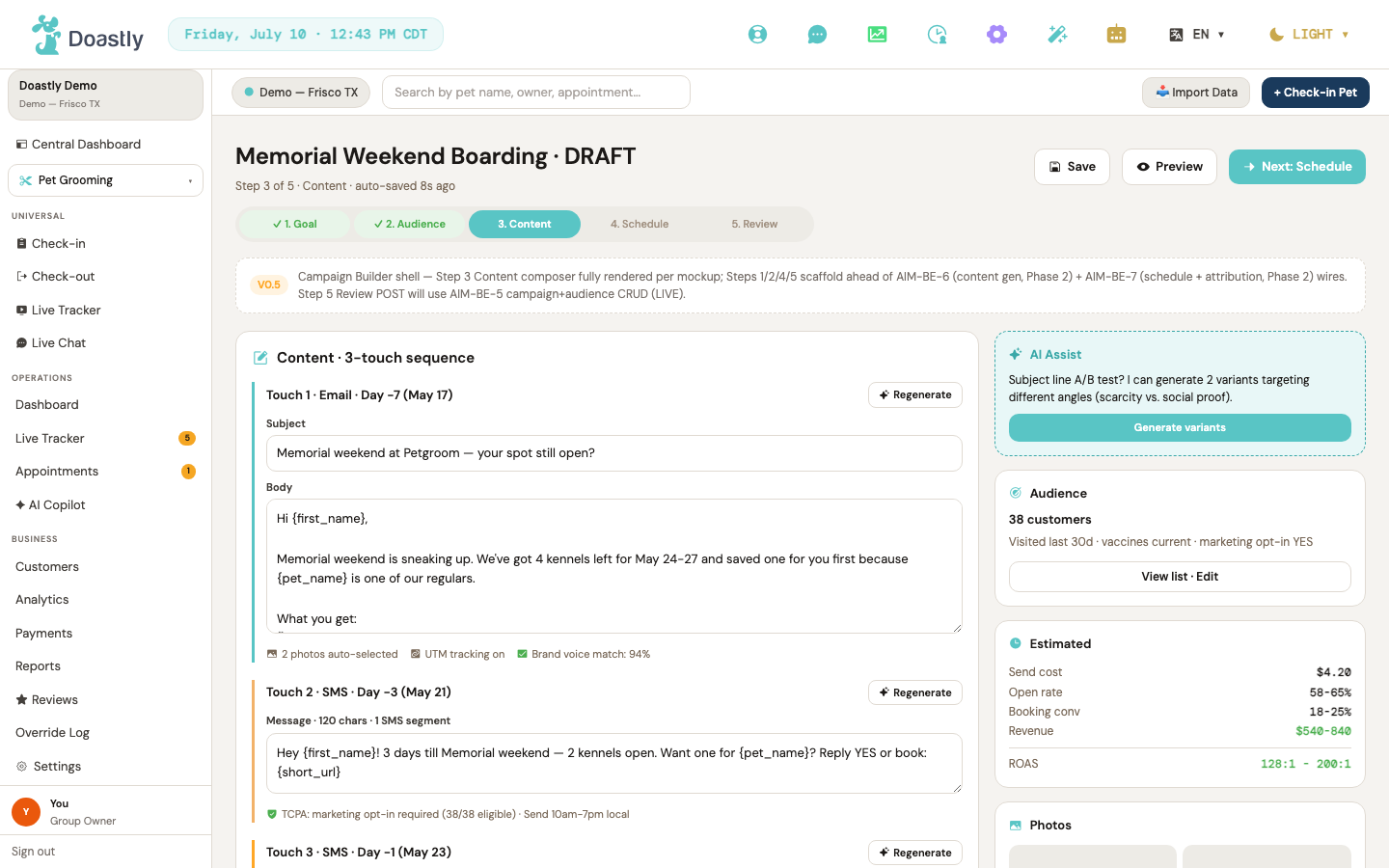
(dark mode also captured)
| Control | What it does |
|---|---|
| New Campaign (header CTA) | Opens the 5-step Campaign Builder. |
| New Campaign (empty-state CTA) | Appears only when you have no campaigns yet. Opens the Campaign Builder to build your first campaign. |
| Campaign row | Displays a single campaign's name, type, clicks, bookings, attributed revenue, and status. Display only — rows are not clickable. |
Campaign Builder — Topbar (all steps)
The topbar sits above every step of the builder, holding the draft actions and the step-advance control.
| Control | What it does |
|---|---|
| Save | Save-draft button (floppy-disk icon). Not yet wired — visual only for now; draft persistence is coming soon. — tracked as #971 |
| Preview | Preview button (eye icon). Not yet wired — visual only; coming soon. — tracked as #971 |
| Next: <step> / Submit | The only working stepper control. Advances to the next step (capped at step 5); the label shows the next step's name, or "Submit" on the final step. Moves you forward in the builder but does not save anything yet. |
Campaign Builder — 5-step Pill Nav
A progress indicator running across the top of the builder, showing where you are in the five steps.
| Control | What it does |
|---|---|
| Step pills: 1.Goal / 2.Audience / 3.Content / 4.Schedule / 5.Review | Shows the five steps and their state — completed (green with a checkmark), active (teal), or pending. Display only — the pills are not clickable; use the Next button to move between steps. |
Campaign Builder — Disclaimer + Step Placeholders
While the builder is being finished, most steps show scaffold copy in place of live controls. These elements explain what is live now and what is still coming.
| Control | What it does |
|---|---|
| Disclaimer banner | A static notice stating that Step 3 is fully built and Steps 1, 2, 4, and 5 are scaffolds still being finished. Display only. |
| Step 1/2/4/5 scaffold placeholder | Shown on any step other than Step 3. Displays the step name and honest coming-soon copy, indicating the step will go live once it is finished. Non-interactive placeholder. |
Campaign Builder — Step 3 Content Composer (3-touch)
Step 3 is the fully built step, where you compose the campaign's three outreach touches: an email (Day −7) followed by two SMS messages (Day −3 and Day −1). Text edits are held in the form as you work.
| Control | What it does |
|---|---|
| Touch 1 — Regenerate (Email, Day −7) | Per-touch AI regenerate (sparkle icon) for the email. Not yet wired — visual only; coming soon. — tracked as #971 |
| Touch 1 — Subject input (Email) | Editable email subject line. Your edits are held in the form as you work but are not yet saved. |
| Touch 1 — Body textarea (Email) | Editable email body, vertically resizable. Your edits are held in the form as you work but are not yet saved. |
| Touch 2 — Regenerate (SMS, Day −3) | Per-touch AI regenerate (sparkle icon) for the second touch. Not yet wired — visual only; coming soon. — tracked as #971 |
| Touch 2 — Message body textarea (SMS) | Editable SMS message. The label shows a live character count and SMS segment count (1 segment up to 160 characters, 2+ beyond that). No subject line, since it's an SMS. |
| Touch 3 — Regenerate (SMS final, Day −1) | Per-touch AI regenerate (sparkle icon) for the final touch. Not yet wired — visual only; coming soon. — tracked as #971 |
| Touch 3 — Message body textarea (SMS) | Editable SMS message for the final touch, with the same live character and segment counter. No subject line, since it's an SMS. |
Campaign Builder — Right Rail (AI Assist / Audience / Estimated / Photos)
A sidebar alongside the builder that surfaces AI assistance, the target audience, projected performance, and campaign photos.
| Control | What it does |
|---|---|
| Generate variants (AI Assist) | AI button (sparkle icon) to generate alternate content versions. Not yet wired — visual only; coming soon. — tracked as #971 |
| View list · Edit (Audience) | Opens or edits the campaign's audience list; the card shows the audience count and filter description. Not yet wired — visual only; coming soon. — tracked as #971 |
| Estimated metrics card | Shows five projected metric rows (Send cost, Open rate, Booking conv, Revenue, ROAS), with the ROAS row set off by a divider. Display only. |
| Change photos (Photos) | Swaps the campaign photos auto-picked from your Brand Kit (shown in the 2-tile grid above). Not yet wired — visual only; coming soon. — tracked as #971 |
Campaign Builder — Footer
The footer runs along the bottom of the builder with the exit link back to your campaign list.
| Control | What it does |
|---|---|
| Back to campaigns | Returns to the campaigns list. |
Opportunities
The Opportunities feed surfaces AI-generated marketing "stories" — moments in your salon's data worth acting on (for example, customers overdue for a visit). It is currently a read-only feed: stories render on load, but the action controls are not yet wired. — tracked as #971
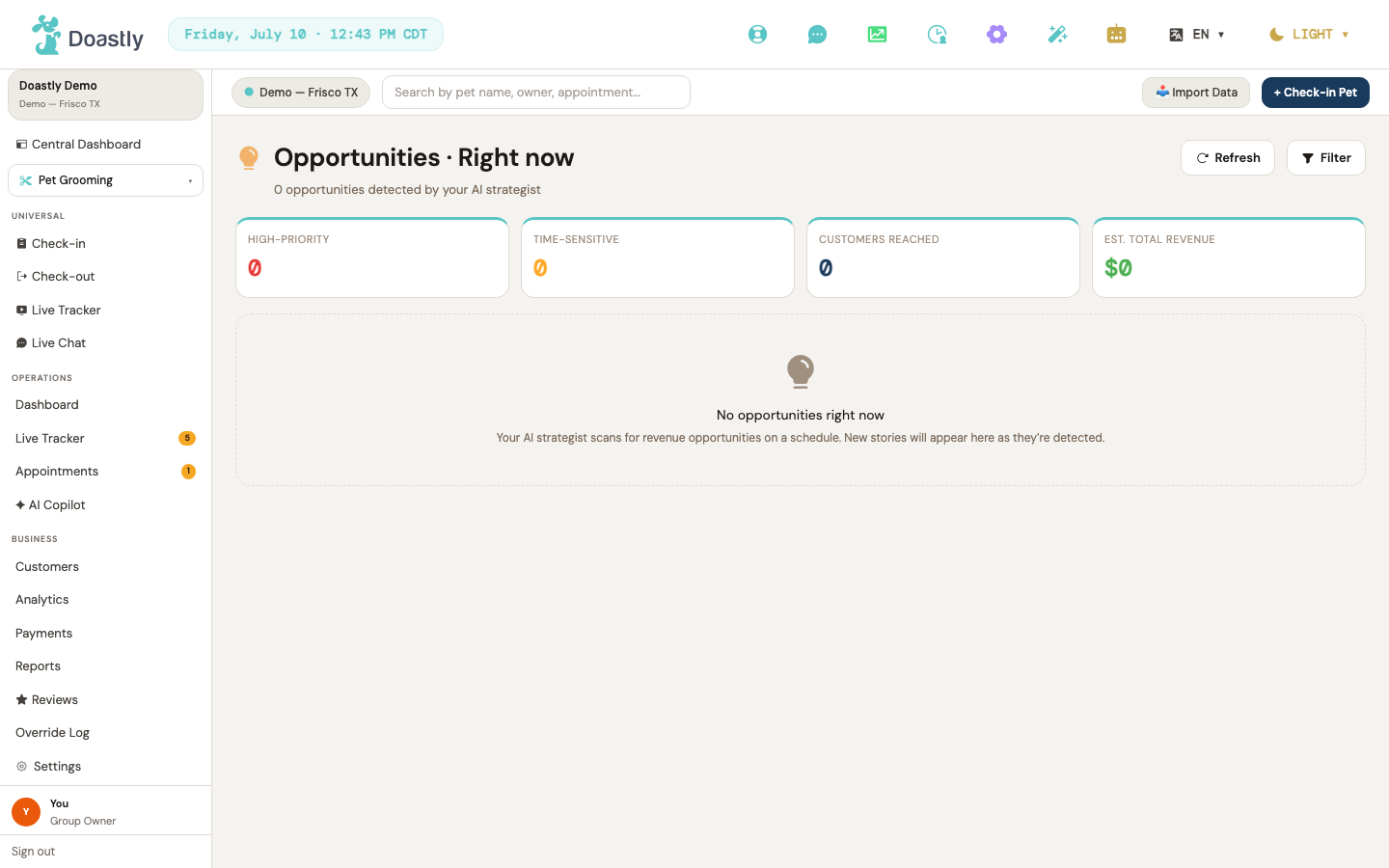
(dark mode also captured)
Opportunities · Right now (feed page)
The landing feed for the Opportunities screen. Stories load once when the page opens, and each is shown as a rich card. Each card renders an emoji-lead headline, a "Detected <date>" line, a status pill (estimated revenue, e.g. "Est. +$X", or "New"), an AI-confidence line, an italic AI-generated narrative, an optional meta-row (Best send / Channel / Audience), and three action buttons. Above the feed sits a strip of four non-interactive KPI tiles (High-priority, Time-sensitive, Customers reached, Est. total revenue) — these display only and are not clickable. Note that every interactive control on this screen is currently non-functional — the page displays data but no button yet performs its intended action.
| Control | What it does |
|---|---|
| Refresh | Header button (arrow-clockwise icon). Not wired — it does not re-fetch. The feed loads once on page open; this button has no effect yet. — tracked as #971 |
| Filter | Header button (funnel icon). Not wired — it performs no filtering yet. Coming soon. — tracked as #971 |
| Draft campaign (on each story card) | Primary teal action (arrow-right icon) on every opportunity card. Intended to start a campaign in the Campaign Builder from that story, but not yet wired — it does not navigate anywhere yet. — tracked as #971 |
| View list (on each story card) | Secondary outline action on every opportunity card. Intended to open the list of customers affected by the story, but not yet wired — it has no effect yet. — tracked as #971 |
| Dismiss (on each story card) | Secondary outline action on every opportunity card. Intended to dismiss the story from the feed, but not yet wired — it has no effect yet. — tracked as #971 |
_Non-controls (display only, correctly excluded above): the 4 KPI tiles in the header strip and the per-card status pill, confidence line, narrative, and meta-row are read-only elements with no interactive behavior._
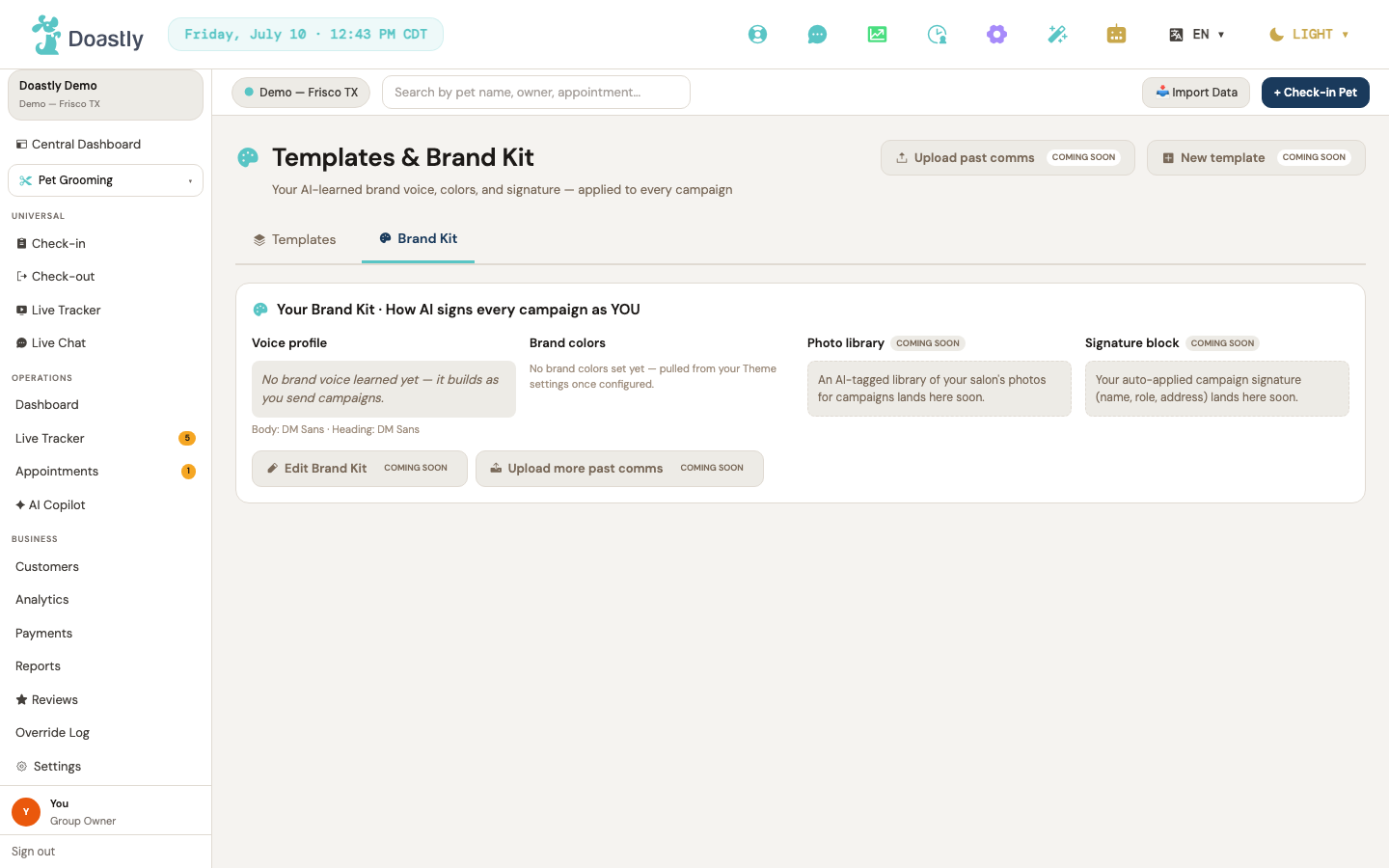
(dark mode also captured)
Templates & Brand Kit
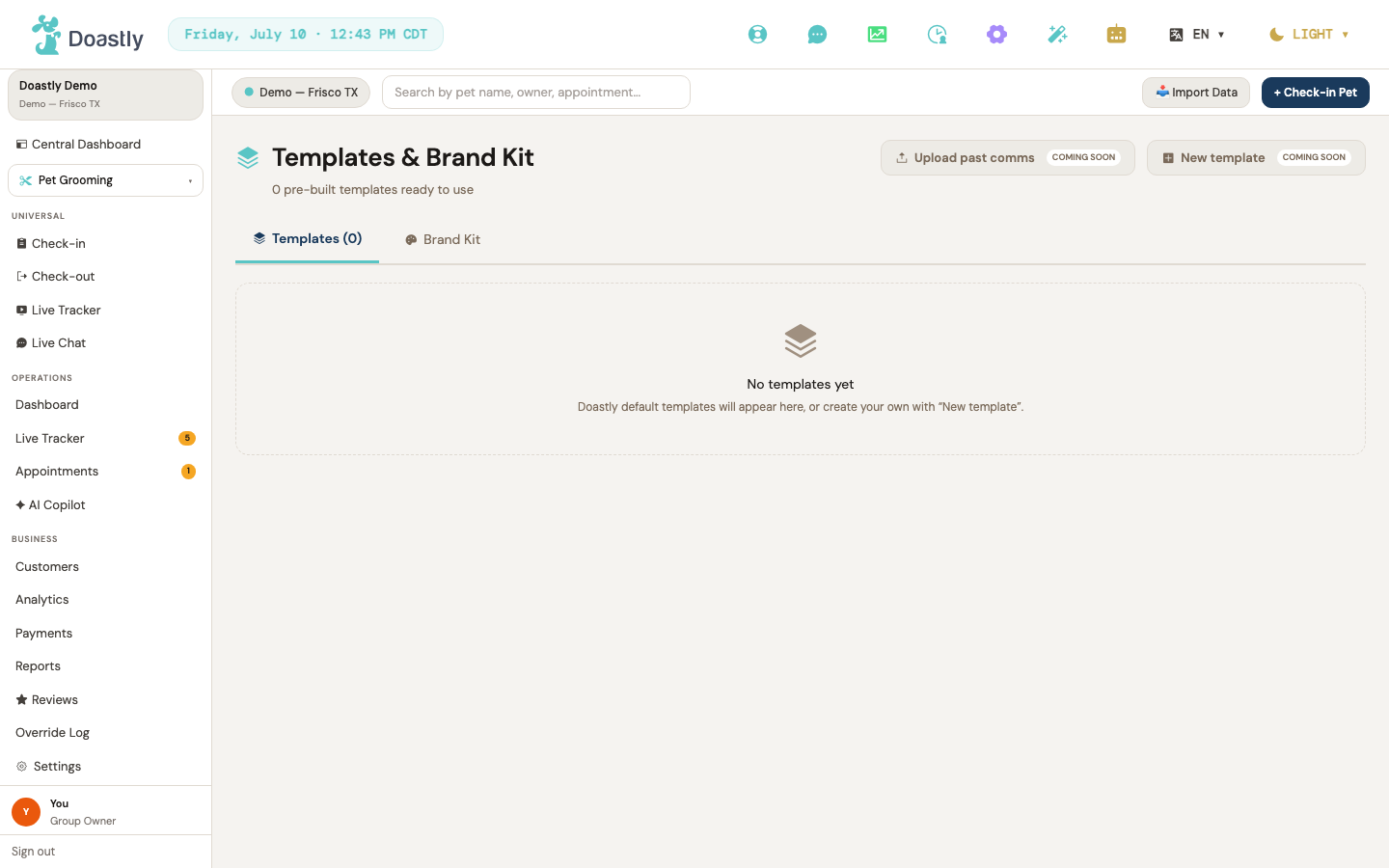
(dark mode also captured)
Templates (AIM.7)
The Templates tab lists your saved marketing templates as visual cards. Creating and uploading templates are still in progress, so the header actions are disabled for now.
| Control | What it does |
|---|---|
| Upload past comms | Header button for importing your past marketing emails and messages. Disabled and marked "Coming soon" — no action yet. |
| Coming soon (Upload) pill | Static "Coming soon" label inside the Upload past comms button. Display only. |
| New template | Header button for creating a template from scratch. Disabled and marked "Coming soon" — no action yet. |
| Coming soon (New template) pill | Static "Coming soon" label inside the New template button. Display only. |
| Templates | Active tab (teal underline). Stays on this page and shows the live count of your templates in its label (e.g. "Templates (6)"). |
| Brand Kit | Tab link. Switches to the Brand Kit page. |
| Template card | One card per saved template, showing its banner, icon, name, details, and up to two tags (a channel tag always shown; a "Doastly"/"Custom" source tag when applicable). The card itself is display only. |
| Use template | Full-width teal button on each template card, intended to start a campaign from that template. Currently renders as an enabled button but performs no action yet (unlike the disabled "Coming soon" header buttons, this control is clickable but does nothing). |
Brand Kit (AIM.7)
The Brand Kit tab shows the brand details Doastly's AI has learned about your salon — your voice, colors, fonts, and (soon) photos and signatures. Everything here is read-only for now; editing and uploads are still in progress.
| Control | What it does |
|---|---|
| Upload past comms | Header button for importing past marketing emails and messages. Disabled and marked "Coming soon" — no action yet. |
| Coming soon (Upload) pill | Static "Coming soon" label inside the header Upload past comms button. Display only. |
| New template | Header button for creating a template from scratch. Disabled and marked "Coming soon" — no action yet. |
| Coming soon (New template) pill | Static "Coming soon" label inside the header New template button. Display only. |
| Templates | Tab link. Switches to the Templates page. On the Brand Kit page this tab shows no count (just "Templates"). |
| Brand Kit | Active tab (teal underline). Stays on this page. |
| Voice profile | Read-only panel showing your AI-learned brand voice quote plus the body and heading fonts (fonts always display). Shows "No brand voice learned yet — it builds as you send campaigns." when no voice has been learned. |
| Brand color swatches | Read-only chips for your primary, secondary, and accent colors, with the color value shown on hover. Only the colors that are set are shown. Displays "No brand colors set yet — pulled from your Theme settings once configured." when none are defined. Not clickable. |
| Photo library | Placeholder section for your brand photos. Marked "Coming soon" with a dashed placeholder box. No action yet. |
| Coming soon (Photo library) badge | Static "Coming soon" label on the Photo library section header. Display only. |
| Signature block | Placeholder section for your email signature. Marked "Coming soon" with a dashed placeholder box. No action yet. |
| Coming soon (Signature block) badge | Static "Coming soon" label on the Signature block section header. Display only. |
| Edit Brand Kit | Panel button for editing your brand details. Disabled and marked "Coming soon" — no action yet. |
| Coming soon (Edit Brand Kit) badge | Static "Coming soon" label inside the Edit Brand Kit button. Display only. |
| Upload more past comms | Panel button for adding more past communications to train the AI. Disabled and marked "Coming soon" — no action yet. |
| Coming soon (Upload more) badge | Static "Coming soon" label inside the Upload more past comms button. Display only. |
Compliance Center
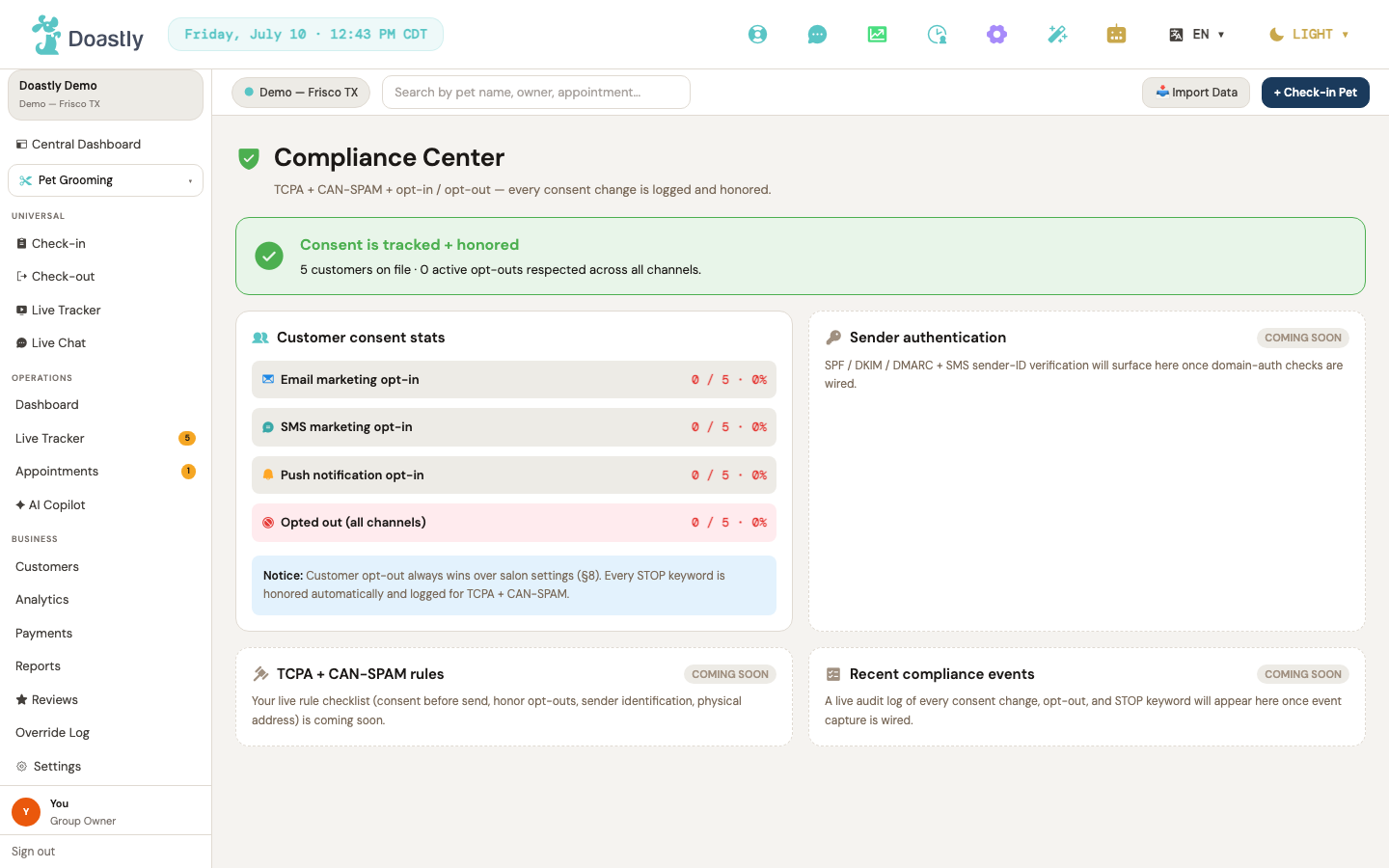
(dark mode also captured)
Compliance Center (AIM.8)
The Compliance Center is where salon owners and managers confirm that customer consent is being tracked and honored across every marketing channel. The page loads its consent numbers automatically and is restricted to senior roles because of the sensitivity of the data it shows.
| Control | What it does |
|---|---|
| Consent stats (loads automatically) | Runs automatically when the page opens — pulls your live consent rollup and fills in the status banner and the consent stats card. Shows a loading placeholder while it fetches and a plain-English message if it can't load. No action required from you. |
| Role gate (Owner / Manager / Super Admin) | Governs who can open the page. Owners, managers, and super-admins are allowed in; anyone else is quietly redirected to their own default page before the page loads. Not a button — it simply guards access to sensitive compliance data. |
Compliance Center — display-only panels
These panels present the compliance picture as read-only cards. The first two reflect real, live consent data; the remaining three are honestly labeled "Coming soon" and describe features that will surface once the supporting checks are in place.
| Control | What it does |
|---|---|
| Status banner (Consent is tracked + honored) | Read-only banner summarizing the consent rollup. Shows "Consent tracking is on" when there's no data yet (total customers = 0), or a populated line such as "N customers on file · M active opt-outs respected across all channels." No click behavior. |
| Customer consent stats card | Read-only card. Shows one row per marketing channel (standard set: Email, SMS, Push opt-in) plus a final "Opted out (all channels)" row — each shown as "count / total · pct%" with color-coded tone (the opted-out row gets an error-tinted highlight). Includes a fixed notice that a customer opt-out always overrides salon settings and that STOP keywords are honored automatically. No buttons, links, or inputs. |
| Sender authentication — Coming Soon | Display-only card marked with a "Coming soon" pill. Explains that email domain authentication (SPF/DKIM/DMARC) and SMS sender-ID status will appear here once domain-auth checks are in place. No interaction. |
| TCPA + CAN-SPAM rules — Coming Soon | Display-only card marked with a "Coming soon" pill. Notes that a live checklist of TCPA and CAN-SPAM rules is on the way. No interaction. |
| Recent compliance events (audit log) — Coming Soon | Display-only card marked with a "Coming soon" pill. States that a live audit log of consent changes, opt-outs, and STOP keywords will appear once event capture is in place. No interaction. |
Campaign Analytics
(dark mode also captured)
Campaign Analytics (AIM.6)
A read-only reporting screen that summarizes marketing performance across all your campaigns — sends, opens, clicks, bookings, and attributed revenue. Every element on this screen is display-only except the two header pill buttons, both of which are placeholders that do nothing yet.
| Control | What it does |
|---|---|
| Last 90d (date range) | Header pill button with a calendar icon. Placeholder — clicking it does nothing yet; there is no date filtering yet. The screen always shows the full summary regardless of this control. |
| Export | Header pill button with a download icon. Placeholder — clicking it does nothing yet; no CSV or PDF export exists yet. |
| KPI card — Sent | Display-only metric card showing the total number of sends across all campaigns, with a sub-line noting how many campaigns it spans (e.g. "across 5 campaigns"). Not clickable. |
| KPI card — Open rate | Display-only metric card showing the open rate as a percentage plus the opened count. Not clickable. |
| KPI card — Click rate | Display-only metric card showing the click rate as a percentage plus the clicked count. Not clickable. |
| KPI card — Bookings | Display-only metric card showing total bookings and the conversion rate. Not clickable. |
| KPI card — Revenue attrib. | Display-only metric card showing attributed revenue and, when available, ROAS (otherwise the number of contributing bookings). Not clickable. |
| Full attribution chain funnel | Display-only five-stage funnel — Sent, Opened, Clicked, Booked, Revenue — with a per-stage chip for each and a static "How attribution works" explainer. The connecting arrows are decorative; nothing here is interactive. |
| Top 3 campaigns by ROAS | Display-only sidebar card listing your three highest-revenue campaigns, with ROAS shown per row (a dash when it can't be calculated). Rows are not clickable. |
| All campaigns table (last 90d) | Display-only table of every campaign, with columns for Campaign, Type, Sent, Open, Click, Booked, Revenue, and ROAS. A "{N} campaigns" count label appears in the card header. Rows are not clickable and do not open a campaign detail; scheduled and draft campaigns show muted with dashes for their metrics. The only interaction is horizontal scrolling on narrow screens. |
| Loading skeleton | Placeholder state (five KPI blocks and one chart block) shown while the summary loads. No controls. |
| Empty state | Shown when the salon has no campaigns yet ("No campaign analytics yet"). Informational text only — no button or link. |
| Error state | Friendly message shown if the analytics summary fails to load. There is no retry button; refresh the browser to try again. |
AI Marketing landing
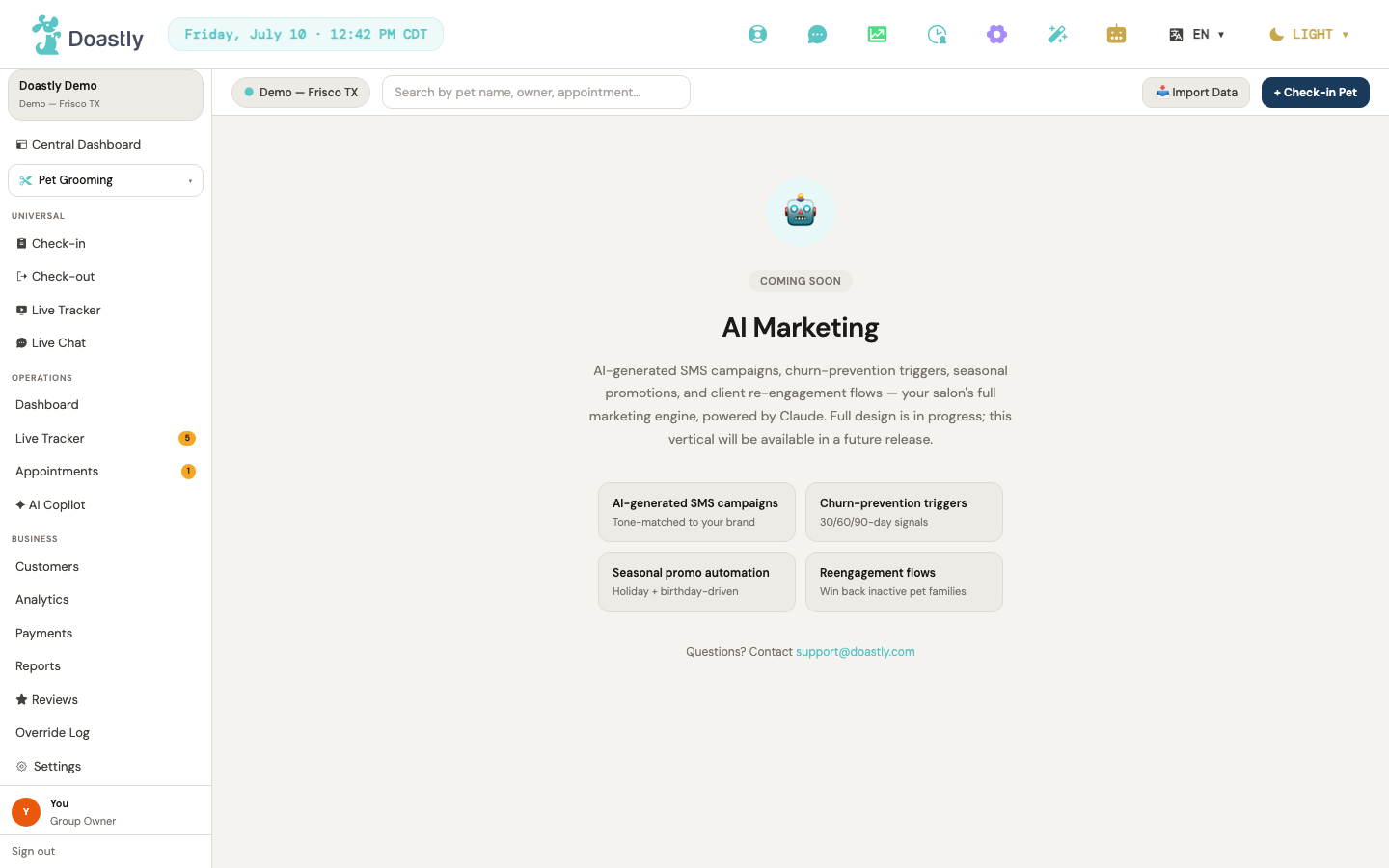
(dark mode also captured)
AI Marketing — Coming Soon placeholder (legacy route)
A static placeholder at the legacy /salon/ai-marketing route. It renders regardless of whether the AI Marketing add-on is active (it is not a subscription gate) — the live AI Marketing module lives at /salon/marketing. The four feature cards (AI-generated SMS campaigns · Churn-prevention triggers · Seasonal promo automation · Reengagement flows) and the COMING SOON badge are static tiles; the only working control is the support contact link.
| Control | What it does |
|---|---|
| [email protected] | Opens your email client to contact support. The only interactive element on the page. |
Marketing Home / Landing Dashboard
The AI Marketing home. Two header links (styled as buttons) launch the main flows; the KPI cards, opportunity stories, active-campaign list, and strategist suggestions below are read-only summaries drawn from your live analytics and campaign data.
| Control | What it does |
|---|---|
| Ask Strategist | Header link. Opens the conversational AI Strategist. |
| New Campaign | Primary header link. Opens the Campaign Builder. |
| KPI card — Active campaigns | First KPI card. Shows the count of running campaigns (active, scheduled, and paused). Read-only; not clickable. |
| KPI card — Revenue · 30d | Shows the 30-day attributed-revenue total. Read-only; not clickable. |
| KPI card — Open rate | Shows the email open rate (opened out of sent). Read-only; not clickable. |
| KPI card — Opportunities | Shows the count of AI-surfaced opportunity stories. Read-only; not clickable. |
| Opportunity Story — primary action | Per-story button labeled "Draft campaign" (the same label on every story). Currently presentational — no action is wired yet. |
| Opportunity Story — secondary action | Per-story button labeled "View list" (the same label on every story). Currently presentational — no action is wired yet. |
| +N more (opportunities) | Text label showing the count and titles of opportunity stories beyond the top three. Display only — not a link or button. |
| Active campaign row | Per-campaign row showing name, channel, meta (clicks · booked · attributed revenue), and a status pill. Read-only; not clickable. |
| Strategist suggests — primary CTA | Primary button on the Strategist suggestion card, labeled "Open Strategist". Shown when a strategist conversation exists (only the quoted text changes). Currently presentational — no action is wired yet. |
| Strategist suggests — secondary CTA | Secondary/dismiss button on the suggestion card, labeled "Not now". Currently presentational — no action is wired yet. |
| Ask the Strategist (empty state) | Whole-card link shown when there are no strategist conversations yet. Opens the AI Strategist. |
Global chrome (TopBar + Sidebar) — BOARDING active
The salon global chrome is a three-bar layout: a full-width system bar across the very top of every salon page, the sidebar down the left, and a secondary top bar inside the content column.
System bar (the topmost bar — appears on every salon page)
The full-width bar at the very top of every salon page. It holds the brand mark, a live date/time display, and a row of quick-action icons on the right.
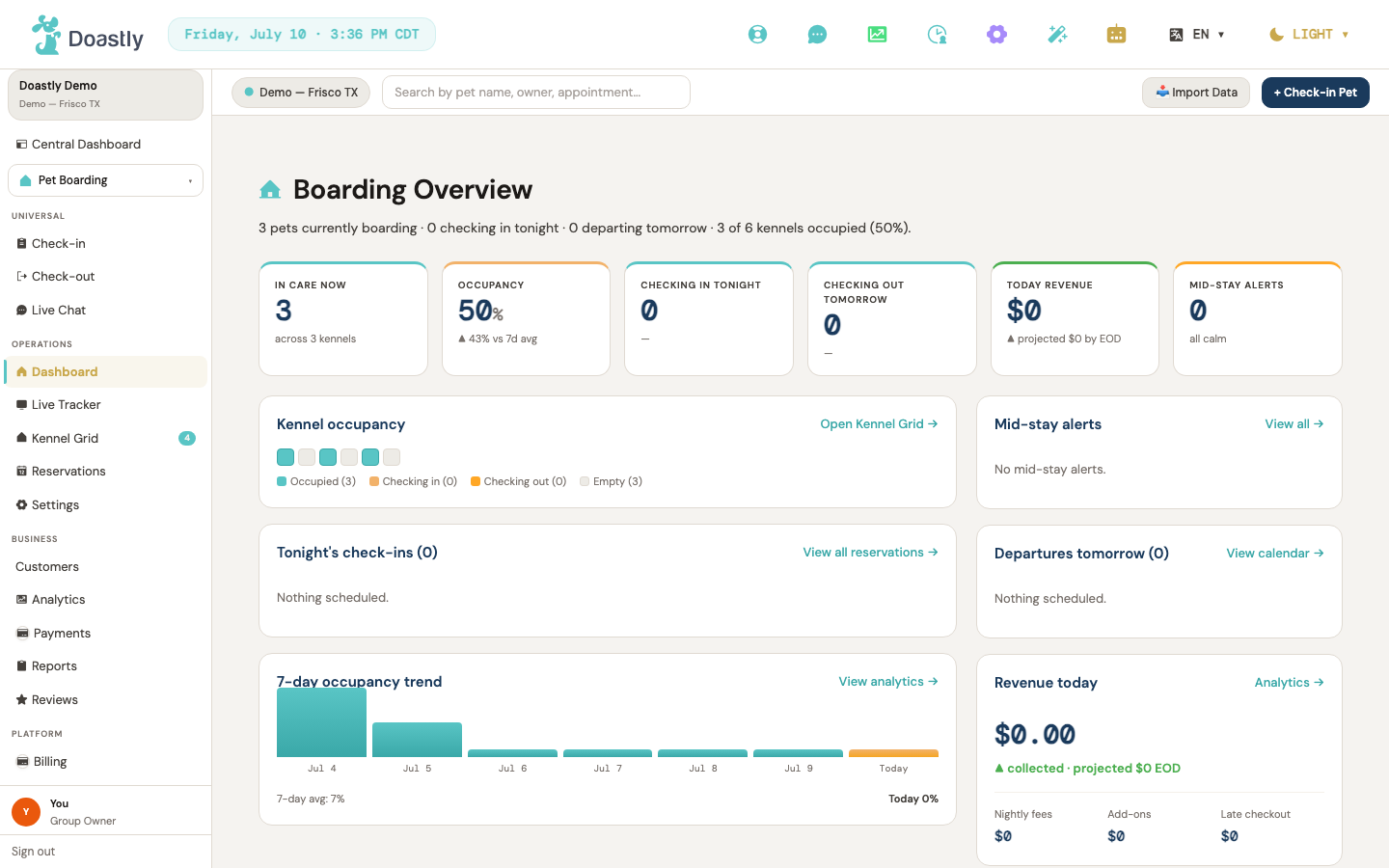
(dark mode also captured)
| Control | What it does |
|---|---|
| Doastly logo | The Doastly brand mark at the top-left. Non-interactive. |
| Today's date/time display | Shows today's date and time in the active location's timezone; refreshes automatically. Non-interactive. |
| Get Help (🛟) | Opens the Get Help support window. |
| Live Chat (💬) | Goes to the cross-vertical Live Chat. |
| Analytics (📈) | Goes to analytics. |
| Staff Clock (🕑 + count badge) | Goes to the staff time clock. Shows a badge with the number of currently clocked-in staff. |
| Settings (⚙) | Goes to location settings. |
| Setup Wizard (🪄) | Opens the onboarding setup wizard. |
| AI Companion (🤖) | Shows an "AI Companion coming soon" message. Not yet available in the current build. |
| Language switcher | Opens a language menu; choosing a language saves the preference, updates the account, and reloads the app in the chosen language. |
| Display-mode dropdown (LIGHT/DARK + ▾) | Opens Light / Dark / Auto options to set the UI color mode; the choice persists. |
Secondary top bar (inside the content column)
A secondary bar that sits below the system bar, above the page content. It provides location switching, search, data import, and a quick check-in shortcut.
| Control | What it does |
|---|---|
| Location Switcher Pill (● + location name + ▾) | For a multi-location Owner, opens a dropdown to choose the active location or read across "All Locations"; the choice persists and refreshes the current view. For a single-location salon it shows a static identity pill with no menu. |
| Search input ("Search by pet name, owner, appointment…") | A search field for pet name, owner, or appointment. It updates as you type; results navigation is not yet available in the current build. |
| 📥 Import Data | Import Data action button. Not yet available in the current build. |
| + Check-in Pet | Starts the check-in flow appropriate to your active vertical — on a Boarding page it opens the Boarding check-in. Hidden on the main dashboard, which has its own check-in button. |
Location switcher dropdown
Opened from the top-bar location pill. Shown only for operators with more than one location; it selects which location's data the salon views.
| Control | What it does |
|---|---|
| Location pill button (● + active location name + ▾) | Opens and closes the location dropdown. Displays the active location name, or "All Locations" when reading across all locations. |
| All Locations (🌐 "Read across all owned locations") | Switches to cross-location reading across every location you own, closes the menu, and refreshes the view. |
| Per-location row (📍 name + city, state) | Sets that location as the active location, closes the menu, and refreshes the view. One row appears per location you have access to. |
Sidebar — BOARDING active vertical
The global left navigation. With Boarding as the active vertical, it groups links into Universal, Operations, Business, and Platform sections. Role- and subscription-based items appear only when applicable.
| Control | What it does |
|---|---|
| Salon Group card (salon name + location name) | Displays the salon group name and current location at the top of the sidebar. Non-interactive. |
| Central Dashboard | Goes to the cross-location central dashboard. |
| Vertical Switcher Pill (current vertical icon + label + ▾) | Opens the vertical switcher dropdown, showing the active vertical (Boarding when active). |
| Vertical option rows (Grooming / Boarding / Daycare / Mobile / Training / AI Marketing) | Switches the active vertical and remembers the choice; the current vertical is marked "✓ Active". Only verticals your salon subscribes to appear. |
| UNIVERSAL section header | Labels the cross-vertical Universal group. Non-interactive. The entire Universal group (Check-in, Check-out, Live Tracker, Live Chat) is hidden for Groomer, Bather, and Driver roles. |
| Check-in (Universal) | Goes to the shared check-in flow, with the Boarding option preselected in a Boarding context. Hidden for Groomer, Bather, and Driver roles. |
| Check-out (Universal) | Goes to the shared check-out flow. Hidden for Groomer, Bather, and Driver roles. |
| Live Tracker (Universal) | Goes to the universal Live Tracker. Shown only for a signed-in user whose salon runs more than one vertical. Also hidden for Groomer, Bather, and Driver roles (part of the Universal group). |
| Live Chat (Universal) | Goes to the cross-vertical Live Chat. Also hidden for Groomer, Bather, and Driver roles (part of the Universal group). |
| Operations section header | Labels the Boarding Operations group. Non-interactive. |
| Dashboard (Boarding) | Goes to the Boarding overview KPI page. Available to Managers and Owners. |
| Live Tracker (Boarding) | Goes to Live Boarding Operations. Available to Managers and Owners. |
| Kennel Grid (Boarding home) + count badge | Goes to the Boarding operations kennel grid home. Shows a numeric badge with the checked-in count when there are pets currently boarding. |
| Reservations | Goes to the reservations admin list. |
| Settings (Boarding) | Goes to the four-tab Boarding Settings. Available to Managers and Owners. |
| Business section header | Labels the Boarding Business group. Non-interactive. |
| Customers (shared) | Goes to the cross-vertical customer list. |
| Analytics (Boarding) | Goes to Boarding financial analytics. Available to roles with analytics access. |
| Payments (Boarding) | Goes to Boarding payments and transactions. Available to roles with payments access. |
| Reports (Boarding) | Goes to the tabbed Boarding Reports. Available to Managers and Owners. |
| Reviews (shared) | Goes to the cross-vertical reviews. Available to Managers and Owners. |
| Platform section header | Labels the Platform group. The entire Platform block is available to Managers and Owners only. |
| Billing (Platform) | Goes to billing. |
| Settings (Platform) | Goes to platform settings. |
| Salon Setup (Platform) | Opens the onboarding setup wizard at its first step. |
| Pickup/Dropoff (add-on) | Goes to pickup/dropoff delivery settings. Shown only when the Pickup & Drop-off add-on is enabled. |
| Pickup Dispatch (add-on) | Goes to the pickup dispatch board. Shown only when the Pickup & Drop-off add-on is enabled. |
| Loyalty & Rewards (add-on) | Goes to loyalty and rewards. Shown only when the Loyalty add-on is enabled. |
| Retail Inventory (add-on) | Goes to retail inventory. Shown only when the Retail Inventory add-on is enabled. |
| Salon Theme | Goes to the theme picker. Available to Managers and Owners. |
| User footer card (avatar + name + role) | Shows the signed-in user's avatar, name, and role at the bottom of the sidebar. Non-interactive. |
| Sign out | Signs you out and returns to the login page. |
Owner Dashboard
(dark mode also captured)
Boarding Overview (Owner Dashboard) — main populated view
The at-a-glance operational home for boarding, showing live occupancy, today's arrivals and departures, mid-stay alerts, revenue, and recent activity.
A read-only summary line sits under the "Boarding Overview" heading (e.g. "3 pets currently boarding · 2 checking in tonight · 1 departing tomorrow · 4 of 16 kennels occupied (25%)").
| Control | What it does |
|---|---|
| Open Kennel Grid → | Header link on the "Kennel occupancy" panel. Opens the Boarding home / kennel grid. |
| View all reservations → | View-all link on the "Tonight's check-ins" list. Opens the Boarding home. |
| View calendar → | View-all link on the "Departures tomorrow" list. Opens the Boarding home. |
| View all → | Header link on the "Mid-stay alerts" panel. Opens the Boarding home. |
| Analytics → | Header link on the "Revenue today" panel. Opens boarding analytics. |
| View analytics → | Header link on the "7-day occupancy trend" panel (shown only when trend data exists). Opens boarding analytics. |
| All events → | Header link on the "Recent activity" panel at the bottom. Opens the Boarding home. |
| Kennel cell | One tile per kennel you have configured — the grid grows and shrinks with your kennel list, so a location with eight kennels shows eight squares and one with forty shows forty. A colored square whose state (occupied, checking in, checking out, or empty) reflects the kennel; hover to see the kennel label and pet name. Hover-info only — it does not navigate. |
| Kennel cell | Per-kennel tile in the 16-cell occupancy grid. A colored square whose state (occupied, checking in, checking out, or empty) reflects the kennel; hover to see the kennel label and pet name. Hover-info only — it does not navigate. |
| Trend bar | One bar per day in the 7-day occupancy trend chart. Hover to see the date and occupancy percentage. Read-only visualization. |
| KPI card: In care now | Read-only metric card showing the number of pets currently in care, with an "across N kennels" note. |
| KPI card: Occupancy | Read-only metric card showing current occupancy percentage against the 7-day average. |
| KPI card: Checking in tonight | Read-only metric card showing the count of tonight's check-ins, with the first expected arrival time. |
| KPI card: Checking out tomorrow | Read-only metric card showing the count of tomorrow's check-outs, with the first expected departure time. |
| KPI card: Today revenue | Read-only metric card showing today's revenue, with a projected end-of-day figure. |
| KPI card: Mid-stay alerts | Read-only metric card showing the number of mid-stay alerts, flagged as urgent or "all calm." |
| Stay row (tonight's check-in) | Read-only list row for a pet arriving tonight: avatar, pet and owner, vaccine note and number of nights, kennel chip, and expected arrival time with countdown. |
| Stay row (departure tomorrow) | Read-only list row for a pet departing tomorrow: avatar, pet and owner, note and number of nights, and expected departure time. |
| Alert row | Read-only list row for a mid-stay alert: severity icon (birthday, error, or warning), pet name and summary, and kennel and owner. |
| Activity row | Read-only list row for a recent event: time, colored event-type dot, and the event description. |
Empty sub-states (populated view): each of the three list panels shows a placeholder line when its collection is empty — the "Tonight's check-ins" and "Departures tomorrow" lists show "Nothing scheduled.", the "Mid-stay alerts" panel shows "No mid-stay alerts.", and the "Recent activity" panel shows "Nothing logged yet today." These are read-only text, not controls.
Boarding Overview — error state
Shown when the dashboard cannot load its data or returns nothing.
| Control | What it does |
|---|---|
| Try again | Re-fetches the dashboard data for the current location. |
Boarding Overview — loading state
The placeholder view shown while the dashboard data is being fetched. This state contains no interactive controls.
Kennel Board / Live Tracker (Boarding)
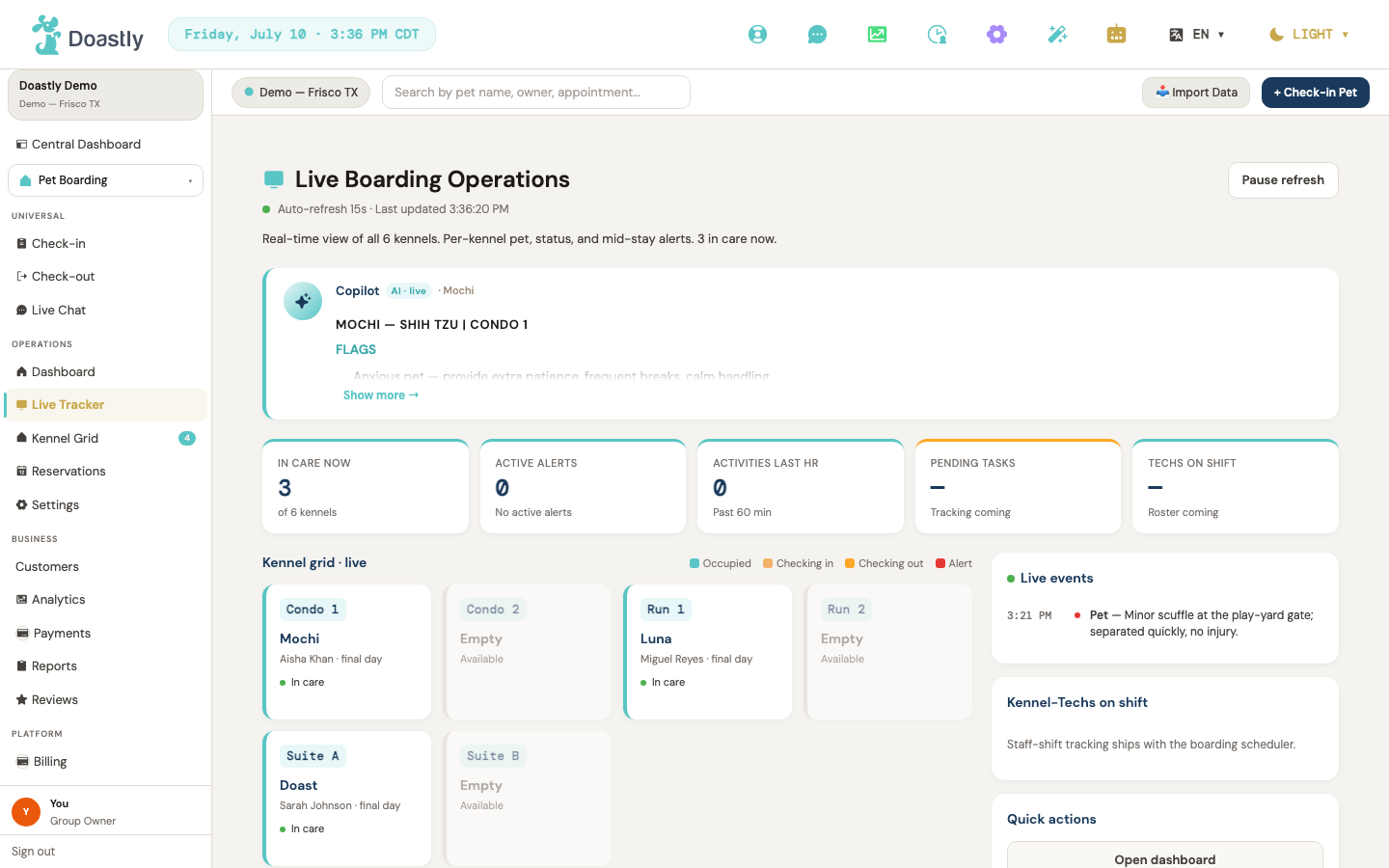
(dark mode also captured)
Live Boarding Operations (Live Tracker)
A real-time operations view of active boarding stays — kennel occupancy, live activity, and quick jumps to related admin screens. The tracker auto-refreshes every 15 seconds.
| Control | What it does |
|---|---|
| Pause refresh / Resume refresh | Toggles the 15-second auto-refresh. The label flips to "Resume refresh" when paused, and the header status dot + text switch between "Auto-refresh 15s" and "Paused". The header also shows a "Last updated {time}" timestamp that updates on each successful refresh. |
| Try again | Shown only in the error state. Re-fetches the tracker data. |
| AI Copilot · live focus card | AI Copilot card focused on the first checked-in reservation; refreshes its brief every 30 seconds. |
| Show more → / Show less ↑ | Inside the Copilot brief card. Expands or collapses the AI brief text; the chosen state is remembered for next time. |
| In care now / Active alerts / Activities last hr / Pending tasks / Techs on shift | Read-only KPI card strip. "Pending tasks" and "Techs on shift" currently show "—", pending staff-roster and task support. |
| Kennel grid legend (Occupied / Checking in / Checking out / Alert) | Read-only color key for the kennel grid below it. |
| Kennel cell (e.g. B-1) | Read-only tile per kennel showing pet, owner, day progress, and status, with a colored border and dot by state (occupied, checking in, checking out, alert, or empty). Display only — not clickable. |
| Live events feed | Read-only activity stream showing up to 12 recent events with their time and description. |
| Kennel-Techs on shift (Tech Roster panel) | Side panel, currently an empty state ("Staff-shift tracking ships with the boarding scheduler"). |
| Review N mid-stay alerts / Open dashboard | Quick action that opens the Boarding Dashboard. The label shows the alert count when alerts are present. |
| Open reservations admin | Quick action that opens the Boarding Reservations admin. |
| Open kennel grid | Quick action that opens the Boarding home / kennel grid. |
| Transport lane cards | Read-only Pickup/Dropoff Delivery add-on lane below the grid. Each active leg shows the pet, driver, and a status pill; hidden entirely when no legs are active. |
Boarding Operations / Kennel Grid (Boarding Home)
The main boarding workspace for managing reservations and occupied kennels — check pets in and out, view the kennel grid or calendar, and log daily care cards.
| Control | What it does |
|---|---|
| + New Reservation | Opens the shared check-in flow in Boarding context. |
| 🧾 (receipt icon) — Checked-In card | Opens the itemized receipt window for that active stay. |
| Checkout — Checked-In card | Opens the Boarding Checkout window for that active stay. |
| 🧾 (receipt icon) — Confirmed card | Opens the itemized receipt window for that confirmed reservation. |
| Check In — Confirmed card | Opens the Boarding vaccine-compliance gate for that reservation; on pass, proceeds to the belongings log. |
| Kennel Grid | View toggle that shows the kennel grid layout. Highlighted when active. |
| Calendar View | View toggle that shows the boarding calendar. |
| Occupancy Board | Opens the Occupancy Forecast. |
| Analytics | Opens Boarding Analytics. |
| Kennel/unit cell (grid mode) | Clickable tile per unit that opens the inline unit detail panel. Colored by status (empty, occupied, checkout today, or overdue). |
| Add Daily Card — unit detail | Opens the Daily Care Card form inline for the selected occupied unit. |
| Close — unit detail | Closes the unit detail panel. |
| Daily Card History list — unit detail | Read-only list of past daily care cards below the Add-Daily-Card button. Each history card shows the date, mood emoji, AM feeding, PM feeding, Walks (time + duration), Medications, Notes, and an "AI Summary" block. This narrative is not generated for cards saved from this form — the AI Summary block reads "—" on every card. |
| Date — Daily Card form | Sets the care-card date; defaults to today. |
| Morning Feeding / Evening Feeding — Daily Card form | Text fields for AM and PM feeding notes. |
| Mood (Excellent / Good / Anxious / Unwell) — Daily Card form | Emoji button group to record the pet's mood for the day. |
| Walk time / Walk duration — Daily Card form | Time and text fields to record each walk. |
| + Add Walk — Daily Card form | Adds another walk row. |
| Medication input — Daily Card form | Text field to record each medication given. |
| + Add Medication — Daily Card form | Adds another medication row. |
| Notes — Daily Card form | Free-text field for notes about the pet's day. |
| Cancel — Daily Card form | Closes the form without saving. Disabled while the card is saving or the narrative is loading. |
| Save Daily Card — Daily Card form | Submits the care card. The label shows "Saving..." while in progress. The form then waits up to 30 seconds for an AI narrative, but narrative generation from this form is not wired up — the wait always ends with nothing shown — tracked as S-REPORT-CARD-BD-AI-NARRATIVE. |
| Show more → / Show less ↑ — Daily Card form AI narrative | Expands or collapses the AI narrative block shown above the form; always empty (narrative generation from this form is not wired up — tracked as S-REPORT-CARD-BD-AI-NARRATIVE), but the chosen state is remembered for next time. (Distinct from the static "AI Summary" block on each saved history card.) |
| Vaccine gate window | Vaccine-compliance gate opened by "Check In"; has its own controls (documented separately). |
| Belongings log window | Belongings-logging step opened after the vaccine gate passes; has its own controls (documented separately). |
| Boarding Checkout window | Checkout window opened by "Checkout" on a checked-in card, covering nightly total, payment, and report card; has its own controls (documented separately). |
| Itemized receipt window | Itemized receipt opened by any 🧾 icon; has its own close and controls. |
Reservations & Calendar (Boarding)
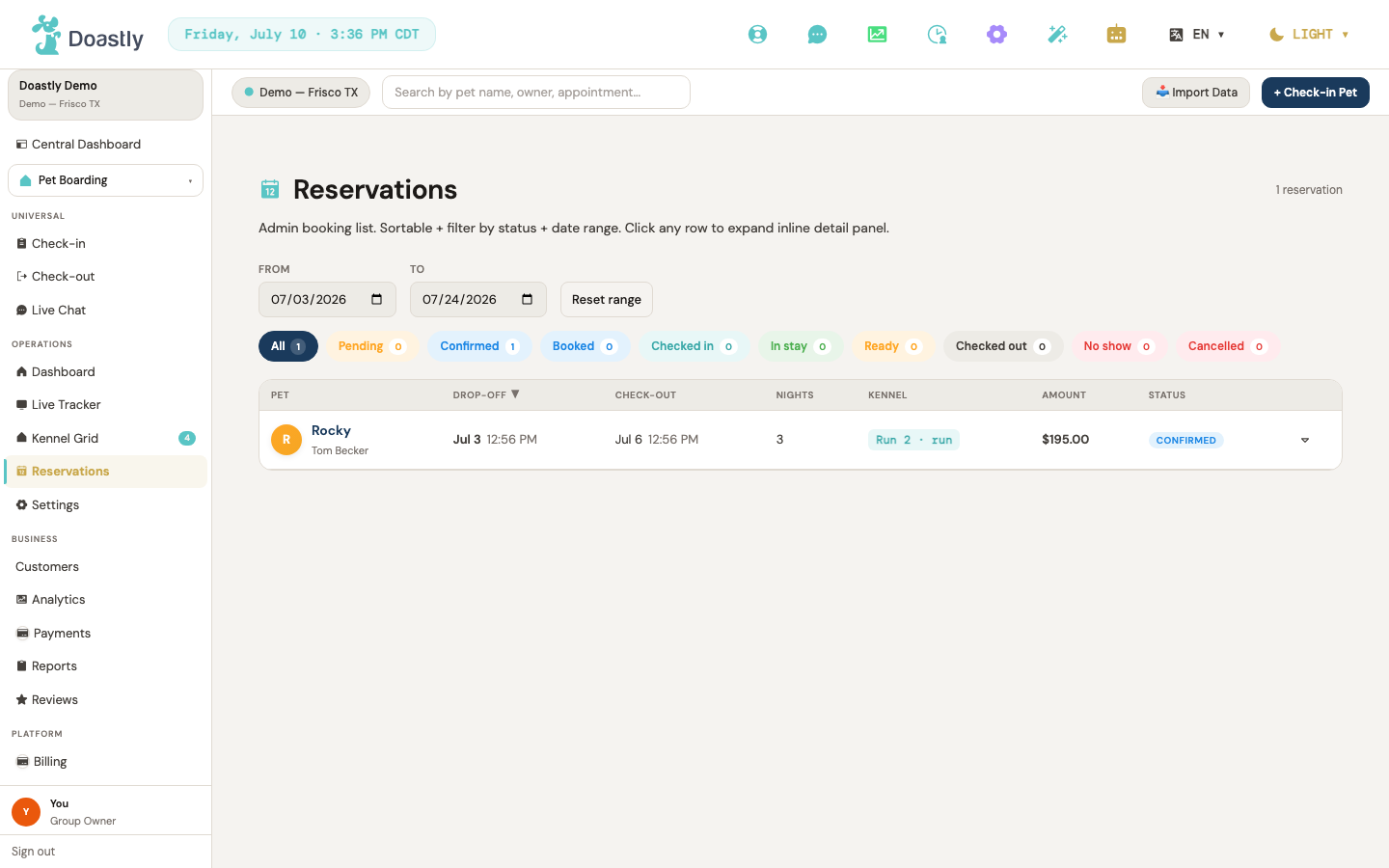
(dark mode also captured)
Reservations Admin List
The admin list is the central register of every boarding reservation, with a date-range filter across the top and a live count of what the current filter returns.
| Control | What it does |
|---|---|
| From (date picker) | Filters reservations by stay-start date and refreshes the list. |
| To (date picker) | Filters reservations by stay-end date and refreshes the list. |
| Reset range | Resets the date filter to the default window (7 days back through 14 days ahead). |
| Reservation count | Read-only display of the number of reservations for the current filter. Reads "N reservations"; when the returned total exceeds what is shown it reads "N of M reservations". |
Status Filter Chips
A row of toggle chips above the table narrows the list to a single reservation status. Each chip carries a live count, and selecting one keeps the filter across a refresh or shared link.
| Control | What it does |
|---|---|
| All | Clears the status filter and shows the total reservation count. |
| Pending | Filters to pending reservations. |
| Confirmed | Filters to confirmed reservations. |
| Booked | Filters to booked reservations. |
| Checked in | Filters to checked-in reservations. |
| In stay | Filters to reservations currently in stay (a derived view of checked-in stays). |
| Ready | Filters to ready reservations (a derived view of checked-in stays). |
| Checked out | Filters to checked-out reservations. |
| No show | Filters to no-show reservations. |
| Cancelled | Filters to cancelled reservations. |
Reservations Table
The sortable table lists reservations under the current filter. Click a column header to sort; click a row to open its inline detail.
| Control | What it does |
|---|---|
| Drop-off (column header) | Sorts rows by drop-off date; click again to reverse the sort direction. |
| Check-out (column header) | Sorts rows by pick-up date; click again to reverse the sort direction. |
| Amount (column header) | Sorts rows by total amount; click again to reverse the sort direction. |
| Status (column header) | Sorts rows by status; click again to reverse the sort direction. |
| Pet / Nights / Kennel (column headers) | Static labels only; these columns are not sortable. |
| Reservation row | Click to expand or collapse the row's inline detail panel. |
| Caret (up/down icon) | Visual indicator of whether a row is expanded or collapsed; it follows the row click and is not clicked on its own. |
| Empty / loading states | When no reservations match the filter, the table area shows "No reservations matching your filters." While the list is fetching, it shows "Loading reservations…". Both are read-only status displays, not controls. |
Reservation Detail Row
Expanding a table row reveals an inline detail panel with a cluster of action buttons for that reservation. These actions are placed for the full reservation workflow; they are not yet active.
| Control | What it does |
|---|---|
| View full booking | Intended to open the full reservation and stay detail page; not yet active. |
| Edit | Intended to edit the reservation; not yet active. |
| Today's report card | Intended to open or create today's boarding report card; not yet active. |
| Message owner | Intended to message the owner; not yet active. |
Boarding Operations Home
The operations home is the day-to-day hub for boarding, combining reservation cards with a switchable Kennel Grid and Calendar view, plus quick links to the deeper operational screens.
| Control | What it does |
|---|---|
| + New Reservation | Opens the shared check-in intake flow with Boarding preselected. |
| Receipt icon (checked-in cards) | Opens the itemized receipt for that active stay. |
| Checkout (per checked-in card) | Opens the checkout window for that stay. |
| Kennel Grid | Switches the view below to the kennel grid. |
| Calendar View | Switches the view below to the boarding calendar. |
| Occupancy Board | Opens the Occupancy Forecast. |
| Analytics | Opens boarding analytics. |
Reservation Card (Confirmed — Awaiting Check-In)
Each confirmed, not-yet-arrived reservation appears as a card in the awaiting-check-in area of the operations home.
| Control | What it does |
|---|---|
| Check In | Starts check-in for the reservation, opening the vaccine gate on the operations home (available only on confirmed reservations). |
| Receipt icon | Opens the itemized receipt for the reservation. |
| Status badge / payment badge | Read-only pills showing the reservation and payment status (for example, Confirmed or Deposit paid). |
Kennel Grid (grid view)
The kennel grid shows every unit as a tile. Selecting a tile opens its detail panel below the grid.
| Control | What it does |
|---|---|
| Kennel/unit tile | Selects the unit and opens its detail panel beneath the grid. |
Unit Detail
The unit detail panel shows the selected kennel and, when occupied, gives access to the pet's daily card and a history of prior daily cards.
| Control | What it does |
|---|---|
| Add Daily Card | Opens the daily card form inline (shown only when the unit has an occupant). |
| Close (occupant view) | Closes the detail panel for an occupied unit. |
| Close (empty-unit view) | Closes the detail panel for an empty unit. |
| Daily Card History | Read-only section below the actions (occupant view) listing prior daily cards with mood, feeding, walks, medications, notes, and a per-card AI Summary block. This narrative is not generated for cards saved from this form — the AI Summary block reads "—" on every card. |
Daily Card Form
The daily card captures a boarding pet's day — feeding, mood, walks, medications, and notes — from within the unit detail panel.
| Control | What it does |
|---|---|
| AI Summary panel | Collapsible panel at the top of the form intended to show an AI-generated day summary; a click toggle expands/collapses it (state remembered). This narrative is not generated from this form — the panel always shows its empty state. |
| Date | Sets the date for the daily card. |
| Morning Feeding | Free-text note for the morning feeding. |
| Evening Feeding | Free-text note for the evening feeding. |
| Mood (emoji options) | Selects the pet's mood for the day. |
| Walk time / duration (per walk row) | Sets the time and duration for a walk entry. |
| + Add Walk | Adds another walk entry row. |
| Medication (per row) | Records a medication entry. |
| + Add Medication | Adds another medication row. |
| Notes | Free-text notes about the pet's day. |
| Cancel | Dismisses the form without saving; disabled while a save is in progress. |
| Save Daily Card | Saves the daily card; the label reads "Saving…" while the save is in progress. |
Boarding Calendar (calendar view)
The calendar view lays reservations out on a month grid, with a summary list of the month's reservations below it.
| Control | What it does |
|---|---|
| ← Prev | Moves to the previous month and loads that month's reservations. |
| Next → | Moves to the next month and loads that month's reservations. |
| Day-cell reservation pill | Read-only chip showing a pet's name on the day of its stay; hovering shows the pet and unit. Not clickable. |
| Reservations-for-this-month list rows | Read-only summary of the month's reservations, each showing a color dot, pet, unit, and date range. Not clickable. |
Settings (boarding tabs)
The Boarding Settings area is a tabbed workspace for configuring how a location handles overnight stays. The Kennel Management tab is live; Food Preferences, Medications, and Operations Preferences are placeholder tabs previewing planned configuration.
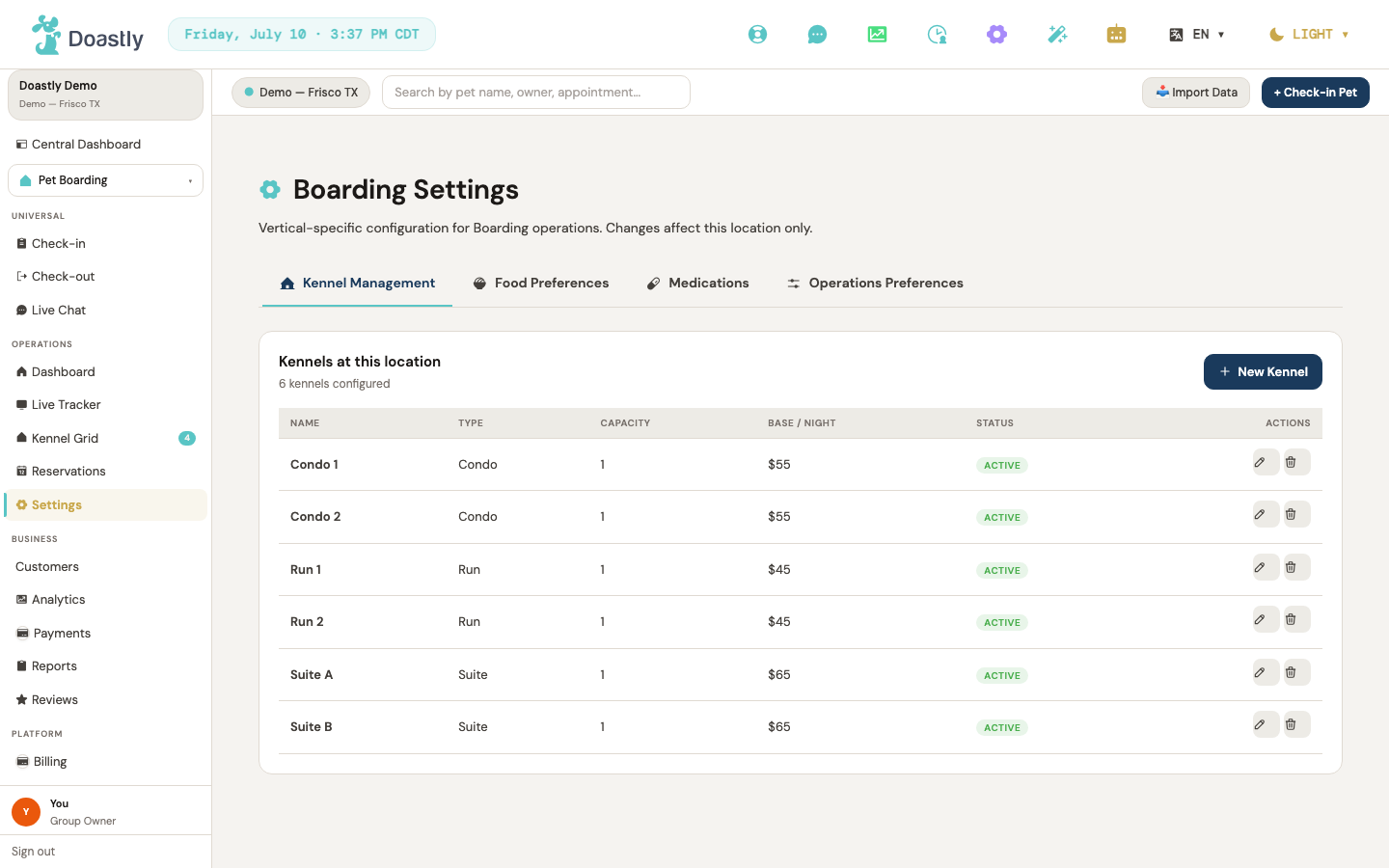
(dark mode also captured)
Boarding Settings — Shell + Tab Strip
The container screen for Boarding Settings. A horizontal tab strip switches between the four configuration sections; Kennel Management is the default.
| Control | What it does |
|---|---|
| Kennel Management (tab) | Switches to the Kennel Management section (the default tab), returning to /salon/boarding/settings with no tab parameter. |
| Food Preferences (tab) | Switches to the Food Preferences section at /salon/boarding/settings?tab=food. |
| Medications (tab) | Switches to the Medications section at /salon/boarding/settings?tab=meds. |
| Operations Preferences (tab) | Switches to the Operations Preferences section at /salon/boarding/settings?tab=ops. |
Kennel Management Tab
Lists the kennels configured for the active location and provides the controls to add, edit, or remove them. This is the default tab when Boarding Settings opens.
| Control | What it does |
|---|---|
| New Kennel | Opens the Kennel Edit modal in create mode with an empty form. |
| Edit {kennel} (pencil icon, per row) | Opens the Kennel Edit modal pre-filled with that kennel's details for editing. |
| Delete {kennel} (trash icon, per row) | Asks for confirmation ("Delete {name}? This can't be undone."), then permanently removes the kennel and reloads the list. |
| Kennels table (Name / Type / Capacity / Base / night / Status / Actions) | Read-only list of configured kennels for the active location; each row carries its own Edit and Delete icon-actions. Shown only when at least one kennel exists. |
| Loading state | Non-interactive "Loading kennels…" placeholder shown while the kennel list is being fetched. |
| Error state | Non-interactive alert banner shown on a load or delete failure, or when no active location is set, with a plain-English message. |
| Empty state | Non-interactive "No kennels yet — add the first…" panel shown when no kennels have been configured. |
Kennel Edit / New Kennel Modal
A dialog for creating a new kennel or editing an existing one, opened from the Kennel Management tab. Fields validate on save.
| Control | What it does |
|---|---|
| Name | Kennel name (up to 50 characters, e.g. "K-01"). Required — a blank name blocks saving with "Name is required." |
| Type | Selects the kennel type: Run, Suite, Condo, or Cage. |
| Capacity | Sets how many pets the kennel holds (minimum 1). Must be a positive whole number to save. |
| Base rate ($/night) | Sets the base nightly rate in dollars (minimum 0, in half-dollar steps). Must be a positive amount to save. |
| Active (bookable) | Toggles whether the kennel is active and available for booking. |
| Cancel | Closes the modal without saving. Also triggered by clicking the backdrop overlay. |
| Create kennel / Save changes | Validates the form, then saves the kennel and closes the modal, reloading the list. Labelled "Create kennel" when adding and "Save changes" when editing; disabled and shows "Saving…" while the save is in flight. |
| Validation error banner | Non-interactive alert shown inside the modal for field-validation or save errors. |
Food Preferences Tab (placeholder — Coming soon)
A preview of planned food-configuration options for boarding. All rows are non-interactive and marked "Coming soon."
| Control | What it does |
|---|---|
| Default kibble — Coming soon | Static preview row for the planned default-kibble config (brand, serving size, cup count), marked with a "Coming soon" pill. Not yet interactive. |
| Special diet menu — Coming soon | Static preview row for the planned special-diet menu (senior soft, sensitive stomach, puppy), marked with a "Coming soon" pill. Not yet interactive. |
| Owner-provided handling — Coming soon | Static preview row for the planned owner-provided-food handling (label, intake confirmation, storage), marked with a "Coming soon" pill. Not yet interactive. |
Medications Tab (placeholder — Coming soon)
A preview of planned medication-configuration options for boarding. All rows are non-interactive and marked "Coming soon."
| Control | What it does |
|---|---|
| Stocked allergy meds — Coming soon | Static preview row for planned stocked allergy medications (Apoquel, antihistamines, dose protocols), marked with a "Coming soon" pill. Not yet interactive. |
| Stocked joint meds — Coming soon | Static preview row for planned stocked joint medications (glucosamine and chondroitin chews), marked with a "Coming soon" pill. Not yet interactive. |
| Owner-provided intake — Coming soon | Static preview row for planned owner-provided-medication intake (required label fields, storage, audit), marked with a "Coming soon" pill. Not yet interactive. |
Operations Preferences Tab (placeholder — Coming soon)
A preview of planned operational-policy options for boarding. All rows are non-interactive and marked "Coming soon."
| Control | What it does |
|---|---|
| Default deposit % — Coming soon | Static preview row for the planned default deposit percentage (the intention is a deposit charged at booking, with the balance due at checkout), marked with a "Coming soon" pill. Not yet interactive — and note that no deposit is charged at booking today; the whole stay is settled at check-out. |
| Late pickup fee — Coming soon | Static preview row for the planned late-pickup fee (per-hour rate after a grace window), marked with a "Coming soon" pill. Not yet interactive. |
| Holiday surcharge — Coming soon | Static preview row for the planned holiday surcharge (calendar windows and multiplier), marked with a "Coming soon" pill. Not yet interactive. |
| Quiet hours / curfew — Coming soon | Static preview row for the planned quiet-hours/curfew config (photo and walk-schedule windows), marked with a "Coming soon" pill. Not yet interactive. |
| Live webcam URL (optional) | The address of your own camera feed for this kennel, so the pet's family can watch the live stream from their stay page. Bring your own camera — paste the embed URL your camera provider gives you. Leave it blank if this kennel has no camera; blank simply means no camera is offered, and nothing is shown to the family. Only a genuine https:// embed address is accepted: example or localhost addresses are rejected with "Enter a valid https:// webcam URL (no example/localhost placeholders), or leave it blank." — the same check the family's own video player uses, so a URL that saves here is one that will actually play for them. |
Kennel Map (care-logging)
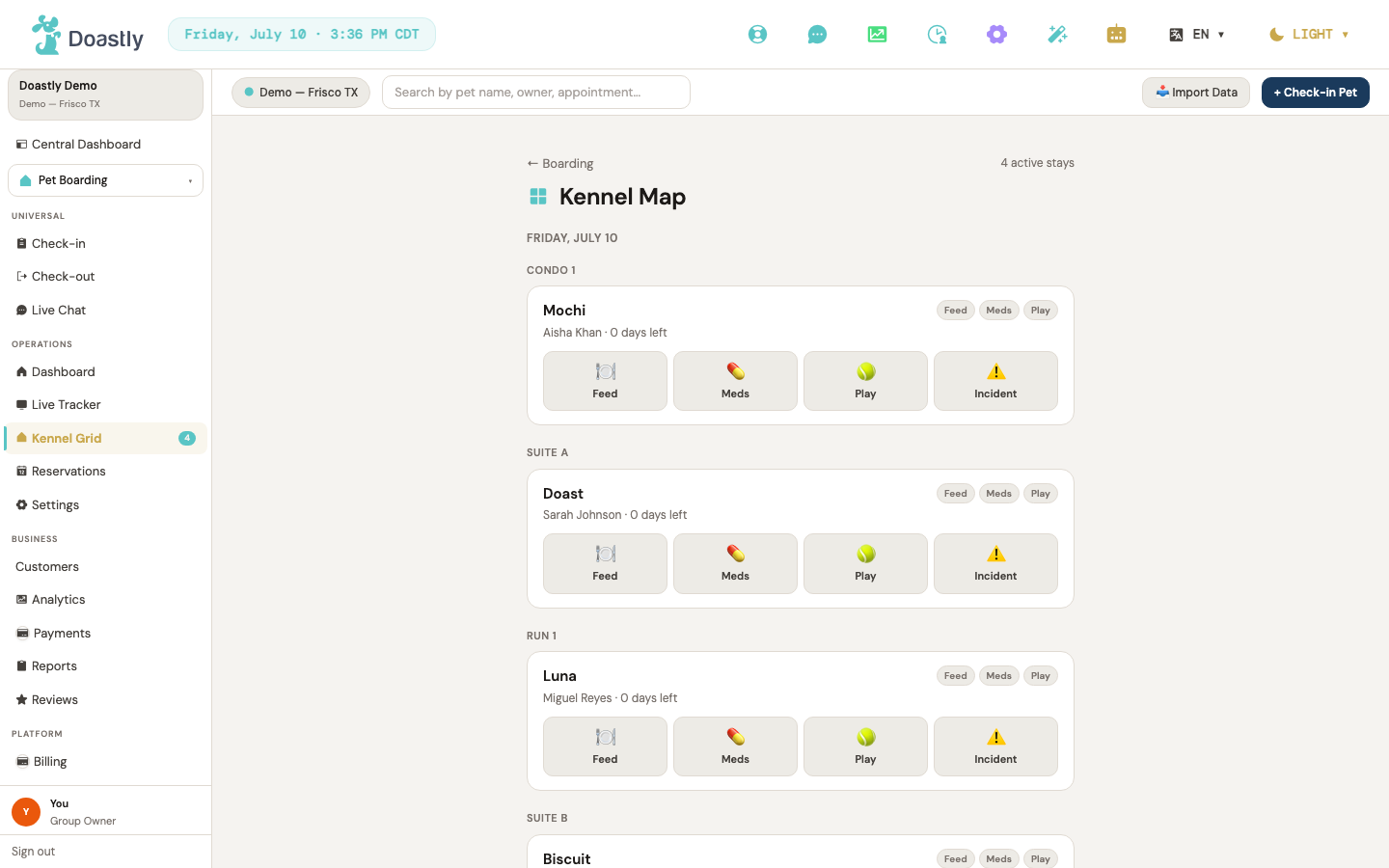
(dark mode also captured)
Kennel Map — care-logging page (roster of active stays)
The care-logging roster lists every currently checked-in stay, grouped by kennel, and gives staff one-tap access to log feeding, medication, playtime, and incidents for each pet.
| Control | What it does |
|---|---|
| Kennel Map heading + grid icon | Non-interactive page title "Kennel Map" with a teal grid icon. |
| ← Boarding | Back link that returns to the Boarding home / kennel grid. |
| {N} queued offline | Read-only badge shown only when entries are waiting in the offline queue; displays the count of care-log entries saved on the device and awaiting sync. |
| {N} active stay(s) | Non-interactive text showing how many checked-in stays are loaded on the roster. |
| Today's date (e.g. "Wednesday, July 9") | Non-interactive label showing today's formatted date. |
| {Kennel name} group header (e.g. "SUITE B") | Non-interactive section header grouping stay cards by kennel/unit name; one header per occupied kennel (falls back to "Unassigned"). |
| Stay card — pet name + owner / days-left line | Non-interactive per-card identity: the pet's name, and below it the owner name followed by " · {N} day(s) left" (a countdown computed from the reservation's pick-up date; the countdown suffix is omitted when no pick-up date is set). |
| feed / meds / play status chips | Three read-only chips on each stay card that turn teal once the matching care action has been logged in the current session, giving an at-a-glance view of care actions logged this session. NOTE: these chips reflect this session only and reset to un-logged on page reload; the saved care-log record is unaffected. |
| 🍽 Feed | Opens the Quick Action Sheet in "feed" mode for that pet. |
| 💊 Meds | Opens the Quick Action Sheet in "meds" mode for that pet. |
| 🎾 Play | Opens the Quick Action Sheet in "play" mode for that pet. |
| ⚠️ Incident | Opens the Quick Action Sheet in "incident" mode for that pet. |
| Loading roster… / No active stays today. | Non-interactive state placeholders: loading text while the roster fetches, and an empty-state card when there are no checked-in stays. |
Care-log bottom sheet (feed / meds / play / incident variants)
The bottom sheet that opens from a stay card's action buttons. It adapts to the chosen action — feed, medication, playtime, or incident — and saves the care log to the boarding record on Save.
| Control | What it does |
|---|---|
| Sheet title (e.g. "Feed — Biscuit") | Non-interactive header showing the selected action and pet name (Feed / Medication / Playtime / Incident — {petName}). |
| Error banner | Conditional inline message showing validation or save-failure text (e.g. "Description is required." or "Couldn't save — check connection and try again."). |
| Ate all / Ate some / Refused | Segmented toggle (Feed variant) that sets the amount eaten (all / some / none) for the feeding log; defaults to "Ate all". |
| Given / Refused | Segmented toggle (Meds variant) that records whether the dose was given for the medication log; defaults to "Given". |
| Solo walk / Group play / Quiet time / Other | Selectable grid (Play variant) that sets the activity type for the playtime log; defaults to "Group play". |
| Duration (minutes) | Optional number input (Play variant) capturing playtime duration in minutes. |
| Info / Minor / Moderate / Vet needed / Emergency | Color-coded severity toggle (Incident variant) that sets the incident's severity level; defaults to "Info". |
| Describe the incident… | Required text field (Incident variant); leaving it blank blocks Save with a "Description is required." error. |
| 🎤 Voice / Listening… | Voice-dictation button (Incident variant) that lets you speak text into the incident description; what you say is added onto the end of whatever is already typed. Shows "Listening…" and is disabled while listening. If the browser doesn't support voice input, the words [voice not supported] are added into the description box itself rather than shown as a separate warning — delete them before saving, or they become part of the incident record the family sees. Safari and older browsers are the usual case; Chrome supports it. |
| Notes (optional) | Optional free-text field for extra notes, available on all care-log variants. |
| Cancel | Dismisses the sheet without saving. |
| Save / Saving… | Primary submit that records the care log (feed / meds / play / incident), lights up the matching chip on the stay card for the rest of this session (see the note on the chips above — that highlight does not survive a page reload, though the saved care log itself does), and reloads the roster; shows "Saving…" and is disabled while the save is in progress. |
| Sheet backdrop / drag-handle | Visual-only elements: the dark backdrop behind the sheet and the pill-shaped drag handle at its top (neither dismisses the sheet). |
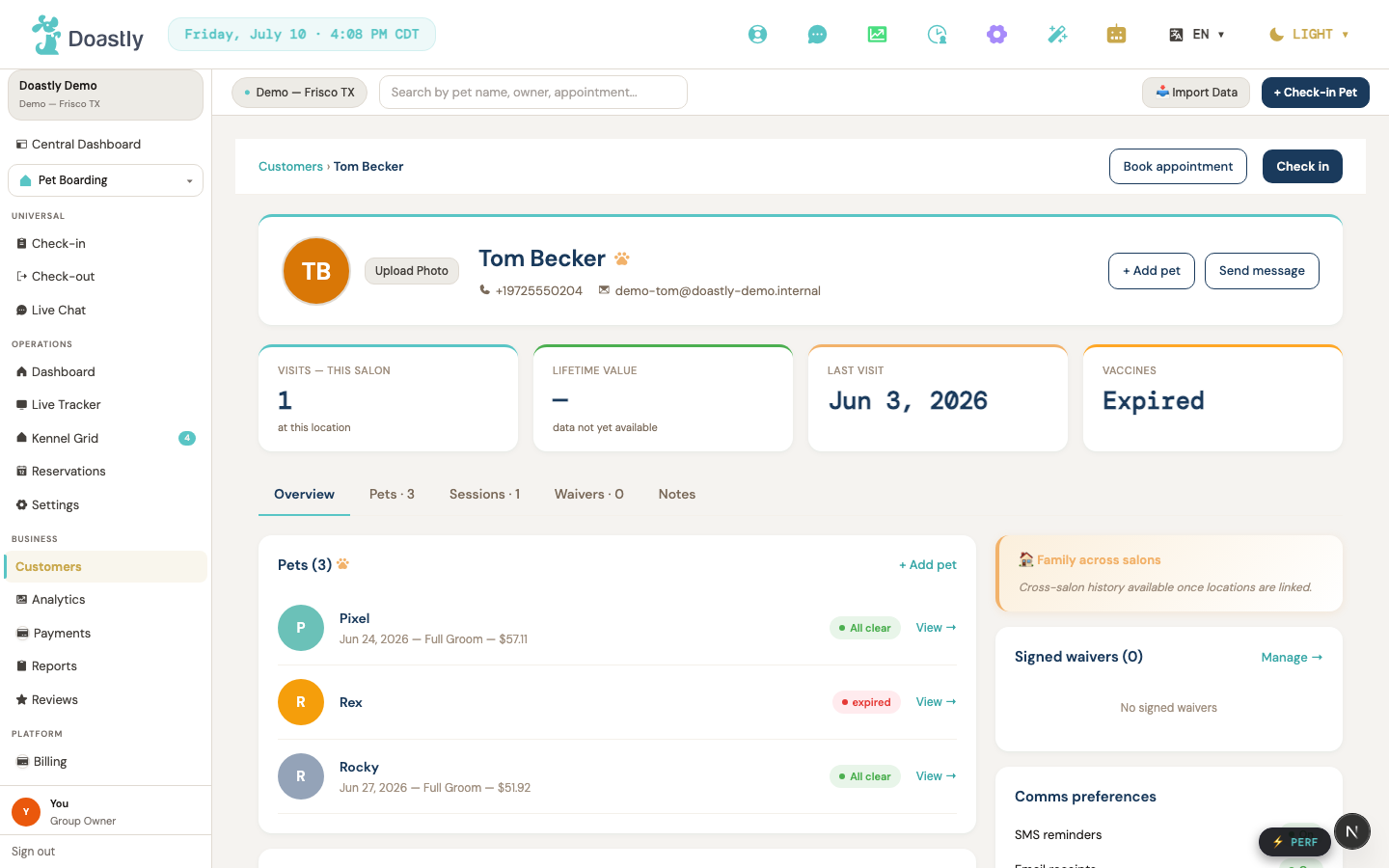
(dark mode also captured)
Boarding — Detail pages (Reservation / Customer / Pet)
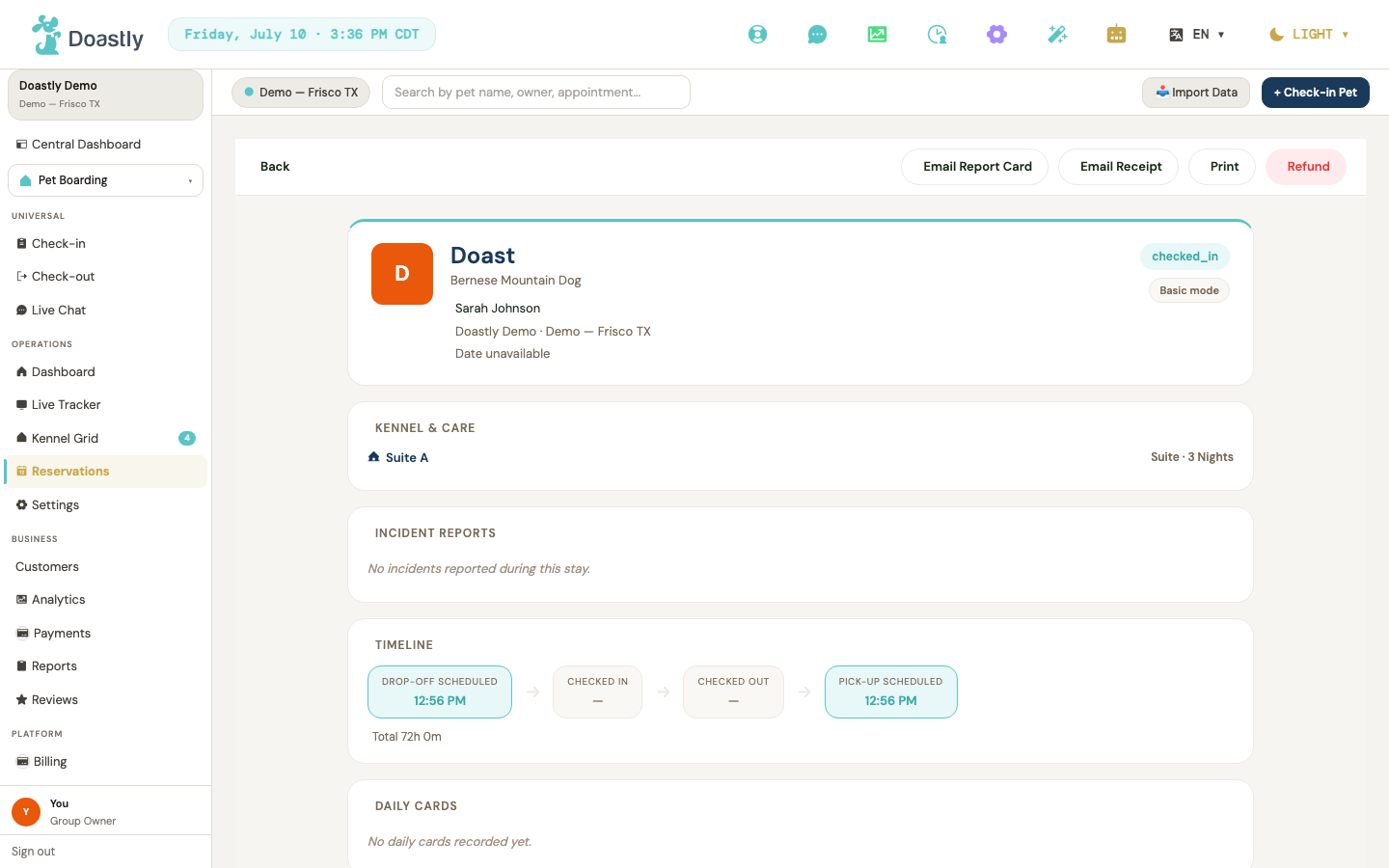
(dark mode also captured)
Boarding Reservation / Stay Record (salon view)
The salon-side record of a single boarding stay for one pet. It combines a sticky action bar with read-only panels covering kennel and care, incidents, timeline, daily cards, photos, belongings, compliance, vaccines, notes, and payment.
| Control | What it does |
|---|---|
| Back | Sticky action-bar button; returns to the previous screen. |
| Email Report Card | Salon-only. Confirms, then re-emails the AI-generated daily report card for this stay. Depends on a report card having been generated first — the report card pipeline is not producing cards system-wide (a data-pipeline issue, not a missing capability), so most stays have nothing to send. |
| Email Receipt | Salon-only. Confirms, then re-emails the receipt for this stay. |
| Prints the record via the browser print dialog. | |
| Refund | Salon-only, enabled for Owner/Manager. Prompts for a reason, then refunds the full remaining amount and reloads the record. |
| Kennel & Care section | Read-only panel showing kennel name/type/nights, feeding plan, and medication list. |
| Incident Reports section | Read-only safety panel; critical incidents are surfaced in red at the top, followed by the full incident list. |
| Timeline section | Read-only panel showing the stay's status-transition timeline. |
| Daily Cards section | Read-only panel of per-day cards (feeding AM/PM, meds count, walks, mood, photo count, narrative). Narratives render as formatted text when present. This narrative is not generated for these per-day cards — it is empty on every card. (Distinct from the stay's AI daily report card — see Email Report Card above.) |
| Photo tile | Opens the fullscreen photo lightbox at the selected photo. Tiles with no image are non-clickable placeholders. |
| ‹ (Previous) | In the lightbox, moves to the previous photo; disabled on the first photo. |
| › (Next) | In the lightbox, moves to the next photo; disabled on the last photo. |
| ✕ (Close lightbox) | Closes the photo lightbox (also via Esc or backdrop click). |
| Belongings section | Read-only checklist of belongings with Lost / Returned / With pet status pills. |
| Compliance section | Read-only panel of waivers and documents signed for this visit, with Signed / Expiring / Unsigned pills. |
| Vaccines section | Read-only panel showing vaccine status as of the visit date, with pills. |
| Special Handling & Notes section | Read-only panel showing the special-handling flag, handler/groomer notes, and behavior tags. |
| Payment section | Read-only receipt breakdown (subtotal, discount, tax, late fee, total), refunded amount, card, and paid date. Discount now renders correctly (fixed 2026-08, 3606e91fc #775/#821 — the receipt was reading a hardcoded $0 instead of what was actually applied at checkout; the underlying charge was never wrong, only this display). Tip does not appear on this breakdown — but do not read that as "tip isn't charged": the checkout path this stay went through may well have charged it correctly (see the accuracy note on boarding-51 for the full picture). What's confirmed here specifically is narrower — this receipt-building code hardcodes tip to $0 and never reads the JSONB field (checkout_adjustments_json.uout_v2_breakdown.tip_cents) a correctly-run checkout actually wrote it to, so even a tip that was genuinely charged is invisible on this page. Cancellation fee does not appear — boarding has no cancellation capability yet (tracked as #788; a customer can book a stay and cannot cancel it, while four other verticals can). Tax has been confirmed correct at the receipt-display layer (same commit); whether $0 across current reservations reflects unset location tax configuration or something upstream is a separate, still-open question this page's code does not answer. |
| Header | Read-only record header: pet avatar, name, owner, salon and location, date, status pill, and tracker-mode pill. |
Customer Detail (shared; Boarding delta = Boarding Stays list)
The customer profile, shared across verticals. It shows the customer's profile, pets, sessions, waivers, and notes, plus vertical-specific activity. The Boarding delta is the Boarding Stays list, whose rows link to each reservation record.
| Control | What it does |
|---|---|
| Customers (breadcrumb) | Returns to the customer list. |
| Book appointment | Top-bar action button; not yet wired to an action — clicking it does nothing (tracked as #942). |
| Check in | Starts the check-in flow. |
| Customer avatar (upload/change/remove) | Opens the photo uploader to set or change the customer photo; Remove clears it. |
| + Add pet (profile card) | Opens the Add Pet window to create a pet on this customer. |
| Send message (profile card) | Message-owner button; not yet wired to an action — clicking it does nothing (tracked as #942). |
| Add Pet window | Window for adding a pet; Close dismisses it, and creating a pet refreshes the customer's pet list. |
| Copilot panel | Read-only AI Copilot insight for the customer (placeholder text today — "insights will appear here once sessions are active"; not a Boarding-specific Copilot). |
| Overview / Pets / Sessions / Waivers / Notes | Five tabs (with counts) that switch the detail body. Overview shows pets, stays, daycare, and the right column; the others render their respective panels. |
| + Add pet (Pets section header) | Opens the Add Pet window from the Pets section. |
| Pet row (View →) | Opens the pet detail page; the whole row is the link. |
| Full history → | Recent-sessions header affordance; styled as a link but has no navigation wired — clicking it does nothing (tracked as #942). |
| View → (session row) | Opens the session detail pane for the selected recent session. |
| Boarding Stays — row Record link | Boarding delta. Per reservation row, links to the reservation record; live here because the pet is in context. |
| Daycare Days list | Per-day daycare rows for this pet (section titled "Daycare Days"), each with a Record link (daycare delta). |
| Manage → (Signed waivers) | Right-column waivers header affordance; styled as a link but has no navigation wired — clicking it does nothing (tracked as #942). |
| Comms preferences (SMS/Email/Marketing) | Read-only, non-interactive pills. Do not rely on these — they do not reflect this customer's actual settings. They are hardcoded to the same four values for every customer, so an opted-out customer still reads as contactable. Check the customer's real preferences before contacting them. Tracked as #939. |
| Pets tab — pet row (View →) | Opens the pet detail page for the selected pet. |
| Sessions tab — View → | Opens the session detail pane for the selected session. |
| Sessions tab — Record link | Links to the full session record. |
| Waivers tab | Read-only list of signed-waiver rows with a Signed pill. |
| Notes — textarea | Draft field for entering a new customer note. |
| Add note | Saves the drafted note and adds it to the top of the list; disabled while saving or empty. |
| Session detail pane (session peek) | Side pane (wide screens) or window (narrow screens) showing the selected grooming session's composite detail; closes on dismiss. |
Pet Detail (shared; Boarding delta = Boarding Stays list with live Record link)
The pet profile, shared across verticals. It covers pet info, vaccines, compliance, grooming history, and vertical activity. The Boarding delta is the Boarding Stays list, whose Record links are live here because the pet is in the current context.
| Control | What it does |
|---|---|
| ← Back to Customer | Returns to the customer detail page. |
| Pet avatar (upload/change/remove) | Opens the photo uploader to set or change the pet photo; Remove clears it. |
| Pet Info / Vaccines / Compliance | Three tabs that switch the middle section. |
| Pet Info tab body | Read-only panel showing safety fields (allergies, medications, diet), a general info grid, and behavior notes/tags. |
| + Add Vaccine | Reveals the inline add-vaccine form on the Vaccines tab. |
| Vaccine — select (dropdown) | Common-vaccine picker with an "Other (type below)" option that reveals a free-text input. |
| Date Administered / Expiry Date | Date inputs for the new vaccine (administered date required). |
| Administered By / Lot Number / Notes | Optional text and note fields for the vaccine record. |
| Choose file / Change file | Opens the file picker for the vaccine document (PDF/JPG/PNG, max 10MB); ✕ clears the selection. |
| Cancel (add vaccine) | Closes the add-vaccine form without saving. |
| Add Vaccine (submit) | Saves the vaccine record and optionally uploads its document, adding it to the list; disabled while saving. |
| Verify (vaccine row) | Manager and above only; marks the vaccine record as verified. |
| Doc (vaccine row upload) | Attaches a document to that vaccine record via the file picker. |
| Del (vaccine row) | Confirms, then removes the vaccine record. |
| Document link (vaccine row) | Opens the attached vaccine document in a new tab. |
| Compliance — Download | Downloads the signed compliance document as a file (shown once the signed-doc record resolves). |
| Compliance — Sign | Opens the compliance signing window for that document — only when the pet has an active session. |
| Compliance — Sign here → | Opens the in-place signature capture window for that unsigned document when there is no active session. This is the action shown on the Pet Detail page for unsigned docs. |
| Compliance — Sign at Check-In/Out/anytime → | Category-specific action linking into the check-in/out signing path. This variant does not appear on the Pet Detail page (the pet is always in context here) — it surfaces in other compliance contexts. |
| Sign all (N) | Opens the batch signing window for all unsigned documents; shown only with an active session and more than one unsigned doc. |
| View signing history (compliance toggle) | Expands or collapses the compliance signing-history panel (with per-row Download when the record resolves). |
| Grooming History — From / To date filters | Filter grooming history by date range. |
| Grooming History — status select | Filter grooming history by status (All statuses / Checked out / Cancelled). |
| Grooming History — Clear | Clears all grooming-history filters (shown only when a filter is active). |
| Grooming History — session row | Opens the session detail pane for the selected session. |
| Grooming History — Record link | Links to the full session record. |
| Grooming History — ‹ Prev / Next › | Pages through grooming history; disabled at the first/last page (pagination shown only when more than one page). |
| Boarding Stays — row Record link | Boarding delta. Per reservation row, links to the reservation record; live here because the pet is in context. |
| Daycare Days list | Per-day daycare rows for this pet (section titled "Daycare Days"), each with a Record link (daycare delta). |
| Session detail pane (session peek) | Side pane (wide screens) or window (narrow screens) showing the selected grooming session's composite detail; closes on dismiss. |
| Large vaccine + compliance status icons | Two read-only status panels showing the pet's vaccine and compliance status. |
Occupancy Forecast
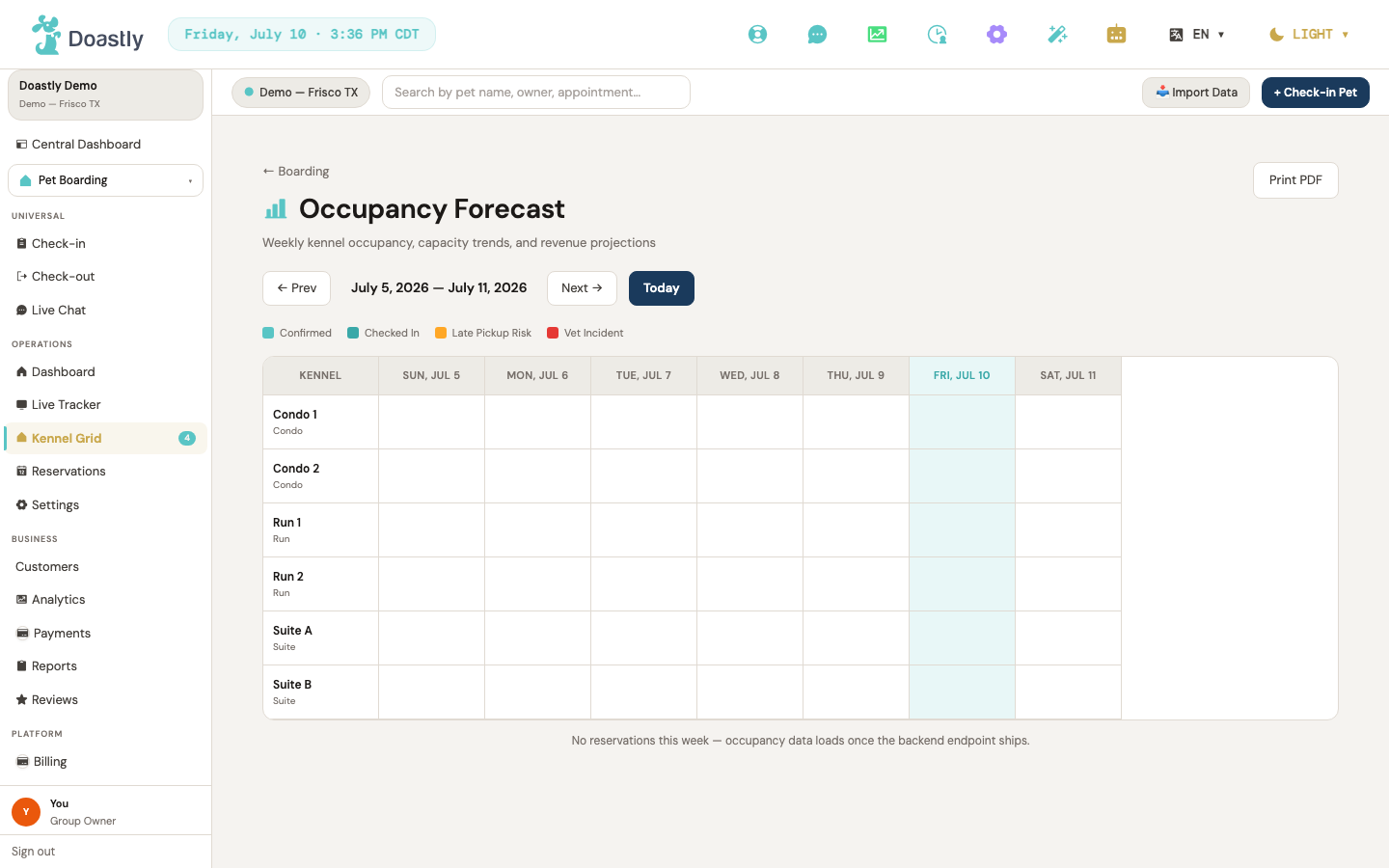
(dark mode also captured)
Occupancy Forecast (page)
The board is not showing bookings right now. The kennel rows and the week navigation work, but no reservation chips appear on the grid — it reads as a completely empty week even when the week is fully booked, and it does so without any error message. Everything below describes the board as designed, for when it is working again. Do not use this screen to judge whether a week is free. The Reservations list and the Kennel Grid are accurate and should be used instead.
The Occupancy Forecast is a week-at-a-glance planning board showing which kennels are booked across a seven-day window, so you can spot capacity, gaps, and risks before they hit. The controls at the top let you print the view, move the window forward or back, jump to the current week, and read the color key.
| Control | What it does |
|---|---|
| ← Boarding | Returns to the Boarding home/dashboard (/salon/boarding). |
| Print PDF | Opens your browser's print dialog to print or save the current forecast view as a PDF. |
| ← Prev | Shifts the forecast window back one week and reloads kennels and occupancy for the new range. |
| {Month D, YYYY} — {Month D, YYYY} (week range label) | Read-only display of the currently selected seven-day window (first day through last day). Not interactive. |
| Next → | Shifts the forecast window forward one week and reloads occupancy for the new range. |
| Today | Resets the forecast window to the week containing today's date. |
| Legend swatches — Confirmed / Checked In / Late Pickup Risk / Vet Incident | Read-only color key for the grid blocks: teal = Confirmed, dark teal = Checked In, warning color = Late Pickup Risk, error color = Vet Incident. Display only. |
Occupancy Grid (kennel × day board)
The Occupancy Grid is the board itself — one row per kennel, one column per day — with each reservation shown as a colored chip. You reassign a pet to a different kennel by dragging its chip onto the target kennel.
| Control | What it does |
|---|---|
| Kennel name row (drop target) | Accepts a dropped reservation chip and reassigns the dragged pet to that kennel. |
| Day-cell (per kennel × day, drop target) | Accepts a dropped reservation chip and reassigns the pet to that cell's kennel. The day column is not used by the drop — dropping into any day of a kennel's row moves the pet to that kennel; it does not change the reservation's dates. |
| Reservation block (pet name chip) | A draggable chip showing the pet's name; drag it onto another kennel to reassign it. Hovering shows a tooltip with the pet name and status. Drag only — it does not click through to a detail view. |
| Kennel reassignment (drag → drop) | Completing a drag onto a different kennel saves the move, immediately updating the chip's kennel; if the save fails, a friendly error banner appears and the change is not kept. |
Customers (list + detail) — Boarding vertical (shared Customers surface)
The Customers screens are shared across all verticals. From Boarding, staff reach them to look up an owner, review a pet's profile and vaccine records, add notes, and jump into a pet's boarding stays and daycare days. This section documents every control on the list, the customer detail, and the pet detail screens.
Customers List — page header
The top of the customer list, where you create a new customer or open the phone-lookup search.
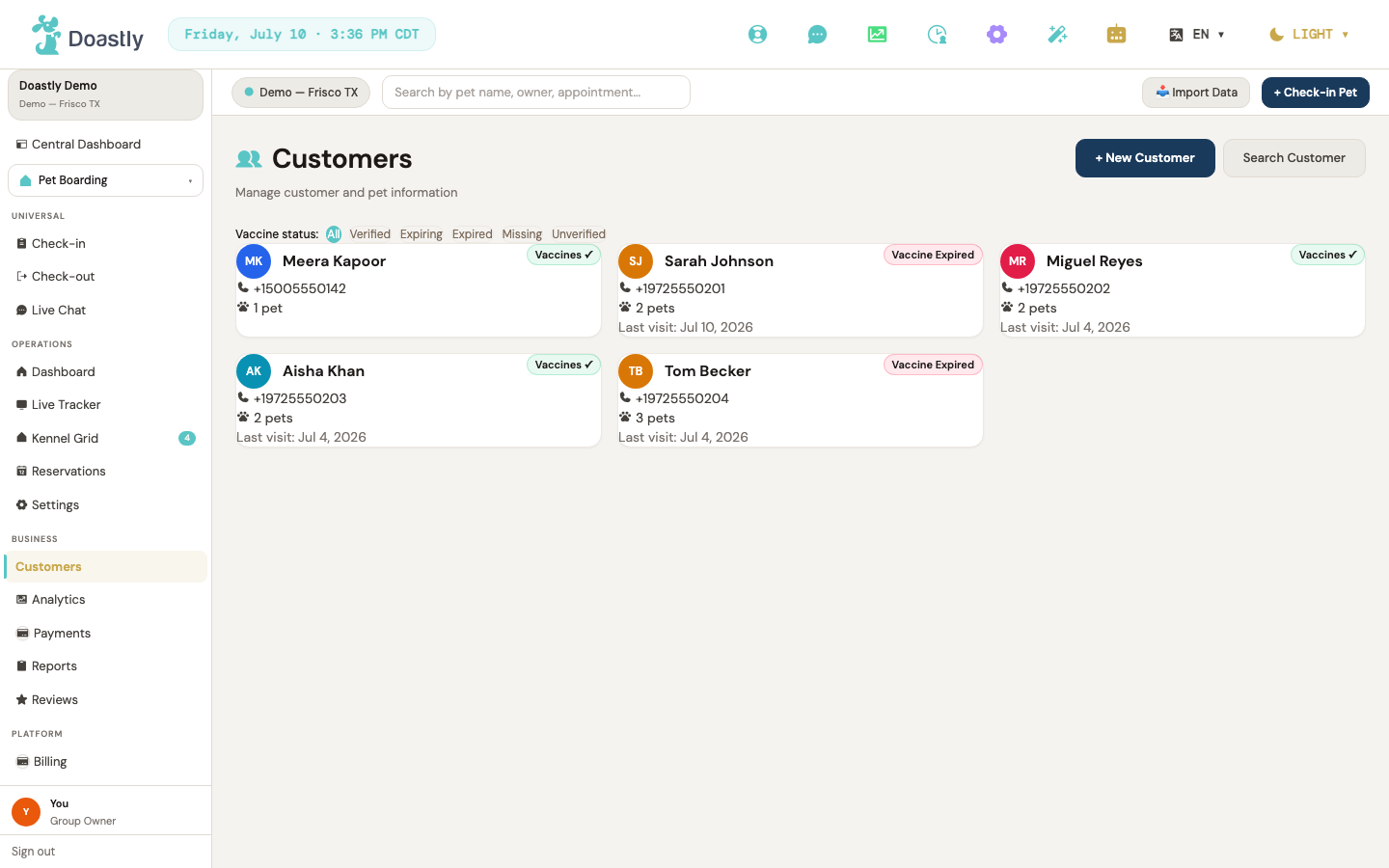
(dark mode also captured)
| Control | What it does |
|---|---|
| + New Customer | Opens the New Customer window to create a customer (and optionally chain into adding a pet). On create, refreshes the list and opens the new customer's detail page. |
| Search / Hide search | Toggles the phone-lookup search panel below the header. The label switches between "Search" and "Hide search." |
| Retry | Shown only when the list fails to load; reloads the page. |
Customers List — vaccine status filter strip
A row of chips that filters the customer grid by each customer's computed vaccine status.
| Control | What it does |
|---|---|
| All | Shows all customers (no vaccine filter). |
| Verified | Filters to customers whose vaccines are verified. |
| Expiring | Filters to customers with vaccines expiring soon. |
| Expired | Filters to customers with expired vaccines. |
| Missing | Filters to customers with missing vaccine records. |
| Unverified | Filters to customers with unverified vaccines. |
| {filtered} of {total} count | Read-only badge showing how many customers match when a non-"All" filter is active. |
Customers List — empty state
Shown when no customers appear in the grid.
| Control | What it does |
|---|---|
| Search customers | Shown when the full list is empty; opens the phone-lookup search panel. |
| Clear filter | Shown when a vaccine filter returns no matches; resets the filter back to "All." |
Customers List — customer grid card
Each customer in the grid appears as a card. There is one card per customer.
| Control | What it does |
|---|---|
| Customer card | Shows the customer's name, avatar, phone, pet count, vaccine badge, and last visit. Click to open that customer's detail page. |
Customers List — Search panel
The phone-lookup panel that appears when search is toggled on.
| Control | What it does |
|---|---|
| Search by phone | Text field to enter a phone number to look up matching customers. |
| Search / Searching… | Submits the phone lookup and shows result cards. Disabled while the search runs. |
| Result card | One card per match, showing name, phone, and pet count. Click to open that customer's detail page. |
| Add New Customer | Shown when the phone search returns no matches. (No action is wired from this screen.) |
New Customer window — Customer step
The first step of the New Customer window, where you enter the owner's contact details.
| Control | What it does |
|---|---|
| ✕ close | Closes the session detail pane. |
| Backdrop click | Clicking outside the pane closes it. |
| First Name * | Customer's first name (required). |
| Last Name * | Customer's last name (required). |
| Phone * | Ten-digit US phone. On leaving the field, it reformats to (xxx) xxx-xxxx and validates. |
| Email * | Customer's email (required). |
| Cancel | Dismisses the Add Vaccine form. |
| Save Customer → / Saving… | Creates the customer. On success, advances to the add-pet step. If a customer with that info already exists, a plain-English "customer already exists" message appears. |
New Customer window — Add-a-pet step
After the customer is created, this step asks whether to add a pet now or finish.
| Control | What it does |
|---|---|
| Finish without pet | Completes with the customer only, and opens the new customer's detail page. |
| + Add a pet → | Advances to the pet form to add a pet for this customer. |
| Backdrop click | Closes this step, completing with the customer only. |
New Customer window — Pet form
The pet-creation form, used both here and from the "+ Add pet" button on a customer's detail page. (Note: this pet form does NOT close on backdrop click — only the ✕ closes it.)
| Control | What it does |
|---|---|
| ✕ close | Closes the pet form. If a pet is required it abandons; otherwise it completes with the customer only. |
| Photo circle / Upload Photo / Change Photo | Click-to-open file picker to select a pet photo file (JPEG, PNG, WebP, or HEIC). Click-only (not a drag-and-drop zone). |
| Remove (photo) | Clears the selected photo preview. |
| Retry Photo / Skip Photo | Shown if the photo fails to upload after saving; Retry re-uploads, Skip finishes without a photo. |
| Pet Name * | Pet's name (required). |
| Gender (Male / Female) | Toggle chips to set or clear the pet's gender. |
| Date of Birth | Pet's date of birth (cannot be later than today). |
| Color | Dropdown to select the pet's coat color. |
| Breed | Searchable dropdown to select the pet's breed. |
| Coat Type | Dropdown to select the coat type. |
| Weight (lbs) | Pet's weight; feeds the automatic size calculation. |
| Neutered / Spayed (Unknown / Yes / No) | Toggle to set the neutered/spayed flag (three states: Unknown, Yes, No). |
| Allergies | Free-text field for allergies. |
| Medications | Free-text field for medications. |
| Diet | Free-text field for diet. |
| Behavioral Notes | Free-text field for behavioral notes. |
| Behavior Tags | Multi-select chips to add behavior tags to the pet. |
| Add Pet → / Saving… | Creates the pet. On success, completes the flow (or refreshes the customer detail). |
Customer Detail — top breadcrumb bar
The bar at the top of a customer's detail page, with navigation and quick actions.
(dark mode also captured)
| Control | What it does |
|---|---|
| Customers (breadcrumb) | Returns to the customer list. |
| Book appointment | Book-appointment action; the button is present but not yet wired — clicking it does nothing (tracked as #942). |
| Check in | Opens the check-in flow. |
Customer Detail — profile card
The customer's profile card, with their photo and pet-related actions.
| Control | What it does |
|---|---|
| Customer avatar | Uploads or removes the customer's profile photo. |
| + Add pet | Opens the pet form to add a pet to this customer. |
| Send message | Send-message action; the button is present but not yet wired — clicking it does nothing (tracked as #942). |
Customer Detail — KPI strip
Read-only metric cards.
| Control | What it does |
|---|---|
| Visits / Lifetime value / Last visit / Vaccines cards | Read-only metric cards. |
Customer Detail — tab navigation
The tabs that switch between sections of the customer detail. Each shows a count.
| Control | What it does |
|---|---|
| Overview | Shows the two-column overview (pets, recent sessions, and the right-column panels). |
| Pets | Shows the customer's pets. |
| Sessions | Shows the customer's grooming sessions. |
| Waivers | Shows the customer's signed waivers. |
| Notes | Optional notes. |
Customer Detail — Overview tab (left column)
The left column of the Overview tab, listing the customer's pets and recent sessions.
| Control | What it does |
|---|---|
| + Add pet | Opens the pet form to add a pet to this customer. |
| Pet row | One row per pet, showing avatar, name, last session, and vaccine badge. Click "View →" to open that pet's detail page. |
| Full history → | Full-history affordance in the Recent sessions header; display only, not yet wired to an action — clicking it does nothing (tracked as #942). |
| View → (per session) | Opens the session detail pane for that session. |
Customer Detail — Overview tab (right column)
The right column of the Overview tab, with the cross-salon family panel, waivers, and communication preferences.
| Control | What it does |
|---|---|
| Family across salons | Read-only informational card ("🏠 Family across salons" with "Cross-salon history available once locations are linked."). No actions. Renders at the top of the right column. |
| Manage → (Signed waivers) | Manage-waivers affordance (display only, not yet wired to an action). |
| Comms preferences (SMS reminders / Email receipts / Email report cards / Marketing emails) | Read-only pills, not toggles. Do not rely on these — they do not reflect this customer's actual settings. They are hardcoded and show the same four values (SMS on, receipts on, report cards on, marketing off) for every customer at every salon, so an opted-out customer still reads as contactable. Check the customer's real preferences before texting or emailing them. Tracked as #939. |
Customer Detail — Overview tab: Boarding Stays & Daycare lists
Lists of the customer's boarding stays and daycare days, within the Overview tab.
| Control | What it does |
|---|---|
| Record / View record ↗ (boarding stay) | Opens the boarding stay record for that reservation and pet. Shows a disabled "Record" when the pet cannot be resolved. |
| Record ↗ (daycare attendance) | Opens the daycare attendance record for that day. |
Customer Detail — Pets tab
The full list of the customer's pets.
| Control | What it does |
|---|---|
| Pet row | One row per pet, showing avatar, name, last session, and vaccine badge. Click "View →" to open that pet's detail page. |
Customer Detail — Sessions tab
The full list of the customer's grooming sessions.
| Control | What it does |
|---|---|
| View → (per session) | Opens the session detail pane for that session. |
| Record / View record (per session) | Opens the full grooming session record page. |
Customer Detail — Waivers tab
The customer's signed waivers.
| Control | What it does |
|---|---|
| Waiver rows | Read-only list showing each waiver's name, signed date, method, and a "Signed" badge. No actions. |
Customer Detail — Notes tab
The panel for reading and adding customer notes.
| Control | What it does |
|---|---|
| Note textarea | Text area to draft a customer note. |
| Add note / Saving… | Saves the note and adds it to the top of the list (newest first). Disabled when the note is empty or while saving. |
| Note item rows | Read-only list of saved notes, each with its author and timestamp. |
Customer Detail — session detail pane
The pane that opens when you choose "View →" on a session (renders as a window overlay here).
| Control | What it does |
|---|---|
| ✕ close | Closes the session detail pane. |
| Backdrop click | Clicking outside the pane closes it. |
Pet Detail — header / back
The top of a pet's detail page, with the back link, photo, and status display.
| Control | What it does |
|---|---|
| ← Back to Customer | Returns to that pet's customer detail page. |
| Pet avatar | Uploads or removes the pet's profile photo. |
| Pet header + status row | Read-only display of pet summary (Visits, Last Grooming tiles) plus the large vaccine + compliance status icons rendered below the header. |
Pet Detail — middle tabs
The tabs that switch between the pet's information sections.
| Control | What it does |
|---|---|
| Pet Info | Shows the pet's profile information. |
| Vaccines | Shows the pet's vaccine records. |
| Compliance | Shows the pet's compliance documents. |
Pet Detail — Pet Info tab
The pet's profile information.
| Control | What it does |
|---|---|
| Safety fields, general info grid, behavior notes/tags | Read-only display of the pet's allergies, medications, diet, general details, and behavior notes/tags. |
Pet Detail — Vaccines tab
The pet's vaccine records.
| Control | What it does |
|---|---|
| + Add Vaccine | Opens the inline Add Vaccine form. |
Pet Detail — Add Vaccine form
The inline form for recording a new vaccine.
| Control | What it does |
|---|---|
| Vaccine * | Dropdown of common vaccines. Choosing "Other" reveals a text field to type a custom name. |
| Date Administered * | Date the vaccine was given (required). |
| Expiry Date | Vaccine expiry date. |
| Administered By | Vet name or clinic. |
| Lot Number | Optional lot number. |
| Notes | Optional notes. |
| Choose file / Change file | Selects a vaccine document (PDF, JPG, PNG, or WebP; up to 10 MB), uploaded after the record is created. A larger file is rejected with "Document must be 10 MB or smaller." |
| ✕ (clear selected file) | Removes the chosen document file. |
| Cancel | Dismisses the Add Vaccine form. |
| Add Vaccine / Saving… | Saves the vaccine record and uploads any attached document. Disabled while saving. |
Pet Detail — Vaccines: existing record row
Each saved vaccine appears as a row with its own actions.
| Control | What it does |
|---|---|
| Document link(s) | Opens the uploaded vaccine document in a new tab. |
| Verify / Verifying… | Marks the record as verified. Shown only to managers, and only for records not yet verified. |
| Doc / Uploading… | Uploads a document to this vaccine record. |
| Del / … | Deletes the vaccine record after a confirmation prompt. |
Pet Detail — Compliance tab
The pet's compliance documents and signing actions.
| Control | What it does |
|---|---|
| Download (per signed doc) | Downloads the signed compliance document. |
| Sign (per doc, active session) | Opens the signing flow for that document. Shown when an active session exists. |
| Sign here → (per doc, no session) | Opens the in-place signing window for that document. |
| Sign at Check-In → / Sign at Check-Out → / Sign anytime → (per doc, no session, pet not resolved) | Routes to the check-in flow to sign. The exact label is chosen by the document's category (waivers → "Sign at Check-Out →", releases/authorizations → "Sign anytime →", first-time/cancellation forms → "Sign at Check-In →"). |
| Sign all (N) | Opens signing for all unsigned documents at once. Shown for an active session with more than one unsigned document. |
| View history (toggle) | Expands or collapses the signed-history panel. |
| Download (per history item) | Downloads that historical signed document. |
Pet Detail — Grooming History
The pet's grooming history, with filters and pagination, at the bottom of the page.
| Control | What it does |
|---|---|
| From / To date filters | Filters the history to a date range. |
| Status filter (All statuses / Checked out / Cancelled) | Filters the history by session status. |
| Clear | Clears all history filters. Shown when a filter is active. |
| History row | Click to load that session into the session detail pane. |
| Record / View record (per row) | Opens the full grooming session record page. |
| ‹ Prev / Next › | Pages through the grooming history. Disabled at the first and last page. |
Pet Detail — Boarding Stays & Daycare lists
Lists of the pet's boarding stays and daycare days, near the bottom of the page.
| Control | What it does |
|---|---|
| View record ↗ / Record (per boarding stay) | Opens the boarding stay record for that reservation and pet. |
| Record ↗ (per daycare day) | Opens the daycare attendance record for that day. |
Pet Detail — session detail pane
The pane that opens when you select a session from the grooming history.
| Control | What it does |
|---|---|
| ✕ close / side-pane | Closes the selected-session detail pane. On wide screens it renders inline; on smaller screens it opens as a window. |
| Copilot card | Read-only panel showing AI Copilot insight text. No actions. |
| ▸ View signing history (N) | Expands or collapses the signed-history panel; the chevron flips to ▾ when open and N is the number of signed documents. Shown only when at least one document has been signed. |
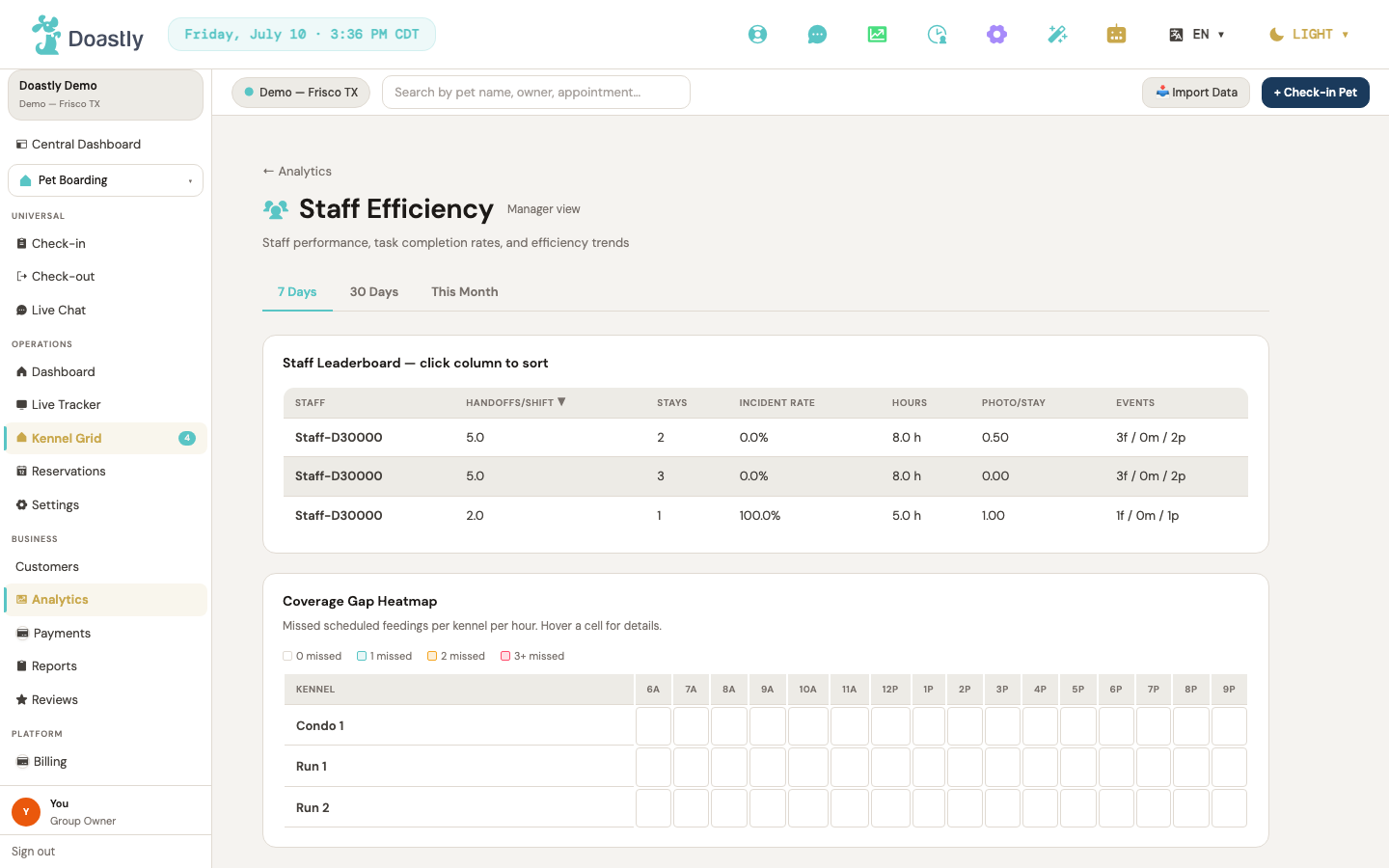
(dark mode also captured)
(dark mode also captured)
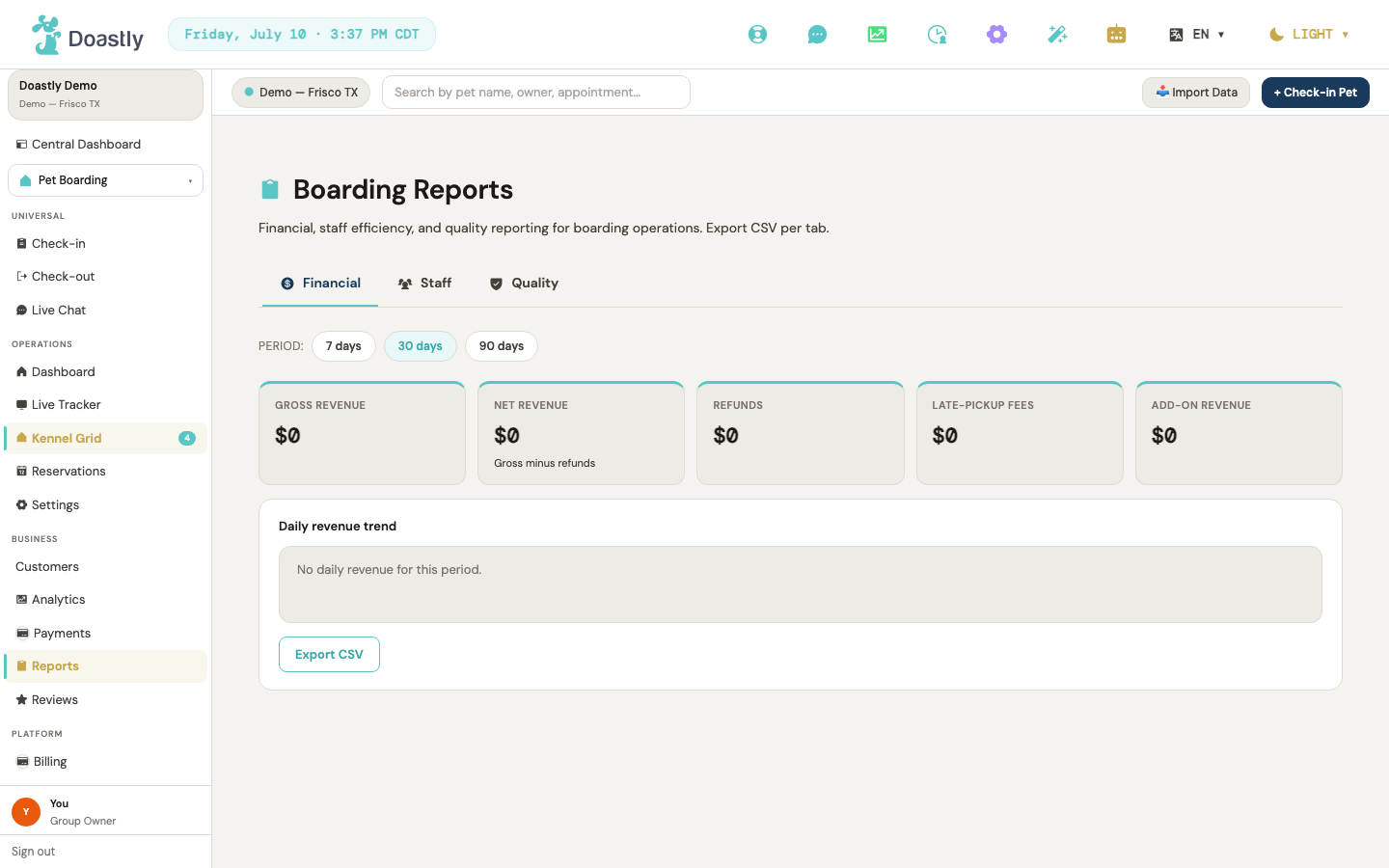
(dark mode also captured)
Analytics & Reports (Boarding)
The Boarding Analytics and Reports screens give owners and managers read-only visibility into boarding revenue, staff performance, and service quality. Analytics offers three focused sub-pages (Financial, Staff Efficiency, Quality) with period filters, while the tabbed Reports surface consolidates the same three domains with CSV export at every tab.
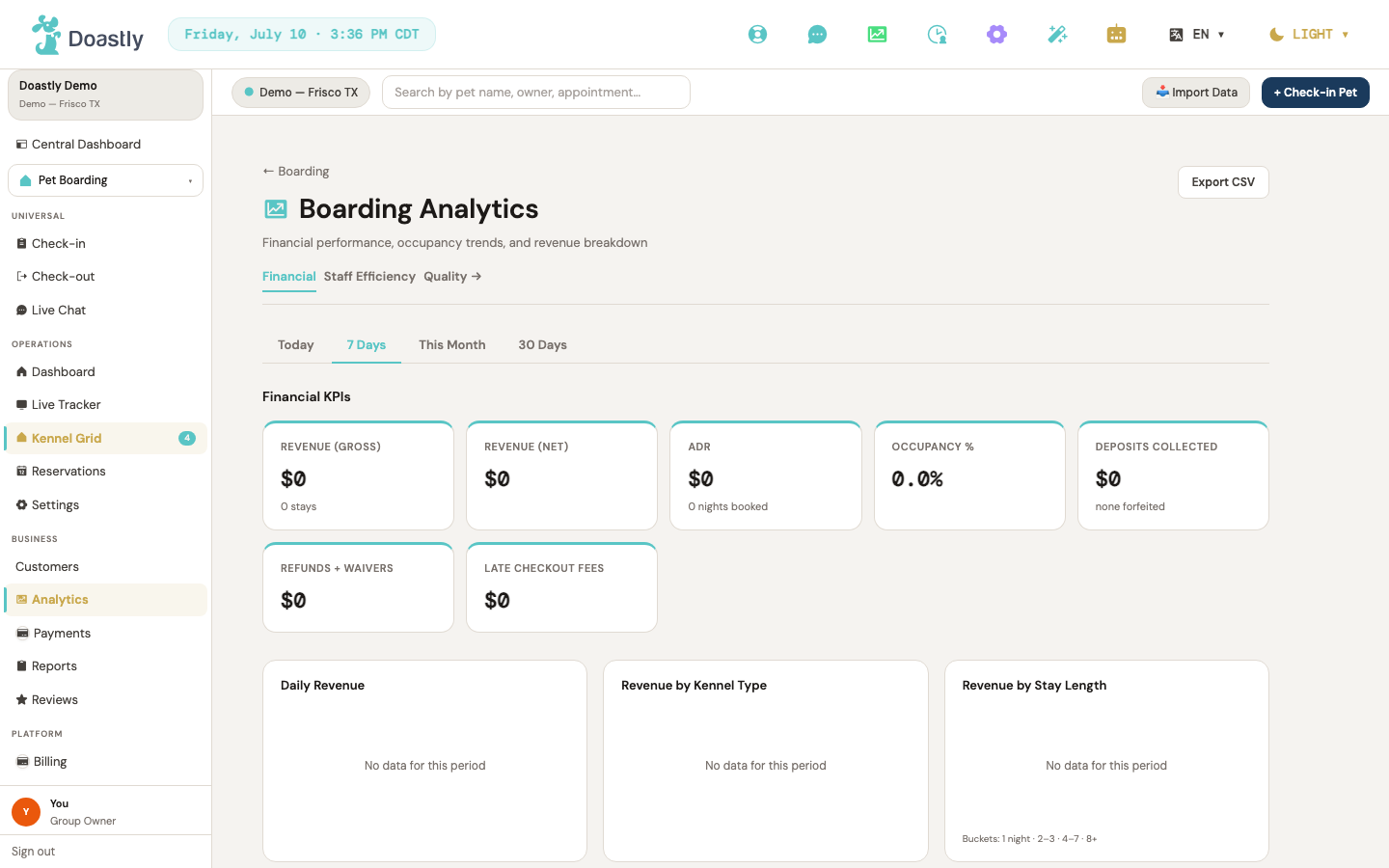
(dark mode also captured)
Boarding Analytics — Financial (default sub-page)
The default analytics view. It reports boarding revenue for a selected period, broken down by day, kennel type, and stay length, with CSV export.
| Control | What it does |
|---|---|
| ← Boarding | Returns to the Boarding home/dashboard. |
| Export CSV | Downloads a boarding revenue CSV from the loaded reservation data. Disabled until reservations have loaded. |
| Financial (tab) | Marks the current sub-page. Active, non-clickable. |
| Staff Efficiency (link) | Navigates to the Staff Efficiency sub-page. |
| Quality → (link) | Navigates to the Quality Reports sub-page. |
| Today | Sets the period to today and reloads the financial analytics. |
| 7 Days | Sets the period to the last 7 days (default) and reloads. |
| This Month | Sets the period to the current month and reloads. |
| 30 Days | Sets the period to the last 30 days and reloads. |
| Financial KPI cards | Read-only cards under a "Financial KPIs" header: Revenue (Gross), Revenue (Net), ADR, Occupancy %, Deposits Collected, Refunds + Waivers, and Late Checkout Fees. Display-only. |
| Daily Revenue bar chart | Read-only bar chart of daily revenue. Display-only. |
| Revenue by Kennel Type bar chart + legend | Read-only bar chart with color legend of revenue per kennel type. Display-only. |
| Revenue by Stay Length bar chart | Read-only bar chart of revenue per stay-length bucket (1 / 2–3 / 4–7 / 8+ nights). Display-only. |
| No-data banner | When the period returns no data, shows a message that financial analytics will appear once reservations are completed. Display-only. |
Boarding Analytics — Staff Efficiency
Reports staff handoff performance and coverage gaps for a selected range, with a sortable staff leaderboard and a coverage-gap heatmap.
| Control | What it does |
|---|---|
| ← Analytics | Returns to the Financial analytics view. (This is the only nav on this page — there are no Financial/Quality sub-nav links here.) |
| 7 Days | Sets the range to the last 7 days (default) and reloads the leaderboard and coverage. |
| 30 Days | Sets the range to the last 30 days and reloads. |
| This Month | Sets the range to the current month-to-date and reloads. |
| Staff Leaderboard — sortable column headers | Clicking a sortable header (Handoffs/Shift, Stays, Incident Rate, Hours, Photo/Stay) re-sorts and reloads the leaderboard by that key; the active column shows a ▼ marker. |
| Staff / Events columns | Non-sortable label columns in the leaderboard table (Events shows feedings/medications/playtimes counts). |
| Coverage Gap Heatmap cells | Grid of missed feedings per kennel per hour (business hours 6 AM–9 PM shown). Each cell shows a hover tooltip (kennel — hour: N missed); no click action. |
| Error banner | Shown when both the leaderboard and coverage requests fail: "Could not load staff analytics. Please try again." Display-only. |
Boarding Analytics — Quality Reports
Reports service-quality metrics for a selected period — satisfaction KPIs, a weekly review-score trend, and the top complaint themes.
| Control | What it does |
|---|---|
| ← Analytics | Returns to the Financial analytics view. |
| Financial (link) | Navigates to the Financial analytics view. |
| Staff Efficiency (link) | Navigates to the Staff Efficiency sub-page. |
| Quality (tab) | Marks the current sub-page. Active, non-clickable. |
| Today | Sets the period to today and reloads the quality KPIs, trend, and themes. |
| 7 Days | Sets the period to the last 7 days and reloads. |
| This Month | Sets the period to the current month and reloads. |
| 30 Days | Sets the period to the last 30 days (default) and reloads. |
| Quality KPI cards | Read-only cards under a "Quality KPIs" header: Avg Review Score, Review Count, Response Rate, NPS, and Review Rate. Display-only. |
| Review Trend chart | Bars of weekly average review score. Each bar shows a hover tooltip (week, score★, review count); no click. |
| Top Complaint Themes chart | Read-only horizontal bars of complaint-theme frequency (%); top 6 themes. Display-only. |
| Reviews-not-enabled panel | When the location has reviews disabled, the KPI area shows "Reviews are not enabled for this location. Enable them in Settings → Location to start collecting customer reviews." and the charts are hidden. Display-only. |
| No-data banner | When the quality data returns nothing, shows a message that quality analytics will appear once reviews are available. Display-only. |
Boarding Reports
The consolidated boarding reporting surface, organized into three tabs — Financial, Staff, and Quality — each with its own period filter and CSV export. Access is restricted to Owner, Manager, and Super Admin roles.
| Control | What it does |
|---|---|
| Financial (tab) | Switches to the Financial report (default). |
| Staff (tab) | Switches to the Staff report. |
| Quality (tab) | Switches to the Quality report. |
| 7 days | Sets the period to a 7-day window and refreshes the active tab's data. |
| 30 days | Sets the period to a 30-day window (default) and refreshes. |
| 90 days | Sets the period to a 90-day window and refreshes. |
| Export CSV (Financial tab) | Downloads a financial CSV from the daily revenue rows. |
| Financial KPI cards | Read-only cards: Gross revenue, Net revenue, Refunds, Late-pickup fees, and Add-on revenue. Display-only. |
| Daily revenue trend bars | Bar sparkline of daily revenue (last 30 points) with per-bar hover tooltip. Display-only. |
| Export CSV (Staff tab) | Downloads a staff CSV from the leaderboard rows. |
| Staff KPI cards | Read-only cards: Active staff, Avg handoffs / shift, and Coverage gaps. Display-only. |
| Staff leaderboard list | Top-8 staff rows with handoffs per shift. Display-only (no sorting on this variant). |
| Export CSV (Quality tab) | Downloads a quality CSV from the complaint-theme rows. |
| Quality KPI cards | Read-only cards: Incidents per stay, Vaccine-override rate, Capacity-override rate, and Avg review score. Display-only. |
| Complaint themes list | Top-6 complaint themes with counts. Display-only. |
| Error / loading / no-active-location banners | Shows a friendly error message, "Loading reports…", or "No active boarding location for your account." as applicable. Display-only. |
Payments
The Boarding Payments screen is a read-only financial overview for the Boarding vertical, summarizing revenue, paid reservations, and refunds over a selected period. In v1, this view is display-only — no refunds or edits are initiated from here. (Refund-issue, pay-ahead, and terminal flows are deferred to a later release.)
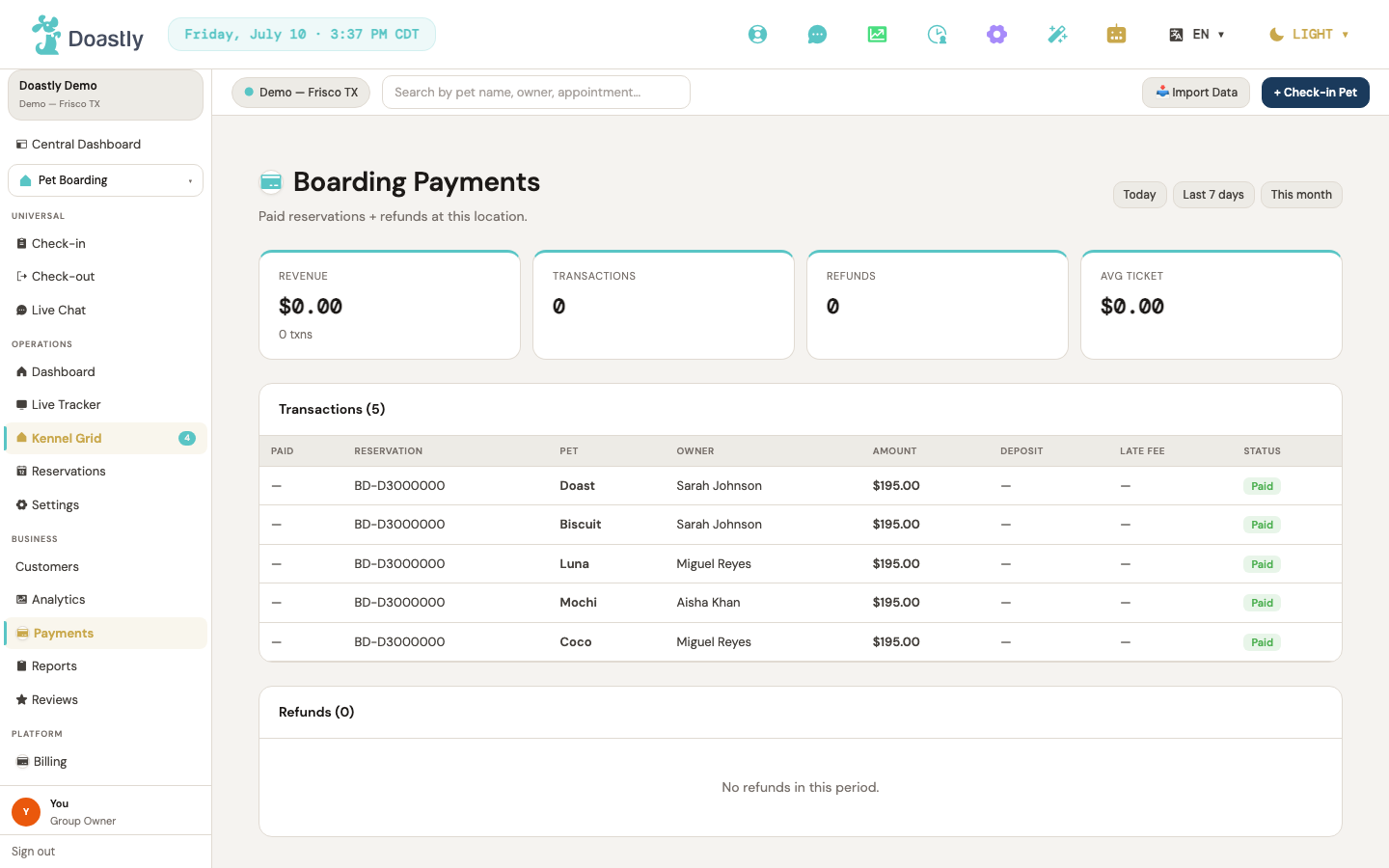
(dark mode also captured)
Boarding Payments (read-only admin view)
| Control | What it does |
|---|---|
| Today | Period selector that scopes the summary to today (reloads the summary, transactions, and refunds on selection). |
| Today | Period selector that scopes the summary to today (reloads the summary, transactions, and refunds on selection). Active by default when the screen loads. |
| Last 7 days | Period selector that reloads the summary for the last 7 days (reloads the summary, transactions, and refunds on selection). |
| This month | Period selector that reloads the summary for the current month (reloads the summary, transactions, and refunds on selection). Active by default when the screen loads, so the KPI window matches the transactions listed below it. |
| This month | Period selector that reloads the summary for the current month (reloads the summary, transactions, and refunds on selection). |
| Credit-card header icon | Decorative glyph beside the "Boarding Payments" title. Visual only — not interactive. |
| Page title + subtitle | Static "Boarding Payments" heading with subtitle "Paid reservations + refunds at this location." Display only — not interactive. |
| Revenue / Transactions / Refunds / Avg ticket (KPI cards) | Read-only metric strip showing period revenue, transaction count, refund count, and average ticket. Display only. The Revenue card also shows a "{N} txns" sub-label. |
| Search by pet or owner name… | Search box above the transactions table. Filters the listed transactions by pet name or owner name as you type, and returns you to page 1 of the results. Filters only the transactions table — the KPI cards and the refunds list are not affected. |
| Transactions table | Read-only list of paid reservations with a "Transactions (N)" count header and columns for Paid, Reservation, Pet, Owner, Amount, Deposit, Late fee, and Status. While a search is active the header reads "Transactions (N of M)" — matches out of the total. Rows are not clickable and carry no per-row actions. Shows "No paid reservations to show." when there are none, or "No transactions match your search." when a search excludes them all. |
| Transactions table | Read-only list of paid reservations with a "Transactions (N)" count header and columns for Paid, Reservation, Pet, Owner, Amount, Deposit, Late fee, and Status. Rows are not clickable and carry no per-row actions. Shows "No paid reservations to show." when empty. |
| Status badge (per transaction row) | Color-coded label for each payment status (Paid, Cash, Partial refund, Refunded, Zero settled). Display only. |
| Refunds table | Read-only list of refund events with a "Refunds (N)" count header and columns for Paid, Reservation, Pet, Owner, Amount, and Status. Rows are not clickable and carry no actions. Shows "No refunds in this period." when empty. |
| « First / ‹ Prev / Next › / Last » (pager) | Page controls beneath both the transactions table and the refunds table, 10 rows per page. First and Prev are greyed out on page one; Next and Last are greyed out on the last page. The pager is hidden entirely when a table has no rows. |
| Showing X–Y of N (pager label) | Read-only count beside the page buttons — which rows of the total you are currently looking at. Alongside it, "Page N of M". Display only. |
| Error banner | Plain-English message shown if any of the summary, transactions, or refunds fail to load. Display only — no retry button. |
| Loading… placeholder | Centered "Loading…" text shown while the period's data is being fetched. |
Reviews (Boarding — shared Reviews surface)
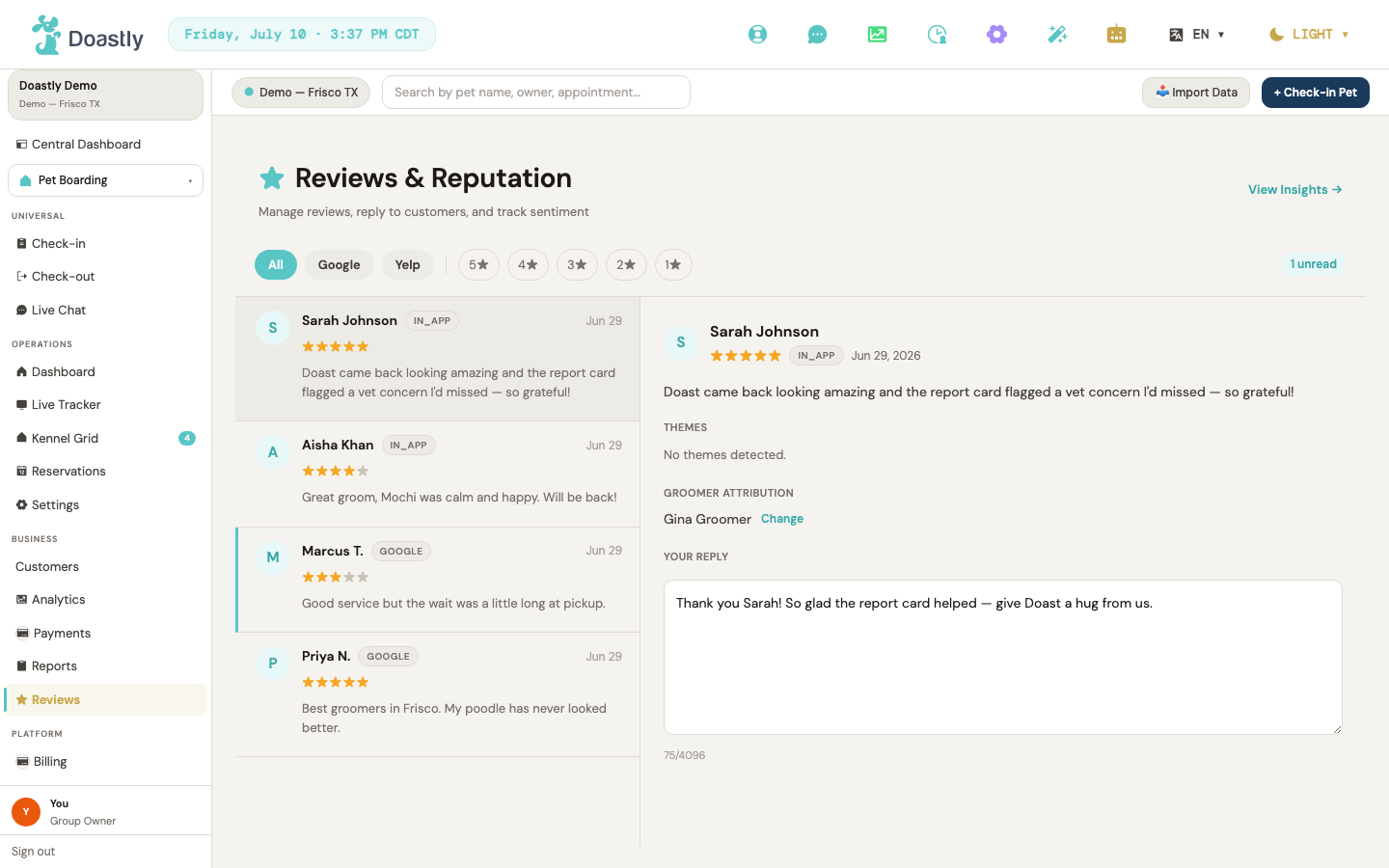
(dark mode also captured)
Review Inbox (list + detail split view)
The central workspace for reading and responding to customer reviews. It uses a split layout: a filterable list of reviews on the left, and the selected review's detail and reply tools on the right.
| Control | What it does |
|---|---|
| View Insights → | Opens the AI Review Insights page. |
| Review card (per review row) | Selects the review, opens it in the detail panel on the right, and marks it read if it was unread. |
Inbox Filter Bar (top of inbox list)
Controls at the top of the review list that narrow which reviews are shown by platform, star rating, and AI theme.
| Control | What it does |
|---|---|
| All | Clears the platform filter and shows reviews from every platform. |
| Filters the list to Google reviews only. | |
| Yelp | Filters the list to Yelp reviews only. |
| 5★ | Filters the list to 5-star reviews; click again to clear the filter. |
| 4★ | Filters the list to 4-star reviews; click again to clear the filter. |
| 3★ | Filters the list to 3-star reviews; click again to clear the filter. |
| 2★ | Filters the list to 2-star reviews; click again to clear the filter. |
| 1★ | Filters the list to 1-star reviews; click again to clear the filter. |
| All themes (theme dropdown) | Filters the list by AI theme tag. Options are built from the themes found in the current reviews and appear only when tags exist; selecting "All themes" clears the filter. |
| N unread (badge) | Displays the count of unread reviews. Shown only when there is at least one unread review; not clickable. |
Review Detail Panel (right pane — reply + attribution)
The right-hand pane for a selected review. It shows the review text, its AI-detected themes, lets you attribute it to the groomer who did the work, and provides tools to draft and send a reply.
| Control | What it does |
|---|---|
| Themes (section) | Display-only. Shows the AI-detected theme tags for the review, or "No themes detected." when none. |
| Change (groomer attribution) | Opens the attribution editor and loads nearby session candidates to match the review to a groomer. |
| Candidate session button (per nearby session) | Attributes the review to that session's groomer. Each option shows the groomer, pet, customer, and checkout date. (If no candidates are found, the editor shows "No nearby sessions found for this review.") |
| Mark as Unmatched | Clears the groomer attribution, leaving the review unattributed. |
| Regenerate | Generates a fresh AI-drafted reply. Disabled (label "Regenerating…") while regenerating; shown only when the review has not yet been replied to. |
| Reply textarea | Editable reply draft, pre-filled with any existing reply or the AI draft. Limited to 4,096 characters; disabled once a reply has been sent. |
| N/4096 (character counter) | Shows the current draft length against the 4,096-character limit; not interactive. |
| Send Reply | Posts the reply to the platform. Disabled while sending or when the draft is empty; shown only for Google reviews that have not yet been replied to. |
| Platform-portal notice | Display-only. Shown in place of Send Reply for non-Google reviews that have not been replied to: "Replies for this platform are managed in the platform's own business portal." |
| Reply status message | Display-only. After sending a reply or regenerating a draft, shows the result message (success confirmation or a friendly error). |
AI Review Insights
A summary view of review performance for a chosen time period, with KPI tiles, complaint themes, and per-groomer breakdowns. Reached via "View Insights →" from the inbox.
| Control | What it does |
|---|---|
| ← Back to Inbox | Returns to the Review Inbox. |
| Today | Sets the insights period to today and reloads the data. |
| 7 days | Sets the insights period to the last 7 days and reloads the data. |
| 30 days | Sets the insights period to the last 30 days (the default) and reloads the data. |
| This month | Sets the insights period to the current month and reloads the data. |
| Complaint theme bar (per theme row) | Navigates to the Review Inbox filtered to that theme. (Note: the inbox does not currently apply the theme filter, so it lands on the unfiltered inbox rather than a theme-filtered view.) |
| Google avg ★ / Total reviews / Reply rate / NPS (summary tiles) | Display-only KPI tiles showing average score, review count, reply rate, and NPS for the selected period. |
| Per-groomer performance table | Display-only table listing each groomer with their review count, average rating, and top theme; shows an empty state ("No groomer-attributed reviews in this period.") when no reviews are attributed. |
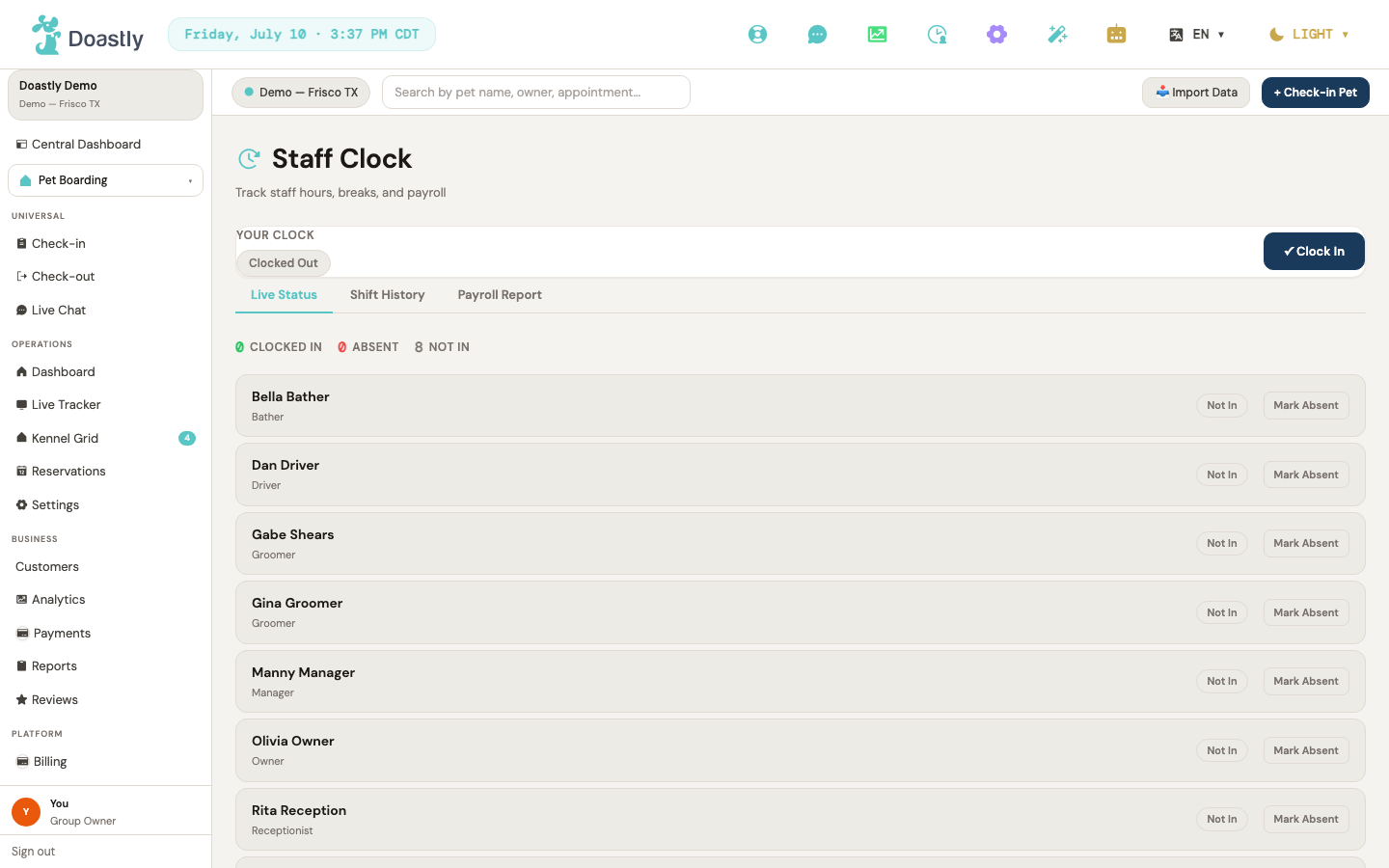
(dark mode also captured)
Staff & Payroll (Boarding) — Staff Clock / Payroll (shared cross-vertical surface)
Staff Clock is a shared surface used across verticals, including Boarding. It lets each staff member manage their own shift, gives managers a live team roster with per-staff controls, and provides shift history and payroll reporting. The Payroll Report tab and manager actions are visible only to manager roles (Owner, Manager, Receptionist).
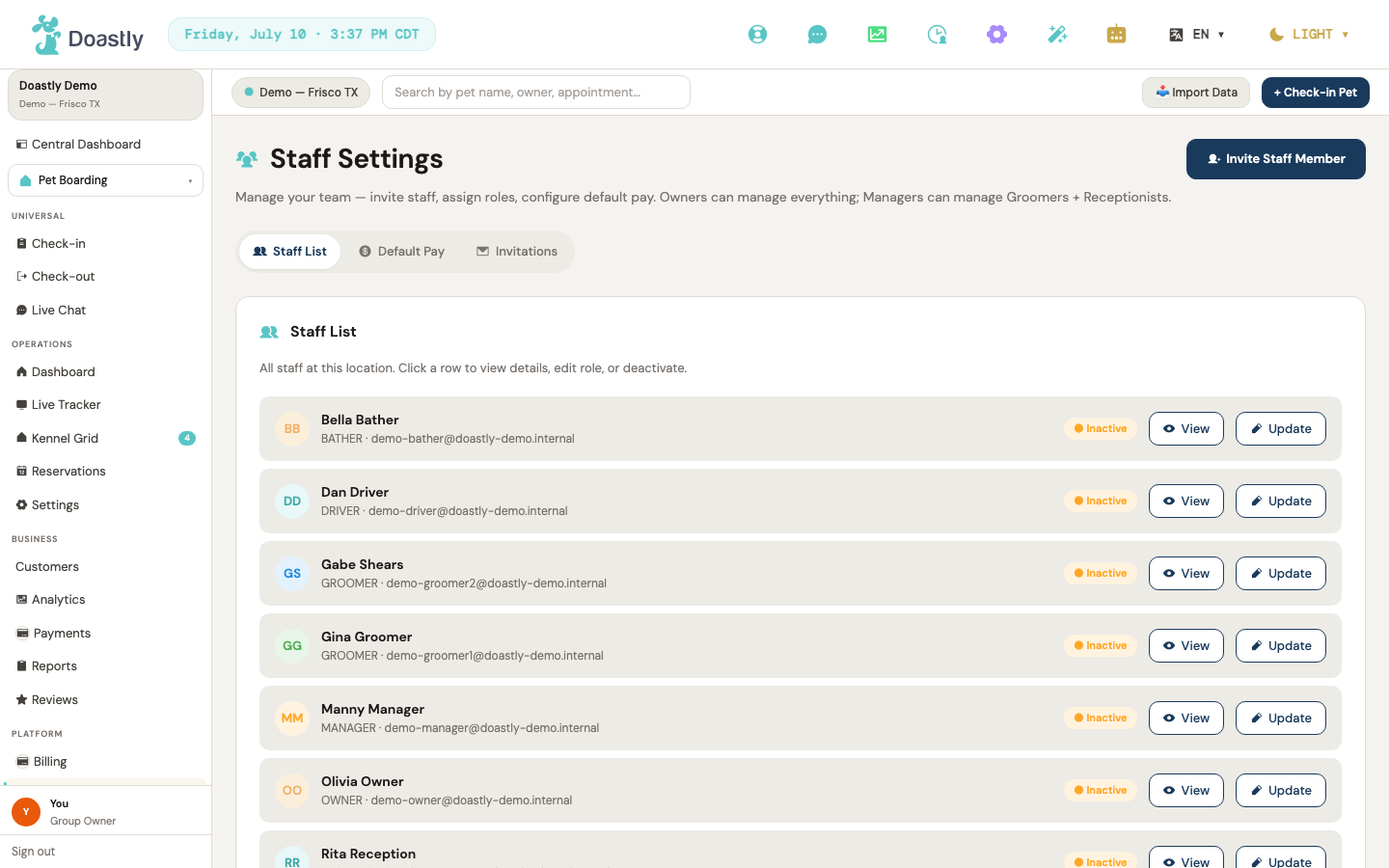
(dark mode also captured)
Staff Clock — page shell (header + My Clock card + tab bar)
The main Staff Clock page. The "My Clock" card handles your own shift, and the tab bar switches between the team roster, shift history, and (for managers) payroll.
| Control | What it does |
|---|---|
| ✓ Clock In | Starts your shift. Shown only when you are not currently clocked in; displays "Clocking In…" while the request is pending. |
| Take Break | Puts your own shift on break. Shown when you are clocked in and not already on break. |
| End Break | Resumes your own shift from break. Shown when you are clocked in and on break. |
| Clock Out | Ends your shift. Shown when you are clocked in; displays "Clocking Out…" while the request is pending. |
| Live Status (tab) | Switches to the team live-status roster with summary counts. |
| Shift History (tab) | Switches to the shift history view. |
| Payroll Report (tab) | Switches to the payroll report. The tab is shown to Owner, Manager, and Receptionist — but the report itself loads only for an Owner or a Manager; a Receptionist sees "Manager or Owner role required" in place of the figures. |
Live Status tab — team roster
A live roster showing each staff member's current clock state, with per-staff manager actions. A summary row above the roster shows read-only counts (Clocked In / Absent / Not In). All action controls in this view are manager-only and appear conditionally based on each staff member's status.
| Control | What it does |
|---|---|
| Break | Puts that staff member's shift on break. Shown when the staff member is clocked in and not already on break. |
| End Break | Resumes that staff member's shift from break. Shown when the staff member is on break. |
| Clock Out | Ends that staff member's shift. Shown when the staff member is clocked in. |
| Mark Absent | Prompts for a reason, then marks the staff member absent. Shown when the staff member is neither clocked in nor already absent. |
| Undo Absent | Clears the absence for that staff member. Shown when the staff member is currently marked absent. |
Shift History tab — shift history
A filterable, paginated table of past shifts with CSV export. Managers can additionally filter by individual staff member.
| Control | What it does |
|---|---|
| Date From | Sets the start of the date range for the shift query. Applied when you choose Apply or a quick range. |
| Date To | Sets the end of the date range for the shift query. |
| All staff (filter) | Filters shift history to a specific staff member. Manager-only. |
| Apply | Reloads shift history using the current date range and staff filter, resetting to page 1. |
| Last 7d | Sets the range to the last 7 days and reloads. |
| Last 14d | Sets the range to the last 14 days and reloads. |
| Last 30d | Sets the range to the last 30 days and reloads. |
| ↓ Export CSV | Downloads a CSV of shifts for the selected range (up to 10,000 rows). |
| ← Prev | Loads the previous page of results. Disabled on the first page; shown only when there is more than one page. |
| Next → | Loads the next page of results. Disabled on the last page; shown only when there is more than one page. |
Payroll Report tab — payroll report (manager-only)
A payroll summary for a chosen period, with KPIs, a per-staff breakdown table, and CSV export. This tab is visible only to manager roles.
| Control | What it does |
|---|---|
| This Month | Sets the period to the current month, recomputes the date range, and reloads the report. |
| Last Month | Sets the period to the previous month, recomputes the date range, and reloads the report. |
| Custom | Selects a custom period and reveals the date-range inputs and Apply button. |
| Date From (custom) | Sets the custom range start date. Shown only when the period is set to Custom. |
| Date To (custom) | Sets the custom range end date. Shown only when the period is set to Custom. |
| Apply | Reloads the payroll report for the custom date range. Shown only when the period is set to Custom. |
| ↓ Export CSV | Downloads a payroll CSV with staff, role, hours, shifts, sessions, revenue, tips, pay type, and payout. Disabled when the report is empty. |
Boarding — Check-in flow
The Boarding check-in flow walks staff from pet identification through a compliance-gated, multi-step arrival confirmation. All Boarding check-ins now run through the unified Check-In screen; the old Boarding-specific entry point redirects into it automatically. This reference documents every screen and control in the flow.
Boarding Check-in redirect
The old Boarding-only check-in entry point no longer holds its own screen — it forwards subscribed salons into the unified Check-In flow, and shows a subscription prompt to salons that don't have Boarding.
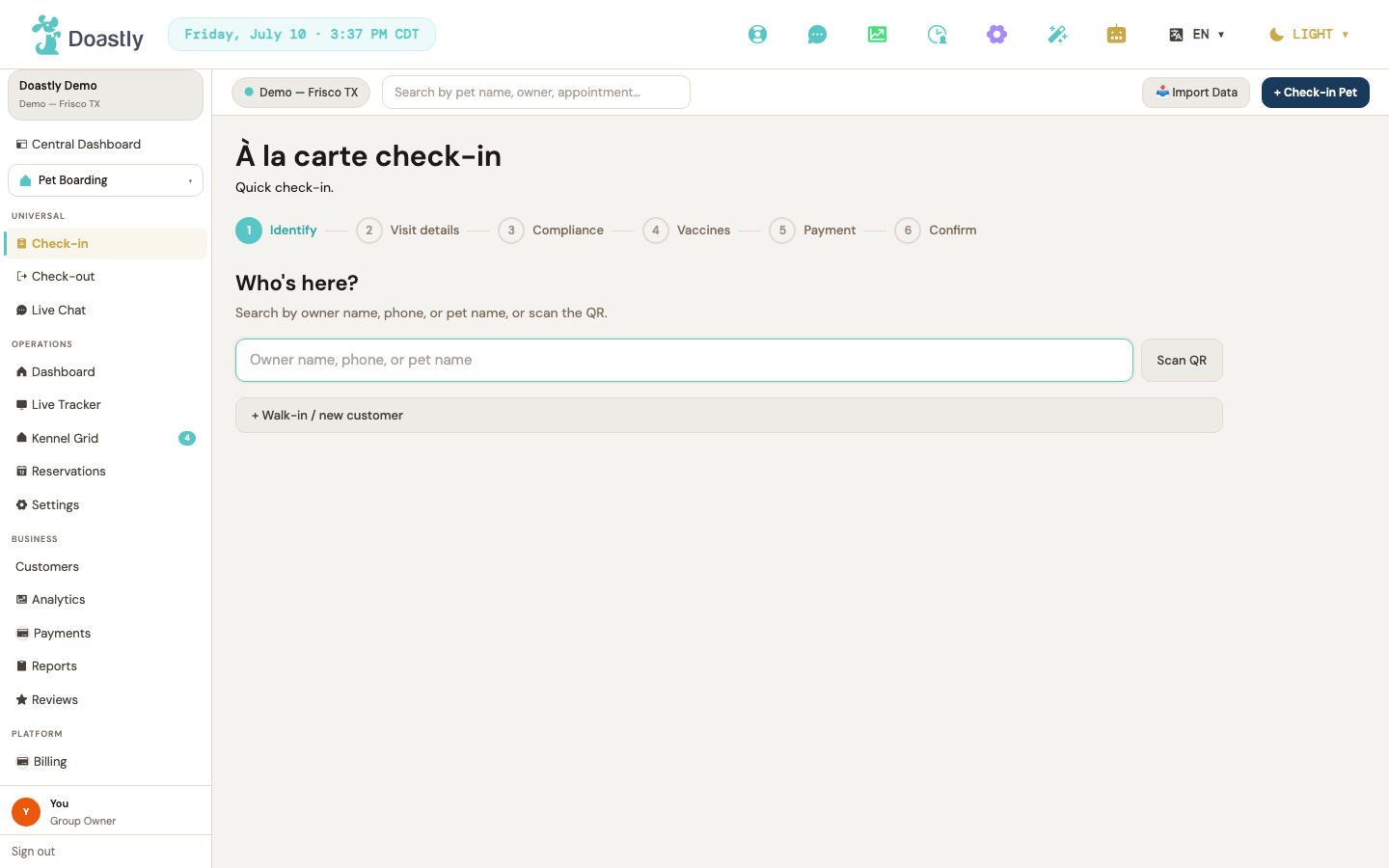
(dark mode also captured)
| Control | What it does |
|---|---|
| Redirect banner (subscribed path) | On load, sends salons subscribed to Boarding to the unified Check-In screen after a brief pause (about 1 second). Shows a spinner and a "We unified Check-In to one screen" message meanwhile — no action needed. |
| Manage subscription → | Appears only when the salon is not subscribed to Boarding. Opens Subscriptions settings. No redirect fires in this state. |
Step 0 — Vertical select (multi-vertical salons only)
Shown only to salons subscribed to more than one vertical. Staff pick which services this visit covers; only the chosen verticals become tabs later. Arriving from the Boarding redirect pre-selects the Boarding chip.
| Control | What it does |
|---|---|
| Vertical chip (Grooming / Boarding / Daycare / Mobile) | Toggles a vertical into or out of the visit. One chip per subscribed vertical; only selected verticals appear as tabs in the next step. |
| Selection count text | Live count of selected verticals, or "Pick at least one vertical to continue." when none are chosen. |
| Continue → | Advances to the Identify step. Disabled until at least one vertical is selected. |
| Manage subscription → | Appears only in the rare state where no verticals are active. Opens Subscriptions settings. |
Step 1 — Identify (Who's here?)
The starting point for a check-in: find the pet by owner, phone, or pet name, or create a new walk-in customer on the spot. Selecting a pet advances the flow and pre-checks its compliance and vaccine status.
| Control | What it does |
|---|---|
| ← Back to vertical selection | Multi-vertical salons only. Returns to Step 0, keeping the current pet identification and vertical selection. |
| Owner name, phone, or pet name (search) | Live, debounced search against real pet records. Requires a minimum number of characters before searching; shows a "Type at least N characters to search" hint below the minimum, a "Searching…" indicator while loading, and an inline error message on failure. |
| Scan QR | Placeholder for a future QR-scan lookup. Not yet active. |
| Search result row | Selects that pet, advances to the tab flow, and pre-loads compliance and vaccine status. Pets already in an active session appear grayed out and disabled with a "Pet already in session" note. |
| Match-kind badge (Owner / Phone) | Inline cue showing why a row matched on something other than the pet's name (owner name or phone number). |
| No-matches hint | When a search returns nothing (query at/above the minimum length), a "No matches. Walk-in or new customer?" row appears, nudging staff to create a walk-in. |
| + Walk-in / new customer | Opens the inline create window to add a brand-new customer and pet, then continues the check-in with that new pet marked as a walk-in. In check-in the window always requires a pet, so it runs Customer → Pet (see below). |
| Inline create window — Close (✕) | Dismisses the walk-in create window from any phase. |
| Inline create window — Customer phase | The first phase of the walk-in create. Collects the new customer's details (name / phone / email) and creates the customer record. Has its own submit action plus a cancel that closes the window. |
| Inline create window — Pet phase | The second phase, entered automatically after the customer is created (because check-in requires a pet). Collects pet details and creates the pet, then continues the check-in with the new pet marked as a walk-in. |
Persistent 3-panel shell (all post-identify steps)
Once a pet is identified, a pet identity row plus three read-only reference panels stay visible for the rest of the flow — the pet's safety profile, vaccine status, and signed documents — so staff can double-check details at any step.
| Control | What it does |
|---|---|
| Pet name link | Opens the full Pet Detail view for the identified pet. |
| Pet Detail window — Close | Closes the pet detail view. |
| Pet Status panel | Read-only. Shows five safety fields (Behavior, Diet, Medication, Allergies, Handling Notes — each showing "None on file" when empty) plus any active sessions across verticals to prevent double check-in. No actions here. |
| Pet Vaccines panel | Read-only. Mandatory checklist (Rabies, DHPP, Bordetella) plus any extra vaccines, each marked ✓/✗/⚠, with an overall green/yellow/red badge. |
| Pet Documents panel — Download (per document) | Downloads a signed compliance PDF securely, with friendly errors if the download fails. |
| Pet Documents panel — Retry | Appears if documents fail to load; reloads the page to fetch them again. |
Progress indicator (necklace beads)
A non-interactive step tracker across the top of the flow.
| Control | What it does |
|---|---|
| Step beads (Verticals / Identify / Visit details / Compliance / Vaccines / Payment / Confirm) | Show the current position: completed steps are checked and dimmed, the current step is teal, and pending steps are outlined. The Verticals bead is hidden for single-vertical salons. |
Step 2 — Visit details / Tab flow
The heart of the check-in: a top bar with a Quick Check-in shortcut, and a tab strip (for multi-vertical visits) that moves between each vertical and a final Review tab.
| Control | What it does |
|---|---|
| ← Back to pet search | Returns to Identify, clearing the identified pet, tab selections, and gate state. |
| ⚡ Quick Check-in (top bar) | One-click jump straight to Confirm. Enabled only when at least one service or package is selected and compliance and vaccines are green; otherwise grayed with a tooltip explaining why. |
| Tab strip (per-vertical tabs + Review) | Multi-vertical only. Switches between the selected vertical tabs (e.g. Boarding) and the final Review tab. Hidden for single-vertical visits. |
| ← Back to vertical selection (tab strip) | Multi-vertical only. Returns to Step 0, keeping the vertical selection and identified pet. |
| ← Back (per tab) | Moves to the previous vertical tab, or to Step 0 from the first tab, preserving entered data. Hidden on the Review tab. |
Step 2 — Boarding tab
Where the boarding stay is built: pick services from the catalog, assign a kennel, set the stay dates, and record food, medication, and care notes.
| Control | What it does |
|---|---|
| Services chips | Toggle Boarding services from the catalog (each chip shows name and price). Shows an empty-state message when none are configured. |
| Packages chips | Toggle Boarding packages from the catalog. Shows an empty-state message when none are configured. |
| Add-ons chips | Toggle Boarding add-ons from the catalog. Shows an empty-state message when none are configured. |
| Kennel (dropdown, required) | Assigns a kennel for the stay. Lists available units, excluding any marked out of service. |
| Check-in date (required) | Sets the stay's start date. |
| Check-out date (required) | Sets the stay's end date. Must be after the check-in date. |
| Food schedule | Free-text feeding schedule for the stay. |
| Medication | Free-text medication instructions. |
| Notes | Free-text notes for crate preferences, temperament, or fears. |
| Retry | Appears if kennels or catalog fail to load; re-fetches both. |
| Continue to Review → / Continue to next vertical → | Validates the kennel and dates, then advances to Review (or the next vertical tab). Disabled until a kennel and both dates are set. |
Step 2 — Review tab
A read-only cross-vertical summary of the whole visit — selected services, kennel and dates, pricing, and a compliance roll-up — plus the controls to complete or abandon the check-in.
| Control | What it does |
|---|---|
| ← Back (Review) | Returns to the previous tab, preserving all entered data. |
| Visit summary table | Read-only summary of selected verticals, kennel and dates, and per-vertical and grand-total pricing. |
| Compliance roll-up banner | Shows whether compliance is satisfied or blocked. Blocks Complete when a mandatory document is unsigned and not staged for signing. |
| Retry | Appears on a partial or submit failure; clears the error and lets staff try again. |
| ← Cancel all | Abandons the visit build and returns to Step 0, keeping the vertical selection. |
| ⚡ Quick Check-in (Review) | Jumps to Confirm when eligible. |
| Continue to Compliance → (Complete) | Creates the session records for all selected verticals in one step, saves any staged signatures, then advances to the Compliance gate. Disabled until compliance is clear and each vertical has a valid, paid selection. |
Step 3 — Compliance gate
Current state: Boarding check-in uses the same compliance-status component as every other vertical, and the query behind it is not filtered by vertical — a document configured as active and mandatory in Settings → Compliance for a location is picked up regardless of which vertical it was added under. There is no separate "boarding compliance library" — the existing Settings → Compliance page already applies to boarding. Most locations have not added a mandatory template there, so for those locations this screen has nothing to sign, and check-in proceeds without a documents step.
Signing a document here records it — a compliance record is created and the reference panels update. Whether an unsigned mandatory document actually blocks completing check-in has not been verified for boarding: the status shown here correctly reports which documents are missing, but confirming that check-in cannot complete while one is outstanding requires testing the flow directly, not reading how the status is computed.
Ensures all mandatory documents are signed before the pet can be checked in. Unsigned documents must be signed here to continue.
| Control | What it does |
|---|---|
| ⚡ Quick Check-in bar | Jumps to Confirm when compliance and vaccines are green. |
| Sign → (per unsigned document) | Opens the signing window for that document. On signing, refreshes compliance status and the reference panels. |
| Signed-documents list | Read-only list of already-signed documents with their signed and expiry dates, shown when everything is clear. |
| ← Back | Returns to the à la carte menu (multi-vertical) or Identify (single-vertical). |
| Continue → / Sign N documents to continue | Acknowledges compliance and advances to the Vaccines gate. Disabled while any mandatory document remains unsigned. |
| Sign window — Full name | The signer's full name. |
| Sign window — Relationship to pet | The signer's relationship to the pet (Owner / Guardian / Authorized Agent / Vet Staff). |
| Sign window — Signature pad | Captures the signature by drawing or typing. |
| Sign window — Cancel | Closes the window without signing. |
| Sign window — Sign Document | Submits the signature. Disabled until both a name and a signature are present. |
Step 4 — Vaccines gate
Confirms the pet's required vaccines are present and current before check-in. Missing or expired vaccines must be resolved here to continue — or, for Owner/Manager/Super Admin roles, the gate can be overridden with a logged reason.
Confirms the pet's required vaccines are present and current before check-in. Missing or expired vaccines must be resolved here to continue.
| Control | What it does |
|---|---|
| ⚡ Quick Check-in bar | Jumps to Confirm when eligible. |
| Vaccine issues list | Read-only list of blocking vaccine problems (missing or expired). |
| + Add / upload vaccine | Opens the quick-add window to resolve a missing or expired vaccine on the spot. |
| Manager Override (logs to audit) | Owner/Manager/Super Admin only — not shown to Groomer or other non-manager roles. Opens the override reason window; on submit, checks the pet in over the vaccine block through a dedicated audited endpoint (never the plain check-in retry). This is the only sanctioned way to check in a pet with a vaccine issue. |
| ← Back | Returns to the Compliance gate. |
| Continue → / Resolve N vaccine issues to continue | Advances to Payment. Disabled until all required vaccines are present and unexpired, unless overridden. |
| Continue → / Resolve N vaccine issues to continue | Advances to Payment. Disabled until all required vaccines are present and unexpired. |
| Quick-add window — Vaccine (select) | Pick a common vaccine, or "Other." |
| Quick-add window — Other name | Free-text vaccine name when "Other" is chosen. |
| Quick-add window — Administered date (required) | The date the vaccine was given. |
| Quick-add window — Expires date | Optional expiry date. |
| Quick-add window — Cancel | Closes the window without adding. |
| Quick-add window — Add vaccine | Saves the vaccine and refreshes the gate and reference panels. |
| Override reason window — Reason (required) | Free-text explanation for the override; required to submit. |
| Override reason window — Cancel | Closes the window without overriding. |
| Override reason window — Submit override | Records the override — which vaccine checks were outstanding and the gate's state at the time, the manager who authorized it, and the reason — in the same action that checks the pet in, so the override and the check-in cannot separate in the record. |
Step 5 — Payment pre-auth (optional)
An optional step to place a card hold for the estimated stay cost. It never blocks the check-in — staff can always skip and bill at checkout.
| Control | What it does |
|---|---|
| ⚡ Quick Check-in bar | Jumps to Confirm when eligible. |
| Per-vertical estimate lines + Total hold | Read-only pricing estimate (Boarding line plus grand total) based on the tab selections. |
| + Add card for pre-auth hold | Reveals the card entry form. Shown only when the salon has a card processor configured. |
| Card element | Collects the card details for the pre-auth hold. |
| Authorize hold | Creates the payment method and advances to Confirm. |
| Cancel (card form) | Hides the card form without authorizing. |
| ← Back | Returns to the Vaccines gate. |
| Skip — bill at checkout | Skips the pre-auth (which never gates Confirm) and advances to Confirm. |
Step 6 — Confirm arrival
The final step: a summary of the visit and the button that officially checks the pet in, creating the stay records, adding it to the Live Tracker, and sending the arrival SMS.
| Control | What it does |
|---|---|
| Today's à la carte summary | Read-only chips of the selected verticals (e.g. Boarding), plus any pre-auth note. |
| ← Back | Returns to the Payment step. |
| Confirm arrival ✓ | Completes the check-in in one step — creates the child records, adds the pet to the Live Tracker, and sends a single arrival SMS. Disabled while confirming, if no verticals are selected, or if the pet is already checked in. |
| Already-checked-in notice | Appears when the pet is already checked in; directs staff to the Live Tracker and disables Confirm. |
| + New check-in | On a successful arrival, resets the flow to start the next pet's check-in. |
⚠ Open accuracy item (tip) — the charge is correct on this path; the record of it is not, and a second checkout path drops it entirely. Every "tip" control described below is a real, working input that correctly updates the on-screen running total. Confirmed by my own read of
backend/app/services/multi_vertical_checkout_service.py(_build_breakdown,:95-99): the unified/UOUT-V2 checkout path — which this screen's Review & complete tab uses — genuinely includes the entered tip in the actual charge (final_cents = base_cents + tip + late_fee − discount, andfinal_centsis what gets sent to the gateway). So on this path there is no display≠charge problem; tip is not "unrecordable" in the sense of never being charged. Three separate, real gaps remain, and collapsing them into one is the mistake to avoid: (1) the tip amount charged this way is stored only incheckout_adjustments_json.uout_v2_breakdown— a JSONB blob, not a dedicated column or ledger row (#845, retitled from "unimplementable" to "persisted unledgered"). (2) boarding also has a second, separate checkout code path (boarding/backend/services/checkout_service.py'scheckout_reservation()) which has no tip parameter at all — confirmed by reading it directly — so a checkout that goes through that path drops tip entirely (#847, dual-write-path). Which path a given check-out actually uses is not something I've traced here. (3) even for a tip charged correctly via path (1), the reservation-record Payment section (boarding-15) and the itemized receipt window still show tip as a hardcoded $0 — that receipt code never reads the JSONB blob at all, so a correctly-charged tip is still invisible on the historical record. Do not read "tip is charged correctly" as "tip is recorded, ledgered, or receipt-visible" — those are the open items.
Boarding Check-out flow
The unified à-la-carte check-out, in boarding context. A staff member finds the pet, selects which active sessions are settling, itemizes the boarding reservation (extras, tip, late fee, discount), reviews a cross-vertical roll-up, takes payment, and completes. Steps auto-simplify for single-session pets.
Boarding Check-out entry / redirect
The old Boarding-only check-out entry point no longer hosts its own screen — it forwards to the unified check-out. When the salon lacks the Boarding vertical, it instead shows a not-subscribed gate.
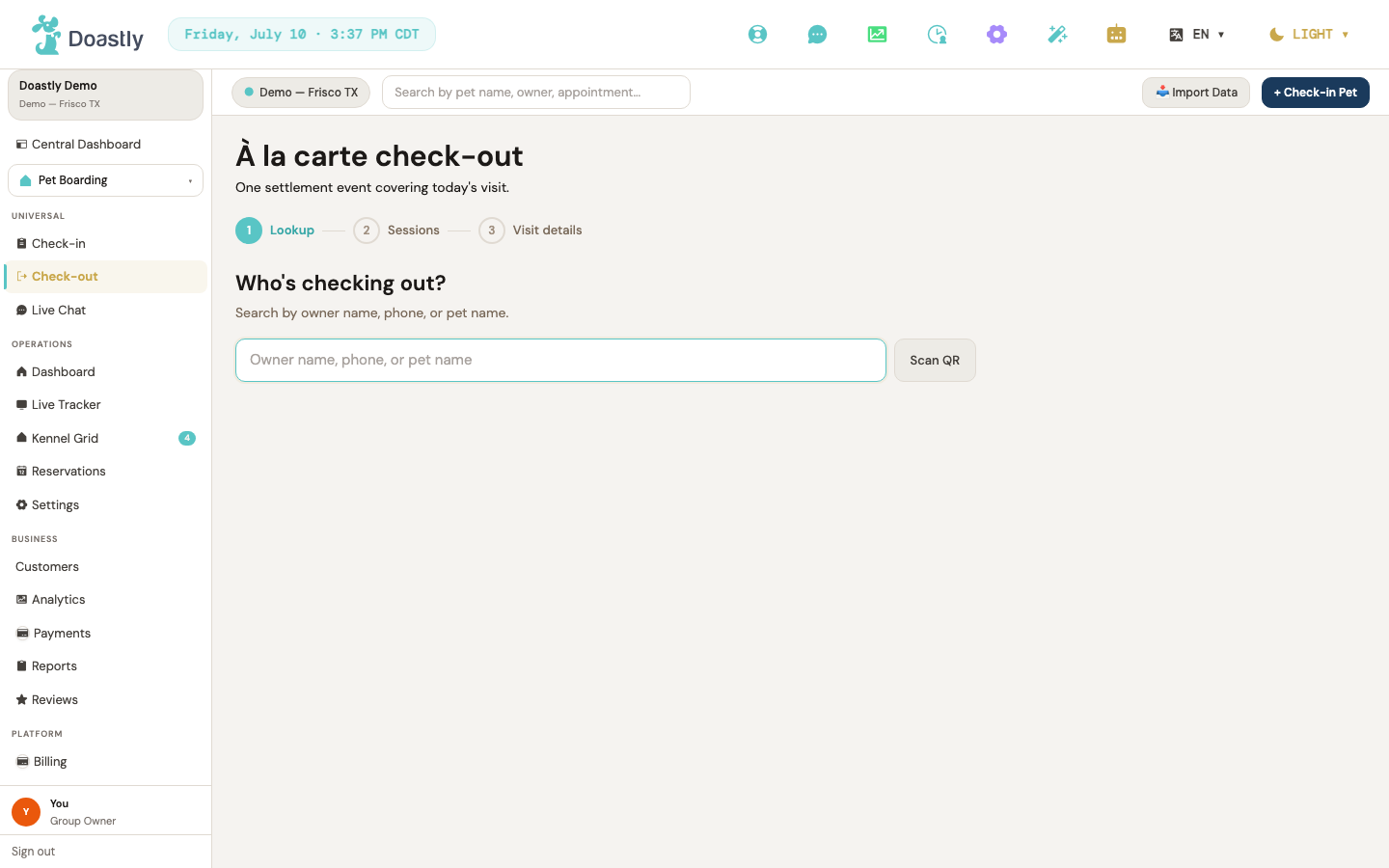
(dark mode also captured)
| Control | What it does |
|---|---|
| Manage subscription → | Shown only in the not-subscribed gate state (salon lacks the Boarding vertical). Navigates to Settings → Subscriptions. |
| Auto-redirect (no control) | When subscribed, after roughly 1 second the page automatically forwards to the unified check-out, carrying the current pet's session. A spinner and the banner "We unified Check-Out to one screen." show meanwhile; there is nothing to click. |
Step: Lookup — "Who's checking out?"
The first step of the unified flow: find the pet whose visit is ending.
| Control | What it does |
|---|---|
| Owner name, phone, or pet name (search) | Debounced search across customers and pets at the current location (minimum two characters). Matches populate the results list below. |
| Scan QR | QR-scan affordance for identifying a pet. Placeholder only — no action is wired yet. |
| Check out (per result row) | Selects that pet and advances the flow to session selection. |
| Result row | Non-clickable container showing the pet's name, owner, phone, and an Owner/Phone match badge. The row's action is its Check out button. |
Persistent panels (Pet Status + Pet Documents)
Once a pet is picked, these two read-only panels sit above the step body throughout check-out, giving staff at-a-glance awareness. In check-out mode they are informational only — the add-to-visit, sign, and upload actions available at check-in are suppressed here.
| Control | What it does |
|---|---|
| Pet Status panel | Read-only cross-vertical view of active-session status and behavior-tag chips; marks rows selected for check-out with a "Selected for check-out" cue. No start-visit or add-to-visit buttons in this mode. |
| Pet Documents panel (Read-only) | Read-only awareness view of vaccines and compliance documents, flagged with a read-only chip. Sign and Upload-new actions are suppressed in check-out mode. |
| Retry (documents fetch failed) | Appears only if the vaccine/compliance fetch fails. It is a link that reloads the page to re-fetch the documents. Upload and Sign stay suppressed. |
Progress indicator
A three-bead necklace showing where you are in the flow. Read-only — it does not navigate.
| Control | What it does |
|---|---|
| Lookup / Sessions / Visit details beads | Non-interactive progress display. The "Sessions" bead is hidden when the pet has exactly one active session. No click behavior. |
Step 0: Session select — "Which sessions are checking out?"
Shown when the pet has more than one active session; skipped automatically for a single-session pet. Choose which sessions to settle in this check-out.
| Control | What it does |
|---|---|
| Session chip (per active session, e.g. Boarding · Suite B) | Toggles that session into or out of the settle set. Sessions belonging to another salon render disabled with an "(at another salon)" note and cannot be selected. |
| Continue → | Advances to the per-vertical tabs. Disabled until at least one session is selected. |
| Search another pet | Empty-state action (shown when the pet has no active sessions) — resets the flow back to Lookup to pick a different pet. |
| Selection count / partial-fail notices | Read-only text showing "{n} sessions selected" (or "Pick at least one session to continue.") and an advisory when a vertical's session lookup failed. |
Tab strip (multi-session only)
When more than one vertical is being settled, a tab strip lets staff move between each vertical's check-out and the final Review tab. Hidden when only one vertical is involved.
| Control | What it does |
|---|---|
| Per-vertical tab (Boarding, Grooming, …) + Review tab | Switches which vertical's check-out tab (or the Review tab) is visible. Only tabs for the sessions selected in Step 0 appear. |
| ← Back to session selection | Returns to Step 0, preserving the pet identification and the selected sessions. |
Boarding check-out tab
The itemized boarding settlement: the reservation summary plus fields for extras, tip, late fee, discount, and the return checklist. A live running total updates as you enter values. Tip's reach to the actual charge is unverified — see the flag above.
The itemized boarding settlement: the reservation summary plus fields for extras, tip, late fee, discount, and the return checklist. A live running total updates as you enter values.
| Control | What it does |
|---|---|
| Reservation summary | Read-only panel showing the fetched reservation — kennel, stay dates, meal schedule, medications, and subtotal. |
| Tip $ mode | Sets tip entry to a dollar amount. (open accuracy item — see flag above) |
| Tip % mode | Sets tip entry to a percentage of subtotal and reveals the percentage suggestion chips. (open accuracy item — see flag above) |
| Tip % chips (None / 10% / 15% / 20%) | Quick-set the tip as a percentage of subtotal (shown only in % mode). (open accuracy item — see flag above) |
| Tip amount input | Custom tip value — dollars in $ mode, percent in % mode. (open accuracy item — see flag above) |
| Tip $ mode | Sets tip entry to a dollar amount. |
| Tip % mode | Sets tip entry to a percentage of subtotal and reveals the percentage suggestion chips. |
| Tip % chips (None / 10% / 15% / 20%) | Quick-set the tip as a percentage of subtotal (shown only in % mode). |
| Tip amount input | Custom tip value — dollars in $ mode, percent in % mode. |
| Discount input | Manual dollar discount (promo-code support is deferred). |
| Late fee input | Enter or override the late fee. Pre-fills the system-computed value when available; when the pickup is within the grace window it is hidden and replaced by a "within grace — no fee" notice. |
| Check-out time | Records the pickup date and time. |
| Mid-stay extras | Free-text for extra walks, meals, or baths billed mid-stay. |
| Return checklist: Keys returned | Checkbox marking keys returned. |
| Return checklist: Leash returned | Checkbox marking the leash returned. |
| Return checklist: Personal belongings returned | Checkbox marking belongings returned. |
| Notes | Operator-internal condition notes for this boarding check-out. |
| Running total preview | Read-only live summary of subtotal + tip + late fee − discount. Includes tip in the displayed figure; whether the actual charge matches this figure when a tip is entered is the open accuracy item flagged above. |
| Running total preview | Read-only live summary of subtotal + tip + late fee − discount. |
| Retry (resource fetch failed) | Appears only when the reservation fetch fails — re-fetches the boarding reservation. |
| ← Back | Returns to Step 0 session selection. |
| Continue → / Continue to Review → | Advances to the next selected vertical tab, or to the Review tab if Boarding is the last one. |
Review & complete tab
The final step: a cross-vertical roll-up of every settling session with tax and grand total, payment-method selection, and completion.
| Control | What it does |
|---|---|
| Selection summary table | Read-only per-session line roll-up with subtotal, tip, late fee, discount, tax, and grand total. Includes an aggregation partial-fail advisory when a session couldn't be totaled. For boarding sessions, whether the "grand total" shown here (which includes tip) matches what is actually charged is the open accuracy item flagged in the Boarding check-out tab above. |
| Payment method: Stripe terminal | Selects the Stripe terminal. If no reader is paired, shows a warning with guidance and blocks Complete. |
| Payment method: Square terminal | Selects Square terminal payment. |
| Payment method: Cash | Selects cash payment (no card-capture step). |
| Payment method: Check | Selects check payment (no card-capture step). |
| Payment method: Split | Selects split payment (routes through the card-capture flow like the primary method). |
| pair one in Settings → Payment | Shown when the Stripe terminal is selected but no reader is paired; navigates to Settings → Payment. |
| ← Back | Returns to Step 0 session selection. |
| Complete check-out · $<grand total> | For card methods, opens the payment-capture step; for cash or check, submits directly. Disabled while submitting or capturing, or when the Stripe terminal is selected with no reader paired. |
| Payment declined / partial-fail panels | Read-only status panels surfacing a friendly decline message or per-session partial-fail rows (charge/refund status and retry guidance). |
Payment capture (card methods)
An interstitial shown before completion when a card-based method is chosen, to run the card capture.
| Control | What it does |
|---|---|
| ← Back | Cancels the capture and returns to the Review tab. |
| Capture $<total> → | Runs the single card capture; on success, completes the check-out. Disabled while running. |
| Total amount | Read-only display of the amount to be captured. |
Success panel
Confirmation shown after the check-out completes, summarizing what was settled.
| Control | What it does |
|---|---|
| + New check-out | Resets the whole flow back to Lookup for the next check-out. |
| Settlement summary | Read-only list of the amount settled, the closed sessions per vertical, and the aggregated receipt. |
Check-out — Retail Ring-up Section
Appears inside the Boarding tab when Retail is enabled, letting you add products to the sale before settling.
| Control | What it does |
|---|---|
| Search products… input | Filters the product pick list by name or SKU. |
| Product pick chip (per product) | Adds that product to the retail cart, or increments its quantity if already present. |
| Remove cart item (✕) | Removes a product line from the retail cart. |
| Add N items to checkout / Add items to cart | Rings up the cart, attaching the products to the visit's bill. Disabled when the cart is empty; shows a confirmation on success. |
Checking in a boarding pet that needs medication or a special diet
This is the flow to use when a dog or cat arrives for a stay and comes with instructions: tablets twice a day, a prescription kibble, insulin, anything the owner hands you on a sheet of paper. It has two halves. First you check the pet in. Then you turn the owner's instructions into routines, so every dose and every meal is on a schedule with a name next to it.
Why two halves. Check-in records that the pet is in the building and what the owner told you. Routines are what the kennel staff actually work from, shift after shift. Writing "Insulin 2 units AM and PM" in a notes box tells the morning person what to do; a routine tells the evening person too, and records whether it happened.
Any staff member can check a pet in and add routines. Only an Owner or Manager can override a vaccine block (step 5).
Before you start
Have in front of you:
- [ ] The owner's written instructions: medication name, dose, how often, with food or without
- [ ] The food the owner brought, and how much to give at each meal
- [ ] The pet's vaccination certificate, if it is not already on file
- [ ] The dates of the stay
Part A — Check the pet in
1. Open Check-in. In the left menu under Pet Boarding, choose Check-in. The page is titled À la carte check-in. If your salon runs more than one service you are first asked which services this visit covers; Boarding is already selected when you arrive from the Boarding menu. Press Continue →.
2. Find the pet. Type the owner's name, phone number, or the pet's name in the search box and pick the pet from the results. If the pet is greyed out with "Pet already in session", it is already checked in somewhere; go to the Live Tracker instead of checking in twice.
Why this matters: selecting the right pet is what pulls up the right vaccine record and the right file. Two dogs called Bella is the commonest check-in mistake there is.
New customer? Press + Walk-in / new customer and fill in the owner first, then the pet. The flow continues with the new pet.
Once a pet is selected, three panels sit at the top of every step: Pet Status (behavior, diet, medication, allergies, handling notes from the pet's file), Pet Vaccines, and Pet Documents. Glance at Pet Status now; if the file already says "Medication: None on file" and the owner has just handed you a medication list, the file is out of date and the routines you build in Part B are what will keep the stay safe.
3. Build the stay on the Visit details step (Boarding tab). Under Services, pick the boarding service (for example Overnight Boarding) and any Add-ons. Choose a Kennel from the dropdown and set the Check-in date and Check-out date; all three are required. Then fill in the three text boxes:
- Food schedule: what the owner brought and when it is fed, in the owner's words (for example 1 cup kibble AM + 1 cup PM).
- Medication: the medication list exactly as written on the owner's sheet.
- Notes: crate preferences, fears, anything the kennel team should know.
Why this matters: these boxes are the owner's instructions in their own words. In Part B you will turn them into scheduled routines. Copy them in full now, because the owner will be gone when a question comes up.
Press Continue to Review →. It stays grey until a kennel and both dates are set.
4. Review, then sign paperwork. The Visit Summary shows the kennel, the dates and the price. If any required document is unsigned, a red notice says so and points you to the Pet Documents panel. Press Continue to Compliance → (or ← Cancel all to abandon the visit). On the Compliance step, each unsigned document has a Sign → button. Pressing it opens the signing window: Full name, Relationship to pet (Owner is the default), and a Signature the owner can Draw or Type. Sign Document stays grey until both a name and a signature are present. The Sign N documents to continue button unlocks once everything is signed.
Why this matters: a signed waiver stored against this stay is one you can find in three years. A paper one is in a drawer.
5. Vaccines. If a required vaccine is missing or expired, the Vaccines step lists it and you cannot continue. If the owner has the certificate, use the add-vaccine control on this step to enter it now (vaccine, date given, expiry). If they do not, the pet cannot be checked in unless an Owner or Manager uses the manager override on this step and types a reason. The override is recorded with who, when, and why. (Controls per the reference chapter; not screenshot-verified this session.)
Why this matters: an out-of-date vaccination is a risk to every other animal in the building, not just this one. The block exists so that the decision to proceed is a manager's decision, on the record.
6. Card hold (optional). The Payment step lets you take a card for a hold on the estimated stay, or skip and bill at checkout. Skipping never blocks the check-in. (Per the reference chapter.)
7. Confirm arrival. The Confirm step shows a summary; the confirm button creates the stay, puts the pet on the Live Tracker, and sends the owner one text saying their pet has arrived. (Per the reference chapter.)
Part B — Turn the instructions into routines
8. Open Routines. In the left menu under Pet Boarding, choose Routines. The page is titled Daily Routines and shows today's medications and meals to follow, by time, for every pet currently checked in, grouped by the hour they are due. A History button opens past days.
9. Add each medication. Press + Add routine. In the sheet that opens, choose the pet (only checked-in pets are offered, which is why Part A comes first) and set the type to medication. Then fill in:
- Medication name, for example Insulin
- Dose / portion (optional), for example 2 units
- Route / instructions (optional), for example Subcutaneous, with food
- Times (today's schedule): the first time, then + Add another time for each further time it is due
- The Critical checkbox: a missed dose escalates immediately (no 3-strike grace). Tick it for insulin, seizure medication, anything where one missed dose is dangerous.
Press Save changes.
Why this matters: one routine per medication, with its own times, is what makes "was he given his 6pm insulin on night four" a lookup instead of an argument.
10. Add each meal the same way. + Add routine, set the type to meal / diet, give it a name such as Breakfast, the portion (1 cup kibble), the times, and any instruction such as Mix into meal.
11. Check the list. The page now shows every dose and every meal for today in time order, each as a card with the pet's name, the item, and the dose. Read it back against the owner's sheet once. This is the last moment it is cheap to fix.
During the stay — recording each dose and meal
Each card carries four buttons. When a routine comes due, press one:
- Give: done as written. A small sheet asks for optional notes; press Confirm.
- Partial: some of it. A note is required.
- Skip: not given. A reason is required.
- Refuse: the pet would not take it.
A card that is past its time shows Overdue. A critical medication that is overdue is outlined in red with an OVERDUE — MEDICAL · CRITICAL banner across the top of the card, so it is visible from across the room.
Why this matters: each press is stamped with your name and the time, and it goes into the owner's daily report card, including the times something did not go to plan. A skip with a reason is normal. A dose with nothing recorded is the thing this page exists to prevent.
Quick fixes
The pet is not offered when adding a routine. It is not checked in yet, or it was checked in at a different location. Finish Part A first, or check which location you are on (top left).
Continue to Review is greyed out. A kennel or one of the two dates is missing. Check-out must be after check-in.
The red compliance notice will not go away. A required document is unsigned. Press Continue to Compliance and sign it there; the notice reads the Pet Documents panel.
The vaccine block will not clear and the owner has no paperwork. Only an Owner or Manager can override it, and they must type a reason. If neither is available, the pet waits.
A routine was entered with the wrong time, or the wrong dose. Open its card's edit control to get the Edit routine sheet, fix the field, and press Save changes. Today's remaining slots update on save.
Every card says Overdue. Nobody has recorded today's doses yet. Work down the page from the top and record each one as it is done.
Not in this flow (stated so nobody looks for it)
- Routines are set up from the Routines page after check-in, not inside the check-in screens. The check-in Boarding tab captures the owner's instructions as text only.
- QR scan on the pet search is a placeholder and does not work yet.
- Whether an unsigned mandatory document actually blocks a boarding check-in has not been verified by the reference chapter; this guide tells you to sign, which is correct either way.
Windows & Forms — Boarding vertical
The Boarding vertical uses focused windows, bottom-sheets, and inline forms to handle single tasks — configuring kennels, logging care, capturing belongings, and running checkout — without leaving the current screen.
New Kennel / Edit Kennel window
Opens from the Kennel Management tab to create a new kennel or edit an existing one. The same window serves both modes; button labels switch accordingly.
| Control | What it does |
|---|---|
| Name | Text field for the kennel name (e.g. K-01), up to 50 characters. Required — a blank name blocks save with "Name is required." |
| Type | Dropdown to pick the kennel type (Run, Suite, Condo, or Cage). |
| Capacity | Number field for kennel capacity; must be a whole number of 1 or more. |
| Base rate ($/night) | Number field for the per-night rate in dollars (steps of $0.50); must be 0 or more. |
| Live webcam URL (optional) | Text field for a camera embed URL for this kennel. Leave it blank if the kennel has no camera — blank simply means no camera is offered and nothing is shown to the family. |
| Active (bookable) | Checkbox that marks the kennel active and bookable. |
| Cancel | Dismisses the window without saving. |
| Create kennel / Save changes | Validates the form, then creates the kennel (create mode) or saves your edits (edit mode); shows "Saving…" while the request is in flight. |
| Backdrop / overlay | Clicking the dimmed area outside the panel closes the window. |
| Inline validation error | Displays a validation or save error message (name, capacity, rate, or a general error) when something is wrong. |
Kennel Management tab
The Settings → Kennel Management tab lists every kennel and hosts the triggers for creating, editing, and deleting them.
| Control | What it does |
|---|---|
| New Kennel | Opens the Kennel Edit window in create mode. |
| Edit {kennel} | Per-row pencil action; opens the Kennel Edit window in edit mode, pre-filled with that kennel's settings. |
| Delete {kennel} | Per-row trash action; shows a confirmation ("Delete {name}? This can't be undone."), then deletes the kennel and reloads the list. |
| Kennel row | Displays a kennel's Name, Type, Capacity, Base per night, and Status, and hosts the Edit and Delete actions for that row. |
Care-log entry sheet
A bottom-sheet triggered from the Kennel Map for logging a single care event — Feed, Meds, Play, or Incident. The available controls change with the selected action.
| Control | What it does |
|---|---|
| Ate all / Ate some / Refused | Feed mode: segmented buttons that record how much the pet ate. |
| Given / Refused | Meds mode: segmented buttons that record whether the dose was given. |
| Solo walk / Group play / Quiet time / Other | Play mode: button grid that sets the activity type. |
| Duration (minutes) | Play mode: optional number field for how long the activity lasted. |
| Info / Minor / Moderate / Vet needed / Emergency | Incident mode: color-coded chips that set the incident severity. |
| Describe the incident… | Incident mode: text field for the incident description. Required — a blank description blocks save. |
| 🎤 Voice | Incident mode: starts voice recognition to dictate into the incident description; shows "Listening…" while active. |
| Notes (optional) | Free-text notes appended to any care-log action. |
| Cancel | Dismisses the sheet without logging anything. |
| Save | Posts the care log for the selected action (feeding, medication, playtime, or incident); shows "Saving…" while the request is in flight. |
| Inline error / status message | Displays a validation or save error (for example, "Description is required." when an incident description is blank, or "Couldn't save — check connection and try again." on a network failure). |
Boarding Checkout window
Triggered by Checkout on the Boarding home. A three-step flow: settle belongings, review the price, then confirm.
| Control | What it does |
|---|---|
| Returned | Belongings step: marks a belonging as returned to the owner. |
| Lost | Belongings step: marks a belonging as lost at the salon. |
| Belonging settled-state indicator | Belongings step: after a belonging is marked, shows "✓ Returned" or "✗ Lost" for that item. |
| Unsettled-count notice | Belongings step: shows "N item(s) not yet marked" while any belonging is still unsettled — explains why Continue to Payment is disabled. |
| Cancel (belongings step) | Dismisses the checkout window. |
| Continue to Payment → | Advances to the price step; disabled until every belonging is settled. Loads the line items and totals; shows "Loading…" while doing so. |
| Checkout summary line items | Price step: read-only panel showing itemized charges, deposit credits, Amount Due, and the grand total. |
| Cancel (price step) | Dismisses the checkout window. |
| Confirm Checkout | Marks the reservation checked out and paid, then advances to the done step; shows "Processing…" while the request is in flight. |
| Inline error | Displays a checkout error (belonging update, price computation, or confirmation failure) at the belongings or price step. |
| Success confirmation (done step) | Confirmation popup showing the amount charged; dismisses automatically after about a second. |
Manager Override window
Triggered from a check-in that is blocked by a vaccine or kennel-capacity gate. Lets a manager record a reason and override the block.
| Control | What it does |
|---|---|
| Override reason (min 5 chars) | Text field for the reason for overriding the blocked check-in; the submit button stays disabled until you enter at least 5 characters. |
| Signature (optional) | Text field for the manager's typed initials, captured with the override. |
| Cancel | Closes the window; disabled while the override is being submitted. |
| Override & Check In | Logs the override (reason, gate codes, vaccine-gate state, signature, and kennel) and proceeds with check-in; shows "Logging override…" and stays disabled until the reason is valid. |
| Backdrop / overlay | Clicking outside the panel closes the window, unless a submit is in progress. |
| Error banner | Displays a friendly override error (for example, not authorized or empty reason). |
Log Belongings window
Opens after check-in to capture the items a pet arrived with, each with an optional note and photo.
| Control | What it does |
|---|---|
| Item chips | Toggle tiles for each belonging type (Leash, Collar/Harness, Bed, Blanket, Toys, Food Container, Medication Bottle, Other). Selecting an item reveals its note and photo controls. |
| Note (optional) | Per-item text field for a free-text note about the selected belonging. |
| 📷 (photo) | Per-item photo button; opens a file picker to attach a photo (JPG, PNG, WebP, or HEIC, up to 10 MB). |
| Skip | Dismisses the window without logging any belongings. |
| Log N Items / No Items — Done | Uploads any photos and logs each selected item, then closes; the label reflects how many items are selected; shows "Saving…" while in progress. |
| File-too-large error | Displays "File must be 10 MB or smaller." when a chosen photo exceeds the limit. |
Add Daily Care Card form
Opened from the Unit Detail panel's Add Daily Card action. Records the pet's day and generates an AI narrative summary.
| Control | What it does |
|---|---|
| AI Summary panel | Read-only widget showing the AI-generated narrative for the card, an "AI generating…" pending state, or an empty placeholder until a narrative exists. |
| Date | Date field for the card's date; defaults to today. |
| Morning Feeding | Text field for AM feeding notes. |
| Evening Feeding | Text field for PM feeding notes. |
| Mood | Emoji button group to set the pet's mood for the day (Excellent, Good, Anxious, or Unwell). |
| Walk time | Time field for a walk entry (repeatable). |
| Walk duration | Text field for the duration of a walk entry, e.g. "15 min" (repeatable). |
| + Add Walk | Appends another empty walk row. |
| Medication entry | Text field for a medication-given entry (repeatable). |
| + Add Medication | Appends another empty medication row. |
| Notes | Text field for additional notes about the pet's day. |
| Cancel | Closes the form; disabled while saving or while the AI narrative is being generated. |
| Save Daily Card | Creates the daily card, then waits for the AI narrative; shows "Saving..." while in progress. |
| Inline error | Displays a save error message when creating the daily card fails. |
Reservation-row action cluster
The expanded view of a reservation row on the Reservations list, showing key details and quick actions. In this version the action buttons are placed but do not yet navigate — all four are inert (tracked as #943).
| Control | What it does |
|---|---|
| View full booking | Eye-icon button intended to open the full reservation/stay detail. Not wired yet — clicking it does nothing (tracked as #943). |
| Edit | Pencil-icon button to edit the reservation. Not wired yet — clicking it does nothing (tracked as #943). |
| Today's report card | Clipboard-icon button to open or create today's boarding report card. Not wired yet — clicking it does nothing (tracked as #943). |
| Message owner | Message-icon button to message or text the owner. Not wired yet — clicking it does nothing (tracked as #943). |
| Detail metadata panel | Read-only panel showing the row's Pet, Owner, Kennel, Stay length, Total, and Payment status. |
Reservation / Stay record action bar
The action bar rendered on a boarding stay record, for sending documents, printing, and refunds.
| Control | What it does |
|---|---|
| Back | Returns to the previous page. |
| Email Report Card | Asks for confirmation, then emails the report card to the owner; shows "Sending…" while in progress. Salon audience only. |
| Email Receipt | Asks for confirmation, then emails the receipt to the owner; shows "Sending…" while in progress. Salon audience only. |
| Opens the browser print dialog to print the record. | |
| Refund | Prompts for a reason, then refunds the full remaining amount. Available to Owners and Managers only (disabled with an explanatory tooltip otherwise); shows "Refunding…" while in progress. Salon audience only. |
| Toast/status | Transient success or failure message for the most recent action. |
Unit Detail panel
Opens from a Kennel Grid cell to show the kennel's current occupant, their daily card history, and the entry point for adding a new card.
| Control | What it does |
|---|---|
| Add Daily Card | Opens the Daily Care Card form inline for the current occupant. |
| Close | Closes the unit detail panel. |
| Close (empty state) | Closes the panel when the kennel has no active reservation. |
| Daily Card History | Read-only panel listing prior daily cards (mood, feeding, walks, meds, and notes) alongside an AI Summary section (narrative / "AI generating…" / empty states). |
Itemized Receipt window
Triggered by the receipt quick action on a Boarding home reservation card. Shows the shared itemized receipt for that reservation.
| Control | What it does |
|---|---|
| 🧾 (View itemized receipt) | Icon action on a reservation card that opens the itemized receipt window for that reservation. |
| Close | Dismisses the receipt window. |
Conversational AI — where it lives
Conversational AI has its own section in the salon sidebar. This page is the map; every other Conversational AI page assumes you can get to the screen it describes.
In the sidebar
Under the Conversational AI heading you will find one entry today:
| Sidebar entry | Goes to |
|---|---|
| Call History | /salon/conversational-ai/calls |
Screens reached by address
Two further screens exist and work, but do not yet have a sidebar entry. Reach them by typing the address, and bookmark them:
| Screen | Address |
|---|---|
| Reports | /salon/conversational-ai/reports |
| Analytics | /salon/conversational-ai/analytics |
Settings live with your other location settings, not in this section — Settings → Location Settings → AI Phone, at /salon/settings/location.
What the agent is allowed to do on a call is set per location too, on that same AI Phone tab. That is a separate decision from turning the phone line on, and it is the one that decides whether a caller asking about a boarding stay gets an answer or a message taken — see What the agent can do, per vertical.
Which location you are looking at
Conversational AI is configured and reported per location. The location switcher in the top bar decides which one you are seeing, exactly as it does for every other vertical. If you run more than one salon, check the switcher before reading any number on these screens.
Conversational AI — AI Phone Answering
Doastly's AI phone agent answers your salon line, understands grooming, boarding and daycare, and books into the same calendar your front desk uses. This section covers subscribing, setting it up, reading what it did, and — most importantly — exactly where its limits are.
Availability today — read this first
The AI phone agent is not yet taking live customer calls. Three things are still being finished, and knowing which is which will save you a support call:
- No phone carrier is connected yet. The software that talks to a caller is built, but it is
not yet joined to a live phone network. A number you enter today will not ring through to the AI.
- The AI Phone settings screen does not save yet. You can open it and fill it in — the screen
tells you so itself — but your choices are not stored when you leave the page.
- The AI service is temporarily interrupted platform-wide and is being restored.
Everything below describes the product you are buying and how it behaves. Where a screen exists but is not yet finished, this section says so rather than letting you discover it.
1. Subscribing
Conversational AI is priced on talk minutes per month, not per location:
| Plan | Monthly | Included minutes |
|---|---|---|
| Starter | $99 | 500 |
| Growth | $199 | 1,000 |
| Unlimited | $299 | Unlimited |
Minutes are consumed only while the agent is actually on a call — ringing time and voicemail do not count against your bundle.
If you expect to run past your bundle, ask us before you do. What happens at minute 501 on the Starter plan — a hard stop, an overage charge, or a fallback to voicemail — is not yet settled in the product, and we would rather tell you that than let you find out on your busiest Saturday.
2. Setting up the agent
Go to Settings → Location Settings → AI Phone — the page is at /salon/settings/location, and AI Phone is one of the tabs across the top. The tab is selected by clicking it; unlike some settings pages it does not yet have its own bookmarkable address, so bookmark the page and pick the tab each time.
- AI Phone Answering — the master on/off switch for this location. Off by default.
- Business phone number — the number customers call. Enter it in the format shown, e.g.
(555) 123-4567.
- Coverage window — when the agent is allowed to answer. The default is Always (24h). Choose
Window instead to give it a start and end time; there is a helper that fills these from your existing business hours so you do not have to retype them.
- Voice — the speaking voice callers hear.
- Languages — English is what the agent speaks. A Spanish option appears on the screen,
but the agent does not yet switch language on a call; see Settings (AI Phone tab) for the full list of controls that are present but not yet active.
- Escalation targets — who a call is handed to when the agent steps aside. This part of the
screen is a placeholder and is not yet configurable.
The screen will show a notice saying your settings are not yet saved to the server. That notice is accurate. Fill the form in to see the shape of the configuration, but expect to enter it again once saving is switched on. Nothing you type here is lost anywhere — it simply is not stored yet.
3. Reading the call log
In the sidebar, open Conversational AI → Call History — /salon/conversational-ai/calls. It lists calls, most recent first, and selecting one opens /salon/conversational-ai/calls/<call id>. Selecting one opens the call detail view, which shows three things:
- Transcript — the full exchange, turn by turn. There is no language selector on this view.
- Route trace — what the agent did and in what order: what it looked up, what it proposed, what
it wrote, and where it handed off. This is how you check why it did something, not just what.
- Customer feedback — where the caller left any.
The Call History list is present but will show no calls yet, because none have been taken. It shows an empty list rather than sample rows — if you ever see a call here, it is a real one.
4. Reports and analytics
Reports — /salon/conversational-ai/reports — answers "how is the phone actually doing." A companion Analytics view sits at /salon/conversational-ai/analytics. Both are reached by address for now: the sidebar currently links Call History only, so bookmark these two. Reports gives you:
- Call volume and an outcome breakdown
- Average handle time
- The transfer split — see §5, this is the one to read carefully
- Resolution by source — how calls were resolved, with the agent's own self-assessment shown
separately and never folded into the headline number
Two metrics you might expect are deliberately absent rather than approximated: top intents and after-hours capture. Neither is built yet, and the page says so instead of showing a plausible zero. If a number appears on this page, something measured it.
5. Transfers — why you will see three numbers, not one
Live transfer is not built yet. The agent does not currently connect callers to a person; on anything it must not answer it refuses, captures the question, and ends the call. This section describes reporting that is built and waiting for the transfer it measures. Until that ships, these three numbers will not move.
When the agent hands a call to a person, the outcome is recorded as one of three distinct facts:
| Outcome | What it means |
|---|---|
| ATTEMPTED | The agent tried to hand the call over. |
| CONNECTED | A person actually picked up. |
| ABANDONED | The handoff did not reach a person. |
Most systems report a single "transferred" count. That number hides the case that matters most to you: a caller the agent tried to pass to a human, who never reached one. Read ABANDONED as your missed-call figure for the AI line. A rising ABANDONED count means the agent is doing its job and your coverage is not.
6. What the AI will and will not do
This is the most important section here. An owner who expects more than the agent does will be disappointed in the product; the point of this list is that you should never be surprised.
It will:
- Ask before it changes anything. The agent does not silently book. It says back what it is about
to do and waits for the caller to agree. An illustrative exchange — an example of the intended behaviour, not a recording of a real call:
Caller: Thursday works. Agent: Before I book anything — that's a ninety-minute de-matting groom, Thursday at two. Shall I go ahead and confirm it? Caller: Yes, please. Agent: Booked. A confirmation is on its way to your email.
- Book into your real calendar. It writes through the same appointment system your front desk
uses. There is no separate "AI calendar" that can drift out of step with yours, and the customer receives the ordinary confirmation email.
- Account for the job. It is built to know that a matted double coat needs a longer slot than a
standard groom, rather than booking every call into a default sixty minutes.
- Refuse what it must not answer — and capture the caller's question in your words, so nobody has to explain themselves twice. (Handing the call to a live person is not built yet — see §5.)
It will not:
- Give health or medication advice. Questions about symptoms, medication, or an injury are
treated as a class the agent must not answer. Doastly's safety-critical AI writing — report-card narration and the like — runs on a stronger model with a deterministic check that a flagged health concern cannot be dropped from what a customer is told. The phone agent is built to the same principle: it does not reassure anyone about an animal's health.
- Book, move, or cancel anything without confirming it out loud first.
- Quietly swallow a failed transfer. When transfer ships, a handoff that did not reach a
person will be reported as ABANDONED, never counted as a success — the reporting for that is already built (§5).
- Take payments, or discuss pricing beyond your published services.
- Answer calls outside your coverage window — once you can save one. The restriction itself is
built and runs: outside the window a caller hears a short "we're currently closed" message and the call ends without ever reaching the agent. What is missing is the saving (see Settings — AI Phone tab), so today every location runs on the default Always (24h).
6.1 What to do when it gets something wrong
Open the call in Call History and read the route trace — it shows what the agent looked up and what it wrote, which is usually enough to see where a call went sideways. Anything it booked is an ordinary appointment and can be edited or cancelled from the calendar exactly like one your staff took by hand.
7. What it can do in each vertical — and the three gaps
The agent works across grooming, boarding and daycare. It is not identical in each, and the differences are deliberate rather than accidental, so they are listed here rather than left to be discovered on a Tuesday.
| Grooming | Boarding | Daycare | |
|---|---|---|---|
| Book | ✅ | ✅ | ✅ |
| Book for a customer who is new to you | ✅ | ✅ | ✅ |
| Cancel | ✅ | ✅ | ✅ |
| Reschedule | ✅ | ✅ | no — cancel and rebook |
| Check availability | ✅ | ✅ | ✅ |
| Concerns / special handling | ✅ | ✅ | ✅ |
| Past visits | ✅ | ✅ | ✅ |
| Vaccination status | ✅ | ✅ | ✅ |
| Email a receipt | ✅ | ✅ | not yet |
| Email a report card | ✅ | ✅ | not yet |
| "How is my pet right now" | — | ✅ | — |
Boarding alone answers "how is my dog doing right now", because boarding is the vertical where the owner cannot see the pet.
Daycare has no phone reschedule on purpose. Cancel and rebook is the path. If a customer asks, that is the answer to give them — it is not a fault to apologise for.
8. The guardrails — what the agent will not do
These are enforced underneath the agent, not written into its instructions, so a caller cannot talk it out of them.
- You choose what it may do. Nine switches, per location. Turn boarding bookings off and the
agent cannot see those actions at all — it does not decline them, they are not there.
- It confirms before it acts. Nothing is booked, moved or cancelled until the caller has heard it
read back and said yes. Every proposal and every action is recorded.
- Vaccination is a warning, never a refusal. The agent flags an expiry on the call and
never turns a customer away over the phone. If there is no record on file it says exactly that — it does not call it expired.
- It never assigns a kennel. It takes the boarding booking; which run the dog goes in stays a
staff decision.
- Every call is on the record — turns, transitions and guardrail evaluations, readable back word
for word.
9. What it does NOT do in this release
- It does not transfer a live call to a person. When it reaches something it must not handle, it
takes the message in the caller's own words and flags it for callback. It will not pretend to put someone through.
Conversational AI — the call log
Conversational AI → Call History, at /salon/conversational-ai/calls. This is the record of every call the agent handled, most recent first.
What each row tells you
| Column | What it means |
|---|---|
| Direction | Whether the call came in or went out |
| Number | The number the call was placed to |
| Started | When the call began, in your location's timezone |
| Duration | How long the agent was actually talking — this is what counts against your monthly minutes |
| Outcome | How the call ended: booked, a message taken, or a booking moved. (A "transferred" outcome exists in the data but cannot occur yet — live transfer is not built.) |
Selecting a row opens the full call — see Reading one call end to end.
Calls from every vertical land in this one log
If you run boarding or daycare alongside grooming, this is one log, not three. The row itself does not name the vertical; open the call to see what was booked. Two habits follow:
- Reconcile each booking to the right book. A stay the agent took is on the boarding board, a
day is on the daycare roster, an appointment is on the grooming calendar — all ordinary records, all editable by hand exactly as if your front desk had written them.
- Open the boarding rows first. Boarding is the only vertical where the agent answers *how is my
dog doing right now*, and it is the one where the caller is most often anxious rather than transactional. Those calls tell you more about how your line sounds than a straightforward booking ever will.
Reading outcomes honestly
The outcome column is the fastest read on the health of your phone line, and it repays a habit of scanning it weekly rather than monthly.
- A run of refusals is not a failure of the agent. It usually means callers are asking
something the agent is correctly refusing to answer — most often a health question.
- A run of messages taken at similar times of day tells you when your customers actually call,
which is rarely when you assume.
- Bookings should reconcile to your calendar. They are ordinary appointments, written by the
same system your front desk uses, so anything the agent booked can be edited or cancelled normally.
When the list is empty
An empty Call History means no calls have been handled — nothing more. The screen shows an empty list rather than sample rows, deliberately: if you see a call here, it is a real one. No demonstration or placeholder data is ever mixed into this screen.
Conversational AI — reading one call end to end
Opening a call from the log gives you three panels. Together they answer not just what happened but why the agent did it, which is the part that matters when something goes wrong.
Transcript
The conversation, turn by turn, in the order it happened. This is the record of what your customer actually heard — useful both for checking the agent and for settling any question about what was agreed on a call.
Route trace
The agent's decision path, step by step. Each step shows:
| Field | What it tells you |
|---|---|
| Sequence | The order steps happened in |
| From → To | The state the call moved between |
| Event | What caused the move |
| Category | The kind of event it was |
| Latency | How long that step took, in milliseconds |
This is the panel to open first when a call went wrong. The transcript tells you what was said; the route trace tells you what the agent decided and when. A transfer that never connected, for example, shows as a transition into a transfer state without a corresponding connection. Every transfer looks like this today, because live transfer is not built — the agent records the intent and ends the call. That is the difference between "the agent tried" and "someone picked up."
Anything the agent booked appears as a pair of steps, never one: what it proposed and read back to the caller, then what it wrote once they said yes. If you ever need to settle whether a customer actually agreed to a boarding stay — days of your capacity, not an hour of it — that pair is the answer, not the outcome column.
Customer feedback
Where the caller left any, it appears here.
If the agent got something wrong
Anything it booked is an ordinary appointment: edit or cancel it from the calendar exactly as you would one taken by hand. Then read the route trace to see where the call diverged — that is the detail worth passing on when you report it.
Conversational AI — settings (AI Phone tab)
Settings → Location Settings → AI Phone, at /salon/settings/location. The AI Phone tab is one of the tabs across the top of that page; it is selected by clicking, and does not have its own bookmarkable address.
Read this before you fill the form in. The screen carries a notice saying your choices are not yet saved to the server, and that notice is accurate. You can open the tab and see exactly what will be configurable, but nothing you enter is stored yet. Saving is still being wired.
The controls
| Control | What it does |
|---|---|
| AI Phone Answering | The master on/off switch for this location. Off by default. |
| Business phone number | The number customers call, in the format shown — e.g. (555) 123-4567. |
| Coverage | When the agent may answer. Default is Always (24h). |
| Voice | Male or female speaking voice. |
| Languages | English, with a Spanish option alongside it. |
| Escalation targets | Who a call would hand off to. Placeholder for now — live transfer is not built, so nothing you enter here is dialled. |
What the AI can do on the phone — the capability switches
Below the controls above, the tab carries a card titled What the AI can do on the phone. It is the most consequential part of this screen and the easiest to walk straight past.
Each switch hands the agent a whole group of abilities, or withholds them — and withholds is the accurate word. Turn boarding booking off and the agent does not decline a boarding request; it has no boarding booking ability to reach for at all, so there is nothing a persistent caller can talk it into.
A location starts with two of them on — grooming booking, and re-sending a receipt by email. Boarding and daycare answering stay off until someone turns them on. That is why an owner running four verticals hears a grooming answering service on day one and assumes the product is grooming-only. It is a setting, not a limit.
Boarding information and boarding booking are deliberately two switches, not one. Turning on "how is my dog doing, when do I collect her" never turns on the ability to write to your boarding board. Reading and writing are separate consents.
Nine switches exist; seven currently change what the agent can do. The other two — service area and van location for mobile grooming, and the AI calls the customer when the pet is ready — are listed ahead of the features they will govern, so that you opt in before either can ever fire rather than afterwards. Do not plan around them.
This card does not save yet either, the same as the rest of the tab. Ask us and we will set your location's capabilities. The full per-vertical breakdown, including the three places the verticals genuinely differ, is in What the agent can do, per vertical.
What is genuinely active today, and what is not
Being straight with you here saves a support call later. The controls above are all present on the screen; not all of them yet change what happens on a call.
Active: the agent answers around the clock. Coverage defaults to Always, and 24/7 answering works today.
Present but not yet active — do not rely on these:
- A narrowed coverage window — the restriction WORKS, but you cannot save one here yet. This
is the same situation as Voice below, and the distinction matters: outside the window the agent does not answer at all — the caller hears a short "we're currently closed, please call back during our regular hours" and the call ends before it ever reaches the agent. What is missing is the saving, so the window you type is not the one the phone reads. Until saving is wired every location runs on the default Always (24h) — so in practice the agent answers at all hours today, because your window never reaches it, not because it would be ignored.
- Voice selection — the agent DOES use it, but you cannot set it here yet. The male/female
choice now genuinely changes the voice callers hear; the phone agent reads the configured voice per location. What is still missing is the saving, so the choice you make on this screen is not yet what the agent reads. Until saving is wired, ask us to set it for your location.
- Spanish. The option appears, but the agent does not yet switch language on a call.
- Escalation targets. This part of the screen is a placeholder.
- The AI-disclosure setting. The control exists; automatic disclosure on a call is not yet
wired. If your jurisdiction requires callers to be told they are speaking to an AI, do not rely on this setting to satisfy that obligation yet.
Tone and accent tuning does not exist in any form. If you have seen it described anywhere, that was ahead of the product.
Conversational AI — transcripts
Every call the agent handles is transcribed and kept. The transcript sits in the call detail view — open a call from Call History and read it turn by turn.
What a transcript is good for
- Settling a question about what was agreed. A customer who says "I asked for a full groom"
can be checked in seconds rather than argued with.
- Hearing how you sound. The agent answers your phone. Reading a handful of transcripts is the
fastest way to know what your customers are experiencing out of hours.
- Finding the questions you should be answering on your website. Repeated questions in
transcripts are unmet demand for information.
If you board, read those transcripts first. A boarding caller is ringing about an animal they cannot see, sometimes days into a stay. How the agent handles how is she doing? is the clearest read you will get on whether it sounds like your salon — and boarding is the only vertical where it can answer that question at all.
A weekly habit worth forming
Read the last five transcripts once a week. You are looking for three things: a booking that does not match what the caller asked for, a transfer that should not have been needed, and a question the agent could not handle that it plausibly should. Each of those is worth reporting, and the route trace beside the transcript will show where the call diverged.
Language
Transcripts are recorded in the language the call was conducted in. There is no language selector on the transcript view, and the agent does not yet switch languages during a call — English is what it speaks today. If you were expecting to read a Spanish call back in English, that is not available yet.
Conversational AI — what the agent can do, per vertical
If the agent only seems to know about grooming, that is a setting, not a limit. A location we have not configured starts with two things switched on — grooming booking, and re-sending a receipt by email. Boarding and daycare answering stay off until someone turns them on, so an owner running four verticals still hears a grooming answering service on day one. Ask us and we will switch the rest on for your location (§3).
Once they are on, the agent is more than a grooming answerer — and it is also less, in two specific places. This page is the honest list: what it can do in each vertical you run, what it deliberately cannot, and what stops it.
Read the availability notice in AI Phone Answering first. Everything below is what the product does when a call reaches it. No customer call reaches it yet — no phone carrier is connected. This page tells you what you are buying, not what rang this morning.
1. The capability table
Each row is one thing a caller can ask for. A ✅ means the agent can do it in that vertical today; a ✗ means it cannot, and the note says why.
| What the caller asks for | Grooming | Boarding | Daycare |
|---|---|---|---|
| Book an appointment / stay / day | ✅ | ✅ | ✅ |
| Book when they are a brand-new customer | ✅ | ✅ | ✅ |
| Cancel | ✅ | ✅ | ✅ |
| Move an existing booking | ✅ | ✅ | ✗ held on purpose — see §2 |
| What have you got free? | ✅ | ✅ | ✅ |
| Note a concern or special handling | ✅ | ✅ | ✅ |
| What did we do last time? | ✅ | ✅ | ✅ |
| Are the vaccinations up to date? | ✅ | ✅ | ✅ |
| Email me the receipt again | ✅ | ✅ | ✗ not built |
| Email me the report card again | ✅ | ✅ | ✗ not built |
| How is my pet doing right now? | — | ✅ | — |
Four more work regardless of vertical: what do I owe, how is my pet in care, where is this call up to, and flag this call for a person to follow up. Two more answer the questions every salon gets most: your opening hours and your published prices.
2. The three asymmetries — the ones to know before you promise a customer
These are not oversights we are hiding. They are the three places where the verticals genuinely differ, and an owner who assumes parity will find out from a customer rather than from us.
- Daycare bookings cannot be moved by phone. Cancel and rebook is the path. The ability is
built and deliberately switched off, because a daycare day is capacity-and-ratio bound in a way a grooming slot is not, and a move is two decisions, not one. Grooming and boarding can be moved.
- Daycare cannot re-send a receipt or a report card by phone. Grooming and boarding can. If a
daycare customer calls asking for either, your staff send it; the agent will take the message.
- Only boarding answers "how is my pet doing right now." That is on purpose: boarding is the
one vertical where the owner cannot see the pet. A grooming caller asking the same question gets the general in-care status instead.
3. Switching the rest on
Everything in §1 beyond the grooming column is off until it is switched on, per location. Nothing about your subscription changes when you switch one on — these are consent switches, not products.
Today, which capabilities your location has is set by us, not by you. The AI Phone settings tab shows a card titled What the AI can do on the phone with a list of switches — the switches are real controls in the product, but that screen does not yet save them. Ask us and we will set your location; when saving is wired, the screen becomes the place you do it yourself.
4. What the switches actually do
Each switch withholds a whole group of abilities from the agent — not from a menu it can still see and be talked past, but from what it is offered at all. Turn boarding answering off and the agent has no boarding ability to reach for; there is nothing for a persistent caller to argue it into.
| Switch | What turning it on lets the agent do |
|---|---|
| Grooming booking | Book, move, cancel, availability, history, concerns, vaccination status — grooming |
| Boarding information | Stay dates, pickup time, what to bring, how the pet is doing, vaccination status |
| Boarding booking | Book, move and cancel boarding reservations — deliberately separate from the line above, so turning on status answers never turns on writing |
| Daycare information | Daycare space and attendance today, plus daycare booking and cancelling (the ratio gate still applies) |
| Pet status | "Is Rocky done yet?" for a pet currently in care |
| Email a receipt | Re-send an existing receipt — grooming and boarding |
| Email a report card | Re-send an existing report card — grooming and boarding |
Two more switches exist and do nothing yet: service area and van location for mobile grooming, and the AI calls the customer when the pet is ready. They are listed ahead of the features so that you opt in before either can ever fire, never afterwards. Do not plan around them.
Switching everything off does not mute the line. The agent will still answer, give your opening hours and published prices, say what a customer owes, say where the call has got to, and flag the call for a person. It simply will not touch a booking. If you want the phone not answered at all, that is the master AI Phone Answering switch, not these.
5. What stops it doing the wrong thing
- It says what it is about to do, and waits. Anything that changes your book — a booking, a
move, a cancellation — is read back and confirmed out loud before it happens. It is not a confirmation screen the caller cannot see; it is the agent asking.
- Every call is on the record. The turns, the decisions, what it looked up, what it wrote, and
what the caller said afterwards are all kept, per call. If you ever want to know why it did something, that is in the call detail — not reconstructed afterwards from an outcome.
- A vaccination gap is a warning, never a refusal. The agent will tell a caller a vaccination
looks expired, and will still take the booking; your staff hold the decision to turn an animal away, at the door, with the animal in front of them. If there is no record at all it says there is no record — it does not call that "expired", because those are different facts and one of them is your filing rather than their vet.
- Phone bookings never assign a kennel. The agent books the stay; which run the dog goes in is a
staff decision made with eyes on the board.
- It does not give health or medication advice. Symptoms, medication, injury — that whole class
is handed to a person. Where Doastly's AI writes anything about an animal's health elsewhere in the product, a flagged concern cannot be dropped from what a customer is told; the phone agent is held to the same rule from the other direction, by not going there at all.
6. What it will not do this release
- It cannot put a caller through to a person. There is no live transfer in this release. When a
call needs a human, the agent takes it as a follow-up — a callback, flagged on the call — rather than connecting anyone. Do not staff a transfer line for it, and do not tell customers they can ask to be put through.
- Mobile grooming and training are not on the phone at all. A caller asking about either gets
your hours, your prices, and a follow-up flag.
- It does not take payments or negotiate prices beyond what you have published.
7. If a caller was told something wrong
Open the call in Call History and read the route trace: it shows what the agent looked up and what it wrote, in order, which is normally enough to see where it went wrong. Anything it booked is an ordinary booking — edit or cancel it from the calendar exactly as you would one your front desk took by hand. Nothing the agent does is stored anywhere your staff cannot reach.
Conversational AI — reports and analytics
Two screens, both reached by address for now: Reports at /salon/conversational-ai/reports and Analytics at /salon/conversational-ai/analytics.
Reports — is the phone doing its job
| Metric | What it means |
|---|---|
| Total calls | Calls the agent handled in the period |
| Attempted | Transfers the agent tried to make |
| Connected | Transfers where a person actually picked up |
| Abandoned | Transfers that did not reach a person |
| Avg handle time | How long an average call takes |
These three will read zero for now. Live transfer is not built — the agent refuses what it must not answer and ends the call rather than connecting a person. The split below is built ahead of the thing it measures, deliberately, so that the day transfers ship they cannot be reported dishonestly.
Why transfers are three numbers and not one
Most systems report a single "transferred" count. That number hides the case that matters most: a caller the agent tried to pass to a human, who never reached one.
Read Abandoned as your missed-call figure for the AI line. A rising Abandoned count is not the agent failing — it is the agent doing its job and your coverage not being there to catch it. It is the single most actionable number on either screen.
Analytics — the fuller picture
Analytics adds three groupings:
- Transfers — three distinct facts. The same Attempted / Connected / Abandoned split, never
collapsed into one figure.
- Resolution — by source, never merged. Where the agent judged its own call resolved, that
figure is shown separately from rule-based resolutions and is never folded into a headline success number. The AI does not grade its own homework into your success rate.
- After-hours capture — the tile is there, the number is not yet. This is the figure that will
matter most, because it is the one that is genuinely incremental: bookings taken at times when your phone used to ring out, which no member of staff was ever going to catch. It has no backing data yet, so the screen says so rather than showing you a plausible zero — the same discipline as top intents. When it arrives it carries the same five money columns as every other revenue surface in Doastly, from the same ledger.
Money is reported with the same five columns used everywhere else on the platform: Service Fees, Tips, Tax, Discounts and Total Revenue.
These screens cover every vertical the agent answers for
Reports and Analytics are per location, not per vertical: a boarding enquiry, a daycare booking and a grooming reschedule all land in the same totals. Average handle time is the figure this affects most. A boarding call carries more to establish — dates, drop-off and collection, what to bring, often a question about an animal already in your care — than a grooming slot does. A salon that switches boarding answering on should expect that number to rise. That is the agent doing more work per call, not doing it worse, and it is worth knowing before you read the rise as a problem.
What these screens deliberately do not show
Top intents — a breakdown of what callers rang about — is not built. Nothing on the platform records a call's intent yet, so rather than approximate it from keywords and present a guess as a measurement, the screen omits it. If a number appears on these screens, something measured it.
Conversational AI — minutes, plans and billing
Conversational AI is priced on talk minutes per month, and the subscription is per salon rather than per location.
| Plan | Monthly | Included talk minutes |
|---|---|---|
| Starter | $99 | 500 |
| Growth | $199 | 1,000 |
| Unlimited | $299 | Unlimited |
What counts against your bundle
Only time the agent is actually talking. Ringing does not count. A call that goes unanswered does not count. The duration shown on each row of Call History is the figure that accumulates.
A useful rule of thumb: a straightforward booking runs under a minute; a call the agent refuses is shorter still, because it stops as soon as it recognises the need. 500 minutes is a great deal more calls than it sounds like.
Boarding and daycare calls draw on the same bundle, and boarding calls run longer. There is no per-vertical minute allowance — it is one pool for the salon. If you switch boarding answering on, budget for it: a stay enquiry has dates, two collection times and frequently a question about the animal currently in your care, where a grooming booking is a service and a slot.
If you expect to exceed your bundle
Ask us before you do. What happens at minute 501 on the Starter plan — a hard stop, an overage charge, or a fall back to voicemail — is not yet settled in the product. We would rather tell you that plainly than let you discover it on your busiest Saturday.
Where the money shows up
Revenue the agent generates appears in Analytics under the same five columns used across the platform — Service Fees, Tips, Tax, Discounts, Total Revenue — because a booking the agent took is an ordinary booking. There is no separate AI revenue line to reconcile.
Conversational AI — your first call, start to finish
The day-one path, in order, with the honest state of each step.
Before you start
Conversational AI is not yet answering live customer calls. A phone carrier is still being connected, and the AI service it depends on is being restored. The steps below are the path you will follow; the last one is the one that is waiting.
1. Subscribe
Choose a plan by expected call volume rather than salon size — see Minutes, plans and billing. Starter suits most single-location salons comfortably.
2. Decide what you want the agent to do
Before touching a setting, decide two things:
- Which calls you are happy for it to book outright, per vertical.
This is a decision per vertical, not one setting. Grooming bookings for existing services are the easy yes for most salons. Boarding is the one to think hardest about: the agent can book, move and cancel boarding stays, and a stay is days of your capacity rather than an hour of it. It never chooses the kennel — which run a dog goes in stays with your staff, made with eyes on the board — but it does take the booking. Daycare bookings can be taken and cancelled by phone but cannot be moved; cancel and rebook is the path, and it is worth knowing that before a customer asks.
- What the agent must never answer itself. Anything medical is already handled — the agent
refuses health questions outright and will not be talked out of it. Beyond that, think about pricing negotiations, complaints, and anything involving an animal currently in your care. Note what "handled" means today: the agent refuses and captures the question for you. It cannot yet put the caller through to a person — see §4.
3. Open the AI Phone tab
Settings → Location Settings → AI Phone. Enter your business number and turn the master switch on. Note that saving is not yet wired, so treat this step as a rehearsal for now — see Settings (AI Phone tab) for exactly which controls are active.
4. Know what happens when the agent stops — live transfer is not built yet
Today the agent does not connect callers to a person. When it hits something it must not answer, it refuses, captures the question, and ends the call. There is no dial-out, so nothing you configure here will route a live caller to your front desk.
Two consequences worth planning around:
- Check the call log daily during your first weeks. A refused call is a customer waiting on
you, and right now the log is the only place that shows up.
- Decide who will receive transfers anyway, so you are ready the day it ships. When it does,
the agent's transfers will only be as good as the person at the other end — if nobody picks up, a transfer becomes an Abandoned, a caller who asked for a human and did not get one.
The reporting for transfers is already built and waiting (see Reports and analytics); the transfer itself is not.
5. Listen to the first twenty calls
Read the transcripts of the first twenty calls the agent handles. You are checking three things: does it sound like your salon, is it booking the right service lengths, and is it refusing the things you wanted refused. Adjust what you tell it to do based on what you read — not on what you assumed before it started.
6. Then watch two numbers
Refused calls, today. That single number tells you whether your coverage is keeping up with the agent, and once live transfer ships it becomes Abandoned transfers — the sharper version of the same question.
After-hours capture is the number that will eventually pay for this, and it is not measurable yet. Bookings taken at times when your phone used to ring out is the figure to judge the product on, but it has no backing data today and the Analytics screen says so rather than showing a zero. Do not go looking for it in your first weeks; watch refused calls instead, and read the transcripts (§5) — those are what will tell you whether it is working before the number exists.
Global chrome (TopBar + Sidebar) — DAYCARE active
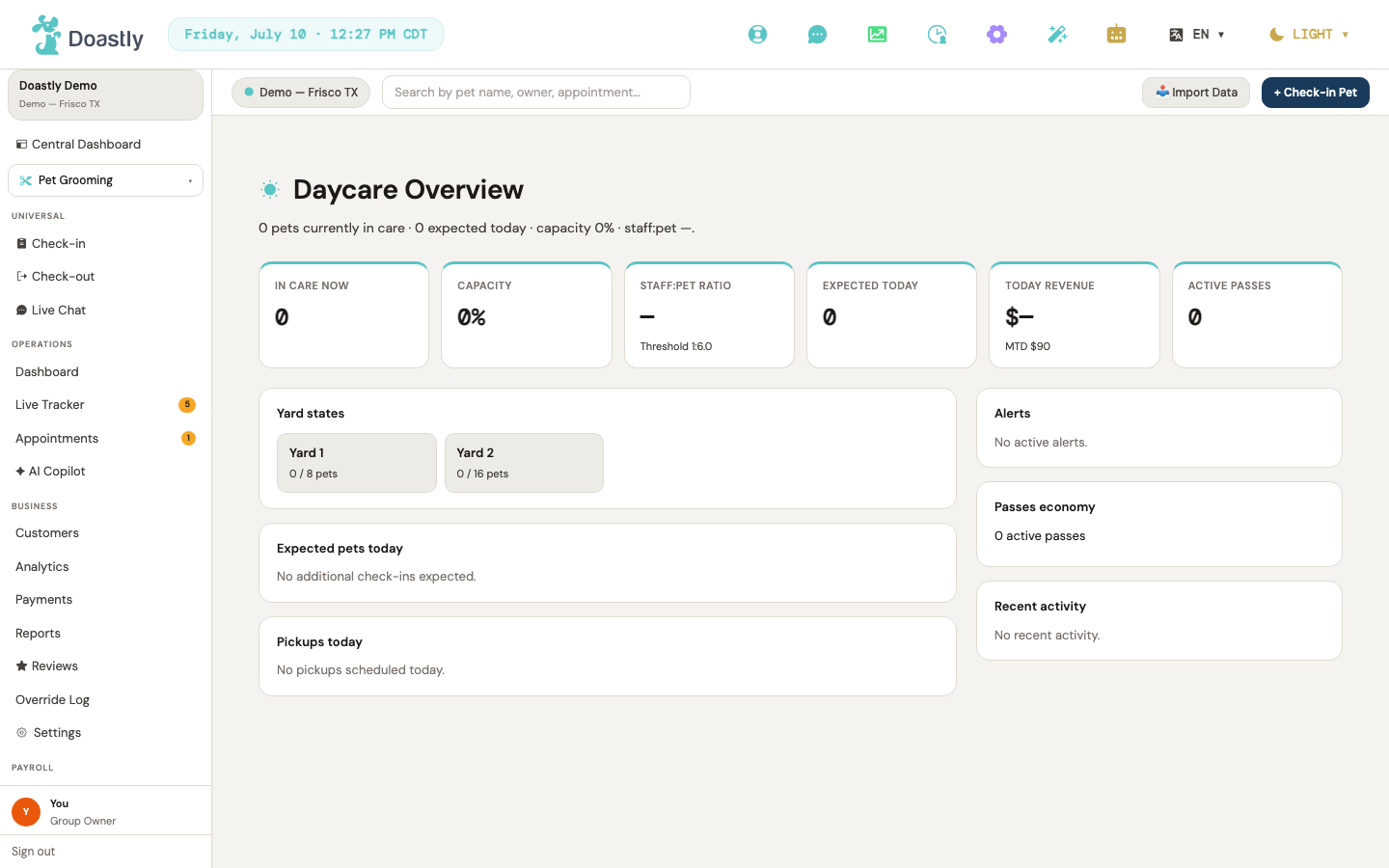
(dark mode also captured)
Top bar (with Daycare active)
The top bar spans the salon workspace with location context on the left and quick actions on the right. With Daycare active, its check-in shortcut routes into the Daycare check-in flow.
| Control | What it does |
|---|---|
| Location switcher pill | For multi-location owners, opens a dropdown to switch the active location or pick "All Locations"; for single-location salons it shows a static, non-clickable identity pill. Selecting a row saves the active location and refreshes the page. Before the page finishes loading it shows a neutral "—" placeholder. |
| All Locations (menu row) | Selects the all-locations mode (globe icon, "Read across all owned locations"), reading data across every location you own. |
| Per-location menu row (📍 name + city/state) | Sets that location as your active location and refreshes; one row appears for each location on your account. |
| Search by pet name, owner, appointment… | Text field for typing a search term. It updates as you type, but it does not run a search or navigate anywhere. Use the search on the Customers page to find a customer or pet. |
| 📥 Import Data | Import Data button. It is present in the bar but not yet wired to an action (tracked as #969). |
| + Check-in Pet | Opens the check-in flow. On a Daycare page this leads to the Daycare check-in. Hidden on the main dashboard. |
Left navigation (with Daycare active)
The left navigation shows your salon identity up top, the Daycare operations and business links in the middle, platform-level settings and add-ons below, and your signed-in account at the bottom. Items marked below appear only for certain roles or when a matching add-on is enabled.
| Control | What it does |
|---|---|
| Salon Group card (salon + location name) | Displays your salon name and active location. Not clickable. |
| Central Dashboard | Opens the cross-location central dashboard. |
| Vertical Switcher pill (trigger) | Shows the current active vertical (Daycare / "Dog Daycare") with its icon; click to open the list of your enabled verticals. |
| Vertical option rows (one per enabled vertical) | Clicking a vertical switches you into it, remembers your choice, and swaps the sidebar's operations and business links to match. The active vertical shows a "✓ Active" badge. |
| Check-in (Universal) | Opens the cross-vertical check-in shell. Hidden for Groomer, Bather, and Driver roles. |
| Check-out (Universal) | Opens the cross-vertical check-out shell. Hidden for Groomer, Bather, and Driver roles. |
| Live Tracker (Universal) | Opens the universal live tracker. Shown only for salons that run more than one vertical. |
| Live Chat (Universal) | Opens the cross-vertical Live Chat inbox. Always shown at this stage (subscription gating comes later). |
| Dashboard (Daycare) | Opens the Daycare overview with key metrics. Shown to Owners and Managers only. |
| Live Tracker (Daycare) | Opens the Daycare live tracker. Available to all roles in this vertical. |
| Attendance (Daycare) | Opens the Daycare attendance list with date, status, and slot filters. Available to all roles in this vertical. |
| Check-in (Daycare) | Opens the Daycare check-in, which redirects into the universal check-in flow with Daycare preselected. Available to all roles in this vertical (unlike the Universal Check-in row above, which is hidden for Groomer/Bather/Driver). |
| Groups (Daycare home) | Opens the Daycare home and today's group-based roster board. |
| Customers | Opens the shared customers list used across verticals. |
| Packages (Daycare) | Opens the Daycare packages page. Live in the sidebar (confirmed 2026-08-18); no prior chapter coverage — page contents not yet driven. |
| Reviews | Opens the shared reviews page. Shown to Owners and Managers only. |
| Analytics (Daycare) | Opens the Daycare analytics page. Live in the sidebar (confirmed 2026-08-18) — one of the §28.1 surface-7 money-mandate items; page contents (D-070 five-column compliance) not yet driven. |
| Payments (Daycare) | Opens the Daycare payments page. Live in the sidebar (confirmed 2026-08-18) — one of the §28.1 surface-7 money-mandate items; page contents (D-070 five-column compliance) not yet driven. |
| Reports (Daycare) | Opens the Daycare reports with financial, utilization, and group-mix tabs. Shown to roles with analytics access. |
| Settings (Daycare) | Opens the 5-tab Daycare settings. Shown to Owners and Managers only. |
| Billing (Platform) | Opens platform billing. Shown to Owners and Managers only. |
| Settings (Platform Settings) | Opens the platform-level settings. Shown to Owners and Managers only. |
| Salon Setup (wizard) | Opens the setup wizard at its first step. Shown to Owners and Managers only. |
| Pickup & Drop-off (addon) | Opens the Pickup & Drop-off settings. Shown only when the Pickup & Drop-off add-on is enabled. |
| Pickup Dispatch (addon) | Opens the Pickup Dispatch screen. Shown only when the Pickup & Drop-off add-on is enabled. |
| Loyalty & Rewards (addon) | Opens the Loyalty screen. Shown only when the Loyalty add-on is enabled. |
| Retail Inventory (addon) | Opens the Retail screen. Shown only when the Retail Inventory add-on is enabled. |
| Salon Theme | Opens the theme picker. Always shown in the platform block for Owners and Managers. |
| User footer card (avatar + name + role) | Displays your avatar, name, and role. Not clickable. |
| Sign out | Signs you out and returns you to the login page. |
Notes:
- The Platform block (Billing, Platform Settings, Salon Setup, add-on links, Salon Theme) renders only for Owners and Managers, matching the per-row gating above.
- All add-on rows (Pickup & Drop-off, Pickup Dispatch, Loyalty & Rewards, Retail Inventory) are gated by their respective location add-on settings.
Daycare Owner Dashboard
(dark mode also captured)
Daycare Overview (Owner Dashboard)
The Daycare Overview is the owner's read-only at-a-glance view of the day: live occupancy, capacity, staffing, revenue, pass economy, and the flow of pets in and out. Every panel is a passive display — the only interactive control appears when the page fails to load. While the dashboard data is loading, a "Loading daycare dashboard…" placeholder shows in place of the panels.
| Control | What it does |
|---|---|
| Try again | Appears only in the error state. Re-runs the dashboard load and re-fetches the daycare data for the current location; stays on the same page on success. Restores the normal dashboard when the fetch succeeds; leaves the error state in place if it fails again. |
| Summary line (subhead) | Read-only text line directly under the "Daycare Overview" heading, summarizing the day: "N pet(s) currently in care · N expected today · capacity X% · staff:pet 1:N." No click-through. |
| In care now (KPI card) | Shows the number of pets currently in care. Read-only display, no click-through. |
| Capacity (KPI card) | Shows current capacity used as a rounded percentage. Read-only display, no click-through. |
| Staff:pet ratio (KPI card) | Shows the staff-to-pet ratio as 1:N, with the warning threshold in the subtext ("Threshold 1:N"). Displays an "Over ratio" chip when the ratio passes that threshold. Read-only; the chip is a passive warning indicator, not a button. The threshold comes from your yards. It is the average of the Staff ratio set on each of your active yards (Settings → Daycare → Yard Management → Edit), so changing one yard's ratio moves this number by a fraction, not to that yard's value. It is not taken from the "Default ratio threshold" row on the Operations Preferences tab — that row is a non-functional placeholder and stores nothing. |
| Expected today (KPI card) | Shows the number of pets expected to check in today. Read-only display, no click-through. |
| Today revenue (KPI card) | Shows today's revenue as a currency amount, with month-to-date revenue in the subtext ("MTD $…"). Read-only display, no click-through. This tile and the Revenue figure on the Reports screen are worked out differently, so they can disagree for the same dates — that is expected, not a fault to report. The difference is in what each counts: this tile totals a day once it reaches Ready or Checked out, including any late-pickup fee charged on it. For the figure to bank or reconcile, use the Reports screen, which is built on the shared revenue source; treat this tile as a live read on the day rather than as your closing takings. |
| Active passes (KPI card) | Shows the number of active daycare passes, with a "N expiring (7d)" subtext counting passes expiring within 7 days. Read-only display, no click-through. |
| Yard states grid | Left column. Shows one tile per yard with its name and current in-care count against capacity. Displays "No yards configured yet." when none exist. Tiles are read-only, not clickable. |
| Expected pets today (list) | Left column. Lists up to six pets expected to check in today, each with its name and slot label. Displays "No additional check-ins expected." when empty. Rows are read-only, no click-through. |
| Pickups today (list) | Left column. Lists up to six pets scheduled for pickup today, each with its name and pickup time. Displays "No pickups scheduled today." when empty. Rows are read-only, no click-through. |
| Alerts (list) | Right column. Lists up to six active alerts as warning-tinted rows (red left border) showing each alert's message. Displays "No active alerts." when empty. Rows are read-only, no click-through. |
| Passes economy (panel) | Right column. Shows the active pass count ("N active passes"), plus "N expiring within 7 days" when any are due to expire. Read-only display, no interactive control. |
| Recent activity (feed) | Right column. Lists up to six recent activity entries, each with a label and timestamp. Displays "No recent activity." when empty. Rows are read-only, no click-through. |
Daycare — Groups / Today's Roster
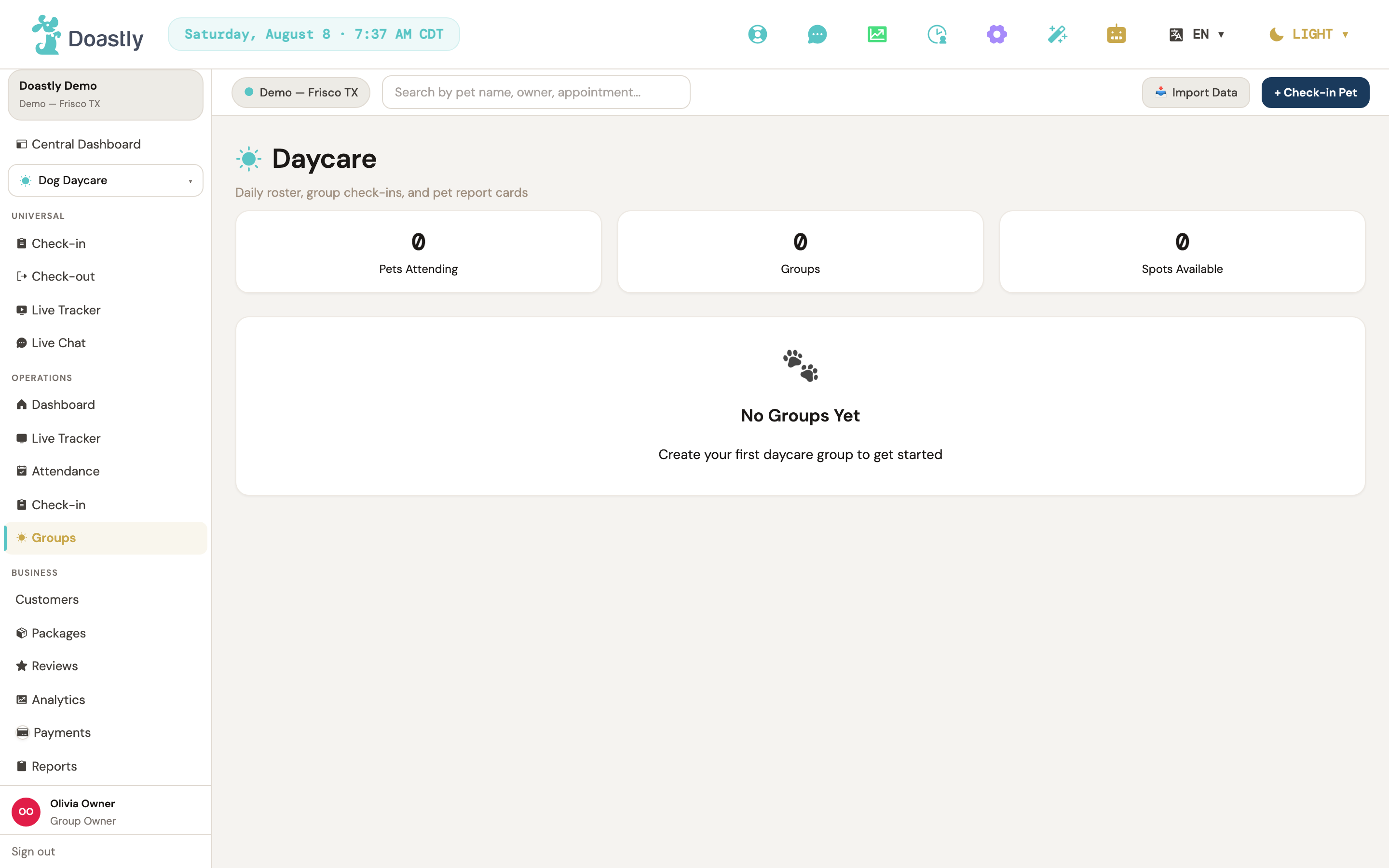
(dark mode also captured)
Page header
Read-only chrome at the top of the Daycare home: a sun icon, the Daycare heading, and the subtitle "Daily roster, group check-ins, and pet report cards". Display only — no action.
Groups / Today's Roster (main page)
The daycare landing page. Three read-only KPI cards summarize the day at a glance, above the live roster board. While the roster is loading, the page shows a skeleton placeholder (three KPI-card placeholders and three roster-card placeholders) in place of the content below.
| Control | What it does |
|---|---|
| Pets Attending (KPI card) | Displays the total number of pets attending across all groups. Read-only; no action. |
| Groups (KPI card) | Displays how many groups exist. Read-only; no action. |
| Spots Available (KPI card) | Displays total open capacity across all groups (each group's max minus its current count). Read-only; no action. |
| Error banner | Shows a red message if the roster fails to load, or if a check-out or report submit fails. Display only — there is no dismiss control. (Note: on a load failure the board falls back to placeholder sample data behind the banner rather than clearing.) |
Today's Roster board
The main board that lists each daycare group and its pets. When no groups exist, it shows an empty state instead of the board.
| Control | What it does |
|---|---|
| No Groups Yet (empty state) | Shown when there are no groups: a paw icon with "No Groups Yet" and a prompt to create your first daycare group. Informational only — no button. |
| Today's Roster header + date/count line | Displays "Today's Roster" with today's date and the total pets attending. Read-only. |
Per-group card
One card per daycare group, showing the group's size category, its capacity, and the pets assigned to it.
| Control | What it does |
|---|---|
| Group name + size badge | Shows the group name and a size-category badge (Small, Medium, Large, or Mixed). Read-only. |
| + Add Pet | Per-group button intended to add a pet to the group. Not yet functional — it currently performs no add action or navigation. |
| Capacity bar | Shows the group name, its current-versus-maximum count, and a colored fill bar that turns teal, amber, or red as the group fills up. Read-only. |
| No pets in this group yet (empty state) | Shown when a group has no pets assigned. Informational only — no action. |
Per-pet chip in a group
One chip per pet in a group, showing the pet's details and status, plus the actions available for that status.
| Control | What it does |
|---|---|
| Pet name / breed / owner + status badge | Displays the pet's name, breed, and owner with a status badge (Scheduled, Checked In, Checked Out, Absent, or Cancelled). Read-only. |
| Drop-off time | Shows the drop-off time when one is recorded. Read-only. |
| Check In | Shown only for Scheduled pets. Opens the unified check-in flow with Daycare preselected; it does not check in that specific pet inline. |
| Report | Shown only for Checked In pets. Opens the Daily Report form for that pet, mounted below the roster. |
| Check Out | Shown only for Checked In pets. Opens the Check Out window for that pet. |
Daily Report form (report card editor)
Mounts inline below the roster when Report is clicked on a checked-in pet. Captures the pet's day — activities, meals, mood, social interaction, and any incidents — and saves it to the pet's record.
The report saves whether or not a narrative appears. After the report is saved, a written summary of the day is generated in the background and attached if it finishes in time. It is not part of saving the report: if it does not finish, the report is still saved with everything you entered, and nothing is lost. Read anything that does appear before it goes to an owner — the entries you typed are the record, and the summary is generated from them.
| Control | What it does |
|---|---|
| Daily Report: {petName} heading | Titles the form with the selected pet's name. Read-only. |
| Activities (Play / Nap / Swim / Training / Socialization) | Toggle chips for the day's activities. Tap to add or remove each; multiple can be selected. |
| Ate breakfast | Checkbox marking that the pet ate breakfast (the morning meal). |
| Ate dinner | Checkbox marking that the pet ate dinner (the evening meal). |
| Meal notes (optional) | Free-text field for notes about the pet's meals. |
| Mood (Excellent / Good / Anxious / Unwell) | Emoji buttons to set the pet's mood. Single-select; the chosen option is highlighted. |
| Social Interaction (Social / Selective / Shy / Aggressive) | Buttons to set how the pet interacted with others. Single-select. |
| Incidents or Notes (optional) | Free-text area for any incidents or additional notes. |
| Save Report | Saves the report against the pet's day, then waits up to about 30 seconds for a generated summary to attach. The save itself succeeds independently of that wait — if no summary arrives in the window, the report is kept as entered, without one. Disabled and shows "Saving..." while the report is being saved. |
Check Out window (pickup time)
Opens over the roster when Check Out is clicked on a checked-in pet. Records the pickup time and completes the pet's check-out.
| Control | What it does |
|---|---|
| Check Out Pet heading + pet/owner summary | Window title with a summary showing the selected pet's name and owner. Read-only. |
| Pickup Time | Time field for the pickup time. Required — Confirm stays disabled until it is set. |
| Cancel | Closes the window without checking the pet out. |
| Confirm | Submits the pickup time to check the pet out, then refreshes the roster. Disabled while saving or until a pickup time is set; shows "Saving..." during submit. |
Daycare — Attendance list & booking record
Daycare has no calendar surface. Day-to-day scheduling lives in the Attendance list (the salon-side admin list of daycare days) and the Groups roster (see "Groups / Today's Roster"). This page documents the Attendance list, the pet-family booking flow, and the single-booking attendance record.
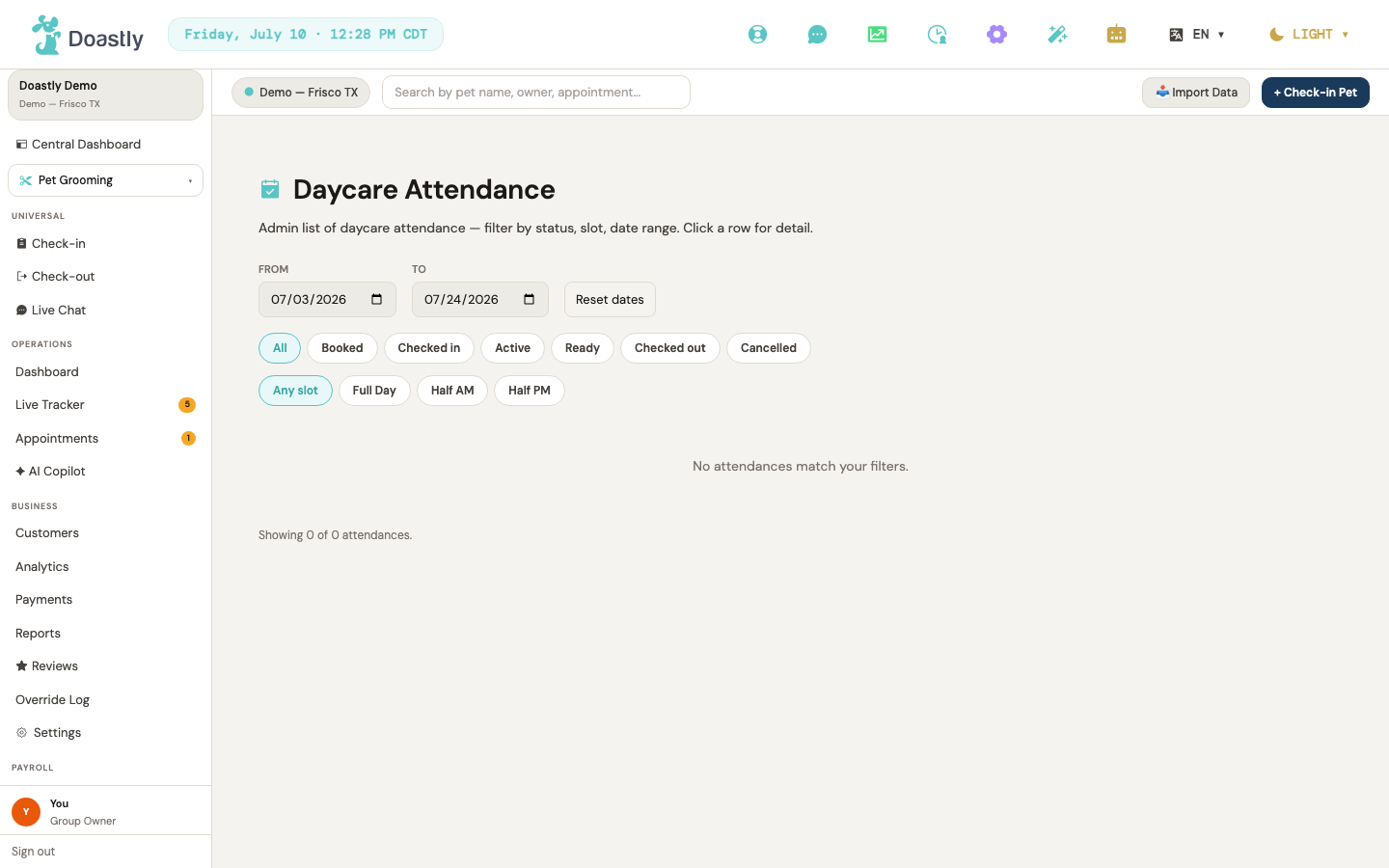
(dark mode also captured)
Daycare Attendance (list) — salon admin
The salon-side list of daycare bookings and attendances, filtered by date range, status, and slot type, with inline expandable detail. Columns: Date / Status / Customer / Pet / Yard.
| Control | What it does |
|---|---|
| From (date) | Sets the start of the date range shown and reloads the list. |
| To (date) | Sets the end of the date range shown and reloads the list. |
| Reset dates | Clears both date bounds, reverting to the default window (7 days back to 14 days ahead). |
| All (status) | Clears the status filter so bookings of every status appear. |
| Booked / Checked in / Active / Ready / Checked out / Cancelled (status chips) | Filters the list to one attendance status. "Active" is a display-only status that is treated as "Checked in" when filtering. Clicking the active chip again clears it. |
| Any slot | Clears the slot filter so all slot types appear. |
| Full Day / Half AM / Half PM (slot chips) | Filters bookings by daycare slot type. Clicking the active chip again clears it. |
| Date (column header) | Sortable header. Sorts the list by booking date; clicking flips between ascending and descending and reloads. |
| Status (column header) | Sortable header. Sorts the list by status; clicking flips between ascending and descending. |
| Customer / Pet / Yard (columns) | Display-only columns in the list (not sortable). |
| Attendance row | Click to expand or collapse an inline detail panel beneath the row; the selected row is highlighted. Does not open a separate page. |
| Inline detail panel (expanded row) | Read-only panel showing Status, Slot, Checked in, Checked out, Yard, Amount, and Notes for the booking. No actions inside. |
| Result count (footer) | Read-only "Showing {N} of {total} attendances." summary below the table. |
| Loading / empty states | "Loading attendances…" while fetching; "No attendances match your filters." when the filtered result set is empty. |
Book Daycare — customer new-booking flow
The pet family's 3-step wizard for booking a daycare day, choosing a slot, and paying or redeeming a pass.
| Control | What it does |
|---|---|
| Step progress strip (Date & Pet / Slot & Pay / Confirm) | Shows the three wizard steps with active/done styling. Display only — not clickable. |
| Daycare Location | Choose which daycare location to book at. Changing it clears any selected pass. Shows an empty-state notice ("No salons available to book yet") if no locations are bookable. |
| Day | Pick the booking date. Limited to a range from tomorrow through 90 days ahead. |
| Which pet? (pet radio cards) | Select which pet the booking is for; one card per pet in your family. Shows an empty-state notice ("No pets in your family yet. Add a pet first.") if the family has no pets. |
| Next: Choose slot → | Advances to Step 2. Disabled until location, date, and pet are all selected. |
| Full Day / Half Day (day-type cards) | Selects the slot type as a two-option toggle: Full Day (7am–6pm) or Half Day (subtext "AM or PM pickup"), and updates the displayed price. There is no separate AM vs PM selection on this screen. |
| Pay per day | Selects paying for the day rather than redeeming a pass, so the day price applies to the booking. The option is labelled "Charge {price} to your card on file". |
| Active pass options | Selects an active daycare package or pass to redeem instead of paying. Each active pass shows remaining or unlimited uses plus expiry and is marked Free. |
| Browse packages to save | Shown when you have no active passes; opens the packages page. |
| ← Back (Step 2) | Returns to Step 1. |
| Review booking → | Advances to Step 3 (Confirm). |
| Note for salon (optional) | Free-text drop-off note (up to 500 characters) attached to the booking. |
| ← Back (Step 3) | Returns to Step 2. Disabled while the booking is submitting. |
| Confirm Booking ✓ | Submits the booking with your location, pet, date, slot, pass, and note. Shows "Booking…" while it saves, then moves to the done step. Errors appear inline. |
| Pre-arrival checklist (done step) | Read-only informational block on the done step (drop-off time, vaccination reminder, labelling, no-food-before-drop-off). No action. |
| View my bookings | Shown on the done step; opens your appointments to see the confirmed booking. |
| Book another day | Shown on the done step; restarts the daycare booking flow. |
Attendance record (booking detail) — salon view
The full salon-side record for a single daycare booking, loaded from its attendance record.
| Control | What it does |
|---|---|
| Record body | Loads and displays the complete day/booking record for the salon. The record's interactive actions live in a sticky action bar inside this view. |
| Back | Returns to the previous page. Always present. |
| Email Report Card | (Salon audience only) Confirms, then re-sends the report-card email to the customer. |
| Email Receipt | (Salon audience only) Confirms, then re-sends the receipt email to the customer. |
| Opens the browser print dialog for the record. | |
| Refund | (Salon audience only; Owner/Manager only) Prompts for a reason and refunds the full remaining amount, then refreshes the record. Shown disabled with a "Refunds are limited to Owners and Managers." tooltip otherwise. |
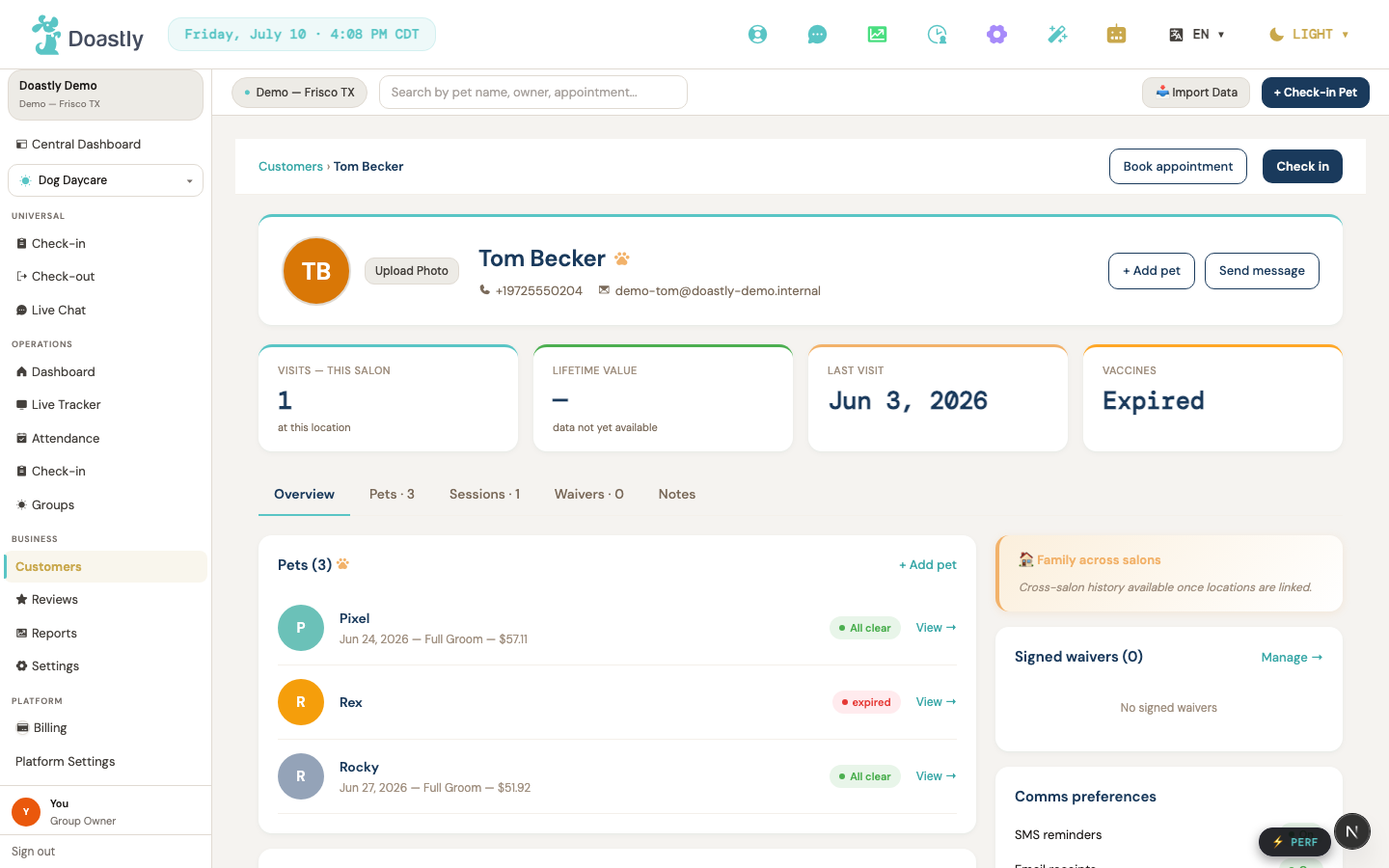
(dark mode also captured)
Customers (list + detail) — Daycare vertical (the shared Customers pages, with a Daycare-specific "Daycare Days" widget)
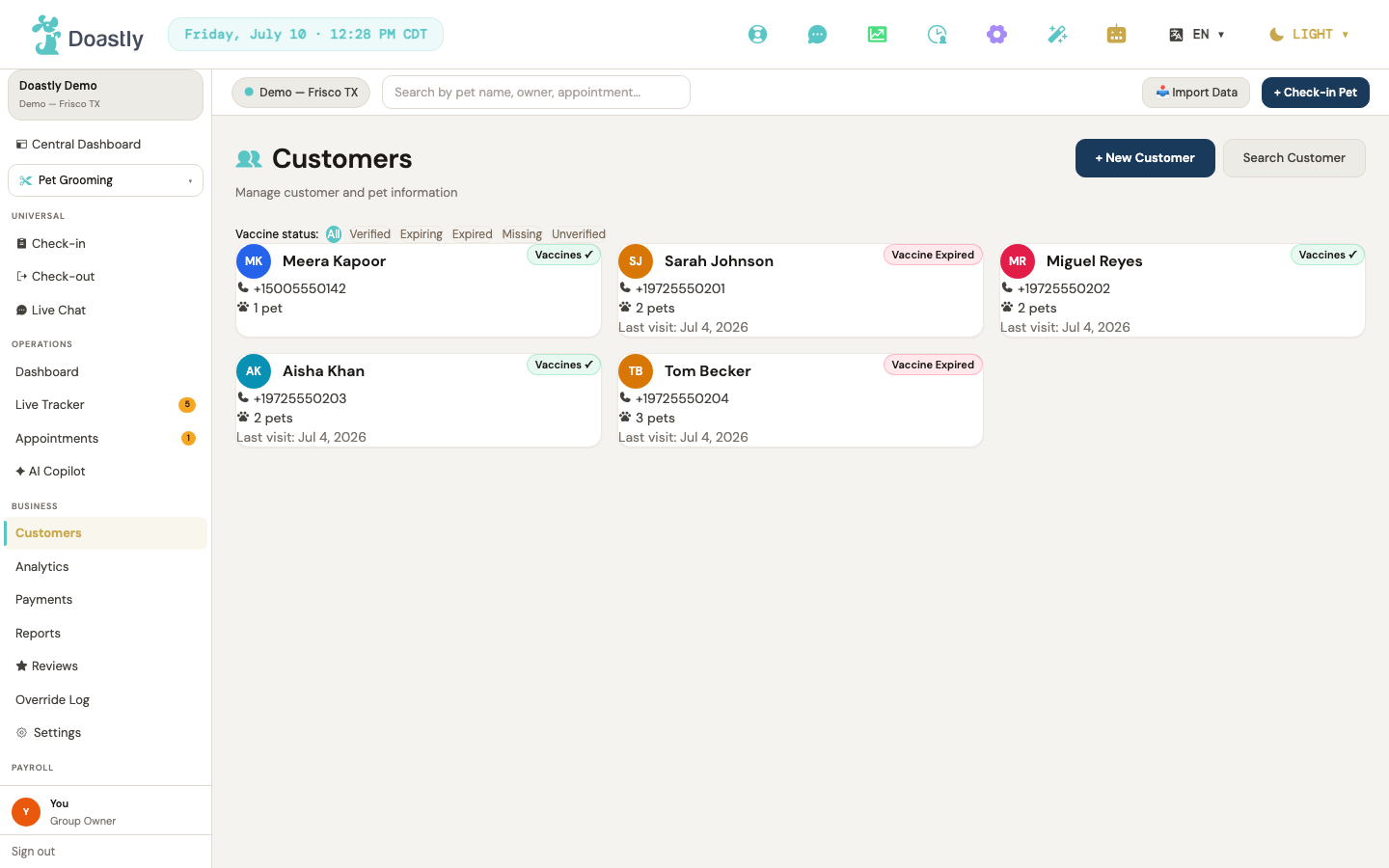
(dark mode also captured)
Customers List
The main customer roster, shown as a grid of customer cards with search and vaccine-status filtering.
| Control | What it does |
|---|---|
| + New Customer | Opens the New Customer window to create a customer (a pet is optional here). On save, refreshes the list and takes you to the new customer's detail page. |
| Search / Hide search | Toggles the search panel open or closed; the label flips between "Search" and "Hide search." |
| Vaccine status filter chips (All / Verified / Expiring / Expired / Missing / Unverified) | Filters the grid to customers matching the selected vaccine status; shows an "N of M" count when a filter other than All is active. |
| Customer card (grid tile) | One tile per customer; click to open that customer's detail page. |
| Search customers (empty state) | Shown when no customers exist yet; opens the search panel. |
| Clear filter (empty state) | Shown when a vaccine filter matches no one; resets the filter back to All. |
| Retry (error state) | Shown if the list fails to load; reloads the page. |
Customer Search panel
A phone-number lookup panel that appears inside the list when search is toggled on.
| Control | What it does |
|---|---|
| Phone search input | Enter a phone number to look up an existing customer. |
| Search (submit) | Runs the phone lookup; disabled while searching, with the button showing "Searching…". |
| Result card (per match) | One card per match; click to open that customer's detail page. |
| Add new customer (no-result state) | Appears when no customer matches the phone number. (In the list-page context this button takes no action.) |
Customer Card (grid tile)
A single customer tile in the roster grid.
| Control | What it does |
|---|---|
| Card link (whole tile) | Opens the customer's detail page. |
| Vaccine badge | Displays the customer's overall vaccine status; view-only. |
New Customer window — Customer details
The first step of the New Customer flow, capturing the customer's contact details. (Header reads "New Customer" here; the same form reads "New Walk-in · Customer" when launched from the walk-in check-in flow.)
| Control | What it does |
|---|---|
| Close ✕ | Closes the window and clears any entered details. |
| Backdrop click | Clicking the dimmed area behind the window closes it. |
| First Name * | The customer's first name (required). |
| Last Name * | The customer's last name (required). |
| Phone * | The customer's phone number (required); on leaving the field it's reformatted to (xxx) xxx-xxxx and checked for a valid 10-digit US number. |
| Email * | The customer's email address (required). |
| Cancel | Discards the form and closes the window. |
| Save Customer → | Creates the customer. Since a pet is optional here, it then advances to the "add a pet?" step; disabled and showing "Saving…" while it saves. |
New Customer window — Add a pet? step
Shown after saving a customer, letting you finish or chain into adding a pet.
| Control | What it does |
|---|---|
| Backdrop click | Closes the window and completes the flow with the customer only (no pet). |
| Finish without pet | Completes the flow with just the new customer. |
| + Add a pet → | Advances to the Add Pet step for the new customer. |
Add Pet window
The pet-creation form, used both as the final step of New Customer and from "+ Add pet" on a customer's detail page.
| Control | What it does |
|---|---|
| Close ✕ | Closes the window. From the customer-detail "+ Add pet" entry it abandons pet creation. From the New Customer chain (pet optional) it instead completes the flow with the customer only. |
| Photo dropzone (avatar circle) | Click the avatar circle to choose a pet photo. |
| Upload Photo / Change Photo | Opens the file picker for a pet photo (JPEG/PNG/WebP/HEIC, up to 10MB) and shows a preview. |
| Remove (photo) | Clears the selected photo and its preview. |
| Pet Name * | The pet's name (required); focused automatically. |
| Gender (Male / Female) | Sets the pet's gender; click the selected option again to clear it. |
| Date of Birth | The pet's birth date, limited to between 1900-01-01 and today. |
| Color | Picks the coat color from a preset list. |
| Breed | Picks the breed, with an "Other:" option for free-text entry. |
| Coat Type | Picks the coat type from a preset list. |
| Weight (lbs) | The pet's weight; automatically detects a size band (Toy / Small / Medium / Large / X-Large). |
| Neutered / Spayed (Unknown / Yes / No) | Sets the neutered/spayed status as a three-way choice. |
| Allergies | Free-text allergy notes. |
| Medications | Free-text medication notes. |
| Diet | Free-text diet notes. |
| Behavioral Notes | Free-text behavior notes. |
| Behavior Tags | Selects one or more behavior-tag chips. |
| Add Pet → | Creates the pet (and uploads the photo if one was chosen), then returns the new pet; disabled and showing "Saving…" while it saves. |
| Retry Photo (photo-fail state) | Shown if the photo upload fails; retries the upload. |
| Skip Photo (photo-fail state) | Shown if the photo upload fails; finishes creating the pet without a photo. |
Customer Detail (header, KPI, tabs)
The customer's profile page, with a header, contact/profile card, key metrics, and content tabs.
| Control | What it does |
|---|---|
| Customers (breadcrumb) | Returns to the customer list. |
| Book appointment | Styled as a button, but it is not wired to an action; clicking it does nothing (tracked as #942). |
| Check in (topbar) | Goes to the grooming check-in screen (note: this routes to grooming check-in even in the Daycare context). |
| Customer avatar (upload/remove) | Uploads or removes the customer's profile photo. |
| + Add pet (profile card) | Opens the Add Pet window for this customer. |
| Send message | Styled as a button, but it is not wired to an action; clicking it does nothing (tracked as #942). |
| KPI strip (Visits / Lifetime value / Last visit / Vaccines) | Read-only metric cards; not clickable. Lifetime value always reads "—" with the subtext "data not yet available". It is a fixed placeholder, not a figure that is still loading or still accumulating: it does not fill in as the customer books more days, so do not quote it or wait on it. Use the Reports screen for revenue. |
| Tab nav (Overview / Pets / Sessions / Waivers / Notes) | Switches the active tab; Overview shows pets, lists, and the right column, while the other tabs show their own panels. Pets/Sessions/Waivers show a count; Notes does not. |
Customer Detail — Overview tab (Pets section + Recent sessions)
The Overview tab's left area, listing the customer's pets and their recent sessions.
| Control | What it does |
|---|---|
| + Add pet (Pets section header) | Opens the Add Pet window. |
| Pet row (per pet) | Opens that pet's detail page. |
| Full history → (Recent sessions header) | A visual label only; not wired to an action — tracked as #942. |
| View → (per session) | Opens the session's quick-peek detail pane. |
Customer Detail — Overview right column
The Overview tab's right-hand column, showing waivers, cross-salon family, and communication preferences.
| Control | What it does |
|---|---|
| Manage → (Signed waivers header) | A visual label only; not wired to an action — tracked as #942. |
| Family across salons panel | A view-only panel for cross-salon family history. |
| Comms preferences (SMS / Email receipts / Email report cards / Marketing) | Always shows the same four badges — SMS reminders On, Email receipts On, Email report cards On, Marketing Off — for every customer. This is a fixed display, not this customer's real preferences: the component that renders it (CustomerRightCol.tsx) is never given any customer-specific preference data to show (#939). Do not read this panel as answering whether a specific customer has actually opted in or out of anything. |
Customer Detail — Overview: Daycare Days widget (Daycare delta)
The Daycare-specific widget on the customer Overview, listing this customer's daycare attendance days.
| Control | What it does |
|---|---|
| Record / View record ↗ (per daycare attendance row) | Opens that daycare attendance record. |
Customer Detail — Pets / Sessions / Waivers / Notes tab panels
The content shown when you switch to the Pets, Sessions, Waivers, or Notes tab.
| Control | What it does |
|---|---|
| Pet row (Pets tab) | Opens that pet's detail page. |
| View → (Sessions tab, per session) | Opens the session's quick-peek detail pane. |
| Record (Sessions tab, per session) | Opens the grooming session record. |
(View-only: the Sessions tab shows a "Showing N of M sessions." footer when more sessions exist than are loaded.)
Customer Detail — Notes tab panel
The Notes tab, for reading and adding internal notes about the customer.
| Control | What it does |
|---|---|
| Note input (textarea) | Type the text of a new customer note. |
| Add note | Saves the note and adds it to the top of the list (newest first); disabled while saving or when empty, showing "Saving…" as it saves. |
Customer Detail — Grooming session quick-peek pane
A pop-in pane for viewing a single session's details without leaving the customer page.
| Control | What it does |
|---|---|
| Session detail pane | Opens when you click "View →" on a session; close it to clear the selection. |
Pet Detail (header + status + middle tabs)
A pet's profile page, with a header, status icons, and tabbed sections.
| Control | What it does |
|---|---|
| ← Back to Customer | Returns to the owning customer. |
| Pet avatar (upload/remove) | Uploads or removes the pet's profile photo. |
| Large vaccine + compliance status icons | Shows large vaccine and compliance status icons; view-only. |
| Middle tabs (Pet Info / Vaccines / Compliance) | Switches between the Pet Info, Vaccines, and Compliance sections. |
(View-only: the Pet Info tab renders a safety-fields panel — Allergies / Medications / Diet — a general-info grid, Behavior Notes, and Behavior Tags chips.)
Pet Detail — Vaccines tab
The Vaccines tab, listing vaccine records with an add form and per-record actions.
| Control | What it does |
|---|---|
| Vaccine Records badge | Overall vaccine-status badge shown next to the "Vaccine Records" heading; view-only. |
| + Add Vaccine | Opens the add-vaccine form. |
| Vaccine * (select) | Picks a common vaccine, or "Other (type below)" for a custom entry. |
| Other vaccine name (conditional) | Free-text vaccine name, shown when "Other" is selected. |
| Date Administered * | The date the vaccine was given (required). |
| Expiry Date | The vaccine's expiry date (optional). |
| Administered By | The vet or clinic that administered it (optional). |
| Lot Number | The vaccine lot number (optional). |
| Notes | Free-text notes (optional). |
| Choose file / Change file (vaccine doc) | Picks a supporting document (PDF/JPG/PNG, up to 10MB). |
| ✕ (clear chosen doc) | Clears the selected document before saving. |
| Cancel (add form) | Closes the add form without saving. |
| Add Vaccine (submit) | Saves the vaccine record (and uploads the document if one was chosen); disabled and showing "Saving…" while it saves. |
| Per-record status chips (Verified / Expired / Expiring soon) | View-only status indicators on each record row. |
| Verify (per record, manager+) | Marks the record verified; shown only to managers and above, and only when the record isn't yet verified. |
| Doc (per record — upload) | Uploads a document to an existing vaccine record. |
| Del (per record) | Deletes the vaccine record after a confirmation prompt. |
| Document link (per attached doc) | Opens the attached document in a new tab. |
Pet Detail — Compliance tab
The Compliance tab, showing the pet's compliance items and any signing actions.
| Control | What it does |
|---|---|
| Compliance status chips (read-only) | Lists compliance items as status chips when the pet has NO active session. |
| Sign (per item, active-session only) | When the pet has an active session, each item offers a per-item Sign action that opens the e-sign flow. |
| Sign all (N) (active-session only) | When the pet has an active session, a "Sign all (N)" action signs all unsigned items via the e-sign flow. |
Pet Detail — Grooming History + record panes
The pet's session history with filters and paging, plus panes for boarding and daycare history.
| Control | What it does |
|---|---|
| Grooming History list (filters + pagination + row select) | A page-by-page session history with date, groomer, and service filters; selecting a row opens the detail pane, and changing pages or filters reloads the list. |
| Session detail pane | Shows the selected session's details — inline on wide screens, or as a pop-up on narrow screens that can be closed. |
| Boarding Days list (per pet) | Lists this pet's boarding stays, each row linking to its record. |
Pet Detail — Daycare Days widget (Daycare delta)
The Daycare-specific widget on the pet's detail page, listing this pet's daycare attendance days.
| Control | What it does |
|---|---|
| Record / View record ↗ (per daycare attendance row) | Opens that daycare attendance record. |
| Copilot card | Does not appear in Daycare. The Copilot panel and its "AI · live" badge render only for Grooming; on a Daycare customer profile the card is absent rather than shown empty. If you are looking for it here, it is not hidden by a setting — Daycare has no Copilot. |
Analytics & Reports
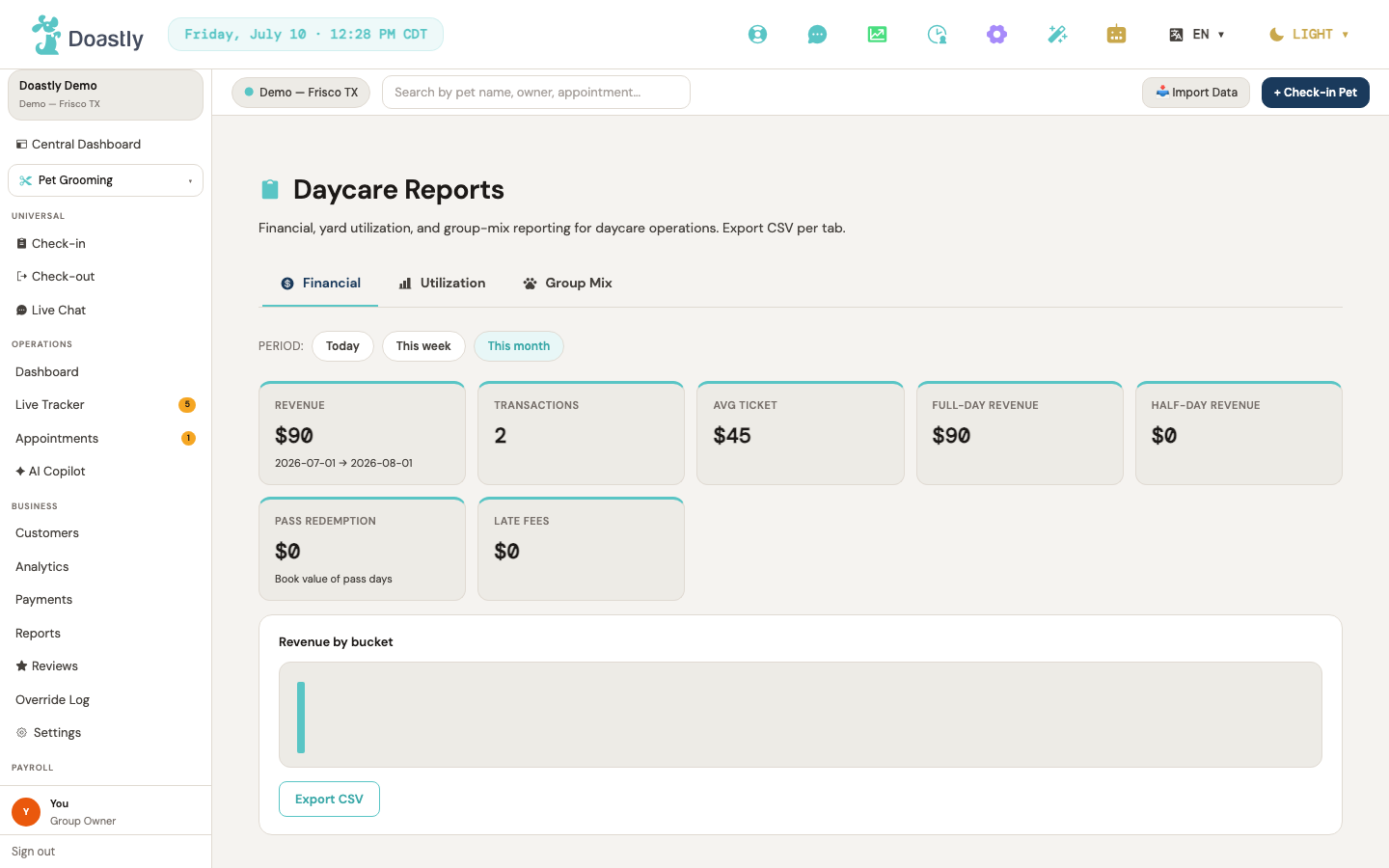
(dark mode also captured)
Daycare Dashboard (Daycare Overview)
The Daycare Overview is a read-only, at-a-glance snapshot of your daycare's live state — who is in care, how full your yards are, revenue so far, and any alerts that need attention. Every item on this screen is a display widget; the only interactive control appears when the data fails to load.
| Control | What it does |
|---|---|
| Try again | Appears only in the error state when the dashboard cannot load. Re-runs the dashboard load and refetches the data. |
| In care now (KPI card) | Displays the number of pets currently in care. Read-only — no click action. |
| Capacity (KPI card) | Displays your current capacity as a rounded percentage. Read-only — no click action. |
| Staff:pet ratio (KPI card) | Displays the current staff-to-pet ratio as 1:N, and shows an inline "Over ratio" warning chip when the ratio exceeds the safe threshold. Read-only — no click action. |
| Expected today (KPI card) | Displays the number of pets expected to check in today. Read-only — no click action. |
| Today revenue (KPI card) | Displays today's revenue, with a month-to-date (MTD) figure on the subline (shown only when an MTD figure is available). Read-only — no click action. Worked out differently from the Revenue figure on the Reports tab below, so the two can disagree for the same dates — this tile totals a day from Ready or Checked out, including any late-pickup fee charged on it. Use the Reports Revenue figure for anything you bank or reconcile. |
| Active passes (KPI card) | Displays the number of active daycare passes, with a subline showing how many expire within 7 days (shown only when at least one is expiring). Read-only — no click action. |
| Yard states (grid) | Shows a grid of yard cards, each with the yard name and its in-care count against capacity. Displays "No yards configured yet." when none exist. Read-only — no click action. |
| Expected pets today (list) | Lists pets expected today with their name and slot label, up to 6 rows. Displays "No additional check-ins expected." when empty. Read-only — no click action. |
| Pickups today (list) | Lists pets scheduled for pickup today with their name and pickup time, up to 6 rows. Displays "No pickups scheduled today." when empty. Read-only — no click action. |
| Alerts (list) | Lists active alerts, up to 6 rows. Displays "No active alerts." when empty. Read-only — no click action. |
| Passes economy (panel) | Shows the active pass count plus how many expire within 7 days. Read-only — no click action. |
| Recent activity (list) | Shows a feed of recent activity with a label and timestamp, up to 6 rows. Displays "No recent activity." when empty. Read-only — no click action. |
Daycare Reports
The Reports screen breaks daycare performance into three tabbed views — Financial, Utilization, and Group Mix — each with its own KPI cards, chart, and CSV export. Use the period pills to change the date range across the active report.
| Control | What it does |
|---|---|
| Financial (tab) | Switches to the Financial report (the default tab) and loads the financial report data. |
| Utilization (tab) | Switches to the Utilization report and loads the utilization report data. |
| Group Mix (tab) | Switches to the Group Mix report (Daycare-specific) and loads the group-mix report data. |
| Today (period pill) | Sets the active report's range to today and refetches it. |
| This week (period pill) | Sets the active report's range to the current week and refetches it. |
| This month (period pill) | Sets the active report's range to the current month (the default) and refetches it. |
| Export CSV (Financial tab) | Generates and downloads a spreadsheet of the revenue buckets (columns: bucket start, revenue, transaction count). |
| Financial KPI cards (Revenue / Transactions / Avg ticket / Full-day / Half-day / Pass redemption / Late fees) | Seven read-only KPI cards summarizing the Financial report. Read-only — no click action. The Late fees card totals the late-pickup fees charged on completed days in the period. These are real takings — the fee is added to the day's bill at check-out — so this figure is already part of Revenue rather than something to add on top of it. |
| Revenue-by-bucket chart | Bar chart of the last 30 revenue buckets, with a tooltip on hover. Displays "No buckets for this period." when empty. Read-only — no click action. |
| Export CSV (Utilization tab) | Generates and downloads a spreadsheet of the per-yard rows (yard name, capacity, average headcount, utilization %, peak headcount). |
| Utilization KPI cards (Overall utilization / Overall capacity / Avg headcount) | Three read-only KPI cards summarizing the Utilization report. Read-only — no click action. |
| By-yard utilization list | Per-yard list showing utilization %, average against capacity, and peak headcount. Displays "No yards configured." when empty. Read-only — no click action. |
| Export CSV (Group Mix tab) | Generates and downloads a spreadsheet of the per-size-category rows (size category, attendance count, % of total). |
| Group Mix KPI cards (Total attendance + per-size-category) | Read-only KPI cards for the Group Mix report — a Total attendance card plus one card per size category. Read-only — no click action. |
| Mix breakdown chart | Bar chart showing each size category's share, with a tooltip on hover. Displays "No attendance recorded." when empty. Read-only — no click action. |
| Per-tab empty state (display) | When a report has no data for the period, the tab shows a message in place of its content — Financial: "No financial data for this period.", Utilization: "No utilization data for this period.", Group Mix: "No group-mix data for this period." Read-only — no click action. |
| Loading / error state (display) | While a report loads it shows "Loading reports…"; if the load fails it shows an inline banner "Could not load reports. Please try again." (a passive banner — no retry button, unlike the Dashboard's Try again). Read-only. |
Daycare Attendance Record detail — action bar
The action bar sits at the top of a single attendance record and holds the actions you can take on it — navigating back, emailing the report card or receipt, printing, and issuing a refund. Some actions are limited to salon staff and specific roles.
| Control | What it does |
|---|---|
| Back | Returns you to the previous screen, typically the Attendance list. |
| Email Report Card | Salon staff only. After you confirm, sends the report card to the customer and shows a "Report card sent." confirmation. Disabled while sending. |
| Email Receipt | Salon staff only. After you confirm, sends the receipt to the customer and shows a "Receipt sent." confirmation. Disabled while sending. |
| Opens your browser's print dialog to print the record. The action bar itself is hidden from the printed output. | |
| Refund | Salon staff only, and limited to Owners and Managers. Prompts you for a reason (the full remaining amount is refunded), then processes the refund, shows a "Refund processed." confirmation, and reloads the record. Greyed out and disabled (with an explanatory tooltip) when you don't have permission. |
Payments
The Daycare Payments screen is a read-only KPI summary for the Daycare vertical, showing revenue collected at the location over a selected period. Owner / Manager only. Unlike Grooming, Boarding, and Training's Payments screens, this is a KPI strip only — see "What this screen does not have" below for the missing transactions/refunds capability (#719).
Daycare Payments (read-only KPI view)
| Control | What it does |
|---|---|
| Today | Period selector that reloads the summary for today. |
| Month to date | Period selector that reloads the summary for the current calendar month. |
| Last 30 days | Period selector that reloads the summary for the trailing 30 days. Active by default when the screen loads. |
| Year to date | Period selector that reloads the summary from January 1st through today. |
| Credit-card header icon | Decorative glyph beside the "Daycare Payments" title. Visual only — not interactive. |
| Page title + subtitle | Static "Daycare Payments" heading with subtitle "Revenue collected at this location." Display only. |
| Service Fees (KPI card) | Pre-discount gross for the period, with a "{N} txns" sub-label showing the transaction count. |
| Tips (KPI card) | Always shows "—" with the sub-label "not recorded" — this figure does not reflect real tip totals yet, tracked as #910. Do not read this as "no tips were given"; a customer can tip at daycare checkout today, the money is charged, it just isn't summed here yet. |
| Discounts (KPI card) | The real, measured discount total for the period, shown with a leading minus when non-zero (e.g. "−$5.00"). When there are zero transactions in the selected range, shows "—" with the sub-label "no transactions in range" instead of a dollar figure. |
| Total Revenue (KPI card) | Pre-discount gross minus discounts for the period — the "=" side of the Service Fees − Discounts identity. This is a two-term identity only because tips aren't summed yet (tracked as #910); once they are, the correct identity becomes Service Fees − Discounts + Tips, and this row's description needs updating at the same time — the underlying #910 absence has more than one sentence depending on it. |
| Tax (KPI card) | The real, measured tax total for the period. When there are transactions in range, this is a genuine number even when it happens to be $0.00 (today it reads $0.00 everywhere because no location has a tax rate configured yet) — with the sub-label "accrued, not collected." That label means the tax shown here was computed and recorded on the attendance, but is not currently added to what the customer is actually charged; it is not the same thing as tax the salon has collected and owes. When there are zero transactions in the selected range, shows "—" with "no transactions in range" instead. |
| Net Revenue (KPI card) | Total Revenue minus refunds for the period — the headline "money actually kept" figure. When refunds are non-zero for the period, the sub-label reads "net of {amount} refunded". |
| Refunded (KPI card) | The total refunded for the period. |
| Reconciliation warning | Appears only when there are transactions in the period AND Service Fees − Discounts does not equal Total Revenue for that period — an inline warning stating the figures don't reconcile and by how much. Disclosed, not hidden, when it happens; does not block the page. This check also depends on the two-term identity — tracked as #910 — when tips start summing, this comparison needs the same Service Fees − Discounts + Tips update as the Total Revenue row above, or it risks firing on ranges that actually do reconcile. |
| Error banner | Plain-English message if the summary fails to load, or if there is no active daycare location for the account. Display only — no retry button. |
| Loading… placeholder | Centered "Loading…" text shown while the period's data is being fetched. |
What this screen does not have (compared to Boarding/Grooming/Training Payments)
No transactions table, no refunds table, no per-row search box, and no pager — tracked as #719. If you need to look up an individual paid attendance's amount or status, use the Attendance list (see "Daycare — Attendance list & booking record") rather than this screen — it is not searchable or browsable from Payments today.
Reviews
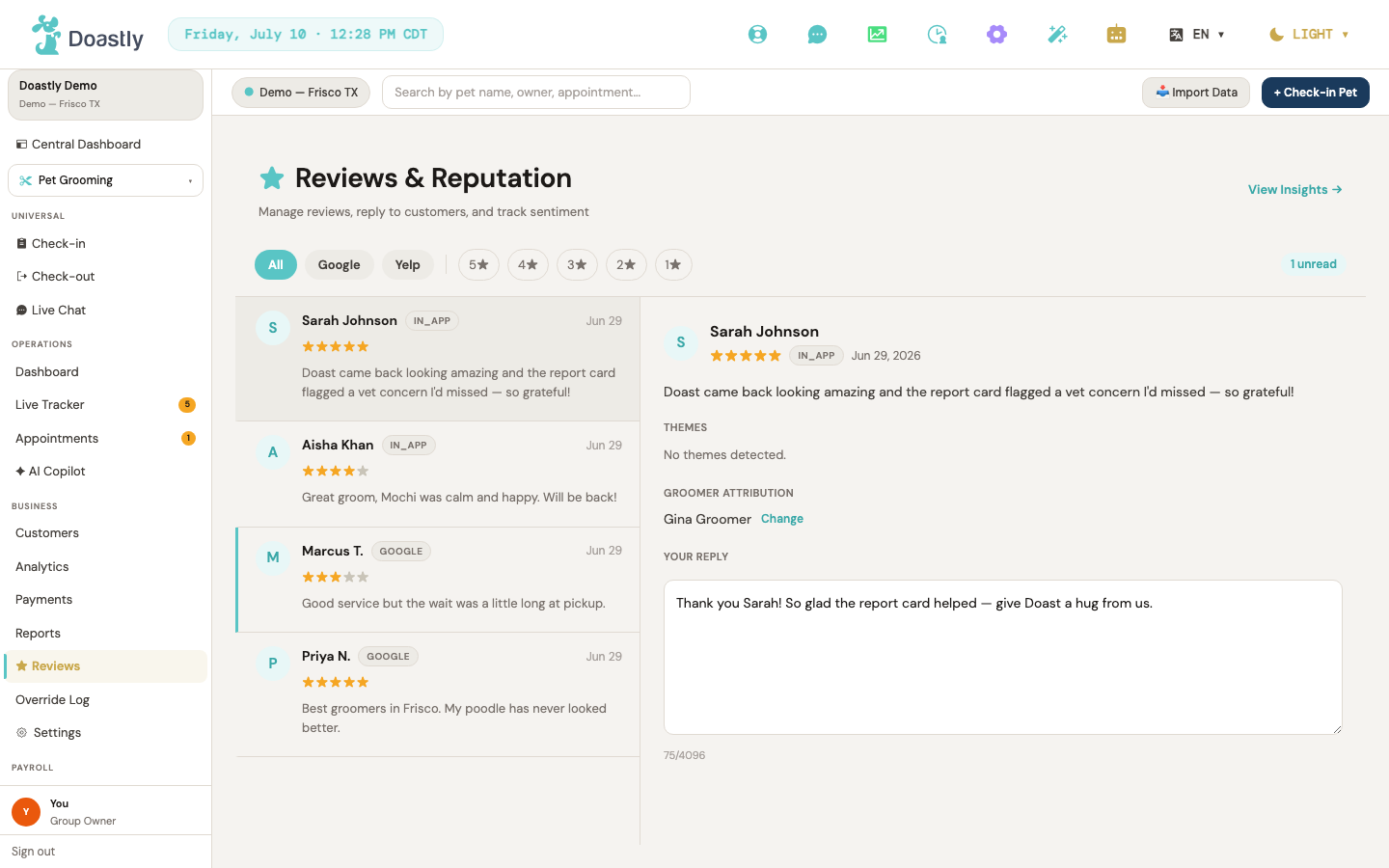
(dark mode also captured)
Review Inbox (Reviews & Reputation)
The central hub for monitoring and responding to customer reviews across connected platforms. Reviews appear in a scrollable list on the left; selecting one opens its full detail, AI-drafted reply, and groomer attribution in a panel on the right.
Attribution is Grooming-based. The candidates offered under Change are grooming sessions, and the per-groomer table in Insights is built from them. A review left after a daycare day has no daycare attendance to attribute it to — leave it unmatched rather than assigning it to an unrelated grooming session. Reading, filtering, drafting, and replying all work the same whichever service the review is about.
| Control | What it does |
|---|---|
| View Insights → | Opens the AI Review Insights page for trend and theme analysis. |
| All / Google / Yelp (platform tabs) | Filters the review list by source platform. "All" clears the platform filter; "Google" or "Yelp" scopes the list to that platform only. |
| 5★ / 4★ / 3★ / 2★ / 1★ (star filter buttons) | Filters the list to a single star rating. Clicking the already-selected star clears the filter and shows all ratings again. |
| All themes (theme dropdown) | Filters the list by AI theme tag. Appears only when AI tags exist; selecting "All themes" clears the tag filter. |
| Unread badge ("N unread") | Informational count in the filter bar showing how many reviews in the current list are unread. Appears only when at least one review is unread. |
| Review card (per review row) | Selects the review, opens it in the right-hand detail panel, and marks it as read if it was unread. |
| Change (groomer attribution) | Opens attribution edit mode in the detail panel and loads nearby grooming sessions as attribution candidates. |
| Attribution candidate (per session) | Assigns the review to the selected grooming session's groomer and closes edit mode. Each candidate row displays the groomer, pet, customer, and checkout date. |
| Mark as Unmatched | Clears the groomer attribution, leaving the review unassigned to any session. |
| Regenerate | Regenerates the AI reply draft and refreshes the AI theme tags. Available only before a reply is sent; disabled while regenerating. |
| Reply textarea (draft) | Holds the editable reply text (AI-drafted or existing), up to 4,096 characters. Becomes read-only once a reply is sent, and drives the character counter and the Send button's enabled state. |
| Send Reply | Posts the reply to the platform. Shown only for Google reviews that have not yet been replied to; disabled while sending or when the draft is empty. |
| Non-Google fallback notice | For an unreplied review on a platform other than Google, an informational line replaces the Send Reply button: replies for that platform are managed in the platform's own business portal. |
AI Review Insights
A reporting view that surfaces review trends, KPI summaries, recurring complaint themes, and per-groomer performance over a chosen time window. Use it to spot patterns and jump straight to the reviews behind them.
| Control | What it does |
|---|---|
| ← Back to Inbox | Returns to the Review Inbox. |
| Today / 7 days / 30 days / This month (period pills) | Sets the reporting window and reloads the insights for that period (defaults to 30 days). |
| Summary KPI tiles (Google avg ★ / Total reviews / Reply rate / NPS) | Read-only metric tiles at the top of the insights body summarizing the selected period. |
| Complaint theme bar (per theme) | Opens the Review Inbox filtered to the selected theme, showing the reviews behind that complaint. |
| Per-groomer performance table | Read-only table listing each groomer with columns Groomer / Reviews / Avg ★ / Top theme, scoped to the selected period. |
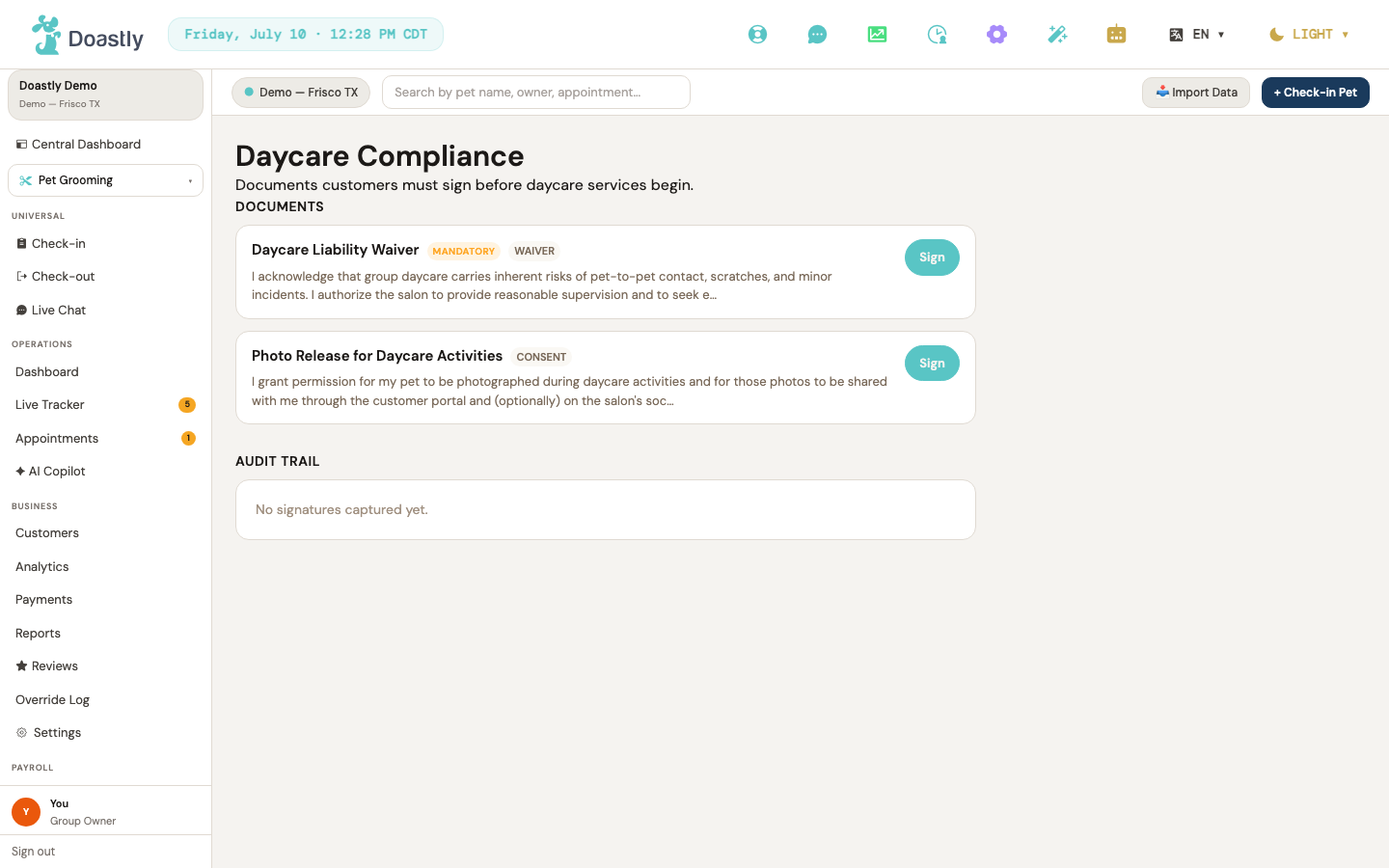
(dark mode also captured)
Settings (daycare tabs)
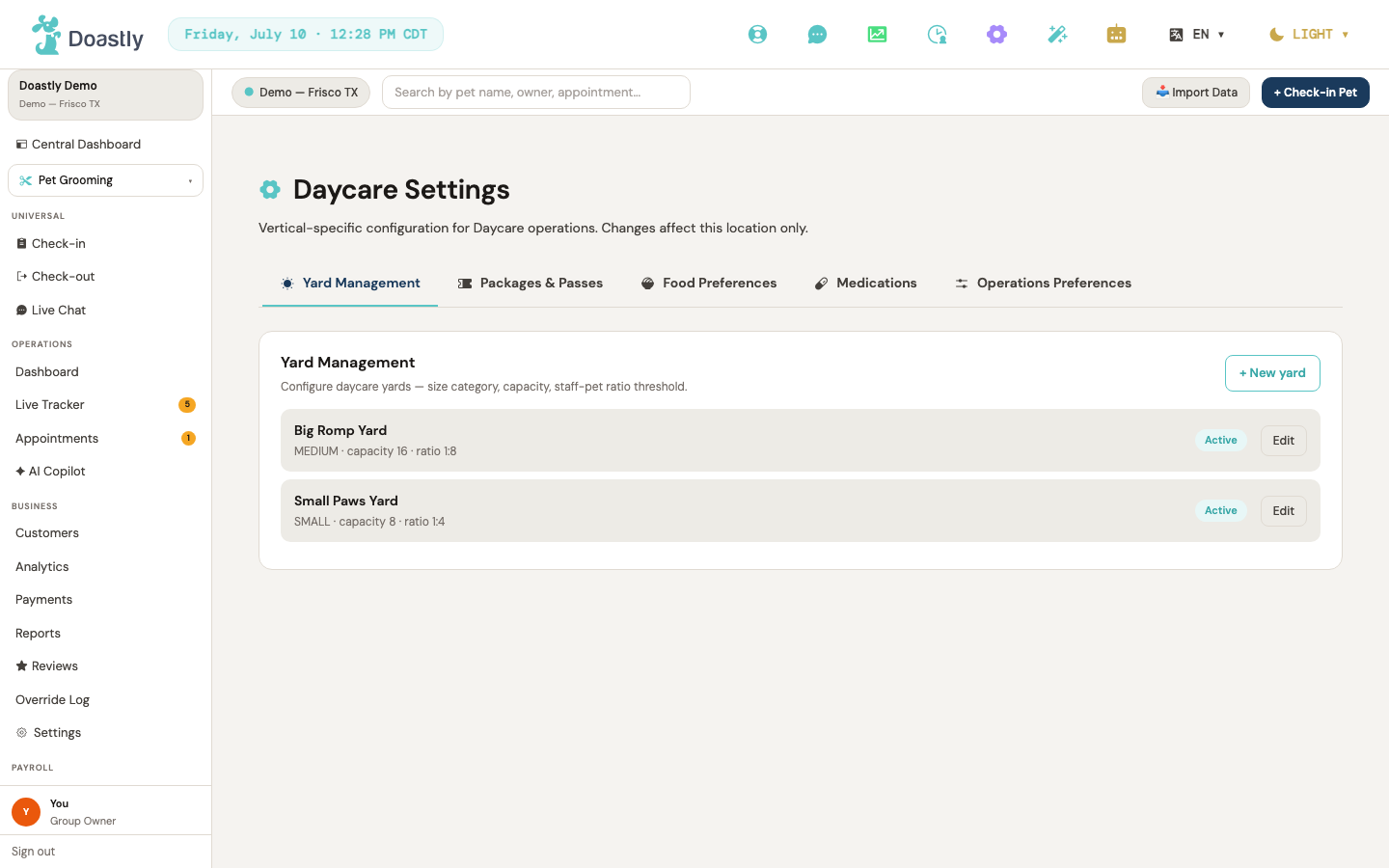
(dark mode also captured)
Daycare Settings — 5-tab shell
The Daycare Settings landing page presents a horizontal tab strip. Each tab swaps the panel below it and updates the address so the view is bookmarkable. Yard Management is the default tab. (Page is limited to Owner / Manager / Super Admin.)
| Control | What it does |
|---|---|
| Yard Management (tab) | Opens the Yard Management panel (default tab). |
| Packages & Passes (tab) | Opens the Packages & Passes panel. |
| Food Preferences (tab) | Opens the Food Preferences panel. Panel is a placeholder. |
| Medications (tab) | Opens the Medications panel. Panel is a placeholder. |
| Operations Preferences (tab) | Opens the Operations Preferences panel. The Late Pickup Fee control at the top is real; the rest of the panel below it is a placeholder. |
Yard Management tab (default)
Lists every yard at the current location, one row each (a read-only display of each yard's details). Use + New yard to add a yard, or the per-row Edit to change one.
| Control | What it does |
|---|---|
| + New yard | Opens the New yard form; fill in the fields and click Create yard to add it. |
| Edit (per yard row) | Opens the Edit yard form for that yard; change the fields and click Save changes. |
| Yard row (list item) | Shows one yard's name, size category, capacity, staff ratio (shown as 1:N), and an Active/Inactive status chip. Read-only. |
Tab states (non-control): loading ("Loading yards…"), error ("Could not load yards."), and empty ("No yards configured yet. Create your first yard to get started.").
New yard / Edit yard form
Reached from Yard Management via + New yard (titled "New yard") or a yard row's Edit (titled "Edit yard"). Both use the same fields; only the title and the save button differ.
| Control | What it does |
|---|---|
| Name | The yard's name. |
| Size category | The yard's size class: Small, Medium, Large, or Mixed. |
| Capacity | Maximum number of pets the yard holds. |
| Staff ratio | Required staff-to-pet ratio (shown elsewhere as 1:N). |
| Active | Toggle for whether the yard is currently in use. |
| Create yard (New) / Save changes (Edit) | Saves the yard and returns to Yard Management. |
Packages & Passes tab
Lists every daycare package and pass at the current location, one read-only row each. This is a list-only view — there is no add or edit control yet.
| Control | What it does |
|---|---|
| Package row (list item) | Shows one package's name, visit/pass count, valid-for days, price, and an Active/Inactive chip. A trailing dash marks where the edit control will appear once available. Read-only. |
Tab states (non-control): loading ("Loading packages…"), error ("Could not load packages."), and empty ("No packages configured yet. Packages are sold to customers as pre-paid daycare visits.").
Food Preferences tab (placeholder)
Food settings are not configurable today. Every row on this tab is non-interactive and labelled "Coming soon" on screen; none of them stores a setting. Feeding instructions for an individual visit go in the Notes field at check-in.
| Control | What it does |
|---|---|
| Default snack policy — Coming soon | Placeholder row; no control yet. |
| Special diet menu — Coming soon | Placeholder row; no control yet. |
| Owner-provided handling — Coming soon | Placeholder row; no control yet. |
Medications tab (placeholder)
Medication settings are not configurable today. Every row on this tab is non-interactive and labelled "Coming soon" on screen; none of them stores a setting. Record a pet's medication on the pet's profile, and any dosing needed for a single visit in the check-in Notes.
| Control | What it does |
|---|---|
| Stocked allergy meds — Coming soon | Placeholder row; no control yet. |
| Stocked joint meds — Coming soon | Placeholder row; no control yet. |
| Owner-provided intake — Coming soon | Placeholder row; no control yet. |
Operations Preferences tab
The top of this tab is a real control, Late Pickup Fee — it configures both the pickup grace window and the fee amount together, as one setting (they are stored on the same config, not two separate rows). Below it, the rest of the panel is genuinely still a placeholder: every row there is non-interactive and labelled "Coming soon" on screen; none of them stores a setting.
Late Pickup Fee (real control)
| Control | What it does |
|---|---|
| Enable late pickup fee | Turns the fee on or off for this location. The fields below are disabled until this is checked. |
| Grace period (minutes) | Minutes after the scheduled pickup time before the fee starts to apply. |
| Fee structure — Fixed fee / Per time slot | Picks how the fee is calculated: one flat amount, or an amount that repeats for each full time slot past the grace period. |
| Fee amount / Amount per slot | The dollar amount charged — a single flat fee, or the per-slot amount, depending on the fee structure chosen. |
| Slot length (minutes) | Shown only when Fee structure is "Per time slot." How long each billed slot is. |
| Save | Saves the setting and reads it back to confirm it was stored correctly before showing "Saved." |
When this fee applies at checkout, the customer is sent an SMS telling them a late pickup fee was applied to their pet's visit, in addition to the fee showing in the checkout total (see "Check-out flow" for the customer-facing charge). This fires automatically — there is no separate toggle for the SMS itself; it follows the fee.
Remaining placeholder rows (no control yet)
| Control | What it does |
|---|---|
| Holiday surcharge — Coming soon | Placeholder row; no control yet. |
| Default ratio threshold — Coming soon | Placeholder row; no control yet. |
Daycare Compliance (settings sub-page)
Lists your daycare compliance documents and the signature audit trail. Staff sign or re-sign each document here, and every signature is recorded below. (Page is limited to Owner / Manager / Super Admin.)
| Control | What it does |
|---|---|
| Try again (error retry) | Re-fetches the compliance templates and signed records after a load error. |
| Sign / Sign again (per template) | Opens the Sign window for that document. The label reads "Sign" if the document is unsigned and "Sign again" if it has already been signed. |
| Template row | Shows one compliance document: name, a MANDATORY badge (when required), a category chip, and a body preview. Read-only. |
| Audit trail row | Shows one signed record: document name, signer name and relationship, signed-at date, and version chip. Newest first. Read-only. |
Page states (non-control): loading skeleton (three placeholder cards while templates + records load); empty documents ("No compliance documents configured for this location yet."); empty audit trail ("No signatures captured yet."); and a no-active-location guard ("No active daycare location for your account.").
Compliance — Sign window
Opens from the Daycare Compliance page to capture a signature on a document. All required fields must be filled before the signature is saved.
| Control | What it does |
|---|---|
| Full name | Enter the signer's full name. Required — must be non-empty to submit. |
| Relationship to pet | Enter the signer's relationship to the pet. Defaults to "Owner." |
| Type your signature | Enter the typed signature. Required — must be non-empty to submit. |
| Cancel | Closes the window without saving. Disabled while a signature is saving. |
| Sign now | Validates the name and signature. If either is empty, shows an inline error ("Enter your full name and type your signature to sign.") and stays open. On success, saves the signature, adds the new record to the top of the audit trail, and closes the window. If the save fails, shows a friendly error, keeps the window open, and re-enables the form. Shows "Saving…" while it submits. |
| Backdrop dismiss | Clicking the dimmed background closes the window (disabled while a signature is saving). |
Live Yard Board
This screen is the Live Yard Board — a real-time view of the pets in a yard with per-pet activity logging. It is its own working route (fixed 2026-07-09). Yard edit is a separate, working form: Yard Management → Edit opens the real yard-config editor (name, capacity, ratio, webcam). (The board is limited to Owner / Manager / Groomer.) The board auto-refreshes every 30 seconds and shows an "Updated <time>" / "Polling every 30s" header.
| Control | What it does |
|---|---|
| ← Back | Returns to the previous screen. |
| Pets In Yard (metric card) | Read-only. Shows occupancy count / yard capacity with a capacity-percent progress bar. |
| Ratio (metric card) | Read-only. Shows the current staff:pet ratio and a color-coded status label — Good (green) / Near limit (amber) / Over limit (red). |
| Staff On Floor (metric card) | Read-only. Shows staff count and the yard's size category. |
| RED ratio banner | Read-only warning. Shown when the ratio is over limit, reading "Staff:pet ratio exceeds limit. Manager override required for new check-ins." Treat this banner as a prompt to you, not as a control the system applies. The staff:pet ratio it reports is not enforced: passing your ratio threshold does not, by itself, stop anyone checking a pet in, and there is no setting that turns ratio enforcement on. If your ratio matters for your licence or your insurance, hold the check-in yourself rather than relying on this banner to hold it for you. Do not read that as "nothing can stop a check-in," though — a separate limit does apply. Each yard has a maximum number of pets (Settings → Daycare → Yard Management), and a check-in into a yard already at that maximum is refused with a "Yard is at capacity" message. Getting past that one does need an Owner or Manager to override it and record a reason. So the two are different things: the pet count limit bites, the ratio does not. The count limit is reliable for check-ins done one after another; a Postgres advisory lock (fixed 2026-08, #862) closes the earlier race where two staff checking pets into the same yard at the same moment could both get through — see Check-in flow → Confirm arrival. |
| AMBER ratio banner | Read-only. Shown when ratio is near limit: "Approaching ratio limit. Consider check-ins carefully." |
| Pet card — compatibility warning chip | Read-only. Shows ⚠️ compatibility warnings when present for a pet. |
| Pet card — "Last: <activity>" chip | Read-only. Shows the pet's most recent logged activity when present. |
| + Log (per pet card) | Opens the Log Activity window for that pet. |
| Activity Type (dropdown) | Selects the activity type: Nap, Play (group), Play (solo), Feed, Meds, Accident, Incident, or Notable moment. |
| Caption (optional) | Enter an optional note for the activity. |
| Cancel (activity window) | Closes the Log Activity window without saving. |
| Save (activity window) | Saves the activity to the pet's attendance record, refreshes the board, and closes the window. Shows "Saving…" while it submits. Note: on a save failure the window silently re-enables (no error message is shown). |
Board states (non-control): loading ("Loading yard board…"), error ("Could not load yard board. Please try again." / "Yard not found."), and empty pet grid ("No pets checked in yet.").
Daycare — Packages & Passes
Daycare Settings — Packages & Passes tab
A read-only summary of your daycare packages inside the Daycare Settings shell. Use it to review what's configured at a glance; all editing happens on the standalone Packages admin page.
Note: the Packages admin page is not currently linked from this tab, the sidebar, or anywhere else in the app — it is a known navigation gap. Until an entry point is added, staff cannot reach the edit page by clicking through the UI.
| Control | What it does |
|---|---|
| Yard Management (tab) | Switches the Settings shell to the Yard Management section (the default tab). |
| Packages & Passes (tab) | Switches the Settings shell to the Packages & Passes section — this screen. |
| Food Preferences (tab) | Switches the Settings shell to the Food Preferences section. |
| Medications (tab) | Switches the Settings shell to the Medications section. |
| Operations Preferences (tab) | Switches the Settings shell to the Operations Preferences section. |
| Section header | Heading "Packages & Passes" with the subtitle "Multi-day passes + recurring packages sold to daycare customers." |
| Package row (list item) | Shows one configured package — name, visits/passes count, validity in days, price, and an Active/Inactive status chip. This tab is view-only: the row has no edit, activate, or delete controls (the trailing cell shows a dash). Manage packages on the Packages admin page. |
| Empty state | When no packages exist: "No packages configured yet. Packages are sold to customers as pre-paid daycare visits." |
| Error state | If the list can't load: "Could not load packages." |
Daycare Packages Admin
The full create, edit, activate, and delete page for daycare packages. Add a package with the New Package form, then manage each one from its card below. (Note there is currently no in-app link to this page — see the navigation note above.)
| Control | What it does |
|---|---|
| Page header | Title "Daycare Packages" with the subtitle "Manage pass packages for customers." |
| ← Back | Returns to the previous page. |
| + Add Package | Opens the New Package form with blank fields, ready to create a new package. |
| Name * | Package name, such as "10-Day Pass". Required — saving is blocked if it's empty. |
| Price (USD) * | Package price in dollars. Required, and must be 0 or greater. |
| Pass Count (blank = unlimited) | Number of passes the package includes. Leave blank to make it unlimited. |
| Validity (days) * | How many days the pass stays valid. Defaults to 90 if you clear it. |
| Cancel (form) | Closes the add/edit form without saving. |
| Create / Update (form submit) | Saves the package — creating a new one or updating the one you're editing. Validates name and price, shows a confirmation, and refreshes the list. Reads "Create" for a new package, "Update" when editing, and "Saving…" while the save is in progress. |
| Form title | Reads "New Package" when adding and "Edit Package" when editing an existing package. |
| Deactivate / Activate (per package) | Turns the package on or off. The label reflects its current state; the list refreshes after the change. |
| Edit (per package) | Loads the package into the form above so you can change its details. |
| Delete (per package) | Permanently removes the package after a confirmation prompt, then refreshes the list. |
| Package card (list item) | Shows a package's name, an Inactive badge when it's off, its passes (or "Unlimited"), validity in days, and formatted price. Inactive packages appear dimmed. Hosts the Deactivate, Edit, and Delete actions. |
| Loading state | Shows "Loading packages…" while the list is being fetched. |
| Empty state | When no packages exist: "No packages yet. Add one to get started." |
| Toast notification | A brief confirmation banner ("Package created." or "Package updated.") that appears for a few seconds after you save. |
Daycare Packages — Customer Purchase (Pet Family)
Where a pet family sees their current daycare passes and the packages your daycare offers. Online purchase is not yet available, so passes are added by salon staff for now.
| Control | What it does |
|---|---|
| ← (back arrow) | Returns to the previous page. |
| Page header | Title "Daycare Packages" with the subtitle "Save with multi-day passes." |
| Your Active Passes (list) | Lists the customer's active passes — package name, passes remaining (or "Unlimited"), and days until expiry. Appears only when they hold at least one active pass. |
| Available Packages (section heading) | Labels the list of packages the daycare currently offers. |
| Available package card (list item) | Shows one active package — name, day passes (or "Unlimited monthly"), validity, per-day price (shown only when the package has a pass count), and total price. Hosts the Buy button or the "You have this" indicator. |
| Buy | Not yet functional — the button is disabled, with a tooltip reading "Online purchase coming soon — ask your salon to add a pass." No purchase flow is wired. |
| ✓ You have this (indicator) | Replaces the Buy button when the customer already holds an active pass for that package. |
| No-location state | If no location is selected: "Select a location to view packages." |
| Empty state | When the location has no packages: "No packages available at this location." |
| Loading state | Shows "Loading…" while packages and passes are being fetched. |
| Contact-your-daycare footer note | A short note telling customers to contact the daycare or ask staff to add a pass at check-in, since self-serve purchase isn't available yet. |
(dark mode also captured)
Daycare — Detail pages (Attendance / Customer / Pet)
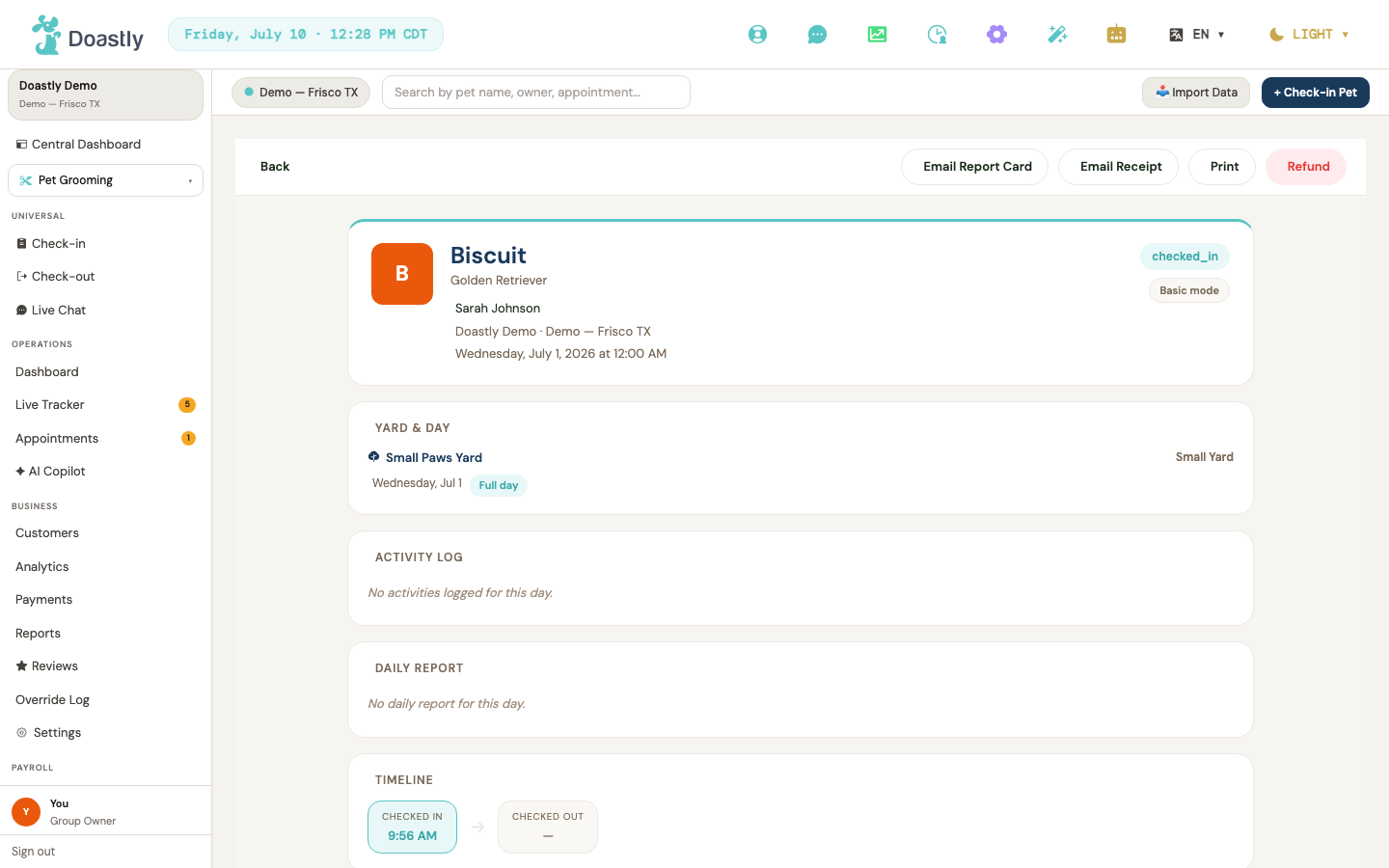
(dark mode also captured)
Daycare Attendance Record — Action Bar
The toolbar at the top of a daycare attendance record. Report card and receipt emails go to the pet owner; refund is limited to Owner and Manager roles. (Email and refund controls appear on the salon view only; the customer view of the record shows just Back and Print.)
| Control | What it does |
|---|---|
| Back | Returns to the previous page — the attendance list, customer detail, or pet detail you came from. |
| Email Report Card | Asks you to confirm, then emails the report card to the owner. Shows "Sending…" while it works. It sends the report recorded against that day — the one completed from the Groups roster via Report. A day with no completed report has no report-card content behind this button. |
| Email Receipt | Asks you to confirm, then emails the receipt to the owner. Shows "Sending…" while it works. |
| Opens your browser's print dialog for the record. | |
| Refund | Asks for a reason, then refunds the full remaining amount. Greyed out unless you are an Owner or Manager. |
Daycare Attendance Record — Body (sections)
The record body — Yard & Day, Activity Log, Daily Report, Timeline, Photos, Pass Balance, Compliance, Vaccines, Special Handling & Notes, and Payment. These are read-only; the only interactive part is the photo gallery. (Corrected 2026-08-18: two section labels were misremembered in the prior stamp — the live headers read "Daily Report" and "Special Handling & Notes," not "Daycare Daily" and "Notes".)
| Control | What it does |
|---|---|
| Photo thumbnail | Opens the photo lightbox at that image. (Thumbnails without an image are not clickable.) |
| Lightbox — Previous (‹) | Moves to the previous photo. Disabled on the first photo. |
| Lightbox — Next (›) | Moves to the next photo. Disabled on the last photo. |
| Lightbox — Close (✕) | Closes the lightbox. Also closes if you click the backdrop. (Arrow keys and Escape also work.) |
Customer Detail — Header & Top Bar
The top of a customer's profile. The customer's daycare days are listed further down the page.
| Control | What it does |
|---|---|
| Customers (breadcrumb) | Returns to the customer list. |
| Book appointment | Static button — no action is wired; clicking it does nothing. |
| Check in | Starts the check-in flow (routes to grooming check-in). |
| Customer avatar (upload/remove) | Uploads a photo for the customer, or removes the current one. |
| + Add pet | Opens the Add Pet form (name, gender, DOB, color, breed, coat, weight, neutered/spayed); saving creates the pet and refreshes the profile. |
| Send message | Static button — no action is wired; clicking it does nothing. |
Customer Detail — Tabs & Overview
Tabs across the customer profile, with the Overview panel showing pets, sessions, and boarding/daycare history. Each tab shows a count.
| Control | What it does |
|---|---|
| Overview / Pets / Sessions / Waivers / Notes | Switches the tab panel. Overview lists pets, sessions, boarding, and daycare; the others open their own panels. |
| Pet row (Overview pets) | Opens that pet's detail page. |
| + Add pet (pets section) | Opens the Add Pet form. |
| Full history → | Static label — no action is wired; clicking it does nothing. |
| View → (recent session) | Opens the session detail pane for that grooming session. |
| Daycare Days — Record (per row) | Opens the daycare attendance record for that day (a "Record" link pill). Shows "No daycare days on file." when there are none. |
| Boarding stays — Record (per row) | Opens the boarding reservation record for that stay (a "Record" link pill). |
| Manage → (waivers) | Static label — no action is wired; clicking it does nothing. |
Customer Detail — Tab Panels (Pets / Sessions / Waivers / Notes)
The panels behind the Pets, Sessions, Waivers, and Notes tabs.
| Control | What it does |
|---|---|
| Pet row (Pets tab) | Opens that pet's detail page. |
| View → (Sessions tab) | Opens the session detail pane for that session. |
| Record link (Sessions tab) | Opens the full grooming session record ("Record" pill). |
| Note textarea (Notes tab) | Type a new customer note. |
| Add note (Notes tab) | Saves the note and adds it to the top of the list. Disabled while empty or saving. |
Customer Detail — Session Detail Pane
The pop-up that shows a grooming session's details from the customer profile.
| Control | What it does |
|---|---|
| Close (✕) | Closes the session detail pane. Also closes if you click the backdrop. |
Pet Detail — Header
The top of a pet's profile. The pet's daycare days are listed further down the page.
| Control | What it does |
|---|---|
| ← Back to Customer | Returns to the pet's owner profile. |
| Pet avatar (upload/remove) | Uploads a photo for the pet, or removes the current one. |
Pet Detail — Middle Tabs (Pet Info / Vaccines / Compliance)
Tabs for the pet's core information, vaccine records, and compliance documents.
| Control | What it does |
|---|---|
| Pet Info / Vaccines / Compliance | Switches between the pet info, vaccines, and compliance panels. |
| + Add Vaccine | Opens the Add Vaccine form on the Vaccines tab. |
| Vaccine document link (per vaccine) | Opens the uploaded vaccine document in a new tab. |
| Verify (per vaccine) | Marks the vaccine record as verified. Available to Owners and Managers on unverified records only. |
| Doc (upload, per vaccine) | Uploads a vaccine document (JPG, PNG, WebP, or PDF) for that record. |
| Del (per vaccine) | Asks you to confirm, then removes the vaccine record. |
Pet Detail — Add Vaccine Form
The form for adding a vaccine record to the pet. Date Administered is required.
| Control | What it does |
|---|---|
| Vaccine (select) | Choose a vaccine from the common list, or "Other". |
| Vaccine name (other) | Type the vaccine name — shown only when "Other" is selected. |
| Date Administered | Set the date the vaccine was given (required). |
| Expiry Date | Set the vaccine's expiry date. |
| Administered By | Enter the vet or clinic name. |
| Lot Number | Enter the lot number (optional). |
| Notes | Add any notes about the vaccine. |
| Choose file / Change file | Attach a vaccine document (up to 10MB). |
| Remove attached file (✕) | Clears the attached document. |
| Cancel | Closes the form without saving. |
| Add Vaccine (submit) | Saves the vaccine record. Disabled while saving. |
Pet Detail — Compliance Tab
The pet's compliance documents, with signing and download options. Which sign controls appear depends on whether an active session exists.
| Control | What it does |
|---|---|
| Download (signed doc, per template) | Downloads the signed compliance document. Shows "Downloading…" while it works. |
| Sign (per template, active session) | Opens the signing flow for that document. Shown when an active session exists. |
| Sign here → (per template, no session) | Opens the in-place e-sign flow for that document. Shown when there is no active session (the usual case on Pet Detail, since the pet is always known here). |
| Sign-at-checkin link (per template) | Routes to check-in to sign the document. The label varies by document type — "Sign at Check-In →", "Sign at Check-Out →", or "Sign anytime →". (Fallback shown only when the pet isn't resolved; rarely seen on Pet Detail.) |
| Sign all (N) | Signs all unsigned documents in one flow. Shown with an active session and more than one unsigned document. |
| View signing history (toggle) | Expands or collapses the signing-history panel. |
| Download (history, per template) | Downloads a previously signed document from the history. Shows "Downloading…" while it works. |
Pet Detail — Grooming History + Daycare/Boarding lists
The pet's grooming history with filters and pagination, plus its daycare days and boarding stays.
| Control | What it does |
|---|---|
| History row | Opens that session in the session detail pane. |
| Record (per history row) | Opens the full grooming session record ("Record" link pill), separate from the row-click quick-peek. |
| Date From | Filter history from this date. |
| Date To | Filter history to this date. |
| Status (select) | Filter history by status — All statuses, Checked out, or Cancelled. |
| Clear (filters) | Clears all history filters. Shown only when a filter is active. |
| ‹ Prev (pagination) | Goes to the previous page of history. Disabled on the first page. |
| Next › (pagination) | Goes to the next page of history. Disabled on the last page. |
| Daycare Days — Record (per row) | Opens the daycare attendance record for that day ("Record" link pill). |
| Boarding stays — Record (per row) | Opens the boarding reservation record for that stay ("Record" link pill). |
| Detail pane Close (✕) (narrow view) | Closes the session detail pane. |
Daycare — Medical & Diet Routines
Daycare routines cover the same ground as a boarding stay's medical & diet chapter, scoped to a single day: staff record every medication and meal a pet needs while in care, and the pet's family sees exactly what happened — including when something did NOT go as planned.
A routine is one medication or one diet item, with an explicit schedule of times (e.g. 08:00, 20:00 for a twice-daily dose), a dose or portion amount, and whether it's flagged critical. There is no daycare-native "create routine" screen yet — routines are created through the same shared endpoint boarding's Settings uses (POST /api/v1/boarding/routines with vertical=DAYCARE), attached to the pet's current daycare attendance. A single pet's day can carry any number of routines; a real 8-routine/13-slot day (4 diet items, 4 medications, one on a 3-times-daily schedule) has been proven end to end.
The Daily Routines worklist
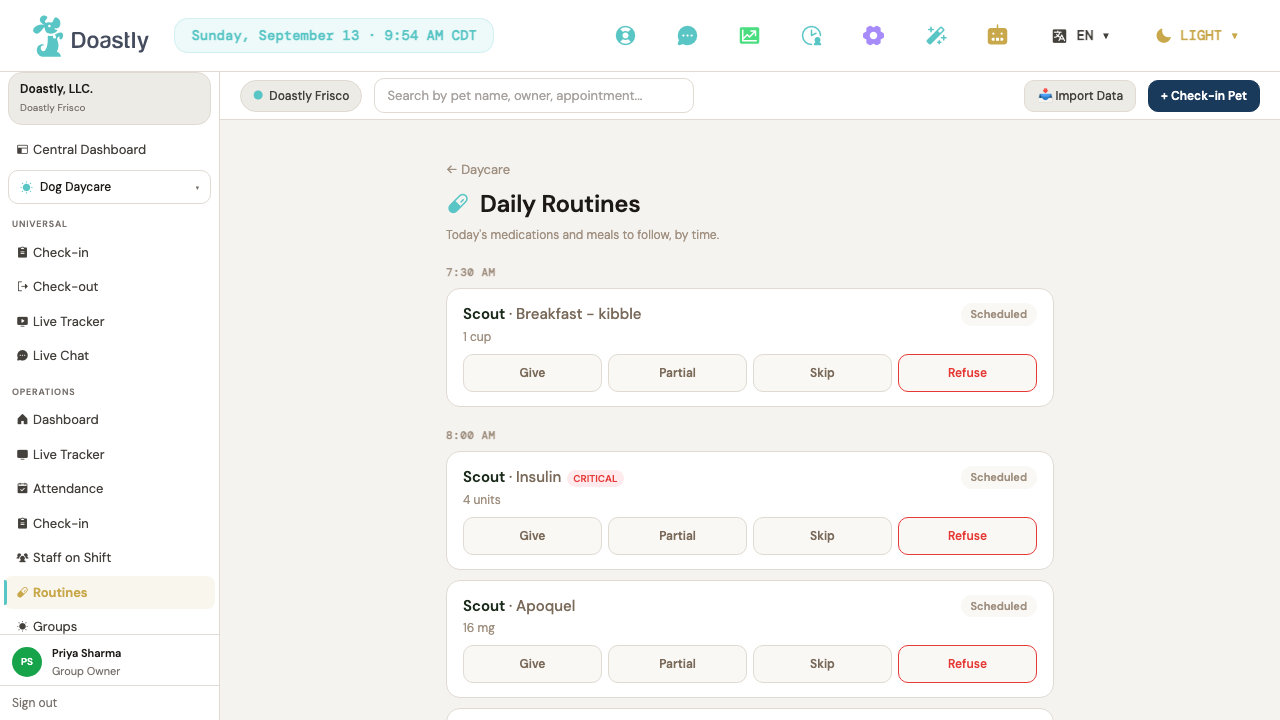
| Control | What it does |
|---|---|
| Worklist page (Salon → Daycare → Routines) | Groups today's scheduled doses/meals by time. Two routines scheduled for the same time render as separate cards — nothing is merged or hidden, even when four routines land on the same slot. |
| Give | Records the dose/meal as given now, by the signed-in staff member. |
| Partial | Records a partial amount, with a required note of how much was actually given. |
| Skip | A staff decision NOT to administer this dose. Requires a reason — the system will not let a skip through without one. |
| Refuse | Records that the PET declined it — a different, no-blame outcome from a staff Skip; no reason required. |
| Overdue badge | Appears automatically once a scheduled dose crosses its grace window without being actioned — nobody has to notice and flag it by hand. |
A routine's schedule can be edited after it's created (say, moving dinner from 6:00 to 6:30). Editing only affects future, not-yet-scheduled slots — anything already recorded for earlier in the day is left exactly as it was.
The daily report — what the pet's family actually sees
At checkout, the day's routine record folds into the same AI-written daily summary the family reads in the pet-family app — the same report that already covers general activities. Two independent, deterministic checks sit behind the AI narrative and never trust the model's wording alone:
- If any activity is logged as an incident, the guard confirms the narrative mentions it — regenerating once, then falling back to a plain factual statement if it still doesn't.
- If any medication or diet item was skipped or missed, a second guard confirms the narrative names it — same fallback behavior, checked against the real database row, never the AI's own text.
A real example: a critical medication was skipped because the pet refused it in food, staff logged the reason and notified the vet, and one earlier dose was genuinely missed. The AI-written summary named both, unprompted:
"…we need to let you know his evening insulin was skipped because he refused it in his food — we've already notified the vet. One earlier gabapentin dose was also missed, though his other doses went smoothly."
The full adherence table — every scheduled dose for the day, its status, who gave it and when, and the skip reason verbatim where one applies — is available to the family alongside the narrative.
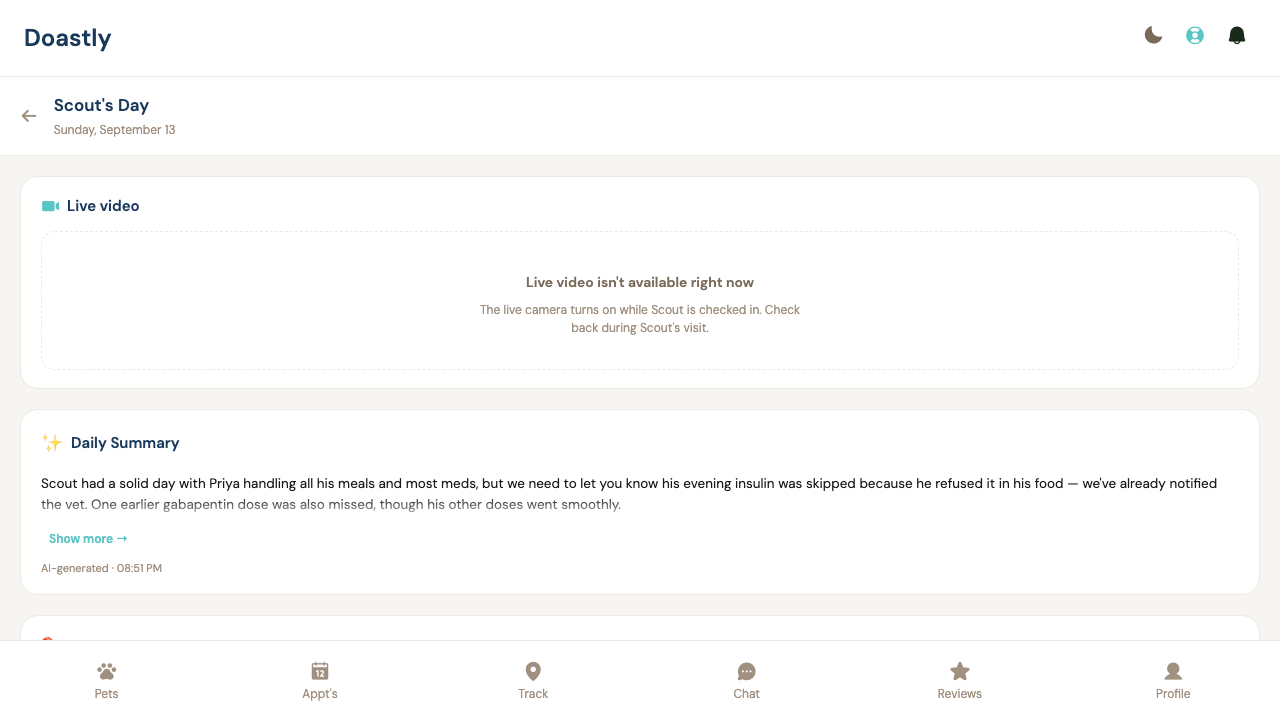
(dark mode also captured)
Privacy — who can see a routine
Routine and administration records are scoped the same way every other daycare record is: to the pet's own family (never another customer's) and to staff at the location where the day is taking place (never a different salon, and never a different salon group). Both directions have been verified against real data with a real cross-tenant token — a token for one salon group returns nothing for another group's pet, and a customer's own token never sees another family's pet.
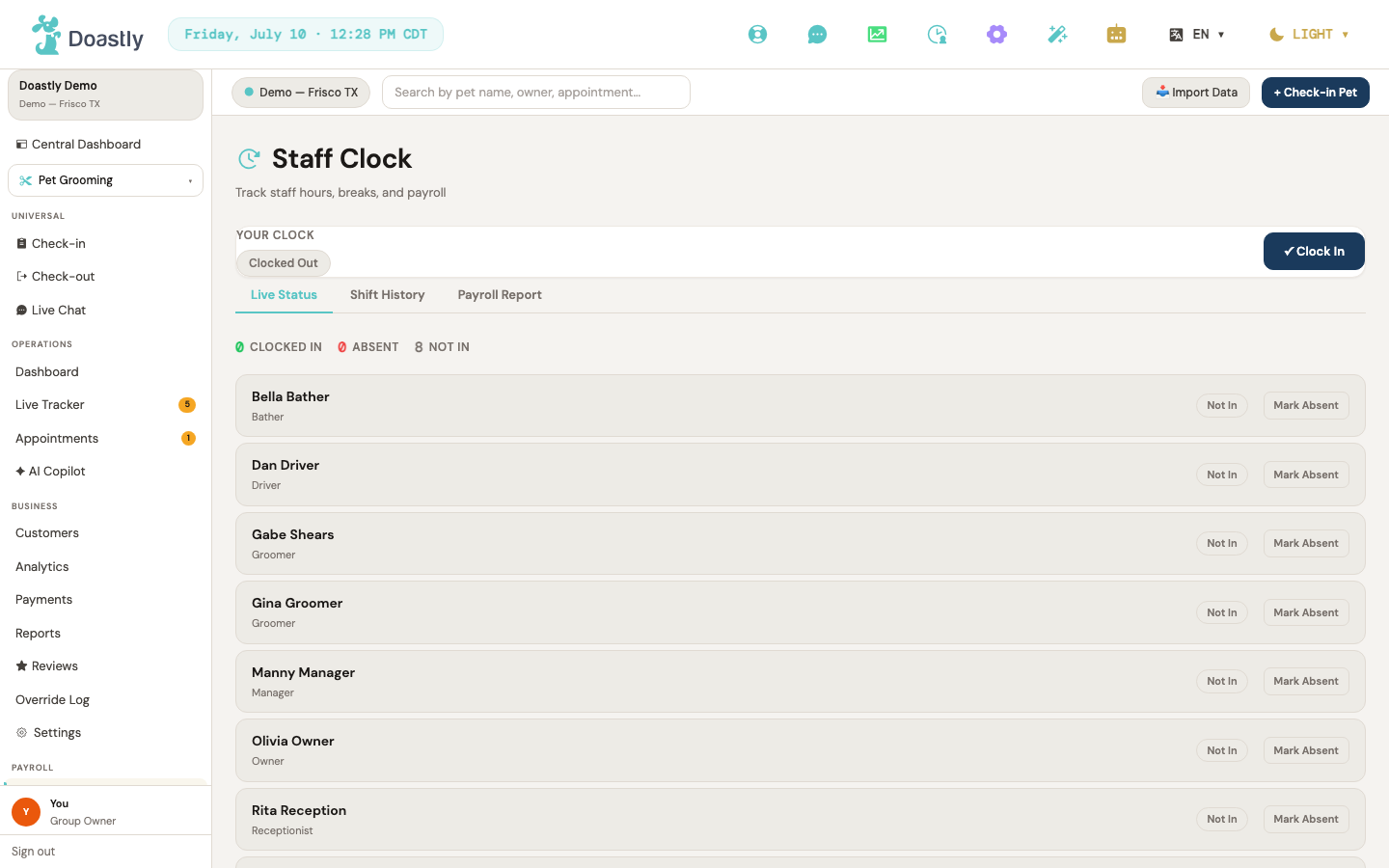
(dark mode also captured)
Staff & Payroll (Daycare — shared surfaces; no Daycare-specific difference, no AI Copilot)
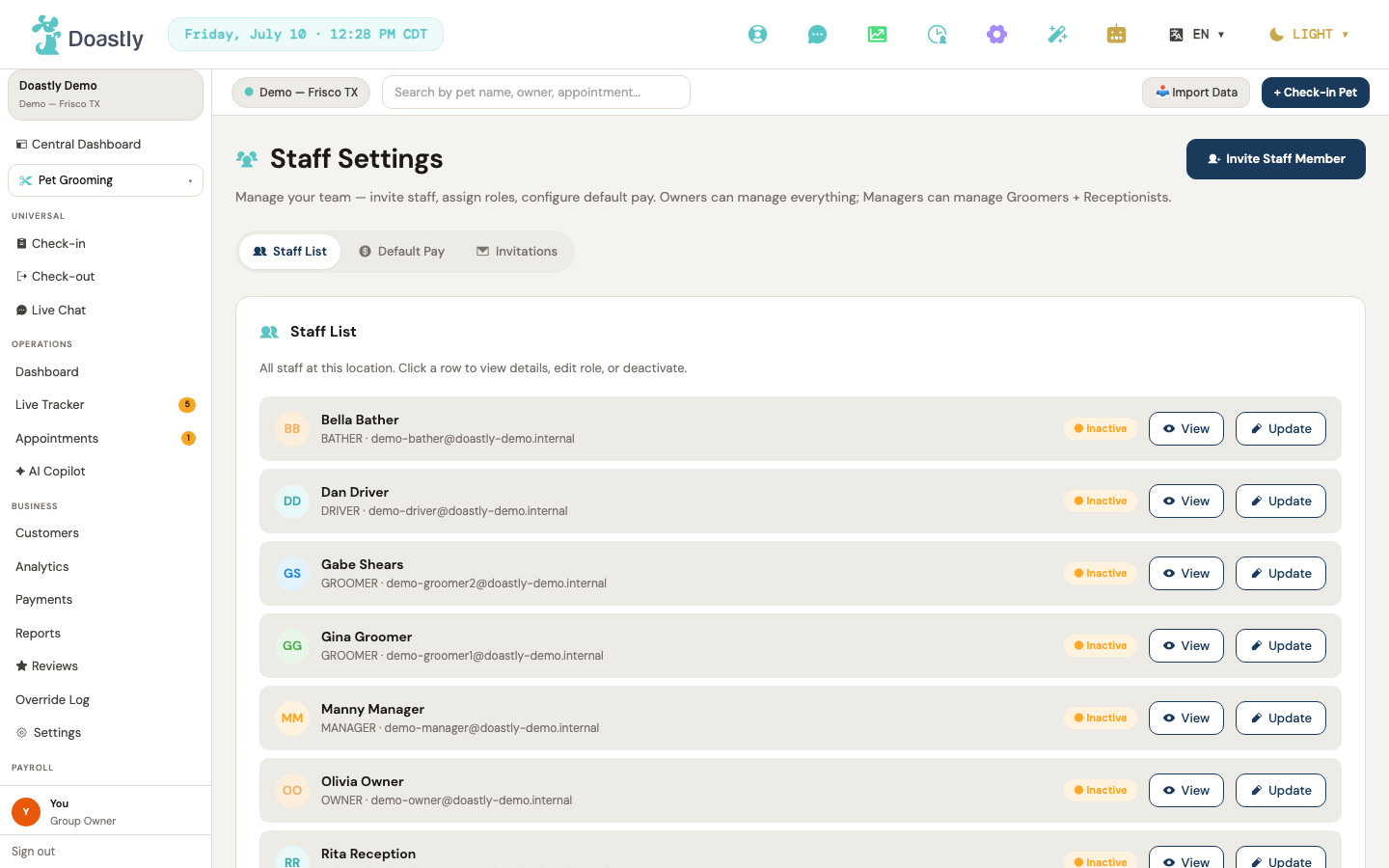
(dark mode also captured)
Staff Clock — My Clock Card (top card, all tabs)
The personal clock card sits at the top of the Staff Clock page across every tab. It shows your current status badge and, while you are clocked in, a live elapsed-hours counter. The button set changes to match your current state — clocked out, clocked in, or on break — so only the relevant actions are shown.
| Control | What it does |
|---|---|
| (no row actions) | The shift-history table is read-only — there is no per-row edit control in this view, so a recorded shift cannot be corrected from this screen. |
| ✓ Clock In | Starts your shift. Shown only when you are clocked out. While it processes, the label reads "Clocking In…", then the card refreshes to your clocked-in state. |
| Take Break | Pauses your shift for a break. Shown when you are clocked in and not already on break; the card refreshes with break controls. |
| End Break | Ends your current break and resumes your shift. Shown only while you are on break. |
| Clock Out | Ends your shift. Shown when you are clocked in. While it processes, the label reads "Clocking Out…", then the card refreshes to your clocked-out state. |
Read-only: a live hours counter renders next to the status badge while you are clocked in (it pauses its display while you are on break).
Staff Clock — Tab strip
Three tabs switch the main view of the Staff Clock page. The Payroll tab appears only for Owners, Managers, and Receptionists.
| Control | What it does |
|---|---|
| Live Status tab | Shows the team's live-status counters and the list of all staff for today. |
| Shift History tab | Opens the shift-history view with date and staff filters. |
| Payroll tab | Switches to the payroll report. The tab is shown to Owner, Manager, and Receptionist — but the report itself loads only for an Owner or a Manager; a Receptionist sees "Manager or Owner role required" in place of the figures. |
Staff Clock — Live Status tab (counters + per-staff row actions)
The Live Status tab shows three read-only counters — Clocked In, Absent, Not In — followed by a row per staff member. Each staff row shows management actions for that person. These buttons appear only for Owners, Managers, and Receptionists, and the set shown depends on whether the staffer is clocked in, on break, or not yet in.
| Control | What it does |
|---|---|
| Break | Starts a break for a clocked-in staffer who is not already on break. |
| End Break | Ends the break for a staffer who is currently on break. |
| Clock Out | Clocks out a staffer who is currently clocked in. |
| Mark Absent | Shown for a staffer who is not clocked in. Prompts for an absence reason, then records the absence. |
| Undo Absent | Shown for a staffer already marked absent. Removes the absence record. |
Staff Clock — Shift History tab (filters + pagination)
This tab lets you filter past shifts by date range and staff member, export the results, and page through them. The staff filter appears only for Owners, Managers, and Receptionists.
| Control | What it does |
|---|---|
| Date From | Sets the start date for the shift-history results. Applied when you press Apply or a quick-range button. |
| Date To | Sets the end date for the shift-history results. |
| Staff filter (All staff) | Narrows results to one staff member. Defaults to "All staff". Shown only for Owners, Managers, and Receptionists. |
| Apply | Reloads shifts using the current date range and staff filter, starting from page 1. |
| Last 7d / Last 14d / Last 30d | Three quick-range buttons that set the date range to the last 7, 14, or 30 days and reload. |
| ↓ Export CSV | Downloads the shifts in the current range as a spreadsheet (up to 10,000 rows). |
| ← Prev | Goes to the previous page. Disabled on the first page; shown only when there is more than one page. |
| Next → | Goes to the next page. Disabled on the last page; shown only when there is more than one page. |
Staff Clock — Shift History table
The shift-history table lists each past shift for the selected range and filters (read-only columns: Staff, Date, Clock In, Clock Out, Break, Total, Type/Manual).
| Control | What it does |
|---|---|
| Edit (per shift row) | Intended to open a shift for editing, but editing is not wired on this screen, so the Edit control does not currently appear in the live shift-history view. |
Staff Clock — Payroll Report tab (period picker + KPIs + table)
The Payroll tab shows pay totals for a chosen period, four summary KPI cards, and a per-staff table. Pick a preset period or a custom date range, then export the results.
Read-only KPI cards: Staff, Total Hours, Total Payout, Total Revenue.
Revenue and tips on this tab are Grooming figures — Daycare days are not counted. Total Revenue, and the per-staff revenue and tips columns behind it, are built from paid Grooming sessions only. A daycare attendance adds nothing to them, however many pets a person handled, so on a Daycare-only location these read zero and a mixed salon sees its grooming side alone. This matters most for Commission pay. A commission payout is calculated as that Grooming revenue × the person's rate, plus Grooming tips. A staff member paid on Commission therefore earns no commission for daycare work through this report. If you pay daycare staff on commission, calculate that portion outside the system — do not read Total Payout as their full pay. Hourly and Fixed staff are largely unaffected: their payout comes from clocked hours or a set amount, and Total Hours does count time worked on daycare days. One thing that applies to everyone, on any pay type: a tip a customer leaves on a Daycare check-out is charged to that customer, but it is not credited to anybody in this report. The tips column here is built from paid Grooming sessions only. If you pass daycare tips on to staff, work that out from the check-out records rather than from this report.
| Control | What it does |
|---|---|
| This Month | Sets the period to the current month and reloads the report. |
| Last Month | Sets the period to the previous month and reloads the report. |
| Custom | Switches to a custom date range and reveals the date-from, date-to, and Apply controls. |
| Date From (custom) | Sets the start date for a custom payroll range. Shown only in Custom mode. |
| Date To (custom) | Sets the end date for a custom payroll range. Shown only in Custom mode. |
| Apply (custom) | Reloads the payroll report for the custom date range. Shown only in Custom mode. |
| ↓ Export CSV | Downloads the current report as a spreadsheet. Disabled when the report has no rows. |
Staff Settings — Header + Tab strip
The Staff Settings page opens with an invite action in the header and three tabs. Each tab badge shows a live count — active staff or pending invitations.
| Control | What it does |
|---|---|
| Invite Staff Member (header) | Opens the Invite Staff window. |
| Staff List tab | Shows the staff list. Its badge shows the active-staff count. |
| Default Pay tab | Opens the default pay configuration for new staff. |
| Invitations tab | Opens the pending invitations panel. Its badge shows the pending-invite count. |
Staff Settings — Staff List tab (per-row actions)
The Staff List tab shows each team member with per-row actions, plus an invite button in the footer.
| Control | What it does |
|---|---|
| View (per staff row) | Opens the read-only staff detail window for that member. |
| Update (per staff row) | Opens the Edit Staff window for that member. |
| Deactivate (per staff row) | Deactivates that staff member after a confirmation prompt — they can no longer sign in, and their status pill flips to Inactive. Shown to administrators (Owners see it on every row; Managers only for the Groomers and Receptionists they manage). A deactivated member can be brought back by re-inviting them. |
| + Invite Staff Member (list footer) | Opens the Invite Staff window. |
Staff Settings — Invite Staff window
This window collects the details for a new staff invitation and sends it by email. First name, email, and role are required.
| Control | What it does |
|---|---|
| First name * | The new member's first name. Required. |
| Last name | The new member's last name. Optional. |
| Email * | The email address the invitation is sent to. Required. |
| Role * | The role for the invite — Manager, Groomer, Receptionist, or Driver. Defaults to Groomer. |
| Cancel | Closes the window without sending an invite. |
| Send Invitation | Sends the invitation to the given email, shows a success message, then closes the window automatically. While sending, the label reads "Sending…". |
Staff Settings — View Staff window (read-only)
A read-only view of a staff member's details. Email, phone, and payroll rows are shown for reference only and cannot be edited here.
| Control | What it does |
|---|---|
| Close | Closes the staff detail window. |
Staff Settings — Edit Staff window
This window edits a staff member's profile, role, location, pay, and tracker color. First and last name are required before you can save.
| Control | What it does |
|---|---|
| Avatar upload / remove | Uploads a new profile photo, or removes the existing one. |
| First name | Edits the member's first name. Required, up to 100 characters. |
| Last name | Edits the member's last name. Required, up to 100 characters. |
| Role | Sets the member's role — Owner, Manager, Groomer, Receptionist, or Driver. Saved when changed. |
| Location | Sets the member's location. The dropdown offers "All Locations" plus one row per location on your account, loaded from your live locations. |
| Payroll Type | Sets the pay basis — Commission, Hourly, or Fixed. This changes the label and step of the Rate field. |
| Rate | The pay rate — percent of revenue, dollars per hour, or dollars per month, depending on the payroll type. |
| Tracker Color swatches | Picks one of 12 tracker colors for this member. The selected swatch shows a checkmark. |
| Clear (color) | Clears the selected tracker color. Shown only when a color is set. |
| Cancel | Closes the window without saving. |
| Save Changes | Checks that first and last name are present, then saves the name, role, location, pay, and color changes. While saving, the label reads "Saving…". |
Staff Settings — Edit Staff window · Driver Compliance section (Groomer only, admin viewer)
This section appears inside the Edit Staff window only when the edited member is a Groomer and you are viewing as an Owner, Manager, or Super Admin. It captures the credentials needed to drive a van, each with a status chip reflecting its expiry.
| Control | What it does |
|---|---|
| Can drive van | Toggles whether this member may drive a van. The change is saved when you press Save compliance. |
| Driver license number (masked) + Edit | Shows the license number masked. Edit reveals a field to enter a new number. |
| License state | Selects the US state that issued the driver license. |
| License expires | Sets the license expiry date, shown next to a status chip. |
| Upload/Replace DOT medical card | Opens a file picker for an image or PDF (up to 10MB) and uploads the DOT medical card. |
| DOT card expires | Sets the DOT medical card expiry date, shown next to a status chip. |
| Commercial insurance policy (masked) + Edit | Shows the insurance policy number masked. Edit reveals a field to enter it. |
| Insurance expires | Sets the commercial insurance expiry date, shown next to a status chip. |
| Save compliance | Saves all driver-compliance fields in this section. |
Staff Settings — Default Pay tab
This tab sets the default pay configuration applied to new staff. Save persists the defaults for future invites.
| Control | What it does |
|---|---|
| Save (defaults) | Saves the default pay configuration. Shows "Saving…" then "Saved" feedback. |
| Default commission % | The default commission percentage (0–100) for new staff. |
| Default hourly rate | The default hourly rate, in dollars, for new staff. |
| Tip handling | How tips are handled — Individual (groomer keeps), Pooled, or Split by a custom formula. |
| Pay period | The pay cycle — Weekly, Biweekly, or Monthly. |
Staff Settings — Invitations tab (Pending Invitations panel)
This panel lists invitations that have been sent but not yet accepted, with per-row actions to resend or cancel each one.
| Control | What it does |
|---|---|
| Resend (per invite row) | Re-sends the invitation and extends its expiry by 14 days. The row shows "Resending…" while it works. |
| Cancel (per invite row) | Asks for confirmation, then revokes the invitation link and removes the row. |
| Try again | Shown when the list fails to load; reloads the pending invitations. |
Daycare — Check-in flow
Legacy Daycare check-in redirect
A pass-through screen that forwards staff to the unified check-in flow. On the happy path it auto-redirects to the unified check-in with Daycare preselected after about a second, with no click needed; a guard state appears only if the salon isn't subscribed to Daycare.
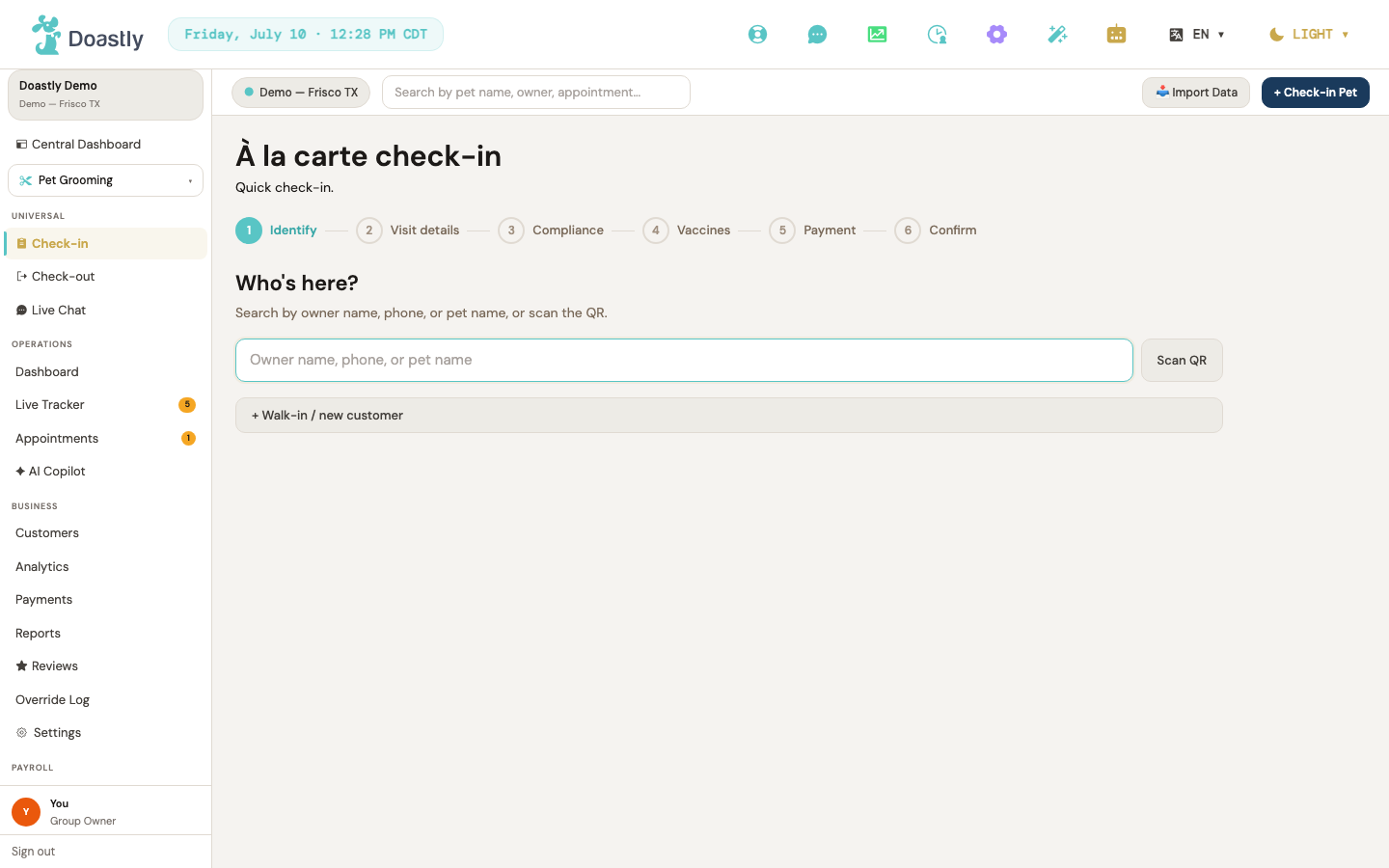
(dark mode also captured)
| Control | What it does |
|---|---|
| Manage subscription → | Shown only when the salon's plan doesn't include Daycare. Opens Settings → Subscriptions so the salon can add it. On a normal (subscribed) load this link never appears and the page auto-forwards to the unified check-in. |
Step 0 — Vertical select
Shown only for salons with more than one active vertical (or an empty subscription). Pick which service types this visit covers; each selected vertical becomes its own tab later in the flow.
| Control | What it does |
|---|---|
| Vertical chip (Grooming / Boarding / Daycare / Mobile) | Toggles a vertical in or out of this visit. One chip appears per vertical the salon is subscribed to. Only the chips you select become tabs in Step 2. |
| Continue → | Advances to the Identify step. Stays disabled until at least one vertical chip is selected. |
| Manage subscription → | Appears only in the empty-subscription guard state. Opens Settings → Subscriptions. |
Step 1 — Identify pet/customer
Find the pet and owner for this visit by search, or create a new record for a walk-in. Selecting a pet advances the flow and starts the compliance preflight.
| Control | What it does |
|---|---|
| Search input (owner name, phone, or pet name) | Searches customers and pets as you type. A hint shows below the minimum character count until enough is entered; matches populate the results list. |
| Scan QR | Placeholder for QR-based lookup; not yet functional. |
| Search result row (per pet) | Selects that pet and advances to the tab flow, firing the compliance preflight. Grayed out with a "Pet already in session" note when the pet has an active session at this location. |
| + Walk-in / new customer | Opens the new-customer-and-pet form. Creates the real customer and pet records, then advances to the tab flow with the new pet. |
| ← Back to vertical selection | Multi-vertical visits only. Returns to Step 0 with the selected verticals and identified pet preserved. |
New-customer-and-pet form (walk-in / new customer)
Opened from the Identify step to register a brand-new customer and their pet inline, without leaving check-in.
| Control | What it does |
|---|---|
| New customer + pet create form (name / phone / pet fields, optional vaccine) | Collects customer and pet details (a pet is required in the walk-in flow). On save, returns the real customer and pet into the check-in flow and closes the form. |
Persistent pet identity + 3-panel shell
Once a pet is identified (and while not on Step 0), a header with the pet's avatar and name stays visible for the rest of the flow, alongside the pet-info panels described below.
| Control | What it does |
|---|---|
| Pet avatar | Shows the pet's photo (or initials fallback) beside the name link. Not interactive. |
| Pet name link (with avatar) | Opens the pet's detail view in a pop-up without leaving the check-in flow. |
Pet Status panel (check-in mode)
A read-only reference panel showing the pet's key safety information and any sessions already in progress.
| Control | What it does |
|---|---|
| (none interactive in check-in mode) | Displays five safety fields — behavior, diet, medication, allergies, and handling — plus a list of the pet's active sessions across verticals. The add-to-visit and start-new-visit row actions are checkout-only and don't appear during check-in. |
Pet Vaccines panel
A read-only vaccine summary for at-a-glance compliance during check-in.
| Control | What it does |
|---|---|
| (none — info-only) | Shows the mandatory vaccine checklist (Rabies, DHPP, Bordetella) plus any extras, each with a green/yellow/red status badge. No actions are available here. |
Pet Documents / Compliance panel
A read-only view of the pet's signed compliance documents, with download access.
| Control | What it does |
|---|---|
| Download (per signed document) | Downloads that signed compliance document securely, with a 10 MB size guard and a plain-English message if the download fails. |
| Retry | Appears only when the compliance status fails to load. Reloads the page to fetch it again. |
Step 2 — Tab flow header (Quick Check-in bar + tab strip)
The header that sits above the per-vertical forms: a quick-path shortcut plus tab navigation across the selected verticals.
| Control | What it does |
|---|---|
| ← Back to pet search | Returns to the Identify step, clearing the identified pet, tab selections, and any green-gate state. |
| ⚡ Quick Check-in (top bar) | Jumps straight to the Confirm step. Enabled only when at least one service or package is selected and compliance and vaccines are both green; otherwise grayed out with an explanatory tooltip. |
| Tab (Daycare / other selected verticals / Review) | Switches the active tab. Shown only for multi-vertical visits (hidden for a single Daycare visit). Verticals appear in alphabetical order with a trailing Review tab. |
| ← Back to vertical selection (tab strip) | Multi-vertical strip only. Returns to Step 0 with the selection and identified pet preserved. |
| ← Back (per-tab, above content) | Moves to the previous vertical tab, keeping data already entered. On the first tab it returns to Step 0. Hidden on the Review tab. |
Daycare tab content
The Daycare-specific portion of the visit: choose services and a yard, optionally set a play group and recurring days, and add notes.
| Control | What it does |
|---|---|
| Service chip (per catalog service) | Toggles a Daycare service into the visit. Multi-select, loaded from the Daycare service catalog. |
| Package chip (per catalog package) | Toggles a Daycare package (multi-day pass) into the visit. Multi-select. |
| Add-on chip (per catalog add-on) | Toggles a Daycare add-on into the visit. Multi-select. |
| Yard (required) | Selects the yard for this visit, listing each yard's name, size, and capacity. Must be chosen before continuing. |
| Play group | Optionally assigns a play group (or leaves the pet one-on-one), chosen from the daycare groups list. |
| Recurring days (Mon–Sun) | Seven individual weekday toggles for a recurring schedule. Leaving them all off means a one-day drop-in. |
| Notes | Free-text field for visit notes such as temperament, allergies for shared treats, or water-play preferences. |
| Continue to Review → / Continue to next vertical → | Advances to the next tab, or to Review if this is the last vertical. Stays disabled until a yard is chosen, and shows an inline error if clicked without one. |
| Retry (resource-fail state) | Appears after a load failure. Re-fetches the yards, groups, and catalog. |
Review tab (cross-vertical summary + compliance roll-up)
A final summary of the visit across all selected verticals before the compliance gates, with the option to submit or abandon.
| Control | What it does |
|---|---|
| ← Back (Review) | Returns to the previous tab with data preserved. Disabled while a submission is in progress. |
| ← Cancel all | Abandons the visit and returns to Step 0. Disabled while a submission is in progress. |
| ⚡ Quick Check-in (Review) | Jumps to the Confirm step. Enabled only when the visit is quick-eligible and no submission is in progress. |
| Continue to Compliance → / Creating sessions… | Submits the visit — creating all selected verticals' sessions together — then chains any staged signatures and advances to the Compliance gate. Disabled unless compliance is OK, a service is selected, and the summaries are populated. |
| Retry (partial-fail state) | Appears after a partial failure or declined payment. Clears the error and lets you resubmit. |
Compliance gate step
This step shows your location's compliance documents for the pet and lets staff capture any missing signatures before the visit continues. Signatures collected here are recorded against the pet.
Collect the signature here — do not rely on this step to stop a check-in. Compliance documents are configured per location, and this step is location-scoped rather than daycare-specific, so a document set up at your location appears during a Daycare check-in too. Treat it as the prompt to collect what is outstanding, not as a hard stop: for Daycare, whether an unsigned mandatory document actually prevents the check-in from completing is not something you should assume — if a document must be signed before a pet joins the group, confirm it is signed here rather than expecting the system to block. Two settings are involved and they are not the same thing: which documents are configured for your location, and whether your location enforces them.
| Control | What it does |
|---|---|
| ⚡ Quick Check-in (gate bar) | Jumps to the Confirm step when eligible; grayed with a tooltip otherwise. This shortcut appears on the Compliance, Vaccines, and Payment gate steps. |
| Sign → (per unsigned mandatory doc) | Opens the signing window for that compliance document. After signing, the status re-fetches and the panel refreshes. |
| Signed-documents list (all-clear state) | Read-only. When no docs are outstanding, lists the already-signed mandatory documents with their signed and expiry dates. No action. |
| ← Back | Returns to the prior step — the à la carte menu for multi-vertical visits, otherwise the Identify step. |
| Continue → / Sign N documents to continue | Acknowledges compliance and advances to the Vaccines gate. The label changes to "Sign N documents to continue" while mandatory documents are outstanding. Do not treat that label as a guarantee the visit cannot proceed — collect the signatures rather than relying on the step to enforce them. |
Sign a compliance document (e-sign window)
Opened from the Compliance gate to capture a signature for a single document.
| Control | What it does |
|---|---|
| Signature capture + submit | Signs the selected document for the pet. On success, closes the window and re-fetches compliance status. |
Vaccines gate step
The second gate: any missing or expired mandatory vaccines must be resolved before continuing.
| Control | What it does |
|---|---|
| ⚡ Quick Check-in (gate bar) | Jumps to the Confirm step when eligible; grayed with a tooltip otherwise. |
| + Add / upload vaccine | Opens the quick-add window to record or upload a missing or expired vaccine inline. The gate re-fetches after adding. |
| Valid-vaccines detail list (all-clear state) | Read-only. When vaccines are clear, lists each present/valid vaccine with its expiry date. No action. |
| Manager override | Lets an Owner, Manager, or Super Admin proceed past an unresolved vaccine issue by recording a required reason plus a signature, which is written to an audit trail. Role-gated — it does not appear for other roles, and it does not appear at all unless the visit has a Daycare attendance attached. If you do not see this control, your salon is on a build that predates it; resolve the vaccine issue to continue. |
| ← Back | Returns to the Compliance step. |
| Continue → / Resolve N vaccine issues to continue | Advances to the Payment step. Stays disabled until vaccine status is clear. |
Inline vaccine add/upload window
Opened from the Vaccines gate to add or upload a vaccine record without leaving check-in.
| Control | What it does |
|---|---|
| Vaccine add/upload form + submit | Adds or uploads a vaccine record for the pet. On success, closes the window, re-fetches the gate, and refreshes the panel. |
Payment pre-auth step
The third gate: optionally place a card hold now, or skip and bill at checkout. This step never blocks check-in.
| Control | What it does |
|---|---|
| ⚡ Quick Check-in (gate bar) | Jumps to the Confirm step when eligible; grayed with a tooltip otherwise. |
| + Add card for pre-auth hold | Reveals the card entry form. Shown only when the salon's card payment gateway is set up. |
| Card input | Collects card details for a pre-authorization hold. |
| Authorize hold / Authorizing… | Creates the payment method and, on success, advances to the Confirm step. |
| Cancel (card form) | Closes the card form without authorizing. |
| ← Back | Returns to the Vaccines step. |
| Skip — bill at checkout | Skips the pre-auth hold and advances to Confirm. Always available — this step never gates check-in. |
Confirm arrival step
The final step: confirm the arrival to create the visit and notify the owner. A success state follows.
If the yard is full, this is where you find out. Confirming a check-in into a yard that already holds its maximum number of pets (set per yard in Settings → Daycare → Yard Management) is refused, with a "Yard is at capacity" message naming the current count and the maximum. To proceed anyway an Owner or Manager must override it and type a reason, which is recorded. Other roles cannot override — they will need to move the pet to another yard or fetch a manager. Note this is the pet count limit, and it is a different thing from the staff:pet ratio warning shown on the dashboard, which does not block anything. A shared database lock (fixed 2026-08, #862) serializes check-in, booking, and reschedule against each other for the same yard and day, so two people checking pets in at the same moment cannot both squeeze past the cap.
| Control | What it does |
|---|---|
| ← Back | Returns to the Payment step. |
| Confirm arrival ✓ / Checking in… | Completes check-in — creates the visit records, updates the live tracker, and sends a single SMS. Disabled while confirming, if no verticals are selected, or if the pet is already checked in. |
| + New check-in | Appears on the success state only. Resets the flow to start a fresh check-in. |
Daycare — Check-out flow
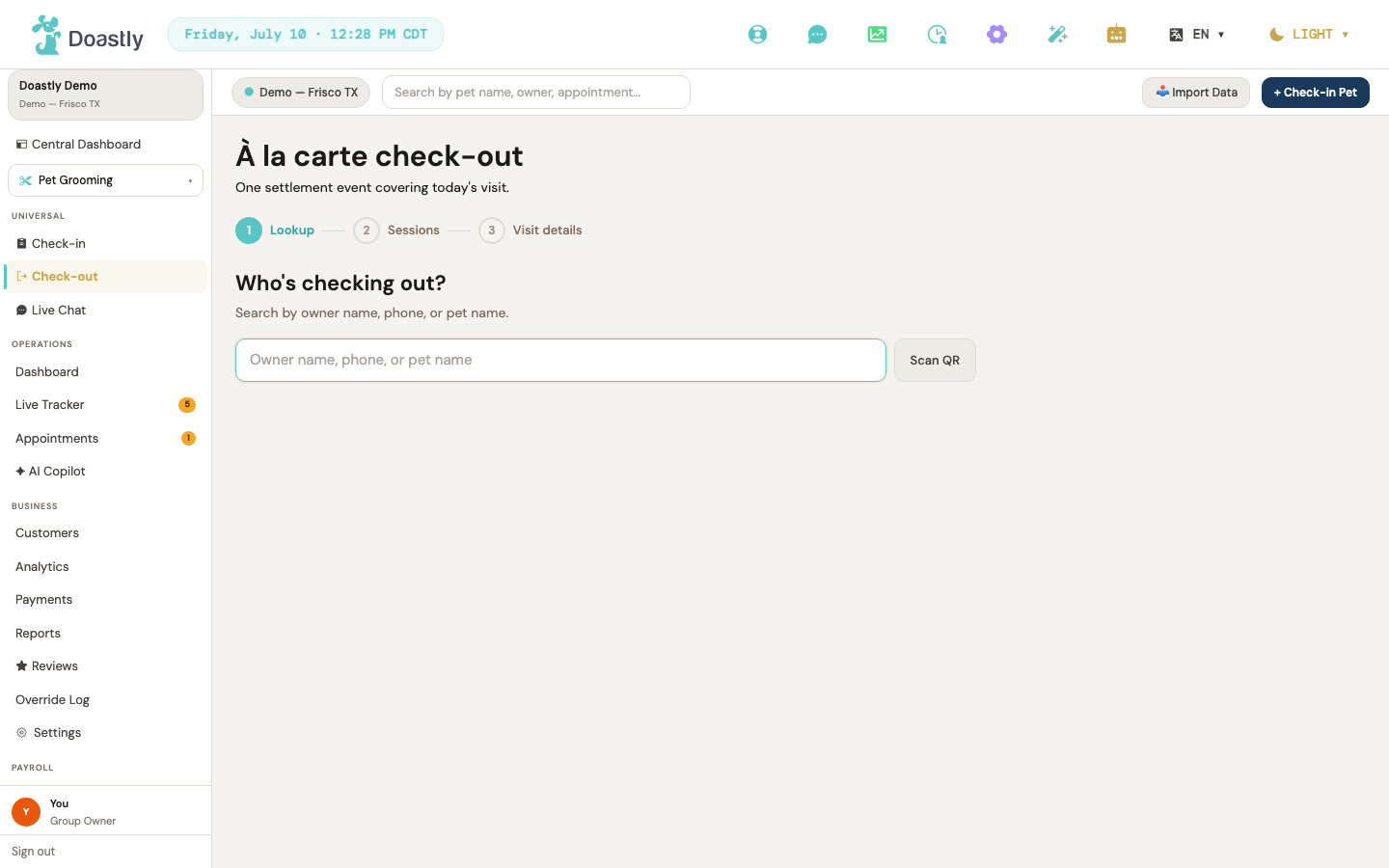
(dark mode also captured)
Daycare Check-out entry (redirect)
The legacy Daycare check-out screen no longer hosts its own view; it forwards staff to the unified Check-Out flow. If the salon isn't subscribed to Daycare, it points them to subscription settings instead.
| Control | What it does |
|---|---|
| Manage subscription → | Shown only when the salon's plan doesn't include Daycare; navigates to subscription settings instead of the flow. |
| (auto) Redirecting spinner | Subscribed state: shows "We unified Check-Out to one screen." with a spinner, then forwards to the unified check-out with Daycare preselected (carrying the session along when one is present) after about a second. |
Step 1 — Lookup (Who's checking out?)
The entry point to the unified flow: find the pet and owner who are checking out. Search by owner name, phone, or pet name and pick a result to continue. Heading: "Who's checking out?".
| Control | What it does |
|---|---|
| Search input (Owner name, phone, or pet name) | Searches customers and pets as you type, once the query passes the minimum length; renders the matching results list. |
| Scan QR | Outline button next to the search box; no action is wired yet (placeholder). |
| Check out (per result row) | Selects that pet and advances the flow to Session select (Step 0). |
| Result row (per pet) | Lists pet name, owner name (parenthesized), phone, and a match badge — "Owner" when matched by customer name, "Phone" when matched by phone; NO badge when matched by pet name. Holds the Check out action. |
| Min-query hint / Searching / error / No matches | Status text below the search: "Type at least N characters to search." (below-min hint), "Searching…", an error message, or "No matches at this location." |
Persistent panels (Pet Status + Documents, read-only)
Once a pet is picked, these two reference panels stay visible alongside every step after Lookup. Both are read-only here — they surface context, not actions.
| Control | What it does |
|---|---|
| Pet Status panel | Shows the pet's cross-vertical active sessions; each session in the Step-0 selection carries a "Selected for check-out" cue. In checkout mode the check-in-only profile fields, Add-to-visit, and Start-new-visit buttons are all suppressed. |
| Pet Documents panel (read-only) | Surfaces vaccine + compliance state for awareness with a "Read-only · Check-out" indicator chip in the title row; Sign and Upload-new-vaccine affordances are hidden — there are no document-fix windows in check-out. |
Progress indicator (necklace beads)
A non-interactive progress marker showing where you are in the check-out flow.
| Control | What it does |
|---|---|
| Lookup / Sessions / Visit details beads | Three beads reflecting the current step (done / current / pending). The Sessions bead is hidden for a single-session zero-overhead check-out. |
Step 0 — Session select (Which sessions are checking out?)
Choose which of the pet's active sessions to close out. Handles the multi-open-session case and lets you back out if there are none. Heading: "Which sessions are checking out?".
| Control | What it does |
|---|---|
| Session chip (per active session) | A checkbox pill that toggles that session in/out of the selection; the Daycare chip shows a sun icon and label. A cross-salon session (at a different location) is disabled with an italic "(at another salon)" note. A checked, non-disabled chip shows a teal ✓ badge. |
| Continue → | Advances to the tab flow; disabled until at least one session is selected. |
| Search another pet | Empty-state action (shown when the pet has no active sessions); resets the flow back to Lookup. |
| Selection count / partial-fail note | Read-only count ("Pick at least one session…" / "1 session selected." / "N sessions selected."), plus an italic advisory footer when a vertical's session lookup failed or was unavailable. |
Tab strip (multi-session only)
When a pet is checking out of two or more verticals at once, this strip lets staff move between each vertical's tab and the final Review tab. It renders ONLY when the Step-0 selection spans 2+ verticals; a single-vertical daycare check-out shows its tab full-width with no strip.
| Control | What it does |
|---|---|
| Vertical tab (Daycare + others) + Review tab | Switches the active tab between each selected vertical and the final Review tab; only rendered when two or more verticals are selected. |
| ← Back to session selection | Returns to Step 0 (Session select), keeping the pet and selected sessions intact. |
Daycare check-out tab (visit details + adjustments)
The Daycare-specific tab: summarizes the day's attendance, then lets staff add tips, discounts, late fees, and notes before moving on. Totals update live. Heading: "Daycare check-out".
| Control | What it does |
|---|---|
| Attendance summary (Yard / Play group / Attendance / Subtotal) | Read-only summary from the attendance record. NOTE: Yard currently shows the internal yard identifier (or "Unassigned") rather than a friendly yard name; Play group shows the play-group name (falling back to an identifier); Attendance shows the date (or start→end range) plus a "(N day/days)" count when present; Subtotal from the recorded amount. |
| Tip mode $ / % toggle | Switches tip entry between a dollar amount and a percent of the subtotal. A tip entered here is charged. It is added to the day's total and taken from the customer with the rest of the bill, so the figure on this screen is safe to quote. Do not also collect the tip in cash or by another route, or the customer pays it twice. One thing to know when handing over the receipt: the tip is currently included inside the day's service line rather than shown as its own "Tip" line, and the receipt's Tip figure reads $0.00 — the amount charged is still correct. |
| Tip percent chips (None / 10% / 15% / 20%) | Shown only in percent mode; sets the tip to subtotal × the chosen percentage. |
| Tip input | Custom tip entry — a dollar amount or a percent value depending on the selected mode; shows a computed "Tip = X.XX" hint in percent mode. |
| Discount input | Manual dollar discount, in dollars. This works — enter the discount here. The amount is taken off the bill before tax is worked out, the customer is charged the reduced total, and the discount appears as its own line on the receipt. A discount larger than the bill simply settles the day at zero rather than going negative. Do not also apply a reduction outside the system, or the customer receives it twice. |
| Late fee block (computed reason / grace note / override) | Shows the grace-period panel, the computed amount, and an override input. The fee is real and is charged. It is worked out at check-out from your location's late-pickup fee settings and the pickup time, added to the day's total, and taken with the rest of the bill — so the figure here is safe to quote. If your location has no late-pickup fee configured, the amount is zero and nothing is added. When a fee applies, the customer is also sent an SMS about it. |
| Notes textarea | Heading "Notes"; placeholder "Drop-off completion notes (e.g. pet behavior at hand-off)." Operator-internal condition/drop-off notes saved with the check-out. |
| Behavioral observation textarea | Daycare-specific internal note ("Energy level, group play notes, any incidents…"). |
| Running total preview | Read-only live total: subtotal + tip + late fee − discount, with an inline breakdown. |
| Retry (resource-fail) | Appears if the attendance fetch fails; re-fetches the attendance summary. Shown inside a red error panel with the friendly error message. |
| ← Back | Returns to Step 0 (Session select). |
| Continue → / Continue to Review → | Advances to the next vertical's tab, or reads "Continue to Review →" when Daycare is the last selected vertical. |
Review & complete tab
The final step: confirm the totals, choose how the customer is paying, and complete. Errors and partial failures surface here. Heading: "Review & complete".
Read the total on this screen before you quote it. Both adjustments are carried into what the customer pays: a discount comes off before tax, and a late-pickup fee is added at check-out from your location's settings. Read the grand total here rather than adding the pieces up yourself, and quote the figure this screen shows.
| Control | What it does |
|---|---|
| Selection summary table | Per-session rows ("{Vertical} · {descriptor}" + per-row breakdown + line total) plus a totals footer. NOTE: the footer always renders Subtotal, Tax, Grand total; Tip / Late fee / Discount rows render only when greater than zero. Tax is $0.00 today (settlement charges no tax). An italic advisory shows if the quote failed to price any selected session. |
| Payment method pills (Stripe terminal / Square terminal / Cash / Check / Split) | Selects the payment method. A single contextual note renders under the pills for the selected method only (Stripe/Square/Split have notes; Cash/Check have none). When Stripe is selected but no card reader is paired, the Stripe pill shows a "⚠" and disabled guidance replaces the note. |
| pair one in Settings → Payment | Appears when Stripe is selected but no reader is paired; links to the payment settings. |
| ← Back | Returns to Step 0 (Session select). |
| Complete check-out · <grand total> | Card methods (Stripe / Square / Split) route to the payment capture screen; Cash and Check complete immediately. Disabled while submitting/capturing or when Stripe is selected with no paired reader; shows "Completing…" in progress. |
| Payment declined panel | Plain-English error surface shown when completion fails with a non-partial error. |
| Partial-fail panel | Shown when a check-out partially fails: lists failed sessions with the per-session error, plus charge status, refund status, and retry guidance. |
| Computing summary / aggregation-error | "Computing summary…" while the quote loads, or a red error surface if the quote fails. |
Payment capture (card / split)
For card and split payments, this screen sits between Review and completing the check-out. Heading: "Capture payment".
This screen's Capture button does not itself charge the card. It waits a moment and shows a confirmation, then hands the check-out on — the confirmation is a placeholder, not a receipt from your gateway. Do not read it as proof that money moved. What actually happens next depends on whether a card pre-authorisation was taken at check-in: Either way the day is never closed silently unpaid: you get a completed check-out with the money captured, or a visible error and no charge. - A pre-authorisation was taken at check-in — the real charge is the capture of that pre-authorisation, made through your own Stripe or Square account as the check-out completes. The money is genuinely taken this way. - No pre-authorisation was taken — the check-out is refused and nothing is charged. The message you see is "The card details couldn't be read. Please re-enter the card and try again." That message is misleading: the card is not the problem, and re-entering it will not help. Take the payment by another means — cash, or your gateway's own terminal — and record it, or check the pet in again so a pre-authorisation is taken. In practice, expect the second case. No daycare check-in in this system's history has ever completed with a pre-authorisation on file — check-in does not currently collect a card by default, so the "refused" path is what actually happens today, not an edge case. Either way the day is never closed silently unpaid: you get a completed check-out with the money captured, or a visible error and no charge.
| Control | What it does |
|---|---|
| Total display | Read-only grand-total card for the single capture against the pre-authorization. |
| ← Back | Returns to the Review tab. |
| Capture <total> → | Shows a placeholder confirmation after a moment, then submits the check-out. The button itself does not contact your gateway — see the note above for what is charged and when. Disabled while running, showing "Capturing…". |
Success panel (checkout complete)
Confirmation that the check-out is done.
| Control | What it does |
|---|---|
| Success summary + closed-session list | Read-only confirmation: "<pet> checked out", the total settled + vertical count, each closed session with its charged amount by vertical, and the receipt id (shown only when present). |
| + New check-out | Resets the whole flow back to Lookup to start another check-out. |
Single-vertical tab placeholder (fallback)
A fallback tab body shown when a selected vertical has no resolved session. Daycare rarely reaches this because it has its own full tab.
| Control | What it does |
|---|---|
| Back to session selection / Continue | Placeholder body when a vertical tab is active but no matching session is resolved; Back returns to Step 0, Continue moves to the next tab. |
Check-out — Retail Ring-up Section
Appears inside the Daycare tab when Retail is enabled, letting you add products to the sale before settling.
| Control | What it does |
|---|---|
| Search products… input | Filters the product pick list by name or SKU. |
| Product pick chip (per product) | Adds that product to the retail cart, or increments its quantity if already present. |
| Remove cart item (✕) | Removes a product line from the retail cart. |
| Add N items to checkout / Add items to cart | Rings up the cart, attaching the products to the visit's bill. Disabled when the cart is empty; shows a confirmation on success. |
Windows & Forms — Daycare
Daycare Check-Out window (pickup-time)
A full-screen overlay that captures the pickup time when a checked-in pet leaves for the day. Opened from the roster's per-pet Check Out button.
| Control | What it does |
|---|---|
| Window overlay | The dimmed full-screen backdrop that holds the check-out card; appears when check-out is triggered. |
| "Check Out Pet" title | The window heading. |
| Pet · Owner header chip | Shows the pet's name and owner name for the attendance being checked out (read-only; only shown when a pet is set). |
| Pickup Time | A time input that sets the pickup time. Confirm stays disabled until a time is entered. |
| Cancel | Closes the window and clears the selected attendance; no changes saved. |
| Confirm | Records the check-out (saves the pickup time) and reloads the roster. Disabled while saving or before a time is entered; shows "Saving..." during the save. |
_Note: unlike the Yard Board Log Activity window, this overlay does NOT close on outside-click — only Cancel dismisses it._
Daily Report Form (Daycare report-card editor)
The report-card editor for a checked-in pet's day — activities, meals, mood, and notes. Opened from the roster's per-pet Report button. This is an inline form rendered on the daycare page below the roster (not a full-screen overlay). Saving generates an AI narrative for the day.
| Control | What it does |
|---|---|
| "Daily Report: {petName}" heading | Titles the form with the selected pet's name. |
| Activity chips: Play / Nap / Swim / Training / Socialization | Multi-select chips; tap each to add or remove that activity from the day's activity list. |
| Ate breakfast (AM meal) | Checkbox marking that the pet ate the morning meal. |
| Ate dinner (PM meal) | Checkbox marking that the pet ate the evening meal. |
| Meal notes | Optional free-text note about the pet's meals. |
| Mood picker: Excellent / Good / Anxious / Unwell | Emoji buttons; pick one to set the pet's mood for the day (defaults to Good). |
| Social Interaction: Social / Selective / Shy / Aggressive | Pick one to record how the pet interacted with others (defaults to Social). |
| Incidents or Notes | Optional free-text field for incidents or additional notes. |
| Save Report | Saves the report and waits up to 30 seconds for the AI-written day narrative, then dismisses the form. Disabled and shows "Saving..." while in progress. |
_Note: the form has no Cancel/close button. Once opened, the only way to dismiss it is to submit (Save Report)._
Roster action triggers (open the windows above)
The per-group and per-pet buttons on the daycare roster that launch check-in, reporting, and check-out. Which buttons appear depends on the pet's status.
| Control | What it does |
|---|---|
| + Add Pet (per group) | Intended to add a pet to the group — not yet functional. Only shown when the add-pet action is available. |
| Check In (per pet, scheduled) | Sends you to the unified check-in flow for daycare. Only shown for Scheduled pets. |
| Report (per pet, checked-in) | Opens the inline Daily Report Form for that pet. Only shown for Checked In pets. |
| Check Out (per pet, checked-in) | Opens the Daycare Check-Out window for that pet. Only shown for Checked In pets. |
_Note: for Checked Out / Absent / Cancelled statuses, no per-pet action buttons appear._
Yard Board — Log Activity window
On a yard's Live Yard Board, each pet card can log a live activity (nap, play, feed, incident, and so on). Opened from a pet card's + Log button.
| Control | What it does |
|---|---|
| + Log (per pet card) | Opens the Log Activity window for that pet. |
| Activity Type dropdown | Selects the activity type: Nap, Play (Group), Play (Solo), Feed, Meds, Accident, Incident, or Notable Moment. |
| Caption (optional) | Optional free-text note describing the logged activity. |
| Cancel | Closes the window without saving; clicking outside the window also closes it. |
| Save | Saves the activity to the pet's attendance, refreshes the board, and closes the window. Disabled and shows "Saving…" while saving. |
| ← Back (page header) | Leaves the yard board and returns to the previous screen. |
_Note: the Live Yard Board (with this Log Activity window) is its own working route. Yard create and edit are also working forms (fixed 2026-07-09) — reach them from Settings → Yard Management → Add / Edit._
Daycare Packages admin form (Settings → Packages & Passes)
The salon-side screen for creating and managing daycare packages and multi-day passes. Add and edit happen in an inline form.
| Control | What it does |
|---|---|
| ← Back | Returns to the previous screen. |
| + Add Package | Opens a blank inline form to create a new package. |
| Name * | Sets the package name (for example, "10-Day Pass"). Required. |
| Price (USD) * | Sets the package price in dollars. Required (must be 0 or greater). |
| Pass Count (blank = unlimited) | Sets how many passes the package includes; leave blank for unlimited. |
| Validity (days) * | Sets how many days the package stays valid. Required. |
| Cancel (form) | Closes the inline form without saving. |
| Create / Update (form) | Validates name and price, then creates or updates the package, shows a confirmation toast, and reloads the list. Disabled and shows "Saving…" while saving. |
| Deactivate / Activate (per package) | Toggles the package's active state. Correction, live-confirmed 2026-08-19: clicking Deactivate genuinely flips is_active to false (DB-verified), but the deactivated row then disappears from this list entirely rather than staying visible with an Activate control -- no "show inactive" toggle was found this pass. In practice this makes Activate and Delete unreachable through this screen once a package is deactivated; Delete was not independently exercised as a result. |
| Edit (per package) | Prefills the inline form with the package's details in edit mode. |
| Delete (per package) | Deletes the package after a confirmation prompt, then reloads the list. |
Attendance Record action bar (pay/refund/receipt window controls)
The action bar on a single daycare attendance record — resend documents, print, or refund. Some actions are limited by role and audience.
| Control | What it does |
|---|---|
| Back | Returns from the record to the previous screen. |
| Email Report Card | After a confirmation prompt, resends the day's report card by email (salon audience only). |
| Email Receipt | After a confirmation prompt, resends the receipt by email (salon audience only). |
| Prints the current record (available to all audiences). | |
| Refund | Prompts for a reason, then issues a FULL refund of the remaining amount on the attendance (no partial-amount input). Salon audience only, and enabled only when the role can refund (Owners and Managers); otherwise shown disabled with a tooltip. |
Checkout (shared flow) — Daycare attendance summary panel
The read-only summary shown on the shared checkout screen when checking out a daycare attendance. Payment controls come from the shared checkout, not this panel.
| Control | What it does |
|---|---|
| Attendance summary panel | Read-only block showing the yard (currently the internal yard identifier, or "Unassigned"), play group, attendance days and dates, and subtotal. No interactive controls; payment and receipt options are handled by the shared checkout payment picker. |
PetFamily Daycare Booking — Step 2 Slot & Pay (new booking / pay form)
The customer-facing booking step where a pet family picks the day type and how to pay. Part of the daycare booking flow in the PetFamily portal.
| Control | What it does |
|---|---|
| Day type: Full Day / Half Day | Pick one to choose the slot; the matching full-day or half-day price is shown. Full Day is labelled "7am – 6pm", Half Day "AM or PM pickup". |
| Pay per day | Radio option — charges the card on file for the selected day's price. |
| Use active pass (per pass) | Radio option — redeems an active multi-day pass instead of paying (shown as "Free"); only active passes with remaining sessions (or unlimited) appear. |
| Browse packages to save | Links to the PetFamily daycare packages page; shown when there are no active passes. |
| ← Back | Returns to the previous booking step. |
| Review booking → | Advances to the confirmation step (Step 3). |
PetFamily Daycare Packages (package purchase surface)
The customer-facing list of available daycare packages in the PetFamily portal. Online purchase is not yet available — customers ask the salon to add a pass at check-in.
| Control | What it does |
|---|---|
| ← Back (header) | Returns to the previous screen. |
| Buy (per package) | Disabled — online purchase is coming soon; the tooltip directs customers to ask their salon to add a pass. |
| "✓ You have this" badge (per owned package) | Shown in place of Buy when the customer already holds an active pass for that package. |
_Also present but not a control: a "Your Active Passes" section shows above the available packages when the customer holds active passes, plus a footer note directing customers to contact the salon to purchase._
Global chrome (top bar + sidebar)
The persistent frame that surrounds every salon screen. It stays fixed as you move between pages and gives you always-available access to navigation, search, location and vertical context, display preferences, and support.
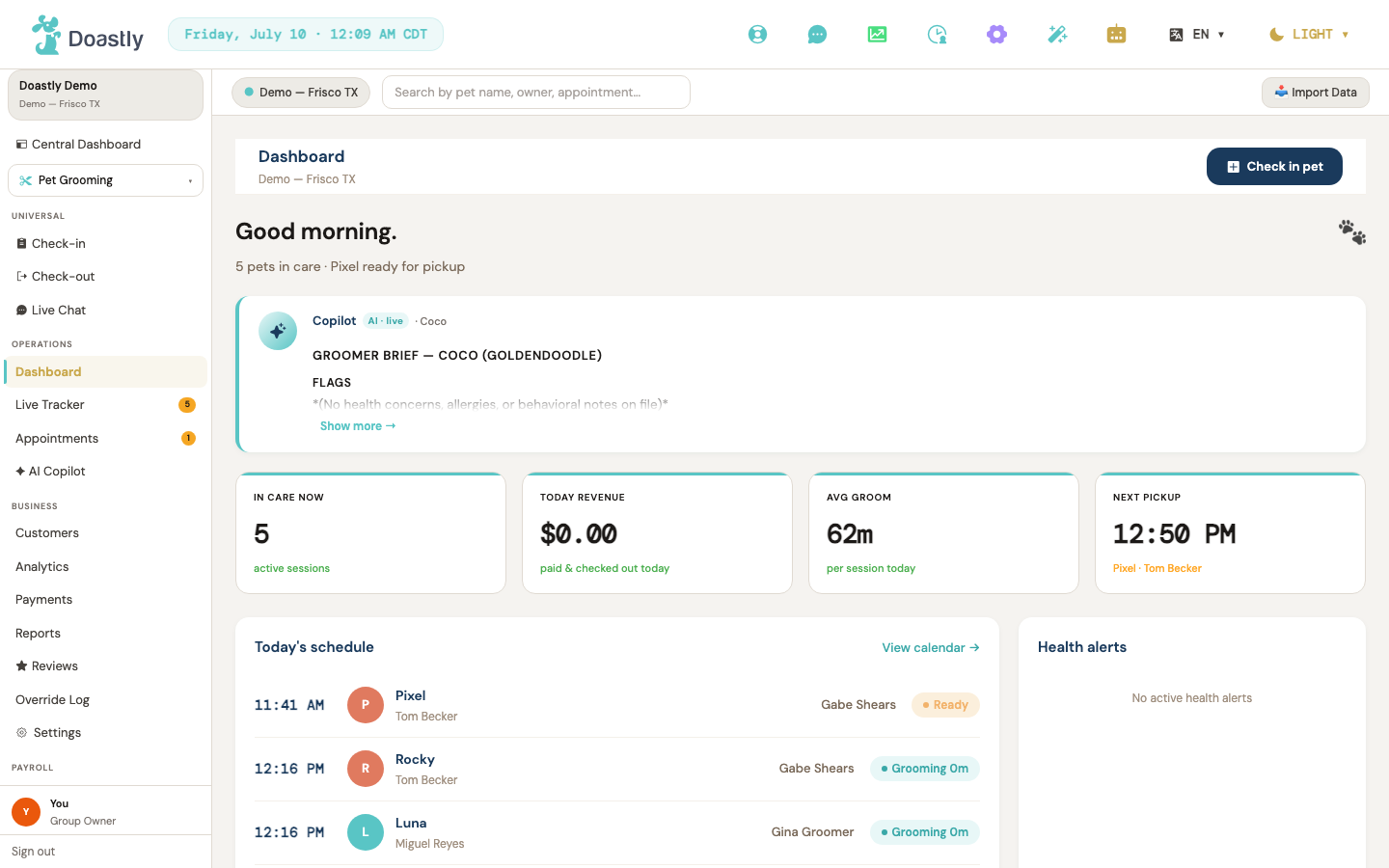
(dark mode also captured)
Top system bar
The full-width bar across the very top of every salon screen. It holds brand identity, the current date and time, quick-access utility icons, and global preference switches.
| Control | What it does |
|---|---|
| Doastly logo | Brand logo; display only, not clickable. |
| Today's date · time pill | Shows the current date and time in the active location's timezone, refreshing automatically every 60 seconds. Display only. |
| Get Help (lifebuoy icon) | Opens the Get Help / Contact Support window so you can create a support ticket. |
| Live Chat (chat-circle icon) | Opens the live chat inbox. |
| Analytics (chart icon) | Opens grooming analytics. |
| Staff Clock (clock-user icon) | Opens the staff clock. The badge shows a live count of clocked-in staff, updated every 60 seconds. |
| Settings (gear icon) | Opens location settings. |
| Setup Wizard (magic-wand icon) | Opens the setup wizard overlay. |
| AI Companion (robot icon) | Shows a brief "AI Companion coming soon" message; no navigation yet. |
| Language switcher (translate icon + current code ▾) | Shows the current language code (EN or ES) and opens a menu to switch the interface language between English and Español. Your choice is saved to your profile and the page reloads to apply it. |
| Display mode (sun/moon icon + current mode ▾) | Shows the current display mode (LIGHT or DARK) and opens a menu to change it. Your choice is remembered for future visits. |
| Light / Dark / Auto (mode menu items) | Sets the chosen display mode. Auto follows your device's light/dark setting. |
Secondary bar
The bar directly beneath the system bar. It anchors your active location, a global search box, and the two most common quick actions.
| Control | What it does |
|---|---|
| Location switcher pill (● name ▾) | For owners with more than one location, opens a menu to switch the active location. Single-location users see a static identity pill instead. |
| All Locations (menu row) | Switches to a combined, cross-location view and refreshes the page. |
| \<Location name\> (menu rows) | Selects that location as active and refreshes the page. Each row shows the city and state, with a checkmark on the current location. |
| Search by pet name, owner, appointment… (input) | A search box for pets, owners, and appointments. Note: the input is not yet connected to a live search — typing does not yet return results. |
| 📥 Import Data | Import Data button. Note: currently a placeholder — the button appears but has no action yet (no import flow). |
| + Check-in Pet | Goes to the check-in page for your active vertical. Hidden on the dashboard, which has its own check-in button. |
Left navigation — Grooming
The left-hand navigation for the Grooming vertical. It groups your links into sections — Universal, Operations, Business, Payroll, Platform — and adapts to your role and enabled add-ons. Items you don't have permission to use are hidden.
| Control | What it does |
|---|---|
| Salon group card (name + location) | Shows your salon group name and active location. Display only. |
| Central (layout icon) | Opens the cross-location dashboard. |
| Vertical switcher pill (icon + label ▾) | Opens a menu of your enabled verticals — Grooming, Boarding, Daycare, Mobile, Training, AI Marketing — to switch the active one. |
| \<Vertical\> (switcher menu items) | Switches to that vertical. Your choice is remembered, and the active one is marked "✓ Active". |
| UNIVERSAL section header | Section label. Display only. |
| Check-in | Opens the universal check-in flow. Hidden for groomer, bather, and driver roles. |
| Check-out | Opens the universal check-out flow. Hidden for groomer, bather, and driver roles. |
| Live Tracker (universal) | Opens the cross-vertical tracker. Shown only for salons running more than one vertical. |
| Live Chat | Opens live chat. |
| Operations section header | Section label. Display only. |
| Dashboard | Opens the grooming dashboard. |
| Live Tracker (badge = live count) | Opens the grooming Live Tracker. The amber badge shows the number of live sessions. Hidden for the driver role. |
| Appointments (badge = pending count) | Opens the appointment calendar. The amber badge shows the number of pending appointments. |
| ✦ AI Copilot (badge = proposal count) | Opens the AI Copilot. The teal badge shows the number of AI proposals. Hidden for groomer, bather, and driver roles. |
| Business section header | Section label. Display only. Hidden for groomer, bather, and driver roles. |
| Customers | Opens the customer list. Requires client-viewing permission (owner, manager, receptionist). |
| Analytics | Opens grooming analytics. Requires analytics permission (owner, manager). |
| Payments | Opens grooming payments. Requires payments permission (owner, manager). |
| Reports | Opens grooming history and reports. Available to owners, managers, and receptionists. |
| Reviews (star icon) | Opens reviews. Available to owners, managers, and receptionists. |
| Override Log | Opens the checkout override log. Owners and managers only. |
| Settings (gear icon, grooming) | Opens grooming settings. Owners and managers only. |
| Payroll section header | Section label. Display only. |
| Staff Clock | Opens the staff clock. |
| Platform section header | Section label. Display only. Managers and owners only. |
| Billing (credit-card icon) | Opens billing. |
| Settings (platform) | Opens platform settings. |
| Salon Setup (gear icon) | Opens the setup wizard at the first step. |
| Pickup / Drop-off (truck icon) | Opens delivery settings. Shown when pickup & drop-off is enabled. |
| Pickup Dispatch (van icon) | Opens pickup dispatch. Shown when pickup & drop-off is enabled. |
| Loyalty & Rewards (medal icon) | Opens loyalty. Shown when loyalty is enabled. |
| Retail Inventory (bag icon) | Opens retail. Shown when retail inventory is enabled. |
| 🎨 Salon Theme | Opens the theme picker. |
| User footer card (avatar + name + role) | Shows your avatar, name, and role. Display only. |
| Sign out | Signs you out and returns you to the login screen. |
Get Help / Contact Support window
Opened from the lifebuoy icon in the system bar. Use it to file a support ticket without leaving your current screen.
| Control | What it does |
|---|---|
| × (close) | Closes the window. |
| Subject (input) | The short title for your support ticket. |
| Category (select) | Choose the ticket type: bug, how-to, billing, account, outage, or feature request. |
| What's happening? (textarea) | A full description of your issue. |
| Attachments (file input) | Attach one or more screenshots or files to the ticket (images, PDF, or text, up to 10 MB each). |
| Cancel | Closes the window without submitting. |
| Submit request | Stages any attachments and submits your ticket, then shows a confirmation with the new ticket ID. |
| Done (success state) | Closes the window after your ticket has been created. |
Owner Dashboard
Owner Dashboard (main landing page)
The main landing page an owner sees after logging in — a header action for check-in plus four at-a-glance KPI cards summarizing the day.
(dark mode also captured)
| Control | What it does |
|---|---|
| Check in pet | Primary header button; opens the grooming check-in flow. |
| In care now (KPI card) | Shows the count of pets actively being worked on — those checked in and those being groomed. A pet that is finished and waiting for its owner is not counted here; it appears under Next pickup instead, and on the Live Tracker's "Ready for pickup" tile. This is deliberate, so "in care" and "ready" never double-count the same pet. Note that the Live Tracker's own header count, shown as "N active", is a different figure: it also includes pets that are ready for pickup. So whenever a pet is waiting to be collected, the Tracker's "active" count reads higher than this card — that is expected, not an error. Display only. |
| Today revenue (KPI card) | Shows today's collected revenue in dollars, or "—" if unavailable. Display only. |
| Avg groom (KPI card) | Shows the average groom time in minutes, or "—" if unavailable. Display only. |
| Next pickup (KPI card) | Shows the next ready-for-pickup time with the pet and customer, or "No pets ready" when none are waiting. Display only. |
Setup Incomplete Banner
A conditional banner that appears while onboarding is unfinished — that is, when the setup wizard is in progress, not yet started, or skipped. It guides the owner back into the remaining setup steps.
| Control | What it does |
|---|---|
| × (Dismiss) | Hides the banner for the current session. It reappears in your next session. |
| Set up → | One button per unfinished step; opens the onboarding wizard directly at that step. |
Copilot Card (AI insight widget)
An AI-generated brief that surfaces the day's key insights. Appears only when a brief is available.
| Control | What it does |
|---|---|
| Show more → / Show less ↑ | Expands or collapses the brief between a short preview and the full text. Your choice is remembered for next time. |
Today's Schedule Section
The left-column view of the day's appointments.
| Control | What it does |
|---|---|
| View calendar → | Intended to open the calendar. Not yet active. |
Right Column — Health Alerts / Subscription
The right-column panels covering pets with health-document alerts and your subscription status. There is no separate "Revenue today" panel here — today's revenue lives in the Today revenue KPI card at the top of the page, which carries the cash/card/refunds breakdown. It was deliberately consolidated so only one Revenue Today figure exists on the dashboard and the two can never disagree.
| Control | What it does |
|---|---|
| View all (N) → | Health-alerts header link, shown when alerts exist. Not yet active. |
| View | Per-row button beside each pet with expired health documents. Not yet active. |
Recent Activity Feed
A running log of recent salon activity, with a manual refresh.
| Control | What it does |
|---|---|
| Refresh ↺ / Refreshing… | Re-fetches the activity feed. The label reads "Refreshing…" while the update is in progress. |
Grooming — Live Tracker
Live Tracker — Page Header & Controls
The top of the tracker board, where you refresh the view and filter sessions by groomer. The board also auto-refreshes every 60 seconds. Below the header the page also shows (all read-only, no controls): a Statistics metric strip (In care now, Ready for pickup, Completed today, Avg groom time, Avg kennel time), a Legend action-icon guide, and — when the location runs the Pickup & Drop-off add-on — a Transport lane listing pickup and drop-off delivery legs beneath the session board.
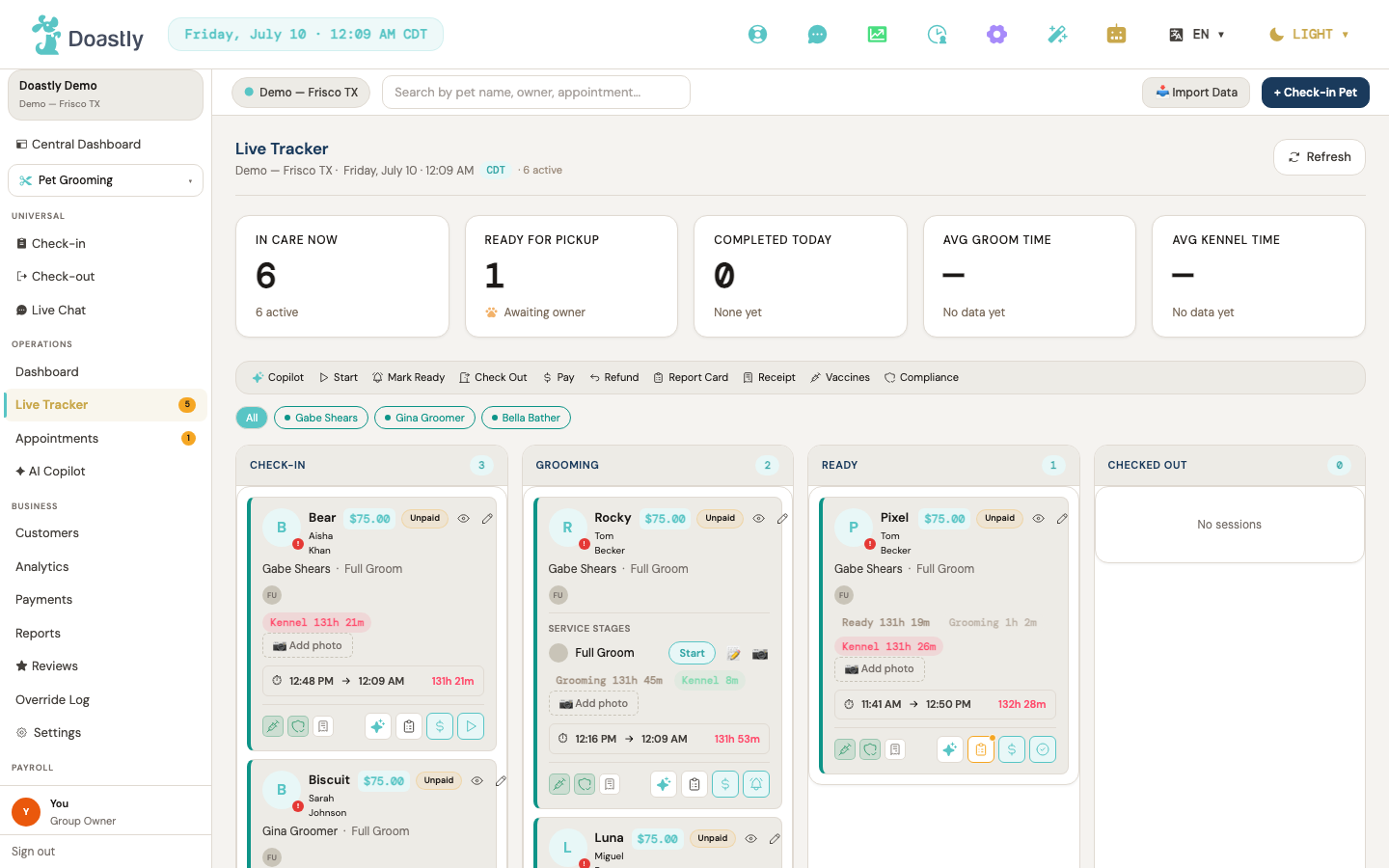
(dark mode also captured)
| Control | What it does |
|---|---|
| Refresh | Manually refetches the session board. Disabled with a spinner while loading. |
| All (groomer filter) | Clears the groomer filter so sessions from all groomers show. |
| \<Groomer name\> chip | Toggles the board to show only that groomer's sessions; click again to clear. One chip appears per groomer who has a session. |
| Unassigned | Toggles the board to show only sessions with no groomer assigned. Only appears when at least one session is unassigned. |
Live Tracker — Status Board (4 columns)
The main board, arranged as four status columns. Each column lists its pets as cards and shows a live count in its header (and a "No sessions" empty state when the column is empty).
| Control | What it does |
|---|---|
| Check-In column | Lists checked-in sessions as pet cards, with a live count badge in the header. |
| Grooming column | Lists in-progress (grooming) sessions as pet cards, with a live count. |
| Ready column | Lists ready-for-pickup sessions as pet cards, with a live count. |
| Checked Out column | Lists checked-out sessions as pet cards, with a live count. |
Live Tracker — Pet Card (per-session card)
Each pet's session appears as a card in its status column. The card carries every action for that session — status advancement, payment, checkout, report cards, and quick links into the pet's profile. It also surfaces non-interactive at-a-glance info: a payment-status badge, an allergies warning, a special-handling note, necklace beads, an elapsed-time bar, and (when present) a kennel-time badge.
| Control | What it does |
|---|---|
| Pet card body | Click anywhere on the card to select it (teal outline). |
| View pet profile (eye icon) | Opens the pet's profile at Pet Detail. |
| Edit session (pencil icon) | Opens or closes the inline edit panel. Hidden for checked-out and cancelled sessions. |
| Allergies icon (⚠, red) | Hover-info status icon shown when the pet has recorded allergies; the tooltip shows the allergy text. Not clickable — informational only. |
| Vaccine status icon | Colored badge (green / amber / red) showing vaccine status; click to view the vaccine records on Pet Detail. |
| Compliance signed (shield icon) | Green shield shown when documents are signed; click to open the compliance section on Pet Detail. |
| Compliance expired (file-alert icon) | Amber file-alert shown when documents are expired or need re-signing; click to open Pet Detail. |
| View itemized receipt (receipt icon) | Opens the itemized receipt for this session. |
| View full record (arrow-square-out) | On checked-out cards, opens the full session record. |
| Copilot brief (sparkle icon) | Opens the per-card Copilot drawer for this pet. Dimmed when Copilot is unavailable. |
| Report Card (clipboard icon) | Opens the report card for this session. A dot badge shows in-progress (amber) or complete (green). |
| Pay ($ icon) | Opens the payment window to take payment for this session. Shown when payment is due. |
| Check Out (circle-check icon) | Opens the checkout gate — a zero-balance, payment, and compliance-aware checkout flow. This is the ONLY checkout surface; there is no separate "advance to checked-out" button. |
| Issue refund (arrow-back-up icon) | Opens the refund window to refund a paid session. |
| Advance status (play / bell icon) | Advances the session to its next status — Start (check-in → grooming, play icon) sends the Grooming Started SMS to the pet owner, or Mark Ready (grooming → ready, bell icon) sends the Pet Ready SMS. Triggers the per-stage compliance sign gate if documents are missing. No advance button appears at the Ready status — use Check Out instead. |
| Add photo / N photos | Dashed pill button that opens the photo capture window for before, mid, and after session photos. |
Live Tracker — Pet Card Inline Edit Panel
Opens from the pencil icon on a card. Lets you reassign the groomer and adjust the package and add-on services on the session. (A Total line is shown for verification when the computed total is above $0 — read-only.)
| Control | What it does |
|---|---|
| Groomer | Dropdown to reassign the session's groomer (Unassigned plus groomer-role staff). |
| Package (radio) | Radio-select an active service package; click the selected one to deselect. Bundled add-ons are stripped automatically. |
| Service (checkbox) | Toggles an add-on service on the session. Bundled services show a read-only "Included" state. |
| Set up service catalog → | Shown when no active services exist; opens Services settings. |
| Save / Saving… | Saves the groomer, package, and service edits. Shows a saving state while it works. |
| Cancel | Closes the panel without saving. |
Live Tracker — Pet Card Service Stages (DETAILED mode)
Shown only when the location runs in DETAILED tracker mode and the session is in grooming. Lets the groomer advance each individual service and attach a note or photo per stage. Advancing a service stage never sends an SMS.
| Control | What it does |
|---|---|
| Start / Complete (per service) | Advances that service through its stages: pending → in progress → done. |
| Add note (📝 per service) | Opens or closes an inline note input for that service stage. |
| Add photo (📷 per service) | Opens the file picker (10MB limit) to upload a photo attached to that service stage. |
| Stage note input | Text field for the per-service stage note. |
| Save (stage note) | Saves the stage note. |
| Stage photo file input | Hidden image file input triggered by the per-service 📷 button. |
Live Tracker — Copilot Side Drawer
Opens from the sparkle icon on a card. Shows the AI Copilot brief for that pet — flags, breed tips, and today's notes — drawn from the 24-hour cached brief. When the session has a special-handling note, it is surfaced prominently at the top of the drawer (amber, above the brief).
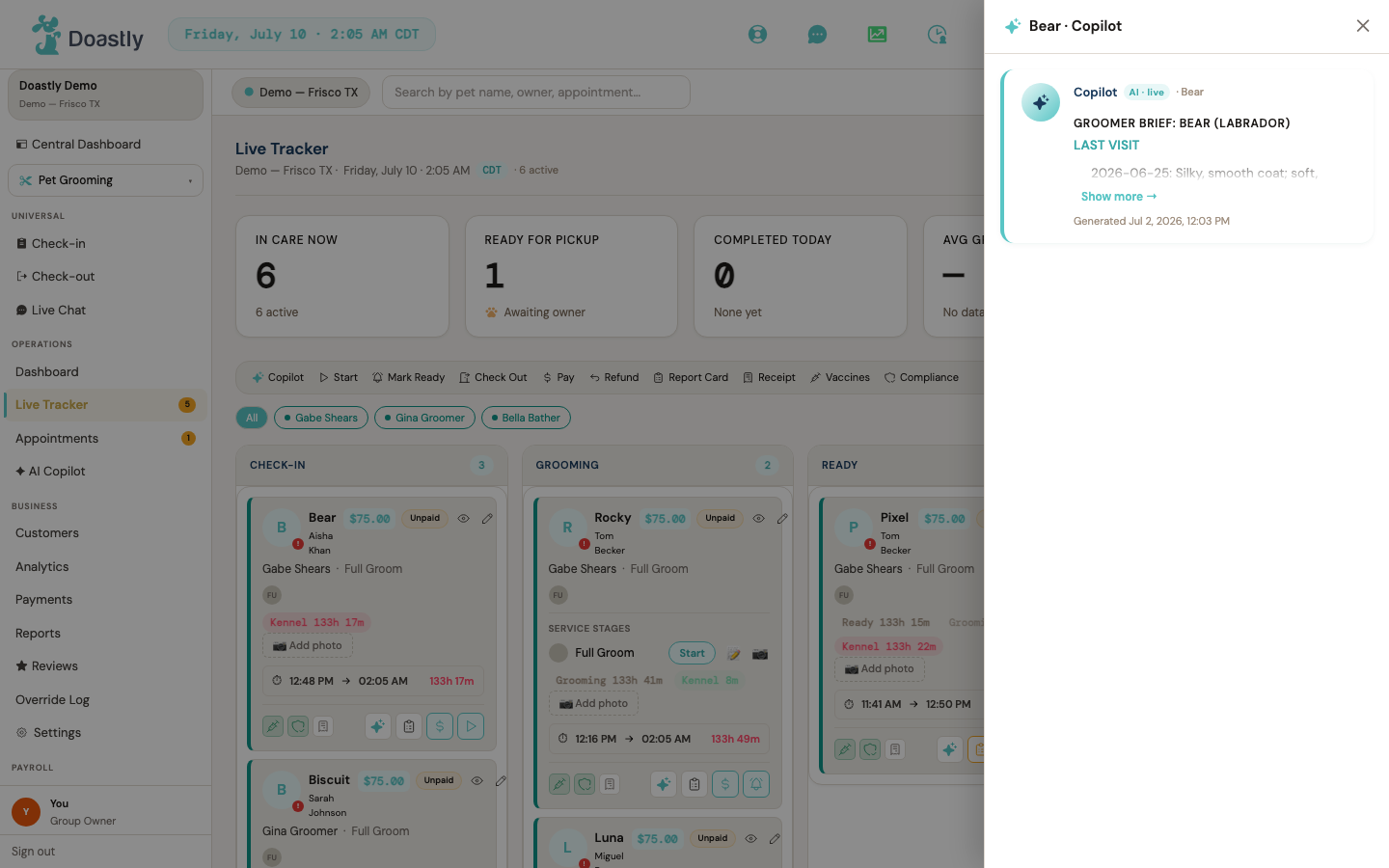
(dark mode also captured)
| Control | What it does |
|---|---|
| Dimmer overlay | Click the dark backdrop to close the drawer. |
| Close (✕) | Closes the Copilot drawer. |
| Copilot brief card | Shows the Copilot brief (FLAGS / BREED TIPS / TODAY) for the pet. |
Live Tracker — Checkout Gate Window
Opens from the Check Out action on a card. Guides checkout based on the session's state — settling a zero balance, taking payment, or resolving compliance before the pet can leave.
| Control | What it does |
|---|---|
| Close (✕) | Closes the checkout gate. |
| Close (error state) | Dismisses the window after a checkout error. |
| Confirm checkout (zero payment) | Settles a $0-due session, then checks it out. |
| Cancel (zero payment) | Closes the window from the zero-payment banner. |
| Take payment | Closes the gate and opens the payment window for the amount due. |
| Manager override (payment gate) | Advances to the payment-override PIN and reason step. |
| Cancel (payment gate) | Closes the window from the payment-required banner. |
| Sign documents | Loads the missing compliance templates and opens the signing flow. Shown only when documents are missing. |
| Manager override (compliance gate) | Advances to the compliance-override PIN and reason step, when an override is allowed. |
| Cancel (compliance gate) | Closes the window from the compliance-issues banner. |
Live Tracker — Manager Override Step (PIN + reason)
The override flow reached from a payment or compliance gate. A manager enters their PIN, selects a reason, and applies the override so checkout can proceed. Every override is recorded for audit.
| Control | What it does |
|---|---|
| Back (PIN misconfigured) | Returns to the prior gate when a PIN is required but no manager PIN is configured (blocked state). |
| Manager PIN input | Numeric PIN field (digits only, up to 8). Locks after 3 failed attempts. |
| Verify / Verifying… | Verifies the entered PIN. |
| Back (PIN step) | Returns to the gate banner from PIN entry. |
| Reason | Required select of a preset override reason (payment or compliance list, plus Other). |
| Notes | Optional free-text notes for the override audit record. |
| Apply (override) | Submits the override — reason, notes, and verified PIN — and proceeds to checkout. |
| Back (reason step) | Returns to the gate banner from the reason and notes step. |
Appointments & Calendar (Grooming)
The grooming calendar is where salon staff book, view, and manage appointments. It offers Day, Week, and Month views over a shared appointment set, with a booking window for creating and editing bookings and a bottom workspace for reviewing appointment detail.
Calendar Toolbar / Page Header
The toolbar sits at the top of every calendar view. It controls which view is shown, moves through dates, starts a new booking, and filters the calendar by groomer.
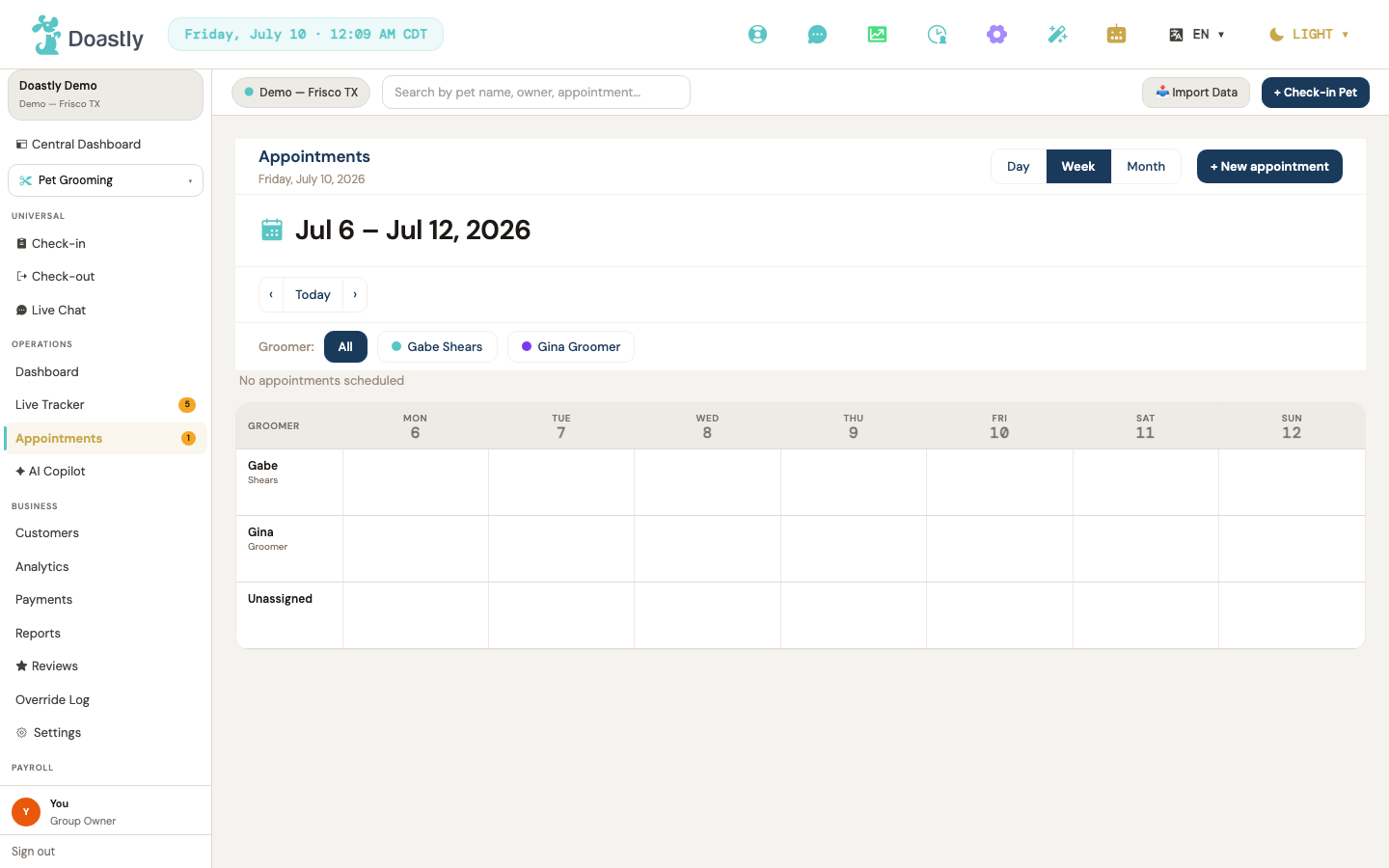
(dark mode also captured)
| Control | What it does |
|---|---|
| Day (view toggle) | Switches the calendar to Day view — a single-day timeline with one column per groomer. |
| Week (view toggle) | Switches to Week view — a grid of groomers across seven days. This is the view the calendar opens in. |
| Month (view toggle) | Switches to Month view — a full-month grid. |
| + New appointment | Opens the Booking window in create mode to book a new appointment. |
| ‹ (previous) | Moves to the previous day, week, or month depending on the current view; from the Today view it drops back to Day. |
| Today | Jumps to today's date and switches to the Today view. |
| › (next) | Moves to the next day, week, or month depending on the current view; from the Today view it drops back to Day. |
| All · {count} (groomer filter) | Clears any groomer filter so every groomer's appointments show. |
| {Groomer name} · {count} (per-groomer pill) | Filters the calendar to a single groomer; clicking the active pill again clears the filter. |
| Unassigned · {count} | A read-only count of appointments with no groomer assigned (not clickable). |
Week View
Week View lays out groomers against a seven-day grid. Empty cells offer a quick booking start, and appointment cards can be dragged between groomers and days to reschedule.
| Control | What it does |
|---|---|
| Day column header (Mon 12 … Sun) | Opens Day view focused on that date. |
| Empty cell (+ Book hint) | Opens the Booking window prefilled to that day at 9:00 AM. (The clicked row's groomer is NOT carried into the window — only the date is prefilled.) |
| Appointment card (draggable) | Drag a pending or confirmed appointment onto another groomer × day cell to reschedule it, keeping the same time of day. |
| Week drop cell | The drop target that reschedules a dragged appointment to that day and groomer at the same local time. |
| Mini appointment card | Renders each appointment with click-to-edit and inline action icons (see Mini Appointment Card below). |
Mini Appointment Card
The compact appointment card shown inside Week View cells. Clicking it opens the appointment for editing, and status-specific action icons let staff confirm, cancel, reschedule, or check in without leaving the calendar.
| Control | What it does |
|---|---|
| Card body (pet name / time / service / total / status) | Opens the appointment in the Booking window edit view. |
| Confirm (check-circle icon) | Pending appointments only: opens a confirmation prompt, then confirms the appointment and notifies the customer. |
| Cancel (x-circle icon) | Pending or confirmed appointments: opens a confirmation prompt, then cancels the appointment and notifies the customer. |
| Reschedule (calendar-blank icon) | Pending or confirmed appointments: opens the edit Booking window directly, with no confirmation step. |
| Check in (door-open icon) | Today's actionable (pending/confirmed) appointments only: opens a confirmation prompt, then checks the pet in and routes to the tracker. |
Month View
Month View shows the whole month in a full-month grid. Clicking any day or appointment opens the bottom workspace to review that day's bookings.
| Control | What it does |
|---|---|
| Day cell | Opens the bottom workspace in split mode, listing that day's appointments. |
| Appointment pet-name pill (in-cell, up to 3 shown) | Opens the bottom workspace in split mode for that day with this appointment selected in the detail pane. |
| +{n} more | Opens the bottom workspace in split mode showing the full day's appointment list. |
| Day appointment-count badge | A read-only teal circle showing the number of appointments that day. |
Day View
Day View is a per-groomer timeline for a single day. Appointment blocks can be dragged onto 30-minute time slots to reschedule, or clicked to open their detail.
| Control | What it does |
|---|---|
| Appointment block (draggable) | Pending or confirmed appointments: drag onto a time slot in any groomer column to reschedule; the drop snaps to a 15-minute grid (:00, :15, :30, or :45 depending on where in the 30-minute slot it lands). |
| Appointment block (click) | Opens the bottom workspace detail pane for that appointment. |
| Time slot (drop target) | The drop zone for each 30-minute slot per groomer column; dropping an appointment here reschedules it to that groomer and to the nearest 15-minute mark within the slot. |
Bottom Workspace — Detail / Split panel
The bottom workspace slides up beneath the calendar to show appointment detail. In split mode it pairs a day list with a detail pane; in detail mode it shows a single appointment.
| Control | What it does |
|---|---|
| ✕ Close workspace | Closes the bottom workspace panel. |
| Appointment list (split-mode left list) | The filterable day appointment list; selecting a row shows it in the detail pane (see Appointment List Panel below). |
| Appointment detail (detail pane) | Shows the selected appointment's detail and action buttons (see Appointment Detail Panel below). |
Appointment List Panel
The left list in split mode. It shows the day's appointments and can be narrowed by groomer, pet, customer, or phone; selecting a row loads it into the detail pane.
| Control | What it does |
|---|---|
| All groomers (filter dropdown) | Filters the day's list by groomer. |
| Pet name (filter input) | Filters the list by pet name (case-insensitive, matches any part of the name). |
| Customer name (filter input) | Filters the list by customer name (case-insensitive substring). |
| Phone (filter input) | Filters the list by customer phone number (substring match). |
| Appointment row | Selects that appointment into the detail pane on the right. |
Appointment Detail Panel
The detail pane shows a single appointment and the actions available for its current status. Cancellation uses an inline two-step confirm to prevent accidental cancels.
| Control | What it does |
|---|---|
| Check In | Today's actionable (pending/confirmed) appointments: starts check-in and routes to the tracker. |
| Approve | Pending appointments only: confirms the appointment and notifies the customer. |
| Reschedule | Pending or confirmed appointments: opens the Booking window reschedule flow. |
| Cancel | Pending or confirmed appointments: reveals the inline cancel-confirm step. |
| Yes, cancel | Confirms the cancellation and notifies the customer. |
| Keep | Aborts the cancel-confirm step and leaves the appointment unchanged. |
Booking Window (Create / Reschedule / Edit)
The booking window handles creating a new appointment as well as rescheduling and editing an existing one. It captures the customer, pet, date and time, services, groomer, and notes, and warns before booking over a groomer conflict. In reschedule and edit modes the Customer field is shown as a read-only chip (and, in reschedule mode, the Pet is a read-only chip) rather than a search/select.
| Control | What it does |
|---|---|
| ✕ (close) | Closes the booking window without saving. |
| Backdrop click | Clicking outside the window closes it. |
| Customer Search | Create mode only: search for and select a customer, or start a new-customer create (see Customer Search Field below). In reschedule/edit mode this is replaced by a read-only customer chip. |
| Pet (dropdown) | Create/edit mode: selects which of the customer's active pets the appointment is for. In reschedule mode the pet is shown as a read-only chip. |
| + Add Pet | Opens the Add Pet window when the selected customer has no active pets (create mode). |
| Date (date input) | Sets the appointment date; triggers a same-day conflict check (create/reschedule; not edit mode). |
| Time (dropdown) | Selects the appointment time from 30-minute slots between 6:00 AM and 6:00 PM. |
| Package pill (📦 {name}) | Selects or deselects a service package as a single unit; selecting one clears any bundled services from the add-on list. |
| Service pill ({name} $price) | Toggles an individual add-on service on or off; services already bundled into a package cannot be toggled. |
| Groomer (dropdown) | Assigns a groomer, or leaves it as "Any available". |
| Status (dropdown, edit mode) | Edit mode only: sets the appointment status to pending, confirmed, or cancelled; choosing cancelled triggers a confirm step. |
| Back (cancel-confirm) | In the edit cancel-confirm step: aborts marking the appointment cancelled. |
| Confirm Cancel | In the edit cancel-confirm step: saves the appointment with a cancelled status. |
| Notes (textarea) | Free-text special instructions for the appointment (create and edit modes). |
| Vaccine Records (optional) — collapsible | Create mode: an expandable section showing the selected pet's vaccine records (see Booking Vaccine Section below). |
| Cancel (groomer-conflict) | Dismisses the groomer-unavailable warning without booking. |
| Book Anyway | Overrides the groomer schedule conflict and submits the booking. |
| Cancel (footer) | Closes the window without saving. |
| Book Appointment / Reschedule / Save (primary submit) | Submits the booking — creating, rescheduling, or updating as appropriate. Label is 'Book Appointment' (create), 'Reschedule', or 'Save' (edit); while submitting it shows 'Booking…' / 'Rescheduling…' / 'Saving…' and is disabled. Disabled until a customer and pet are chosen. |
Customer Search Field
Inside the booking window in create mode, this field finds an existing customer or starts a new one. Search matches on owner name, phone, or pet name.
| Control | What it does |
|---|---|
| Customer Search (input: owner name, phone, or pet name) | Searches customers and pets as you type (minimum two characters). |
| Search result row (pet + owner + phone) | Selects that customer for the booking. |
| + Add New Customer | On no results: starts the inline new-customer create flow using the text you typed. |
Booking Vaccine Section
A collapsible section inside the booking window (create mode) for reviewing the selected pet's vaccine records.
| Control | What it does |
|---|---|
| Vaccine Records (optional) — expand/collapse | Expands or collapses the section; opening it loads the pet's vaccine records and shows them in the standard vaccine record view. |
Last Visit Banner
Shown inside the booking window in create mode (once a pet is selected and a prior session exists), this banner surfaces the pet's last visit so staff can repeat it in one click.
| Control | What it does |
|---|---|
| Book Same | Pre-fills the same groomer and services from the pet's last visit. |
Confirm Action Window
A shared two-step confirmation used by the mini card's icon actions (confirm, cancel, and check in). It requires an explicit confirmation before the action runs.
| Control | What it does |
|---|---|
| Backdrop click | Dismisses the confirmation without acting. |
| Cancel | Closes the confirmation without acting. (This shared confirmation always uses the label "Cancel" for the dismiss button; the "Keep" label belongs to the Appointment Detail Panel's separate inline cancel-confirm.) |
| Yes, confirm / Yes, cancel / Yes, check in | Runs the confirmed action — confirm, cancel, or check in — matching the icon that opened it. |
Inline Customer + Pet Create
Chained from "+ Add New Customer", this flow creates a customer and their first pet without leaving the booking window. Because the booking flow requires a pet, it runs in a pet-required mode: after the customer is created it advances directly to the Add Pet form.
| Control | What it does |
|---|---|
| ✕ (close, customer phase) | Closes the inline create flow. |
| New customer form | The customer create form; on success it advances directly to the Add Pet form (pet-required booking flow). |
| Add Pet form | Creates the customer's first pet; on success the customer + pet are returned to the booking. Closing it mid-flow abandons the pet step (the created customer row remains for later lookup). |
(dark mode also captured)
AI Copilot
The AI Copilot surfaces AI-generated proposals — operational, service, and relationship actions the system recommends for your salon — and gives your team a controlled way to approve, adjust, or dismiss them. A Copilot brief also appears inline on the Dashboard, and each pet card on the Live Tracker offers a Copilot brief drawer, so groomers see guidance in context.
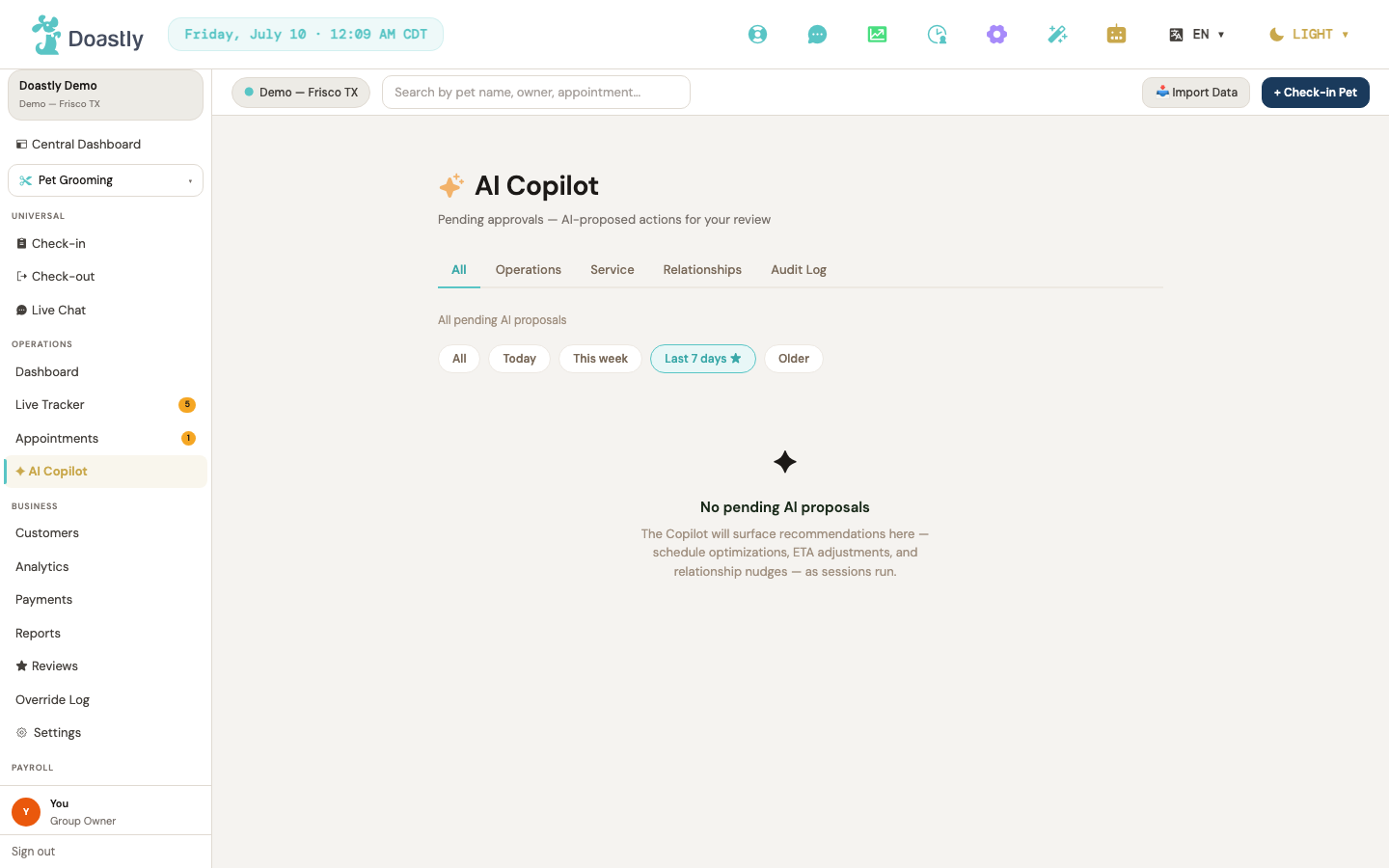
(dark mode also captured)
AI Copilot — Proposal Inbox (main page)
The landing page for the Copilot, where pending proposals are organized by category and a read-only audit trail is available.
| Control | What it does |
|---|---|
| All | Shows all pending AI proposals across every category. |
| Operations | Filters the inbox to Operations proposals — schedule and groomer assignments. |
| Service | Filters the inbox to Service proposals — in-session guidance and ETA adjustments. |
| Relationships | Filters the inbox to Relationships proposals — visit nudges, milestone drafts, and re-engagement. |
| Audit Log | Switches to the read-only audit log of approved, dismissed, and overridden proposals. |
AI Copilot — Proposal Inbox list
Within a selected category tab, this list shows the matching proposals with date-range filters and pagination.
| Control | What it does |
|---|---|
| All | Date-range filter: shows proposals created within the last 30 days; resets the page and archived view. |
| Today | Shows proposals created since the start of today. |
| This week | Shows proposals from the last 7 days. |
| Last 7 days ★ | Default filter: shows proposals from the last 7 days. |
| Older | Shows proposals older than 7 days, and reveals the archived toggle. |
| Show archived (older than 30 days) / Hide archived (>30 days) | Text toggle (available only under the Older filter): reveals or hides proposals older than 30 days. |
| ← Prev | Goes to the previous page of proposals (disabled on the first page; 20 per page). |
| Next → | Goes to the next page of proposals (disabled on the last page). |
AI Copilot — Proposal Card
Each pending proposal appears as a card with the actions your team can take on it.
| Control | What it does |
|---|---|
| Approve | Approves the proposal, executes the AI-proposed action, and refreshes the inbox. |
| Override | Opens the inline override form so you can edit the proposed value before submitting. |
| Dismiss | Dismisses the proposal and refreshes the inbox. |
AI Copilot — Proposal Override Form
The inline form opened from a card's Override button. Its fields vary by proposal type; edit the value, then submit or cancel. (For action types that don't support override, an informational message is shown in place of the fields.)
| Control | What it does |
|---|---|
| New time slot | Date-and-time picker (Operations proposals): sets the overridden appointment or schedule time. |
| New delta (minutes) | Number field (Service / ETA proposals): overrides the pickup ETA delta, in minutes. |
| Edit SMS draft sent to owner… | Text area (Service / ETA proposals): edits the SMS draft message sent to the pet owner. |
| Edit message draft… | Text area (Relationships proposals): edits the relationship or nudge draft message. |
| Submit override | Submits the overridden value and closes the form. |
| Cancel | Closes the form without submitting. |
AI Copilot — Audit Log
Opened from the Audit Log tab, this read-only table records proposals your team has acted on, with filters to narrow the history.
| Control | What it does |
|---|---|
| 7 days | Date-range filter (default): limits rows to proposals acted on in the last 7 days. |
| 30 days | Limits rows to the last 30 days of acted-on proposals. |
| All time | Shows all acted-on proposals, with no time bound. |
| All / OPS / SVC / REL | Type filters: narrow rows by proposal category (All, Operations, Service, Relationships). |
| All / approved / dismissed / overridden / failed | Status filters: narrow rows by outcome. |
AI Copilot — Dashboard Copilot Brief Card
A Copilot brief shown on the salon Dashboard, giving at-a-glance AI guidance for the most-recent active session.
| Control | What it does |
|---|---|
| Show more → / Show less ↑ | Expands or collapses the brief; your preference is remembered between visits. |
AI Copilot — Per-Pet-Card Copilot Brief & Drawer
On the Live Tracker, each pet card offers a Copilot action that opens a side drawer with that session's full brief. (This is the only Copilot surface on the grooming Live Tracker; there is no separate top-of-tracker Copilot panel in the current build.)
| Control | What it does |
|---|---|
| Copilot brief (✨ sparkle icon) | Opens the side drawer with the Copilot brief for that pet's session; available on pet cards in any status. |
| AI Copilot not available (✨ sparkle, disabled) | Disabled sparkle shown when Copilot isn't available for that card's context. |
| ✕ (Close) | Closes the Copilot drawer (clicking the backdrop also closes it). |
| Show more → / Show less ↑ | Expands or collapses the pet's full brief inside the drawer; your preference is remembered between visits. |
Customers (list + detail) — Grooming vertical
Customers List
The main directory of every customer at your location. Cards are laid out in a grid, filterable by vaccine status, with a phone-lookup search and a shortcut to create new customers.
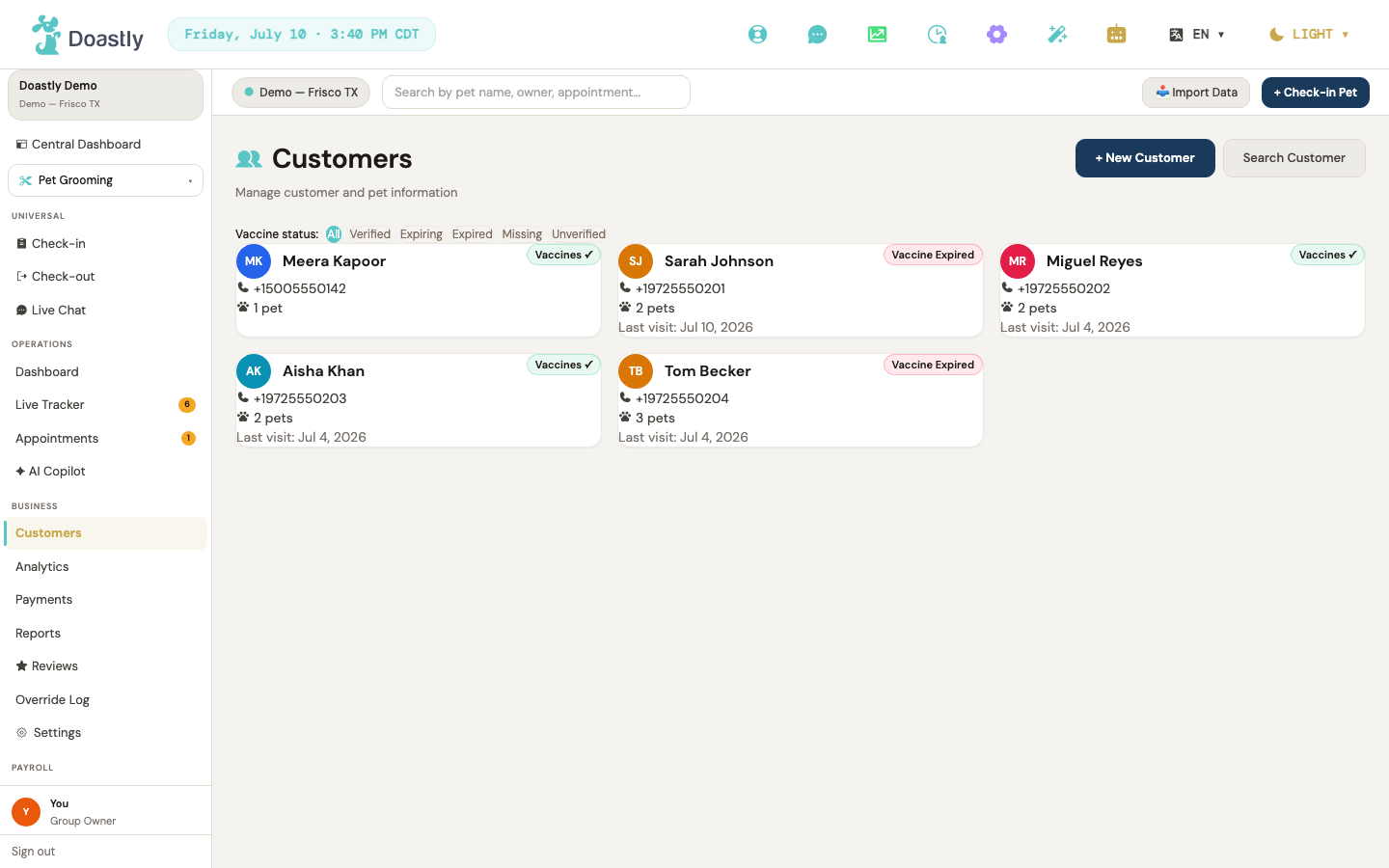
(dark mode also captured)
| Control | What it does |
|---|---|
| Stats header (Total Customers / Active 30D / Avg Pets per Family / Churn Risk) | Four read-only summary tiles above the list. Active 30D also shows an engagement percentage; Churn Risk shows a "No visit 60+ days" sub-label. Display only. |
| + New Customer | Opens the New Customer / Pet Create window, where you can add a customer and optionally chain straight into creating their first pet. On success the list re-fetches and you're routed to the new customer's detail page. |
| Search Customer / Hide search (toggle) | Shows or hides the phone-lookup search panel below the header. The label flips between "Search Customer" and "Hide search." |
| Vaccine filter chips (All / Verified / Expiring / Expired / Missing / Unverified) | Filters the grid to only customers matching the selected vaccine status. |
| Sort (dropdown, e.g. "Last visit (newest)") | Sorts the customer list; sits beside the search input. |
| N of M count | Shows how many customers match the active filter out of the total, whenever a filter other than "All" is applied (display-only). |
| Search customers (empty state) | When the list is empty and no filter is active, opens the phone-lookup search panel. |
| Clear filter (empty state) | When no customers match the active vaccine filter, resets the filter back to "All." |
| Retry (error state) | Reloads the page after the customer list fails to load. |
| Customer card | Each card represents one customer; clicking it opens that customer's detail page. |
Customer Search Panel (phone lookup)
A slide-out panel for finding a customer by phone number, with a fallback to create a new one if there's no match.
| Control | What it does |
|---|---|
| Search by phone (input) | Enter a customer's phone number to look them up. |
| Search (submit) | Runs the lookup and shows matching customer result cards. |
| Result card | Each matched customer links to their detail page. |
| Add new (no result) | Appears when no customer matches the phone number; starts the new-customer flow. |
New Customer / Pet Create Window
A guided window for creating a customer, then optionally adding their first pet in the same flow. It moves through a customer step, a decision point (shown only when a pet is optional), and (if chosen) a pet step. This same window backs the Customers-list "+ New Customer" button, the walk-in check-in flow, and the calendar booking flow.
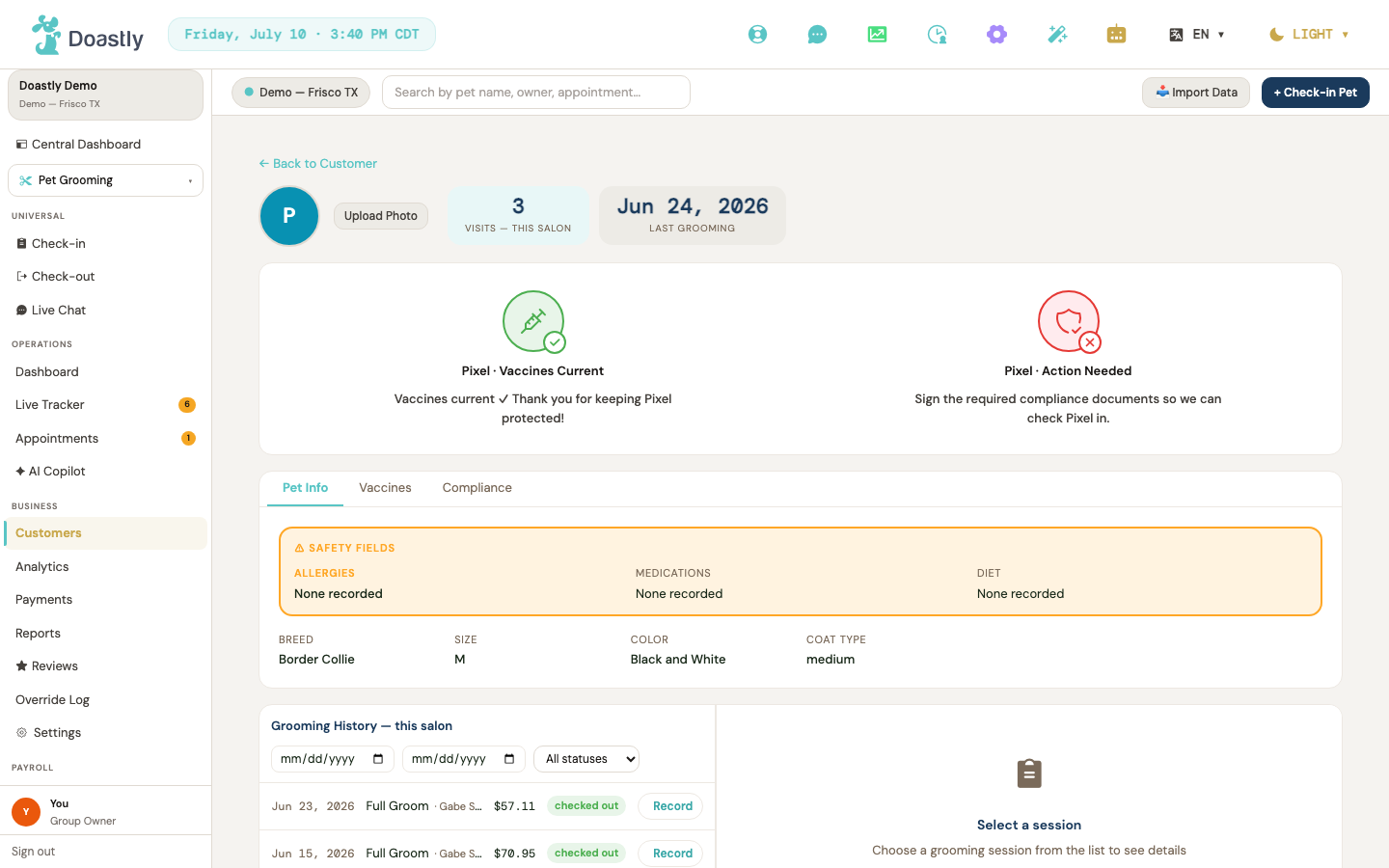
(dark mode also captured)
| Control | What it does |
|---|---|
| Close (✕) | Closes the window and resets the flow back to the customer step. |
| **First Name / Last Name / Phone / Email (fields)** | Customer details — ALL FOUR are required (submit is blocked otherwise). The phone number auto-formats to (xxx) xxx-xxxx when you leave the field, and shows an inline "Please enter a 10-digit US phone number." message on blur if it isn't 10 digits. |
| Cancel | Cancels creation and closes the window. |
| Save Customer → | Saves the new customer, then advances to the pet step (when a pet is required) or the add-a-pet decision point (when optional). |
| Finish without pet | Completes the flow with the customer only, no pet added (decision-point step, optional-pet mode only). |
| + Add a pet → | Advances to the pet step, opening the Add Pet form for this customer. |
Add Pet Window
The full pet-creation form, shared between the new-customer flow (both the Customers-list "+ New Customer" chain and the calendar/walk-in flows) and the "+ Add pet" action on a customer's detail page. Covers identity, physical details, and safety/care notes.
| Control | What it does |
|---|---|
| Close (✕) | Closes the Add Pet window without saving. |
| Photo circle / Upload Photo | Opens the file picker to attach a pet photo (JPG, PNG, WebP, or HEIC, up to 10 MB). |
| Change Photo / Remove | Once a photo is chosen, re-pick a different one or clear it. |
| Pet Name \* | The pet's name (required). |
| Gender (♂ Male / ♀ Female) | Selects the pet's gender; tap the same option again to clear it. |
| Date of Birth | Date picker capped at today. |
| Color | Dropdown of preset coat colors. |
| Breed | Searchable breed picker, with an "Other (not AKC recognized)" option for typing a custom breed. |
| Coat Type | Dropdown of coat types (Short, Medium, Long, and so on). |
| Weight (lbs) | Numeric weight; automatically shows a size badge with range (e.g. "📏 Medium (26–50 lbs)") plus a "Size is auto-detected from weight." caption. |
| Neutered / Spayed (Unknown / Yes / No) | Three-way status selector. |
| Allergies / Medications / Diet / Behavioral Notes | Free-text safety and care notes. |
| Behavior Tags | Catalog-driven multi-select chooser for behavior tags. |
| Add Pet → | Saves the pet, then uploads the photo if one was chosen. |
| Retry Photo / Skip Photo | If the pet saved but the photo upload failed, retry the upload or continue without a photo. |
Customer Detail — Header & Profile
The top of a customer's page: their identity, photo, and the main actions for booking and check-in. (A display-only "Copilot" AI card also appears under the profile card — no interactive control. It is badged "Copilot · AI · live"; its AI insights populate once this customer has active grooming sessions, and until then it shows a placeholder.)
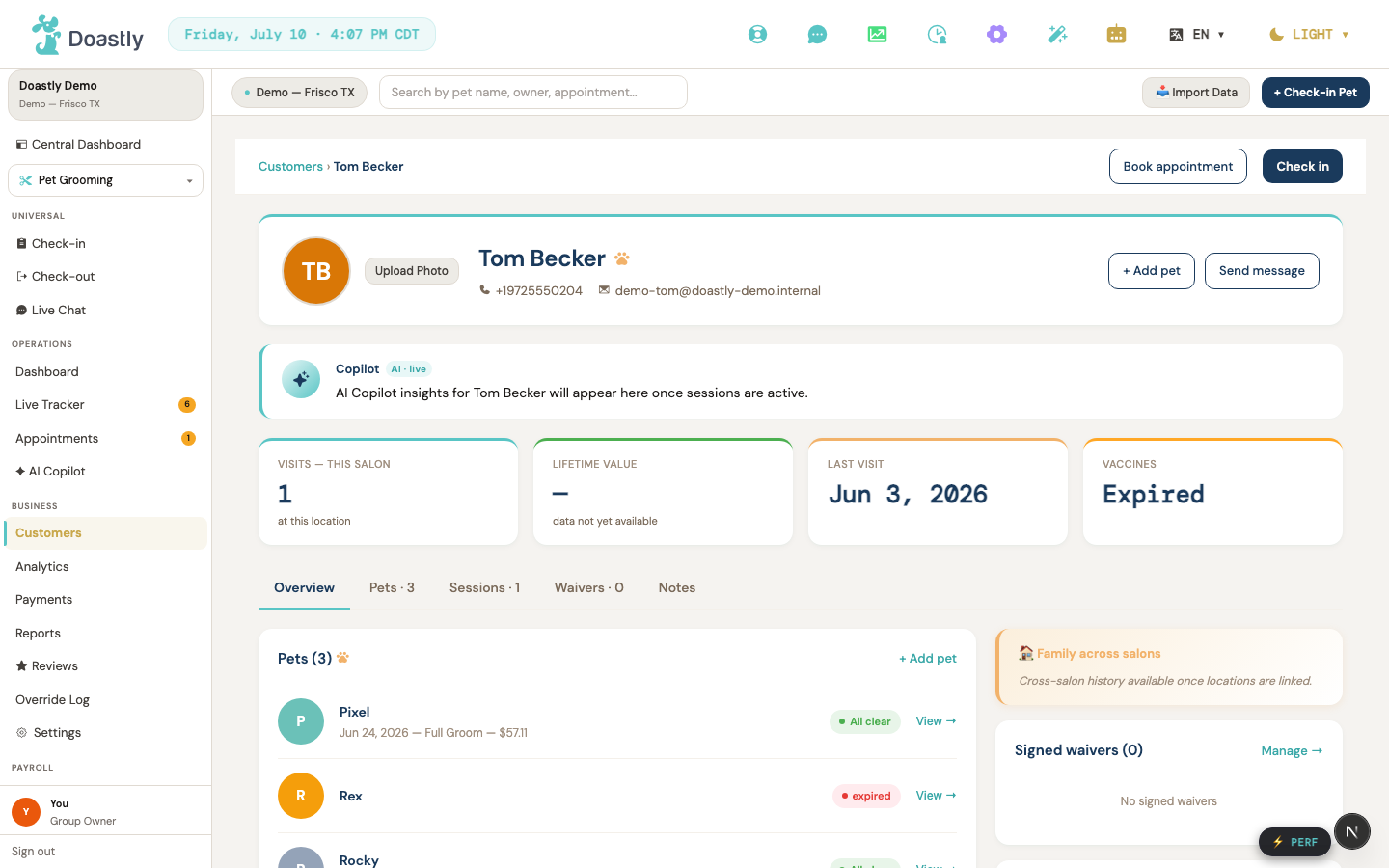
(dark mode also captured)
| Control | What it does |
|---|---|
| Customers (breadcrumb) | Navigates back to the customers list. |
| Book appointment | Top-bar action button (not yet active — placeholder). |
| Check in | Navigates to the grooming check-in flow. |
| Customer avatar | Click the avatar or its side buttons to upload, change, or remove the customer's photo. |
| + Add pet (profile card) | Opens the Add Pet window for this customer. |
| Send message | Profile-card action button (not yet active — placeholder). |
Customer Detail — Tabs & Overview
The body of the customer's page, organized into tabs. The Overview tab summarizes pets, recent sessions, waivers, and any boarding or daycare activity.
| Control | What it does |
|---|---|
| Tabs (Overview / Pets / Sessions / Waivers / Notes) | Switch between the Overview grid and the detailed tab panels; Pets / Sessions / Waivers tabs show a count. |
| + Add pet (Overview) | Opens the Add Pet window. |
| Pet row (Overview) | Opens that pet's detail page. |
| Full history → | Styled as a link but display-only (no navigation). |
| View → (session row) | Opens the session quick-view pane for that grooming session. |
| Manage → (Signed waivers) | Styled as a link but display-only (no navigation). |
| Boarding stays rows | Lists this customer's boarding reservations; each row links to its boarding record. |
| Daycare days rows | Lists this customer's daycare attendances. |
| Comms preferences (right column) | Read-only toggle rows (SMS reminders / Email receipts / Email report cards / Marketing emails) showing this customer's current notification settings. Display only on this page. |
Customer Detail — Tab Panels (Pets / Sessions / Waivers / Notes)
The detailed views behind each tab: the full pet roster, session history, waivers, and a running notes log.
| Control | What it does |
|---|---|
| Pet row (Pets tab) | Opens that pet's detail page. |
| View → (Sessions tab) | Opens the session quick-view pane for that session. |
| Record (Sessions tab) | Navigates to the full grooming record for that session. |
| Customer note (textarea) | Type a new note about the customer. |
| Add note | Saves the note and adds it to the top of the list, newest first. |
Grooming Detail Pane (session quick-view)
A window (on narrow screens) / inline pane (on wide screens) that previews a single grooming session without leaving the page.
| Control | What it does |
|---|---|
| Close pane | Closes the session quick-view (✕, narrow-screen only; the inline pane has no close button). |
Pet Detail — Header & Status
The top of a pet's page: photo, identity, and at-a-glance vaccine and compliance status.
| Control | What it does |
|---|---|
| ← Back to Customer | Navigates back to the customer's detail page. |
| Pet avatar | Upload, change, or remove the pet's photo. |
| Vaccine + compliance status icons | Large display-only icons showing vaccine and compliance standing. |
Pet Detail — Middle Tabs (Pet Info / Vaccines / Compliance)
The main section of a pet's page, split into tabs for basic info, vaccine records, and compliance documents.
| Control | What it does |
|---|---|
| Tabs (Pet Info / Vaccines / Compliance) | Switch the middle section between the pet's info, vaccine records, and compliance documents. |
Pet Detail — Vaccines Tab
The pet's vaccine history, where you add new records, attach documents, and (as a manager) verify them.
| Control | What it does |
|---|---|
| + Add Vaccine | Reveals the add-vaccine form. |
| Vaccine (select) | Dropdown of common vaccines, plus "Other (type below)" to enter a custom one. |
| **Date Administered \* / Expiry Date** | Date inputs for the vaccine record. |
| Administered By / Lot Number / Notes | Optional details about the vaccine. |
| Choose file / Change file | Opens the file picker for the vaccine document (PDF, JPG, or PNG, up to 10 MB). |
| ✕ (clear chosen doc) | Clears the selected document before saving. |
| Cancel (add vaccine) | Closes the add-vaccine form without saving. |
| Add Vaccine (submit) | Saves the vaccine record (and uploads the document if attached), adding it to the top of the list. |
| Verify (vaccine row) | Manager and above only: marks the record as verified. |
| Doc (vaccine row) | Upload or attach a document to an existing vaccine record. |
| Del (vaccine row) | Asks for confirmation, then deletes the vaccine record. |
| Document link (vaccine row) | Opens the attached vaccine document in a new tab. |
Pet Detail — Compliance Tab
The pet's compliance documents: what's been signed, what still needs signing, and a signed-history log.
| Control | What it does |
|---|---|
| Download (signed doc) | Downloads a signed compliance document (per-row, shown when a signed document is on file). |
| Sign | Opens the signing dialog to sign a single outstanding template during an active session (appears only when the pet has an active session). |
| Sign here → | Opens the in-place signing dialog for a template when there is no active session (this is the option shown on the salon Pet Detail page). |
| Sign at Check-In/Out/anytime → | Links to the check-in signing flow for that document category — appears only outside a pet's own page (not on the salon Pet Detail page, where "Sign here →" appears instead). |
| Sign all (N) | Opens the signing dialog to sign all outstanding templates at once (active session with more than one unsigned). |
| View signing history (N) (▸/▾ toggle) | Expands or collapses the signed-history list. |
| Download (history row) | Downloads a previously signed document. |
Pet Detail — Grooming History & Detail
The pet's grooming session history, filterable by date and status, with a quick-view pane and links to full records. Boarding and daycare activity for the pet also appear here.
| Control | What it does |
|---|---|
| From / To (date filters) | Filter history to a date range; the list reloads from the server. |
| Status filter (All statuses / Checked out / Cancelled) | Filters history rows by session status. |
| Clear (filters) | Resets all history filters (shown only when a filter is active). |
| History row | Selects the session and loads it into the quick-view pane. |
| Record (history row) | Navigates to the full grooming record for that session. |
| ‹ Prev / Next › | Pages through the grooming history (shown only when more than one page). |
| Session detail pane (close) | The quick-view pane appears inline on wide screens or as a window on narrow ones; closing it clears the selection. |
| Boarding stays (pet) | Lists this pet's boarding stays, each linking to its record. |
| Daycare days (pet) | Lists this pet's daycare attendances. |
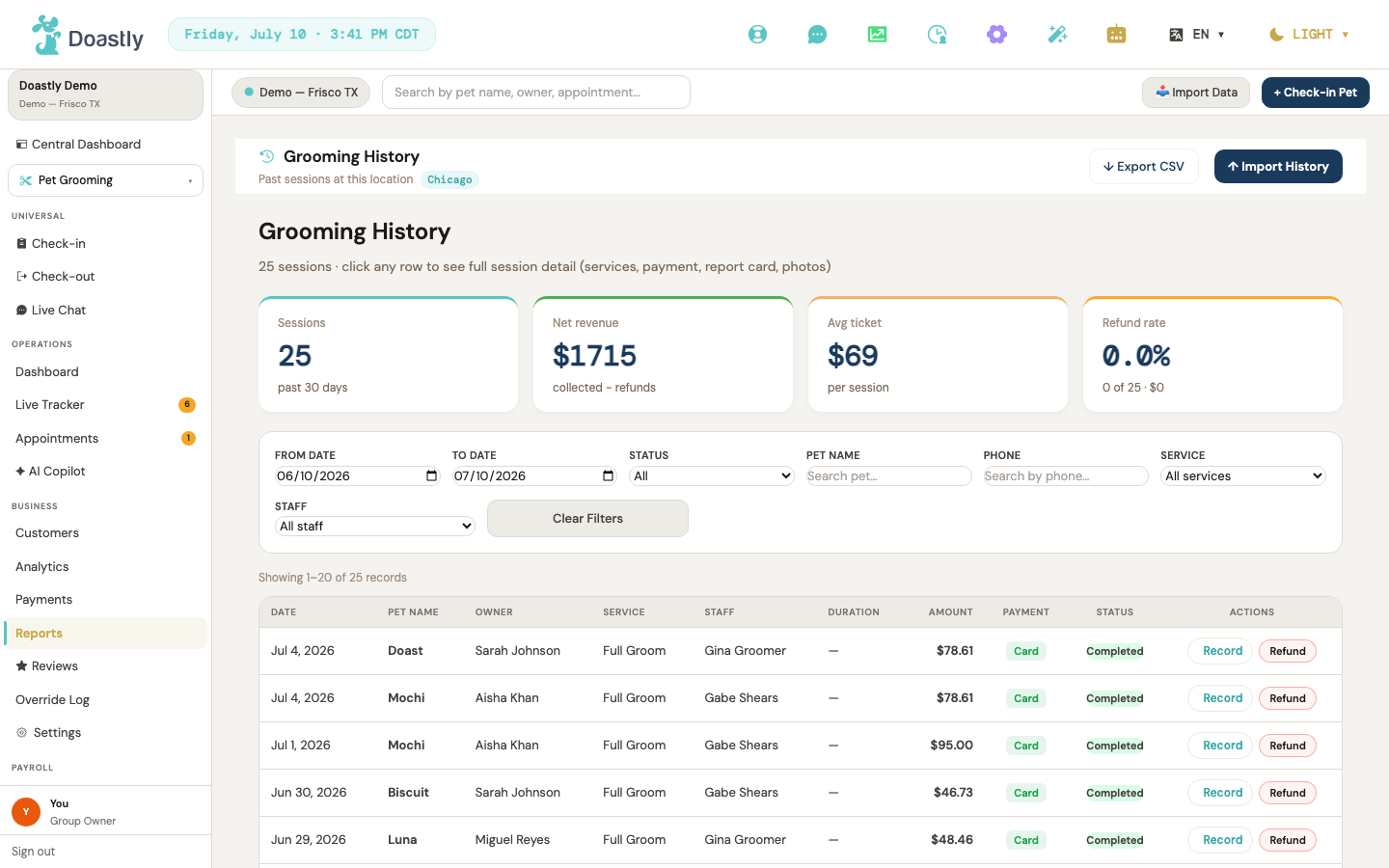
(dark mode also captured)
Analytics & Reports
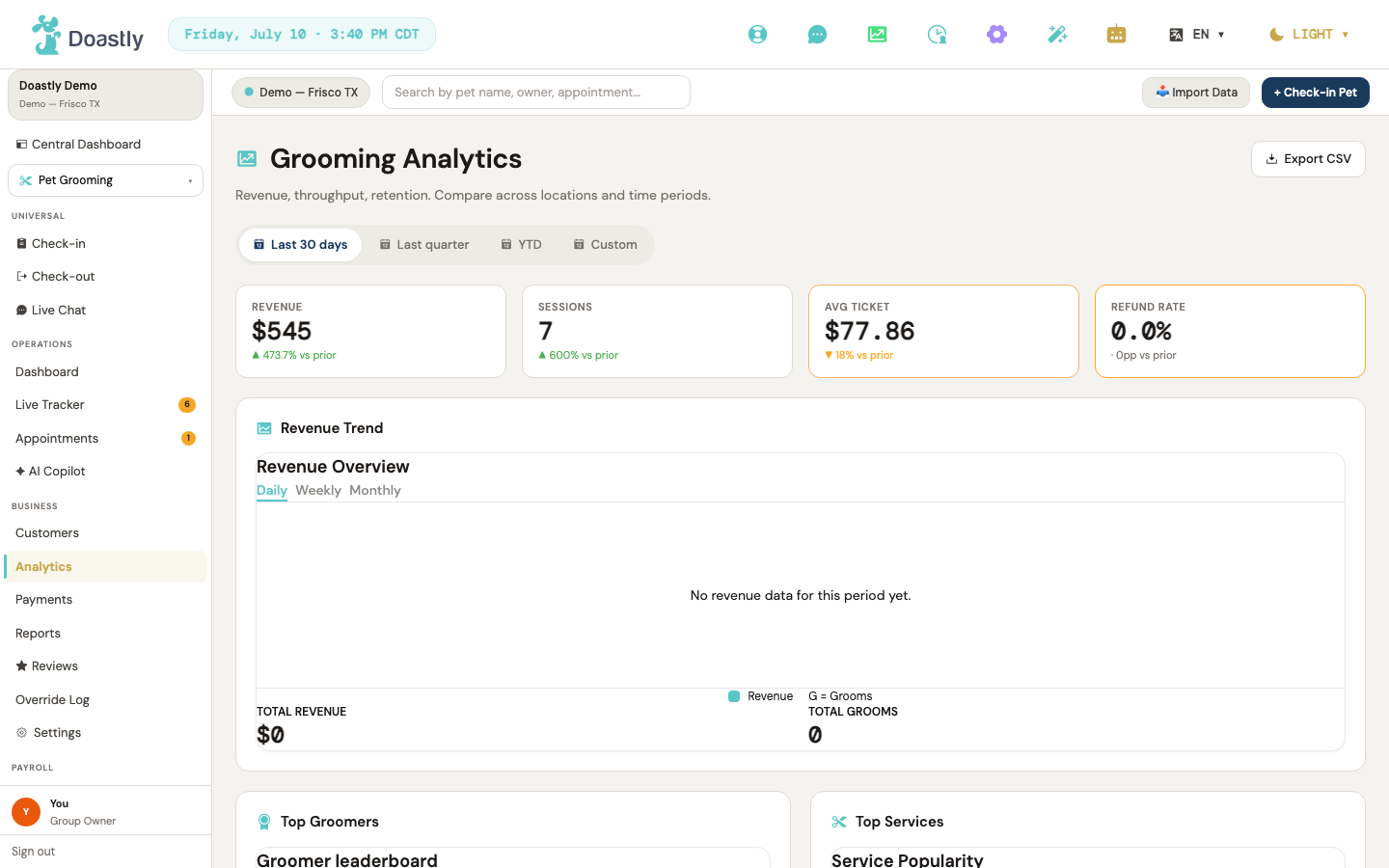
(dark mode also captured)
Grooming Analytics — Page Header & Global Controls
The top of the Grooming Analytics page, where you choose the reporting period and export the data. The three working period tabs drive the KPI tiles below — selecting one re-reads the revenue figures for that window.
| Control | What it does |
|---|---|
| Export CSV | Header button intended to export the analytics as a CSV file. Currently a placeholder — the button appears but has no action yet. |
| Last 30 days | Period tab, and the one selected when the page opens. Selecting it reloads the KPI tiles for the trailing 30 days. |
| Last quarter | Period tab. Selecting it reloads the KPI tiles for the trailing 90 days. |
| YTD | Period tab for year-to-date. Selecting it reloads the KPI tiles from the start of the year. |
| Custom · soon (disabled) | The custom-range tab is deliberately disabled and labelled "Custom · soon", with a "Custom date ranges are coming soon" tooltip. It cannot be selected. Custom ranges are not yet wired to the revenue source, and the tab is disabled rather than quietly showing you the 30-day numbers under a "Custom" heading. For a custom range today, use the Payments report, which does support one. |
Grooming Analytics — KPI Summary Tiles
A row of four read-only summary tiles that give you the headline numbers for the selected period, each with a change indicator versus the prior period.
| Control | What it does |
|---|---|
| Revenue (tile) | Shows net collected revenue in USD for the selected period. The value shows "—" while loading; the change line beneath it shows "—" when there is no prior period to compare against, rather than a made-up number. |
| Transactions (tile) | Shows the number of paid transactions in the period, with an up/down change arrow versus the prior period. Note this is a transaction count, not the session count — the Reports page's "Sessions" figure counts checked-out sessions and is a different number by design. The two are deliberately labelled differently so the same word never shows two different numbers across pages. |
| Avg ticket (tile) | Shows the average ticket value, with a change indicator. |
| Refund rate (tile) | Shows the refund rate as a percentage; displays "—" when undefined. The change indicator is inverted — a rising refund rate is shown as a warning. |
Grooming Analytics — Revenue Trend
A chart showing revenue over time, broken into daily, weekly, or monthly buckets. Switching the grouping reloads the data and updates the bars, total revenue, and total grooms.
| Control | What it does |
|---|---|
| daily | Tab that groups the revenue trend by day. |
| weekly | Tab that groups the revenue trend by week. |
| monthly | Tab that groups the revenue trend by month. |
| Revenue bar (per period) | A bar for each date bucket. Hovering shows a tooltip with the exact dollar revenue for that period; the label below the bar shows the groom count (for example, "5G"). |
Grooming Analytics — Top Groomers
A ranked leaderboard of groomers over a date range you choose, showing volume, revenue, tips, and average session length.
| Control | What it does |
|---|---|
| From | Date field that sets the start of the leaderboard range and reloads the data. Defaults to 30 days ago in the location's time zone. |
| To | Date field that sets the end of the leaderboard range and reloads the data. Defaults to today in the location's time zone. |
| Leaderboard row (groomer) | A read-only ranked row showing rank badge, groomer name, grooms, revenue, tips, and average duration. Highlights on hover; not clickable. |
Grooming Analytics — Top Services
A breakdown of your most popular services by volume and revenue, shown as horizontal bars.
| Control | What it does |
|---|---|
| Service popularity bar (per service) | A read-only horizontal bar per service showing the service name, how many times it was performed, revenue, and a relative-width bar for quick comparison. Display only — not clickable. |
Grooming Analytics — Customer Retention
A summary of retention metrics with a shortcut to the customers most likely to lapse.
| Control | What it does |
|---|---|
| New this month (tile) | Read-only tile showing the count of new clients acquired this month. |
| Returning (tile) | Read-only tile showing the count of returning clients this month, plus a retention-rate percentage (returning ÷ new + returning). |
| At Risk (tile) | Read-only tile (red left-border accent) showing the count of at-risk clients. Contains the "View List →" shortcut button below the count. |
| View List → | Button inside the At Risk tile. Jumps down the page to the At-Risk Customers list. |
Grooming Analytics — At-Risk Customers
A list of customers flagged by AI as at risk of churning, each with a risk level and a recommended next step.
| Control | What it does |
|---|---|
| Send Campaign | Primary button on each at-risk customer row, intended to launch a win-back campaign for that customer. Currently a placeholder — no action yet. |
| Churn customer row | A read-only card per at-risk customer showing name, risk badge (high, medium, or low), pet, days since last visit, last visit date, and the AI-recommended action. Highlights on hover; not clickable. |
Payments (Grooming vertical)
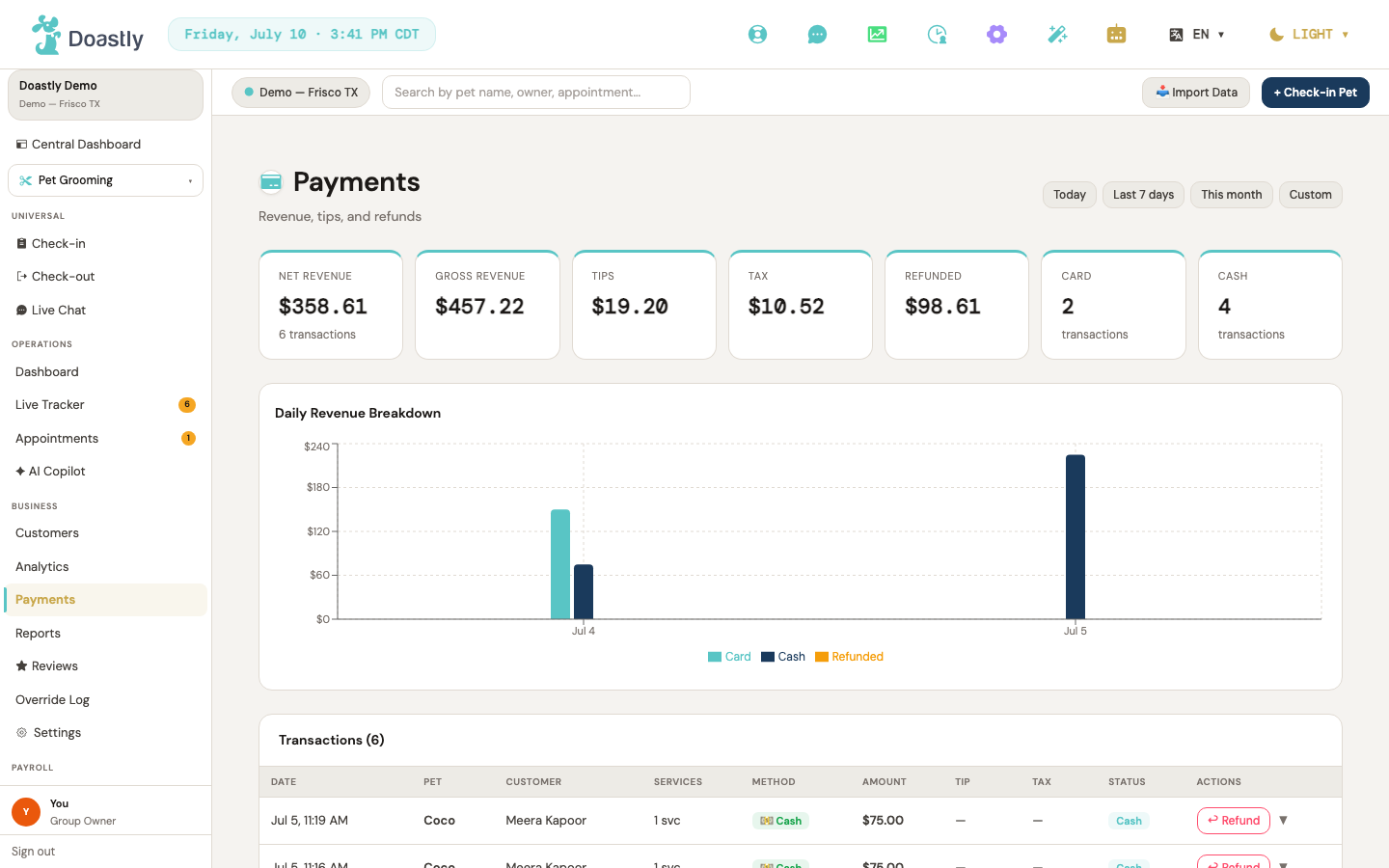
(dark mode also captured)
Payments — Main Report Page
The Payments report page is where you review revenue and individual transactions for a chosen date range, view the daily revenue breakdown, and issue refunds. It is available to OWNER and MANAGER roles.
| Control | What it does |
|---|---|
| Payments (sidebar nav link) | Grooming sidebar entry (shown only when your role can view payments) that opens this report page; highlighted while you are on the Payments page. |
| Today (period button) | Sets the report period to today, using the location's timezone. |
| Last 7 Days (period button) | Sets the period to the trailing seven days (six days ago through today). This is the period selected by default when the page loads. |
| This Month (period button) | Sets the period from the start of the current month through today. |
| Custom (period button) | Switches to a custom range and reveals the From and To date inputs. The report loads only once both dates are set. |
| Custom From date input | Date picker that sets the start of the custom range. Shown only when the Custom period is active; changing it reloads the report. |
| Custom To date input | Date picker that sets the end of the custom range. Shown only when the Custom period is active; changing it reloads the report. |
| KPI cards (Net Revenue, Service Fees, Discounts, Tips, Gross Revenue, Tax, Refunded, Card, Cash) | Nine metric cards summarizing the selected period (the D-070 five-column set — Service Fees, Discounts, Tips, Tax, and Gross Revenue as the total — plus Net Revenue, Refunded, Card, and Cash). Net Revenue also shows the transaction count as a sub-label; Card and Cash show their respective transaction counts; Tax carries an "accrued, not collected" sub-note (#185 — the figure is never actually charged, so an owner reading it as collected could over-remit). Display only. |
| Reconciliation disclosure banner | Shown only when the period's five D-070 columns (Service Fees, Discounts, Tips, Tax, Gross Revenue) don't reconcile to the identity; names the mismatch amount rather than hiding it. Display only. |
| Daily Breakdown chart legend (Card / Cash / Refunded) | Labels for the three series in the daily revenue bar chart, letting you identify each bar color. |
| Daily Breakdown chart tooltip | Appears when you hover over a bar, showing the dollar value for each series on that day. |
| Transaction table columns (Date, Pet, Customer, Services, Method, Amount, Tip, Tax, Status, Actions) | The ten column headers of the transaction list. Services shows a count with the full names on hover; Tip and Tax show a dash when zero. |
| Method badge (per row) | Colored pill in the Method column showing the payment method: Card, Cash, Terminal, Apple Pay, or Google Pay. Display only. |
| Status badge (per row) | Colored pill in the Status column showing the payment status: Paid, Cash, Partially Refunded, Refunded, or Waived. Display only. |
| Transaction row (click) | Clicking a transaction row expands a detail sub-row showing the session and transaction reference (always) plus services, discount, and refund detail (each shown only when present). Clicking again collapses it. |
| Expand/collapse caret (▼ / ▲) | Indicator in the Actions column showing whether a row is expanded or collapsed; the row click drives the toggle. |
| Refund (per-row button) | Opens the Issue Refund window for that transaction. Shown only when the payment status is paid, cash, or partially refunded (hidden for refunded and waived), and does not expand the row when clicked. |
| Search by pet or owner name (text input) | Filters the transaction list as you type, matching on pet name or owner name. Typing returns you to the first page of results. Clear the box to see every transaction in the period again. |
| Transaction table title count / empty state | The table header shows a live count (N) of transactions, and (N of M) while a search is active so you can see how much the search narrowed the list. When there are none, a message is shown in place of the table: "No transactions" when the period genuinely has none, or "No transactions match your search." when a search filtered them all out. |
| Pagination (« First / ‹ Prev / Page N of M / Next › / Last ») | The transaction list is paged at ten rows per page. First and Prev are disabled on the first page; Next and Last are disabled on the last. The row of controls is hidden entirely when there are no transactions. |
| "Showing X–Y of N transactions" | Sits beside the pagination controls and tells you which slice of the filtered list you are looking at. Display only. |
| Page states (loading / select-range / error banner) | While loading, a "Loading…" placeholder shows; before a custom range is fully set, a "select a range" prompt shows; on load failure, a friendly error banner appears. |
Issue Refund Window
The Issue Refund window, opened from a transaction's Refund button, lets you return all or part of a payment and record the reason.
| Control | What it does |
|---|---|
| × (close) | Closes the window without issuing a refund. |
| Backdrop click (overlay) | Clicking the dark overlay outside the window closes it without issuing a refund. |
| Amount summary (Original charge / Already refunded) | Informational panel showing the original charge amount and, when a prior refund exists, the amount already refunded. Display only. |
| Full — $\<amount\> (refund type toggle) | Selects a full refund of the remaining refundable amount and hides the partial amount input. |
| Partial (refund type toggle) | Selects a partial refund and reveals the Refund amount input. |
| Refund amount ($ input) | Numeric field for the partial refund amount (minimum $0.01, up to the remaining refundable amount). Shown only when Partial is selected; an inline "Cannot exceed $\<amount\>" warning appears if the amount exceeds the limit. |
| Reason (dropdown) | Selects the refund reason: Requested by customer, Duplicate charge, Fraudulent transaction, Service not rendered, or Other. |
| Cancel | Closes the window without issuing a refund. |
| Refund $\<amount\> / Processing… | Submits the refund. Disabled until the amount is valid (greater than zero and no more than the remaining amount). On success it shows a "Refund issued" confirmation and reloads the report after two seconds. |
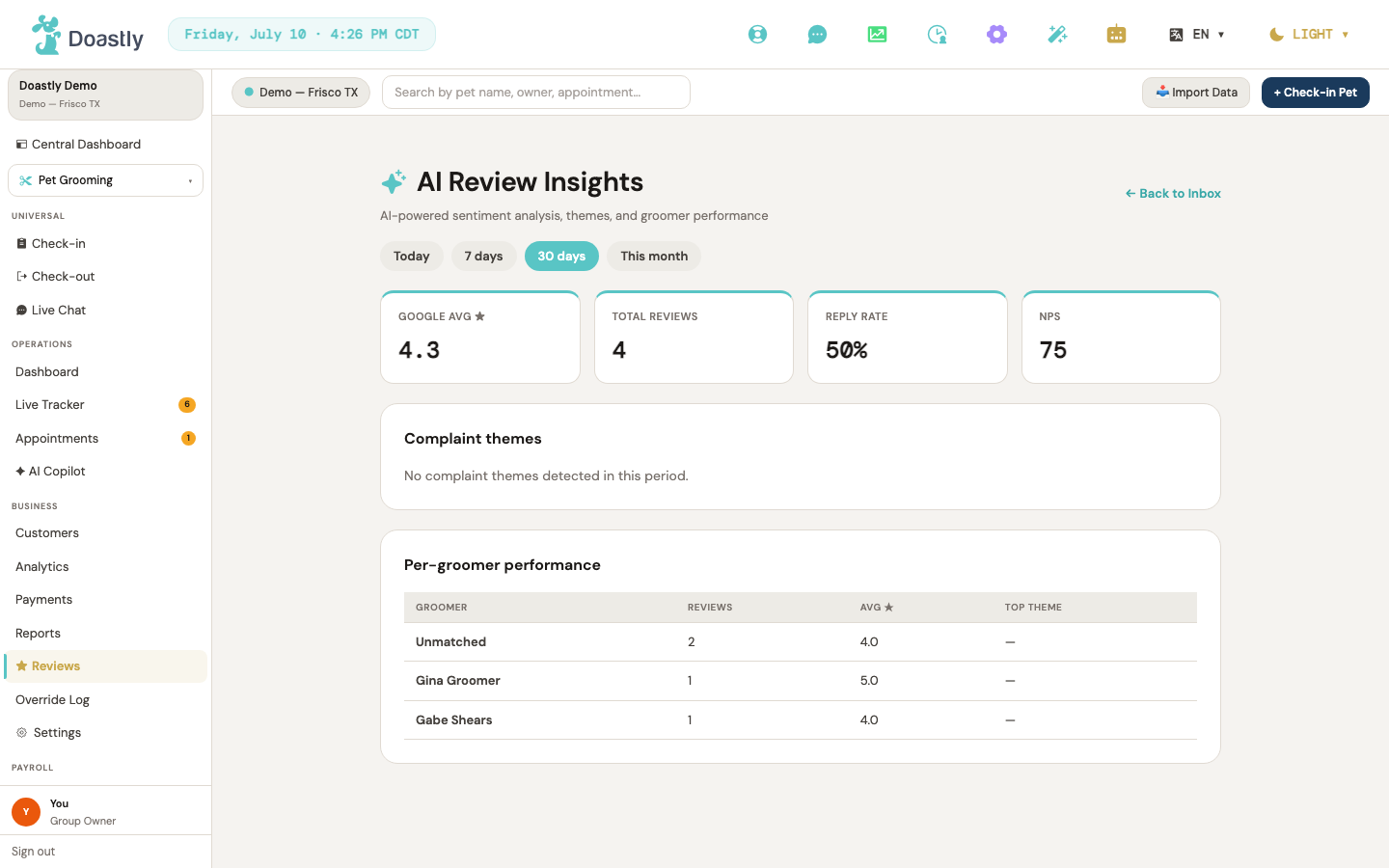
(dark mode also captured)
Reviews
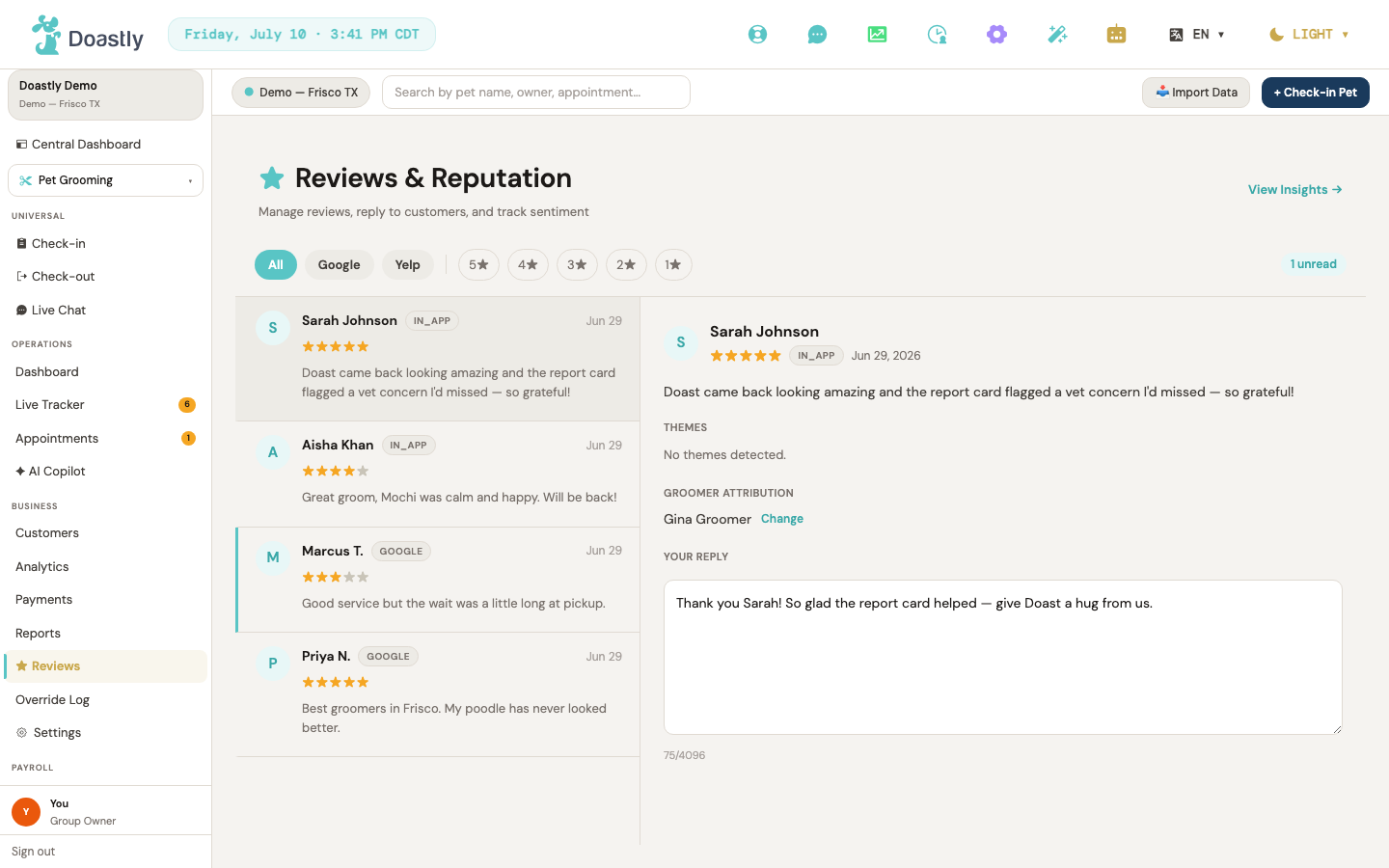
(dark mode also captured)
Review Inbox (Reviews & Reputation)
The main reputation hub, showing all customer reviews across connected platforms in a filterable list, with the selected review's details in a right-hand panel.
| Control | What it does |
|---|---|
| View Insights → | Opens the AI Review Insights page. |
| All (platform tab) | Clears the platform filter so the inbox shows reviews from every connected platform. |
| Google (platform tab) | Filters the inbox to Google reviews only. |
| Yelp (platform tab) | Filters the inbox to Yelp reviews only. |
| 5★ / 4★ / 3★ / 2★ / 1★ (star filter pills) | Filters the list to reviews of that star rating. Clicking an already-selected pill clears the filter and shows all ratings again. |
| All themes (theme filter dropdown) | Filters reviews by an AI-detected theme tag. Appears only when reviews carry AI tags; the options are drawn from the tags on the loaded reviews. |
| {n} unread (badge) | A status pill showing how many reviews in the current list are unread. Appears only when there is at least one unread review. |
| Review card (per-review row) | Opens the selected review in the detail panel and marks it read if it was unread. Each card shows the author, platform badge, date, star rating, a preview of the review text, and up to three AI theme chips. |
Review Detail Panel
The right pane of the Review Inbox, showing the full review and the tools to attribute it to a groomer and reply to the customer.
| Control | What it does |
|---|---|
| Change (groomer attribution) | Opens the attribution editor and loads nearby grooming sessions as candidate matches for the review. |
| Attribution candidate row | Assigns the chosen grooming session — and its groomer — to the review, then closes the editor. Each row shows the groomer, pet, customer, and session date. |
| Mark as Unmatched | Clears the groomer attribution, marks the review as Unmatched, and closes the editor. |
| Regenerate | Produces a fresh AI reply draft and AI tags, replacing the current draft text. Shows "Regenerating…" while it works and appears only when the review has not yet been replied to. |
| Reply textarea | The editable reply text (up to 4,096 characters), pre-filled with your existing reply or the AI-drafted reply. Becomes read-only once the review has been replied to. |
| Send Reply | Posts your reply to the platform and marks the review as replied, showing the returned status message. Available only for Google reviews that have not yet been replied to, and disabled while sending or when the draft is empty. |
| Non-Google reply notice | When a not-yet-replied review is on a platform other than Google, an inline notice replaces the Send Reply button: "Replies for this platform are managed in the platform's own business portal." |
AI Review Insights
An analytical view that summarizes review sentiment, complaint themes, and per-groomer performance over a chosen time period.
| Control | What it does |
|---|---|
| ← Back to Inbox | Returns to the Review Inbox. |
| Today / 7 days / 30 days / This month (period pills) | Sets the time period for the insights and reloads the data. Defaults to 30 days; the active period is highlighted in teal. |
| Summary tiles (Google avg ★ / Total reviews / Reply rate / NPS) | Four teal-top-bar metric cards showing the period's key numbers: the Google average star rating, total review count, reply (response) rate as a percentage, and NPS. Values show "—" when not available. |
| Complaint theme bar (per-theme row) | Navigates to the Review Inbox for that theme. Each bar shows the theme label, its relative size, and how often it appears as a count and percentage. (Note: on arrival the inbox currently shows all reviews unfiltered rather than pre-filtering to the chosen theme.) |
| Per-groomer performance table | A table listing every groomer with attributed reviews in the period (plus an "unmatched" bucket), with columns Groomer, Reviews (count), Avg ★, and Top theme. Shows an empty-state message when no groomer-attributed reviews exist in the period. |
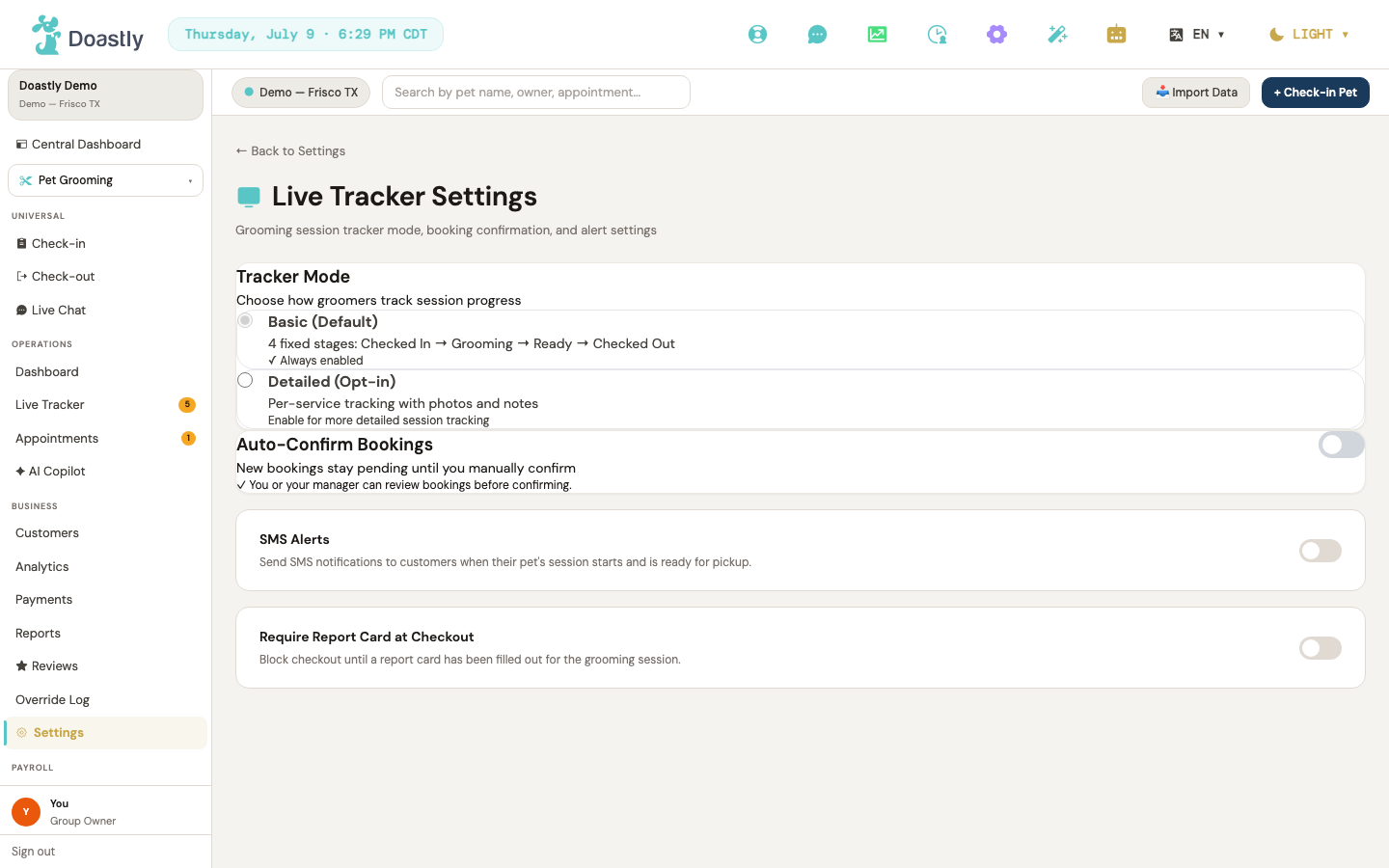
(dark mode also captured)
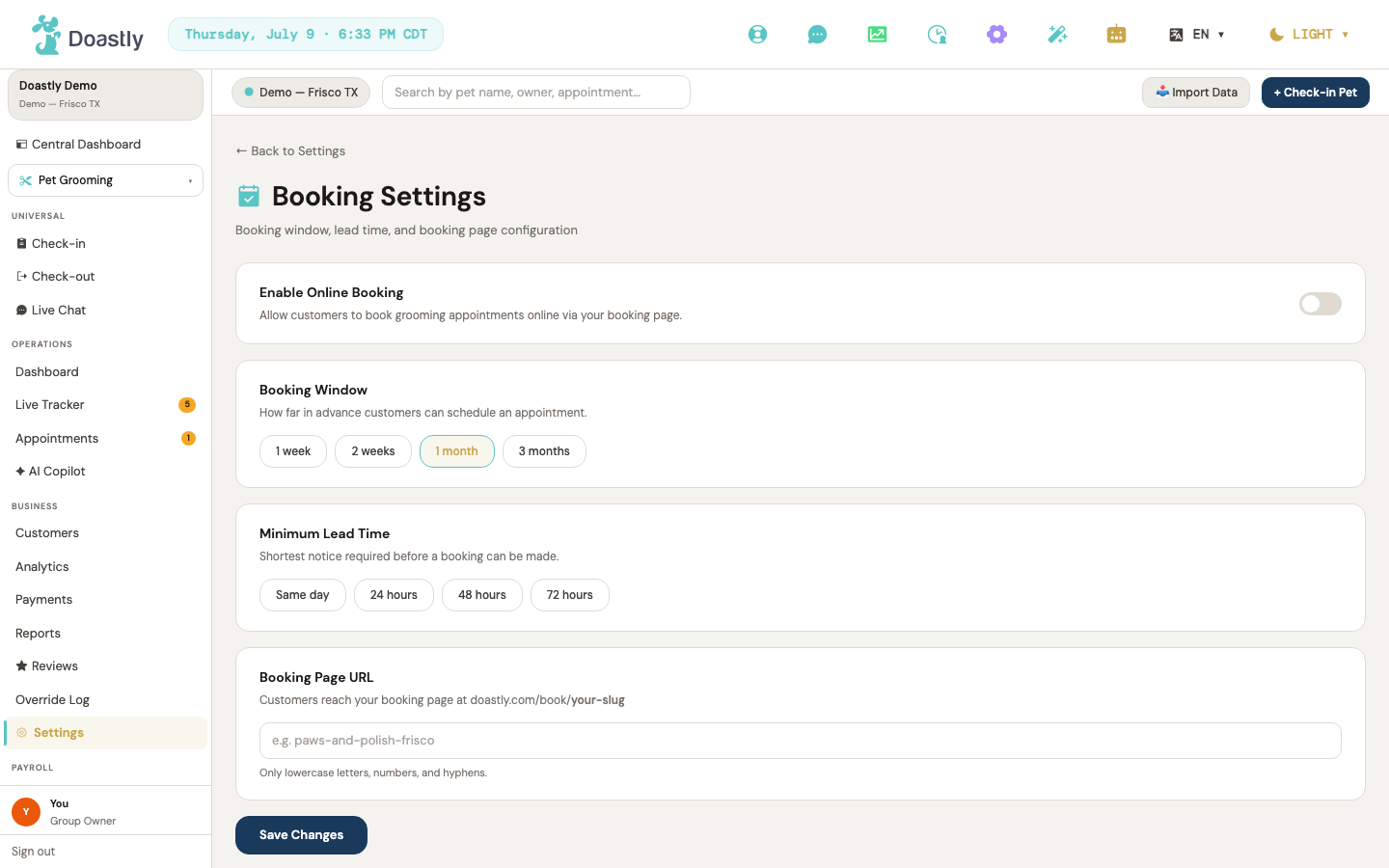
(dark mode also captured)
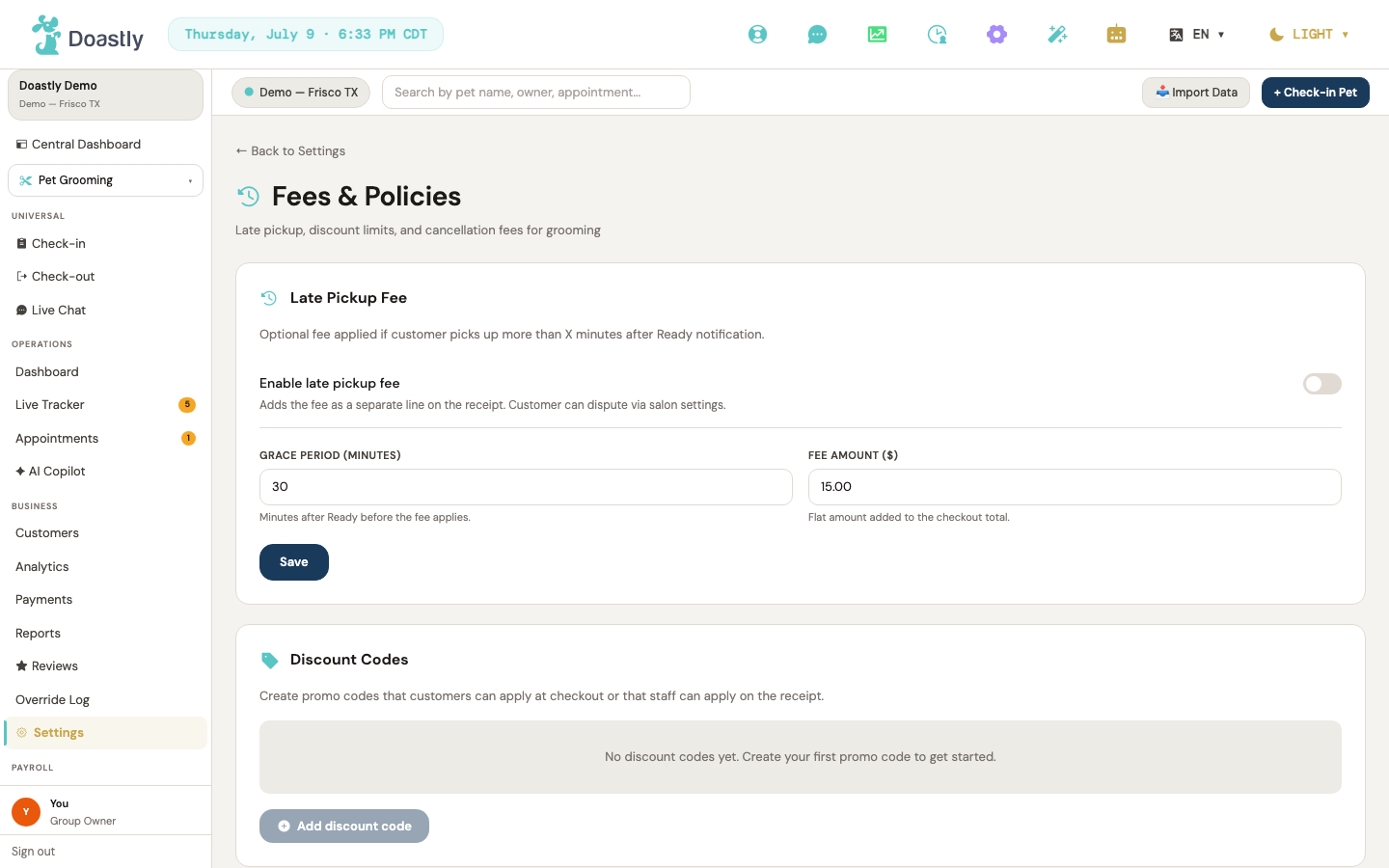
(dark mode also captured)
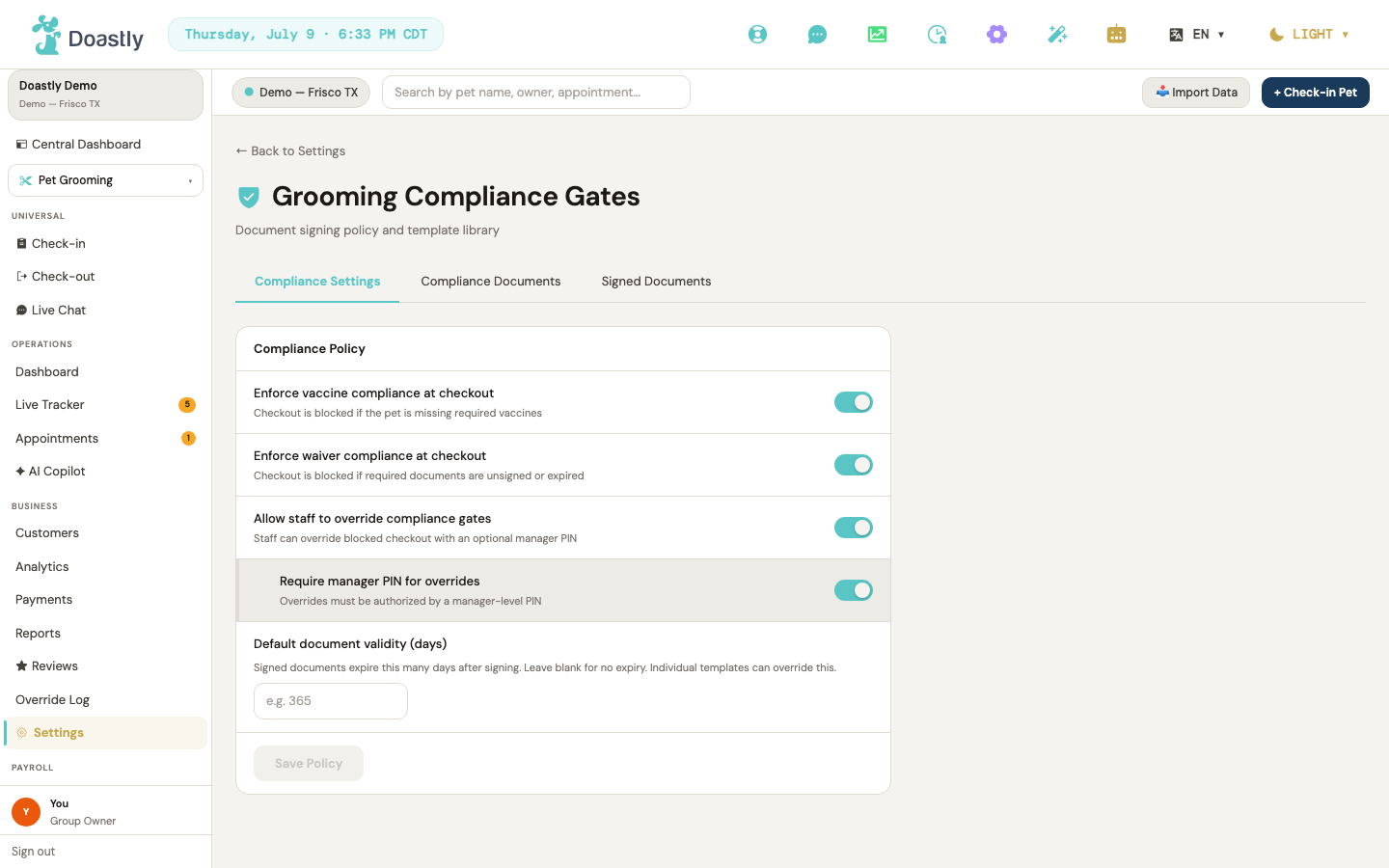
(dark mode also captured)
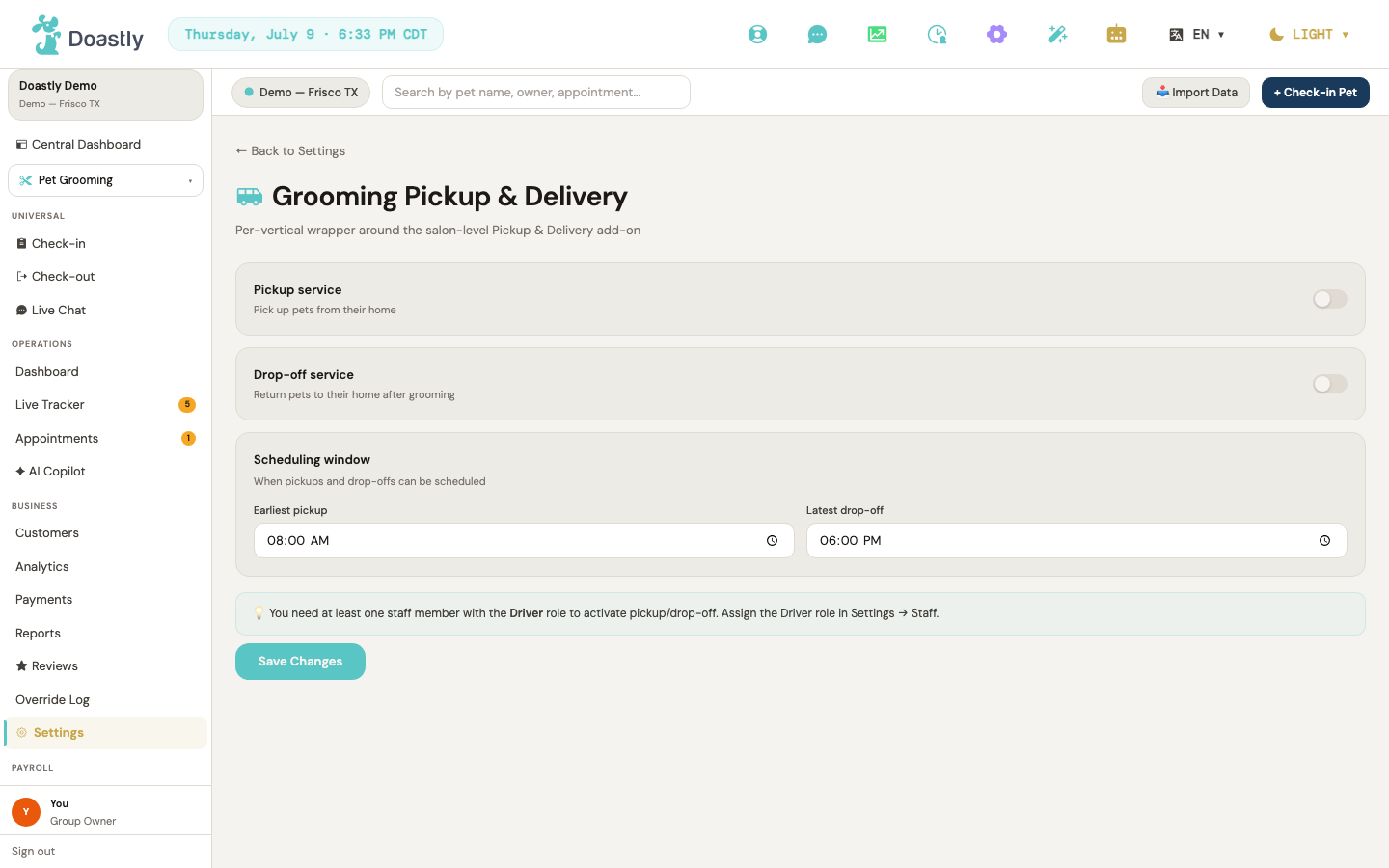
(dark mode also captured)
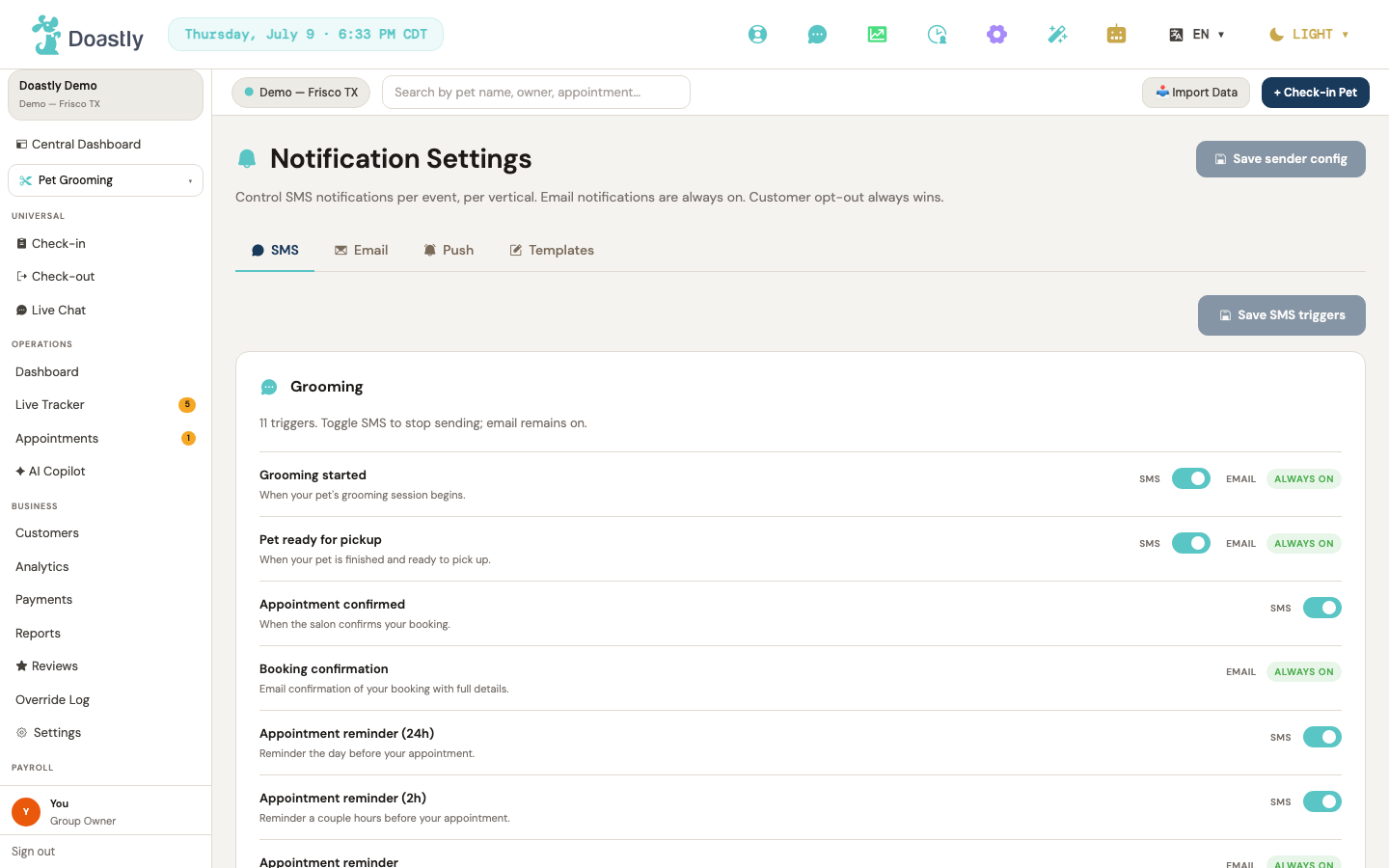
(dark mode also captured)
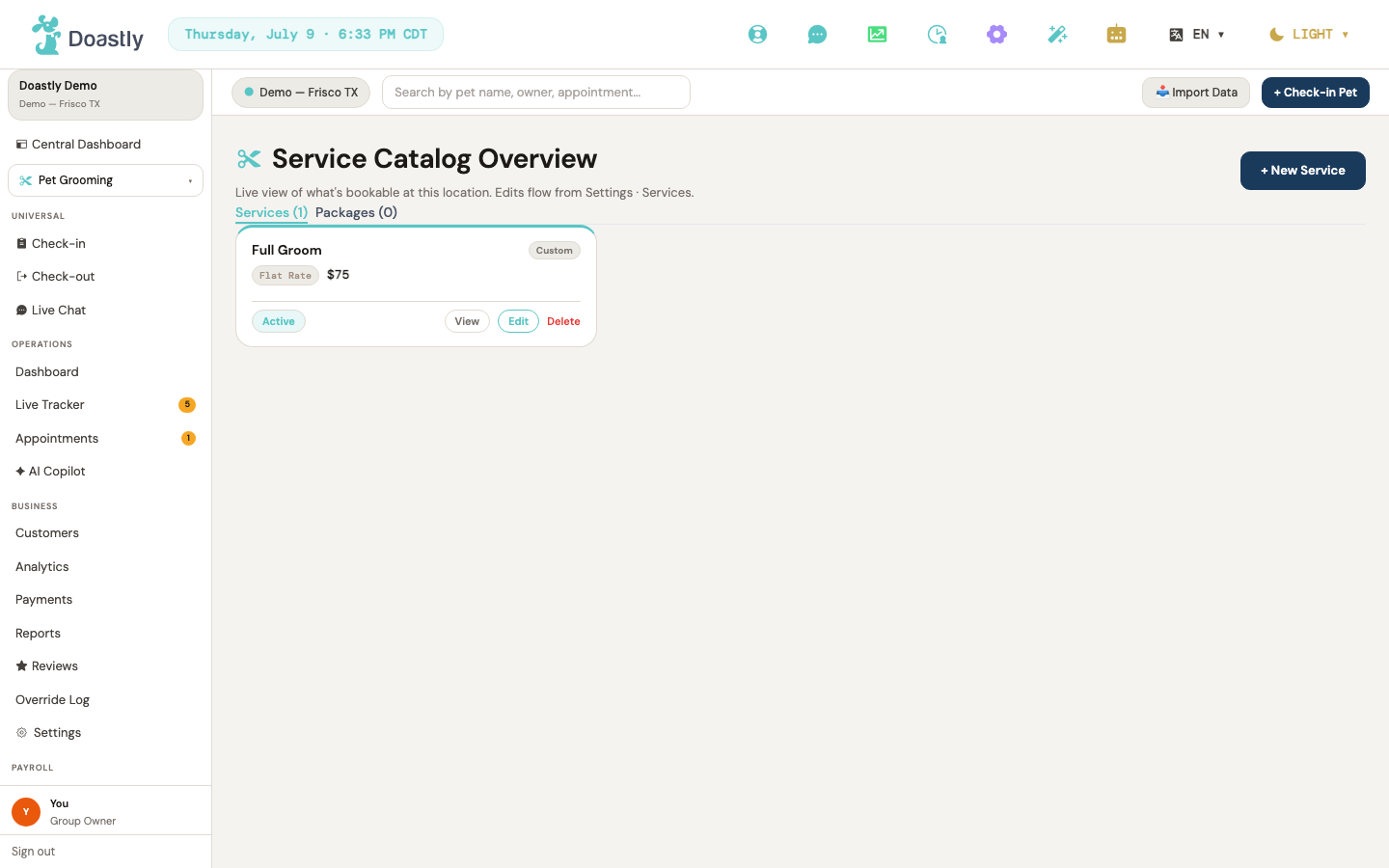
(dark mode also captured)
Settings (grooming tabs)
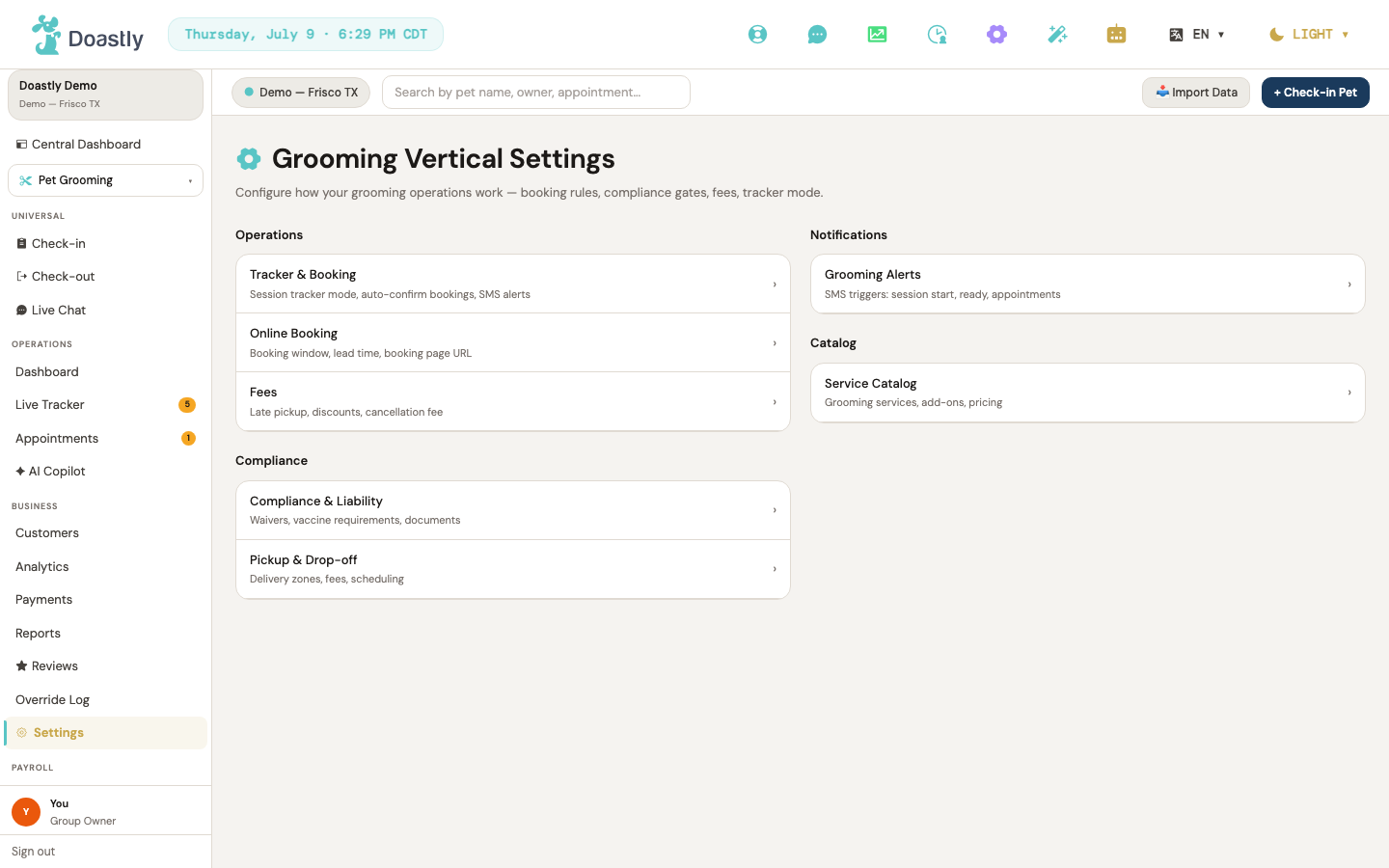
(dark mode also captured)
Grooming Vertical Settings — Hub / Landing
The landing page for all grooming-specific configuration. Cards are grouped into four sections — Operations, Compliance, Notifications, Catalog. Each card opens a dedicated settings screen.
| Control | Section | What it does |
|---|---|---|
| Tracker & Booking | Operations | Opens Live Tracker Settings. |
| Online Booking | Operations | Opens Booking Settings. |
| Fees | Operations | Opens Fees & Policies. |
| Compliance & Liability | Compliance | Opens Compliance Gates. |
| Pickup & Drop-off | Compliance | Opens Pickup & Delivery settings. |
| Grooming Alerts | Notifications | Opens the SMS and notification settings. |
| Service Catalog | Catalog | Opens the grooming service catalog. |
_Note: the whole grooming Settings area is available only when Grooming is enabled for the location; if grooming is disabled it redirects to the dashboard._
Live Tracker Settings (Tracker & Booking tab)
Controls how the live tracker behaves and which grooming alerts fire during a session.
| Control | What it does |
|---|---|
| ← Back to Settings | Returns to the grooming Settings hub. |
| BASIC (tracker mode) | The default, always-on tracker mode. This option is disabled — BASIC cannot be turned off. |
| DETAILED (tracker mode) | Switches the location to detailed per-service tracking. Shows a warning banner when switched on from a non-detailed mode. |
| Auto-Confirm | Auto-approves online bookings instead of requiring manual review. |
| SMS Alerts | Enables customer SMS on session start and ready-for-pickup. |
| Require Report Card at Checkout | Blocks checkout until a report card has been filled in for the session. |
Booking Settings (Online Booking tab)
Configures your public online booking page — whether it's live, how far out customers can book, and the page's URL.
| Control | What it does |
|---|---|
| ← Back to Settings | Returns to the grooming Settings hub. |
| Enable Online Booking | Turns online booking on or off. Applied when you press Save Changes. |
| Booking Window | Sets how far ahead customers can book: 1 week, 2 weeks, 1 month, or 3 months. |
| Minimum Lead Time | Sets the shortest notice allowed before a booking: same day, 24, 48, or 72 hours. |
| Booking Page URL | The web address for your public page — forms doastly.com/book/{slug}. Automatically lowercases and strips to letters, numbers, and hyphens. |
| Save Changes | Saves the booking settings and shows a saved or error banner. |
Fees & Policies (Fees tab)
Manages late-pickup fees, cancellation fees, and discount codes for the location.
| Control | What it does |
|---|---|
| ← Back to Settings | Returns to the grooming Settings hub. |
| Enable late pickup fee | Turns the late-pickup fee on or off. Applied when you press Save. |
| Grace period (minutes) | Minutes after a pet is marked Ready before the late fee applies (0–480). |
| Fee amount ($) [late pickup] | The flat amount added to the checkout total for a late pickup. |
| Save [Late Pickup Fee] | Saves the late-pickup fee settings; requires an amount above zero when enabled. |
| Discount Codes empty state | Non-interactive panel: "No discount codes yet. Create your first promo code to get started." |
| Add discount code | Disabled — the button has no action. The Discount Codes card shows the promo-code feature's layout and an empty state, but its create flow is not wired, so no codes can be created here. |
| Enable Cancellation Fee | Turns the cancellation fee on or off and reveals the fee amount field. |
| Fee Amount [cancellation] | The flat cancellation fee amount (shown only when enabled). |
| Save [Cancellation Fee] | Saves the cancellation fee; requires an amount above zero when enabled. |
Grooming Compliance Gates — tab strip + Settings tab
Sets the compliance policy that is enforced at checkout (vaccines, waivers) — with an advisory notice at check-in — and how staff may override it. Three inner tabs organize the policy, document templates, and signed-document history.
| Control | What it does |
|---|---|
| ← Back to Settings | Returns to the grooming Settings hub. |
| Compliance Settings (inner tab) | Shows the compliance policy controls (this tab). |
| Compliance Documents (inner tab) | Opens the document template manager. |
| Signed Documents (inner tab) | Opens the signed-document audit list. |
| Enforce vaccine compliance at checkout | Blocks checkout if the pet's vaccines aren't up to date. |
| Enforce waiver compliance at checkout | Blocks checkout without a signed waiver. |
| Allow staff to override compliance gates | Lets staff override the gate. Turning this on reveals the manager-PIN sub-toggle. |
| Require manager PIN for overrides | When override is allowed, requires a manager PIN to use it. |
| Default document validity (days) | The default expiry window for compliance records; shows an inline error if invalid. |
| Save Policy | Saves the compliance policy. Disabled unless there are valid, unsaved changes. |
Compliance → Documents inner tab
Manages the salon's library of compliance document templates — creating them from scratch, uploading files, or adopting Doastly's ready-made defaults.
| Control | What it does |
|---|---|
| + Add Template | Opens the inline form to create a new template. |
| View Templates / Collapse (Doastly defaults) | Expands or collapses the list of one-click Doastly default templates (shown in the empty state only). |
| Add to library / Added (per default) | Adds a Doastly default template to your salon's library. |
| Write / Upload File (mode toggle) | Switches the add form between a markdown editor and file-upload mode. Shown only when creating a NEW template; hidden in edit mode (edit is markdown-only). |
| Name * (template) | The template name. |
| Category * (template) | Selects the template category (Liability Waiver, Photo Release, Aggressive Dog Waiver, First Time Client Form, Veterinary Authorization, Pickup Authorization, Cancellation Policy, NDA / Confidentiality, Other). |
| File (upload) | Uploads a file for file-mode templates (PDF, DOCX, JPG/JPEG, PNG, WEBP, or HEIC; 10MB limit). |
| Preview / Edit (markdown) | Toggles the markdown body between the editor and a rendered preview. |
| Document body (Markdown) | The markdown body of the template. |
| Mandatory at check-in | Marks the template as mandatory at check-in. |
| Create / Update (template) | Saves the template — creating, updating, or uploading depending on the mode. |
| Cancel (add form) | Closes the template add or edit form without saving. |
| Search by name… | Filters the template table by name. |
| All categories (filter) | Filters the table by category. |
| All statuses (filter) | Filters the table by Active or Expired/Inactive status. |
| All sources (filter) | Filters the table by source: Doastly Default, Custom, or Uploaded. |
| Name / Category / Updated (sortable headers) | Click a column header to sort the table by that field, and again to reverse the direction. (Source, Status, Mandatory columns are display-only badges and are not sortable.) |
| Edit (row) | Opens the row's template for editing. |
| Expire / Reactivate (row) | Opens a confirm window to expire or reactivate the template. |
| Optional / Mandatory (row) | Opens a confirm window to toggle whether the template is mandatory. |
| Records (row) | Opens the signed records for that template. |
| Prev / Next (pagination) | Pages through the template table, 10 per page (shown only when more than one page). |
| Cancel / Expire / Reactivate / Confirm (confirmations) | The action buttons inside the expire, reactivate, and mandatory-change confirmation windows. |
Compliance → Signed Documents inner tab
Lists the compliance documents customers have signed (Document, Signer, Customer/Pet, Signed, Expires, Status columns — all display-only), with download access for each.
| Control | What it does |
|---|---|
| Download (per signed doc row) | Downloads the signed document file. Includes size and error guards (10MB). |
Grooming Pickup & Delivery (Pickup & Drop-off tab)
Configures pickup and drop-off services — whether each is offered, its fee and radius, and the earliest and latest times.
| Control | What it does |
|---|---|
| ← Back to Settings | Returns to the grooming Settings hub. |
| Pickup service | Turns the pickup service on or off. Enabling it reveals the pickup fee and radius fields. |
| Pickup fee ($) | The fee charged for pickup (shown when pickup is enabled). |
| Max radius (miles) [pickup] | The maximum distance you'll travel for pickup. |
| Drop-off service | Turns the drop-off service on or off. Enabling it reveals the drop-off fee and radius fields. |
| Drop-off fee ($) | The fee charged for drop-off. |
| Max radius (miles) [drop-off] | The maximum distance you'll travel for drop-off. |
| Earliest pickup | The earliest time you'll pick a pet up. |
| Latest drop-off | The latest time you'll drop a pet off. |
| Save Changes | Saves the pickup and drop-off settings (button shows "✓ Saved" briefly on success). |
_Note: a non-interactive info banner appears below the form — "You need at least one staff member with the Driver role to activate pickup/drop-off. Assign the Driver role in Settings → Staff."_
Service Pricing Models — the eight editors
A service can price by any of eight models; each shows its own editor in the New/Edit Service window.
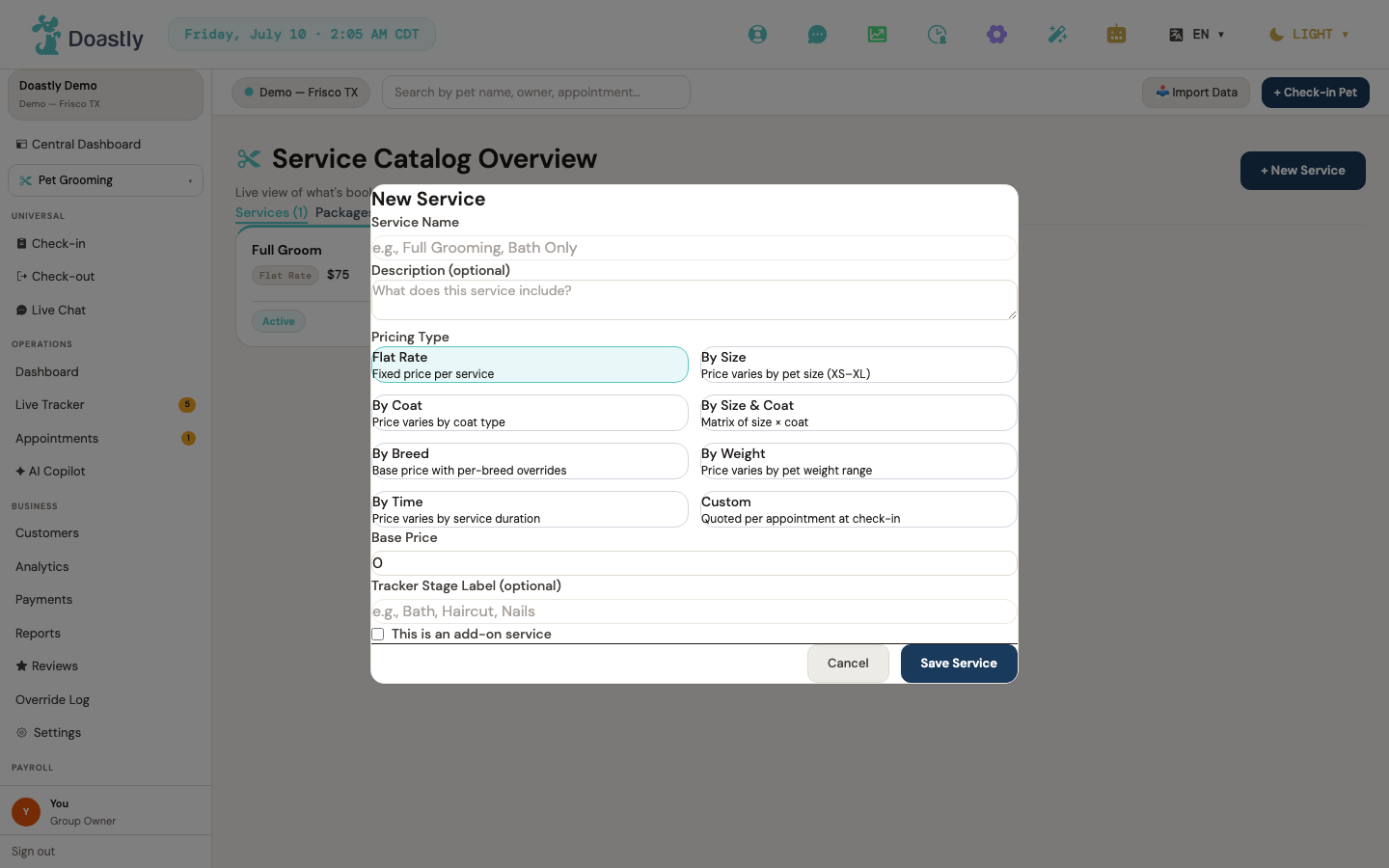
(dark mode also captured)
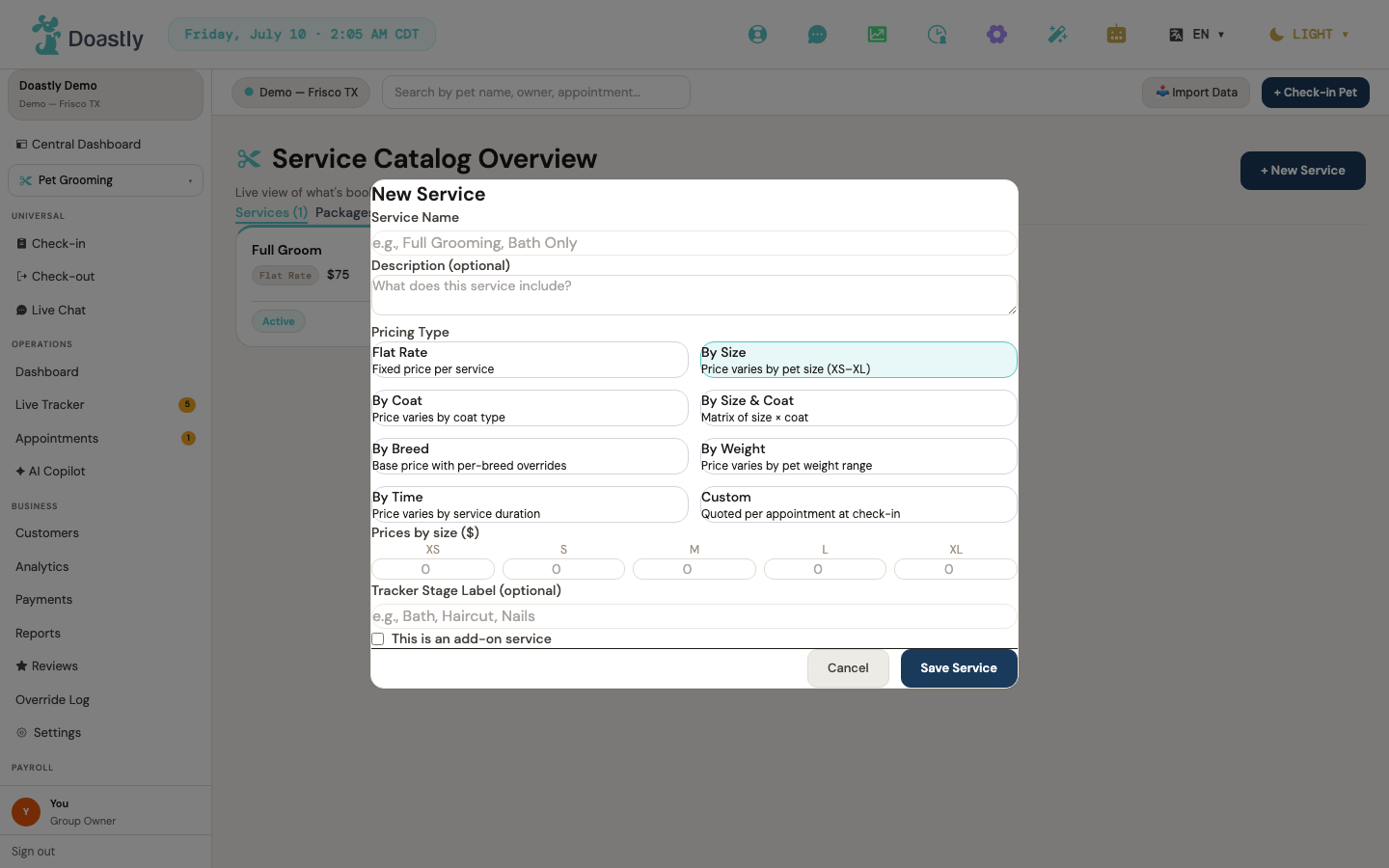
(dark mode also captured)
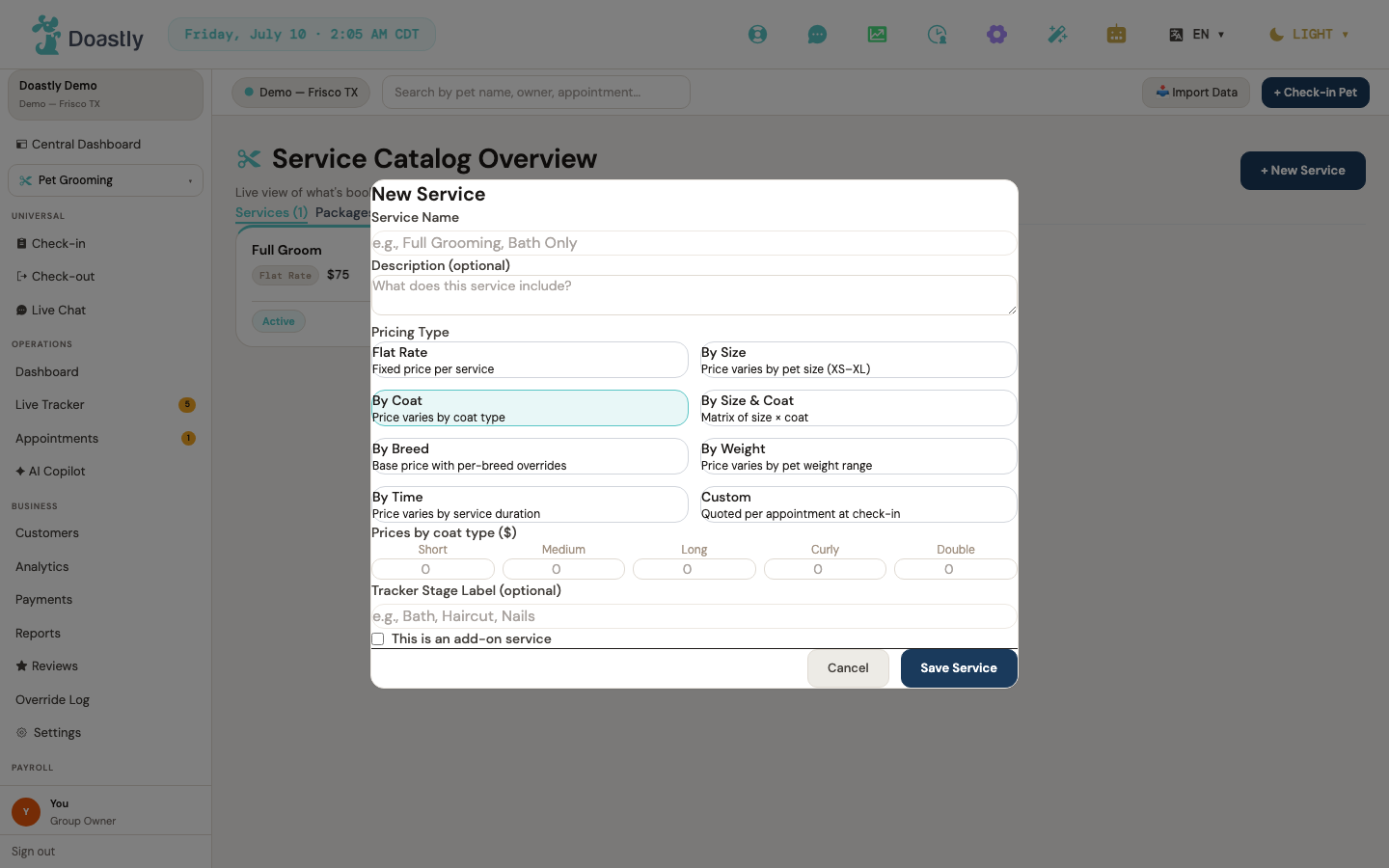
(dark mode also captured)
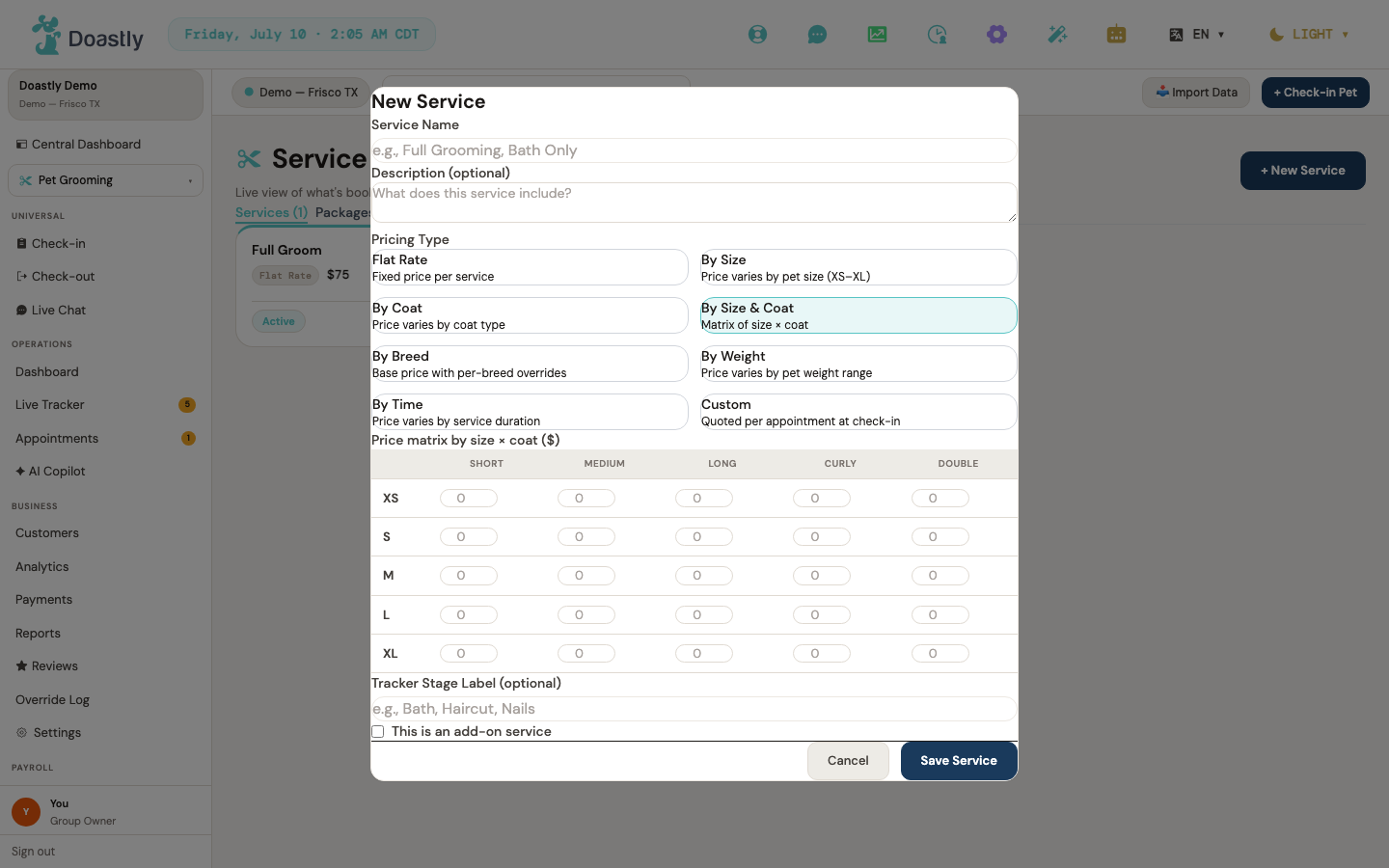
(dark mode also captured)
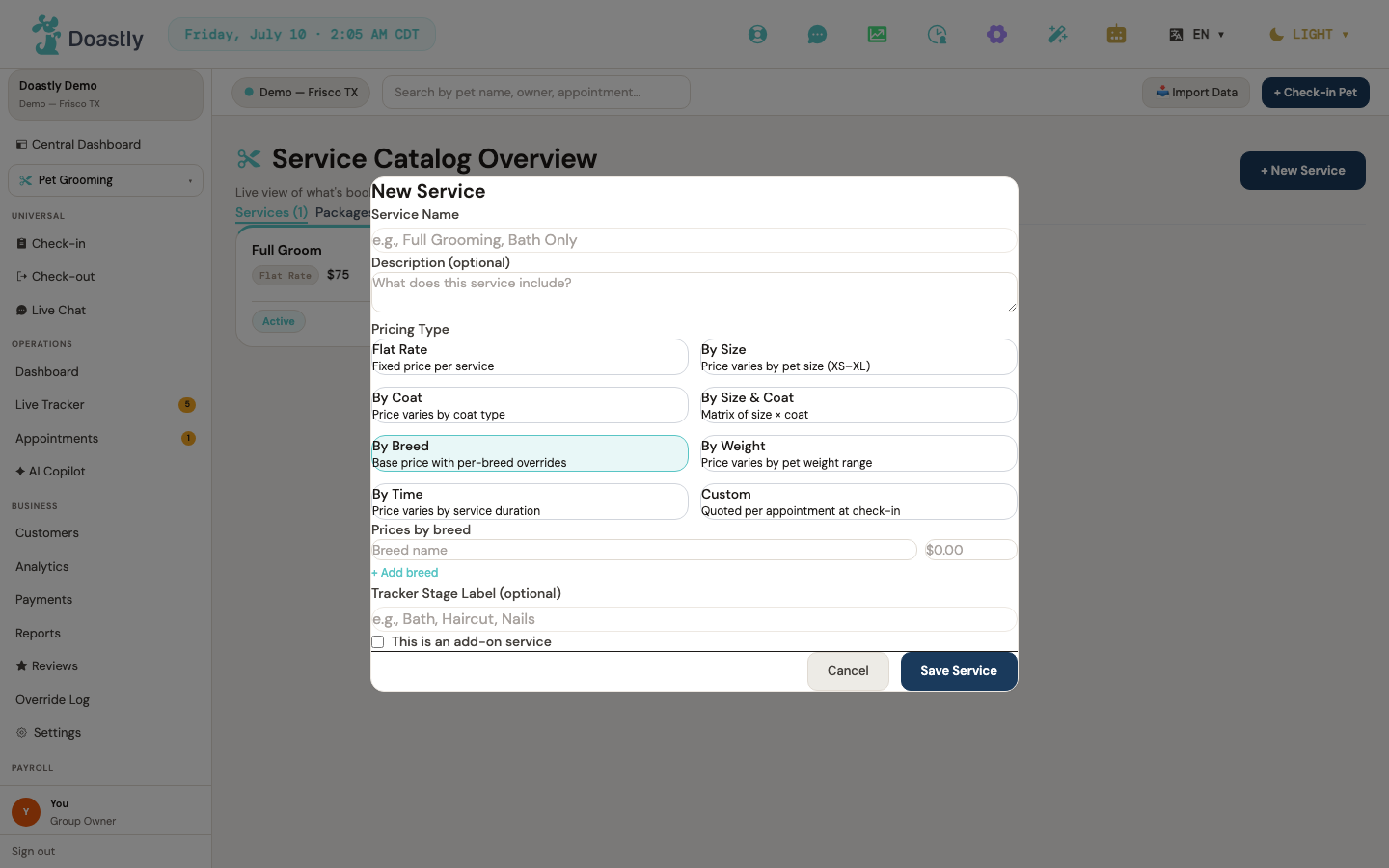
(dark mode also captured)
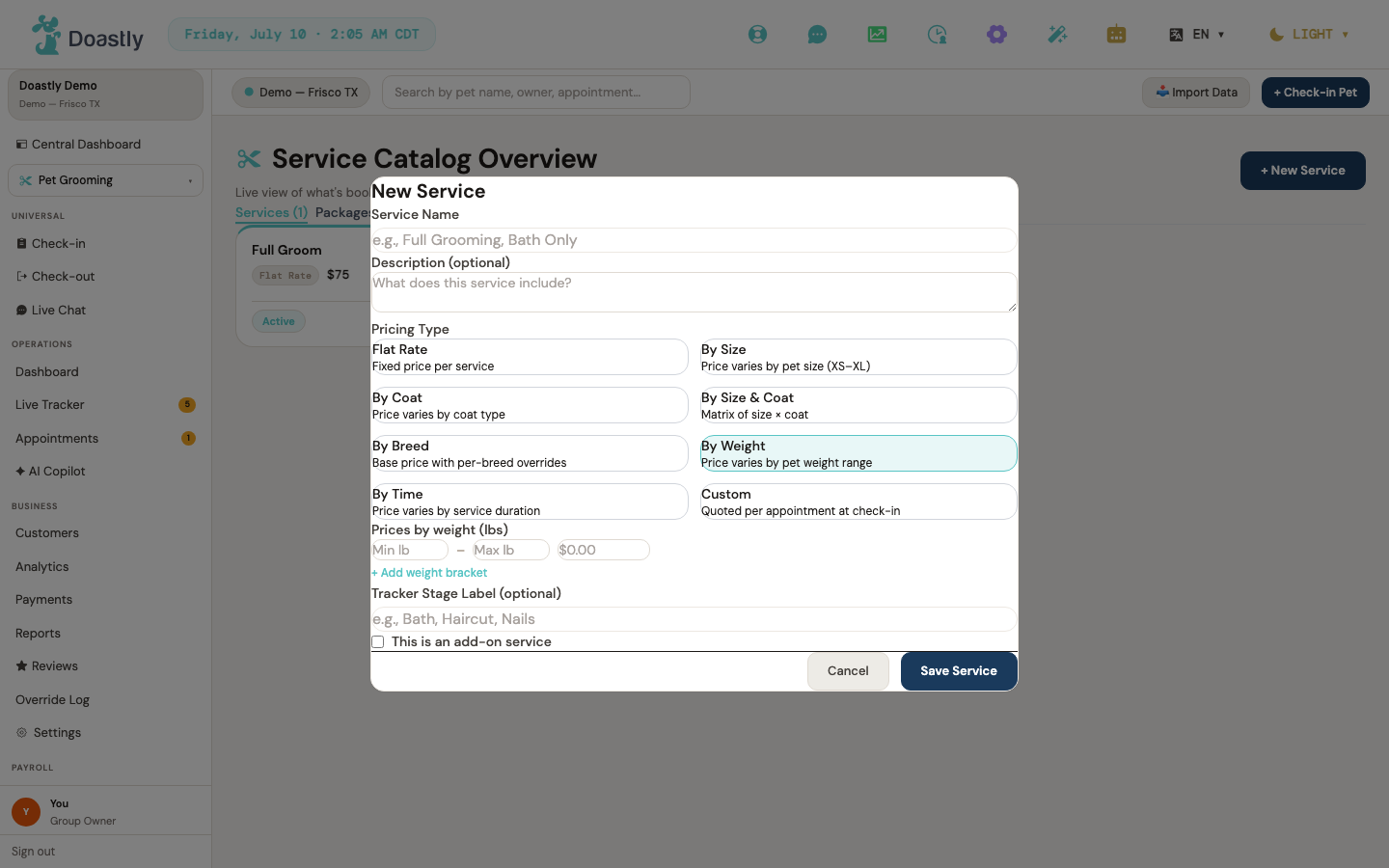
(dark mode also captured)
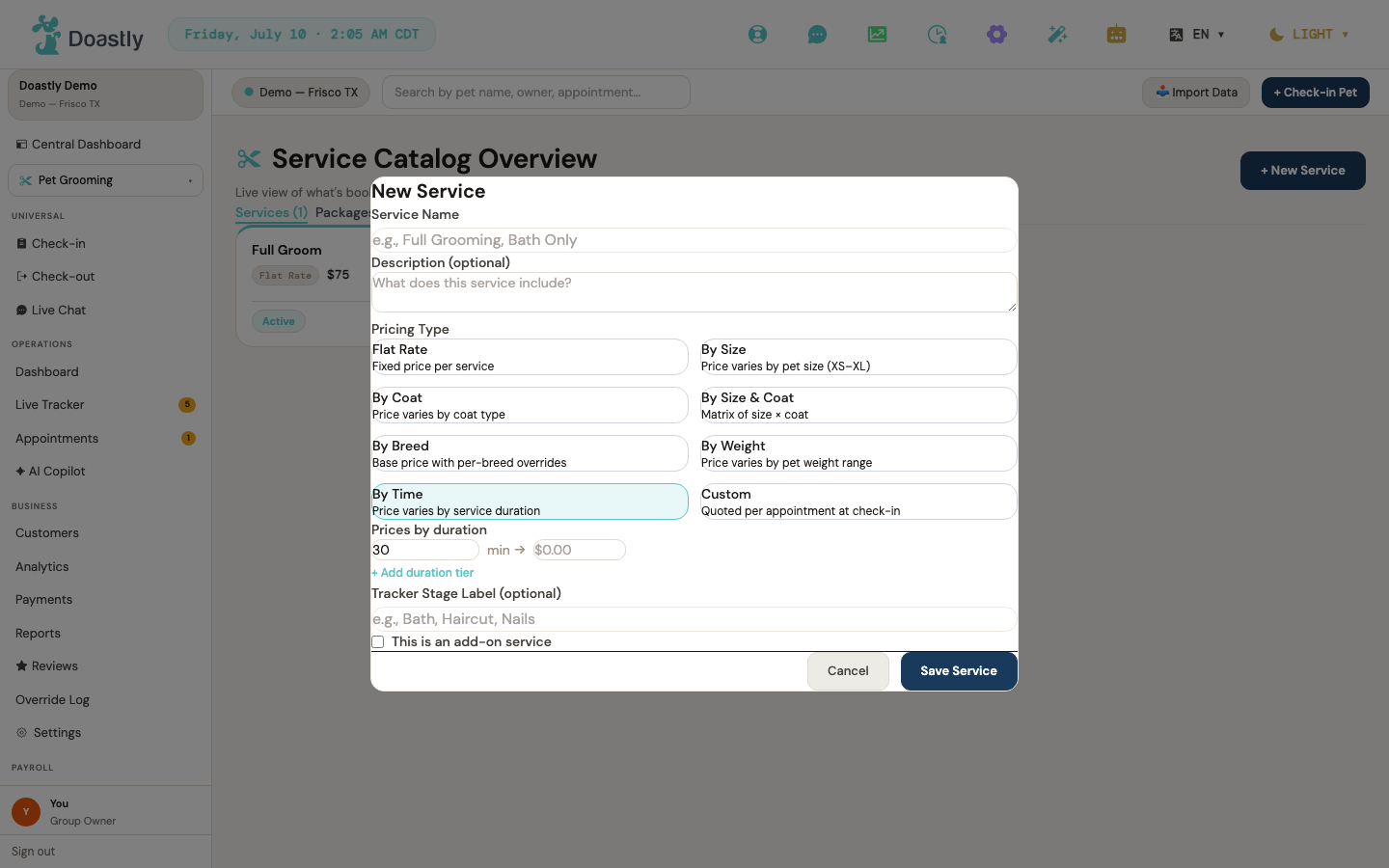
(dark mode also captured)
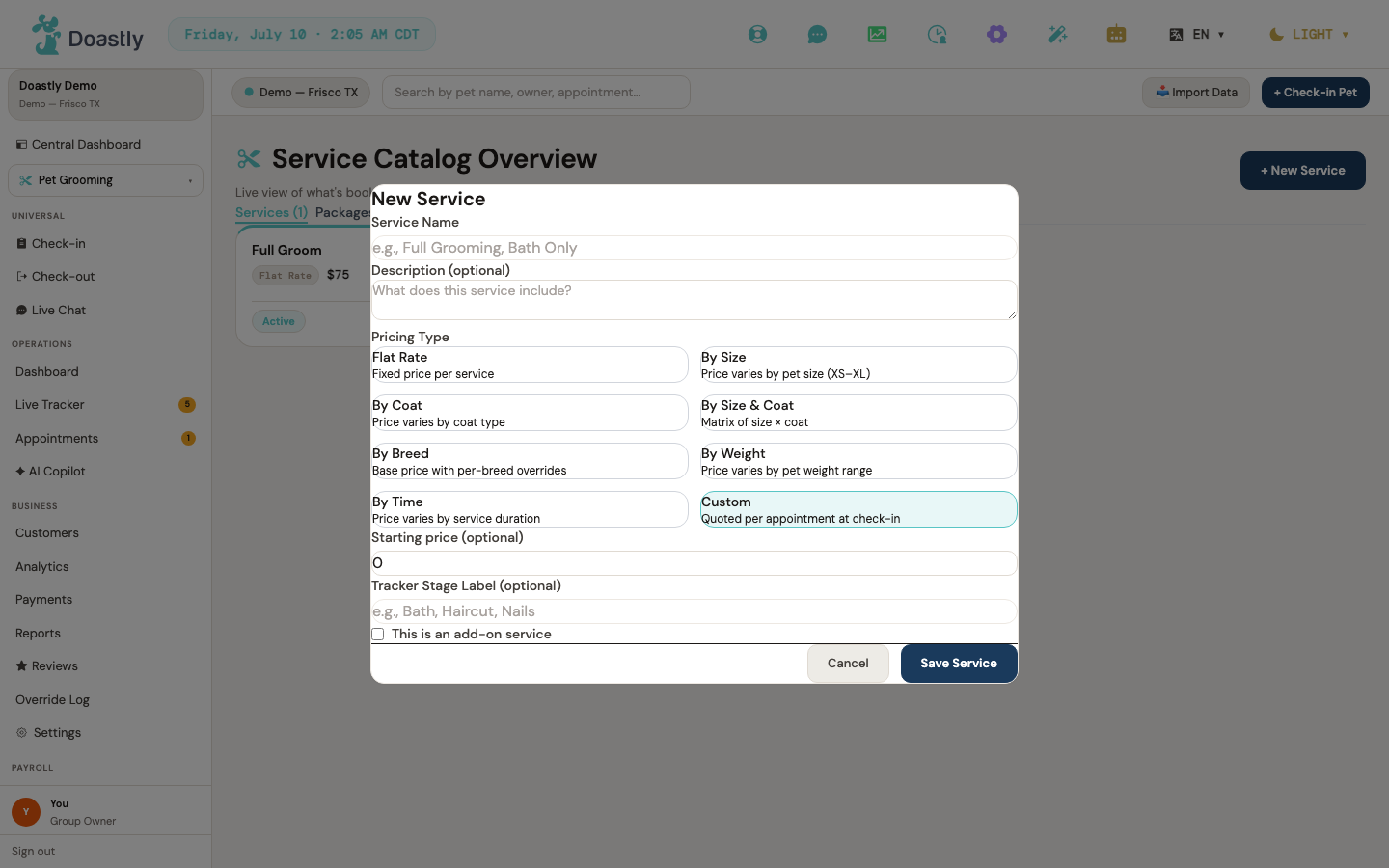
(dark mode also captured)
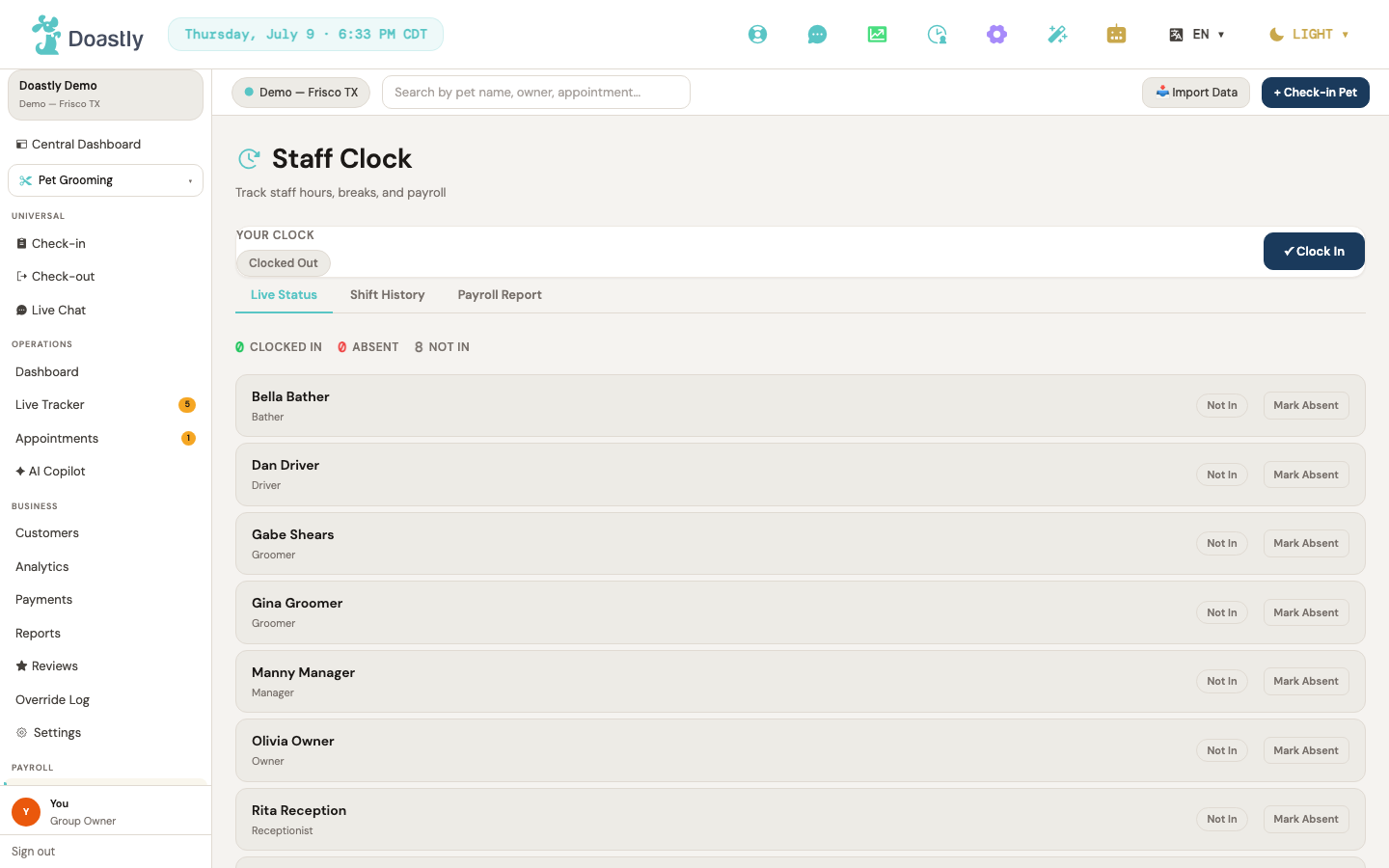
(dark mode also captured)
Staff & Payroll
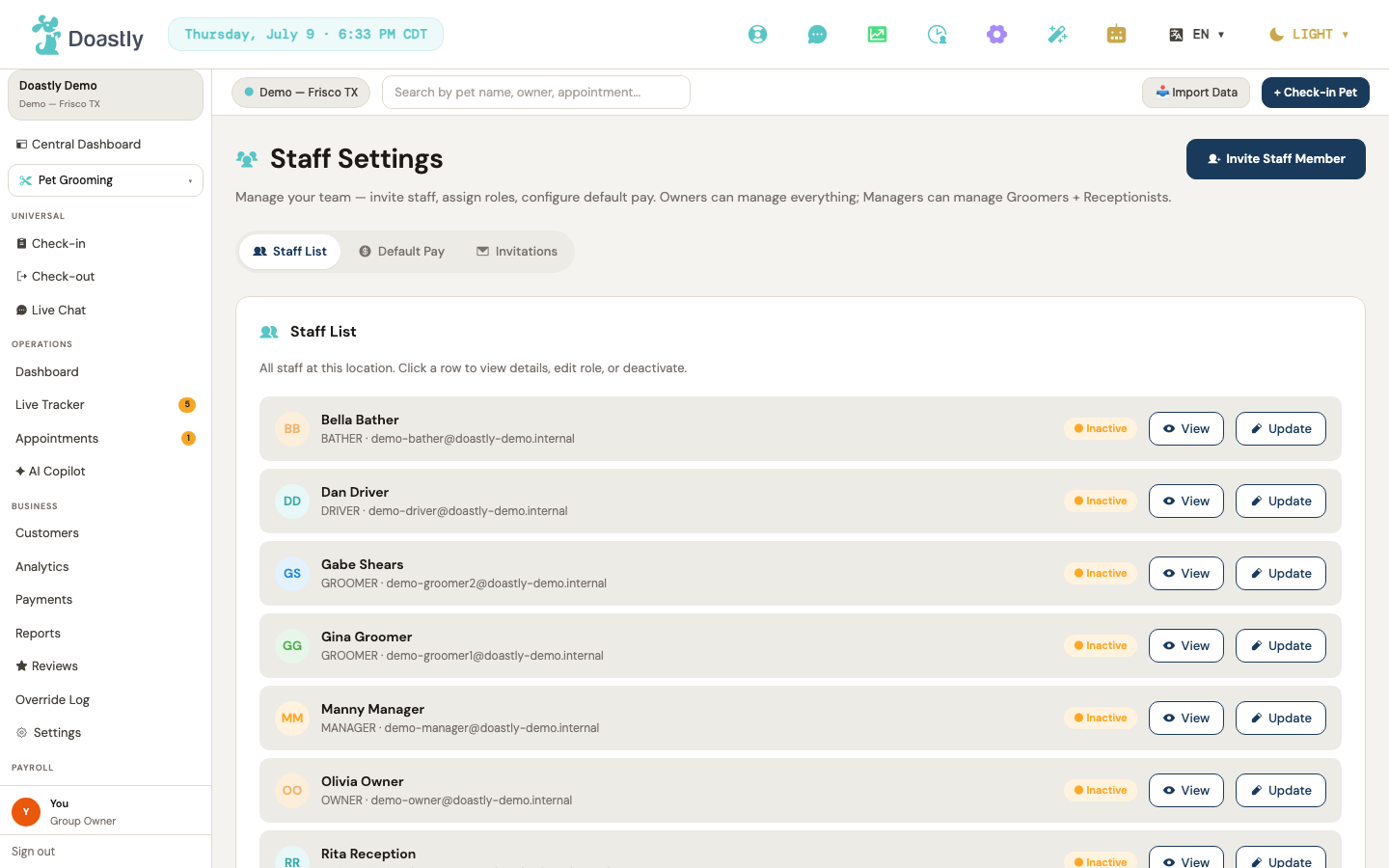
(dark mode also captured)
Staff Settings — Header & Tab Strip
The top of the Staff Settings page, with the primary invite action and the tab strip that switches between the staff list, default pay configuration, and pending invitations.
| Control | What it does |
|---|---|
| Invite Staff Member (header primary) | Opens the Invite Staff window to invite a new staff member by email. |
| Staff List (tab) | Switches to the Staff List tab; the badge shows the count of active staff. |
| Default Pay (tab) | Switches to the Default Pay tab, where default pay settings for new staff are configured. |
| Invitations (tab) | Switches to the Invitations tab; the badge shows the count of pending invites. |
Staff Settings — Staff List tab
The roster of current staff at your salon. Each row offers read-only and edit actions, with a second invite entry point below the list.
| Control | What it does |
|---|---|
| View (per staff row) | Opens the read-only staff detail window for that person. |
| Update (per staff row) | Opens the Edit Staff window to change that person's name, role, pay, tracker color, and compliance. |
| + Invite Staff Member (below list) | Opens the Invite Staff window (a second invite entry point at the bottom of the list). |
| Driver compliance chip (Groomer rows) | A non-interactive status chip shown on a Groomer row for the worst driver-compliance credential. It does NOT appear when the groomer is compliant or is not set to drive a van. It renders amber (a credential is expiring soon), red (a credential is expired), or grey (a required credential is missing). There is no green state — a compliant groomer simply shows no chip. |
Staff Settings — Invite Staff window
Sends an email invitation to a new team member. Enter their details and role, then send the invite.
| Control | What it does |
|---|---|
| Backdrop overlay | Closes the window when you click the dark area outside it. |
| First Name * | Enters the invitee's first name (required). |
| Last Name | Enters the invitee's last name (optional). |
| Email * | Enters the invitee's email address (required). |
| Role * | Picks the invitee's role: Manager, Groomer, Receptionist, or Driver (defaults to Groomer). |
| Cancel | Closes the window without sending an invite. |
| Send Invite / Sending… | Submits the form and sends the invitation, shows a success state, then closes automatically. |
Staff Settings — View Staff window
A read-only view of a staff member's details, including email, phone, and payroll.
| Control | What it does |
|---|---|
| Backdrop overlay | Closes the window when you click the dark area outside it. |
| Close | Closes the read-only staff detail window. |
Staff Settings — Edit Staff window
Edits a staff member's profile: photo, name, role, location, pay, and tracker color. Groomers also get a driver-compliance section (covered separately below).
| Control | What it does |
|---|---|
| Backdrop overlay | Closes the window when you click the dark area outside it. |
| Staff avatar Upload/Change Photo | Uploads the staff member's photo; the button reads "Upload Photo" when none is set and "Change Photo" when one is on file. |
| Staff avatar Remove | Removes the staff member's photo (shown only when a photo is on file). |
| First name | Edits the staff member's first name (required). |
| Last name | Edits the staff member's last name (required). |
| Role | Sets the role: Owner, Manager, Groomer, Receptionist, or Driver (applied on save). |
| Location | Assigns the staff member to All Locations or a specific location. |
| Payroll Type | Sets the payroll type: Commission, Hourly, or Fixed (this changes the Rate label and units). |
| Rate | Enters the pay rate; the unit follows the payroll type (% of revenue, $/hr, or $/month). |
| Tracker Color swatch (12 colors) | Selects or deselects the groomer's tracker color, shown on their pet cards. |
| Clear (color) | Clears the selected tracker color (appears only when a color is set). |
| Cancel | Closes the window without saving. |
| Save Changes / Saving… | Validates that both first and last name are present (blocks with an error otherwise), then saves the name, role, location, payroll, and color. |
Staff Settings — Edit Staff window · Driver Compliance section
Shown for Groomers when viewed by an administrator (Owner, Manager, or Super Admin). Records the driving credentials required to operate a mobile van — license, DOT medical card, and commercial insurance — each with an expiry and status chip.
| Control | What it does |
|---|---|
| Can drive van (toggle) | Sets whether this groomer can drive a mobile van. |
| Driver license number — Edit | Reveals the license-number input for editing (the value is masked when on file). |
| Driver license number (input) | Enters the full driver license number. |
| License state | Picks the license's issuing US state. |
| License expires | Sets the license expiry date; a status chip shows warning, expired, or missing (no chip when OK). |
| DOT medical card — Upload/Replace card | Opens the file picker to upload the DOT medical card (image or PDF, up to 10MB). |
| DOT medical card (file input) | Receives the selected DOT medical card file. |
| DOT card expires | Sets the DOT medical card expiry date; a status chip shows its state (no chip when OK). |
| Commercial insurance policy — Edit | Reveals the insurance-policy input for editing (the value is masked when on file). |
| Commercial insurance policy (input) | Enters the commercial insurance policy number. |
| Insurance expires | Sets the insurance expiry date; a status chip shows its state (no chip when OK). |
| Save compliance / Saving… | Saves all driver-compliance fields. |
Staff Settings — Default Pay tab
Sets the default pay configuration applied to new staff members — commission, hourly rate, tip handling, and pay period.
| Control | What it does |
|---|---|
| Save Defaults / Saving… / Saved | Saves the default-pay configuration (commission, hourly, tip handling, and pay period). |
| Commission % | Sets the default commission percentage (0–100) applied to new staff. |
| Hourly rate | Sets the default hourly rate in dollars. |
| Tip handling | Chooses the tip policy: Groomer keeps, Pooled, or a custom split formula. |
| Pay period | Chooses the payroll cadence: Weekly, Biweekly, or Monthly. |
Staff Settings — Invitations tab
Lists pending staff invitations that haven't been accepted yet, with actions to resend or revoke each one.
| Control | What it does |
|---|---|
| Try again (error state) | Reloads the pending-invitations list after a load error. |
| Resend / Resending… (per invite row) | Resends the invite and extends its expiry by about 14 days. |
| Cancel (per invite row) | Revokes the invite link after a confirmation prompt. |
Staff Clock — Header, My Clock card & Tabs
Your personal time clock plus the tab strip for the team's live status, shift history, and (for managers) the payroll report. The Payroll Report tab is shown to Owner, Manager and Receptionist, but the report itself loads only for an Owner or a Manager — a Receptionist sees "Manager or Owner role required" in place of the figures.
| Control | What it does |
|---|---|
| Clock In / Clocking in… | Clocks you in (shown when you're not currently clocked in). |
| Take Break / End Break | Starts or ends your current break. |
| Clock Out / Clocking out… | Clocks you out. |
| Live Status (tab) | Shows the live team status view for today (the default tab). |
| History (tab) | Shows the Shift History view with date filters. |
| Payroll (tab) | Shows the Payroll Report view (available to Owners, Managers, and Receptionists only). |
Staff Clock — Live Status tab
The live view of every team member's clock state today. Managers get per-staff actions on each row.
| Control | What it does |
|---|---|
| Break (per staff row) | Starts a break for a clocked-in staff member. |
| End Break (per staff row) | Ends the break for a staff member currently on break. |
| Clock Out (per staff row) | Clocks out a clocked-in staff member. |
| Mark Absent (per staff row) | Marks a not-clocked-in staff member absent (prompts for a reason). |
| Unmark Absent (per staff row) | Removes the absence record for a staff member marked absent. |
Staff Clock — Shift History tab
A filterable, paginated record of past shifts, with quick date ranges and CSV export.
| Control | What it does |
|---|---|
| Date from | Sets the start date of the shift-history date range. |
| Date to | Sets the end date of the shift-history date range. |
| All staff | Filters the history to a specific staff member (managers only). |
| Apply | Applies the date range and staff filter and reloads the shifts. |
| Last 7d / Last 14d / Last 30d | Quick-sets the date range to the last 7, 14, or 30 days and reloads. |
| ↓ Export CSV | Fetches all matching shifts and downloads them as a CSV file. |
| ← Prev (pagination) | Loads the previous page of shift history (disabled on the first page; shown only when there is more than one page). |
| Next → (pagination) | Loads the next page of shift history (disabled on the last page; shown only when there is more than one page). |
Staff Clock — Payroll Report tab
The payroll summary for managers — hours, revenue, tips, and payout per staff member over a chosen period, with CSV export.
| Control | What it does |
|---|---|
| This Month / Last Month / Custom | Selects the payroll period; This Month and Last Month load automatically, while Custom reveals date inputs. |
| Date from (custom) | Sets the custom-period start date (visible only when Custom is selected). |
| Date to (custom) | Sets the custom-period end date (visible only when Custom is selected). |
| Apply (custom) | Loads the payroll report for the custom date range. |
| Export CSV | Downloads the payroll report — staff, hours, revenue, tips, and payout — as a CSV (disabled when there's no data). |
Staff Invite Accept (public)
The onboarding page an invited staff member reaches from their invite link. They confirm their details, verify their email with a one-time code, and accept the invitation to join.
| Control | What it does |
|---|---|
| Send Verification Code / Sending… | Sends a one-time code to the invitee's email and advances to the code-entry step. |
| Verification Code | Enters the 6-digit numeric one-time code (digits only). |
| Accept Invitation / Accepting… | Verifies the code, accepts the invite, signs the person in, and routes them by role (disabled until all 6 digits are entered). |
| ← Back | Returns to the invite-details step and clears the code and any error. |
| Deactivate (per staff row) | Deactivates that staff member after a confirmation prompt — they can no longer sign in, and their status pill flips to Inactive. Shown on every active row to Owner and Manager alike (useRequireRole(['OWNER','MANAGER']) gates the whole page). UNRESOLVED TENSION (2026-08-17, not a doc-accuracy question, flagged for product/eng): the page's OWN subtitle states "Owners can manage everything; Managers can manage Groomers + Receptionists" — the scope this row originally claimed. But the code-enforced restriction (assert_can_modify_owner, #56) is coarser: it blocks a Manager ONLY from touching an Owner row, so a Manager CAN in practice deactivate another Manager, a Bather, a Driver, or a Trainer too — roles the product's own copy says they shouldn't reach. Which is correct (narrow the enforcement, or fix the copy) is a product call, not something this manual should assert either way. A deactivated member can be brought back by re-inviting them. |
Check-in flow (Grooming vertical)
Check-in page shell (header + progress + Quick Check-in bar + persistent panels)
The top-level frame for the à la carte check-in flow. It carries the page title, the step progress indicator, and the shortcuts for moving back or jumping straight to confirmation.
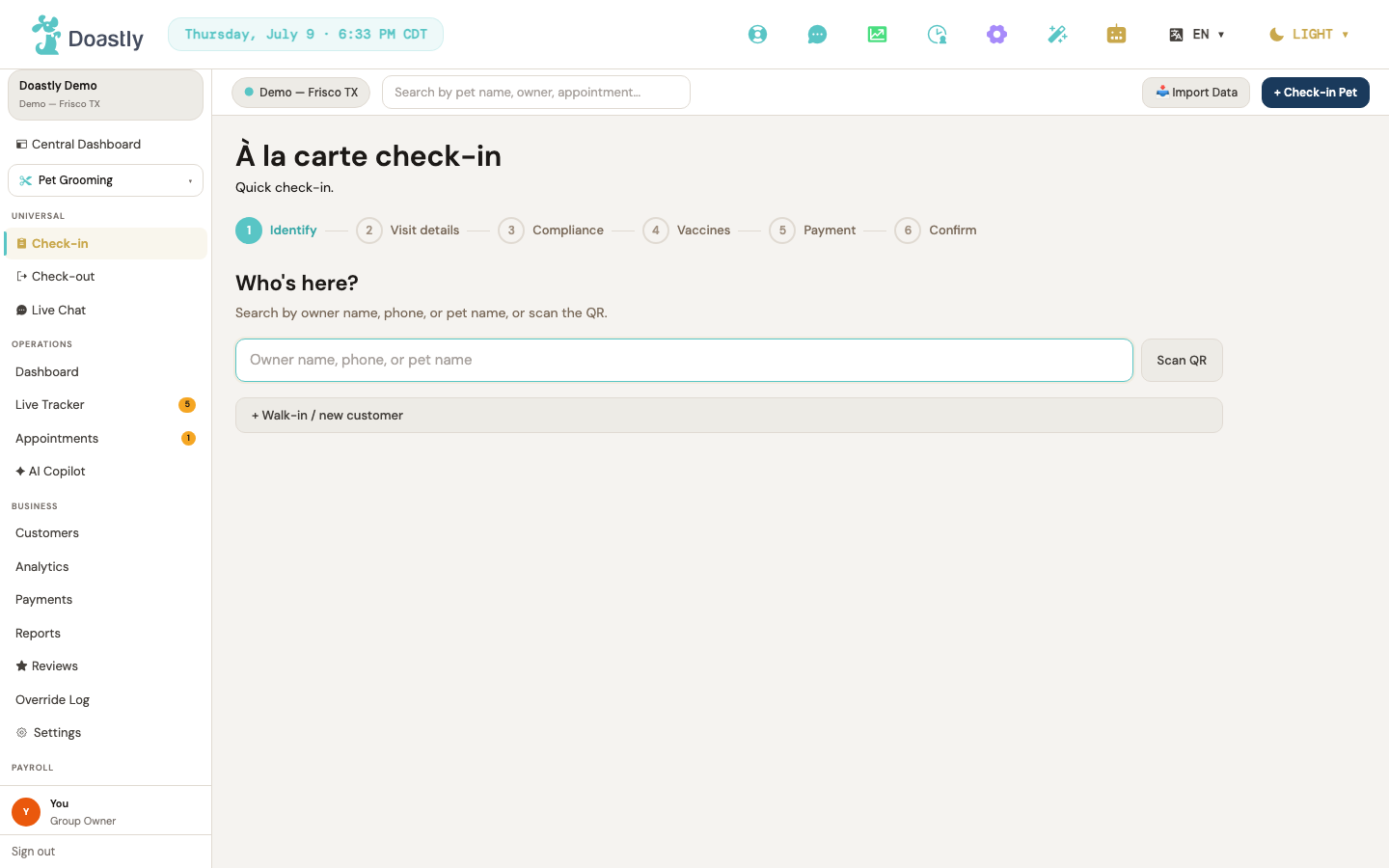
(dark mode also captured)
| Control | What it does |
|---|---|
| À la carte check-in (page title) | Static header that appends "— {pet name} · {customer name}" once a pet has been identified. |
| Progress necklace beads (Verticals / Identify / Visit details / Compliance / Vaccines / Payment / Confirm) | Step indicator; the "Verticals" bead appears only in multi-vertical mode, the current bead is teal, and completed beads show a checkmark. |
| ← Back to vertical selection | On the Identify step (multi-vertical only), returns to Step 0's vertical selector with the current selection preserved. |
| ← Back to pet search | On the tab flow, clears the identified pet and gate state and returns to Identify to search a different pet. |
| ⚡ Quick Check-in (tab-flow bar) | Disabled until at least one service or package is selected and compliance and vaccines are both green; when enabled, jumps straight to the Confirm step. |
Step 0 — Vertical selection (multi-vertical salons)
Shown only at multi-vertical salons. The operator picks which verticals the pet is being checked in for today before entering the details flow.
| Control | What it does |
|---|---|
| Vertical chip (Grooming / Boarding / Daycare / Mobile) | Toggle pill that adds or removes that vertical from the visit; shows a checkmark when selected. |
| Selection count text ("N verticals selected") | Live count, or a "Pick at least one vertical to continue" hint when none are chosen. |
| Continue → | Advances to the Identify step; disabled until at least one vertical is selected. |
| Manage subscription → | Appears only in the empty-subscription error state; links to subscription settings. |
Step 1 — Pet + Customer Identify
Where the operator finds the pet and owner being checked in, by search or QR, or creates a new walk-in record.
| Control | What it does |
|---|---|
| Owner name, phone, or pet name (search input) | Debounced customer and pet search; autofocused on entry, and drives the results list. |
| Scan QR | QR-scan affordance; not yet wired, so scanning is not yet available — tracked as #968 (one capability across grooming-50/grooming-51/training-50/mobile check-in, do not duplicate). |
| "Type at least N characters to search" hint | Shown when the query is non-empty but shorter than the search minimum length, before any results are fetched. |
| Searching… / search-error line | Transient states of the search box: a "Searching…" indicator while the search is in flight, and an inline friendly error line on failure. |
| Search result row (pet name + owner + phone) | Selects that pet and advances to the tab flow; grayed out and disabled with "Pet already in session" when the pet has an active session. |
| Match-kind badge (Owner / Phone) | On a selectable result that matched by owner name or phone (not pet name), an uppercase tag on the row indicating why it matched. |
| + Walk-in / new customer | Opens the inline customer + pet create window, which saves a real customer and pet and then identifies them. |
| No matches. Walk-in or new customer? (empty state) | Shown when a query at or above the minimum length returns no results. |
Persistent panels shell (identity row + 3 panels)
The identity strip that stays visible throughout the flow after a pet is identified, sitting above the Pet Status, Vaccines, and Compliance panels.
| Control | What it does |
|---|---|
| Pet name link (identity row) | Opens the Pet Detail view for the identified pet. |
| Pet avatar | Shows the pet's photo or initials in the identity row; non-interactive. |
Pet Status panel
A read-only snapshot of the pet's safety profile and any active sessions across salons.
| Control | What it does |
|---|---|
| Pet profile fields (Behavior / Diet / Medication / Allergies / Handling Notes) | Read-only safety profile; each field shows "None on file" when empty. |
| Active session row (per vertical, e.g. "Grooming · {label}") | Cross-vertical and cross-salon view of active sessions; tagged "(at another salon)" when the location differs. |
Note: the per-session "Add to this visit / Start a new visit" buttons appear only during the check-out flow, not during check-in. They are therefore not controls of this screen-group.
Pet Vaccines panel
A read-only vaccine status view, headed by an aggregate badge, shown alongside the flow.
| Control | What it does |
|---|---|
| Vaccine badge (G/Y/R aggregate) | Header status badge computed from the pet's vaccine records. |
| Large vaccine status graphic | Decorative green/amber/red status icon rendered above the checklist; non-interactive. |
| Mandatory vaccine rows (Rabies / DHPP / Bordetella) + extra vaccines | Shows a check, cross, or warning per vaccine with its expiry label; information only, no actions in this panel. |
Pet Documents (Compliance) panel
A read-only compliance overview with the ability to download already-signed documents. Signing itself happens later in the Compliance step.
| Control | What it does |
|---|---|
| Compliance badge (All signed / N unsigned / Incomplete) | Green, yellow, or red status pill derived from missing or failed compliance documents. |
| Large compliance status graphic | Decorative signed/unsigned status icon rendered above the lists; non-interactive. |
| Download (per signed document) | Authenticated download of a signed compliance document; shows "Downloading…" while in progress. |
| Missing compliance doc rows (Unsigned advisory) | Lists the missing mandatory documents; information only, since signing happens in the Compliance step. |
| Retry (compliance fetch-fail) | Reloads the page to re-fetch compliance status after a failure. |
Step 2 — Tab flow (tab strip, multi-vertical only)
The navigation strip across the per-vertical detail tabs, shown only for multi-vertical visits.
| Control | What it does |
|---|---|
| Per-vertical tab (Grooming / Boarding / Daycare / Mobile) + Review tab | Switches the visible tab content; hidden entirely for single-vertical visits. |
| ← Back to vertical selection (tab strip) | Returns to Step 0 with the vertical selection and pet identification preserved. |
| ← Back (tab-flow, every non-Review tab) | Moves to the previous vertical tab, or to Step 0 from the first tab, preserving entered data. |
Step 2 — Grooming tab content
Where the operator builds the grooming portion of the visit: services, packages, add-ons, the assigned groomer, and visit notes.
| Control | What it does |
|---|---|
| Service chips (Services section) | Multi-select service chips with price; each toggles into the visit's selected services. |
| Package chips (Packages section) | Multi-select package chips with a by-size price suffix; each toggles into the selected packages. |
| Add-on chips (Add-ons section) | Multi-select add-on chips; each toggles into the selected add-ons. |
| Groomer for this visit (dropdown, required) | Single-select groomer (Groomer, Bather, Owner, or Manager, including invite-pending staff); required before continuing. |
| Coat type (text input) | Free-text coat type, prefilled from the pet's master record. |
| Special handling notes (textarea) | Free-text handling notes for the visit. |
| Validation-error banner | Inline plain-English error shown when Continue is clicked while a service/package or groomer is missing. |
| Continue to Review → / Continue to next vertical → | Validates at least one service and a groomer, then advances to the next tab or Review; disabled until valid. |
| Retry (Grooming resource-fail) | Re-fetches services, packages, and staff after a load failure. |
| Pet size badge | Displays the pet's size when known; non-interactive. |
Step 2 — Boarding tab content (multi-vertical)
The boarding detail tab: catalog selections, kennel assignment, stay dates, and care instructions.
| Control | What it does |
|---|---|
| Services / Packages / Add-ons chips | Multi-select catalog chips loaded for the Boarding vertical. |
| Kennel (dropdown, required) | Single-select kennel, with out-of-service kennels filtered out. |
| Check-in date / Check-out date (date inputs, required) | Stay dates; check-out must be after check-in, validated on Continue. |
| Food schedule / Medication / Notes (textareas) | Free-text boarding care fields. |
| Validation-error banner | Inline plain-English error shown when the kennel is missing, dates are missing, or check-out is not after check-in. |
| Continue to Review → / next vertical → | Validates the kennel and dates, then advances; disabled until valid. |
| Retry (Boarding resource-fail) | Re-fetches kennels and catalog after a failure. |
Step 2 — Daycare tab content (multi-vertical)
The daycare detail tab: catalog selections, yard and play-group assignment, and recurring-day scheduling.
| Control | What it does |
|---|---|
| Services / Packages / Add-ons chips | Multi-select catalog chips loaded for the Daycare vertical. |
| Yard (dropdown, required) | Single-select active yard; required before continuing. |
| Play group (dropdown) | Optional single-select play group, including a "no group / one-on-one" option. |
| Recurring days (Mon–Sun toggle chips) | Multi-select weekday chips for recurring attendance. |
| Notes (textarea) | Free-text daycare notes. |
| Validation-error banner | Inline plain-English error shown when Continue is clicked without a yard set. |
| Continue to Review → / next vertical → | Validates that a yard is set, then advances; disabled until a yard is picked. |
| Retry (Daycare resource-fail) | Re-fetches yards, groups, and catalog after a failure. |
Step 2 — Mobile tab content (multi-vertical)
The mobile grooming detail tab: catalog selections, van and zone assignment, and route details.
| Control | What it does |
|---|---|
| Services / Packages / Add-ons chips | Multi-select catalog chips loaded for the Mobile Grooming vertical. |
| Van (dropdown, required) | Single-select active van; clears the zone if the newly chosen van doesn't service it. |
| Assigned groomer (auto display) | Read-only driver name derived from the selected van. |
| Zone (dropdown, required) | Single-select zone, filtered to the chosen van's zones. |
| "No active zones assigned to this van" note | Inline note shown when a van is selected but has no serviceable zones. |
| Route slot / Special equipment (text inputs) | Free-text route slot and equipment for the stop. |
| Validation-error banner | Inline plain-English error shown when Continue is clicked without a van or zone. |
| Continue to Review → / next vertical → | Validates the van and zone, then advances; disabled until valid. |
| Retry (Mobile resource-fail) | Re-fetches vans, zones, and catalog after a failure. |
Step 2 — Review tab content
The cross-vertical summary of everything selected, with pricing and compliance roll-up, and the action that creates the sessions.
| Control | What it does |
|---|---|
| ← Back (Review) | Returns to the previous tab with data preserved; disabled while submitting. |
| Service-required banner | Red banner naming any selected vertical (e.g. Grooming) that has no paid service/package; while present, the Continue-to-Compliance action stays disabled. |
| Visit Summary table (per-vertical subtotals + grand total) | Cross-vertical summary of the selections and pricing. |
| Compliance roll-up section | Shows the compliance-satisfied or blocked state across the selected verticals. |
| Retry (Review partial/submit fail) | Clears the submit error and re-triggers the compliance and pricing fetch after a failure. |
| ← Cancel all | Returns the operator to Step 0 with selections preserved; disabled while submitting. |
| ⚡ Quick Check-in (Review) | Jumps to the Confirm step when eligible; disabled otherwise or while submitting. |
| Continue to Compliance → / Creating sessions… | Creates the sessions all at once, then advances to the Compliance gate; disabled unless compliance is satisfied, every vertical needing a paid service has one, and all verticals are populated. |
Step 3 — Compliance gate
The compliance gate. Whether it blocks depends on your location's waiver-compliance setting: where waiver compliance is enforced, all mandatory documents must be signed before check-in can proceed (a hard block); where it is not enforced, unsigned mandatory documents are still surfaced here and can be signed, but they do not block check-in.
| Control | What it does |
|---|---|
| Sign → (per unsigned mandatory document) | Opens the sign window for that document and re-checks status once signed. (Shown while docs remain unsigned.) |
| Signed documents list (✓ / ⚠ expired) | Lists already-signed documents with their signed and expiry dates; information only. Rendered inside the all-clear state. |
| ← Back (Compliance) | Returns to the à la carte menu (multi-vertical) or to Identify (single-vertical). |
| Continue → / Sign N documents to continue | Advances to the Vaccines step; hard-disabled until compliance is no longer blocked. |
Compliance sign window
The signing form for a single compliance document, opened from a "Sign →" row in the Compliance step.
| Control | What it does |
|---|---|
| Full name (text input, required) | The signer's full name. |
| Relationship to pet (dropdown, required) | Owner, Guardian, Authorized Agent, or Vet Staff. |
| Signature pad (draw or type, required) | Captures the signature. |
| Cancel | Closes the sign window without saving. |
| Sign Document / Signing… | Saves the compliance signature for the pet; disabled until a name and signature are present. |
Step 4 — Vaccines gate
The hard gate that requires all mandatory vaccines to be present and current, with inline add for anything missing.
| Control | What it does |
|---|---|
| Vaccine issue rows (missing / expired) | Lists each missing or expired required vaccine that needs resolving. |
| + Add / upload vaccine | Opens the vaccine quick-add window to add a record inline. |
| Vaccine detail list (✓ + expiry, when all clear) | Read-only list of present vaccines with their expiry dates. |
| ← Back (Vaccines) | Returns to the Compliance step. |
| Continue → / Resolve N vaccine issues to continue | Advances to the Payment step; hard-disabled until the vaccine check passes. |
Vaccine quick-add window
A short form for adding a vaccine record without leaving the flow.
| Control | What it does |
|---|---|
| Vaccine (dropdown, required) | A list of common vaccines plus an "Other (type below)" option. |
| Other vaccine name (text input) | Shown when "Other" is selected; free-text vaccine name. |
| Administered (date, required) / Expires (date) | Administered date is required; the expiry date is optional. |
| Cancel | Closes the window without saving. |
| Add vaccine / Saving… | Saves the pet vaccine record; disabled while saving. |
| Overlay backdrop | Clicking outside the form closes the window. |
Step 5 — Payment pre-auth
An optional step to place a pre-authorization hold on a card. It never blocks check-in — the operator can always bill at checkout instead.
| Control | What it does |
|---|---|
| Per-vertical estimate lines + Total hold | Shows pricing per vertical and the grand total for the hold. |
| + Add card for pre-auth hold | Reveals the card form, available only when the salon's payment gateway is ready. |
| Card entry | Collects the card for the pre-auth hold. |
| Cancel (card form) | Hides the card form without authorizing. |
| Authorize hold / Authorizing… | Sets up the card and advances to the Confirm step. |
| ← Back (Payment) | Returns to the Vaccines step. |
| Skip — bill at checkout | Skips the pre-auth (always available, never gates) and advances to Confirm. |
Step 6 — Confirm arrival + success
The final step that confirms the pet's arrival, adds the session to the Live Tracker, and offers a fresh start once done. No SMS fires at this step — see the Grooming Started note below.
| Control | What it does |
|---|---|
| Today's à la carte vertical chips | Read-only summary of the selected verticals, with a "Payment pre-authorized" note when applicable. |
| Already-checked-in notice | Shown when the pet is already checked in; points to the Live Tracker. |
| ← Back (Confirm) | Returns to the Payment step. |
| Confirm arrival ✓ / Checking in… | Records the arrival and adds it to the Live Tracker; disabled while confirming, when no verticals are selected, or when the pet is already checked in. No SMS fires here — the Grooming Started SMS fires later, when a staff member moves the session from Checked In to Grooming on the tracker (see the Live Tracker chapter). |
| + New check-in (success state) | Resets the whole flow to start a fresh check-in. |
Legacy à la carte menu step (transitional / single-vertical fallback)
A transitional vertical picker used as a single-vertical fallback path into the flow.
| Control | What it does |
|---|---|
| Adaptive à la carte menu (vertical picker) | Pick the verticals for today, with a recommended pre-check applied. |
| ← Back (à la carte) | Returns to the Identify step. |
| Next: Confirm → | Advances to the Compliance step; disabled until at least one vertical is selected. |
Legacy per-vertical check-in redirect
The compatibility layer for the old per-vertical check-in links, now unified into a single screen.
| Control | What it does |
|---|---|
| Redirecting spinner ("We unified Check-In to one screen") | On a subscribed path, automatically redirects to the unified check-in screen after about 1.2 seconds. |
| Manage subscription → | On a not-subscribed path, links to subscription settings instead of redirecting. |
Vertical tab placeholder + Review placeholder (defense-in-depth fallback)
A fallback surface shown if a selected vertical has no dedicated tab content yet, kept as a safety net.
| Control | What it does |
|---|---|
| Continue to Review → / next vertical → (placeholder) | Fallback tab for a vertical without dedicated content; advances the navigation. |
| Complete Check-in (coming soon) — disabled | Disabled placeholder Complete button in the placeholder Review tab. |
Grooming Check-out flow
The Check-out flow settles a pet's active sessions and takes payment. It begins with a pet lookup, walks through session selection and per-vertical settlement tabs, and finishes at a Review & Complete step. A separate tracker-side gate window enforces payment and compliance rules before a session can reach check-out.
Check-out — Step 1: Pet/Customer Lookup
The entry point to check-out: find the pet you're settling by searching on owner, phone, or pet name.
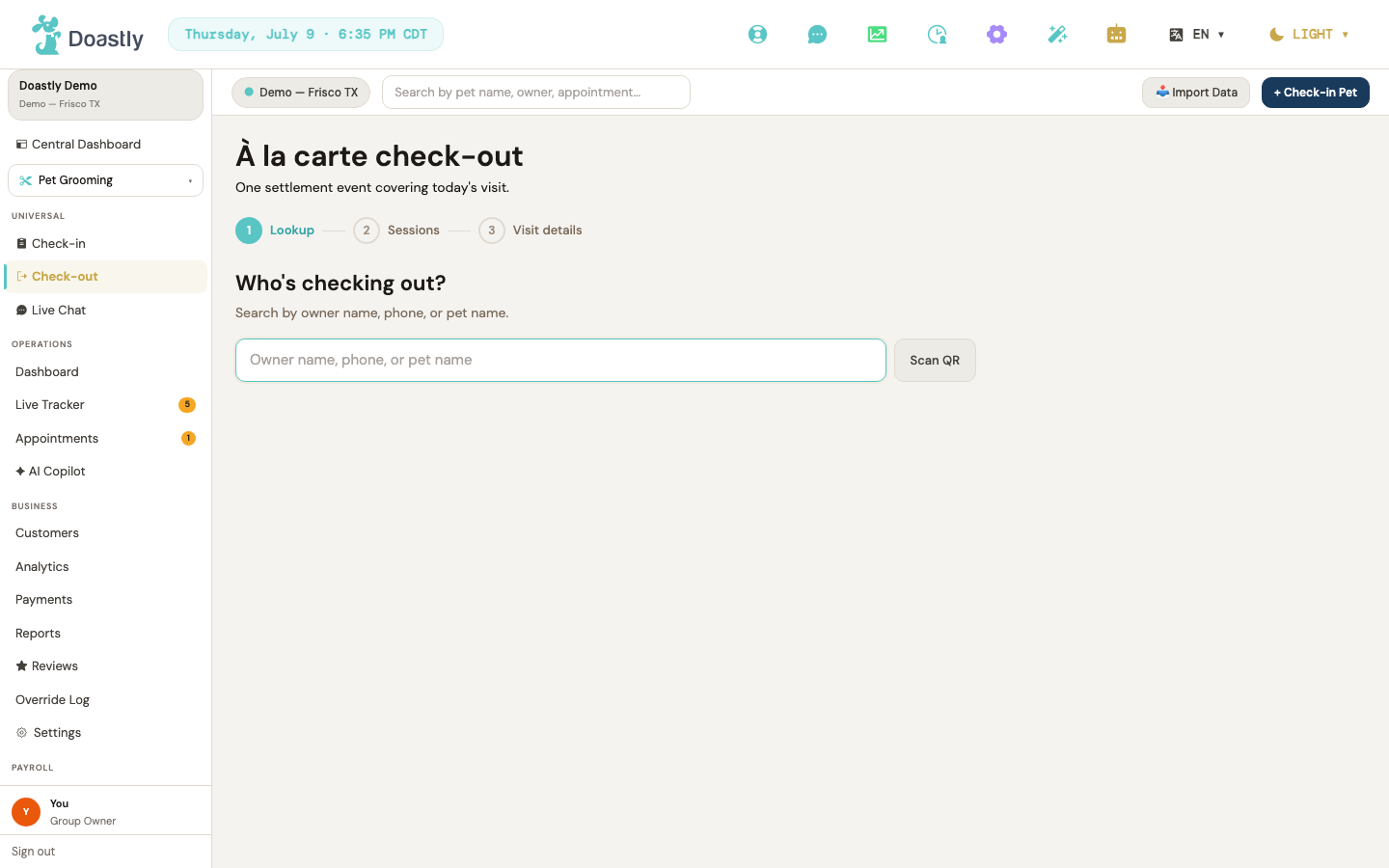
(dark mode also captured)
| Control | What it does |
|---|---|
| Owner name, phone, or pet name (search input) | Text field that drives a live customer and pet search as you type. |
| Scan QR | Outline button intended to scan a pet's QR code. Currently a placeholder — not yet wired — tracked as #968 (one capability across grooming-50/grooming-51/training-50/mobile check-in, do not duplicate). |
| Check out (per result row) | Primary button on each search result; selects that pet and advances to Session Select. |
| Result row (pet name · owner · phone + Owner/Phone match-kind badge) | Displays each matching pet with its owner and phone, plus an Owner or Phone pill when the match was found by something other than the pet's name. Contains the Check out button. |
Check-out — Persistent Panels (Pet Status + Documents)
These two read-only panels appear alongside every step after lookup, giving the operator at-a-glance context on the selected pet without leaving the flow.
| Control | What it does |
|---|---|
| Pet Status panel (checkout mode) | Shows the pet's status with the selected session marked "Selected for check-out." Read-only — no add-to-visit or start actions. |
| Pet Documents panel (checkout mode, read-only) | Shows vaccine and compliance state as advisory chips. Sign and upload controls are hidden in check-out. |
Check-out — Progress Indicator (necklace beads)
A slim progress necklace across the top of the flow showing where you are.
| Control | What it does |
|---|---|
| Lookup / Sessions / Visit details beads | Non-interactive three-bead progress necklace marking each step as done, current, or pending. The Sessions bead is hidden in single-session mode. |
Check-out — Step 0: Session Select
Choose which of the pet's active sessions to settle in this check-out.
| Control | What it does |
|---|---|
| Search another pet (empty state) | Shown when the pet has no active sessions; resets the flow back to Lookup. |
| Active-session chip (per session, e.g. Grooming) | Toggles a session in or out of the check-out. Sessions belonging to another salon appear disabled with an "(at another salon)" note. |
| Continue → | Advances to the settlement tabs. Disabled until at least one session is selected. |
| Selection count / partial-fail notices | Non-interactive text showing how many sessions are selected, plus an advisory note if a vertical's lookup failed. |
Check-out — Tab Strip (multi-session)
When more than one vertical is being settled, this strip lets you move between each vertical's tab and the final Review tab.
| Control | What it does |
|---|---|
| Per-vertical tab (Grooming / Boarding / Daycare / Mobile) | Switches to that vertical's settlement tab. Only appears for verticals among the selected sessions; the strip is hidden entirely when there's just one vertical. |
| Review | Switches to the final aggregate Review tab. |
| ← Back to session selection | Returns to Session Select, keeping the pet and current selection. |
Check-out — Grooming Tab Content
Settle the grooming portion of the visit: adjust the total, choose report card delivery, and add any operator notes before continuing.
| Control | What it does |
|---|---|
| Retry (session load error) | If the session fails to load, re-fetches the grooming session. |
| Tip $ mode | Interprets the tip input as a dollar amount. |
| Tip % mode | Interprets the tip input as a percentage and reveals the percent suggestion chips. |
| Tip percent chips (None / 10% / 15% / 20%) | Sets the tip to that percentage of the subtotal and updates the running total live. |
| Tip amount input | Custom tip entry (dollars or percent, per the selected mode); updates the running total. |
| Discount input | Manual dollar-discount entry that reduces the running total. (Promo codes are deferred.) |
| Report card delivery: Email / SMS / Skip | Grooming-only choice for how the report card is sent. Skip respects customer opt-outs. |
| Notes textarea | Operator-internal condition notes for this grooming check-out. |
| Running total preview | Non-interactive live display of subtotal plus tip, minus discount. |
| ← Back | Returns to Session Select. |
| Continue → / Continue to Review → | Advances to the next vertical tab, or to Review when this is the last tab. |
Check-out — Retail Ring-up Section
Appears inside the Grooming tab when retail is enabled, letting you add products to the sale before settling.
| Control | What it does |
|---|---|
| Search products… input | Filters the product pick list by name or SKU. |
| Product pick chip (per product) | Adds that product to the retail cart, or increments its quantity if already present. |
| Remove cart item (✕) | Removes a product line from the retail cart. |
| Add N items to checkout / Add items to cart | Rings up the cart, attaching the products to the session. Disabled when the cart is empty; shows a confirmation on success. |
Check-out — Other Vertical Tabs (Boarding / Daycare / Mobile)
When a multi-vertical check-out includes a Boarding, Daycare, or Mobile session, each of those tabs renders its own real settlement content (not a placeholder). Each shares the same Tip ($/%) / Discount / Notes / Running-total / ← Back / Continue → controls as the Grooming tab, plus vertical-specific fields:
| Control | What it does |
|---|---|
| Boarding: Late fee (computed advisory + manual override input) | Shows the salon's auto-computed late fee (with reason) when available; the operator can override it with a manual dollar amount. Hidden with a "within grace period" note when no fee applies. |
| Boarding: Check-out time (datetime-local) | Records the actual pickup time for this boarding stay. |
| Boarding: Mid-stay extras (textarea) | Free-text entry for extra walks, meals, or baths billed mid-stay. |
| Boarding: Return checklist toggles | Checkboxes marking returned items (e.g. keys, leash) for the boarding return. |
| Daycare: Behavioral observation notes (textarea) | Operator notes on the pet's behavior for this daycare day. |
| Mobile: Route-completion notes (textarea) | Operator notes recorded when completing the mobile route stop. |
| Mobile: Customer signature capture | Captures the customer's signature at the mobile check-out. |
A lightweight "Coming soon" placeholder is shown for one of these tabs only in the edge case where the tab is reached with no backing session for that vertical (the placeholder still offers ← Back and Continue →). In the normal multi-vertical check-out, the real content above renders.
Check-out — Review & Complete Tab
The final step: review the full charge breakdown, choose a payment method, and complete the check-out.
| Control | What it does |
|---|---|
| Selection summary table | Non-interactive per-session rows and a totals footer (subtotal, tip, late fee, discount, tax, grand total). |
| Payment method pills (Stripe terminal / Square terminal / Cash / Check / Split) | Selects the payment method. Shows a bring-your-own-account note, or a "no reader paired" warning for Stripe terminal. |
| pair one in Settings → Payment (reader guidance link) | Appears when Stripe terminal is selected but no reader is paired; links to Settings → Payment. |
| ← Back | Returns to Session Select. |
| Complete check-out · $<grand total> | For card or split methods, opens the Payment Capture step; for cash or check, submits the check-out directly. Disabled while submitting or capturing, or when a Stripe reader is unpaired. |
| Payment declined panel | Non-interactive, friendly error shown when a charge is declined. |
| Partial-fail panel | Non-interactive panel shown when some sessions settle and others don't; lists the failed sessions, charge and refund status, and retry guidance. |
Check-out — Payment Capture
Shown for card and split payments; runs the capture against the pre-authorization.
| Control | What it does |
|---|---|
| ← Back | Cancels the capture and returns to the Review step. |
| Capture $<amount> → | Runs the capture and completes the check-out. Disabled while running. |
Check-out — Success Panel
Confirmation that the check-out settled successfully.
| Control | What it does |
|---|---|
| Closed-sessions + aggregated-receipt list | Non-interactive confirmation of the settled amount, the closed verticals, and the generated aggregated receipt. |
| + New check-out | Resets the whole flow back to Lookup for the next customer. |
Check-out Gate Window (tracker-side entry)
Opened from the Grooming tracker, this window enforces payment and compliance rules before a session can proceed to check-out.
| Control | What it does |
|---|---|
| Close (✕) | Dismisses the gate window. |
| Confirm checkout (zero-payment banner) | When nothing is due, zero-settles the session and checks it out directly. |
| Cancel (zero-payment banner) | Closes the gate window. |
| Take payment (payment gate) | Closes the gate and starts the take-payment flow for the amount due. |
| Manager override (payment gate) | Advances to the payment override PIN step. |
| Cancel (payment gate) | Closes the gate window. |
| Sign documents (compliance gate) | Loads any missing compliance templates and opens the signing flow. Shown only when there are missing documents to sign. |
| Manager override (compliance gate) | Advances to the compliance override PIN step. Only shown when the salon allows overrides. |
| Cancel (compliance gate) | Closes the gate window. |
| Close (error phase) | Closes the window after a check-out or load error. |
Check-out Gate — Override PIN Panel
The manager-override sub-flow inside the gate window, used to bypass a payment or compliance gate with a PIN and a recorded reason.
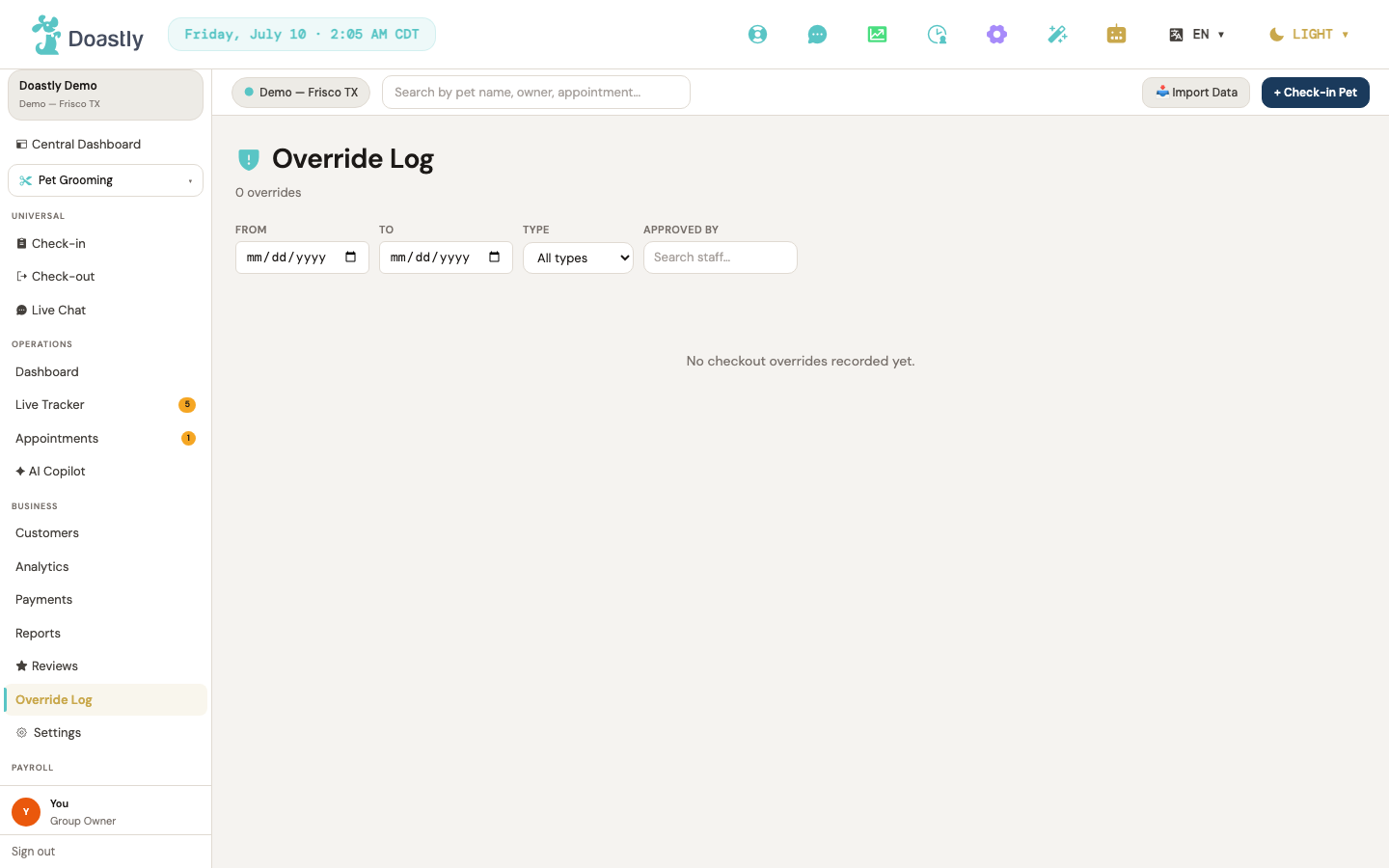
(dark mode also captured)
| Control | What it does |
|---|---|
| Back (PIN-misconfigured block) | Shown when an override needs a PIN but none is configured; explains the block and returns to the gate. |
| Manager PIN input | Numeric password field (up to 8 digits) for entering the override PIN. |
| Verify / Verifying… (PIN) | Verifies the PIN. Locks after three failed attempts; disabled below four digits or while verifying. |
| Back (PIN step) | Returns to the preceding gate banner. |
| Reason dropdown | Required override-reason selector (payment or compliance reason list), with an "Other" option. |
| Notes textarea | Optional free-text notes for the override. |
| Apply (override) | Submits the override (reason, notes, PIN) and triggers check-out with the override. Requires a reason. |
| Back (reason/notes step) | Returns to the gate banner. |
Grooming Check-out entry redirect
A durability safeguard for old bookmarks pointing at the legacy grooming check-out link.
| Control | What it does |
|---|---|
| Grooming check-out redirect | Forwards the old grooming check-out link to the unified check-out flow (grooming vertical). Non-interactive in the normal case. |
| Manage subscription → (not-subscribed state) | Shown when the operator's salon isn't subscribed to Grooming: the redirect is suppressed and a lock panel appears instead, with an interactive "Manage subscription →" link to Settings → Subscriptions. |
Pet detail & Grooming record
The pet's full profile — its safety information, vaccine records, compliance documents, and complete visit history across grooming, boarding, and daycare. This is where staff verify a pet is safe to serve and drill into any past session record.
Pet Detail Page (root)
The top-level page for a single pet, reached from the customer's detail page. It frames the pet's photo and identity above the tabbed information sections and visit history.
(dark mode also captured)
| Control | What it does |
|---|---|
| ← Back to Customer | Returns to the parent customer's detail page. |
| Pet avatar (upload) | Click to upload a new pet profile photo; the header avatar updates once saved. |
| Remove photo (avatar) | Removes the current pet profile photo. Shown only when a photo is present. |
Pet Header + Large Status Row
The identity band beneath the avatar, pairing at-a-glance visit metrics with large vaccine and compliance status indicators.
| Control | What it does |
|---|---|
| Visits — this salon (stat tile) | Read-only metric showing how many times this pet has visited your salon. |
| Last Grooming (stat tile) | Read-only metric showing the date of the pet's last grooming. |
| Vaccine large status icon | Display-only indicator showing overall vaccine status — current, expiring, expired, or missing. |
| Compliance large status icon | Display-only indicator showing overall document status — all signed, expiring, or unsigned. |
Middle Tabs (Pet Info / Vaccines / Compliance)
Three tabs that switch the middle section of the page between the pet's general information, its vaccine records, and its compliance documents.
| Control | What it does |
|---|---|
| Pet Info (tab) | Switches to the Pet Info tab — safety fields and general information. |
| Vaccines (tab) | Switches to the Vaccines tab — vaccine records and the add form. |
| Compliance (tab) | Switches to the Compliance tab — sign and download compliance documents. |
Pet Info Tab
A read-only summary of everything the salon needs to know about the pet before handling it.
| Control | What it does |
|---|---|
| Safety fields / general info / behavior tags | Display-only grid of allergies, medications, diet, breed, size, gender, weight, color, coat, neutered status, date of birth, and behavior notes/tags. No editable controls. |
Vaccines Tab
Lists the pet's vaccine records and provides the entry point for adding a new one.
| Control | What it does |
|---|---|
| + Add Vaccine | Reveals the inline form for creating a new vaccine record. |
Vaccine Add Form (inline)
The inline form for recording a vaccine, including an optional document attachment.
| Control | What it does |
|---|---|
| Vaccine * (dropdown) | Selects the vaccine name from a common list (Rabies, DHPP, Bordetella, and others), or "Other (type below)". |
| Vaccine name (text, when Other) | Free-text vaccine name, shown only when "Other" is selected. |
| Date Administered * (date) | Required — the date the vaccine was given. |
| Expiry Date (date) | Optional — the date the vaccine expires. |
| Administered By (text) | Optional — the vet or clinic name. |
| Lot Number (text) | Optional — the vaccine lot number. |
| Notes (textarea) | Optional — free-text notes about the vaccine. |
| Choose file / Change file | Attaches a vaccine document (PDF, JPG, or PNG, up to 10MB). |
| ✕ (clear file) | Clears the selected document. |
| Cancel | Closes the form without saving. |
| Add Vaccine (submit) | Saves the record and uploads the attached document, if any. |
Vaccine Record Row (per record)
Each saved vaccine appears as a row with its own document and management actions.
| Control | What it does |
|---|---|
| Document filename link | Opens the uploaded vaccine document in a new tab. |
| Verify | Manager-only — marks the record as verified. Shown only on unverified records. |
| Doc (upload) | Uploads a document to this vaccine record. |
| Del | Deletes the vaccine record after a confirmation prompt. |
Compliance Tab
Lists the pet's compliance templates with the appropriate signing and download action for each, plus a signing-history panel.
| Control | What it does |
|---|---|
| Download (per signed doc) | Downloads the signed compliance PDF. Shown once a document is signed. |
| Sign (per template, active session) | Opens the compliance window to sign this template. Shown when there is an active session. |
| Sign here → (per template, no session) | Opens the in-place sign window to sign now. Shown when there is no active session but the pet is known. |
| Sign at Check-Out / Sign anytime / Sign at Check-In → (per template, no pet context) | Links to the grooming check-in page; the label varies by compliance category. Shown when there is neither a session nor a pet context. |
| Sign all (N) | Opens the compliance window to sign every unsigned template at once. Shown during an active session with more than one document outstanding. |
| ▸ View signing history (N) | Expands or collapses the panel of previously signed documents. |
| Download (history row) | Downloads a signed document from within the history panel. |
Pet Sign Window (in-place signing)
The window for signing a compliance document directly from the pet's page, outside of a check-in session.
| Control | What it does |
|---|---|
| Full name * (text) | The signer's full name. |
| Relationship to pet * (dropdown) | The signer's relationship to the pet (Owner, Guardian, Authorized Agent, Vet Staff). |
| Signature (draw or type) * | Captures a drawn or typed signature. |
| Cancel | Closes the window without signing. |
| Sign Document | Submits the signature. Disabled until a name and signature are present. |
Grooming History Section + Detail Pane
The pet's grooming visit history, filterable and paginated, with each row opening a composite detail view of that session.
| Control | What it does |
|---|---|
| From (date filter) | Filters history to sessions on or after this date; resets to the first page. |
| To (date filter) | Filters history to sessions on or before this date. |
| All statuses (dropdown) | Filters by status — All, Checked out, or Cancelled. |
| Clear | Clears all active filters. Shown when a filter is set. |
| History row (click) | Selects a session and loads its details into the detail pane (or a window on narrow screens). |
| Record (per row) | "View record ↗" — opens the full grooming record page for that session. |
| ‹ Prev | Goes to the previous page of history. Disabled on the first page. Shown only when there is more than one page. |
| Next › | Goes to the next page of history. Disabled on the last page. Shown only when there is more than one page. |
Grooming Detail Pane / Window
The composite detail view of a selected session — shown beside the history list, or as a window on narrow screens. Its services, packages, total, and report-card blocks are display-only.
| Control | What it does |
|---|---|
| ✕ (close) | Closes the detail view on narrow screens. |
| Backdrop (click-to-close) | Closes the detail view when the surrounding overlay is clicked. |
| Session photo tile | Displays a session photo; falls back to "Photo no longer available" if the image can't load. Display-only here. |
Boarding Stays Section
The pet's boarding stay history, if the salon runs the boarding vertical.
| Control | What it does |
|---|---|
| Record (per boarding stay) | Opens the boarding reservation record for this pet. Greyed out until the record is ready. |
Daycare Days Section
The pet's daycare attendance history, if the salon runs the daycare vertical.
| Control | What it does |
|---|---|
| Record (per daycare day) | Opens the daycare attendance record for that day. |
Grooming Record Page (View record destination)
The full, read-only record for a single grooming session — reached via "View record" from the history. It composes a header plus ten stacked sections; only the photos and the action bar are interactive.
| Control | What it does |
|---|---|
| Record body sections | A header plus ten read-only sections: services, groomer, timeline, photos, report card, copilot, compliance, vaccines, notes, and payment. Only the photos and the action bar accept interaction. |
Record Action Bar (sticky)
The sticky bar of actions for the grooming record. Available actions vary by role and audience (salon staff vs. customer).
| Control | What it does |
|---|---|
| ← Back | Returns to the previous page. |
| Email Report Card / Download Report Card | Salon staff: confirm, then re-send the report-card email. Customer view: opens the branded report-card PDF in a new tab. |
| Email Receipt / Download Receipt | Salon staff: confirm, then re-send the receipt email. Customer view: prints the receipt. |
| Prints the record. Hidden in the printed output. | |
| Refund | Opens the refund window. Owner and Manager only — disabled with a tooltip for Groomers, and absent on the customer view. |
Record Photos (in record)
The session's photo gallery within the record, with a fullscreen lightbox for closer viewing.
| Control | What it does |
|---|---|
| Photo tile (open lightbox) | Opens the fullscreen lightbox at the selected photo. Tiles without an image are display-only and not clickable. |
| ‹ (lightbox prev) | Shows the previous photo. Disabled on the first photo. |
| › (lightbox next) | Shows the next photo. Disabled on the last photo. |
| ✕ (lightbox close) | Closes the lightbox. Also closes on Esc or a backdrop click. |
Refund Window
The window for issuing a full or partial refund against the session's payment. Available to Owners and Managers.
| Control | What it does |
|---|---|
| × (close) | Closes the refund window. |
| Backdrop (click-to-close) | Closes the window when the surrounding overlay is clicked. |
| Full — $X (refund type) | Selects a full refund of the maximum refundable amount. |
| Partial (refund type) | Switches to a partial refund and reveals the amount input. |
| Refund amount ($ number) | The partial refund amount, validated against the maximum. Shown when Partial is selected. |
| Reason (dropdown) | Selects the refund reason — requested by customer, duplicate, fraudulent, service not rendered, or other. |
| Cancel | Closes the window without issuing a refund. |
| Refund $X (submit) | Issues the refund. Disabled until the amount is valid; on success, the record refreshes. |
Loyalty & Marketing
Sidebar navigation — Loyalty & AI Marketing entry points
The left-sidebar entry points that open the loyalty admin and the AI Marketing suite. The Loyalty link lives in the Platform add-on group and only appears when the loyalty add-on is active for the location; the rest live in the "AI Marketing" section.
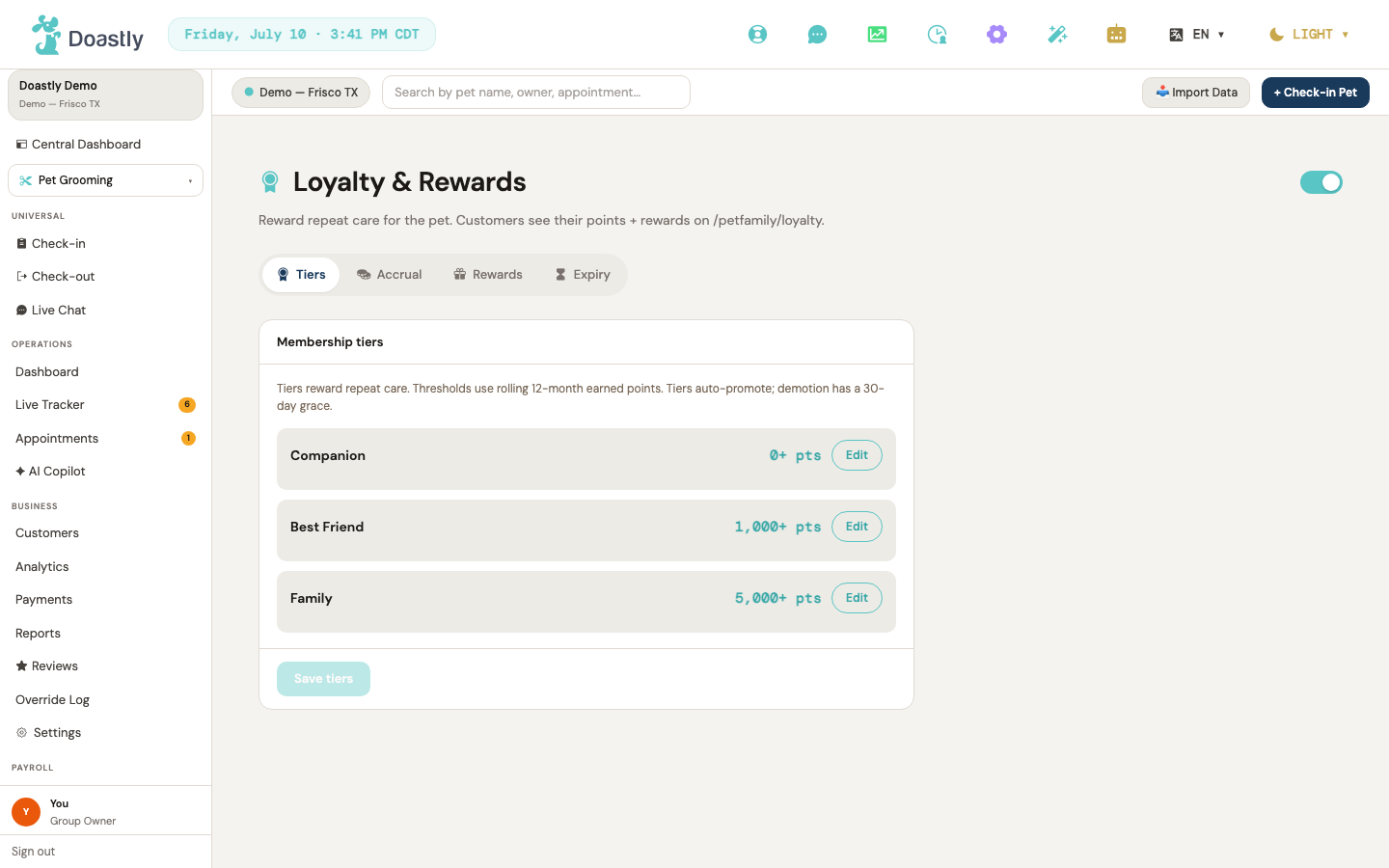
(dark mode also captured)
| Control | What it does |
|---|---|
| Loyalty & Rewards | Opens the loyalty admin. Shown in the Platform add-on nav group; only when the location's loyalty add-on is enabled. |
| Marketing Home | Opens the marketing dashboard (under the "AI Marketing" section). |
| Strategist | Opens the conversational copilot. |
| Campaigns | Opens the campaigns list; shows a count badge when you have one or more campaigns. |
| Opportunities | Opens the opportunities view; shows a count badge when opportunities have been detected. |
| Analytics | Opens campaign analytics. |
| Templates | Opens the template marketplace. |
| Brand Kit | Opens brand voice and colors. |
| Compliance | Opens the TCPA/consent center. |
| Customers | Opens the cross-vertical customer list (in the AI Marketing group's Business section). |
Loyalty & Rewards Settings — shell
The loyalty program's settings shell, with a master on/off toggle in the header and four tabs for configuring the program.
| Control | What it does |
|---|---|
| Program enabled toggle | Switch that pauses or enables the entire loyalty program. Flashes "Program paused" or "Program enabled"; disabled while the change is saving. |
| Tiers (tab) | Switches to the Tiers tab. |
| Accrual (tab) | Switches to the Accrual tab. |
| Rewards (tab) | Switches to the Rewards catalog tab. |
| Expiry (tab) | Switches to the Expiry tab. |
Loyalty Settings — Tiers tab
Sets the rolling-12-month point thresholds for each loyalty tier (Companion, Best Friend, Family).
| Control | What it does |
|---|---|
| Edit / Done (per tier row) | Toggles inline editing for a tier row, revealing its threshold input. The label flips between Edit and Done. |
| Tier threshold (per tier) | Number input for that tier's rolling-12-month points threshold; visible only while the row is being edited. |
| Save tiers | Saves the tiers. Disabled unless there are unsaved changes. Note: tier levels are currently set by Doastly, so this flashes "Tier levels are set by Doastly and can't be customized yet" rather than persisting a change. |
Loyalty Settings — Accrual tab
Controls how customers earn points — flat per visit, per dollar spent, and which verticals feed a shared points pool.
| Control | What it does |
|---|---|
| Points per visit | Number input (0–500) for the flat points awarded per completed visit. |
| Points per $1 spent | Number input (0–50) for hybrid spend-based points. |
| Points pool | Dropdown for which verticals feed the pool: "All verticals (single pool)", Grooming only, Boarding only, Daycare only, or Mobile Grooming only. |
| Save accrual | Saves the accrual settings. Disabled unless there are unsaved changes; flashes "Accrual saved". |
Loyalty Settings — Rewards catalog tab
Builds and manages the catalog of rewards customers can redeem points for.
| Control | What it does |
|---|---|
| + Add reward / Cancel | Opens or closes the inline add-reward form; the label flips between "+ Add reward" and "Cancel". |
| Reward name | Text input for the new reward's name (required — Create stays disabled until filled in). |
| Short description | Text input for the new reward's description. |
| Cost (pts) | Number input (minimum 1) for the reward's point cost. |
| Reward kind | Dropdown for the reward type: Discount, Free Service, Gift Card, or Donation. |
| Create reward | Submits the new reward, adding it to the catalog. Disabled while saving or when the name is empty; flashes "Reward added". |
| Pause / Activate (per reward row) | Toggles whether that reward is active. The label reads Pause when active and Activate when paused; flashes "Reward updated". |
| Delete (per reward row) | Removes that reward from the catalog. Flashes "Reward removed"; disabled while saving. |
Loyalty Settings — Expiry tab
Sets how long points last before inactivity expires them.
| Control | What it does |
|---|---|
| Expire after N months | Number input (12–60) for months of inactivity before points expire. Shows "Minimum is 12 months" if set below 12. |
| Save expiry | Saves the expiry setting. Disabled unless there are unsaved, valid changes (12 or more); flashes "Expiry saved". |
Marketing Home / Dashboard
The AI Marketing landing page — surfaces top opportunities, active campaigns, and a strategist suggestion, with quick links into the rest of the suite.
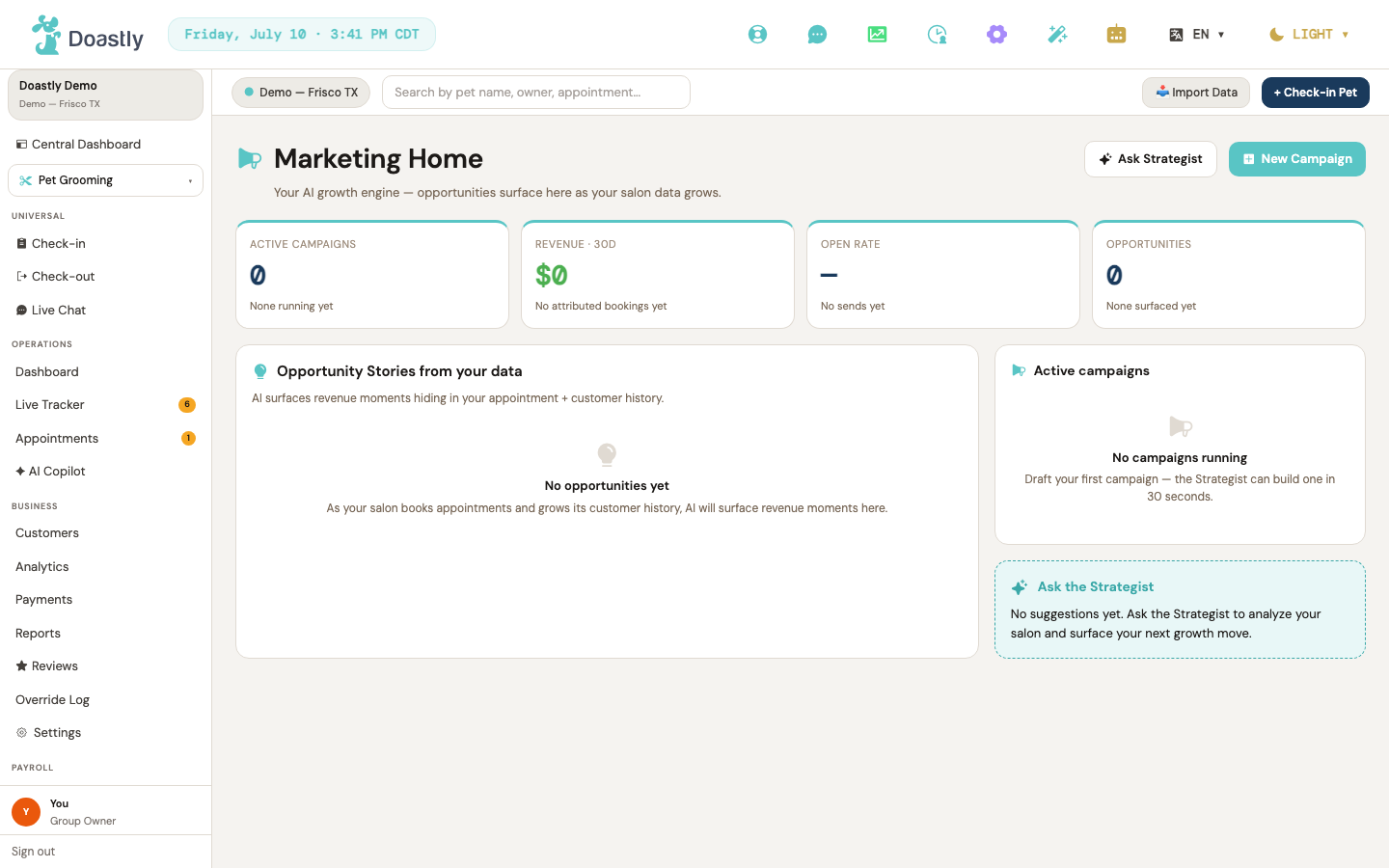
(dark mode also captured)
| Control | What it does |
|---|---|
| Ask Strategist | Header link to the strategist. |
| New Campaign | Header primary link to the campaign builder. |
| Opportunity Story rows (top 3) | Shows the top three opportunity stories, each with a primary and secondary action button. |
| Opportunity primary action (per story) | Story-specific primary action (for example, "Draft campaign"). Currently a display-only button that does not yet navigate. |
| Opportunity secondary action (per story) | Story-specific secondary action. Currently a display-only button that does not yet navigate. |
| +N more (opportunities) | Static summary text listing any remaining opportunities beyond the top three; not clickable. |
| Active campaign rows | Shows each active campaign — name, channel, meta, and status pill. Display-only. |
| Strategist suggests — primary CTA | Primary action on the strategist-suggestion card (label comes from the suggestion). Currently display-only; shown when a suggestion exists. |
| Strategist suggests — dismiss/secondary | Secondary action on the strategist-suggestion card. Currently display-only. |
| Ask the Strategist (empty-state CTA) | Dashed prompt card shown when there is no suggestion; links to the strategist. |
AI Marketing Strategist (conversational)
A conversational copilot for marketing questions and campaign ideas, with example prompts in the right rail.
| Control | What it does |
|---|---|
| History | Header button intended to show conversation history. Currently display-only. |
| Message input | Text input for your prompt. Press Enter (without Shift) to submit; disabled while a request is in flight. |
| Send | Sends the typed message to the strategist and appends the response. Disabled when the input is empty or a request is sending. |
| Suggested prompt chips (5) | Right-rail "What can I ask?" examples; clicking one fills and sends that prompt. The five are: "Who are my top-revenue customers?", "Draft a win-back for lapsed customers", "Best day to send my emails?", "How can I boost June bookings?", and "Compare last month's campaigns" (each has an emoji prefix that is stripped before sending). |
| Inline draft — primary/secondary action (per turn) | Support exists for a draft-preview card embedded in a strategist reply (title, status, two buttons), but the conversation path never populates the inline draft, so these controls do not appear in production. |
| What I know (Coming soon) | Right-rail card marked "Coming soon"; no live data yet, non-interactive. |
Campaigns — list
Lists all marketing campaigns with their performance metrics and status.
| Control | What it does |
|---|---|
| New Campaign (header) | Header link to the campaign builder. |
| New Campaign (empty-state CTA) | Empty-state link to the campaign builder; shown only when there are no campaigns. |
| Campaign rows | Per-campaign row showing name, type, clicks, bookings, attributed revenue, and a status pill (Draft, Scheduled, Active, Completed, Paused, or Cancelled). Display-only — rows are not clickable. |
| Search by campaign name or type (text input) | Filters the campaign list as you type, matching on either the campaign's name or its type, and ignoring capitalisation. Typing returns you to the first page. Clear the box to see every campaign again. |
| Prev / Page N of M / Next | The campaign list is paged at ten rows per page. Prev is disabled on the first page and Next on the last. (Note this list has Prev and Next only — unlike the Payments report, which also offers First and Last.) |
Campaign Builder — 5-step wizard
A five-step wizard (Goal, Audience, Content, Schedule, Review) for creating a campaign, opening on the Content step. This is an early scaffold, so several controls are not yet wired — tracked as #971 (frontend/app/salon/marketing/campaigns/ is the shared platform page behind both this chapter and ai-marketing-103-campaign-builder.md; Save/Preview confirmed unwired at source, no separate grooming-specific implementation, do not duplicate).
| Control | What it does |
|---|---|
| Save | Header button to save a draft. Currently a display-only scaffold. |
| Preview | Header button to preview the campaign. Currently a display-only scaffold. |
| Next: <step> / Submit | Advances to the next step; the label shows the next step's name, or "Submit" on the last step. |
| 5-step pill nav (Goal/Audience/Content/Schedule/Review) | Progress indicator — completed steps show a checkmark, the active step is teal. Display-only; you move through the wizard using Next. |
| Touch subject input (Email touch) | Editable subject line for email touches in the three-touch sequence. |
| Touch body textarea (per touch) | Editable message body per touch. SMS touches show a live character count and segment estimate. |
| Regenerate (per touch) | AI-regenerate button for that touch. Currently a display-only scaffold. |
| Generate variants (AI Assist) | Right-rail AI Assist button to generate content variants. Currently a display-only scaffold. |
| View list · Edit (Audience) | Right-rail Audience card to view or edit the campaign audience. Currently a display-only scaffold. |
| Change photos | Right-rail Photos card to change campaign photos. Currently a display-only scaffold. |
| Estimated metrics rows | Right-rail card showing estimated reach, opens, clicks, bookings, and ROAS. Display-only. |
| Back to campaigns | Footer link back to the campaigns list. |
Opportunities · Right now (Opportunity Story Engine)
Surfaces the marketing opportunities detected right now, with summary KPIs and per-opportunity action cards.
| Control | What it does |
|---|---|
| Refresh | Header button to refresh the opportunity list. Currently display-only. |
| Filter | Header button to filter opportunities. Currently display-only. |
| KPI strip cards (4) | Four derived KPI cards summarizing the detected opportunities. Display-only. |
| Opportunity rich card — action buttons (per story) | Each card renders its own actions (for example, Draft campaign, View, Dismiss), with the primary in teal. Currently display-only buttons. |
Campaign Analytics
Reports campaign performance — headline KPIs, an attribution funnel, top performers, and a full campaign table.
| Control | What it does |
|---|---|
| Last 90d (date range) | Header date-range button. Currently fixed at 90 days and display-only. |
| Export | Header Export button. Currently display-only. |
| KPI strip cards (5) | Sent, Opened, Clicked, Booked, and Revenue KPI cards derived from real totals. Display-only. |
| Attribution funnel | Five-stage funnel (Sent → Opened → Clicked → Booked → Showed → Revenue) with a "how attribution works" explainer. Display-only. |
| Top 3 campaigns by ROAS | Sidebar card listing the top three campaigns by ROAS. Display-only. |
| All campaigns table | Full campaign table (Campaign, Type, Sent, Open, Click, Booked, Revenue, ROAS); scheduled and draft rows are muted with em-dash metrics. Display-only. |
Templates (marketplace)
The template marketplace, sharing a tab strip with Brand Kit. Browse ready-made campaign templates. Note: the page heading reads "Templates & Brand Kit" (shared with the Brand Kit page); the two are distinguished by the active tab strip.
| Control | What it does |
|---|---|
| Upload past comms | Header button, disabled and marked "Coming soon". |
| New template | Header button, disabled and marked "Coming soon". |
| Templates (tab) | Tab-strip link to the Templates page (active here); shows the template count in parentheses. |
| Brand Kit (tab) | Tab-strip link to the Brand Kit page. |
| Use template (per template card) | Full-width primary button on each template card to use that template. Currently display-only. |
Brand Kit
Your salon's brand voice, colors, photo library, and signature block, sharing a tab strip with Templates. Note: the page heading reads "Templates & Brand Kit" (shared with the Templates page); the two are distinguished by the active tab strip.
| Control | What it does |
|---|---|
| Upload past comms | Header button, disabled and marked "Coming soon". |
| New template | Header button, disabled and marked "Coming soon". |
| Templates (tab) | Tab-strip link to the Templates page. |
| Brand Kit (tab) | Tab-strip link to the Brand Kit page (active here). |
| Edit Brand Kit | Button in the Brand Kit panel, disabled and marked "Coming soon". |
| Upload more past comms | Button in the Brand Kit panel, disabled and marked "Coming soon". |
| Voice profile / Brand colors / Photo library / Signature block | Four-column panel: Voice and Colors show your real brand-kit data (with an honest "not set yet" when empty); Photo library and Signature block are "Coming soon". All display-only. |
Compliance Center
The TCPA/consent center — shows your current compliance status and per-channel consent breakdown, with several deferred cards.
| Control | What it does |
|---|---|
| Status banner | Derived compliance status banner (headline and description) from your real per-channel consent rollup. Display-only. |
| Customer consent stats card | Per-channel consent rollup (Email, SMS, Push, Opted-out) with count, total, and percentage, plus an opt-out-wins notice. Display-only. |
| Sender authentication (Coming soon) | Deferred card for SPF/DKIM/DMARC and SMS sender-ID, marked "Coming soon". Non-interactive. |
| TCPA + CAN-SPAM rules (Coming soon) | Deferred card for the live rule checklist, marked "Coming soon". Non-interactive. |
| Recent compliance events (Coming soon) | Deferred card for the audit log, marked "Coming soon". Non-interactive. |
Report Card (author + delivered)
The Report Card feature captures each grooming session's health and grooming findings, delivers them to the pet family, and preserves them on the session record. It spans three surfaces: the salon-side authoring window, the customer's delivered view, and the read-only record section.
Report Card Window — Author (salon-side, groomer)
Opened from the Grooming Tracker pet card's "Report Card" action (or a Mobile Grooming appointment), this window is where the groomer records findings across ten health and grooming categories, adds photos and notes, and delivers the card to the pet family.
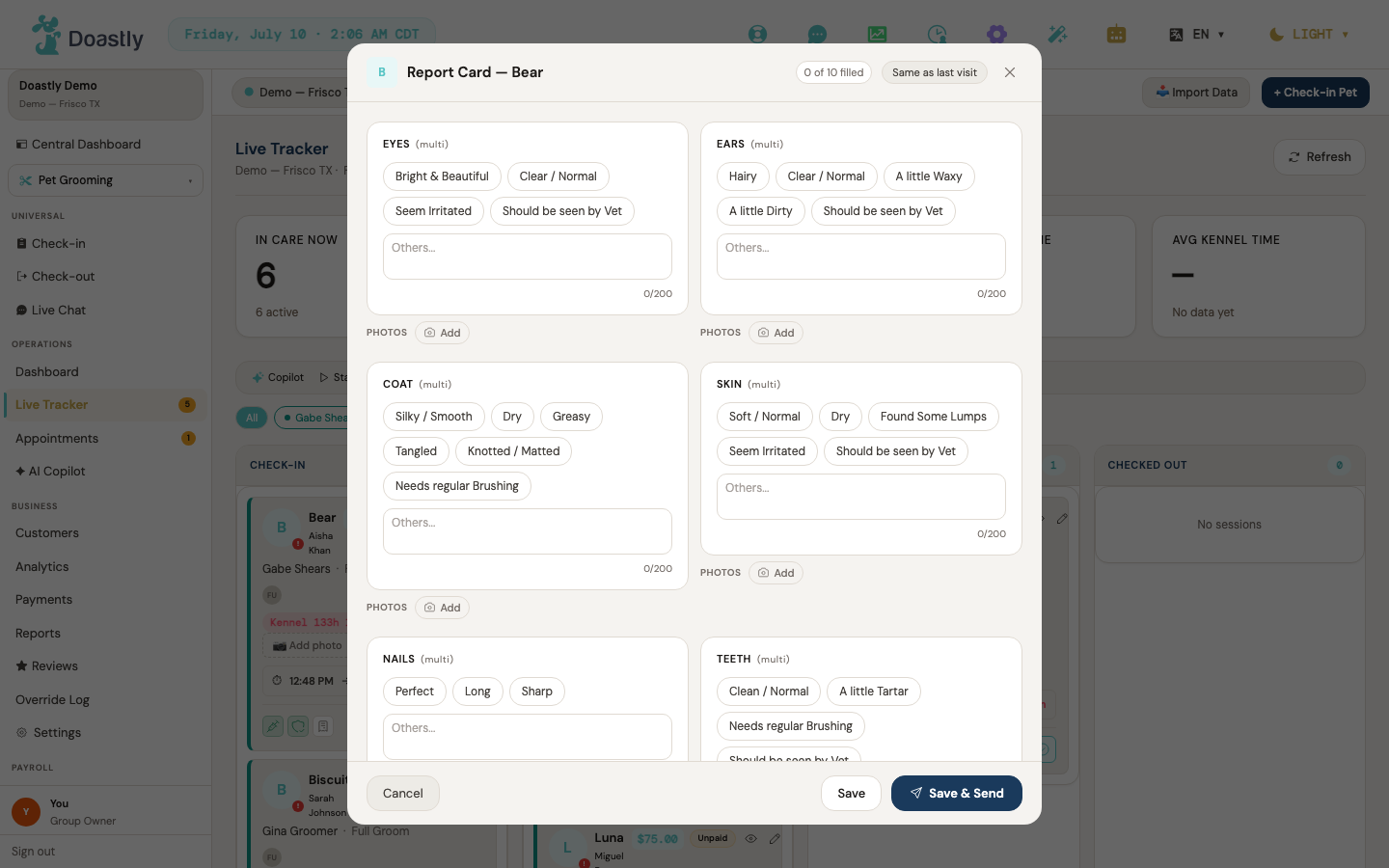
(dark mode also captured)
| Control | What it does |
|---|---|
| Report Card (icon action on the pet card footer) | Opens the Report Card authoring window for that session. The clipboard icon's border and color reflect its state — amber for in-progress (a report card exists but the session is not checked out), green for complete (session checked out). |
| Same as last visit | Copies the previous session's report-card selections and comments (not photos) into this form. Only appears when a prior report card exists. |
| X (close) | Closes the window without an explicit save; your work may already have been saved automatically. |
| {progress} of 10 filled | A non-interactive progress pill showing how many of the ten attribute categories have a selection or comment. Shown in edit mode only. |
| Saving… / Saved ✓ / Not saved | A non-interactive autosave status pill reflecting the save state (autosaved about a second after you stop typing). Shown in edit mode only. |
| Attribute option chips (Eyes / Ears / Coat / Skin / Nails / Teeth / Nose / Anal Gland / Mood / Behavior) | Toggle-select findings within each category. All ten categories are multi-select; toggling a chip triggers an autosave. A "(multi)" hint label appears on each category in edit mode. |
| Others… (per-attribute free text) | A free-text "other" note for each category, capped at 200 characters with a live counter. |
| Add / Close (per-attribute Photos) | Opens or closes the per-category photo uploader strip. |
| Photo thumbnail remove (X) | Removes an attached photo from that category's photo set. |
| 📷 Camera / 🖼️ Library / 📄 File (upload tabs) | Switches the photo source inside the per-category uploader — live camera capture, photo library, or file picker. |
| Tap to select from photo library / Tap to choose a file (dropzone) | Opens the file picker to choose an image; the photo is compressed and uploaded to the session. |
| Capture (shutter) | Captures a still from the live camera and uploads it as the category photo. |
| 🔄 Flip camera | Switches between the front and back camera when multiple cameras are detected. |
| Dictate / Stop (voice-to-text) | Starts or stops voice dictation, appending the spoken text to Groomer's Notes (capped at 500 chars). Available in Chrome only; other browsers show an unsupported-browser message. |
| Groomer's Notes | A free-text session notes field, capped at 500 characters with a live counter. |
| Show more → / Show less ↑ (narrative collapse) | Expands or collapses the AI narrative preview when it overflows its preview height. On the author window the narrative is expanded by default, so "Show less ↑" shows first. |
| ✨ Generating narrative… / Narrative arrives shortly — refresh if needed | A non-interactive banner shown while the AI narrative is pending or has timed out; it keeps checking until the narrative resolves. |
| Cancel | Closes the window from the edit-mode footer. |
| Save | Saves the report card as a draft without sending an email. |
| Save & Send | Saves the report card, sends the report-card email to the pet family, triggers AI narrative generation, and marks the card as sent. |
| Close (read-only footer) | Closes the window when the session is already checked out or the card is already sent (read-only state). |
| Re-send | Re-emails a delivered card to the pet family. Disabled after three resends. |
| Download PDF | Opens the salon-side report-card PDF in a new browser tab. |
Report Card View — Delivered (pet-family customer)
Opened from the pet family's Grooming history via "View report card," this is the read-only card the customer receives — findings, photos, any vet referral, and the AI narrative, with a language switcher and PDF download.
(dark mode also captured)
| Control | What it does |
|---|---|
| View report card | Opens the delivered report-card view for a past session, from the pet-family history row. |
| Download PDF (history-card icon) | Downloads the report-card PDF directly from the history row without opening the full view. |
| Opens the pet-family report-card PDF in a new browser tab from the view header. | |
| Language switcher (translate ▾) | The app-wide language dropdown embedded in the card header; switches the display language. |
| X (close) | Closes the delivered report-card view. |
| Show more → / Show less ↑ (narrative collapse) | Expands or collapses the AI narrative when it overflows its preview height. Collapsed by default on this surface. |
| Before / After (mobile tabs) | Switches between the before and after photo sets on mobile (desktop shows both side-by-side). |
| ‹ (prev photo) | Navigates to the previous before/after photo. Disabled at the first photo. |
| › (next photo) | Navigates to the next before/after photo. Disabled at the last photo. |
| Vet visit recommended (banner) | A non-interactive warning banner listing any categories the groomer flagged as needing a vet visit. |
| Attribute finding chips (read-only) | A non-interactive display of the selected findings per category, including any "other" text. |
| Groomer's Note (read-only display) | A non-interactive block rendering the groomer's session notes under a "Groomer's Note" heading, shown only when notes were recorded. |
| Session meta + "Groomed with love by {groomer}" (read-only display) | Non-interactive header/meta display — session date, groomer name, salon name, and a groomer attribution hero line, each shown when the corresponding value is present. |
Record — Report Card section (salon session record)
Embedded in the Session Record, this section shows the report card on file for a session — the vet-flag banner, the AI narrative, and the attribute tiles — in a read-only view.
| Control | What it does |
|---|---|
| Report Card (record section header) | A static titled record card with a clipboard icon. Shows "No report card on file." when none exists. This section is not collapsible. |
| Health concern flagged (vet banner) | A non-interactive banner surfacing the safety-critical vet-flag concern prominently above the attribute grid. |
| AI narrative body | Renders the narrative in place, showing a "Narrative generating…" or "No narrative." state plus the generated-at timestamp. |
| Attribute tiles (flagged / normal) | A non-interactive grid of label/value attribute tiles, with flagged findings styled in the error color. |
Global chrome (TopBar + Sidebar)
The global chrome wraps every salon screen: a system bar and action bar across the top, plus the left navigation rail. Two dedicated tablet shells (Driver and Groomer) replace this chrome with their own field-optimized layouts.
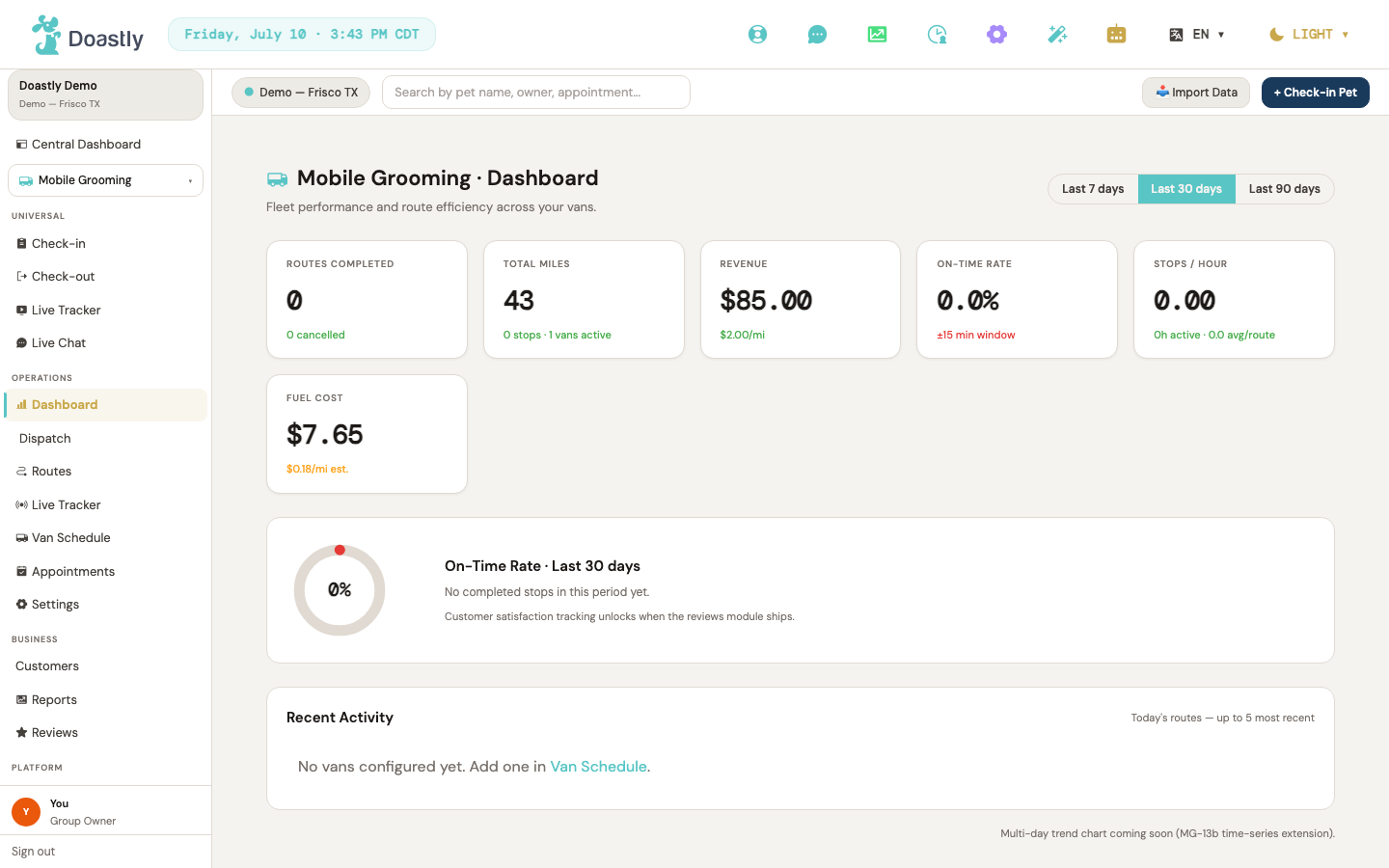
(dark mode also captured)
Top system bar (logo + date + icon row)
The top system bar runs across the full width of every salon screen. It holds the Doastly brand mark, a live date/time readout, and a row of quick-access tools on the right.
| Control | What it does |
|---|---|
| Doastly brand logo | Static Doastly brand mark. Decorative only — no click action. |
| Today's date/time pill | Shows the current weekday, date, and time in the active location's timezone. Refreshes every minute; not interactive. |
| Get Help | Opens the shared Get Help support panel. |
| Live Chat | Opens the salon Live Chat inbox. |
| Analytics | Opens analytics. Note: this always opens grooming analytics regardless of the active vertical. |
| Staff Clock | Opens the Staff Clock screen. The badge shows the live count of clocked-in staff, updated every minute. |
| Settings | Opens Location settings. |
| Setup Wizard | Opens the setup wizard overlay. |
| AI Companion | Placeholder — shows a brief "AI Companion coming soon" message for about two seconds. No navigation. |
| Language switcher | Opens a language menu (English / Español); choosing a language saves your preference, updates your account, and reloads the page in the new language. |
| Display mode trigger | Opens the display-mode dropdown. The trigger itself shows the current mode label (Light or Dark) with a sun/moon icon. |
| Light | Switches to the light theme and closes the dropdown. |
| Dark | Switches to the dark theme and closes the dropdown. |
| Auto | Follows your system display mode and closes the dropdown. |
Action bar (location switcher + search + actions row)
The action bar sits below the system bar. It carries the active-location switcher, a search field, and the primary check-in action.
| Control | What it does |
|---|---|
| Location switcher pill | For owners with more than one location, opens a location dropdown. For a single-location salon, it is a static identity pill with no dropdown. |
| All Locations | Switches to a cross-location view that reads data across every location, then refreshes the screen. |
| Per-location rows (name + city/state) | Sets that location as active, saves the choice, and refreshes the screen so all data reflects the selected location. |
| Search input | Search field for pet name, owner, or appointment. Type-only for now — no results or navigation are wired to it yet. |
| Import Data | Styled import button. No action is wired to it. |
| + Check-in Pet | Opens the check-in flow for the current vertical. Grooming, Boarding, and Daycare each have their own check-in screen, and Mobile Grooming has its own salon-side pre-dispatch check-in board (see the Check-in flow chapter). Note, though, that on a Mobile Grooming screen this top-bar button currently falls back to the default grooming check-in rather than opening the Mobile board. It is hidden only on the cross-vertical Central Dashboard — it IS shown on the Mobile Grooming dashboard and other vertical dashboards. |
Sidebar — Mobile Grooming active (nav rail)
The left navigation rail with Mobile Grooming as the active vertical. It groups cross-vertical links, the Mobile Grooming section, any enabled add-ons, and the platform + account controls at the bottom. Role gating hides items a given staff role should not see.
| Control | What it does |
|---|---|
| Salon group card | Shows the salon name and current location. Not interactive. |
| Central Dashboard | Opens the cross-location central dashboard. |
| Vertical switcher pill trigger | Opens the vertical switcher menu. |
| Vertical option rows (Grooming / Boarding / Daycare / Mobile / Training / AI Marketing) | Switches the active vertical, remembers the choice, and swaps the nav to that vertical's section. Only enabled verticals appear (Mobile shows when Mobile Grooming is enabled). |
| Check-in (Universal) | Opens cross-vertical check-in. Hidden for Groomer, Bather, and Driver roles. |
| Check-out (Universal) | Opens cross-vertical check-out. Hidden for Groomer, Bather, and Driver roles. |
| Live Tracker (Universal) | Opens the universal live tracker. Shown only for salons running more than one vertical. |
| Live Chat (Universal) | Opens the cross-vertical Live Chat inbox. Rendered inside the Universal group; always shown. This is a second Live Chat entry, separate from the top system bar's Live Chat icon. |
| Dashboard (Mobile) | Opens the Mobile Grooming KPI dashboard. Managers and owners only. |
| Dispatch (Mobile) | Opens the van dispatch board. Managers and owners only. |
| Routes (Mobile) | Opens route planning. Managers and owners only. |
| Live Tracker (Mobile) | Opens the live van/route tracker. Managers and owners only. |
| Van Schedule (Mobile) | Opens the van schedule — the base Mobile Grooming surface. |
| Appointments (Mobile) | Opens the Mobile Grooming appointments list. |
| Settings (Mobile) | Opens Mobile Grooming settings. Managers and owners only. |
| Customers (Mobile — Business) | Opens the cross-vertical customers list. |
| Reports (Mobile) | Opens Mobile Grooming reports and analytics. Shown to roles with analytics access (Owner/Manager). |
| Reviews (Mobile) | Opens salon reviews. Managers and owners only. |
| Billing (Platform) | Opens platform billing. Managers and owners only. |
| Settings (Platform) | Opens platform settings. Managers and owners only. |
| Salon Setup | Opens the setup wizard at the first step. Managers and owners only. |
| Pickup/Dropoff settings (addon) | Opens pickup/drop-off settings. Shown when the Pickup & Drop-off add-on is enabled (and to managers/owners — the whole Platform group is manager/owner gated). |
| Pickup Dispatch (addon) | Opens the pickup dispatch board. Shown when the Pickup & Drop-off add-on is enabled. |
| Loyalty & Rewards (addon) | Opens Loyalty & Rewards. Shown when the Loyalty add-on is enabled. |
| Retail Inventory (addon) | Opens Retail Inventory. Shown when the Retail Inventory add-on is enabled. |
| Salon Theme (addon) | Opens the theme picker. |
| User footer card (avatar + name + role) | Shows your avatar, name, and role. Not interactive. |
| Sign out | Signs you out and returns you to the login screen. |
Driver Tablet shell chrome (van driver)
The Driver tablet shell replaces the standard chrome with a field-optimized layout for van drivers: a connection-status header with quick help and emergency actions, and a bottom navigation bar for the driver's day.
| Control | What it does |
|---|---|
| Online/Offline indicator | Shows your connection status — teal when online, red when offline. Updates automatically; not clickable. |
| Help | Opens the shared Get Help support panel. |
| Emergency | Initiates a phone dial to 911. |
| Today (bottom nav) | Opens today's route and stops list. |
| Stop (bottom nav) | Opens the current stop detail. |
| End Day (bottom nav) | Opens the end-of-day summary. |
| Incident (bottom nav) | Opens incident reporting. |
Groomer Mobile tablet shell chrome
The Groomer tablet shell is a full-screen, route-focused layout with no shared sidebar or top bar. Its only chrome is a floating help button.
| Control | What it does |
|---|---|
| Get Help (floating) | Fixed to the bottom-right corner; opens the shared Get Help support panel. |
Dashboard
The Mobile Grooming Dashboard shows on-time performance and route KPIs for the selected reporting period. A segmented control switches the period, re-querying all metrics; an empty-state link appears only when no vans are configured yet.
(dark mode also captured)
| Control | What it does |
|---|---|
| Last 7 days | Sets the reporting period to 7 days and re-queries all 6 KPI cards, the on-time donut, and the section label. Stays on the Dashboard and marks itself active. |
| Last 30 days | Sets the reporting period to 30 days (the default) and refreshes the KPI cards, donut, and the "On-Time Rate · Last 30 days" label. Stays on the Dashboard. |
| Last 90 days | Sets the reporting period to 90 days and refreshes all metrics. Stays on the Dashboard. |
| Van Schedule | Navigates to the Van Schedule home page. Appears only in the Recent Activity empty state, shown when no vans are configured. |
Live Tracker (Mobile Grooming)
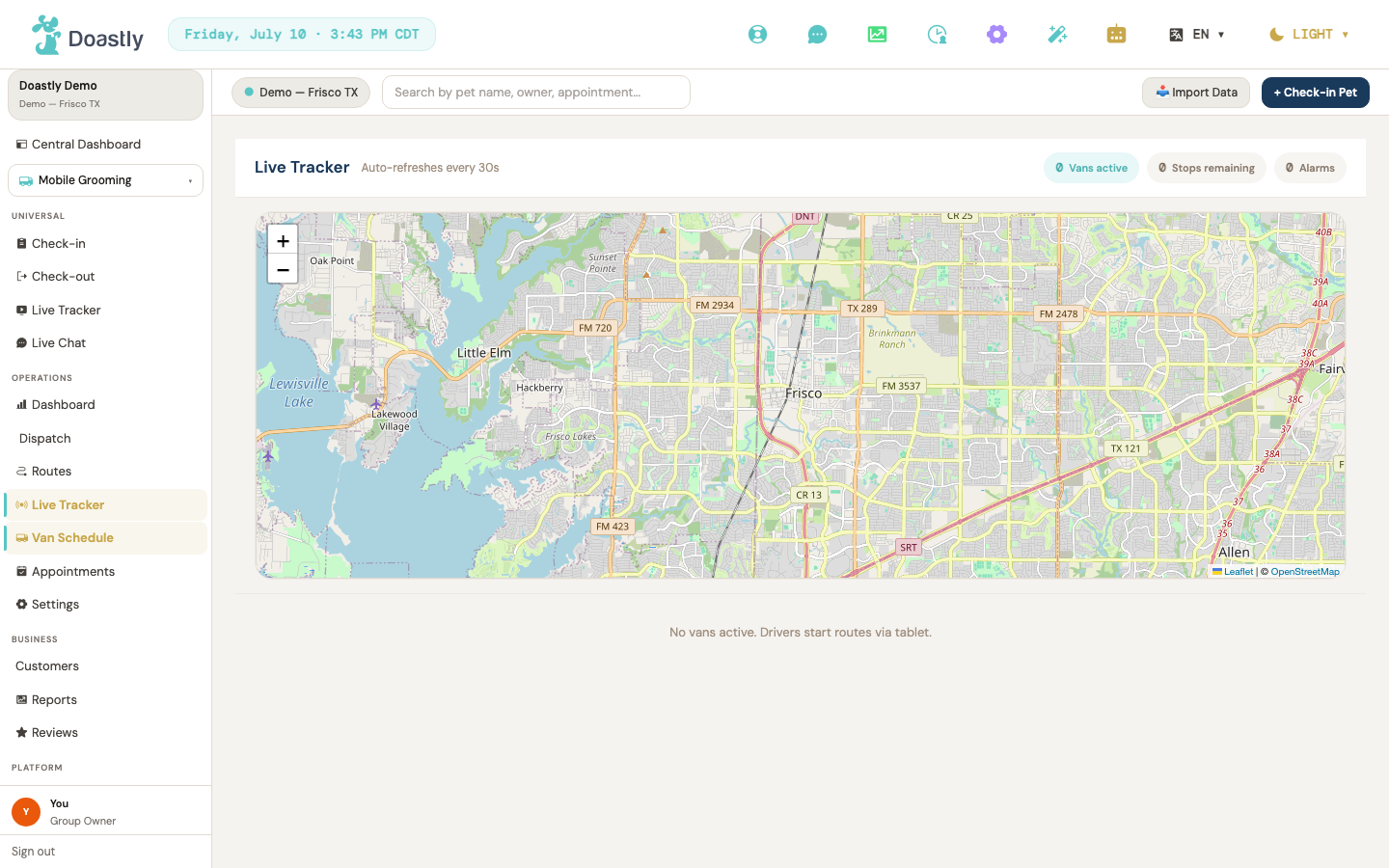
(dark mode also captured)
Live Tracker (canonical admin page)
The live operations view for your mobile fleet — a hero map plus per-van cards, refreshed automatically every 30 seconds. Everything here is read-only except the van cards, which link out to Route Management.
| Control | What it does |
|---|---|
| Vans active (pill) | Header KPI showing the number of vans currently active. Display only — no click action. |
| Stops remaining (pill) | Header KPI showing the total stops still to be completed across the fleet. Display only. |
| Alarms (pill) | Header KPI showing the current alarm count; its background turns red when any alarm is active. Display only — to act on an alarm, use the van card. |
| Live van tracker map | Interactive map centered on the first located van, with one marker per van. Pan and zoom freely; the map fits all vans into view on load. Markers open a popup but do not navigate. |
| Map zoom controls (+ / −) | Zoom-in / zoom-out buttons on the map (scroll-wheel zoom is also enabled). Adjust the map zoom level only — no navigation. |
| Van marker popup | Click a van marker to open a popup showing the van label, driver name, current stop (or "Between stops"), and relative ETA. Informational only — no links or actions inside. |
| Map attribution link | Standard map tile credit link; opens the map provider's copyright page in your browser. |
| Van card (per active van) | The whole card is a link — click it to open Route Management filtered to that van in a new browser tab. The card border turns red when the van is in an alarm state. |
| Van status chip (Active / Idle / Alarm) | Colored status pill inside each card (teal for active, muted for idle, red for alarm). Display only. |
| Van alarm banner | Red banner inside a van card listing that van's active alarms when any exist. Display only — clicking the card is the way to respond. |
| Error banner | Inline message ("Live tracker is temporarily unavailable.") shown when the live data poll fails. No dismiss control; it clears when data returns. |
| Loading state | "Loading live tracker…" placeholder shown before the first data snapshot arrives. |
| Empty state | "No vans active. Drivers start routes via tablet." shown when no vans are currently active. |
| Auto-refresh | Background behavior that re-fetches the live snapshot every 30 seconds (an "Auto-refreshes every 30s" caption is shown in the header). There is no manual refresh button — updates are automatic only. |
Mobile Grooming Overview (van-board / in-progress route board)
The van-board overview — select a van to see its route board and stop map, and advance each appointment through its lifecycle. Appointment actions here update the on-screen board.
| Control | What it does |
|---|---|
| New Appointment | Opens the Universal Check-in flow for mobile grooming. |
| View Route (per van card) | Selects that van and renders its Route Board and route map below. On-screen selection only — no page navigation. |
| Van card (tile) | Shows the van name, license plate, groomer, today's appointment count, next appointment time, and status badge. The tile itself is not clickable — use the "View Route" button. |
| Van status badge (Available / En Route / In Service) | Colored status pill on each van tile (green for available, blue for en route, yellow for in service). Display only. |
| Appointment status action button | Advances the selected appointment one step through its lifecycle: Start Route (confirmed → en route), Arrived (en route → arrived), Begin Groom (arrived → in progress), Complete + Report (in progress → completed). The button label changes with the current status and is hidden for pending, completed, and cancelled appointments. Complete + Report also opens the Report Card window. |
| Appointment status badge | Per-appointment colored status pill (Pending / Confirmed / En Route / Arrived / In Progress / Completed / Cancelled). Display only. |
| Service chips | Lists each booked service (Bath, Haircut, Nail Trim, and so on) as a chip on the appointment card. Display only. |
| Route Board summary card | Header card for the selected van's route showing van name, date, total appointment count, and estimated total duration in minutes. Display only. |
| Route Board empty state | "No appointments scheduled for this route" shown when the selected van has no appointments. |
| Route Map stop list | Numbered stop list showing each address and the distance to the next stop. A banner notes full map integration is coming soon; no interactive controls. |
| Report Card window | Opens for the selected appointment when you tap Complete + Report, letting you fill out and save the grooming report card. Closing or saving returns you to the board. |
Appointments
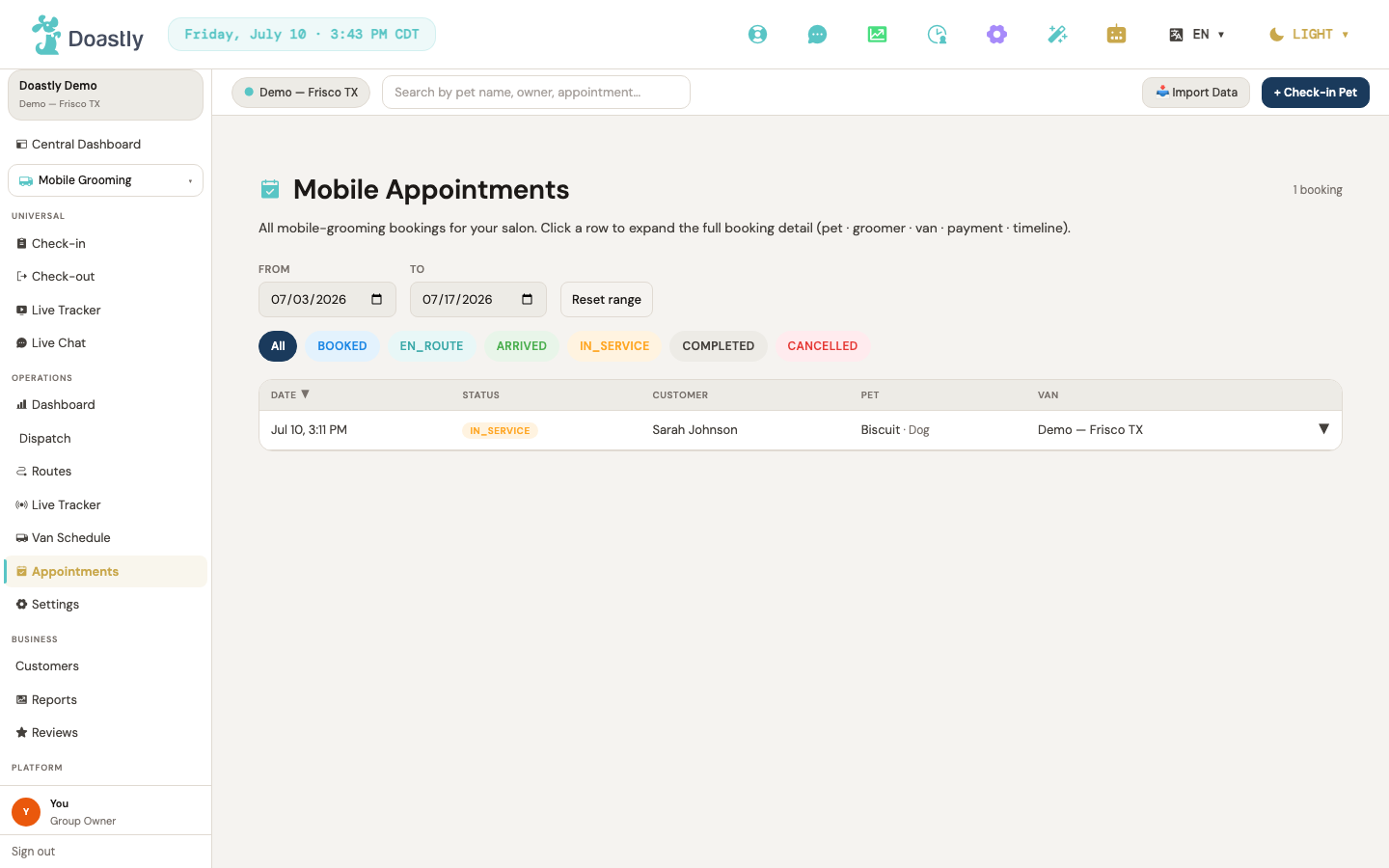
(dark mode also captured)
Mobile Appointments List
The main list of all mobile grooming appointments, with date-range, status filtering, and sortable columns.
| Control | What it does |
|---|---|
| From (date picker) | Sets the lower bound of the date range and refetches the list. Defaults to 7 days ago. |
| To (date picker) | Sets the upper bound of the date range and refetches the list. Defaults to 7 days ahead. |
| Reset range | Restores the date range to the default window (7 days back through 7 days ahead) and refetches. |
| All (status chip) | Clears the status filter so appointments of every status appear. Highlighted when active. |
| Booked (status chip) | Filters the list to booked appointments only. |
| En Route (status chip) | Filters the list to en-route appointments only. |
| Arrived (status chip) | Filters the list to arrived appointments only. |
| In Service (status chip) | Filters the list to in-service appointments only. |
| Completed (status chip) | Filters the list to completed appointments only. |
| Cancelled (status chip) | Filters the list to cancelled appointments only. |
| Date (column header) | Sorts the list by appointment date/time. Click again to switch between ascending and descending. |
| Status (column header) | Sorts the list by status. Click again to switch between ascending and descending. |
| Customer (column header) | Sorts the loaded appointments by customer name. Click again to switch between ascending and descending. |
| Pet (column header) | Sorts the loaded appointments by pet name. Click again to switch between ascending and descending. |
| Van (column header) | Sorts the loaded appointments by van name. Click again to switch between ascending and descending. |
| Appointment row (click) | Opens an inline detail panel directly below the row; the expanded row is highlighted. Click again to collapse it. |
| Row expand caret (▼/▲) | Shows whether a row is expanded or collapsed. It reflects the row's state and is toggled by clicking the row, not on its own. |
Appointment Detail (inline expand panel)
The detail panel that opens beneath an appointment row in the list, showing the appointment's AI trip summary and details.
On the trip summary: treat it as a friendly recap, not a health record. It is written to be warm and positive, and on Mobile it is not yet reliable at surfacing a concern the groomer flagged (skin, coat, mats, behaviour). Read the groomer's own notes and the report card when you need to know a pet's condition.
| Control | What it does |
|---|---|
| Trip Summary — Show more / Show less | Expands or collapses the AI trip-summary narrative when it is too long to show in full. Your choice is remembered for this panel. Appears only when the summary is long enough to be collapsed. |
Mobile Appointment Record (full page)
The full-page record for a single appointment, with actions to email documents, print, and process refunds.
| Control | What it does |
|---|---|
| Back | Returns to the previous page. |
| Email Report Card | Asks for confirmation, then re-sends the report card email for this appointment. Shows a success or error message and is disabled while sending. Salon staff only. |
| Email Receipt | Asks for confirmation, then re-sends the receipt email for this appointment. Shows a success or error message and is disabled while sending. Salon staff only. |
| Opens your browser's print dialog to print the record. The action buttons themselves are hidden from the printout. | |
| Refund | Asks for a refund reason, then refunds the full remaining amount for this appointment, and reloads the record. Available to Owners and Managers only; greyed out (with an explanatory tooltip) otherwise. Salon staff only. |
| Photo thumbnail (Photos section) | Click a session photo to open a fullscreen lightbox viewer. Appears only when the record has photos. |
| Lightbox — Previous | Navigates to the previous photo in the fullscreen viewer. Disabled on the first photo. |
| Lightbox — Next | Navigates to the next photo in the fullscreen viewer. Disabled on the last photo. |
| Lightbox — Close (✕) | Closes the fullscreen photo viewer. Clicking the dark backdrop also closes it. |
Customers (list + detail) — Mobile Grooming
Mobile Grooming reuses the shared salon Customers surface — there is no Mobile-specific override. Everything below applies identically across verticals.
Customers List
The main customer directory: a searchable, filterable grid of customer cards with quick access to create new customers.
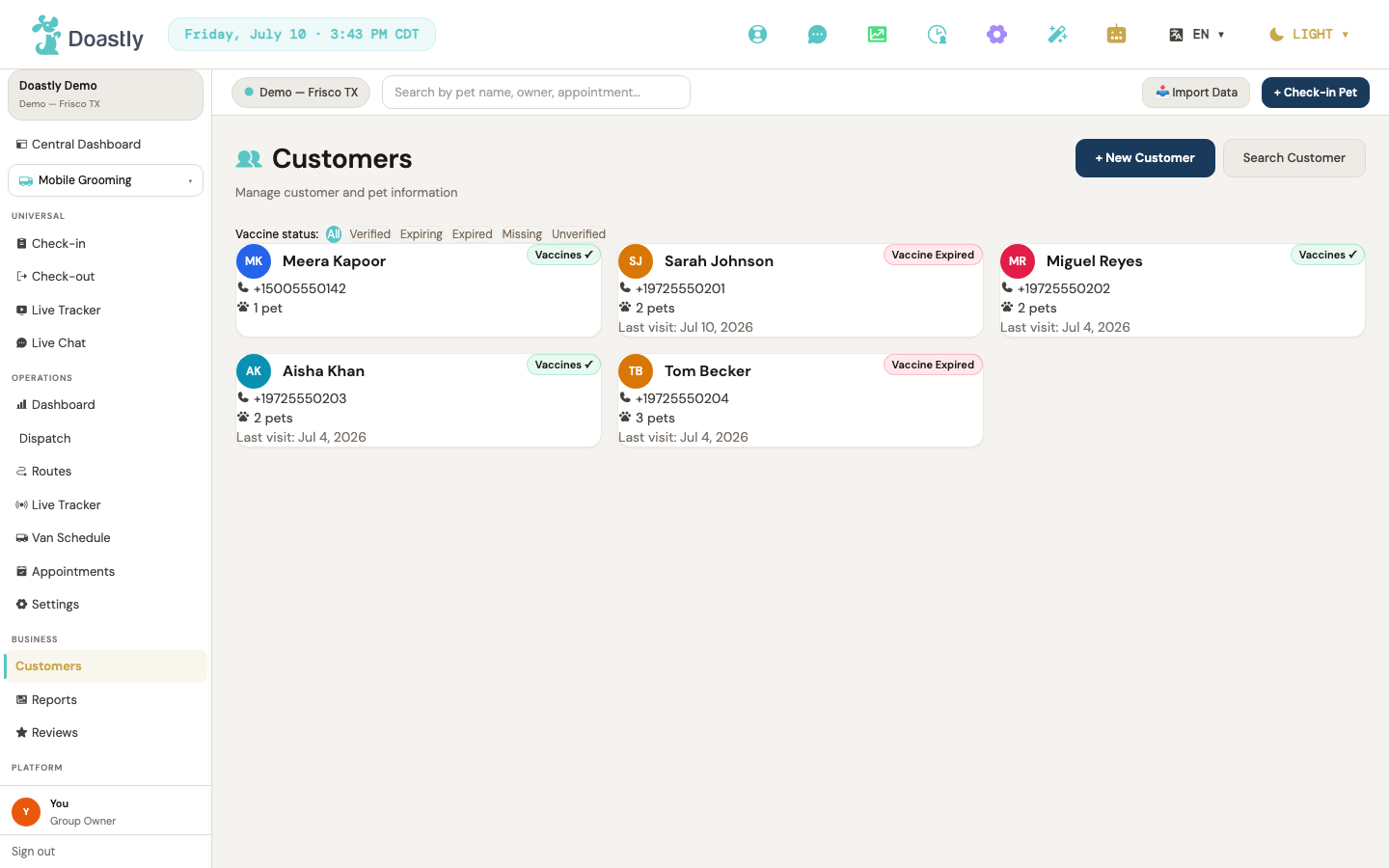
(dark mode also captured)
| Control | What it does |
|---|---|
| + New Customer | Opens the add-customer window (pet optional) to add a customer, optionally with a pet. On success, refreshes the customer list and opens the new customer's detail page. |
| Search / Hide search (toggle) | Shows or hides the phone-search panel below the header; the button label flips between "Search" and "Hide search". |
| Vaccine status filter chips (All / Verified / Expiring / Expired / Missing / Unverified) | Filters the grid to customers whose pets match the selected vaccine status; the active chip is highlighted teal. |
| Filter count "{n} of {m}" | Display only. Shows how many customers match against the total when a filter other than All is active. |
| Search customers (empty state, All filter) | When the list is empty under the All filter, opens the phone-search panel. |
| Clear filter (empty state, filtered) | When a filter returns no customers, resets the vaccine filter back to All. |
| Retry (error state) | Reloads the page if the customer list fails to load. |
| Customer card (grid item) | Opens that customer's detail page. |
Customer card (grid item)
A single customer tile showing avatar, name, vaccine badge, phone, pet count, and last visit.
| Control | What it does |
|---|---|
| Customer card | Opens the customer's detail page. |
Customer search panel (phone search)
A phone-number lookup panel for finding an existing customer or starting a new one.
| Control | What it does |
|---|---|
| Search by phone input | Captures the phone number to search for. |
| Search (submit) | Looks up customers by phone number; disabled while the search runs. Shows matching result cards or a no-result message. |
| Result card | Opens the matched customer's detail page. |
| Add new (no-result state) | Triggers the "add new customer" action. On the list page this has no effect. |
Add-customer window — Customer phase
The first step of the add-customer flow: capture the customer's details.
| Control | What it does |
|---|---|
| Backdrop click | Closes the window and clears any entered details. |
| Close ✕ | Closes the window and clears any entered details. |
| Customer details form (embedded) | Once the customer is created, advances to the pet-gate step, or straight to the add-a-pet step when a pet is required. |
Add-customer window — Pet gate phase
After the customer is saved, this step asks whether to add a pet now. Only renders when a pet is not required.
| Control | What it does |
|---|---|
| Backdrop click | Finishes with the customer only (no pet added). |
| Finish without pet | Completes the flow with the customer only, no pet. |
| + Add a pet → | Advances to the add-pet step, opening the pet form. |
Customer details form (embedded)
The customer-details form inside the add-customer window. All four fields are required.
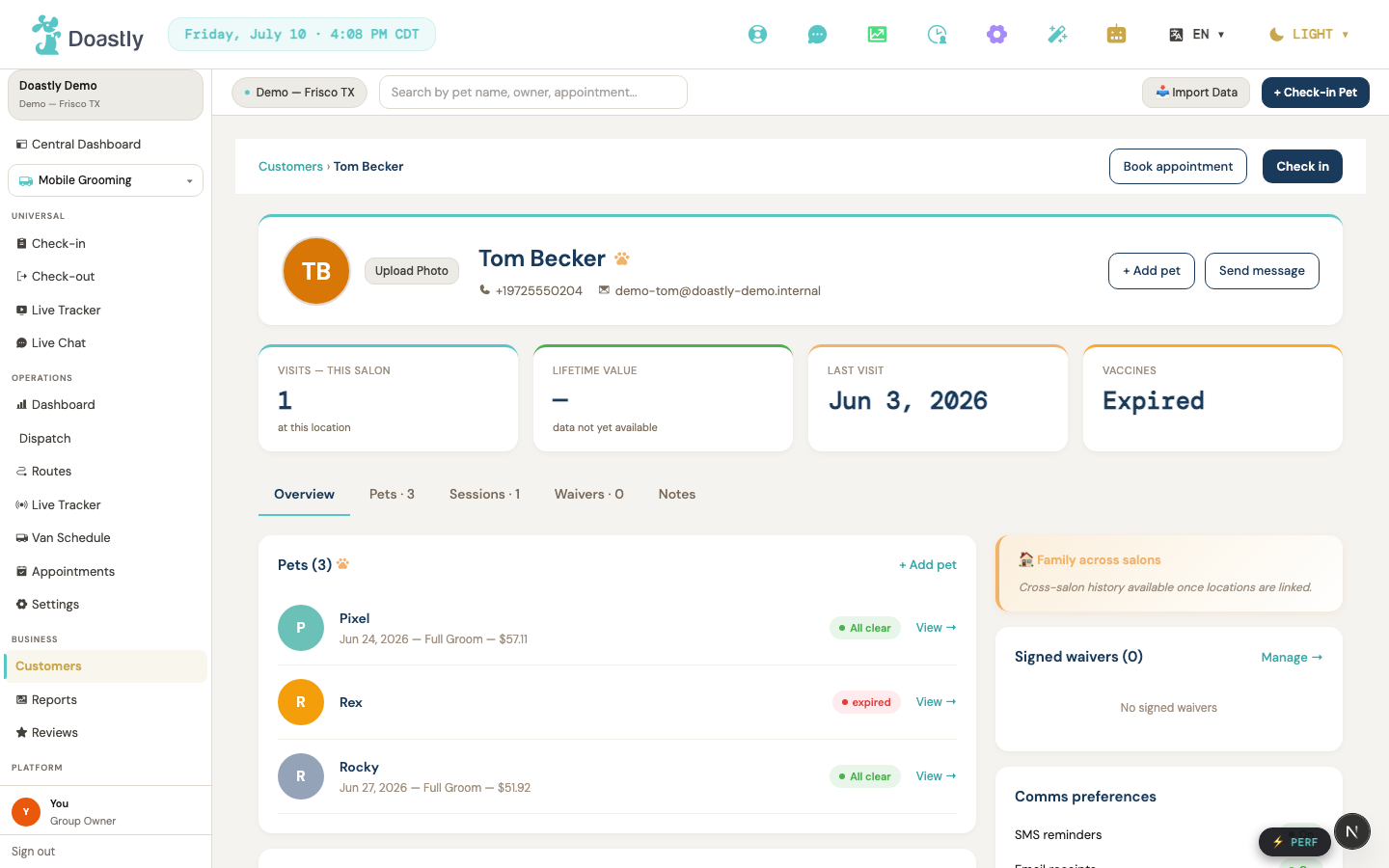
(dark mode also captured)
| Control | What it does |
|---|---|
| First Name * | Enter the customer's first name (required). |
| Last Name * | Enter the customer's last name (required). |
| Phone * | Enter the customer's phone; on leaving the field, auto-formats to (xxx) xxx-xxxx and checks it's a valid 10-digit US number, showing an inline "Please enter a 10-digit US phone number." message beneath the field if not. |
| Email * | Enter the customer's email (required). |
| Cancel | Closes the window without saving. |
| Save Customer → | Validates that first name, last name, phone, and email are all present and phone is 10 digits (shows a friendly required-fields message otherwise), then creates the customer. If the customer already exists, shows a friendly "already exists" message. |
Add-pet form (embedded)
The pet-details form used from both the customer list and the customer detail page. Only the pet name is required to save. (Note: the add-pet form has a Close ✕ only — no backdrop-click close.)
| Control | What it does |
|---|---|
| Close ✕ | Abandons pet creation and closes the form. |
| Photo dropzone / avatar circle | Opens the file picker to choose a pet photo; shows a preview. |
| Pet photo file input | Accepts JPEG, PNG, WebP, or HEIC up to 10MB; sets the preview. |
| Upload Photo / Change Photo | Opens the file picker. |
| Remove (photo) | Clears the selected photo and preview (shown only once a photo is selected). |
| Pet Name * | Enter the pet's name (required to save). |
| Gender (Male / Female) | Sets the pet's gender; clicking the active option deselects it. |
| Date of Birth | Sets the pet's birth date, limited to between 1900-01-01 and today. |
| Color | Selects the pet's color from a preset list. |
| Breed | Selects the breed from a searchable list; supports a custom "Other:" entry. |
| Coat Type | Selects the coat type from a preset list. |
| Weight (lbs) | Enter the pet's weight; automatically shows a size badge. |
| Neutered/Spayed (Unknown / Yes / No) | Sets the neutered/spayed status as a three-way choice. |
| Allergies | Enter any allergy notes. |
| Medications | Enter any medication notes. |
| Diet | Enter any diet notes. |
| Behavioral Notes | Enter any behavioral notes. |
| Behavior Tags | Selects one or more behavior tags. |
| Add Pet → | Creates the pet, then uploads the photo if one was chosen. |
| Retry Photo | If the photo upload failed, retries the upload. |
| Skip Photo | If the photo upload failed, finishes with the pet saved but no photo. |
Customer Detail — top bar + profile header
The header of a customer's detail page, with quick actions and the customer's photo.
| Control | What it does |
|---|---|
| Customers (breadcrumb) | Returns to the customer list. |
| Book appointment | Placeholder button; no action is wired yet. |
| Check in | Opens the grooming check-in flow. |
| Customer avatar upload | Opens the photo picker (Update Photo window) to upload or remove the customer's photo. |
| + Add pet (header) | Opens the add-pet form; on success, reloads the detail page. |
| Send message | Placeholder button; no action is wired yet. |
Customer Detail — KPI + tab nav
The metrics strip and tab navigation for the customer's detail page.
| Control | What it does |
|---|---|
| Tab nav (Overview / Pets / Sessions / Waivers / Notes) | Switches the section below; Overview shows pets, sessions, boarding, daycare, and the right column, while the other tabs show their own panels. Pets, Sessions, and Waivers tabs display counts. |
| KPI stat cards (Visits — this salon / Lifetime value / Last visit / Vaccines) | Display only. Shows the customer's key metrics. |
Customer Detail — Overview tab (pets section)
The pets list within the Overview tab, showing each pet and its most recent session.
| Control | What it does |
|---|---|
| + Add pet (pets section) | Opens the add-pet form. |
| Pet row (each) | Opens the pet's detail page. |
| Full history → | Styled as a link but not wired; no action yet. |
| View → (recent session row) | Opens the session quick-peek pane for that session. |
Customer Detail — Overview right column
The right-hand column of the Overview tab, showing waivers and communication preferences.
| Control | What it does |
|---|---|
| Manage → (signed waivers) | Styled as a link but not wired; no action yet. |
| Comms preferences (SMS reminders / Email receipts / Email report cards / Marketing emails On/Off pills) | Display only. Shows the current communication settings; not editable here. |
Customer Detail — Pets tab
A full list of the customer's pets.
| Control | What it does |
|---|---|
| Pet row (each) | Opens the pet's detail page. |
Customer Detail — Sessions tab
A list of the customer's grooming sessions.
| Control | What it does |
|---|---|
| View → (session row) | Opens the session quick-peek pane for that session. |
| Record | Opens the full session record. |
| "Showing {n} of {total} sessions." | Display only. Overflow footer shown when the total exceeds the loaded set. |
Customer Detail — Waivers tab
A list of the customer's signed waivers.
| Control | What it does |
|---|---|
| Waiver rows | Display only. Each shows the template name, signed date, method, and a "Signed" badge. |
Customer Detail — Notes tab
A running log of internal notes about the customer, newest first.
| Control | What it does |
|---|---|
| Note textarea | Enter the text of a new note. |
| Add note | Saves the note and adds it to the top of the list; disabled while saving or when empty. |
Customer Detail — Session quick-peek pane
A window that shows a summary of a selected grooming session.
| Control | What it does |
|---|---|
| Backdrop click | Closes the session detail pane. |
| Close ✕ | Closes the session detail pane. |
Pet Detail — header + back link
The header of a pet's detail page, with a back link and the pet's photo.
| Control | What it does |
|---|---|
| ← Back to Customer | Returns to the customer's detail page. |
| Pet avatar upload | Opens the photo picker (Update Photo window) to upload or remove the pet's photo. |
Pet Detail — middle tabs
Tab navigation for the main sections of the pet's profile.
| Control | What it does |
|---|---|
| Pet Info / Vaccines / Compliance tabs | Switches between the pet's info, vaccine records, and compliance documents. |
Pet Detail — Vaccines tab
The pet's vaccine records, with the option to add a new one.
| Control | What it does |
|---|---|
| + Add Vaccine | Shows the add-vaccine form inline. |
Pet Detail — Add-vaccine form
The form for recording a new vaccine. Vaccine and date administered are required.
| Control | What it does |
|---|---|
| Vaccine * select | Choose a common vaccine, or "Other (type below)" to enter a custom name. |
| Other vaccine name input | Enter a custom vaccine name (shown only when "Other" is selected). |
| Date Administered * | Set the date the vaccine was given (required). |
| Expiry Date | Set the vaccine's expiry date (optional). |
| Administered By | Enter the vet or clinic name. |
| Lot Number | Enter the vaccine lot number (optional). |
| Notes | Enter any additional notes. |
| Choose file / Change file (vaccine doc) | Pick a document (PDF, JPG, PNG, or WebP, up to 10MB) to attach after the record is created. |
| ✕ (clear selected doc) | Clears the selected document. |
| Cancel | Hides the form without saving. |
| Add Vaccine (submit) | Creates the vaccine record, then uploads the document if one was attached, and adds it to the top of the list. |
Pet Detail — Vaccine record row (each record)
A single vaccine record with its documents and record actions.
| Control | What it does |
|---|---|
| Document link (each doc) | Opens the vaccine document in a new tab. |
| Verify | Marks the record as verified; shown only to manager roles on unverified records. |
| Doc (upload) | Uploads a document to this vaccine record. |
| Del | Asks for confirmation, then deletes the record and removes the row. |
Pet Detail — Compliance tab
The pet's compliance documents, showing what needs signing and what's already signed.
| Control | What it does |
|---|---|
| Download (signed doc, per row) | Downloads the signed document. |
| Sign (active session) | Button labeled "Sign" — launches the signing flow for that single template. Renders only when an active session exists for the pet. |
| Sign here → (no active session) | Opens the document for in-place signing. This is the variant that renders on the Pet Detail page. |
| Sign at Check-In → / Sign anytime → / Sign at Check-Out → (shared variant) | A link that routes to the grooming check-in flow; the label varies by compliance category. (Not reachable on Pet Detail, but is a control of the shared component.) |
| Sign all ({n}) | Launches the signing flow for all unsigned documents at once, with a live count; renders only when an active session exists and more than one document is unsigned. |
| View signing history ({n}) toggle | Shows or hides the signed-history list. |
| Download (history row) | Downloads a previously signed document. |
Pet Detail — Grooming History
A filterable, paginated list of the pet's past grooming sessions.
| Control | What it does |
|---|---|
| From date filter | Sets the start date and refreshes the history. |
| To date filter | Sets the end date and refreshes the history. |
| Status filter (All statuses / Checked out / Cancelled) | Filters the history by session status. |
| Clear (filters) | Resets all history filters (shown only when a filter is active). |
| History row | Opens the session quick-peek pane for that session (whole-row click). |
| Record (per row) | Opens the full session record (stops row-click propagation). |
| ‹ Prev | Goes to the previous page; disabled on the first page. |
| Next › | Goes to the next page; disabled on the last page. |
Pet Detail — Boarding stays / Daycare days lists
Lists of this pet's boarding reservations and daycare attendance.
| Control | What it does |
|---|---|
| Boarding stay "Record" pill (per row) | The row body is NOT clickable; each row has a trailing "Record" pill that opens the pet's boarding record. Renders disabled until the pet id resolves. |
| Daycare day "Record" pill (per row) | The row body is NOT clickable; each row has a trailing "Record" pill that opens the daycare attendance record. |
Shared — Avatar upload (customer + pet photo)
The photo control used for both customer and pet avatars.
| Control | What it does |
|---|---|
| Avatar circle | Opens the Update Photo window (when editing is allowed); shows a "Change" hover overlay. |
| Upload Photo / Change Photo | Opens the Update Photo window. |
| Remove | Deletes the current photo (shown only when a photo exists and removal is available). |
| Window ✕ / backdrop | Closes the Update Photo window. |
| Photo picker (in window) | The picker inside the Update Photo window — see below. |
Shared — Photo picker (inside the Update Photo window)
A three-tab photo picker. Not a single file-select — it exposes three capture modes.
| Control | What it does |
|---|---|
| 📷 Camera tab | Switches to live-camera capture. |
| 🖼️ Library tab | Switches to a dropzone that opens the device's photo library picker. |
| 📄 File tab | Switches to a dropzone that opens the device's file picker (JPG/PNG/WebP/HEIC, max 10MB). |
| Library / File dropzone | Click to open the file picker; the selected image is compressed and passed up as the new photo. |
| Capture (shutter) button (Camera tab) | Captures the current video frame as the photo; disabled until the camera stream is ready. |
| Flip camera 🔄 (Camera tab) | Toggles between front and rear cameras; shown only when multiple cameras are detected. |
Analytics & Reports
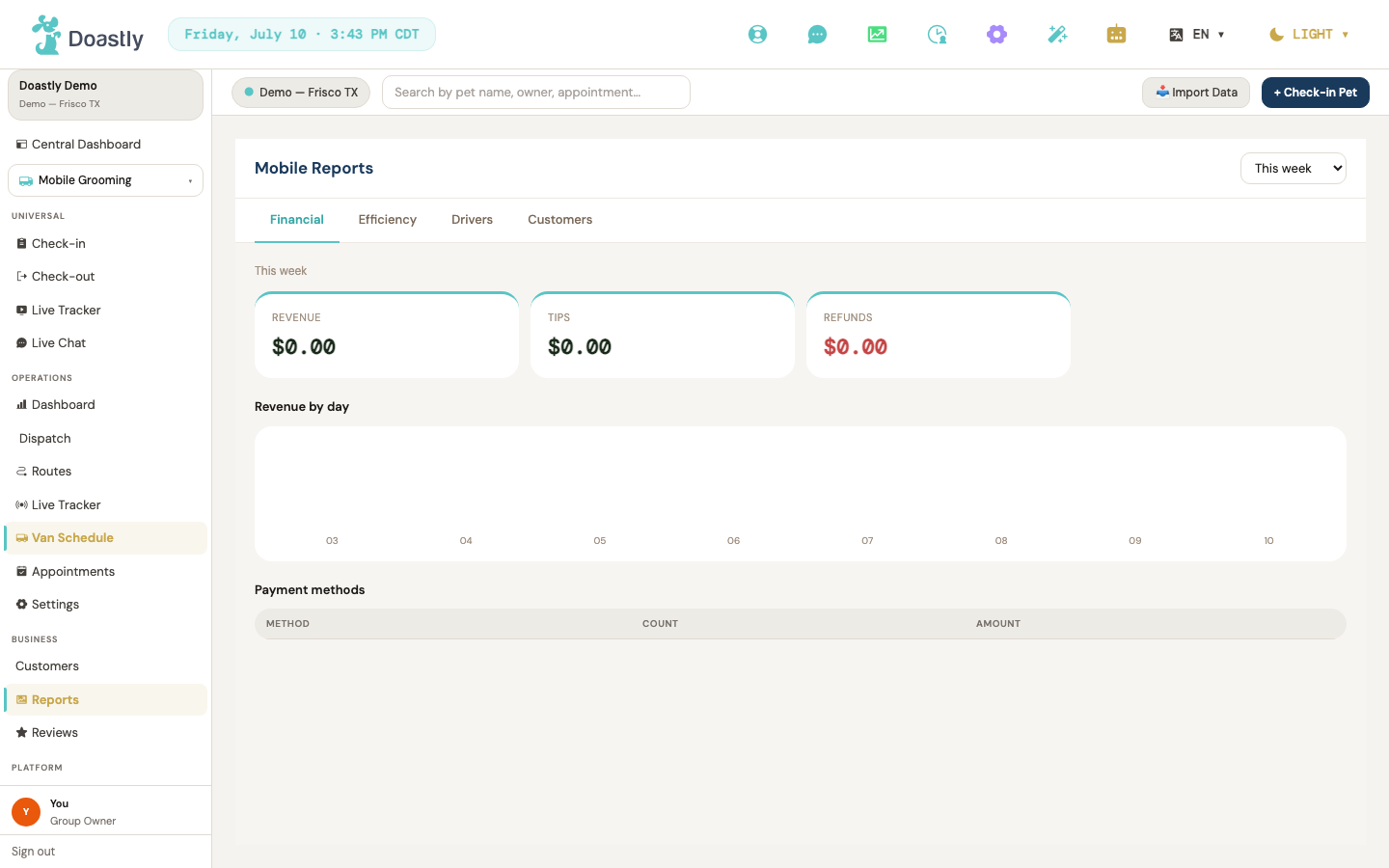
(dark mode also captured)
Mobile Reports — page shell (header + tab strip)
The reports landing surface for Mobile Grooming. A period selector sets the reporting window for the whole page, and a four-tab strip switches between the Financial, Efficiency, Drivers, and Customers panels.
| Control | What it does |
|---|---|
| Period selector (Today / This week / This month / Custom…) | Sets the reporting window and refetches the active panel's metrics, tables, and charts for the new period. Defaults to This week. Note: selecting "Custom…" does NOT open a date-range picker — there is no custom-range date input control in the UI yet. |
| Financial (tab) | Opens the Financial panel. This is the default tab. |
| Efficiency (tab) | Opens the Efficiency panel. |
| Drivers (tab) | Opens the Drivers panel. |
| Customers (tab) | Opens the Customers panel. |
| Reports (sidebar nav link) | Opens this Reports page from the sidebar. Visible only to roles allowed to view analytics. |
Financial tab panel
Revenue summary for the selected period. Three metric cards headline the totals, followed by a revenue-by-day chart and a payment methods breakdown.
Not yet reliable for Mobile — do not use these figures for accounting. Mobile payments are not yet recorded the way the other verticals record them, so the Tips card does not yet reflect real tips, and per-day figures can land on the wrong calendar day for salons outside UTC (a late-evening visit may appear on the following day). Treat this tab as an indicative view of activity rather than a financial record. Grooming, Boarding and Daycare reporting are unaffected.
| Control | What it does |
|---|---|
| Revenue metric card | Shows total revenue for the period as currency. Read-only. |
| Tips metric card | Shows total tips for the period as currency. Read-only. |
| Refunds metric card | Shows total refunds for the period as currency, styled with a danger accent. Read-only. |
| Revenue-by-day bar (per day) | Each bar represents one day's revenue; hovering a bar shows a tooltip with the date and amount. Hover only, no click action. |
| Payment methods table | Lists each payment method with its transaction count and total amount. Read-only, no sorting. |
Efficiency tab panel
Route and operational efficiency for the selected period. Three metric cards cover dwell time and van-based route costs, with a per-date table comparing estimated and actual route time.
| Control | What it does |
|---|---|
| Dwell avg (min) metric card | Shows the average dwell time in minutes for the period. Read-only. |
| Miles driven metric card | Shows total miles driven for the period, to one decimal. Read-only. |
| Fuel cost metric card | Shows total fuel cost for the period as currency, or an em-dash when no data is available. Read-only. |
| Route time variance table | Lists each date's estimated versus actual route minutes, with variance color-coded (danger when the absolute variance is over 20 minutes, amber when running long, teal when under). Read-only. |
Drivers tab panel
Per-driver performance for the selected period, shown as a single table.
| Control | What it does |
|---|---|
| Drivers performance table (per-driver rows) | Lists each driver with their average stops per day, average dwell time, customer rating (em-dash when no rating), and hours worked. Read-only, no sorting or row actions. |
Customers tab panel
Customer health and satisfaction for the selected period. Three metric cards summarize retention and satisfaction, with a list of the most common complaints.
| Control | What it does |
|---|---|
| Repeat customers metric card | Shows the share of repeat customers as a percentage. Read-only. |
| Churn risk metric card | Shows the count of customers at risk of churning, styled with a danger accent when above five. Read-only. |
| NPS avg metric card | Shows the average Net Promoter Score to one decimal, or an em-dash when no data is available. Read-only. |
| Top complaints list | Lists the most common complaints for the period, or shows "No complaints in this period." when there are none. Read-only. |
_Note: each of the four panels also renders a non-interactive loading placeholder while fetching and a friendly error message on fetch failure. These are status displays, not controls, and are intentionally not listed above._
Payments (Mobile Grooming)
Mobile Grooming has a dedicated Payments page (/salon/mobile/payments, Owner/Manager only) for admin reporting, plus the shared check-out flow for taking payment on an appointment, plus the Financial tab of Mobile Reports. This section covers the Payments page and the full check-out path from pet lookup through payment capture; see "Mobile Reports — Financial tab" below for the reporting-only view.
Mobile Payments page
Opens from the Payments sidebar item under Mobile Grooming (visible to roles with payments access, same as Boarding's Payments item). Shows paid appointments and refunds for the active location and selected period.
Mobile Grooming is not yet part of the platform's shared revenue service and computes its own figures from the appointment list, windowed on when the appointment was scheduled (see the Period buttons row below). Grooming, Boarding, and Daycare each go through that shared service instead, so the same calendar period can show a different number on Mobile's Payments page than on another vertical's — neither is wrong, they're answering different questions ("appointments scheduled" vs. "money collected"), tracked as S-MOBILE-REVENUE-NOT-ON-SSOT-WINDOW-DIVERGENCE. Unpaid appointments are never counted here — only paid or refunded appointments feed every figure on this page.
| Control | What it does |
|---|---|
| Period buttons (Today / Last 7 days / This month) | Sets the reporting window. "This month" is the default on load. Changing it re-queries the appointment list and refreshes every KPI card and table. Filters on the appointment's slot time (slot_window_start) — when the visit was scheduled — not on when it was paid. An appointment booked in one window and paid in another shows up under the window it was scheduled in, so this answers "appointments scheduled in this window," not "money collected in this window." |
| KPI strip — Service Fees | Sum of total_amount_cents across paid + refunded appointments in the period (gross of everything billed), with a transaction count underneath. |
| KPI strip — Tips | Shows "—" with a "not recorded" note. Mobile appointments have no tip column today — this is an honest gap, not a rendering bug, tracked as #743. |
| KPI strip — Discounts | Shows "—" with a "not recorded" note, for the same reason as Tips — tracked as #743. |
| KPI strip — Total Revenue | Currently equal to Service Fees. With no tip, discount, or tax columns on a mobile appointment, the platform's revenue identity (Service Fees − Discounts + Tips = Total Revenue) collapses to Total Revenue = Service Fees — the two cards showing the same number is expected, not a double-count or a bug. Closes when the missing columns are added, tracked as #743. |
| KPI strip — Tax | Shows "—" with a "not recorded" note, for the same reason as Tips and Discounts — tracked as #743. |
| KPI strip — Net Revenue | Service Fees minus Refunded. Shows a "net of $X refunded" note underneath when refunds exist in the period. |
| KPI strip — Refunded | Sum of total_amount_cents for appointments refunded in the period. Mobile does not yet support partial refunds, so this figure is always a full-appointment amount. |
| Transactions table | Every paid or refunded appointment in the period: Paid (date/time), Appointment (short code), Pet, Customer, Amount, Status. Searchable by pet or customer name; paginated 10 per page. |
| Refunds table | The subset of the period's appointments that were refunded, same columns as Transactions. Paginated 10 per page. |
Do not use this page for accounting, and be especially careful on a busy period. This page loads mobile appointments and adds them up in the browser, and it loads at most 100 of them (
payments/page.tsxfetches withlimit: 100). If the period you selected has more than 100 mobile visits, every figure above is calculated from only those 100. That matters more than a simple shortfall, because the fetch is sorted by amount descending, so the 100 it keeps are the largest: the visits left out are the smallest ones. On a busy period revenue reads low and the average ticket reads high, and nothing on screen indicates it. Shorten the period (a week rather than a month) to stay under the limit, and use your gateway's own reporting for anything you are reconciling. Tracked as #962.
Mobile Check-out entry (redirect)
Opening the Mobile check-out link does not render its own page — it forwards you to the shared check-out flow with the Mobile vertical pre-selected.
| Control | What it does |
|---|---|
| (auto) redirect to shared check-out | Shows a brief banner ("We unified Check-Out to one screen.") plus a spinner, then after a short delay forwards you to the shared check-out flow. No action needed — the redirect is automatic. |
| Manage subscription | Appears only if your salon does not have the Mobile Grooming vertical on its subscription. Links to Settings → Subscriptions so you can enable the vertical. |
Persistent check-out panels (shown on every step after lookup)
Once you pick a pet, two read-only panels stay pinned above the flow (Session select, every vertical tab, and Review): an Active sessions panel and a Pet documents panel (vaccines + compliance status). In check-out mode these are informational only — the add-to-visit, start-new-visit, upload-vaccine, and sign-document affordances from check-in are all suppressed. Their purpose is awareness (missing/expired vaccine, unsigned compliance) while you settle.
| Control | What it does |
|---|---|
| (read-only) Active sessions panel | Lists the pet's live sessions, badging those you selected earlier as "Selected for check-out". No buttons. |
| (read-only) Pet documents panel | Shows vaccines (with expiry/stale/expired state) and any missing compliance docs as advisory chips. Sign / Upload affordances are hidden in check-out. |
| Retry (documents fetch-fail footer) | Appears only if the vaccine/compliance details fail to load. Reloads the page to retry. The one interactive control in these panels during check-out. |
Checkout Step 1 — Pet/customer lookup
The check-out flow opens on pet lookup. Find the pet you are checking out by owner name, phone, or pet name.
| Control | What it does |
|---|---|
| Search input (owner name, phone, or pet name) | Type to search. Results appear as you type (after a minimum number of characters) and populate the list of matching customers and pets. Each result row also shows an "Owner" or "Phone" badge when the match came from the owner name or phone rather than the pet name. |
| Scan QR | A button for QR-based lookup. It is present but not yet active — no scan flow runs when clicked. |
| Result row — Check out | Selects the matched pet and advances to session selection. |
Checkout Step 0 — Session select
After picking a pet, choose which active session(s) to check out. A single session advances you straight through; multiple sessions open a tabbed flow.
| Control | What it does |
|---|---|
| Search another pet | Appears when the selected pet has no active sessions. Returns you to pet lookup to search again. |
| Session chip (per active session, e.g. Mobile) | A toggle pill that adds or removes a session from the check-out. Sessions belonging to another salon appear disabled and marked "(at another salon)". |
| Continue → | Advances to the next step. Disabled until at least one session is selected. When multiple sessions are selected, it opens the tabbed check-out. |
Checkout tab strip (multiple sessions only)
When you check out two or more sessions at once, a tab strip appears — one tab per vertical plus a final Review tab. This strip is hidden for single-session check-outs.
| Control | What it does |
|---|---|
| Per-vertical tab (Grooming / Boarding / Daycare / Mobile) + Review | Switches the visible tab. The final Review tab is where you total up and take payment across all selected sessions. |
| ← Back to session selection | Returns to session select, keeping your pet identification and session choices intact. |
Mobile check-out tab (adjustments + signature)
The Mobile tab leads with a read-only route summary, then lets you add a tip, apply a discount, record notes, and capture the customer's sign-off before payment.
| Control | What it does |
|---|---|
| (read-only) Route summary | A summary block showing Van, Zone, Route slot, Equipment, and Subtotal for the booking. Informational — no controls. |
| Retry | Appears if the booking details fail to load. Re-fetches the session's booking detail. |
| Tip mode $ | Switches tip entry to a fixed dollar amount. |
| Tip mode % | Switches tip entry to a percentage and reveals the percent suggestion chips. |
| Tip percent chips (None / 10% / 15% / 20%) | Sets the tip to that percentage of the subtotal (percent mode only). |
| Tip amount input | Enter a tip value. In dollar mode it is read as dollars; in percent mode it is read as a percentage. |
| Discount input | Enter a dollar discount. The running total on screen updates as you type — confirm that total is what you intend before taking payment. Note that the customer's receipt will not itemize the discount: the receipt shows a discount line of $0 even when one was applied, so the receipt's subtotal and total will not appear to add up. (Promo codes are not supported here.) |
| Route completion notes | Internal route-handover notes for your team. Not shown to the customer. |
| Notes | Customer-facing notes about the pet's condition. |
| Customer signature | Type the customer's name as their sign-off acknowledgement. (A drawn signature pad is not yet available.) |
| (read-only) Running total | A live preview line showing subtotal + tip − discount as you adjust. |
| ← Back | Returns to session selection. |
| Continue → / Continue to Review → | Advances to the next vertical tab, or to the Review tab if this is the last tab. |
Review & complete tab (payment capture)
The Review tab is where you choose a payment method and complete the check-out. The grand total is shown on the completion button.
| Control | What it does |
|---|---|
| Payment method pills (Stripe terminal / Square terminal / Cash / Check / Split) | Select how the customer is paying. The Stripe option shows a warning (⚠) and is unavailable when no card reader is paired at this location. |
| pair one in Settings → Payment | Appears when Stripe is selected but no reader is paired. Links to Settings → Payment to pair a card reader. |
| ← Back | Returns to session selection. |
| Complete check-out · $<grand total> | Completes the check-out for the shown total. Card methods (Stripe, Square, Split) open the payment capture step first; cash and check complete directly. Disabled while submitting, or when Stripe is selected with no reader paired. |
Unified payment capture (card methods)
For card-based methods, this step captures payment against the original pre-authorization before finishing the check-out.
| Control | What it does |
|---|---|
| ← Back | Returns to the Review tab without capturing. |
| Capture $<total> → | Captures the payment for the shown total, then completes the check-out. Disabled while the capture is running. |
Checkout success panel
Shown once the check-out completes successfully.
| Control | What it does |
|---|---|
| + New check-out | Clears the flow and returns to pet lookup to start the next check-out. |
Checkout error / partial-fail panels
If a payment is declined or only some sessions in a multi-session check-out succeed, these read-only panels explain what happened. They carry no buttons — you retry by re-clicking Complete.
| Control | What it does |
|---|---|
| Payment declined panel | A read-only, plain-English message shown when a payment is declined. To retry, re-click Complete check-out. |
| Partial-fail panel | A read-only summary shown when only some sessions in a multi-session check-out complete. Lists each failed session with its charge status, refund status, and guidance on what to do next. |
Vertical tab placeholder (unimplemented tabs)
Some verticals in a multi-session check-out do not yet have their own check-out content. Those tabs show a placeholder. Because Mobile has full content, you will only see this for other verticals that lack an active session in the check-out.
| Control | What it does |
|---|---|
| ← Back | Returns to session selection. |
| Continue → | Advances to the next tab. |
Mobile Reports — Financial tab (payments analytics)
The Financial tab of Mobile Reports is the reporting side of payments — revenue, tips, refunds, and a breakdown by payment method for the selected period.
| Control | What it does |
|---|---|
| Period select (Today / This week / This month / Custom…) | Sets the reporting period. Changing it refreshes every panel on the page. |
| Tab: Financial | Opens the Financial view: Revenue, Tips, and Refunds metric cards, a revenue-by-day bar chart, and a Payment methods table (method, count, amount). |
| Tab: Efficiency | Opens the Efficiency view: dwell time, miles, and fuel metrics plus a route-variance table. |
| Tab: Drivers | Opens the Drivers view: a per-driver table of stops, dwell time, rating, and hours. |
| Tab: Customers | Opens the Customers view: repeat rate, churn, and NPS metrics plus a top-complaints list. |
| Revenue-by-day bar | A read-only bar chart. Hovering a bar shows its date and dollar amount. It has no click action. |
Reviews
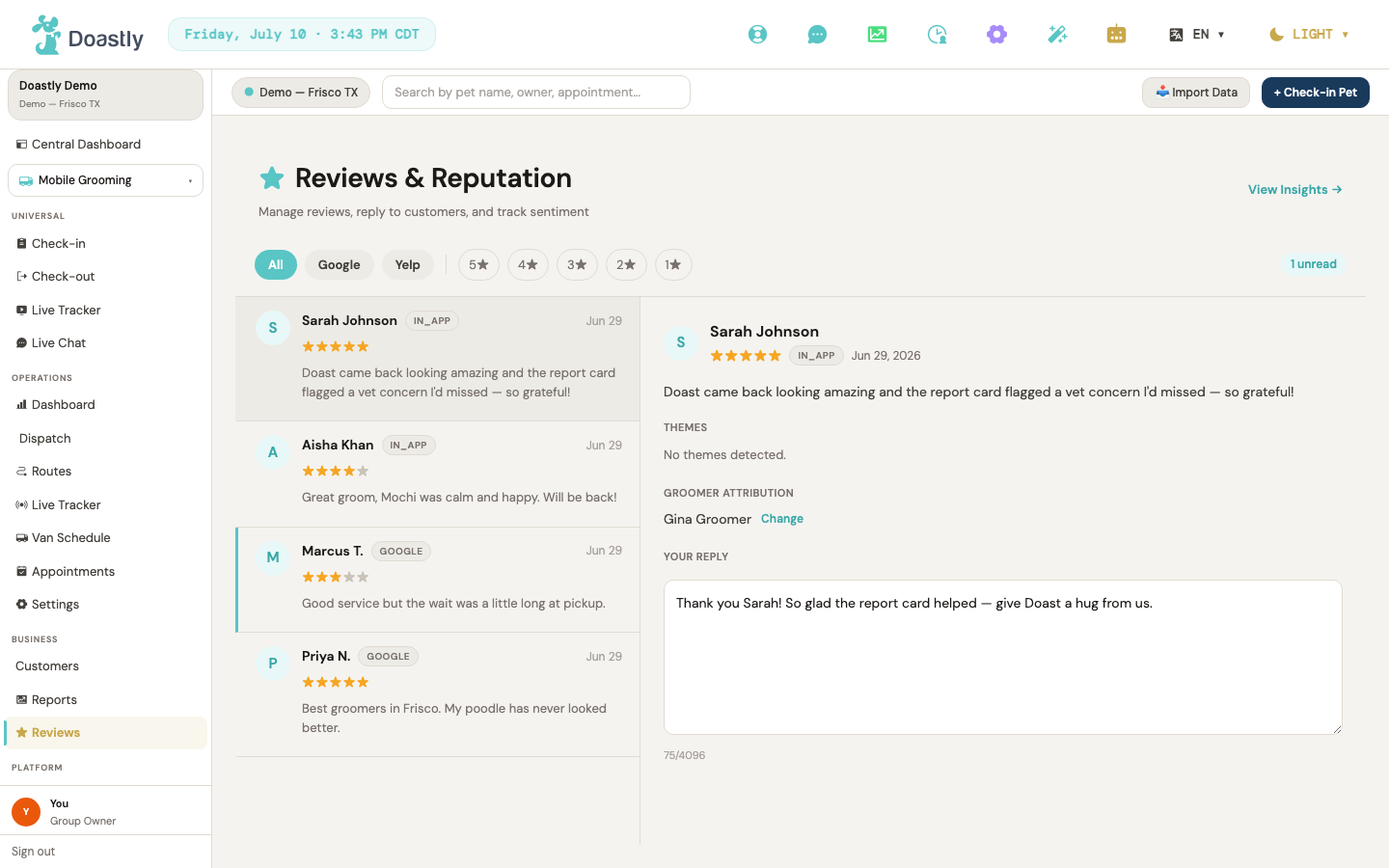
(dark mode also captured)
Review Inbox (Reviews & Reputation)
The central inbox for reading and triaging customer reviews across connected platforms. The page header shows the title "Reviews & Reputation" with the subtitle "Manage reviews, reply to customers, and track sentiment." The left pane filters and lists reviews; selecting one opens it in the detail panel on the right.
| Control | What it does |
|---|---|
| View Insights → | Opens the AI Review Insights page. |
| All (platform tab) | Clears the platform filter so the list shows reviews from every platform, then reloads. |
| Google (platform tab) | Filters the list to Google reviews only and reloads. |
| Yelp (platform tab) | Filters the list to Yelp reviews only and reloads. |
| 5★ / 4★ / 3★ / 2★ / 1★ star-filter buttons | Toggles the list to reviews at the chosen star rating; clicking the active rating again clears the filter and reloads. |
| All themes / theme select | Filters reviews by AI theme; options are the unique AI tags found across loaded reviews (underscores shown as spaces), and "All themes" clears it. Only appears when tagged reviews exist. |
| N unread (badge) | Shows the count of unread reviews. Display-only, and only shown when there is at least one unread. |
| Review card (per review row) | Selects the review and opens it in the detail panel, marking it read if it was unread. Each card shows the avatar, author, platform badge, date, star row, a clamped preview of the text, and up to three tag chips. |
| Review detail panel | The right pane showing the selected review's full detail; displays "Select a review to see details." when nothing is selected. |
NOTE: Opening the Inbox from a Complaint bar on the Insights page does not automatically filter the list to that theme — use the theme selector on the Reviews page to filter by theme.
NOTE: Arriving at the Inbox from a Complaint theme bar in Insights does not pre-filter the list by that theme — the theme filter is only applied by the in-page theme select. (Product gap.)
Review Detail Panel (right pane of Inbox)
The right pane of the inbox showing the selected review in full, where you attribute it to a groomer, edit the AI-drafted reply, and (for Google) send the reply.
| Control | What it does |
|---|---|
| Themes section | Display-only labeled section showing the review's AI theme chips, or "No themes detected." when the review has no AI tags. |
| Change (groomer attribution) | Enters attribution-edit mode and loads nearby grooming-session candidates to link the review to. Only shown when not already editing. |
| Candidate session button (per candidate) | Attributes the review to that grooming session, showing the groomer, pet (customer), and checkout date, then closes edit mode. |
| No-candidates empty state | Display-only "No nearby sessions found for this review." shown in edit mode when no candidate sessions are returned. |
| Mark as Unmatched | Clears the groomer attribution and closes edit mode. |
| Regenerate (AI reply draft) | Re-generates the AI reply draft and AI tags into the textarea. Disabled while running (shows "Regenerating…") and only shown when the review has not been replied to. |
| Reply textarea | The editable reply draft, pre-filled from the sent reply or AI draft, up to 4,096 characters. Its label reads "AI-drafted reply" before a reply is sent and "Your reply" after. Disabled once a reply has been sent. |
| N/4096 character counter | Display-only live count of characters in the draft. |
| Send Reply | Posts the reply to the platform. Disabled while sending (shows "Sending…") or when the draft is empty, and only shown for Google reviews that have not yet been replied to. |
| Platform-managed reply notice | Display-only message shown when a reply can't be sent in-app: "Replies for this platform are managed in the platform's own business portal." |
| Result message | Display-only status message shown after a send, regenerate, or attribution action. |
AI Review Insights
The reputation dashboard summarizing review performance for a chosen period, with complaint themes and per-groomer breakdowns. The header shows the title "AI Review Insights" with the subtitle "AI-powered sentiment analysis, themes, and groomer performance."
| Control | What it does |
|---|---|
| ← Back to Inbox | Returns to the Review Inbox. |
| Today (period) | Sets the reporting period to today and reloads the insights. |
| 7 days (period) | Sets the reporting period to the last 7 days and reloads. |
| 30 days (period) | Sets the reporting period to the last 30 days (the default) and reloads. |
| This month (period) | Sets the reporting period to the current month and reloads. |
| Google avg ★ / Total reviews / Reply rate / NPS summary tiles | Display-only tiles showing the average score, review count, response-rate percentage, and NPS for the selected period. |
| Complaint theme bar (per theme) | Shows a theme's label, proportional bar, and frequency percentage; clicking it navigates to the Inbox for that theme. NOTE: the Inbox does not currently pre-filter by the theme, so the list arrives unfiltered (product gap). |
| Per-groomer performance table | Display-only table listing each attributed groomer's name, review count, average ★, and top theme, with an empty state ("No groomer-attributed reviews in this period.") when no reviews are attributed. |
| Reviews-not-enabled notice | Display-only message shown when Reviews & Reputation isn't enabled for the location: "Reviews & Reputation isn't enabled for this location. Contact your salon admin to add it." |
(dark mode also captured)
(dark mode also captured)
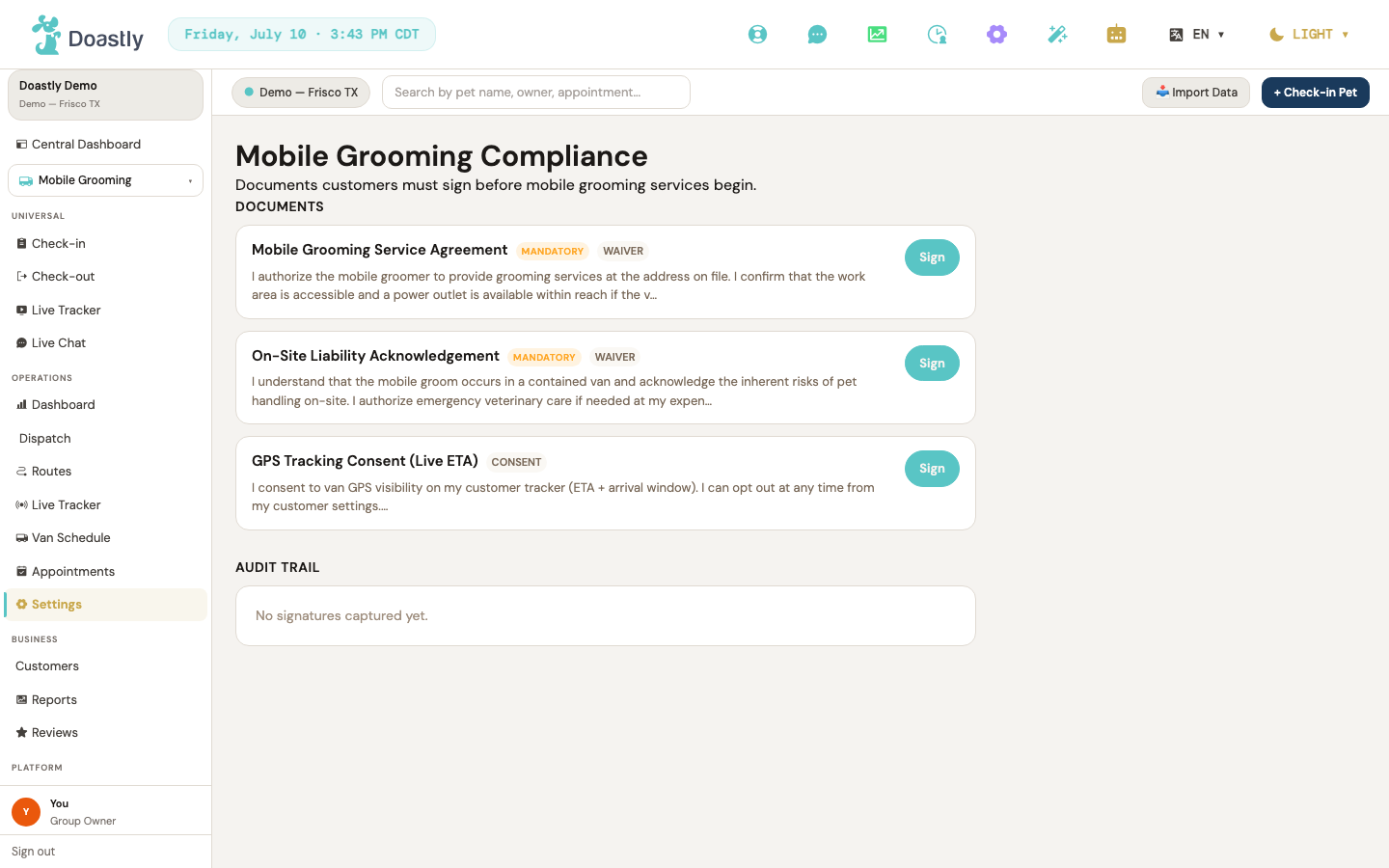
(dark mode also captured)
Mobile Grooming — Settings (Vans & Zones + mobile tabs)
The Mobile Settings shell is a four-tab quick-reference hub for your mobile grooming fleet. Van editing, service-zone mapping, and groomer-compliance details live in their own full-featured screens, which this shell links out to.
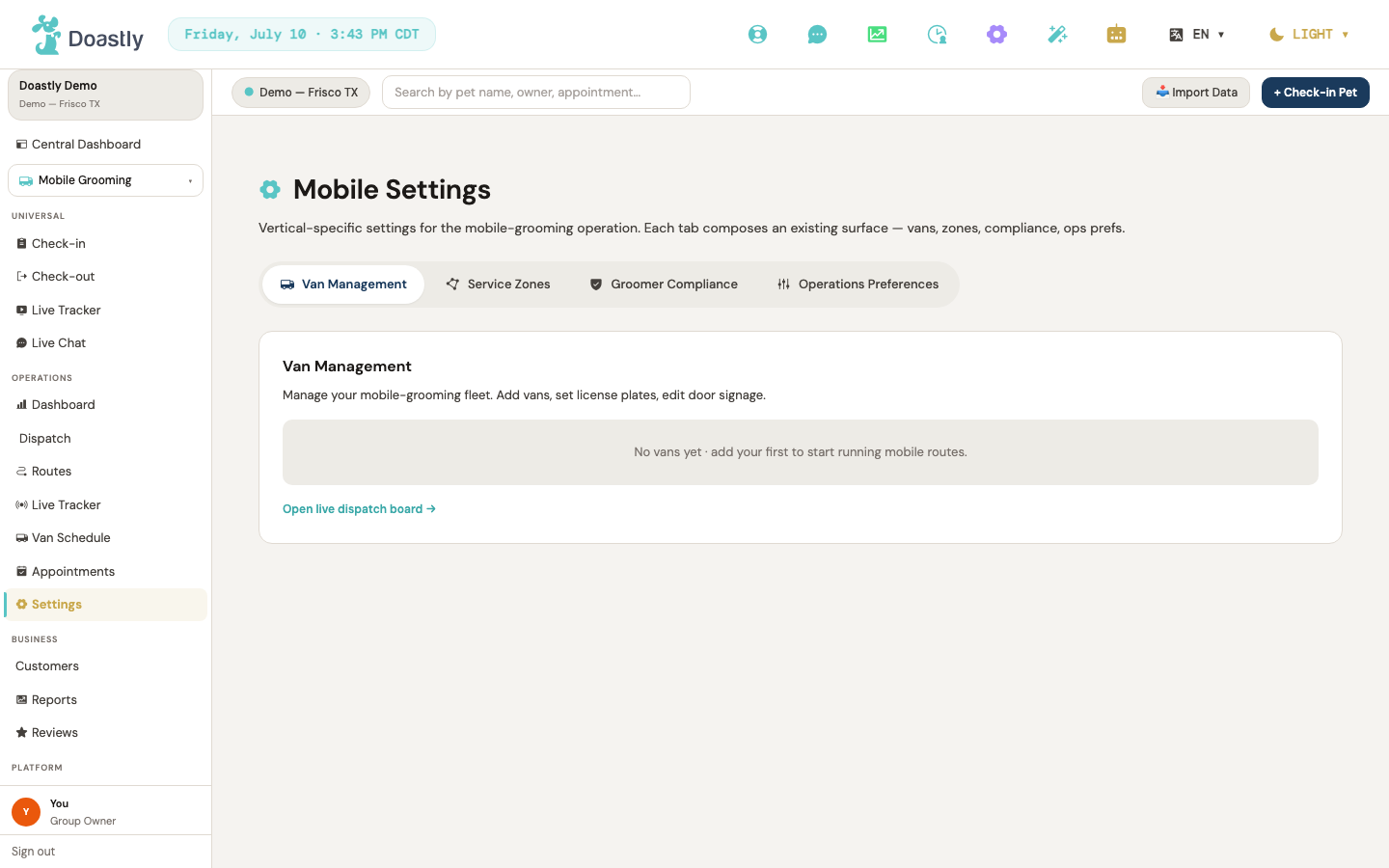
(dark mode also captured)
Mobile Settings shell — tab strip
A horizontal tab strip at the top of the Mobile Settings page. Each tab swaps the panel below it and updates the page address so you can bookmark or share a specific tab.
| Control | What it does |
|---|---|
| Van Management (tab) | Opens the Van Management tab — a slim, read-only list of your vans. This is the default view. |
| Service Zones (tab) | Opens the Service Zones tab, a placeholder pointing to the full zone editor. |
| Groomer Compliance (tab) | Opens the Groomer Compliance tab, which deep-links to Staff Management. |
| Operations Preferences (tab) | Opens the Operations Preferences tab, a placeholder list of upcoming settings. |
Mobile Settings › Van Management tab
A read-only summary of your fleet. Van details are edited on the full Vans & Zones screen; this tab is a quick glance plus a shortcut to live dispatch.
| Control | What it does |
|---|---|
| Van row (per van) | Shows the van's name, plate, driver, zone(s), capacity, and status. The row itself is not clickable — only the status dropdown is interactive. |
| Open live dispatch board → | Takes you to the live dispatch board. |
Mobile Settings › Service Zones tab
An informational placeholder. It explains that the per-van zone editor is on the way and points you to the real editor.
| Control | What it does |
|---|---|
| (informational panel) | A static "Per-van zone editor coming soon" message. No interactive controls — the working zone editor lives on the Vans & Zones screen. |
Mobile Settings › Groomer Compliance tab
A deep-link tab. Per-groomer license, DOT, insurance, and van-driving permissions are all managed in Staff Management, so this tab simply routes you there.
| Control | What it does |
|---|---|
| Open Staff Management → | Takes you to Staff Management, where each groomer's license, DOT, insurance, and "can drive van" settings are edited in the Edit Staff window. |
Mobile Settings › Operations Preferences tab
A preview of operations settings that are not yet live. Every row is a labeled placeholder marked "Coming soon."
| Control | What it does |
|---|---|
| Max routes per van per day (row) | Placeholder row marked "Coming soon." Non-interactive. |
| Default service window (min) (row) | Placeholder row marked "Coming soon." Non-interactive. |
| SMS templates per stage (row) | Placeholder row marked "Coming soon." Non-interactive. |
Vans & Zones — tab strip
The full fleet-management screen, split into two tabs. Selecting a tab swaps the panel below and updates the page address.
| Control | What it does |
|---|---|
| Vans (tab) | Opens the Vans panel — the full fleet table where you add vans and change their status. |
| Zones (tab) | Opens the Zones panel — the service-zone list paired with a map. |
Vans & Zones › Vans panel
The working fleet table. Here you add new vans and set each van's operating status; other details are shown for reference.
| Control | What it does |
|---|---|
Fleet count ({N} van(s)) | A small non-interactive counter above the table showing how many vans are in your fleet. |
| + Add van | Opens the Add Van window. |
| Status (per-van dropdown) | Sets a van to Active, Maintenance, or Retired. The change saves immediately and the table refreshes. |
| Van row (per van) | Shows the van's name, plate, driver, zone(s), capacity, and status. The row itself is not clickable — only the status dropdown is interactive. |
| Error banner | Displays a plain-English message if the list fails to load or an update fails. Non-interactive. |
Vans & Zones › Add Van window
The form for adding a van to your fleet. Name, license plate, and capacity are required.
| Control | What it does |
|---|---|
| Name (input) | The zone's name. Required. |
| License plate (input) | The van's license plate. Required. |
| Capacity (number input) | How many pets the van holds (minimum 1, defaults to 6). Required to be at least 1. |
| Zone (dropdown) | Assigns the van to a service zone. Defaults to "— No zone —"; lists one option per existing zone. |
| Save van (submit) | Checks the required fields, then saves the van, closes the window, and refreshes the table. Shows "Saving…" while it works. |
| Cancel | Closes the window without saving. Disabled while a save is in progress. |
| Backdrop click-to-close | Clicking the dimmed area outside the window closes it without saving. |
Vans & Zones › Zones panel
The service-zone list, shown alongside a map. Here you add, activate, and remove zones; selecting a zone highlights it on the map. Adding, activating, and deleting zones all save correctly and are reflected here and on the map.
| Control | What it does |
|---|---|
Zone count ({N} zone(s)) | A small non-interactive counter above the list showing how many service zones exist. |
| + Add zone | Opens the Add Zone window. |
| Zone row (per zone) | Selects the zone — highlights the row and focuses it on the map. |
| Active (checkbox, per zone) | Turns the zone on or off. Saves immediately and refreshes; clicking it does not also select the row. |
| Delete (button, per zone) | Asks you to confirm, then deletes the zone, clears any selection, and refreshes the list. |
| Zone error banner | Displays a plain-English message if a load, update, or delete fails. Non-interactive. |
| Polygon-editing roadmap note | A caption under the map: "Polygon editing via map (drag vertices · click to add) ships in v2. For now, use the Add Zone modal with coords text." Display-only. |
Vans & Zones › Zone map
An interactive map showing your service zones as shaded areas. It stays in sync with the zone list — selecting on one updates the other.
| Control | What it does |
|---|---|
| Zone polygon (per zone) | Clicking a zone's shaded area selects that zone (in sync with the list). The selected zone is drawn thicker and darker; inactive zones appear dashed and faded. |
| Polygon tooltip | On hover, shows the zone's name and service type (and "inactive" if it is off). Non-interactive. |
| Map pan / zoom | Drag to pan and scroll to zoom the map. Starts centered on Frisco, TX. |
| Map attribution link | Standard map copyright link. |
Vans & Zones › Add Zone window
The form for adding a service zone. Name and boundary points are required.
| Control | What it does |
|---|---|
| Name (input) | The zone's name. Required. |
| Service type (dropdown) | Sets the zone to Residential or Mixed. |
| Boundary points (textarea) | The zone's boundary as latitude,longitude pairs separated by semicolons. Needs at least 3 points; the boundary closes automatically. |
| Save zone (submit) | Checks the name and parses the boundary points, then saves the zone, closes the window, and refreshes the list. Shows "Saving…" while it works. |
| Cancel | Closes the window without saving. Disabled while a save is in progress. |
| Backdrop click-to-close | Clicking the dimmed area outside the window closes it without saving. |
Mobile Compliance settings
The mobile grooming compliance and e-signature settings, powered by Doastly's shared compliance panel.
| Control | What it does |
|---|---|
| Compliance & e-sign panel | The shared cross-vertical compliance and e-signature panel, set to "Mobile Grooming." All interactive controls (documents, signatures, and settings) live inside this shared panel. |
| No-location empty state | A static message shown when there is no active mobile grooming location. Non-interactive. |
Mobile Grooming — Detail pages (Session / Customer / Pet)
Salon Service Record (session detail) — page shell + error/loading states
The service-record page loads a single mobile appointment's full record and displays it. There are no controls on the shell itself; it only handles fetching and re-fetching after a refund.
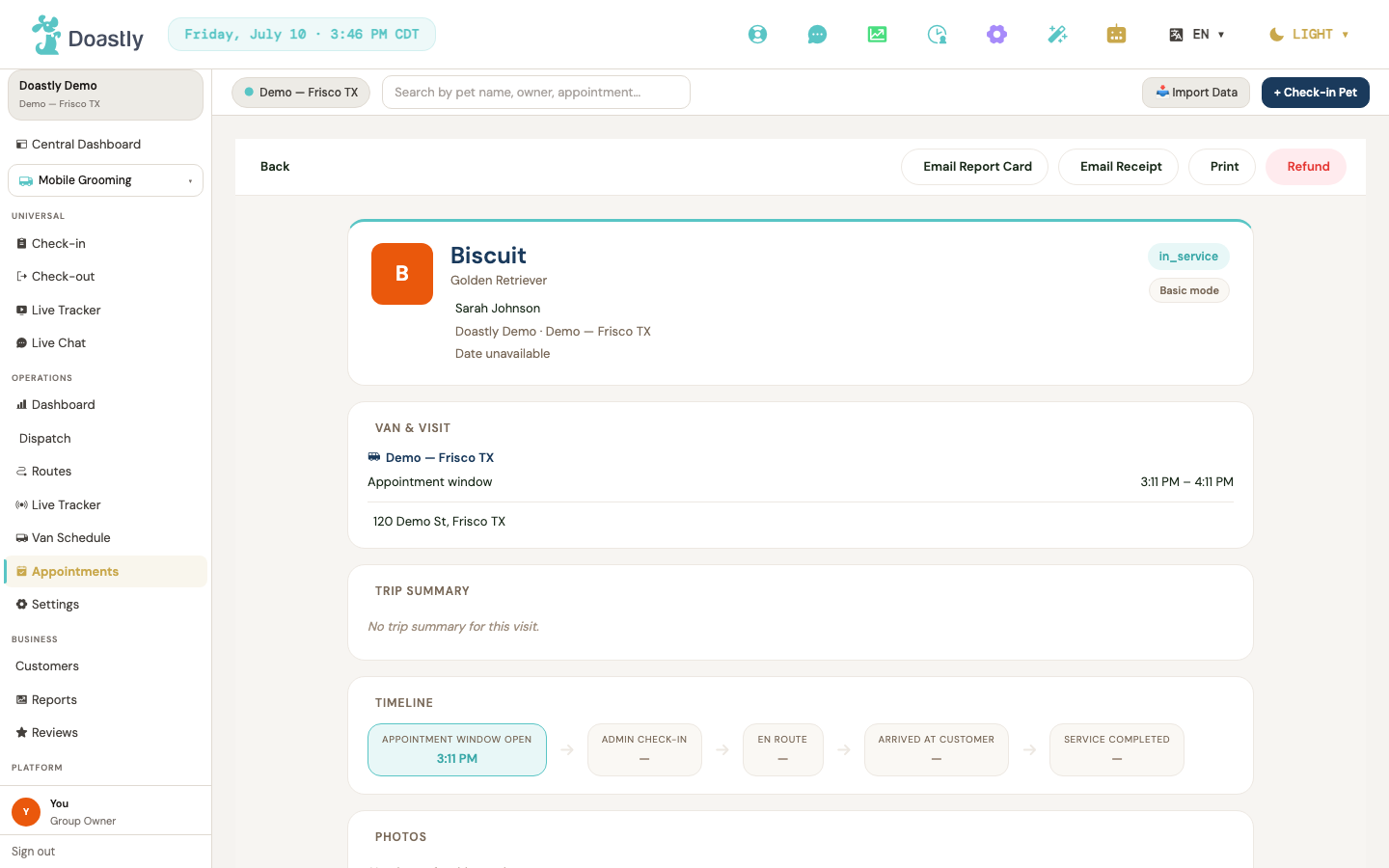
(dark mode also captured)
| Control | What it does |
|---|---|
| (page) | Loads the record for the appointment and shows the full service-record view. While loading it shows "Loading record…"; if the details fail to load it shows a warning icon and a plain-English error message. After a refund is processed, it re-fetches the record automatically to show the updated state. |
Salon Service Record — sticky action bar
The action bar stays fixed at the top of the service record and holds every action a staff member can take on the visit — sending copies, printing, and refunding.
| Control | What it does |
|---|---|
| Back | Returns to the previous page (the appointments list or dispatch view). |
| Email Report Card | Asks you to confirm, then emails the customer a copy of the report card. Shows "Sending…" while it works and confirms with a "Report card sent." message; on failure it shows a plain-English error. The report's AI narrative generates automatically in the background right after the visit completes — if you click this immediately after completion, or if that background generation failed, there may be no narrative content yet. This email is currently the only way a customer sees their mobile visit's report card. A customer-facing summary page for it exists in the app, but nothing in the customer's own navigation (booking confirmation, appointments list, or receipt page) links to it — so if you don't send this email, the customer has no other way to see the report card today. |
| Email Receipt | Asks you to confirm, then emails the customer a copy of the receipt. Shows "Sending…" while it works and confirms with a "Receipt sent." message; on failure it shows a plain-English error. |
| Opens your browser's print dialog to print the record. | |
| Refund | Available to Owners and Managers only (disabled for other roles, with a tooltip explaining why). Asks for a refund reason, then processes a refund of the full remaining amount, confirms with "Refund processed.", and re-fetches the record to show the updated payment state. (There is no partial-amount field — the prompt collects a reason only.) |
| Status message | A short-lived message that appears to confirm the result of a send or refund. It disappears on its own after a few seconds. |
Salon Service Record — Van & Visit section
A read-only summary of where and how the mobile visit happened.
| Control | What it does |
|---|---|
| Van & Visit (section) | Displays the van name and driver, the service type, the route stop number and status, the appointment window, the arrival ETA/actual and done time, and the at-home address with any access notes. If nothing is recorded it shows "No visit details recorded." |
Salon Service Record — Trip Summary (AI narrative) section
An AI-written summary of the visit, shown as formatted text.
Read this as a friendly recap, not as a health record. The trip summary is written to be warm and positive, and on Mobile it is not yet reliable at surfacing a concern — if the groomer flagged something about the pet's skin, coat, mats, or behaviour, the summary may soften it or leave it out entirely. Never use it to decide whether a pet needs attention. For that, read the groomer's own notes and the report card on this record, which are what the groomer actually wrote.
| Control | What it does |
|---|---|
| Trip Summary narrative | Shows the AI-generated summary of the visit along with the date it was generated. If there is no summary it shows "No trip summary for this visit." |
| Show more / Show less | Expands or collapses a long summary. It only appears when the summary is long enough to be trimmed, and it remembers whether you left it expanded or collapsed. |
Salon Service Record — shared core sections (Timeline / Photos / Vaccines / Notes / Compliance / Payment)
These are the standard record sections shared across verticals. Only the Photos section has interactive controls; the rest are display-only.
| Control | What it does |
|---|---|
| Photo thumbnail | Opens the full-size photo viewer (lightbox) at the photo you clicked. For Mobile Grooming this section is currently empty and shows an empty state. |
| Lightbox — Previous | Moves to the previous photo. Disabled on the first photo. |
| Lightbox — Next | Moves to the next photo. Disabled on the last photo. |
| Lightbox — Close (✕) | Closes the photo viewer. Clicking outside the photo also closes it. |
| Timeline / Vaccines / Notes / Compliance / Payment (sections) | Display-only sections showing the visit timeline, vaccine status, notes, compliance records, and payment details. None have interactive controls. |
Appointment Detail drilldown (per-row expand in Appointments table)
Expanding a row in the Appointments table opens an inline detail panel for that appointment.
| Control | What it does |
|---|---|
| Detail grid (Pet/Service/Address/Status/Groomer/Van/Payment/Timeline) | Loads and displays a full detail grid for the appointment. If the full detail can't be loaded it falls back to a summary built from the list row. While loading it shows a loading state; on error it shows an error state. No controls in the grid itself. |
| Trip Summary — AI narrative | Shows the AI-written trip summary for the appointment; on Mobile this panel shows sample text rather than this appointment's own summary. A Show more / Show less control expands or collapses a long summary and remembers your choice. Where a real summary does appear (the Salon Service Record), read it as a friendly recap only — see the caution in that section. |
Groomer Stop Detail (mobile groomer today — selected stop panel)
The panel a mobile groomer sees when they select a stop on their route for the day. It shows the customer, a live route map, and service details.
| Control | What it does |
|---|---|
| Stop header + customer row | Shows the stop's position in the route, the appointment window and ETA, the pet and customer names, and the customer's avatar, phone, and address. Display-only. |
| Vaccine gate banner (alert) | An informational banner that flags a missing, expired, or expiring vaccine (shown in an error or warning tone). The actual gate action lives on the action bar, not here. |
| Route map (van + stop markers) | An interactive map showing the van's GPS location, the stop marker, and the route line between them; you can pan and zoom. If there's no GPS fix yet it shows "Map unavailable — no GPS lock yet." |
| Open Nav | Opens turn-by-turn directions to the customer's address in a new browser tab. |
| Service Details card | Shows the service name, estimated time, and species. Display-only. |
| At-home access notes card | Shows any at-home access notes for the visit. Display-only. |
(Customer & Pet Detail are documented once, on the Customers page — page 20 — to avoid duplication.)
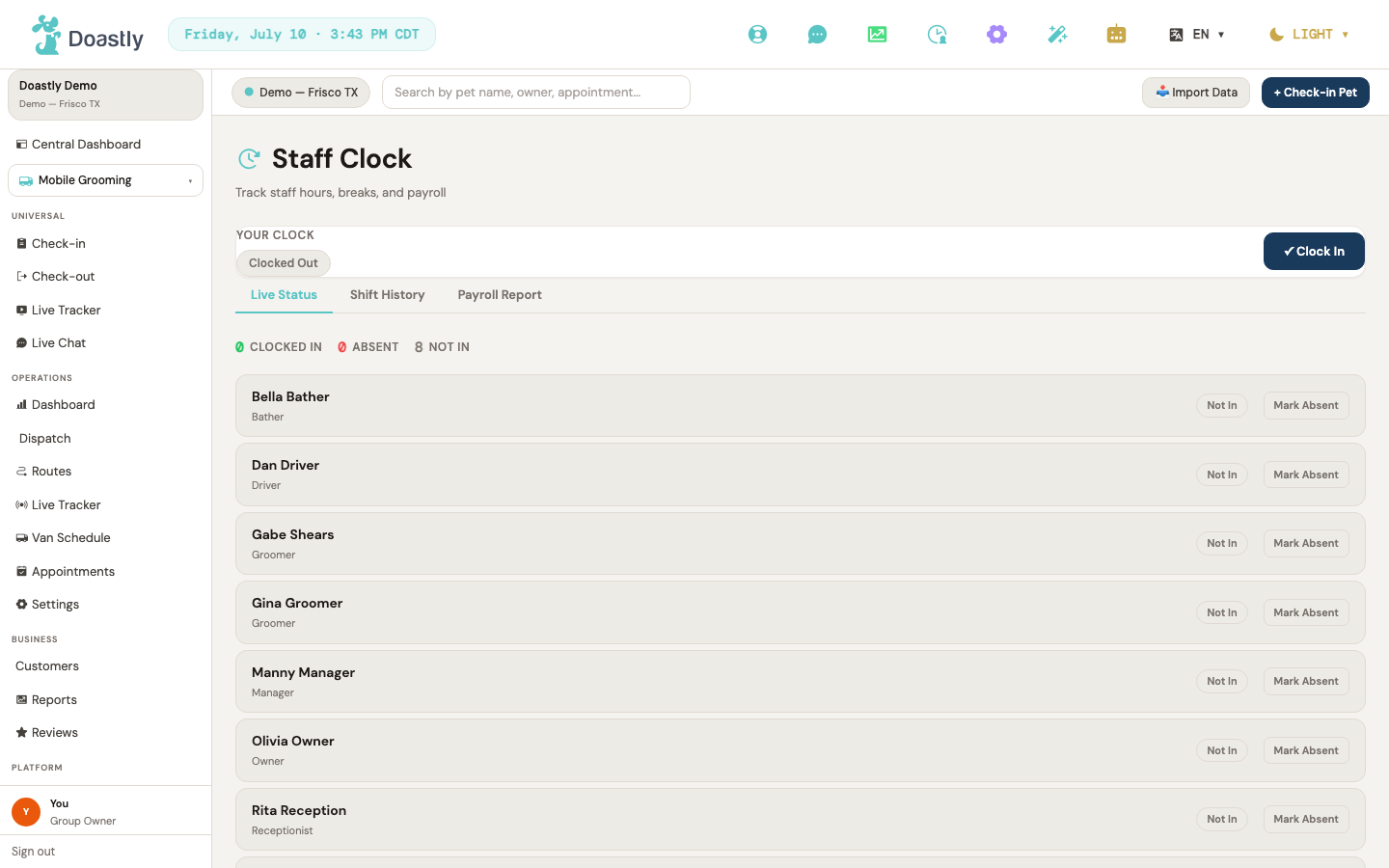
(dark mode also captured)
Staff & Payroll
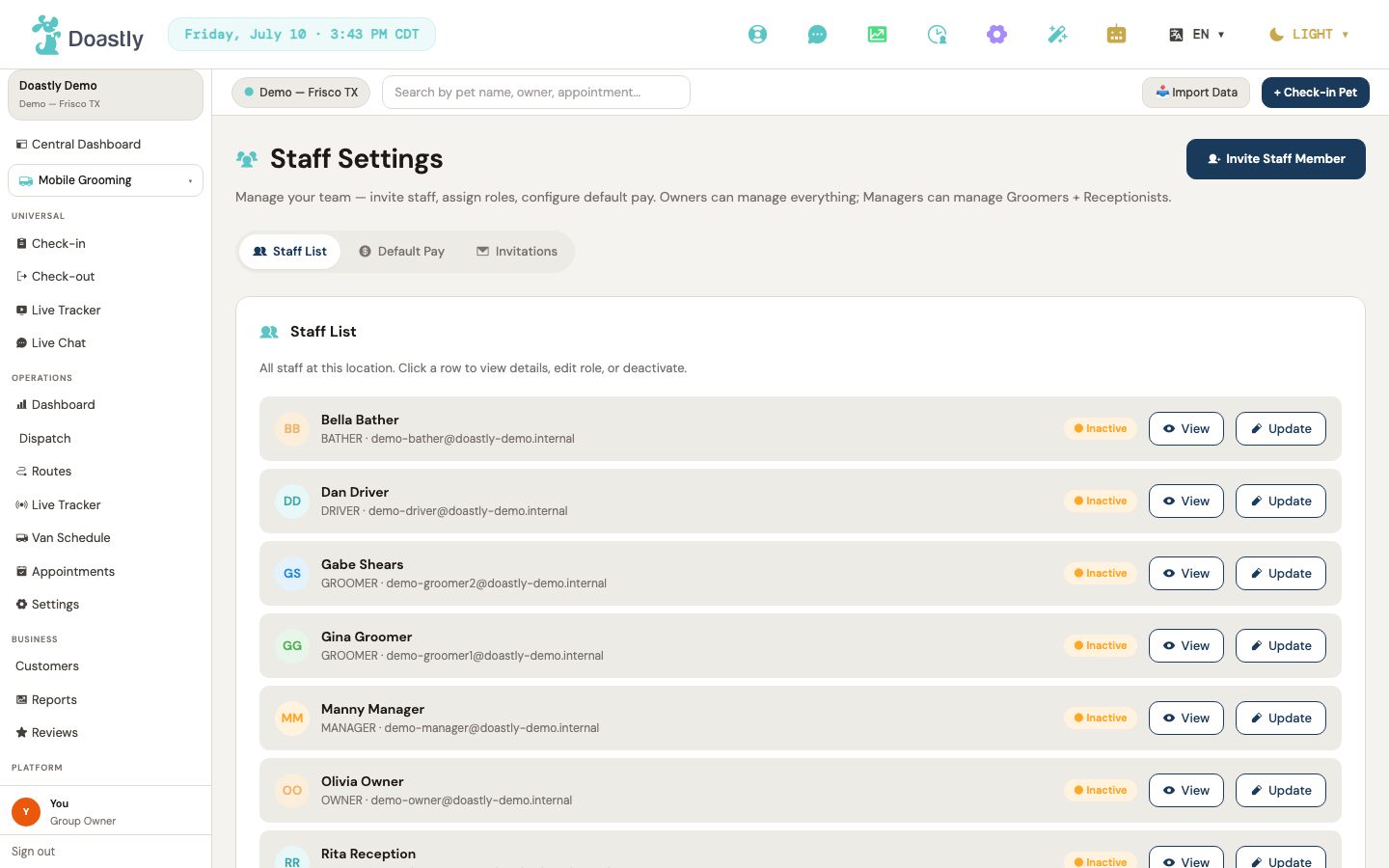
(dark mode also captured)
Staff Clock — Header & My Clock Card
The Staff Clock is where every team member punches in and out for their shift. The top card shows your own status and the actions available depend on whether you are currently clocked in and whether you are on a break.
| Control | What it does |
|---|---|
| Staff Clock (nav entry point — system bar icon) | Clock icon in the top system bar; opens the Staff Clock. Primary way in from the Mobile Grooming admin shell. |
| Staff Clock (sidebar link) | Sidebar link to the Staff Clock; secondary way in. |
| Clock In | Shown when you are not clocked in. Starts your shift, then refreshes your status. Disabled while the action runs (reads "clocking in"). |
| Take Break | Shown when you are clocked in and not on break. Starts a break, then refreshes your status. Disabled while the action runs. |
| End Break | Shown when you are clocked in and on break. Ends the break, then refreshes your status. Disabled while the action runs. |
| Clock Out | Shown when you are clocked in. Ends your shift, then refreshes your status. Disabled while the action runs (reads "clocking out"). |
Staff Clock — Tab Strip
The tab strip switches between the three views of the Staff Clock. The Payroll Report tab is shown to Owner, Manager and Receptionist, but the report itself loads only for an Owner or a Manager — a Receptionist sees "Manager or Owner role required" in place of the figures.
| Control | What it does |
|---|---|
| Live Status (Today) tab | Switches to the Today view — the team clock roster and live status counts. |
| Shift History tab | Switches to the Shift History view — a date-filtered table of past shifts. |
| Payroll Report tab | Switches to the Payroll Report view. Shown only for Owner, Manager, and Receptionist roles. |
Staff Clock — Live Status tab (team roster rows)
The Live Status tab lists every team member with their current clock state. Managers get inline actions on each row to correct or manage a staff member's status; non-managers see the roster read-only.
| Control | What it does |
|---|---|
| Unmark Absent | Manager-only. On an absent staff row, clears the absence, then refreshes the roster. |
| End Break (per staff) | Manager-only. For a staff member on break, ends their break, then refreshes the roster. |
| Break (per staff) | Manager-only. For a clocked-in staff member not on break, starts their break, then refreshes the roster. |
| Clock Out (per staff) | Manager-only. For a clocked-in staff member, ends their shift, then refreshes the roster. |
| Mark Absent | Manager-only. For a staff member who is not clocked in, prompts for an absence reason (defaults to "other"), records the absence, then refreshes the roster. |
Staff Clock — Shift History tab
The Shift History tab is a date-filtered table of past shifts with quick range presets, CSV export, and pagination. Managers can also filter by staff member.
| Control | What it does |
|---|---|
| Date From | Sets the start date for the shift-history query. Defaults to 7 days ago in the location's time zone. |
| Date To | Sets the end date for the shift-history query. Defaults to today in the location's time zone. |
| All staff / staff filter | Manager-only dropdown to limit the history to one staff member. Options are built from the current team. |
| Apply | Resets to page 1 and reloads shifts using the current From, To, and staff filters. |
| Last 7d | Quick range: sets From to 7 days ago and To to today, then reloads. |
| Last 14d | Quick range: sets From to 14 days ago and To to today, then reloads. |
| Last 30d | Quick range: sets From to 30 days ago and To to today, then reloads. |
| Export CSV | Fetches up to 10,000 shifts for the current range and downloads them as a CSV file. |
| Prev (pagination) | Loads the previous page of shifts. Disabled on page 1. Rendered only when there is more than one page. |
| Next (pagination) | Loads the next page of shifts. Disabled on the last page. Rendered only when there is more than one page. |
Staff Clock — Shift History table
The Shift History table renders each past shift as a row. A per-row edit action exists but is not turned on in this view.
| Control | What it does |
|---|---|
| Edit (per shift row) | Manager-only edit action. The Shift History tab does not currently enable it, so this control does not appear on the live surface. |
Staff Clock — Payroll Report tab (manager only)
The Payroll Report tab summarizes payroll for a chosen period and is available to managers only. Pick a preset period or set a custom date range, then export the result.
| Control | What it does |
|---|---|
| This Month | Sets the period to the current month and reloads the payroll report. |
| Last Month | Sets the period to the previous month and reloads the report. |
| Custom | Switches to a custom period and reveals the From/To date inputs. |
| Date From (custom) | Start date for the custom period. Shown only when the period is set to Custom. |
| Date To (custom) | End date for the custom period. Shown only when the period is set to Custom. |
| Apply (custom) | Loads the payroll report for the custom date range. |
| Export CSV | Downloads the payroll report as a CSV file. Disabled when the report is empty. |
Driver End-of-Day (van-driver shift wrap)
The End-of-Day screen is where a mobile van driver wraps up their shift — recording the closing odometer, counting the cash drawer, flagging any vehicle issues, and submitting the day. It is reached from the driver bottom navigation.
| Control | What it does |
|---|---|
| End Day (bottom-nav entry) | Driver bottom-nav link that opens the shift-wrap form. |
| Odometer reading (end) | Required closing odometer reading. Must be equal to or greater than the shift's starting odometer before you can submit. |
| Cash drawer count (USD) | Cash reconciliation amount in dollars. Must be zero or more. |
| Notes | Optional free-text notes for the admin about the day. |
| Vehicle issues to report | Checkbox that flags vehicle issues on the submission. |
| Submit & end shift | Validates the form and submits the end-of-day report. On success, returns you to today's route; if the submission fails, it is queued on your device to send later. Disabled while submitting. |
Driver shell — shared header + bottom-nav controls
These controls live in the driver shell and are present on the End-of-Day screen and every other driver screen. The bottom nav has four entries; the header carries Get help + Emergency.
| Control | What it does |
|---|---|
| Today (bottom-nav) | Driver bottom-nav link to today's route and stops. |
| Stop (bottom-nav) | Driver bottom-nav link to the current stop. |
| End Day (bottom-nav) | Driver bottom-nav link to the shift-wrap form (documented above). |
| Incident (bottom-nav) | Driver bottom-nav link to incident reporting. |
| Get help | Opens the shared Get Help support panel; shared across the driver shell. |
| Emergency | Phone link that dials 911. |
Note: 'Today', 'Stop', and 'Incident' route to other Mobile Grooming screen-groups; they are listed here for completeness because the driver bottom nav is a shared shell control also documented via the End-Day entry. A live online/offline indicator pill also renders in the driver header but is display-only, not a control.
Dormant components (defined, not shown on the live surface)
These exist but are not currently turned on in any live Staff Clock surface. They are listed for completeness and do not appear to users.
| Control | What it does |
|---|---|
| PIN entry (4-digit) | A four-cell PIN entry field with auto-advance and backspace that submits when complete. Not used by any live surface — dormant (kiosk/PIN clock-in is not turned on). |
| Alternate roster row (Break/End Break/Clock Out) | An alternate roster row with per-staff Break, End Break, and Clock Out buttons. Not used by the live page, which renders the standard roster row instead — dormant. |
Check-in flow
Salon-side Mobile Check-in — moved to the universal check-in flow
Mobile Grooming used to have its own admin check-in screen (a bookings table with per-row vaccine-gate and van-ratio-gate status, and a detail pane for confirming check-in or logging a gate override). That screen was retired as part of S-A-LA-CARTE-CHECKIN-CHECKOUT (the universal check-in initiative, shipped from 863f03b8 onward) and replaced by the shared à la carte check-in flow at /salon/checkin, the same pattern already used for Grooming, Boarding, and Daycare. Opening the old Mobile check-in link shows a brief "We unified Check-In to one screen." banner, then forwards you to /salon/checkin?vertical=mobile after about 1.2 seconds — long enough to read the banner, short enough not to feel slow. If your salon isn't subscribed to Mobile Grooming, it shows a message pointing to Settings → Subscriptions instead of redirecting.
CORRECTION (2026-08-15, Guri, filed #995): that last sentence is currently backwards for real subscribed salons. A bug in this specific redirect page means a salon that is subscribed to Mobile Grooming can still see the "not subscribed" message here, instead of the banner-and-forward described above — confirmed against a real, currently-subscribed test salon. This doesn't affect the sidebar's own Check-in link (that goes straight to the new flow and is unaffected), only this one legacy URL if you have it bookmarked or saved from before the redesign. A fix is filed; until it lands, don't use this old link to judge whether Mobile Grooming is active on a salon's subscription.
Mobile tab (in the universal check-in flow)
Once in the shared check-in flow, the Mobile tab is where you set up a mobile stop: pick a van and service zone, capture the route slot and any special equipment, and choose services.
| Control | What it does |
|---|---|
| Service / package / add-on chips | Toggle the services, packages, and add-ons for this stop from the Mobile catalog. |
| Van (dropdown, required) | Picks the van for this stop, listed by name and license plate. Required to continue. |
| Assigned groomer (read-only) | Appears once a van is picked. Shows that van's driver, or "— (no driver on file for this van)" if none is set. Derived from the van — not a separate pick. |
| Zone (dropdown, required) | Picks the service zone for this stop. Narrows to only the zones the selected van services once a van is picked; shows all active zones before that. Required to continue. |
| "No active zones assigned to this van" | Shown under the Zone field when the selected van has zero zones assigned. Display-only. |
| Route slot | Free-text field for the route slot, e.g. "10:00 AM window, Stop #3". Optional. |
| Special equipment | Free-text field for anything the groomer needs to bring, e.g. "low-vibration clipper, calming wrap, hydraulic ramp". Optional. |
| Continue to Review → / Continue to next vertical → | Advances once both Van and Zone are picked; shows a validation message under the button otherwise. Label depends on whether Mobile is the last tab in this check-in. |
This tab does not include a van-ratio gate — that existed on the retired admin screen above (as a v1 placeholder that always passed even there) and was not carried into the new flow.
CORRECTION (2026-08-11, Dhairya's D-113 exit sweep): this sentence previously also claimed no vaccine gate exists in the new flow at all — that is stale. A vaccine gate IS present: it's the universal VACCINES step (UnifiedVaccinesGate, frontend/app/salon/checkin/_components/LegacyV1Steps.tsx) that every check-in passes through regardless of which verticals are selected — real, calling GET /api/v1/compliance/vaccine-check, hard-blocking Continue until green. It just isn't ON this tab; it's a separate step later in the same overall check-in flow, same as it is for Grooming/Boarding/Daycare. If your salon needs to know a pet's vaccine status before dispatch, that VACCINES step is where it's enforced — the Mobile Check-in Compliance Notice below and the pet's profile remain the pre-flow, advisory-only views.
Mobile Check-in Compliance Notice (shown on mobile appointment-create / live-route start)
Current state (honest): this notice's own claim is accurate for what it describes — the mobile driver's at-arrival check-in (
checkin_booking_contract/checkin_booking(),backend/app/services/mobile/admin_checkin_contract_service.py) never reads compliance status at all;override_gatemaps only tooverride_vaccine/override_ratio. A pet with an unsigned mandatory document is dispatched exactly as one with everything signed, and the driver re-verifies on arrival. But this is NOT the whole picture — see the CORRECTION below.
A notice that appears during mobile appointment creation or route start when compliance documents are outstanding, pointing staff to the settings needed to resolve them. It is advisory and always fails open — whether documents are missing, unsigned, or simply fail to load, the van still dispatches and the driver re-verifies on arrival.
CORRECTION (2026-08-14, Sujata, source-layer read + live DB confirmation, filed on #811): this notice is advisory, but it is not the only Mobile compliance surface, and the doc previously implied (via "the check-in path does not read compliance status at all") that NOTHING gates Mobile compliance. That is false for the unified check-in flow's own Step 4 "Compliance" step, which genuinely gates. UnifiedComplianceGate.tsx's Continue button (disabled={blocked}, frontend/app/salon/checkin/_components/UnifiedComplianceGate.tsx:98,216) is disabled whenever docs_blocked is true, and MOBILE is in this component's own vertical map. The backing check (get_customer_compliance_status, backend/app/services/grooming/compliance_service.py:780) computes required mandatory templates as WHERE location_id = ... AND is_mandatory = true — with no vertical filter at all — so ANY active mandatory template on the location (not a Mobile-specific one) blocks a Mobile check-in through this flow exactly like it blocks Grooming's. This is not hypothetical: a real, active, mandatory "New Client Information Form" template exists today on 10+ real locations including "Doastly Frisco" (70d1a5d5-f5cb-4b48-9c1f-514603365a93). A first-time customer there, checking in for a Mobile visit through /salon/checkin?vertical=mobile without that form signed, hits a disabled Continue button at Step 4. BROWSER-CONFIRMED (2026-08-15, Sujata): drove the real flow with this exact customer/pet (Patrick Price / Molly, genuinely 0 signed records for this template) through Verticals→Identify→Visit details in real Chrome. Settled render (pet name, full step chrome, and the real Pet Documents panel all populated before reading anything) shows the Pet Documents panel listing "4 unsigned" including this exact template, and Step 3's own visit summary rendering a red blocking banner: "Compliance not yet satisfied — see Pet Documents panel above to sign or upload missing docs." Could not cleanly capture the literal Step 4 button's disabled attribute this pass (the shared dev server reset this client-side wizard's state multiple times via legitimate HMR full-reloads under heavy concurrent load, confirmed via explicit navigation-event logging, not inferred) — reporting what actually rendered rather than rounding up. Full write-up: #811 comment 2026-08-15.
| Control | What it does |
|---|---|
| Open Mobile compliance settings → | Opens the Mobile compliance settings page. Appears in the blocked state, when mandatory documents are missing. |
| Review → (optional documents) | Opens the Mobile compliance settings page. Appears when only optional documents are outstanding. |
| Loading / error / clear states | "Checking compliance documents…" (loading), a fail-open error line, and "✓ No compliance documents required for this visit." (clear). Display-only. |
Driver/Groomer at-arrival Check-in — route rail (left pane)
The driver's list of route stops for the day. Selecting a stop loads its detail and action bar; a banner surfaces offline status; a status row surfaces device readouts.
| Control | What it does |
|---|---|
| GPS / Battery / Network indicator row | Always-visible status row in the rail header: "GPS Live" (pulsing dot while location is being tracked) or "GPS Off", battery percentage with a battery-level icon, and network type (e.g. 4G). On-device readout only. Display-only. |
| Stop card (per route stop) | Selects the stop as active and loads its detail and actions on the right. Activatable by tap or by Enter/Space. Shows the stop's sequence or ✓, time, status, customer, pet, and service. |
| Offline / pending-sync banner | Shows that you're offline along with the number of queued actions, with a hint to tap any action to retry. Display-only. |
Driver/Groomer at-arrival Check-in — active stop detail (right pane)
The detail view for the active stop, with navigation, any vaccine alert, and a live route map.
| Control | What it does |
|---|---|
| Open Nav | Opens turn-by-turn directions to the customer's address in a new tab. Appears when a map location is available. |
| Vaccine warning/expiry banner | Alerts you when the pet's vaccine is missing, expired, or expiring — that is, not yet verified. Missing/expired render as an error tone; expiring renders as a warning tone. Display-only. |
| Route map (van + stop markers) | An interactive map showing the van's live GPS position, the stop marker, and the route line. Pan and zoom to explore. |
| Map-unavailable stub | "Map unavailable — no GPS lock yet." Shown in place of the map when no van GPS or stop coordinates are available. Display-only. |
Driver/Groomer at-arrival Check-in — stop action bar (state-driven action)
The action bar for the active stop. It always offers Call, and its primary button changes to match the stop's current stage in the route.
| Control | What it does |
|---|---|
| Call | Dials the customer's phone number, or shows a message if no number is on file. Always available. |
| Start My Day | Activates the route for the day. Appears when the route is not yet active or completed. |
| Depart for Stop | Marks that you've departed for the stop, moving it to En route. Appears when the stop is Pending. |
| I've Arrived | Marks that you've arrived at the stop. Appears when the stop is En route. If a vaccine is required, it opens the Vaccine Gate window; if you're offline, the action is queued to sync later. |
| Start Service | Begins the service, moving the stop to In service. Appears when the stop is Arrived. |
| Mark Complete | Marks the stop complete, moving it to Completed. Appears when the stop is In service. |
| All Done (completed state) | A non-clickable badge shown once the stop is completed and no further action remains. |
Driver/Groomer at-arrival Check-in — Vaccine Gate window (when arrival is vaccine-blocked)
A window that appears when arriving at a stop is blocked because the pet's vaccine can't be verified. It offers a path to resolve the block, and a manager-only override.
| Control | What it does |
|---|---|
| Close (X) | Dismisses the window without checking in the arrival. |
| Upload vaccine record | Intended to upload proof of vaccination. Currently a placeholder — it shows a message noting upload isn't available yet, prompting you to ask the customer for proof or use a manager override. |
| Override reason (manager) | Captures the manager or owner's justification for the override (at least 10 characters), logged with their name and timestamp. Only shown to managers and owners. |
| Override & Mark Arrived | Overrides the vaccine gate and marks the arrival, using the reason above. Requires a reason of at least 10 characters and is available only to managers and owners; stays disabled until a valid reason is entered. |
| Non-override hint (groomer) | For non-manager/owner roles, a hint noting a manager or owner must approve the override and to tap Call to reach the salon. Display-only. |
Check-out flow (Mobile Grooming)
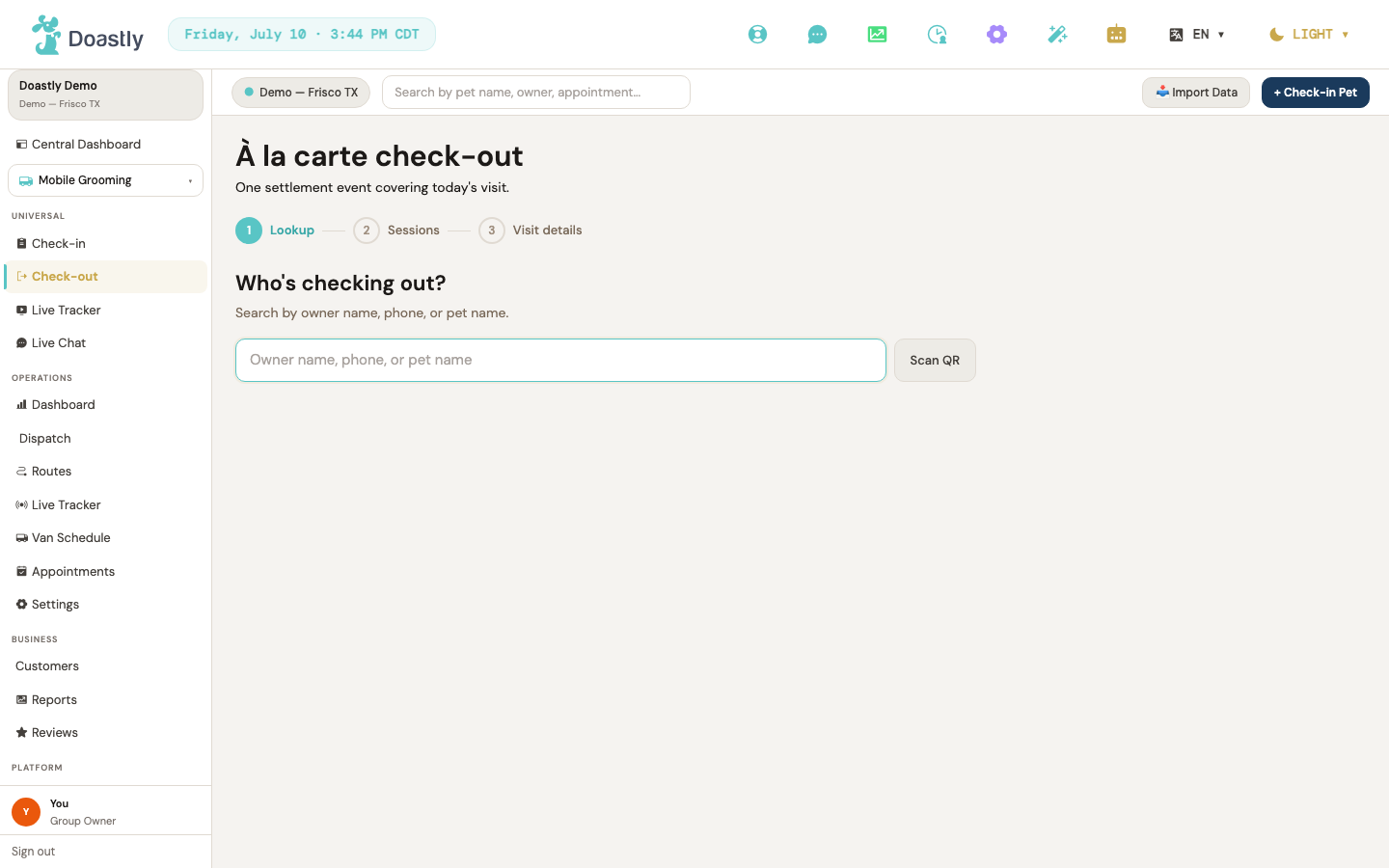
(dark mode also captured)
Mobile Check-out entry (redirect page)
Landing at the old Mobile-only check-out link sends you straight to the unified check-out screen. This page only appears briefly as it forwards you along, or shows a subscription prompt if Mobile Grooming isn't active on your plan.
| Control | What it does |
|---|---|
| (auto-redirect) Redirecting to unified check-out | When your salon is subscribed to Mobile Grooming, waits about a second then forwards you to the unified check-out screen, carrying over the session if one was in the link. Shows a spinner and a "We unified Check-Out to one screen." note while it redirects. |
| Manage subscription → | Appears only when your salon is not subscribed to Mobile Grooming. Takes you to the Subscriptions settings page. |
Step 1 — Pet/customer lookup
The starting point of check-out: find the pet you're settling up. Search by owner name, phone, or pet name, then pick the matching result.
| Control | What it does |
|---|---|
| Search input (Owner name, phone, or pet name) | Type here to search for a pet or customer. Searching begins once you enter at least 2 characters. The field is focused automatically when the screen opens. |
| "Type at least 2 characters to search" hint | A read-only helper line shown once you've typed something but fewer than 2 characters, so you know why no results are appearing yet. |
| Scan QR | A placeholder button next to the search box. QR scanning is not yet available, so this button does nothing when clicked. |
| Result row — "Check out" button (per matched pet) | Selects that pet for check-out and moves you to the session-selection step. |
| Result row match-kind badge (Owner / Phone) | A read-only label showing that the row matched on the owner's name or phone number rather than the pet's name. |
Persistent panels (Pet Status + Pet Documents, read-only)
These two reference panels appear once you've picked a pet (they are not shown on the initial lookup step) and stay visible alongside the remaining check-out steps, giving you at-a-glance context on the pet. Both are read-only here — you can view but not change anything.
| Control | What it does |
|---|---|
| Pet Status panel | Shows the pet's active sessions across all verticals, marking the ones chosen at check-in with a "✓ Selected for check-out" cue. Read-only in check-out — the add-to-visit and start-new-session buttons are hidden. |
| Pet Documents panel (read-only) | Shows vaccine and compliance document status as advisory chips. Signing and upload options are hidden during check-out. |
Progress indicator (necklace beads)
A simple three-step progress marker running across the top of the check-out flow. It's for orientation only and can't be clicked.
| Control | What it does |
|---|---|
| Bead: Lookup / Sessions / Visit details | Shows where you are in check-out with done, current, and pending states. The Sessions bead is hidden when there's only one session to settle. |
Step 0 — Session select (multi-session only)
When a pet has more than one active session, you choose which ones to settle in this check-out. This step is skipped entirely for single-session pets.
| Control | What it does |
|---|---|
| Session chip (per active session, e.g. Mobile/Grooming) | Tap to include or exclude that session from this check-out. Sessions at another salon are shown but greyed out with an "(at another salon)" note and can't be selected. |
| Continue → | Stays disabled until at least one session is selected. Advances to the tabbed check-out flow, opening the first vertical's tab. |
| Search another pet | Shown when the pet has no active sessions. Clears the flow and returns you to the pet lookup step. |
| Selection count / partial-fail notes | Read-only text showing how many sessions are selected (or "Pick at least one session to continue." when none are), plus an italic note if one vertical's sessions couldn't be loaded. |
Tab strip (≥2 verticals only)
When the selected sessions span two or more verticals, this strip lets you move between each vertical's settlement tab and the final Review tab. It's hidden entirely when only one vertical is involved.
| Control | What it does |
|---|---|
| Vertical tab (Mobile / Grooming / …) + Review tab | Switches the visible tab so you can settle each vertical in turn and reach the Review tab. Hidden when only one vertical is being settled. |
| ← Back to session selection | Returns you to the session-selection step, keeping your chosen pet and session selections intact. |
Mobile check-out tab (per-session settlement)
The Mobile-specific settlement screen for a session: review the route details, add tips, discounts, notes, and a customer sign-off, then move on. The running total updates as you go.
| Control | What it does |
|---|---|
| Route summary block (Van / Zone / Route slot / Equipment / Subtotal) | Read-only summary of the mobile booking, loaded from the booking record. No fields are editable. |
| Retry (booking load failed) | Appears if the booking details fail to load. Re-fetches the booking summary. |
| Tip mode toggle: $ | Switches tip entry to a flat dollar amount, so the tip field is read as dollars. |
| Tip mode toggle: % | Switches tip entry to a percentage, revealing the percent suggestion chips and reading the tip field as a percent. |
| Tip % suggestion chips (None / 10% / 15% / 20%) | Available in percent mode only. Sets the tip to that percentage of the subtotal (None = 0%). |
| Tip amount input | Enter a tip. In dollar mode it's read as dollars; in percent mode it's read as a percent of the subtotal (limited to 0–100%). |
| Discount input ($) | Enter a discount in dollars. Promo codes aren't supported here yet. |
| Route completion notes | A Mobile-only note field for internal route handover details, not shown to the customer. |
| Notes (customer-facing condition notes) | A note field for customer-facing condition notes. |
| Customer signature | A Mobile-only typed-name sign-off from the customer. A drawn signature pad isn't available yet. |
| Running total preview | Read-only live total: subtotal plus tip, minus discount. |
| ← Back | Returns you to the session-selection step. |
| Continue → / Continue to Review → | Moves to the next vertical's tab, or to the Review tab when Mobile is the last one (the label reads "Continue to Review →" in that case). |
Review & complete tab (settlement + receipt)
The final step: review the combined charges across all selected sessions, pick how the customer pays, and complete the check-out. The button total reflects the full grand total.
| Control | What it does |
|---|---|
| Selection summary table | Read-only roll-up across all selected sessions, showing per-session subtotal, tip, late fee, discount, and line total, with a totals footer (subtotal, tip, discount, tax, and grand total). |
| Selection summary — aggregation partial-fail note | A read-only italic note inside the summary table shown when a vertical's line couldn't be aggregated; it names the vertical and states that its line is excluded from the running total. |
| Review aggregation error | A read-only error panel ("Couldn't compute the review summary.") shown when the combined summary/tax couldn't be computed at all — before any payment is attempted. |
| Payment method pill: Stripe terminal | Selects Stripe terminal as the payment method. If no card reader is paired, the charge path is disabled and a warning with guidance appears. |
| Payment method pill: Square terminal | Selects Square terminal as the payment method and shows a note about your own Square credentials. |
| Payment method pill: Cash | Selects cash. No card is captured — Complete submits the check-out directly. |
| Payment method pill: Check | Selects check. No card is captured. |
| Payment method pill: Split | Selects a split payment, which runs the same card-capture flow as a primary card method. |
| pair one in Settings → Payment | Appears when Stripe is selected but no reader is paired. Takes you to the Payment settings page to pair a reader. |
| ← Back | Returns you to the session-selection step. |
| Complete check-out · $<grand-total> | Disabled while submitting, capturing, or when Stripe is selected with no reader paired. For card methods it opens payment capture; for cash or check it submits the check-out directly. |
Payment capture (card methods only)
Shown for card-based payment methods, this step confirms the amount and captures the charge on the terminal before completing.
| Control | What it does |
|---|---|
| Total amount display | Read-only grand total shown before the charge is captured. |
| ← Back | Cancels the capture and returns you to the Review tab. |
| Capture $<total> → | Captures the payment on the terminal, then completes the check-out with the resulting charge. |
Payment declined / partial-fail panels
These panels appear only when something goes wrong during settlement, explaining what happened and what to do next. Both are read-only messages.
| Control | What it does |
|---|---|
| Payment declined panel | A read-only, plain-English message shown when the charge is declined. |
| Partial-fail panel | A read-only message shown when some sessions couldn't be settled, listing each failed session with its charge status, refund status, and guidance on what to do next. |
Check-out success panel
The confirmation screen once check-out completes, summarizing what was settled and offering to start another check-out.
| Control | What it does |
|---|---|
| Settlement summary + closed-session list + receipt id | Read-only success summary: the total settled, each closed session by vertical with its amount, and the combined receipt ID. |
| + New check-out | Clears everything and returns you to pet lookup to start a fresh check-out. |
Windows & Forms
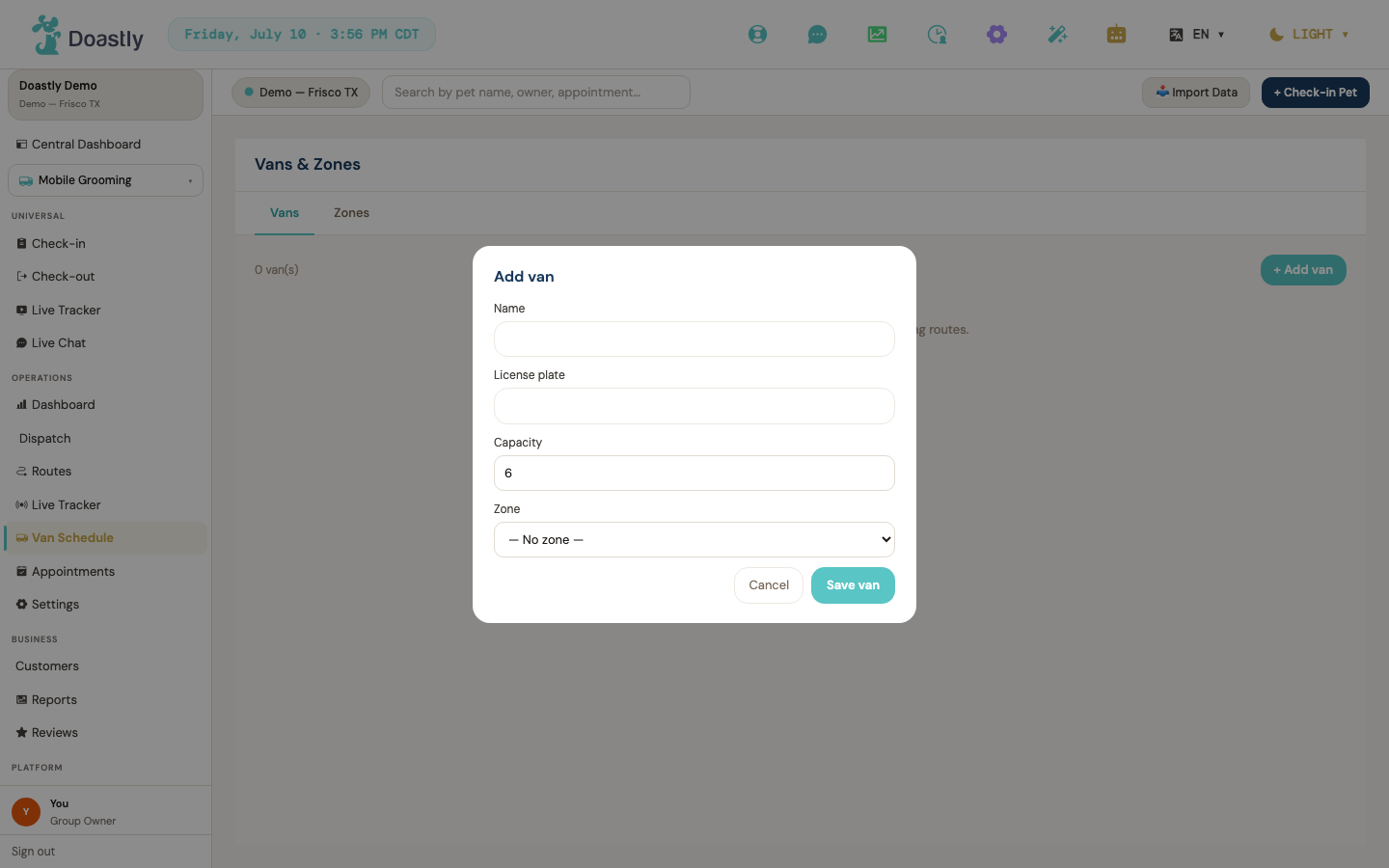
(dark mode also captured)
Add Van window (Vans & Zones)
Opens from the Vans & Zones page when you add a van. Enter the van's details, assign it to a zone, and save.
| Control | What it does |
|---|---|
| Name | Text field for the van's name. Required — leaving it blank blocks Save with "Name and plate are required." |
| License plate | Text field for the van's license plate. Required — leaving it blank blocks Save with the same message. |
| Capacity | Number field for how many appointments the van holds, default 6. Must be at least 1, or Save is blocked with "Capacity must be at least 1." |
| Zone | Dropdown to assign the van to a zone, with options drawn from your existing zones. When you have zones, the first one is pre-selected; choose "— No zone —" to leave it unassigned. (If the salon has no zones yet, it defaults to "— No zone —".) |
| Cancel | Closes the window without saving. Disabled while a save is in progress. |
| Save van | Validates the fields, then creates the van. On success the list refreshes and the window closes. Shows "Saving…" while it works. |
| Overlay backdrop | Clicking the dimmed area outside the window closes it without saving. |
Add Zone window (Vans & Zones)
Opens from the Vans & Zones page when you add a service zone. Name the zone, set its service type, and define its geographic area.
| Control | What it does |
|---|---|
| Name | Text field for the zone name. Required — leaving it blank blocks Save with "Zone needs a name." |
| Service type | Dropdown to set the zone's service type: Residential or Mixed. |
| Boundary points (lat,lng pairs separated by ;) | Text area for the zone's boundary points. Needs at least 3 points and closes the loop automatically; a parse error appears inline if the format is wrong. Helper text below reads "3+ points required. Loop auto-closes." |
| Cancel | Closes the window without saving. Disabled while a save is in progress. |
| Save zone | Validates the fields and parses the boundary points, then creates the zone. On success the list refreshes and the window closes. Shows "Saving…" while it works. |
| Overlay backdrop | Clicking the dimmed area outside the window closes it without saving. |
Cancel Stop window (Route Management)
Opens from the Route Management page when you cancel a stop on a route. Choose a refund option, add a reason for the log, and confirm.
| Control | What it does |
|---|---|
| Full refund | Refund option that returns the full charge for the stop. Selected by default. |
| Partial | Refund option that returns part of the charge and reveals the amount field below. |
| No refund | Refund option that returns nothing (refund amount set to zero). |
| Partial amount (USD) | Number field for the refund amount in dollars, shown only when Partial is selected (pre-filled with the stop's full charge). Must be greater than $0 or "Partial refund must be greater than $0." appears. |
| Reason (logged) | Text area for the cancellation reason. Required — it appears in the audit log, and leaving it blank blocks the action with "Please add a reason — it appears in the audit log." |
| Keep stop | Closes the window without canceling the stop. Disabled while the action is in progress. |
| Cancel stop | Validates the entries, then cancels the stop and processes the refund. Shows "Canceling…" while it works, then closes the window. |
| Overlay backdrop | Clicking the dimmed area outside the window closes it without canceling. |
Vaccine Gate window (Groomer Mobile — Today / arrive)
Appears in the Groomer Mobile Today view when you try to mark a pet arrived but its vaccine records are incomplete. It offers a path to upload the missing record, and — for managers and owners — a documented override.
| Control | What it does |
|---|---|
| Close (X) | Closes the window without marking the pet arrived. |
| Missing vaccine list | (Display) When specific names are available, a bulleted list of the missing / expired vaccine records is shown so the groomer knows exactly what's needed. |
| Upload vaccine record | Starts the vaccine-upload flow so you can add the missing record. |
| Upload hint | (Display) A line under Upload — "Or ask the customer to text you a photo of the vaccine paperwork." |
| Override reason | Text area for a manager or owner to justify overriding the vaccine requirement (managers and owners only). Requires at least 10 characters; the entry is logged with the person's name and timestamp. Clears the error as you type. |
| Override & Mark Arrived | Confirms the override and marks the pet arrived (managers and owners only). Stays disabled until the reason reaches 10 characters, and shows "Overriding…" while it works. |
| Manager-needed hint (groomers) | (Display) For a groomer without override rights, the override box is replaced by "A manager or salon owner needs to approve this override. Tap Call to reach the salon." |
Note: this window has NO click-outside-to-close behavior (unlike the other Mobile windows) — it must be dismissed via Close (X), Upload, or Override.
High-Severity Incident — Call Admin dialog (Driver)
Appears in the Driver app ONLY after you submit a high-severity incident, prompting you to reach the salon admin directly.
| Control | What it does |
|---|---|
| Call admin | A phone link that dials the salon admin about the incident. (Currently points at a placeholder number — a wiring follow-up.) |
| I called separately | Dismisses the dialog and returns you to the Driver Today view. |
| Overlay backdrop | Clicking the dimmed area outside the dialog dismisses it and returns you to the Driver Today view. |
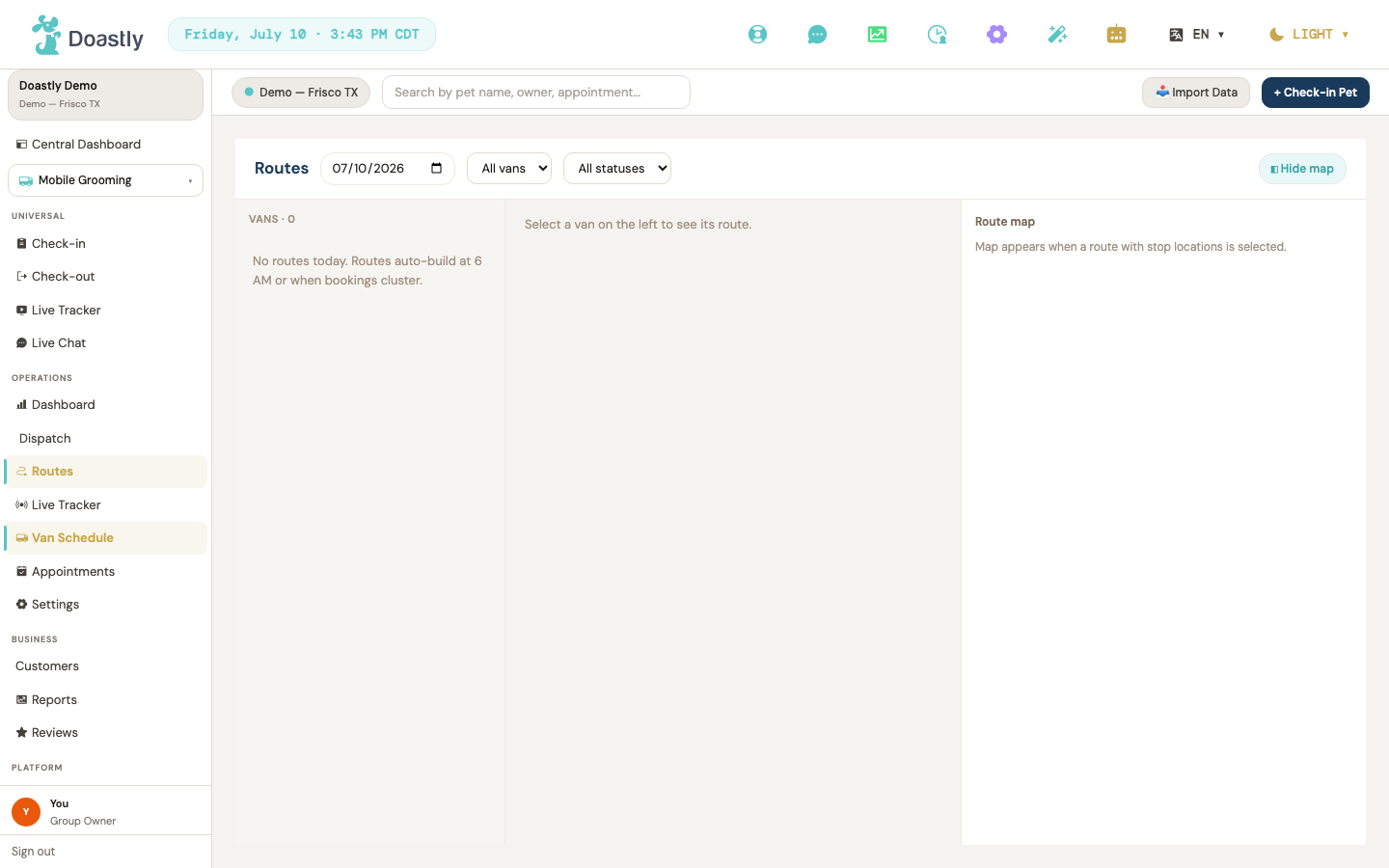
(dark mode also captured)
Route & Dispatch (Mobile Grooming)
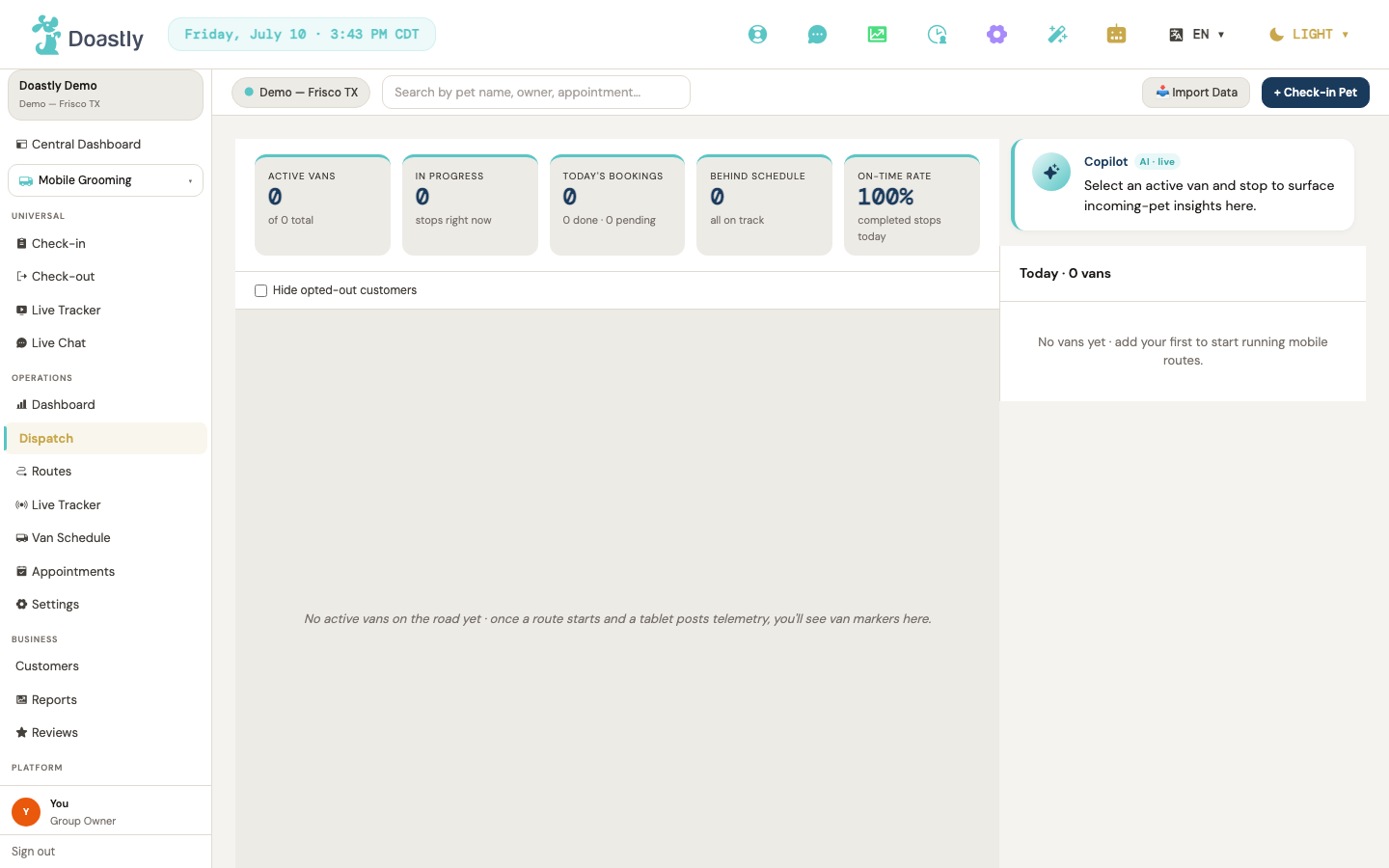
(dark mode also captured)
Mobile Grooming Van Route Board (landing)
The Van Schedule landing page shows your active van fleet. Selecting a van reveals its route and appointments, where each appointment advances through the day one stage at a time.
| Control | What it does |
|---|---|
| New Appointment | Opens the universal check-in flow pre-set to mobile grooming. |
| View Route (per van card) | Selects that van and renders its Route Board and map below. |
| Start Route (appointment, status = confirmed) | Advances the appointment to "en route." |
| Arrived (appointment, status = en route) | Advances the appointment to "arrived." |
| Begin Groom (appointment, status = arrived) | Advances the appointment to "in progress." |
| Complete + Report (appointment, status = in progress) | Marks the appointment completed and opens the Report Card window for it. |
| Report Card window | Captures the report card for the selected appointment; closing or saving dismisses it. |
Admin Live Dispatch Board
The Dispatch page is a real-time view of the whole fleet on one map, with a van rail on the right and an AI Copilot brief panel for the active stop. The Copilot brief currently shows an honest "not available yet" placeholder, not sample content — its live AI briefs will appear once the backend for this feature ships; there is no salon-side setting that turns it on. Some controls are display-only or not yet connected and are noted below.
| Control | What it does |
|---|---|
| Try again (error state) | Re-fetches fleet and dispatch data after a load error. |
| Hide opted-out customers (checkbox) | Filters van markers for opted-out customers off the map for privacy; fleet stats stay complete. When on, a count of hidden vans is shown. |
| Van marker (live map) | Selects that van, focusing its brief panel and route detail. |
| Service zone editor (polygon icon, top-right of map) | Renders on the map but does nothing when clicked yet — it will open the service-zone editor once that feature lands. |
| Van card (right rail row) | Selects the van (click or keyboard Enter/Space) and expands its route detail panel inline. |
| Route stop drag handle (grip, per stop) | Grab handle for reordering stops in the active van's route detail; reordering is a follow-up (the drag handle renders only on not-yet-completed stops). |
| Call {driver} (alert strip, van behind) | Calls the van's driver — does not appear on this page yet. |
| Re-optimize (alert strip, van behind) | Re-optimizes the route — does not appear on this page yet. |
| Add Van (van rail header) | Adds a van — does not appear on this page yet. |
| Filter vans (van rail header) | Opens van filters — does not appear on this page yet. |
| Copilot brief (collapsible) | Shows the AI incoming-pet brief for the active stop — currently an honest "not available yet" placeholder, not fabricated content, and not something a salon-side toggle controls; the collapsed/expanded state is remembered. |
Note on unavailable controls: the Service zone editor button IS visible on the map but does nothing when clicked yet. The four alert-strip / van-rail buttons above (Call driver, Re-optimize, Add Van, Filter vans) do not appear on this page yet — they will show once wired in a follow-up.
Admin Route Management
The Route Management page lists and edits each van's route for a chosen day, with a left rail of routes, a stop list, and an optional map. Stops can be reordered by drag, and cancelable stops can be canceled with a refund choice.
| Control | What it does |
|---|---|
| Date picker | Sets the day; refetches the route list and selected route detail. |
| Van filter (All vans / per van) | Filters the route list to a single van; options come from the loaded routes. |
| Status filter (All / Planned / In progress / Completed) | Filters the route list by route status. |
| Hide map / Show map toggle | Collapses or expands the right-side route map. |
| Van row (left rail, per route) | Loads that route's detail — stop list and map — and clears the selected stop. |
| Stop row (stop list item) | Selects the stop, highlighting and focusing it on the map; also draggable for reorder. |
| Stop drag handle (⋮⋮) | Drag-reorders the stop; on drop, saves the new order (and reverts if the save fails). |
| Cancel (per cancelable stop) | Opens the Cancel Stop window for that stop (shown only when status is not Completed/Canceled/No-show). |
| Route map marker (stop pin) | Selects that stop from the map. |
Cancel Stop window (route management)
Opened from a cancelable stop in Route Management, this window cancels the stop and records the refund decision. A reason is required and written to the audit log.
| Control | What it does |
|---|---|
| Backdrop (click outside) | Closes the window. |
| Full refund | Sets the refund to the full charge amount. |
| Partial | Selects a partial refund and reveals the amount input. |
| No refund | Sets the refund to zero. |
| Partial amount (USD) | Sets the partial refund amount; shown only when "Partial" is selected. |
| Reason (logged) | Required cancellation reason, written to the audit log. |
| Keep stop | Dismisses the window without canceling; disabled while a cancellation is submitting. |
| Cancel stop / Canceling… | Validates the reason and amount, then submits the cancellation and closes on success. |
Vaccines & health docs
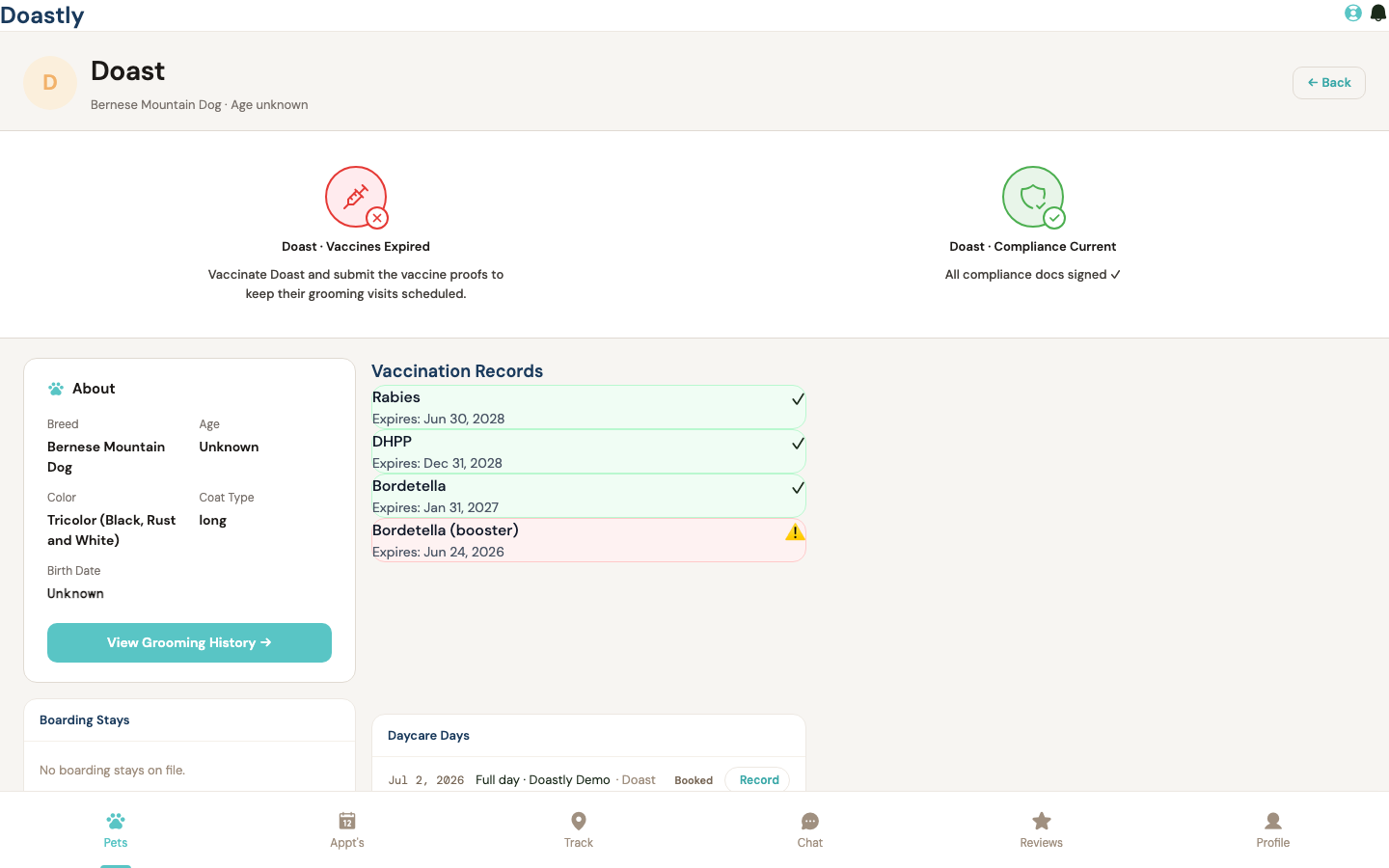
(dark mode also captured)
Pet Detail — Vaccines & Health Panel
The main pet profile page, showing at-a-glance vaccine and compliance status plus links into this pet's history across all salons that serve it.
| Control | What it does |
|---|---|
| ← Back | Returns to the previous screen, usually your pets list. |
| Vaccine status tile | A large status icon summarizing this pet's vaccine standing (missing, expiring, expired, or current), taking the worst status across all records. Display-only on this page — no action button. |
| Compliance status tile | A large status icon for document-compliance standing. Display-only — no action button. Note: the pet profile does not yet receive per-document compliance data, so this tile currently always shows "all signed" and is not yet a live signal of unsigned or expiring waivers. |
| View Grooming History → | Opens this pet's grooming session history. |
| Vaccines card — record rows | Lists each vaccine on file with its name, expiry date, and status icon (valid ✓, expiring ⏰, or expired ⚠️). A record with no expiry on file shows "No expiry on file" in place of a date and is treated as valid. Display-only. Shows "No vaccine records on file." when empty — vaccines are added by the salon at intake, not from here. |
| Boarding stays list | Shows this pet's boarding stays across all salons; each row opens its boarding record. Always displayed; shows "No boarding stays on file." when there are none. |
| Daycare attendances list | Shows this pet's daycare days across all salons; each row opens that day's record. Shown only when the daycare-history feature is enabled; when enabled it shows "No daycare days on file." if there are none. |
_Note: there is no customer-side "edit pet" control on this page — pet details are edited by the salon at intake/booking._
Health/Compliance Documents List
The documents page for a service (grooming, daycare, mobile, or boarding — each works the same way), listing waivers you need to sign, optional forms, and anything already signed. (⚠️ IMPORTANT: this compliance flow is not yet live — the documents list and the signing step are a preview. Signing a document here does NOT yet record a legally-binding signature or notify the salon; live document data and signature capture are coming soon.)
| Control | What it does |
|---|---|
| Try again | Re-loads the documents after a load error. |
| Sign now → (required row) | Opens the sign page for a mandatory document you still need to complete. |
| Sign now → (optional row) | Opens the sign page for an optional form the salon has made available. |
| "Signed" row / badge | Shows the signer's name, relationship, signed date, and expiry (if set), with a non-interactive "Signed" pill. Display-only. |
| Empty state card | Shows "No grooming documents yet" when there are no documents to display; fills in once the salon adds waivers. |
Compliance Document Sign Page
The signing page for a single document, where you read the waiver and add your signature. It's shared across all services via one form.
| Control | What it does |
|---|---|
| ← Back to documents (top) | Returns to the documents list without signing. |
| Waiver body | Shows the full waiver text to read. Display-only. |
| Your full legal name | Enter your legal name; required (more than one character) before you can submit. |
| Relationship to pet | Choose your relationship: Owner, Spouse, Family member, or Authorized agent. |
| Typed signature | Type your signature in a cursive-styled field; required (more than one character) before you can submit and saved as a typed signature. |
| Acknowledgement checkbox | Confirm you understand this is a legally binding e-signature; must be checked before you can submit. |
| Submit signature | Saves your signature; enabled only once name, signature, and acknowledgement are complete. Shows "Saving…" while it submits, then displays the signed confirmation. |
| Cancel | Abandons signing and returns to the documents list. |
| Submit error banner | Shows a plain-English message if saving your signature fails. Display-only. |
Sign Page — Error State
Shown when the document can't be found or fails to load.
| Control | What it does |
|---|---|
| Try again | Re-attempts to load the document. |
| Back to documents | Returns to the documents list. |
Sign Page — Signed Confirmation
Shown after you successfully sign, confirming the signature was recorded.
| Control | What it does |
|---|---|
| ← Back to documents | Returns to the documents list. |
| Signature receipt card | Confirms the document name, signer (name and relationship), and signed-at time. Display-only. |
History + Sessions (Pet Family)
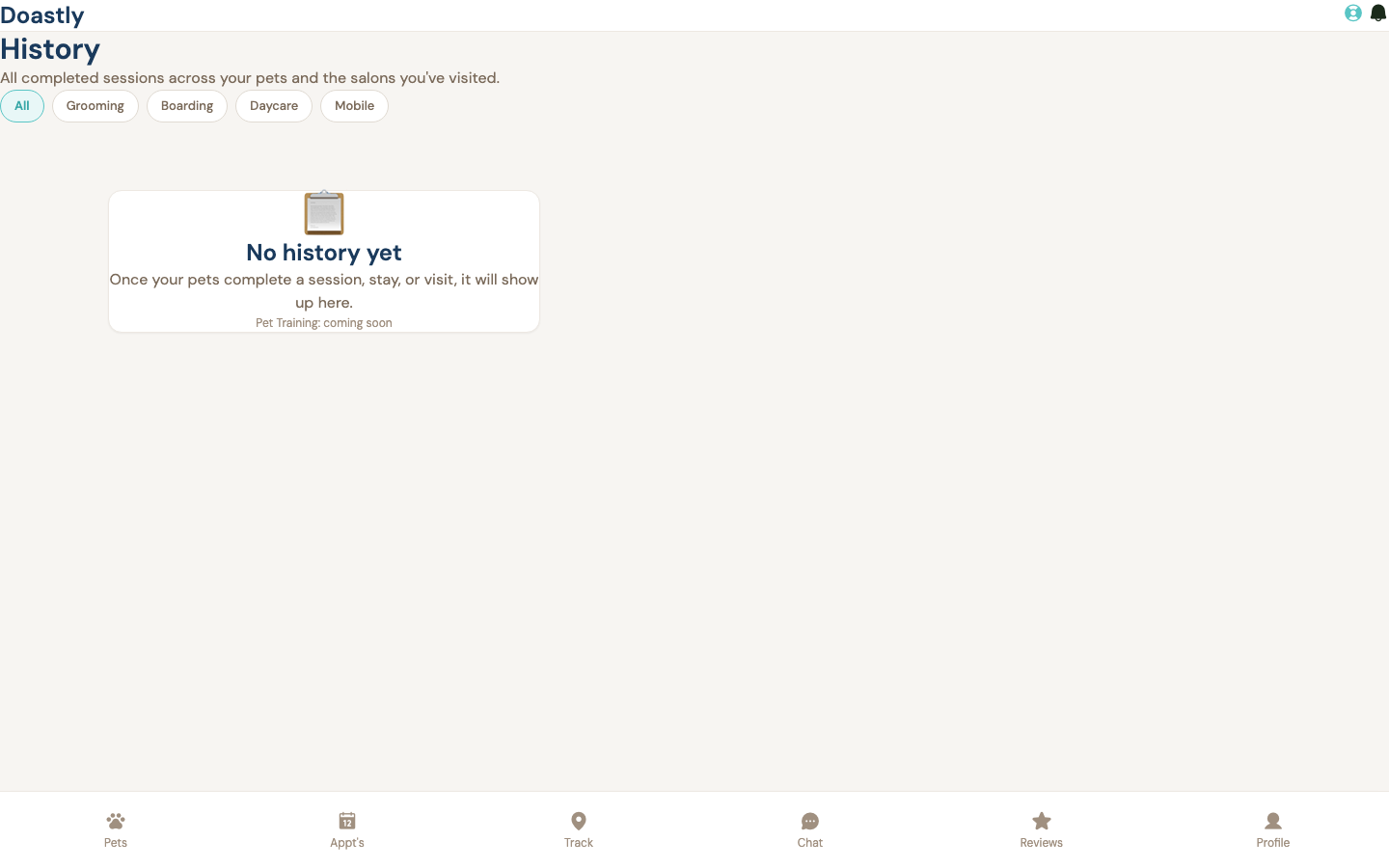
(dark mode also captured)
History (cross-vertical timeline)
A single chronological timeline of every completed visit across all services, with filter chips to narrow by service type and infinite scroll for older records.
| Control | What it does |
|---|---|
| Filter chip: All | Clears the service filter and reloads the timeline showing every completed visit (grooming, boarding, daycare, and mobile). |
| Filter chip: Grooming | Narrows the timeline to grooming sessions and reloads the list. |
| Filter chip: Boarding | Narrows the timeline to boarding stays and reloads the list. |
| Filter chip: Daycare | Narrows the timeline to past daycare attendance and reloads the list. |
| Filter chip: Mobile | Narrows the timeline to mobile grooming sessions and reloads the list. |
| Load more | Fetches the next page of older records and adds them to the bottom of the list. Shows "Loading…" while fetching, and appears only when more records are available. |
| Try again | Retries loading the timeline after a load error. Appears only when the list failed to load. |
| Leave a review → | Opens the review screen for that visit so you can rate and comment on the grooming session. Appears only on grooming rows. |
| History row | Shows the pet name and service, completion date, service summary, salon and location, amount paid, and a "Report card" badge when one is available. The row itself is not clickable, and the "Report card" badge is a display-only indicator (not a link) — only the "Leave a review" link inside a grooming row is interactive. |
Note: If Pet Training visits are not yet part of your history, a non-interactive "Pet Training: coming soon" line appears at the bottom of the timeline (and in the empty state).
Session Record (customer, read-only cross-salon groom record)
A read-only view of a single grooming session — services, notes, photos, and payment breakdown — that you can view, print, or download. This screen has no editing actions.
| Control | What it does |
|---|---|
| Back | Returns you to the previous screen, such as the History timeline or an appointment detail. |
| Download Report Card | Opens the branded report-card PDF for the session in a new browser tab. |
| Download Receipt | Opens your device's print dialog so you can save the full record, including the payment breakdown, as a document. (There is no separate receipt-PDF download for grooming; this button behaves the same as Print.) |
| Opens the print dialog to print the full record. This button is hidden in the printed output. | |
| Photo tile | Opens the selected session photo in a fullscreen viewer. Photos still processing show as a non-clickable placeholder. |
| Lightbox: Previous (‹) | Moves to the previous photo in the fullscreen viewer. Disabled on the first photo; also works with the Left Arrow key. |
| Lightbox: Next (›) | Moves to the next photo in the fullscreen viewer. Disabled on the last photo; also works with the Right Arrow key. |
| Lightbox: Close (✕) | Closes the fullscreen photo viewer. Also closes when you click the background or press the Escape key. |
Note: this customer view has no editing actions. Refunds are a salon-only control (the Refund button is entirely absent on the customer view) and are intentionally not shown here.
Session Pay (pet-family self-pay invoice + online checkout)
An invoice screen where you can review the charges for a session and pay online, when the salon has enabled self-pay.
| Control | What it does |
|---|---|
| Payment details | Secure card and payment-method entry form. Appears only when the salon allows online self-pay and a payment has been started for the invoice. |
| Pay $\<total\> | Submits your payment for the invoice total. On success, the screen switches to a "Payment received!" confirmation. Disabled while the payment is processing or before the form finishes loading; shows "Processing…" during submission. |
| Back to Appointments | Returns you to the Appointments screen. Appears on the "Payment received!" screen after a successful or already-paid invoice. |
| Go back | Returns you to the previous screen. Appears when the invoice or payment can't be loaded (for example, online pay isn't enabled, the session wasn't found, or a payment is already in progress). |
| Online payment not available | An information panel shown when the salon hasn't enabled online payment. It explains that you can pay at the salon and has no interactive controls. |
| Invoice summary rows | The read-only breakdown of charges — services, discount, tip, tax, and total. These lines are for review only and can't be edited. |
Live Tracking
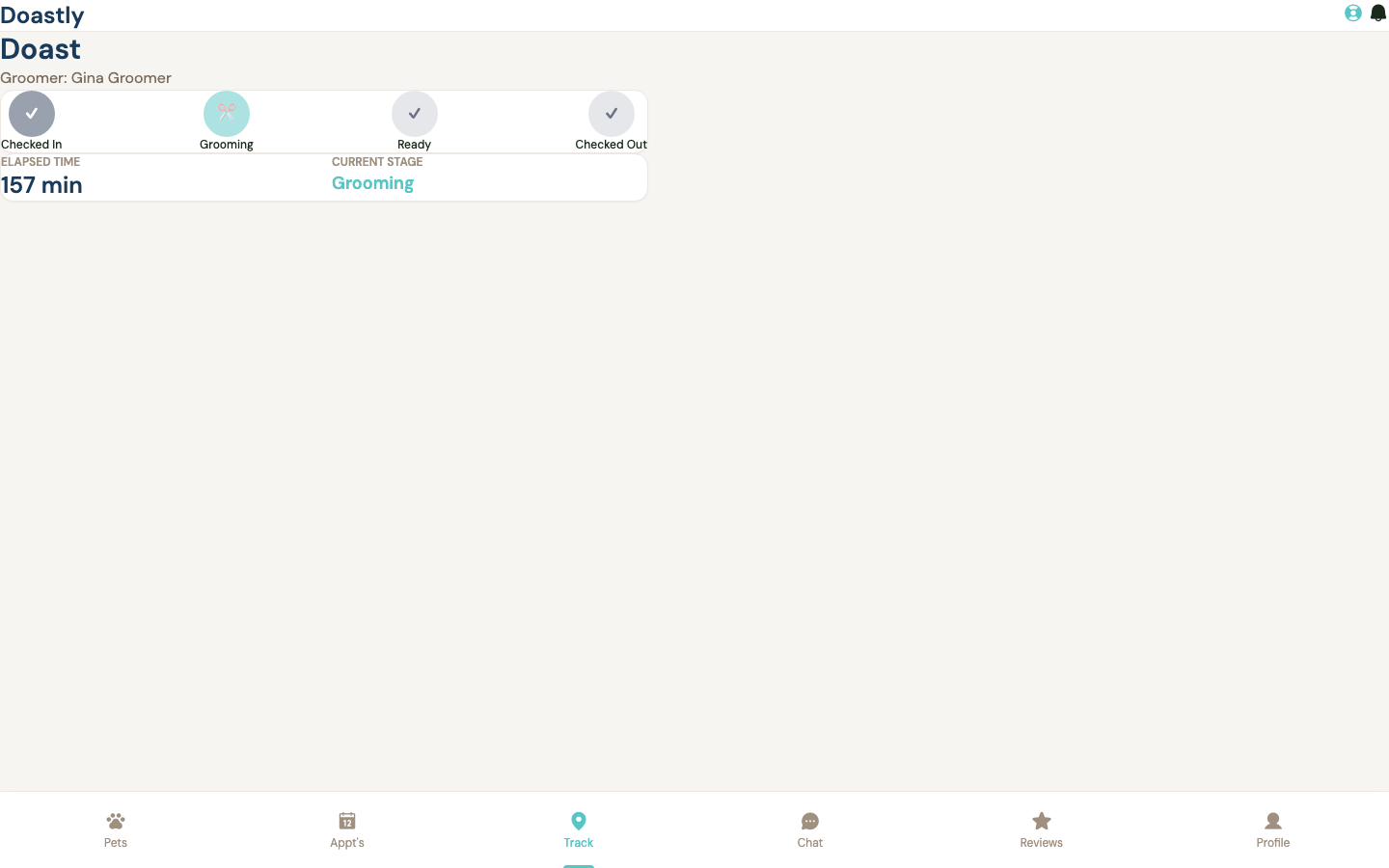
(dark mode also captured)
Pet Tracker — Active Session state
Shown when a pet is currently in-service. This is the main tracking view: the pet's name and groomer, the four-stage grooming progress necklace, session timing, and — once the pet is ready — a pickup banner. The tracker re-checks the session every 15 seconds, updating the necklace, elapsed time, and pickup banner. (A live "AI notes for you" card is designed to sit above the necklace but is not shown today — see the row below.)
| Control | What it does |
|---|---|
| Pet name + Groomer line | Display-only header showing the in-service pet's name and, below it, "Groomer:" followed by the assigned groomer's name (blank when no groomer is assigned to the session yet). |
| AI notes for you card | A live, plain-English summary of your pet's grooming session, designed to sit above the necklace. Not shown today: the customer-facing AI-notes endpoint is not yet wired, so the card stays hidden — it does not display any sample, placeholder, or fabricated text (a deliberate safety choice — no invented health content is shown to customers). When the endpoint ships, the card will appear here, load on open, and refresh every 30 seconds (pausing while the tab is in the background), showing a loading shimmer, a "We're putting together a quick update…" pending note, an error message, or the finished update. Display only — not clickable. — tracked as #214 |
| Show more → / Show less ↑ | Expands or collapses the AI notes card described above. Not shown today, because the AI notes card itself is hidden until its endpoint ships; when present, it trims long updates with a soft fade when collapsed and remembers your choice for next time. |
| Necklace stage beads (Checked In / Grooming / Ready / Checked Out) | Progress indicator for the four grooming stages. The current stage is highlighted and pulses, completed stages are dimmed, and upcoming stages are faint. Display only — reflects the session's current stage, refreshed every 15 seconds. |
| Elapsed Time / Current Stage card | Two-column card showing how many minutes the session has run and the current stage in plain words. Display only — refreshes automatically every 15 seconds. |
| READY-stage pickup banner | Text banner shown only once your pet is ready for pickup. Its tone changes with how long the pet has been waiting, and it notes any late-pickup fee or grace window along with the salon's name. Display only — refreshed every 15 seconds. |
Pet Tracker — No Active Session (empty) state
Shown when none of your pets is currently in a grooming session.
| Control | What it does |
|---|---|
| View My Pets | Takes you to your Pets list, where you can pick a pet and view its grooming history. |
Pet Tracker — Loading state
Shown briefly while we check whether any of your pets is currently in a session.
| Control | What it does |
|---|---|
| Loading tracker… placeholder | Placeholder message shown while the tracker loads. Display only. |
Pet Tracker — Error state
Shown if the tracking info can't be loaded (for reasons other than there being no active session).
| Control | What it does |
|---|---|
| "Something went wrong" error card | Message reading "Could not load tracking info. Please try again." There's no retry button — the page checks again on its own every 15 seconds, so it recovers automatically once the connection is back. |
Pet Family shell — Top bar
The persistent header shown across every tracking state.
| Control | What it does |
|---|---|
| Doastly logo | Returns you to your Pets home. |
| Pet name + avatar chip | On pet-specific pages, shows the pet's photo (or a paw-print circle) next to the pet's name. Not shown on the tracker screen. Display only. |
| Theme toggle (moon / sun icon) | Switches the app between light and dark mode (moon in light mode, sun in dark mode); your choice is remembered on this device. |
| Get Help (lifebuoy icon) | Opens the Get Help support panel. |
| Notification bell (with unread badge) | Opens the notifications dropdown. A red unread-count badge ("9+" when there are more than nine) appears only when there are unread notifications; on the tracker screen no count is passed, so the badge is not shown here. |
| Notification dropdown | Opens below the bell with a "Notifications" heading; the list currently shows "No new notifications." |
| Notification dropdown backdrop | Invisible full-screen layer behind the open dropdown; tapping it closes the dropdown. Only present while the dropdown is open. |
Pet Family shell — Bottom nav
The persistent bottom navigation bar shown across every tracking state. The current tab is highlighted in teal (colored icon/label plus a teal underline bar).
| Control | What it does |
|---|---|
| Pets | Goes to your Pets list. |
| Appt's | Goes to your Appointments. |
| Track | Goes to Live Tracking (this screen) — shown as the active tab here. |
| Chat | Goes to your Messages. |
| Reviews | Goes to your Reviews. |
| Profile | Goes to your Profile. |
Receipts
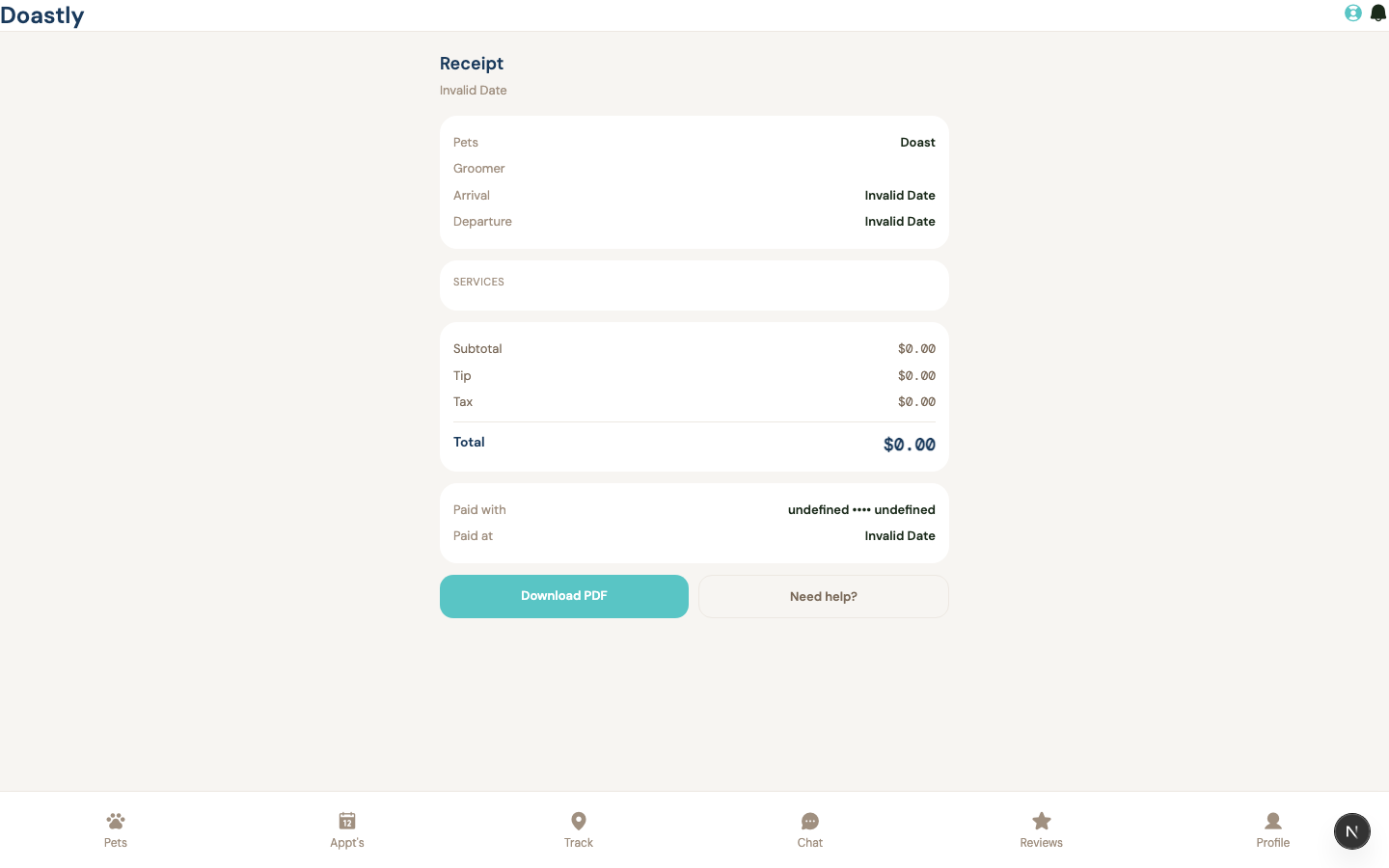
(dark mode also captured)
Pet Family Pay / Invoice (online self-pay)
The self-pay screen for settling a session invoice, using a secure hosted card form. After a successful charge the screen switches to a confirmation view; a payment failure or an inaccessible invoice shows an error view instead. If the salon has not enabled pet family self-pay, an "Online payment not available" notice is shown instead (informational only — no payment controls appear).
| Control | What it does |
|---|---|
| Payment fields (card / payment method) | Secure embedded fields for card number, expiry, CVC, and payment method, tied to this invoice. Collects the details the Pay button submits. |
| Pay $\<total\> / Processing… | Submits the entered payment method. On success, moves you to the "Payment received!" confirmation view. Disabled while a payment is processing or before the form finishes loading; a failed charge shows an inline error and leaves you on this screen to retry. |
| Back to Appointments | Shown on the "Payment received!" confirmation view (after payment, or when the session is already marked paid or paid by cash). Returns you to your Appointments list. |
| Go back | Shown on the error view (invoice not found, not permitted, already settled, or another error). Returns you to the previous screen. |
Pet Family Grooming Record — customer view (receipt + payment breakdown)
Your view of a completed grooming session — the full record with the payment breakdown, session photos, and actions to save the report card or receipt. A sticky action bar sits at the top; tapping a photo opens a full-screen lightbox.
| Control | What it does |
|---|---|
| Back (arrow-left) | Sticky action-bar button that returns you to the previous screen. |
| Download Report Card | Opens the branded report-card PDF for this session in a new browser tab, ready to view or save. |
| Download Receipt | Saves or prints the full record, including the payment breakdown, using your browser's print dialog (no separate receipt PDF is generated for customers yet). |
| Opens your browser's print dialog to print the on-screen record. The action bar itself is hidden from the printed output. | |
| Refund | Not shown on your view — refunds are salon-side only, so you never see this button. Listed here only because it is part of the shared action bar. |
| Session photo tile | Tapping a photo that has an image opens it full-screen in the lightbox at that photo. Photos without an image are shown but are not tappable. |
| Lightbox Previous | Moves to the previous photo in the full-screen lightbox. Disabled on the first photo. |
| Lightbox Next | Moves to the next photo in the full-screen lightbox. Disabled on the last photo. |
| Lightbox Close (✕) | Closes the full-screen lightbox and returns you to the record. Tapping the background outside the photo also closes it. |
Pet Family Mobile Grooming Record — customer view (receipt + payment breakdown)
Your view of a completed mobile grooming appointment — the full record with the van & visit details, trip summary, timeline, photos, notes, and payment breakdown. This is the mobile version of the Grooming Record above. A sticky action bar sits at the top; tapping a photo opens the same full-screen lightbox. Salon-only actions (email report card / email receipt / refund) are hidden on your view, so the action bar shows only Back and Print.
| Control | What it does |
|---|---|
| Back (arrow-left) | Sticky action-bar button that returns you to the previous screen. |
| Opens your browser's print dialog to print the on-screen record. The action bar itself is hidden from the printed output. | |
| Session photo tile | Tapping a photo that has an image opens it full-screen in the lightbox at that photo. Photos without an image are shown but are not tappable. |
| Lightbox Previous | Moves to the previous photo in the full-screen lightbox. Disabled on the first photo. |
| Lightbox Next | Moves to the next photo in the full-screen lightbox. Disabled on the last photo. |
| Lightbox Close (✕) | Closes the full-screen lightbox and returns you to the record. Tapping the background outside the photo also closes it. |
| Email Report Card / Email Receipt / Refund | Not shown on your view — these are salon-side only, so you never see them. Listed here only because they are part of the shared action bar. |
Mobile Grooming Receipt — customer view
The receipt for a completed mobile grooming booking, with links to download the receipt and to contact support.
| Control | What it does |
|---|---|
| Download PDF | Opens or downloads the receipt PDF for this mobile booking in a new browser tab. |
| Need help? | Opens your email app with a pre-filled message to Doastly support about the receipt. |
Messages
Navigation note: Pet Family reaches this screen group via the bottom-nav Chat tab. Note the label is "Chat" while the screen title is "Messages" — a naming inconsistency between the nav entry and the page.
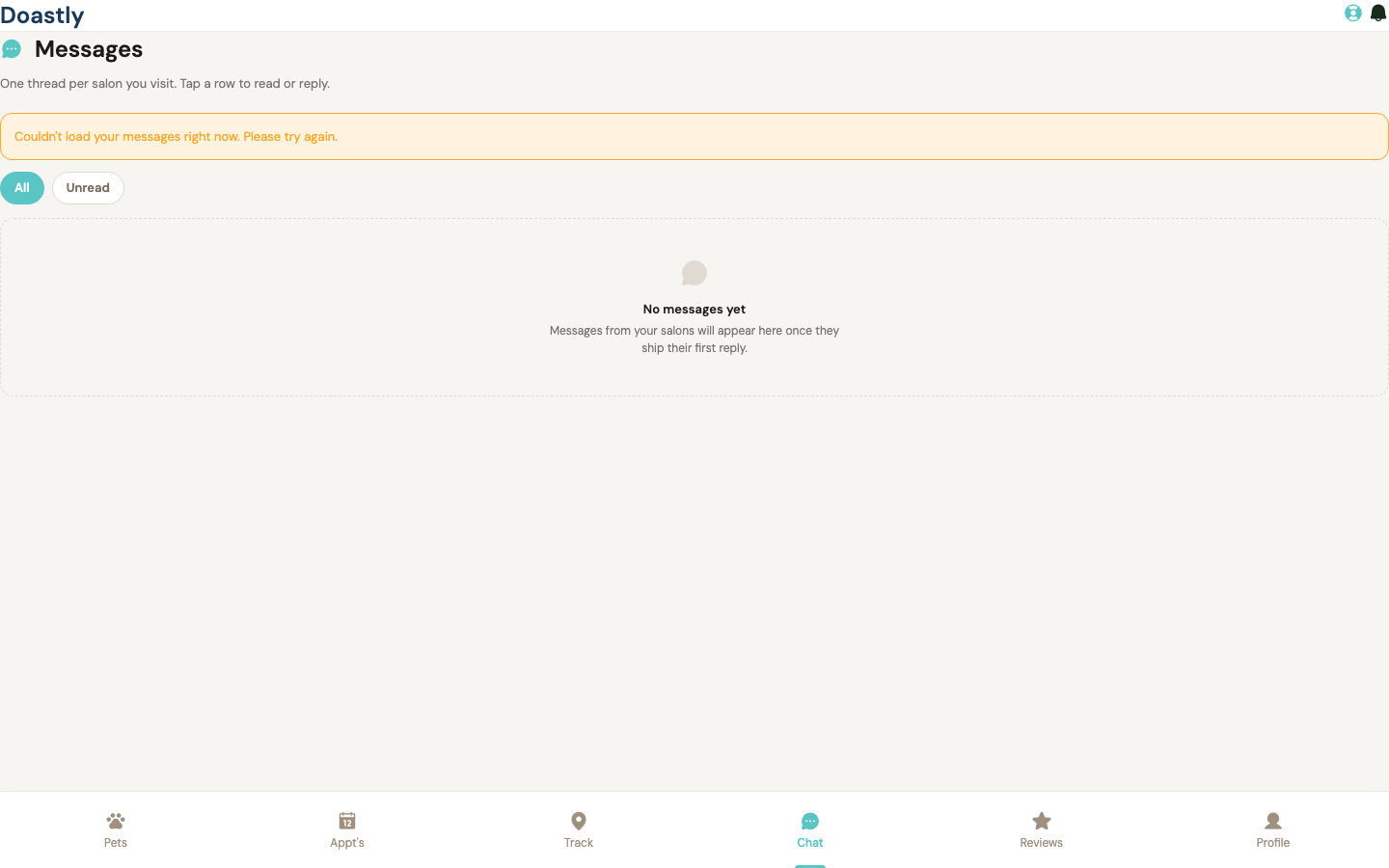
(dark mode also captured)
Messages — Inbox / Thread List
The inbox lists one conversation per active salon relationship. Filter chips at the top narrow the list, and each row opens the full conversation.
| Control | What it does |
|---|---|
| Chat (bottom-nav tab) | The entry point into Messages. Tapping it opens the inbox. Labeled "Chat" in the bottom nav even though the screen title is "Messages". |
| All (filter chip) | Sets the active filter to show every active-salon thread. The selected chip is highlighted in teal. |
| Unread (filter chip) | Filters the list to threads with unread messages (unread count above zero). |
| Thread row | Opens that conversation. Each row shows the salon's initials, salon name, pet name, a preview of the last message ("You:" if you sent it), the relative time, and an unread badge. |
| Unread count badge | A teal pill on a thread row showing the number of unread messages. Display only — it is part of the row you tap to open the conversation. |
Display-only inbox states (no controls): a "Loading messages…" placeholder while threads load; an error banner ("Couldn't load your messages right now. Please try again.") if loading fails; and an empty state with two variants — "No messages yet" when the All filter is active, or "No unread messages / You're all caught up" when the Unread filter is active.
Messages — Conversation / Thread Detail
The conversation view shows your full message history with a single salon, plus a context card with the salon's details and your next appointment. Compose and send replies from the bar at the bottom.
| Control | What it does |
|---|---|
| Back to Messages | Returns to the inbox thread list. Available in both the normal conversation header and the error state. |
| Salon context pane | A header card showing the salon's initials, name, pet name, salon phone, and your upcoming appointment (service and date). Informational only. |
| Attach a photo | Paperclip button. Flashes a transient "Coming soon" notice for a couple of seconds — a placeholder; photo upload is not yet available. |
| Record a voice note | Microphone button. Flashes a transient "Coming soon" notice for a couple of seconds — a placeholder; voice notes are not yet available. |
| Message input (textarea) | The box where you type your message. Press Enter to send; Shift+Enter adds a new line. The box grows as you type. |
| Send | Sends your typed message. Disabled while the box is empty or a message is still sending. |
| Message timeline (scroll region) | The scrollable history of your messages, grouped by day (Today, Yesterday, or the date). Scrolls to the newest message automatically. Shows "No messages yet. Say hi 👋" when the conversation is empty. |
Per-message display (informational, on each bubble in the timeline): the send time; a "· edited" tag if you edited the message; a "Read" tag with a teal double-check once the salon opens your message; and a "· via SMS" tag when a message reached the salon through the SMS bridge.
Training / Courses
Training Hub — tab strip + shared header
The landing screen for training, with two tabs that switch between browsing classes and viewing your own enrollments. Browse Classes is active when you arrive.
| Control | What it does |
|---|---|
| Browse Classes (tab) | Switches to the Browse Classes view, showing the quick-action cards and the courses catalog. This tab is selected by default. |
| My Training (tab) | Switches to the My Training view and loads your current enrollments. |
Browse Classes panel — quick-action cards
Two shortcut cards at the top of Browse Classes that open the booking flow for the two ways to train.
| Control | What it does |
|---|---|
| Group Classes card (🎓) | Opens the training booking flow for courses and drop-in group classes. |
| Private Session card (🐾) | Opens the booking flow set up for a one-on-one private trainer session. |
Courses Catalog widget (embedded in Browse Classes)
The list of courses offered by your salon, shown below the quick-action cards. If you've visited more than one salon, a picker lets you switch between them.
| Control | What it does |
|---|---|
| Salon picker (dropdown) | Chooses which salon's courses to show. It only appears if you've visited more than one salon, and it reloads the catalog for the salon you pick. Your first salon is selected automatically. |
| Enroll / Full (per course card) | When spots are open, opens the booking flow to enroll in that course (carrying the chosen salon). When a course is full, this reads "Full" and cannot be clicked. |
Browse Classes — gated empty/error states (Courses Catalog)
Read-only messages the catalog shows when there's nothing to display or something goes wrong. None of these are interactive.
| Control | What it does |
|---|---|
| No salon connected notice (🏫) | Appears when you don't have an accessible salon yet, and prompts you to book a visit. No action to take here. |
| No classes available notice (📋) | Appears when your salon has no courses listed, and points you to the booking flow above for a private session. No action to take here. |
| Courses error notice | Appears in plain language when the course list can't be loaded. No action to take here. |
| Courses loading skeleton | A placeholder shown while your salons or courses are loading. No action to take here. |
My Training panel — enrollments list + states
Your current and completed enrollments, with each row summarizing a pet's progress in a course. If you have none yet, a prompt invites you to browse classes.
| Control | What it does |
|---|---|
| Enrollment row (per enrollment) | Opens the progress detail for that enrollment. The row shows the pet name, course name, a Graduated or Enrolled badge, a progress bar, and session and skills-mastered counts. |
| Browse classes (empty-state CTA) | Appears when you have no enrollments yet, and opens the booking flow to start one. |
| My Training loading skeleton | A placeholder shown while your enrollments load. No action to take here. |
| My Training error notice | A plain-language message shown if your enrollments can't be loaded. No action to take here. |
Enrollment Progress detail
The full progress view for a single enrollment, covering sessions completed, skills, trainer notes, an AI summary, and — once the course is finished — a graduation certificate.
| Control | What it does |
|---|---|
| Back arrow (←) | Returns to the previous screen, usually your My Training list. |
| Download Certificate PDF | Downloads the graduation certificate as a PDF named for your pet. Only appears once the course is completed and a certificate is ready. While downloading, it reads "Downloading…" and can't be clicked again. |
| Session progress section | Shows a progress bar for sessions attended out of total, the percent complete, and how many skills have been mastered. No action to take here. |
| AI progress summary section (🤖) | Shows a written summary of your pet's progress, a "being prepared" note while it's generating, or a first-session placeholder before one exists. No action to take here. |
| Skill progress list | Lists each skill with its status — Mastered, Practicing, or Not started. Only appears once skills have been recorded. No action to take here. |
| Last session (notes + homework) section | Shows the trainer's notes and any homework from the most recent session, when available. No action to take here. |
| Graduation certificate section (🏆) | Appears once the course is completed, showing the completion summary and skills mastered, or a "being prepared" note, and holds the Download Certificate PDF button. No action to take here. |
| Progress loading state | A "Loading training progress…" message shown while the detail loads. No action to take here. |
| Progress error state | A plain-language message shown if the progress can't be loaded. No action to take here. |
Booking (per vertical)
Grooming Booking — Wizard shell + Progress
The entry screen for booking a grooming appointment. It frames the flow with a header and a six-step progress indicator, then shows one step at a time.
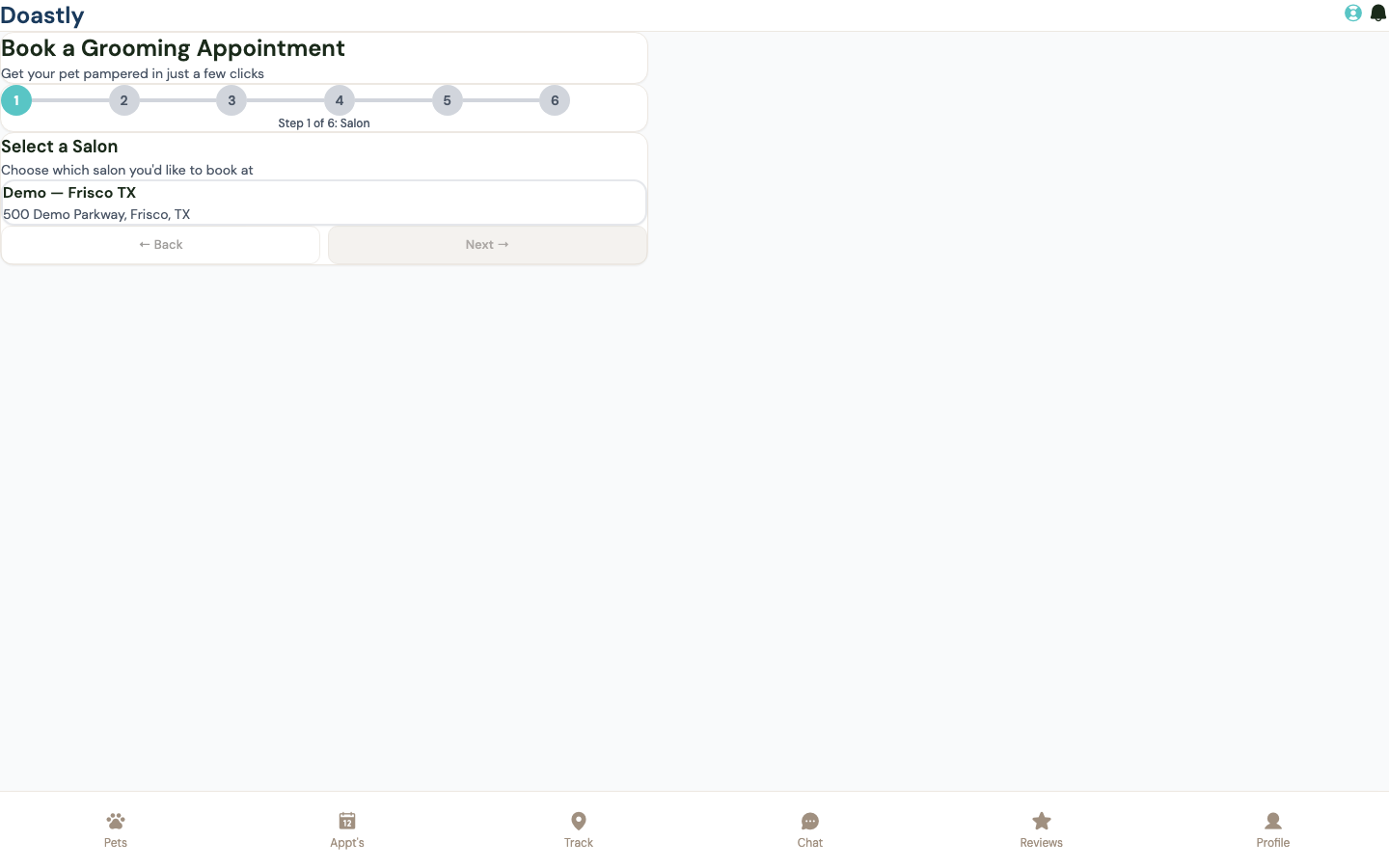
(dark mode also captured)
| Control | What it does |
|---|---|
| Book a Grooming Appointment (page header) | Static title and subtitle ("Get your pet pampered in just a few clicks"). No interaction. |
| Progress beads (Salon / Pet / Services / Date & Time / Confirm / Done) | Six-step visual stepper showing the current step, a checkmark for completed steps, and a "Step N of 6" caption. Display-only — not clickable. |
| Step progress | Shows the correct step (Salon through Done) based on your progress; Next and Back move you forward or backward and scroll to the top. |
Grooming Booking — Step 1: Select a Salon
Pick the salon where you want the appointment. Selecting one unlocks the Next button.
| Control | What it does |
|---|---|
| Salon card (per salon) | Selects that salon and highlights it with a teal border and "✓ Selected". Prepares the service list for Step 3. |
| No salons available empty-state | Shown when no salons are bookable yet; displays friendly guidance instead of a dead Next button. |
| ← Back | Disabled on Step 1 — there is no earlier step. |
| Next → | Disabled until you pick a salon; then advances to Step 2 (Select Your Pet). |
Grooming Booking — Step 2: Select Your Pet
Choose which pet the appointment is for. Selecting a pet also loads that pet's AI booking notes for later steps.
| Control | What it does |
|---|---|
| Pet card (per pet) | Selects that pet, highlights it with teal and "✓ Selected", and loads AI booking notes. |
| No pets empty-state | Shown when your account has no pets ("No pets on your account yet"). |
| + Add a New Pet | Opens a "Coming soon" add-pet placeholder panel. This is not yet functional — no pet is actually created. |
| ← Back to Pets (in add-pet panel) | Closes the placeholder panel and returns to the pet list. |
| ← Back | Returns to Step 1 (Select a Salon). |
| Next → | Disabled until you pick a pet; then advances to Step 3 (Services & Groomer). |
Grooming Booking — Step 3: Services & Groomer
Select the services you want and, optionally, a preferred groomer. A running total updates as you choose.
| Control | What it does |
|---|---|
| Quick Repeat option button (per last-visit set) | Re-selects the services from a previous visit in one tap. This option is not currently available. |
| Catalog error card | Shown when the salon's service list fails to load; displays a plain-English message. |
| Loading skeleton | Placeholder rows shown while the service list loads. |
| Service card + checkbox (per service) | Adds or removes that service from your selection (tapping the card or the checkbox does the same thing). Shows name, description, and price (or "From $X" for tiered services). |
| No services empty-state | Shown when the salon has no bookable services listed yet. |
| Groomer card + radio (per groomer) | Selects a preferred groomer (optional). Shows the groomer's avatar, name, and role. |
| No groomers empty-state | Shown when no groomers are listed; notes the salon will assign the best available groomer. |
| 💡 AI Booking Suggestions toggle | Expands or collapses AI booking suggestions for this pet. Only appears when suggestions are available. |
| Estimated Total (price summary) | Displays the running total of your selected services. Display-only. |
| ← Back | Returns to Step 2 (Select Your Pet). |
| Next → | Disabled until at least one service is selected; then advances to Step 4 (Date & Time). |
Grooming Booking — Step 4: Choose Date & Time
Pick a date, then a time from the available slots for that day.
| Control | What it does |
|---|---|
| Date card (14 available dates) | Selects that date, highlights it, and reveals the available time slots below. Times are currently offered for the next few days; later dates show the "No times" empty-state. |
| Time-slot card (per available slot) | Selects that time. Only available slots for the chosen date are shown. |
| No times empty-state | Shown when the chosen date has no open slots ("Please choose another date"). |
| Deposit info note | Amber notice that a deposit may be required. Display-only. |
| ← Back | Returns to Step 3 (Services & Groomer). |
| Next → | Disabled until both a date and time are chosen; then advances to Step 5 (Confirm). |
Grooming Booking — Step 5: Confirm
Review the booking, handle any deposit, card-on-file, or cancellation-policy requirements, then confirm.
| Control | What it does |
|---|---|
| Booking-error banner | Shown above the step if confirming fails; displays a plain-English message about why the booking was rejected. |
| Booking summary card | Reviews salon, pet, services, groomer, date, and time. Display-only. |
| Deposit option card + radio (per option) | Selects a deposit amount. Only shown when the salon requires a deposit and offers options. |
| Price breakdown (Subtotal / Tax / Deposit / Total) | Shows the computed total including 8% tax and any selected deposit. Display-only. |
| Cancellation policy notice | Shows the salon's cancellation terms (fee window and amount, or "Cancel anytime… no charge"). Display-only. |
| Card-on-file picker | Lets you pick a saved card when the salon requires a card on file; choosing one satisfies the card requirement. Shown only when signed in. |
| Card-on-file login hint | Shown when a card is required but you're not signed in ("Please sign in to add a card…"). |
| Cancellation-policy signed indicator | Green checkmark row confirming the policy has been signed. |
| Cancellation-policy sign form | Shows the sign-the-policy form when a cancellation fee applies, you're signed in, and haven't signed yet. Signing satisfies the policy requirement. |
| Sign-policy login hint | Shown when a fee applies but you're not signed in ("Please sign in to review and sign…"). |
| ← Back | Returns to Step 4 (Date & Time). Disabled while the booking is being submitted. |
| Confirm & Book / Confirm & Pay | Submits the booking, sets a confirmation number, and advances to Step 6 (Done). Disabled until any card and policy requirements are met; the label changes to "Confirm & Pay" when a deposit is chosen. |
Grooming Booking — Cancellation Policy Sign form (embedded in Step 5)
Appears inside Step 5 when the salon charges a cancellation or no-show fee. You review the policy, then sign it to proceed.
| Control | What it does |
|---|---|
| Policy body | Displays the salon's cancellation policy text. Display-only. |
| Card-hold disclosure | Explains the temporary check-in authorization hold (estimated total plus a 10% buffer). Display-only. |
| Your full legal name (input) | Enters the signer's legal name. Required to submit. |
| Relationship to pet (select) | Selects your relationship to the pet (Owner, Spouse, Family member, or Authorized agent). |
| Typed signature (input) | Enters your typed signature in a cursive font. Required to submit. |
| Acknowledgement checkbox | Confirms you agree to the cancellation/no-show fee and the card-hold authorization. Required to submit. |
| Sign error banner | Shown when signing fails; displays the error message. |
| Submit signature | Signs the policy and returns you to Step 5 with the requirement satisfied. Disabled until name, signature, and acknowledgement are complete; shows "Saving…" while submitting. |
| Cancel (link) | Returns to the booking screen without signing. |
| Load-error message | Shown if the policy fails to load. |
Grooming Booking — Step 6: Done / Confirmation
Confirms the appointment is booked and offers next steps.
| Control | What it does |
|---|---|
| Confirmation summary (number / date / salon / pet / next-steps) | Shows the confirmation number, appointment details, and a "What's next" checklist. Display-only. |
| View Appointment | Goes to your appointments list. |
| Book Another Service | Resets the wizard and returns to Step 1 to book again. |
| Back to My Appointments (link) | Goes to your appointments list. |
Boarding Booking — Wizard shell + progress (quick vs detailed)
The entry screen for reserving a boarding stay. It offers a quick 3-step path or a detailed 6-step path (with care details) and shows progress accordingly.
| Control | What it does |
|---|---|
| Book Boarding header | Static title and subtitle ("Reserve a kennel for your pet's stay"). Display-only. |
| Progress strip (quick 3 / detailed 6 labels) | Segmented progress bar; shows either the quick or detailed step labels depending on the path. Display-only. |
| Error banner | Shown when creating the reservation fails; displays a plain-English message. |
| Step progress | Shows the correct step — quick path is Steps 1-3, the detailed care path is Steps 4-7, and the final step is the confirmation. |
Boarding Booking — Step 1: Dates & Pet
Choose the location, drop-off and pick-up dates, and which pet is staying.
| Control | What it does |
|---|---|
| Boarding Location (select) | Selects the boarding location and loads its available kennels. |
| No locations empty-state | Shown when no locations are bookable yet ("No salons available to book yet"). |
| Drop-off Date (date input) | Sets the check-in date (earliest is tomorrow). |
| Pick-up Date (date input) | Sets the check-out date (must be at least one day after check-in). |
| Pet radio (per pet) | Selects which pet is boarding and highlights it. |
| No pets empty-state | Shown when your account has no pets ("No pets found on your account"). |
| See Available Kennels → | Disabled until location, valid dates, and a pet are set; then advances to Step 2 (Choose Kennel). |
Boarding Booking — Step 2: Choose Kennel
Pick a kennel from those available for your dates. Each shows its nightly rate and total.
| Control | What it does |
|---|---|
| Loading state | Shows "Loading available kennels…" while options load. |
| Kennel/unit card (per active unit) | Selects that kennel and highlights it. Shows the name, type, per-night rate, and total. |
| No kennels empty-state | Shown when no kennels are available for the chosen dates ("Please try different dates"). |
| Total summary | Shows the selected kennel's rate multiplied by the number of nights. Display-only. |
| ← Back | Returns to Step 1 (Dates & Pet). |
| Review & Confirm → | Disabled until a kennel is selected; then advances to Step 3 (Confirm). |
Boarding Booking — Step 3: Confirm (quick path)
Review the reservation and payment, add any instructions, then confirm — or expand into the detailed care flow.
| Control | What it does |
|---|---|
| Booking summary + Payment breakdown | Reviews location, pet, dates, kennel, and nights, plus the 25% deposit and balance due at pickup. Display-only. |
| Special Instructions (textarea) | Enters notes passed along with the reservation. |
| + Add care details (feeding, meds, emergency) | Switches to the detailed path and jumps to Step 4 (Feeding). |
| ← Back | Returns to Step 2 (Choose Kennel). Disabled while submitting. |
| Confirm & Pay <deposit> Deposit | Creates the reservation and advances to the confirmation step. Shows "Confirming…" while submitting. |
Boarding Booking — Step 4: Feeding (detailed precheck)
Capture your pet's feeding details for the stay. At least one feeding time is required to continue.
| Control | What it does |
|---|---|
| Food Brand / Type (input) | Enters the food brand or type. |
| Portion per Meal chips (0.5–3 cups) | Selects the portion size per meal. |
| Feeding Times checkboxes (morning/lunch/evening) | Chooses when the pet is fed; at least one must be selected to advance. |
| Bringing Own Food? toggle (Yes / Use salon supply) | Indicates whether you're bringing your own food or using salon supply. |
| ← Back | Clears the detailed path and returns to Step 3 (Confirm). |
| Medications → | Disabled until at least one feeding time is chosen; then advances to Step 5 (Medications). |
Boarding Booking — Step 5: Medications (detailed precheck)
Record any medications the pet needs during the stay. You can add multiple entries or indicate none.
| Control | What it does |
|---|---|
| Has medications? toggle (No / Yes) | Chooses whether the pet has any medications. |
| Medication name (input, per row) | Enters the medication name (required per row). |
| Medication dose (input, per row) | Enters the dose (required per row). |
| Medication schedule (input, per row) | Enters the dosing schedule. |
| Remove (per med row) | Deletes that medication row. |
| + Add medication | Adds a new blank medication row. |
| ← Back | Returns to Step 4 (Feeding). |
| Emergency Contact → | Disabled until each medication has a name and dose (or "No" is chosen); then advances to Step 6 (Emergency Contact). |
Boarding Booking — Step 6: Emergency Contact & Vet (detailed precheck)
Provide an emergency contact and vet details, and authorize emergency care spending.
| Control | What it does |
|---|---|
| Emergency Full Name (input) | Enters the emergency contact's name (required). |
| Emergency Phone (tel input) | Enters the emergency contact's phone number (required). |
| Emergency Relationship (input) | Enters your relationship to the emergency contact (required). |
| Vet / Clinic Name (input) | Enters the vet or clinic name. |
| Vet Phone (tel input) | Enters the vet's phone number. |
| Authorize Emergency Vet Care up-to chips ($500 / $1k / $2k / Unlimited) | Sets the spending limit you authorize for emergency vet care. |
| ← Back | Returns to Step 5 (Medications). |
| Belongings & Confirm → | Disabled until name, phone, and relationship are filled; then advances to Step 7 (Belongings & Final Notes). |
Boarding Booking — Step 7: Belongings & Final Notes (detailed submit)
List the items you're sending along and add any final notes, then submit the reservation.
| Control | What it does |
|---|---|
| Belonging chips (Leash / Collar-Harness / Bed / Blanket / Toys / Food container / Medication bottle) | Selects which belongings you're sending with your pet. |
| Special Instructions (textarea) | Enters any final notes for the stay. |
| ← Back | Returns to Step 6 (Emergency Contact & Vet). Disabled while submitting. |
| Confirm & Pay <deposit> Deposit | Creates the reservation with the care and emergency details and advances to the confirmation step. Shows "Confirming…" while submitting. |
Boarding Booking — Step 8: Done / Stay Confirmed
Confirms the reservation and offers next steps.
| Control | What it does |
|---|---|
| Reservation details card | Shows the confirmation number, drop-off and pick-up dates, duration, and deposit. Display-only. |
| View My Reservations (link) | Goes to your appointments list. |
| Back to Home (link) | Goes to the Pet Family home. |
Daycare Booking — Wizard shell + progress
The entry screen for booking a daycare day. It frames the flow with a header and a three-step progress strip.
| Control | What it does |
|---|---|
| Book Daycare header | Static title and subtitle ("A fun, supervised day for your pet"). Display-only. |
| Progress strip (Date & Pet / Slot & Pay / Confirm) | Three-segment progress bar with active and done styling. Display-only. |
| Step progress | Shows the correct step (Date & Pet, Slot & Pay, Confirm, or the confirmation screen). |
Daycare Booking — Step 1: Date & Pet
Choose the location, the day, and which pet is attending.
| Control | What it does |
|---|---|
| Daycare Location (select) | Selects the daycare location (resets any chosen pass). |
| No locations empty-state | Shown when no locations are bookable yet ("No salons available to book yet"). |
| Day (date input) | Sets the attendance date (earliest is tomorrow, up to 90 days out). |
| Pet radio (per pet) | Selects which pet is attending. |
| No pets empty-state | Shown when your family has no pets ("No pets in your family yet. Add a pet first"). |
| Next: Choose slot → | Disabled until location, date, and pet are set; then advances to Step 2 (Slot & Pay). |
Daycare Booking — Step 2: Slot & Pay
Choose the day type and how you'll pay — per day or with an active pass.
| Control | What it does |
|---|---|
| Day-type button (Full Day / Half Day) | Selects full or half day and shows the price for each. |
| Pay per day radio | Charges the card on file for the day. |
| Active pass radio (per pass) | Uses an active pass at no charge; shows remaining visits, expiry, and a "Free" badge. |
| No active passes — Browse packages (link) | Goes to the daycare packages page. |
| ← Back | Returns to Step 1 (Date & Pet). |
| Review booking → | Advances to Step 3 (Confirm). |
Daycare Booking — Step 3: Confirm
Review the booking, add a note, then confirm.
| Control | What it does |
|---|---|
| Booking summary card | Reviews pet, location, date, slot, and payment. Display-only. |
| Note for salon (textarea) | Enters a note for the salon (up to 500 characters). |
| Error banner | Shown when booking fails; displays the error message. |
| ← Back | Returns to Step 2 (Slot & Pay). Disabled while submitting. |
| Confirm Booking ✓ | Submits the booking and advances to the confirmation step. Shows "Booking…" while submitting. |
Daycare Booking — Step 4: Done / You're Booked
Confirms the daycare day and offers next steps.
| Control | What it does |
|---|---|
| Confirmation + pre-arrival checklist | Shows the pet, date, slot, location, and a drop-off checklist. Display-only. |
| View my bookings (link) | Goes to your appointments list. |
| Book another day (link) | Restarts the daycare booking wizard. |
Mobile Grooming Booking — Wizard shell + progress
The entry screen for booking a mobile grooming visit where a van comes to your home. It frames the flow with a header and a three-step progress strip.
| Control | What it does |
|---|---|
| Book Mobile Grooming header | Static title and subtitle ("A grooming van comes to your home"). Display-only. |
| Progress strip (Address & Pet / Van & Slot / Confirm) | Three-segment progress bar. Display-only. |
| Step progress | Shows the correct step (Address & Pet, Van & Slot, Confirm, or the confirmation screen). |
Mobile Grooming Booking — Step 1: Address & Pet
Choose your pet and enter the service address; the system checks whether your address is in a serviceable area.
| Control | What it does |
|---|---|
| Pet radio (per pet) | Selects which pet the visit is for. |
| No pets empty-state | Shown when no pets are on your account ("Add a pet first in your Profile"). |
| Service address (with autocomplete) | Enters and selects your service address, then checks serviceability (in-zone status and available vans). |
| Checking service area (loading) | Shown while the serviceability check runs. |
| In-service-area notice (ok) | Shown when your address is in range and vans are available; displays the number of vans. |
| Out-of-area notice + Join the waitlist link | Shown when your address is out of range. The "Join the waitlist" link is a placeholder ("Waitlist sign-up coming soon"). |
| Continue → | Disabled until a pet, an in-zone address, and available vans are set; then advances to Step 2 (Van & Slot) and loads slots. |
Mobile Grooming Booking — Step 2: Van & Slot (with map)
Pick a serviceable van and an available time slot; a map previews the van's route to your address.
| Control | What it does |
|---|---|
| Van radio (per serviceable van) | Selects a van, clears any chosen slot, and highlights that van's pin on the map. |
| Route map (van + address pins + preview route) | Shows a map with your address, the van base pins, and a route line from the selected van to your address. Display/visual only. |
| Slots loading | Shows "Loading available slots…" while slots load. |
| No slots empty-state | Shown when no slots are available in the next 14 days for the chosen van. |
| Time-slot button (per slot, max 20) | Selects that time slot and highlights it. |
| ← Back | Returns to Step 1 (Address & Pet). |
| Continue → | Disabled until both a van and a slot are chosen; then advances to Step 3 (Confirm). |
Mobile Grooming Booking — Step 3: Confirm
Review the visit, pick a service type, add access notes, and provide a card, then confirm.
| Control | What it does |
|---|---|
| Booking summary (pet / van / address / time) | Reviews the visit details. Display-only. |
| Service pills (Bath + Nails / Full Groom / De-Shedding) | Selects the type of service for the visit. |
| At-home access notes (textarea) | Enters notes on how to access your home (up to 500 characters, with a counter). |
| Payment method picker | Selects a payment method; the card is held, not charged. Required to confirm. |
| Error banner | Shown when booking fails; displays the error message. |
| ← Back | Returns to Step 2 (Van & Slot). Disabled while submitting. |
| Confirm booking | Submits the booking and advances to the confirmation step. Disabled until a payment method is chosen; shows "Booking…" while submitting. |
Mobile Grooming Booking — Step 4: Done / You're Booked
Confirms the mobile grooming visit.
| Control | What it does |
|---|---|
| Confirmation summary (booking # / pet / van / address / time) | Reviews the booking details. Display-only. |
| View my appointments (link) | Goes to your appointments list. |
Training Booking — Wizard shell (group/private toggle + step bar + done)
The entry screen for booking training. You choose between a group class or a private session, and the flow adapts to the type you pick.
| Control | What it does |
|---|---|
| Book a Class / Book Private Session header | Static title and subtitle that switch based on the booking type. Display-only. |
| Booking-type toggle (Group class / Private session) | Switches between group and private booking (resets the chosen course and any error). Only available on Step 1; opening the page from a "Book a private session" link pre-selects private. |
| Pre-selected starting state (from a link) | Opening this page from a private-session link pre-selects the private-session flow, and opening it from a salon's course list pre-selects the salon you were browsing (falling back to the first accessible salon). These are not on-screen controls, but set the initial state. |
| Step bar (3 labels, group vs private) | Segmented progress bar with labels for the chosen type. Display-only. |
| Submit-error banner | Shown when enrollment or the private-session booking fails; displays the error message. |
| Step progress (steps 1-3 × group/private) | Shows the correct step for the chosen type (class/time selection → pet → confirm). |
| Loading booking… | Shown briefly while the page's link details resolve. |
Training Booking — Group Step 1: Select class
Browse and select a group class, and choose whether to enroll for the full course or a single drop-in.
| Control | What it does |
|---|---|
| Loading classes | Shows "Loading available classes…" while classes load. |
| Courses error / no-salon message | Shows the error text when classes can't load, including the "No salon connected yet…" case (both use the same single error message). |
| No classes empty-state + ← Back | Shown when no classes are available; offers only a Back button. |
| Course card (per course) | Selects that class. Shows name, description, session count, spots, price, and any drop-in price. |
| Enrollment type toggle (Full course / Drop-in only) | Chooses full-course or drop-in enrollment. Only shown when the selected course offers a drop-in price. |
| ← Back / Choose pet → | Back returns to the previous view; Next (enabled only once a course is selected) advances to Step 2 (Your pet). |
Training Booking — Private Step 1: Pick a time
Set the date, time, and length of your private training session, plus any focus area or notes.
| Control | What it does |
|---|---|
| Date (date input) | Sets the session date (earliest is today; required). |
| Time (time input) | Sets the session time (required). |
| Duration (select 30 / 45 / 60 / 90 min) | Sets the session length. |
| Focus area (input, optional) | Enters a focus area for the session. |
| Notes for trainer (textarea, optional) | Enters notes for the trainer. |
| ← Back / Choose pet → | Back returns to the previous view; Next (enabled only once date and time are set) advances to Step 2 (Your pet). |
Training Booking — Step 2: Your pet
Choose which pet the training is for.
| Control | What it does |
|---|---|
| Pet card (per pet) | Selects that pet and highlights it. |
| No pets empty-state | Shown when no pets are on your account ("Add a pet from your profile first"). |
| ← Back / Review → | Back returns to Step 1; Next (enabled only once a pet is chosen) advances to Step 3 (Confirm). |
Training Booking — Step 3: Confirm (group or private)
Review the enrollment or session details, then confirm. The summary and confirm action match the type you chose.
| Control | What it does |
|---|---|
| Group enrollment summary | Reviews the pet, class, enrollment type, and total. Display-only. |
| Confirm & enroll | Enrolls in the group class and advances to the confirmation screen. Shows "Enrolling…" while loading. |
| Private session summary | Reviews the pet, date, time, duration, focus, and notes. Display-only. |
| Confirm session | Books the private session and advances to the confirmation screen. Shows "Booking…" while loading. |
| ← Back (both confirms) | Returns to Step 2 (Your pet). |
Training Booking — Done / Confirmation
Confirms the training enrollment or session and offers next steps.
| Control | What it does |
|---|---|
| Enrollment/Session confirmed message | Shows "Enrollment confirmed!" or "Session booked!" with the pet's name. Display-only. |
| View my training | Goes to your training page. |
| All appointments | Goes to your appointments list. |
Report Cards (Pet Family — Report Card View)
Grooming History page (cross-salon report card list)
This page lists every grooming session across all salons your pet has visited, with quick access to each session's report card and full record. Each session shows as a card you can open for detail. Sessions are grouped under a heading per salon (cross-salon).
| Control | What it does |
|---|---|
| ← Back | Returns to the previous page (your pet's detail page). |
| Session history card (whole card) | Opens the report card view for that session. Click anywhere on the card to open it. |
| View report card | Opens the report card view for the session. Shown only when the session has a report card. |
| Download PDF (download icon) | Opens the report card PDF in a new browser tab, ready to save or print. Renders as a small download icon next to "View report card". Shown only when a PDF is available (i.e. the session has a report card). |
| View record / Record | Opens the full grooming record page for that session, with the complete details of the visit. Appears greyed-out and unclickable when no record link is available. |
Report Card View (pop-up over the history list)
This is the report card itself — a pop-up over the history list showing the session summary, groomer notes, AI narrative, and before/after photos. Close it to return to the history list. (Clicking the dark backdrop does NOT close it, and there is no Escape shortcut — use the ✕ button.)
| Control | What it does |
|---|---|
| Opens the report card PDF in a new browser tab, ready to save or print. Shown only when the session is available. | |
| Language switcher (translate icon + current code, e.g. EN ▾) | Opens a menu to choose the report card language. The button shows a translate icon plus the currently-active language code (EN or ES). Picking a language saves your choice and reloads the page so the card reads in that language. |
| Language option — English | Switches the report card to English, saves the choice, and reloads. Does nothing if English is already selected. |
| Language option — Español | Switches the report card to Spanish, saves the choice, and reloads. Does nothing if Spanish is already selected. |
| Close (✕) | Closes the report card and returns you to the history list. (Only way to close — no backdrop-click / Escape.) |
| AI narrative Show more → / Show less ↑ | Expands or collapses the AI-written summary of the visit. Your choice is remembered for next time. Shown only when a narrative is present. |
| Before / After photo tab — Before | On mobile, shows the Before photos panel; the label includes the number of Before photos. (On desktop the Before and After panels are shown side-by-side, so these tabs are hidden.) |
| Before / After photo tab — After | On mobile, shows the After photos panel; the label includes the number of After photos. (On desktop the Before and After panels are shown side-by-side, so these tabs are hidden.) |
| Photo prev ‹ | Steps back to the previous photo in a Before or After panel. Disabled on the first photo; shown only when the panel has more than one photo. |
| Photo next › | Steps forward to the next photo in a Before or After panel. Disabled on the last photo; shown only when the panel has more than one photo. |
Reviews
Where pet families rate a completed groom and, optionally, leave a comment. The screen group covers the list of visits ready to review, the review form itself, the star control, and the standalone mobile-grooming review page.
Reviews List (Your Reviews)
Lists every session that is ready to review or already reviewed, with a per-row action to open the form. Paginates from newest, appending older visits on demand.
| Control | What it does |
|---|---|
| Try again | Shown only in the error state after a failed load; reloads the reviewable-sessions list. |
| Load more | Loads the next page of visits and appends them to the list. Shows "Loading…" and is disabled while loading; only appears when more visits exist. |
| Leave a review → / View | Opens the review form for that visit. Reads "View" if you have already reviewed the visit, otherwise "Leave a review →". |
| Reviewed / Ready to review (status pill) | Non-interactive badge showing each visit's state: "Reviewed" (teal) once a review exists, otherwise "Ready to review". |
| Star strip (submitted rating) | Non-interactive 5-star display of the rating you already submitted; shown only on reviewed visits. |
Submit Review Form (How was the visit? / Your review / Thanks)
The form for rating a single visit and adding an optional comment. The header title reflects the current state: "How was the visit?" before you review, "Your review" when opening a visit you already reviewed, and "Thanks for your review!" immediately after you submit. After you submit, it switches to a read-only view; visits you have already reviewed open in that same read-only view.
| Control | What it does |
|---|---|
| ← Back to reviews (header) | Returns to the Reviews list. Shown on the loaded form view (in all states, including the read-only / Thanks view). |
| Star rating | 5-star control for setting your rating. Read-only once the visit has been reviewed or just submitted. |
| Anything else to share? (comment) | Optional comment box, up to 1,000 characters, with a live character counter. Read-only after review. |
| Submit review | Checks that you picked 1–5 stars, then shows a "Thanks" confirmation. ⚠️ NOTE: your review is not yet saved to the salon — this is a preview; live review submission is coming soon. Disabled until you pick a rating. Shown only before you submit. |
| Not now | Dismisses without submitting and returns to the Reviews list. Shown only before you submit. |
| Try again (error state) | Shown when the visit fails to load; reloads the visit details. |
| Back to reviews (error state) | Shown in the error state; returns to the Reviews list. |
Star rating control
The five-star rating control used inside the review form. Each star is a selectable button with a hover preview.
| Control | What it does |
|---|---|
| Star 1–5 (each star button) | Sets your rating to that number of stars (1–5). Hovering or focusing a star previews that rating. Does nothing when the control is read-only. |
Mobile Grooming Review (How was your mobile groom?)
The standalone review page for a mobile-grooming visit — rate the groom, add an optional comment, and note whether you have a photo. When you rate a visit highly and the salon has the Reviews add-on, it offers to send your review to Google.
| Control | What it does |
|---|---|
| Star 1–5 (rating stars) | Five star buttons that set your rating; hovering previews the rating. |
| Tell us more (optional) (text) | Optional comment box for your review. |
| Photo − (decrement) | Lowers the photo count by one; disabled at 0. This version records a photo count only (attaching the actual photo comes later). |
| Photo + (increment) | Raises the photo count by one; disabled at 1. |
| Photo count display | Non-interactive readout of the current photo count, between the − and + buttons. |
| Submit review | Checks that you picked at least 1 star, then submits your rating, comment, and photo count; on success the page shows a thank-you view. Disabled while submitting. |
| Copy review + open Google | Shown on the thank-you view only when the salon has the Reviews add-on and you rated 4 stars or higher: copies your review text and opens Google's write-a-review page in a new tab. The label changes to "Copied — opening Google…". |
Pet Family — Profile + Settings / Notification Prefs
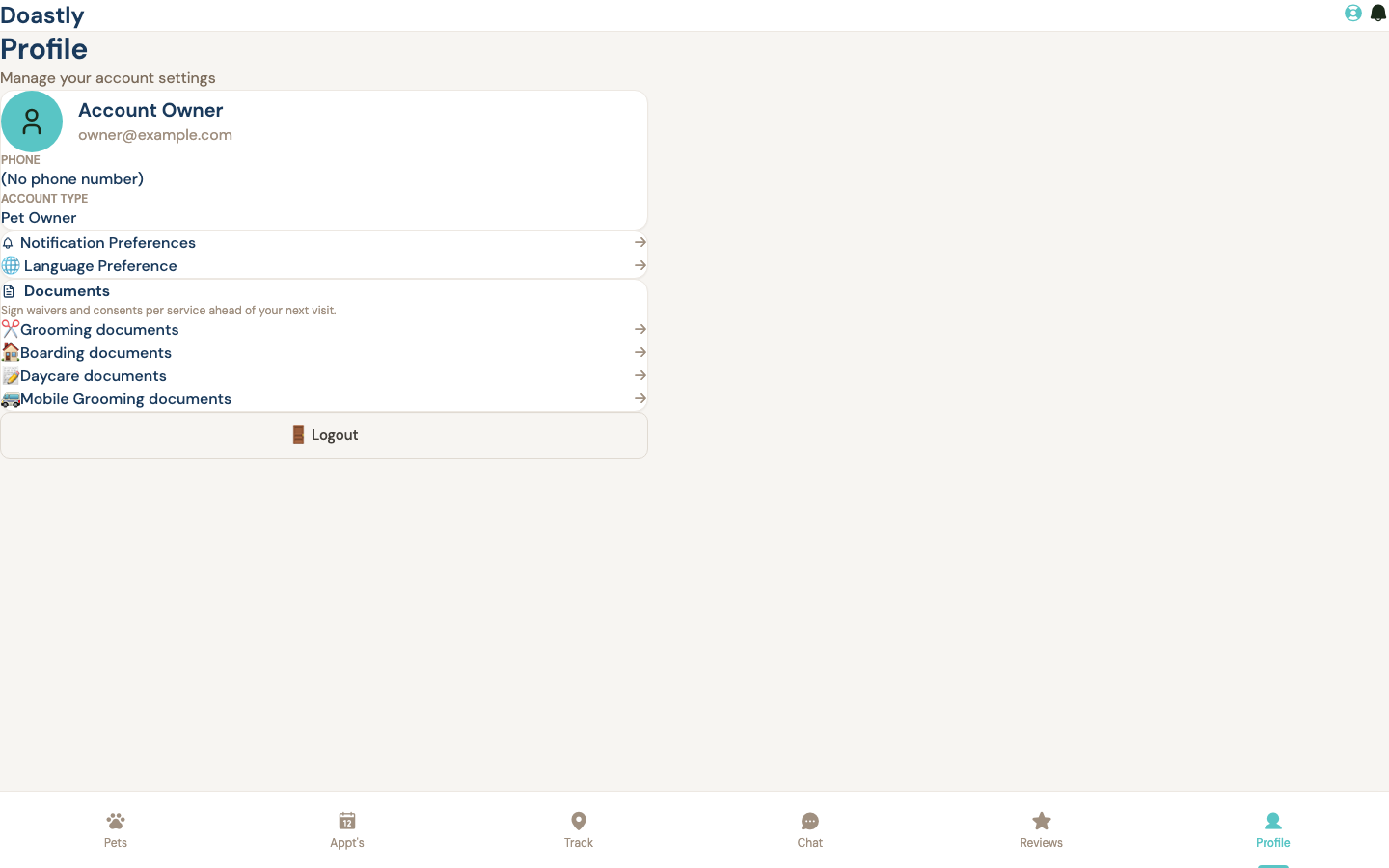
(dark mode also captured)
Profile (account hub)
Your account home. At the top a read-only card shows your name, email, phone (or "(No phone number)" when none is on file), and Account Type ("Pet Owner"). Below it, every row is a shortcut into a settings screen, a per-vertical documents page, or the exit door. The Documents rows are grouped under a Documents heading with the subtitle "Sign waivers and consents per service ahead of your next visit."
| Control | What it does |
|---|---|
| 🔔 Notification Preferences | Opens the notification preferences screen, where you turn SMS and email on or off per message type. |
| 🌐 Language Preference | Opens Profile Settings, where you pick the language for your account. |
| ✂️ Grooming documents | Opens your Grooming compliance page — the waivers and consents to sign for that service (not vaccine records). |
| 🏠 Boarding documents | Opens your Boarding compliance page — the waivers and consents to sign for that service. |
| 📝 Daycare documents | Opens your Daycare compliance page — the waivers and consents to sign for that service. |
| 🚐 Mobile Grooming documents | Opens your Mobile Grooming compliance page — the waivers and consents to sign for that service. |
| 🚪 Logout | Signs you out — clears your saved login and returns you to the login screen. |
Profile Settings — Language Picker
Choose the language Doastly uses for your emails, texts, report cards, and on-screen text.
| Control | What it does |
|---|---|
| ← Back | Returns to the previous screen (your Profile hub). |
| Language | Sets your preferred language — English or Español. Your choice applies to email, SMS, report cards, and in-app text. |
| Save Changes | Saves your language choice and reloads the screen with it applied. Stays greyed out until you change the language, and shows "Saving…" while it works. |
My Notification Preferences
Turn each type of message on or off, one channel at a time. Message types are grouped by service, and only the channels a message actually supports appear. The section headings on screen are Grooming, Boarding, Daycare, Mobile Grooming, Account & Platform, and Birthdays & Anniversaries (a group appears only when it has at least one message type for you).
| Control | What it does |
|---|---|
| "You will not receive" summary | A panel at the top of the screen that lists every message type and channel you have switched off (for example, "Review request (SMS)"). It updates instantly as you flip toggles — including changes you haven't saved yet — so you can see exactly what opting out will stop. Appears only when at least one channel is off. |
| Marketing badge | A small "Marketing" tag shown next to any message type that is promotional (rather than transactional), so you can tell marketing messages apart at a glance. Display-only. |
| Per-message SMS toggle | Switches text messages on or off for that specific message type. Shown only when the message type supports SMS. Your change is held until you save. |
| Per-message Email toggle | Switches email on or off for that specific message type. Shown only when the message type supports email. Your change is held until you save. |
| Save Preferences | Saves all the toggles you changed and confirms with "Preferences saved." The button shows how many changes are pending (for example, "Save Preferences (2 changes)") and stays greyed out until you have at least one unsaved change. |
Loyalty & Rewards
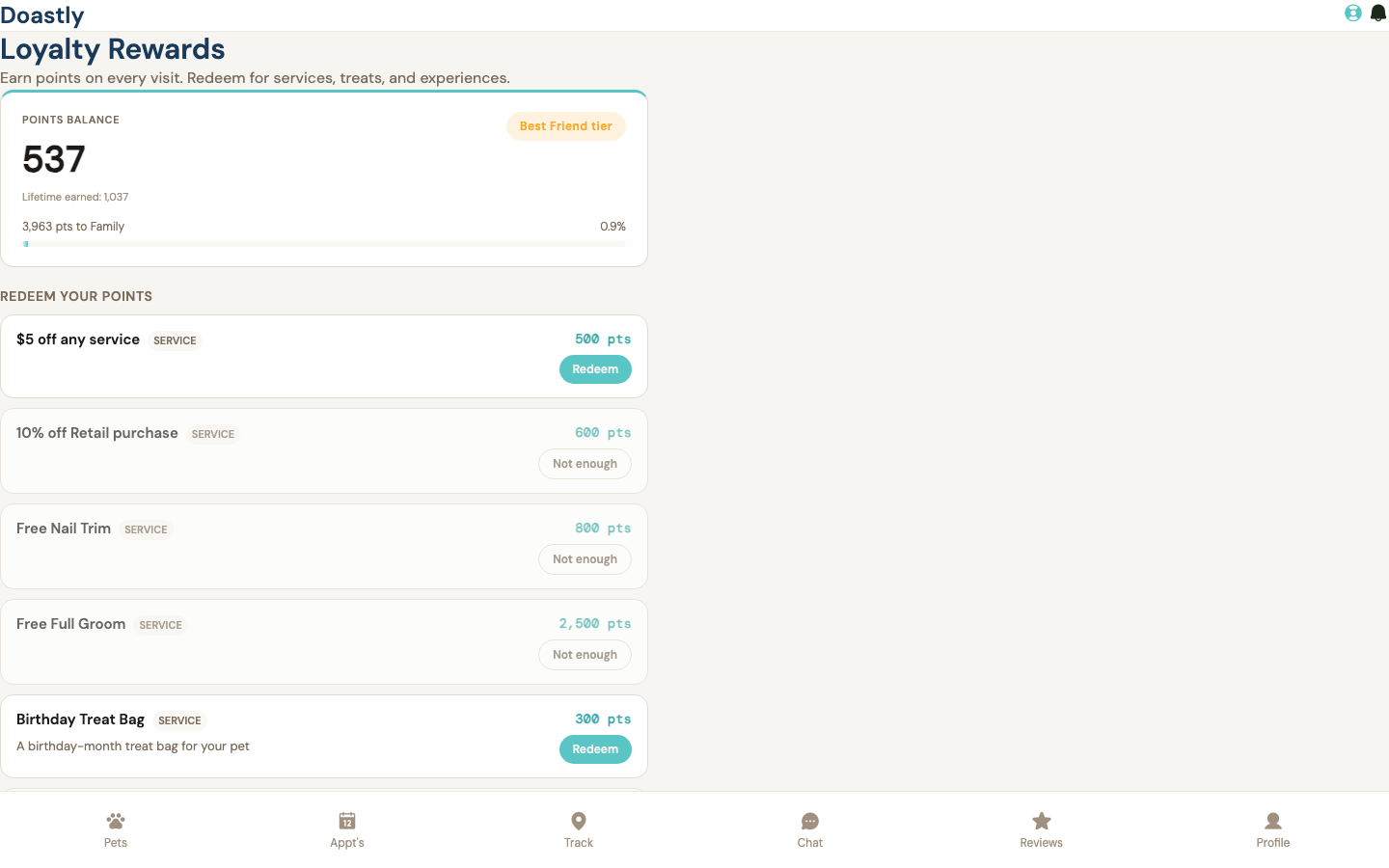
(dark mode also captured)
Loyalty Rewards (per-salon points view)
The Loyalty screen shows your points balance, tier, and redemption catalog for one connected salon at a time, with a running activity ledger.
| Control | What it does |
|---|---|
| Choose salon (picker) | Dropdown shown only when you have more than one connected salon. Selecting a salon reloads the points summary, redemption catalog, and activity history for that location. |
| Try again | Appears only in the error state. Re-loads the loyalty summary, catalog, and history. |
| Redeem / Not enough / Redeeming… (per catalog row) | One button per redemption item. Reads "Redeem" when you can afford it — tapping redeems the item, deducts points from your balance, shows a confirmation toast, and refreshes the ledger. Reads "Not enough" when your balance is below the point cost (disabled), and "Redeeming…" while the request is in flight (disabled). |
| Toast notification (redeem result) | Ephemeral banner, top-right, confirming the redemption ("Redeemed: {name}") or reporting an error. Auto-dismisses after a few seconds; not clickable. |
| Points balance / tier badge / next-tier progress | Read-only summary card: current points balance, lifetime points earned, your tier badge, and a progress bar showing how far you are from the next tier (or a top-tier message). No controls. |
| Activity / history rows | Read-only list of earn, redemption, and adjustment events — each with an icon, description, date, location, and signed points change — newest first. Shows an empty notice when there is no activity yet. |
| Empty / gated states | Read-only notices for the cases where nothing can be shown: "No salon connected yet" when you have no connected salons, "Loyalty Coming Soon" when the salon hasn't turned on its program, and empty notices for an empty catalog or history. Informational only. |
Rewards (cross-vertical single-pool)
The Rewards screen shows a single cross-vertical points pool that works across grooming, boarding, and daycare, with a reward menu, tier progress, and AI-suggested rewards for your current salon.
Note: Unlike the Loyalty page, the Rewards page has no salon picker. It automatically resolves your current salon (the first connected salon) and cannot be switched from this screen even if you have more than one connected salon.
| Control | What it does |
|---|---|
| Try again | Appears only in the error state. Re-resolves your salon and re-loads your account, the rewards catalog, and AI suggestions. |
| Redeem / Donate / Locked / Not enough / Holding… (per reward row) | One button per reward. Enabled only when the reward isn't tier-locked, you can afford it, and no request is pending — tapping holds the reward for your next visit, updates your balance and points held, and shows a hold or donation-match toast. Label precedence: "Locked" when your tier is too low (overrides all), then "Holding…" while the request is in flight, then "Not enough" when you can't afford it (so an unaffordable donation reward reads "Not enough", not "Donate"); otherwise "Donate" for donation rewards and "Redeem" for all others. |
| Toast notification (redeem/donate result) | Ephemeral banner, top-right, confirming the reward was held for your next visit, thanking you for a donation and noting your salon will match it ("Thank you! {name} — held for your salon to match."), or reporting an error. Auto-dismisses after a few seconds; not clickable. |
| Points balance card + Tier widget | Read-only hero: your cross-vertical points balance with the salon name and points-held line (shown only when points are held), plus a tier widget showing your tier, a progress bar, and points to the next tier (based on a rolling 12-month window) or a top-tier message. No controls. |
| AI suggestion cards | Read-only grid of up to three AI-generated reward suggestions scoped to your current salon — each with a rank tag, reward name, and a short narrative. Best-effort; shown only when suggestions are available. No controls. |
| Cross-vertical pill (per reward row) | Non-interactive badge marking rewards that apply across grooming, boarding, and daycare. Display only. |
| Empty / gated states | Read-only notices: "Rewards Coming Soon" when you have no connected salon or the program is off, and "No rewards available yet" when the reward menu is empty. Informational only. |
(dark mode also captured)
My Pets + profiles (C2 — Pet Family / petfamily)
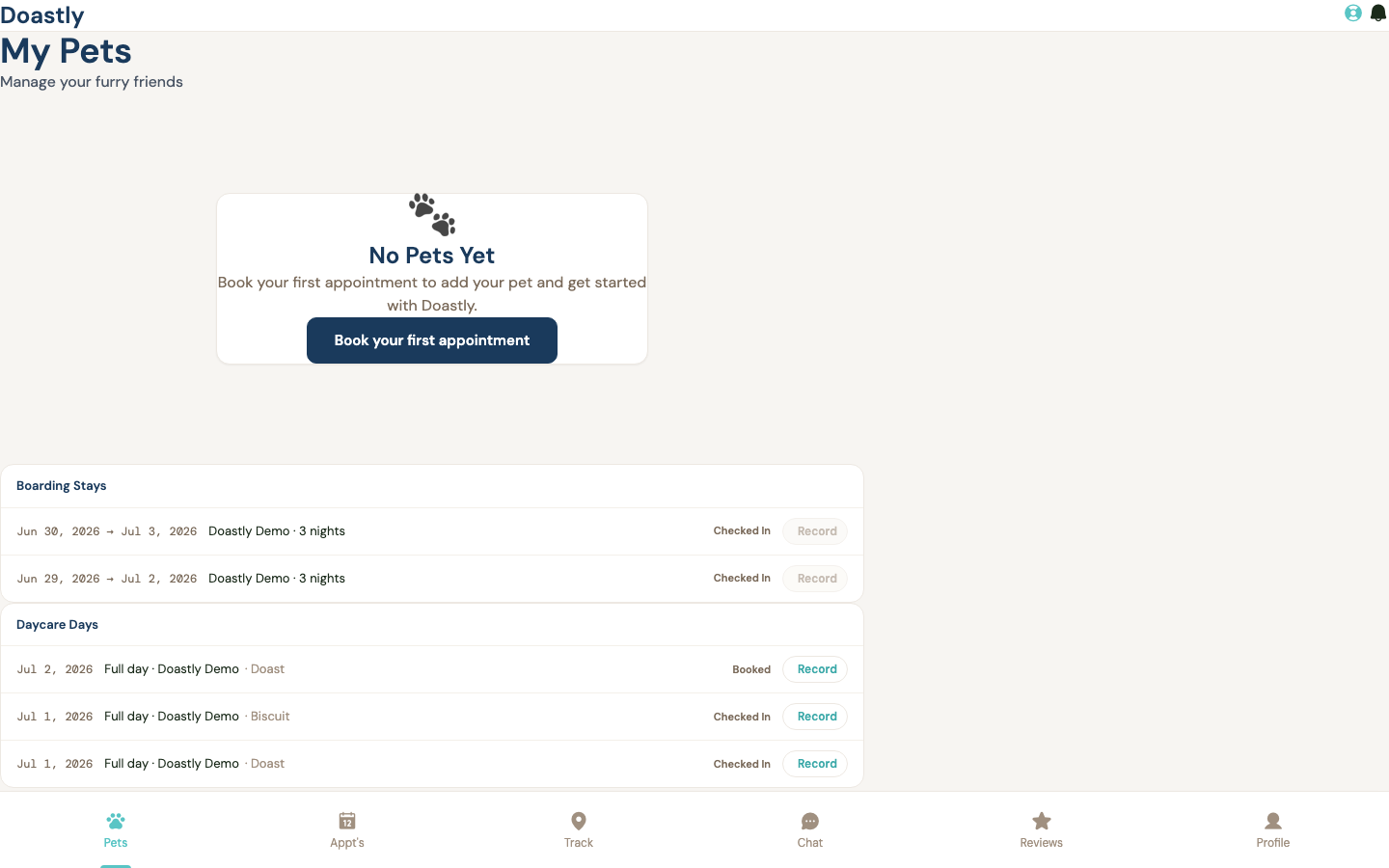
(dark mode also captured)
PWA Shell chrome (TopBar + BottomNav)
The persistent app frame that renders on every screen in this group: a top bar for the logo, help, and notifications, and a bottom navigation strip for switching between the main Pet Family sections.
| Control | What it does |
|---|---|
| Doastly (logo) | Returns you to your Pet Family home (/petfamily/pets, My Pets). |
| Pet name / avatar (top bar) | Display-only. On pet-specific pages the top bar can show the current pet's name and avatar; it is not a link or button. |
| Theme toggle (moon / sun icon) | Switches the app between light and dark mode. Shows a moon in light mode (tap for dark) and a sun in dark mode (tap for light); your choice is remembered on this device. |
| Get Help (lifebuoy icon) | Opens the Contact Support overlay so you can send a support request. |
| Notification bell | Opens and closes the notifications dropdown (shows "No new notifications" when there are none). |
| Notifications dropdown backdrop | Clicking outside the open dropdown closes it. |
| Pets | Bottom-nav tab to My Pets (/petfamily/pets), this group's home. |
| Appt's | Bottom-nav tab to your appointments (/petfamily/appointments). |
| Track | Bottom-nav tab to live tracking (/petfamily/track). |
| Chat | Bottom-nav tab to messages (/petfamily/messages). |
| Reviews | Bottom-nav tab to your reviews (/petfamily/reviews). |
| Profile | Bottom-nav tab to your profile (/petfamily/profile). |
Get Help / Contact Support modal
An overlay opened from the top-bar lifebuoy icon. Use it to describe an issue, pick a category, optionally attach a file, and send a support request without leaving the screen you're on.
| Control | What it does |
|---|---|
| Subject input | A short summary of your issue (required — the form won't submit without it). |
| Category dropdown | Select what kind of request this is: Something is broken (bug), How do I… (question), Billing & payments, Account & access, Outage / nothing works, or Feature request. |
| "What's happening?" description textarea | Describe the error, what you were doing, and expected vs. actual (required — the form won't submit without it). |
| Attachment file input | Opens a file picker to attach one or more screenshots/files (images, PDF, or text, up to 10 MB each) to your support request. |
| × (close) | Closes the support modal. |
| Modal backdrop | Clicking outside the modal closes it. |
| Cancel | Dismisses the form without sending it. |
| Submit request (Send) | Sends the support request; shows "Submitting…" and is disabled while the request is saving. Blocked with an inline message until both a subject and a description are filled in. |
| Done | Closes the modal after your request is submitted successfully (shown on the success screen). |
My Pets (list)
Your home screen for this group: a list of all your pets, plus any cross-salon boarding stays and daycare days on file. When you have no pets yet, an empty-state prompt guides you to book your first appointment.
| Control | What it does |
|---|---|
| Book your first appointment | Empty-state button (shown when you have no pets) that starts the booking flow (/petfamily/grooming/booking), which includes adding a pet. |
| Pet card (whole card) | Each pet is a card; tapping it opens that pet's detail page (/petfamily/pets/{id}). |
| Boarding Stays list (rows + Record links) | Lists your boarding stays across all salons; each row's Record link opens the boarding record. Only appears when there is data or it's still loading. |
| Daycare Days list (rows + Record links) | Lists your daycare days across all salons; each row's Record link opens the daycare record. Only appears when there is data or it's still loading. |
Pet Card (list item component)
The individual pet card used in the My Pets list. The entire card is a link to the pet's detail page; it also shows a vaccine status badge when records exist.
| Control | What it does |
|---|---|
| Pet card wrapper | The whole card is a link that opens the pet's detail page (/petfamily/pets/{id}). |
| View Details → | A button rendered inside the card; it has no separate action — because the whole card is the link, tapping it (or anywhere on the card) opens the pet detail page. |
| Vaccine status pill (compact) | A non-interactive badge showing vaccine status (Up to date / Expiring / Expired) when vaccines are on file. |
Pet Detail
A single pet's profile: vaccine and compliance status, an About panel, a link into grooming history, the full vaccine list, and this pet's boarding stays and daycare days across salons.
| Control | What it does |
|---|---|
| ← Back | Returns you to the previous page. |
| About panel | Display-only breed / age / weight / color / coat type / birth date facts for this pet. |
| Vaccine large status icon | A display-only tile showing this pet's vaccine status; no action button is shown here. |
| Compliance large status icon | A display-only tile. NOTE: the customer pet profile does not yet receive per-document compliance data, so this tile currently always shows "all signed" and is NOT a live signal of unsigned or expiring waivers. (The vaccine expiry dates listed below it ARE live.) |
| View Grooming History → | Opens this pet's grooming history (/petfamily/pets/{petId}/history). |
| Vaccines card | Lists this pet's vaccine records, or shows "No vaccine records on file." when there are none (display only). |
| Boarding Stays list (this pet) | Lists this pet's boarding stays across salons; each row's Record link opens that boarding record. |
| Daycare Days list (this pet) | Lists this pet's daycare days across salons; each row's Record link opens that daycare record. |
Vaccine large status icon (component, mounted on Pet Detail)
The positive-reinforcement status tile used on the Pet Detail screen. It can show an optional action button, but that button is not used here.
| Control | What it does |
|---|---|
| Action button (actionLabel) | An optional call-to-action; it is not shown on Pet Detail because no action is supplied there, and only appears where a screen provides one. |
Pet Grooming History
A chronological view of this pet's grooming sessions, grouped by the salon that performed them.
| Control | What it does |
|---|---|
| ← Back | Returns you to the previous page. |
| Grooming history list (grouped by salon) | Shows session cards grouped per salon; the cards' own controls are covered in the Grooming History List screen. |
Grooming History List (session cards + report-card modal)
The grouped list of past grooming sessions. Each session card opens its report card, and cards with a completed report offer quick access to the report, a PDF download, and the full session record.
| Control | What it does |
|---|---|
| Session history card (whole card) | Tapping the card opens that session's report card in an overlay. |
| View report card | Shown when a report card exists; opens the report card overlay for that session. |
| Download PDF (file icon) | Opens the session's report-card PDF in a new browser tab. |
| View record (RecordLink) | Opens the full grooming record for that session (/petfamily/sessions/{sessionId}). |
Report Card modal (opened from history)
An overlay showing a session's report card — before/after photos, the AI narrative, per-attribute health cards — with options to view the PDF, change the narrative language, and close.
| Control | What it does |
|---|---|
| Opens the report-card PDF in a new browser tab (when a PDF is available). | |
| Language switcher | Opens a dropdown to change the language of the report card's narrative. |
| × (close) | Closes the report card overlay. |
| Narrative "Show more / Show less" toggle | Expands or collapses the AI narrative when it is long enough to be truncated. |
| Before / After tab switcher | On mobile, switches the photo panel between the Before and After views. |
| Photo ‹ / › arrows | Steps to the previous/next photo within a Before or After panel when it has more than one image. |
Boarding Stays list (shared component on My Pets + Pet Detail)
A shared list of boarding stays used on both My Pets and Pet Detail. Each stay row links to its boarding record.
| Control | What it does |
|---|---|
| Record (RecordLink, per stay row) | Opens the boarding record for that stay (/petfamily/boarding/{reservationId}/pets/{petId}); appears greyed out and disabled when the pet can't be resolved. |
Daycare Days list (shared component on My Pets + Pet Detail)
A shared list of daycare days used on both My Pets and Pet Detail. Each day row links to its daycare record.
| Control | What it does |
|---|---|
| Record (RecordLink, per attendance row) | Opens the daycare record for that day (/petfamily/daycare/{attendanceId}/record). |
Central Dashboard
Group Operations (Central Dashboard main page)
The main landing page for a salon group, showing group-wide KPIs, average kennel time, and per-location breakdowns. Available to Owners and Managers.
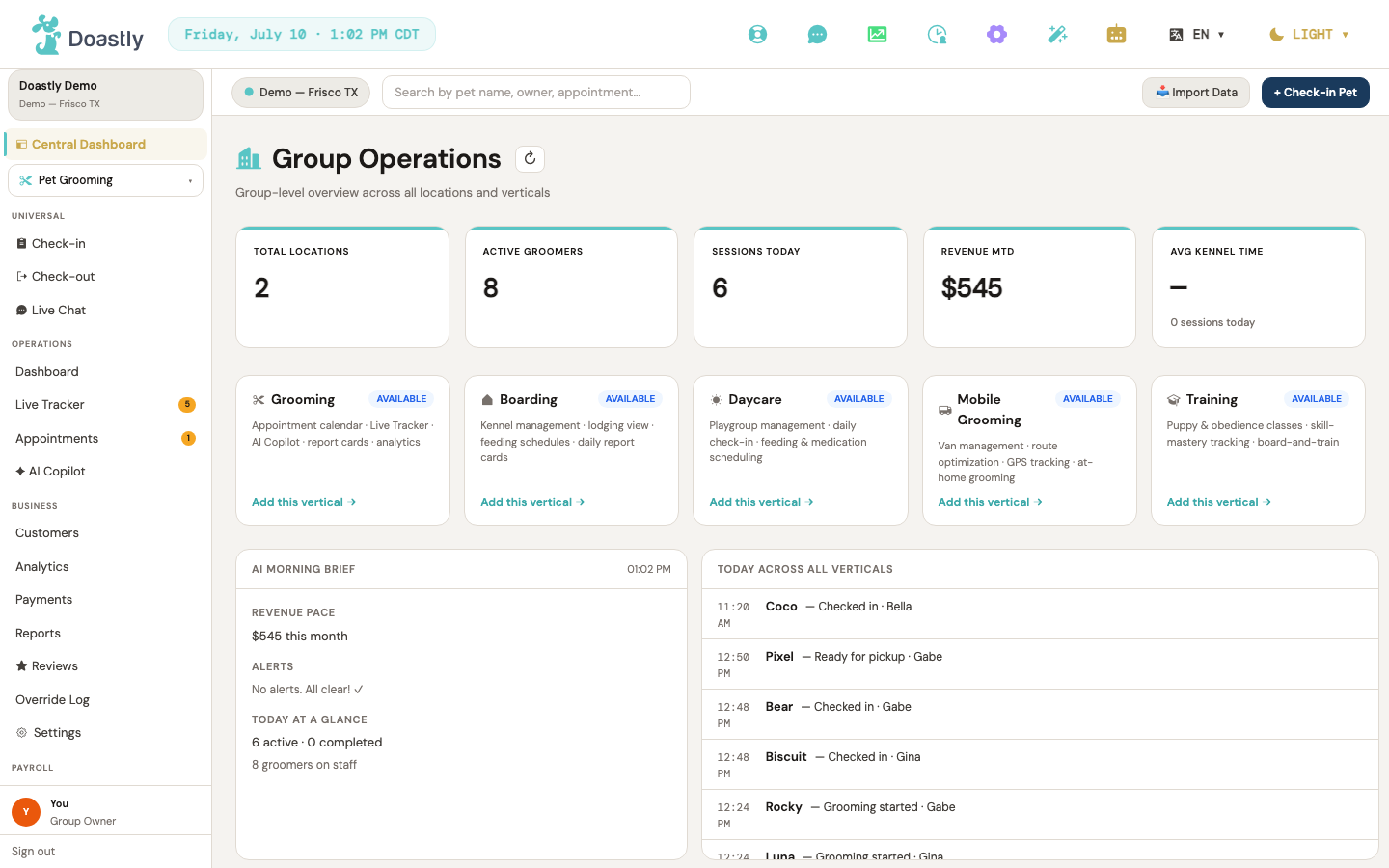
(dark mode also captured)
| Control | What it does |
|---|---|
| Refresh dashboard (↻ icon button) | Re-runs the full data load — locations, staff, sessions, analytics, revenue, and subscriptions. Spins briefly while refreshing and won't fire again while a refresh is already running. |
| Total Locations (KPI metric card) | Display-only card showing the number of locations in the salon group. Shows "—" until the count loads. |
| Active Groomers (KPI metric card) | Display-only card showing the total staff count. Shows "—" until the count loads. |
| Sessions Today (KPI metric card) | Display-only card showing today's session count, falling back to the length of the sessions list if analytics is unavailable. |
| Revenue MTD (KPI metric card) | Display-only card showing month-to-date revenue in dollars. Shows "—" until the figure loads. |
| AVG Kennel Time (KPI metric card, group scope) | Display-only card showing the group's average kennel time in hours and minutes, a 7-day trend sparkline, and a "N sessions today" delta. The value and sparkline are color-coded green/amber/red by the kennel-time band. Shows "…" while loading, and "—" on error or when there are zero sessions today. Non-interactive. |
| Per-location kennel-time breakdown chips | Display-only pill chips, one per location, each showing that location's average kennel time. Each chip is currently labelled with a short location code (not yet the full location name) followed by the hours-and-minutes value. Hovering a chip shows the same value as a tooltip. Shown only when there is at least one per-location result. No click action. |
| Load-error banner | A plain-English error banner shown only if the dashboard data fails to load. Display-only, with no dismiss control. |
Vertical Cards Row
A row of cards, one per vertical in your catalog, each showing subscription status and a link into subscription management.
| Control | What it does |
|---|---|
| Empty state — "No verticals available yet." | Display-only panel shown when your catalog has no vertical items. No control. |
| Vertical status badge | Display-only badge on each card, with a color and label (ACTIVE / TRIAL·Nd / TRIAL / PAST DUE / COMING SOON / CONTACT US / AVAILABLE) reflecting the vertical's subscription state. The trial badge shows the remaining day count ("TRIAL · Nd") when known; otherwise a bare "TRIAL". Non-interactive. |
| Grooming rich card — location sub-label | Display-only sub-line under the title on a subscribed Grooming card, reading "Main Location" when there is exactly one location, or "N locations" otherwise. Non-interactive. |
| Grooming rich card — Active Now / Completed metrics + in-progress pet chips | On a subscribed Grooming card, shows the Active Now count, the Completed count, and up to three pet-name chips for checked-in or in-progress sessions. Display-only; the chips are not clickable. |
| "Manage →" link (subscribed vertical) | Opens Vertical Subscriptions to manage an already-active, trialing, or past-due vertical. |
| "Add this vertical →" link (available, not-subscribed vertical) | Opens Vertical Subscriptions to add and subscribe an available vertical. |
| "Contact us →" link (contact-us vertical) | Opens Vertical Subscriptions for verticals flagged as contact-us. |
| "Not available yet" text (Coming Soon vertical) | Static, non-clickable text shown in place of a link when a vertical is genuinely not built yet. An honest coming-soon state with no navigation. — tracked as #969 |
AI Morning Brief + Today Activity Feed
Two side-by-side panels: an AI-generated morning summary and a live feed of today's activity across all verticals.
| Control | What it does |
|---|---|
| AI Morning Brief panel (Revenue Pace / Alerts / Today at a Glance) | Display-only panel showing the current time, a revenue-pace line, up to five vaccine alerts (or "No alerts. All clear!" when there are none), and an active/completed plus groomer-count summary. No interactive controls. |
| Today Across All Verticals — activity feed (scrollable) | A scrollable list of up to ten of the most recent session events — checked in, grooming started, ready, and checked out & paid — each showing the time, pet name, action, groomer, and amount. Rows are display-only and not clickable; shows "No activity yet today." when empty. |
Location Performance table
A table summarizing each location's live workload and capacity.
| Control | What it does |
|---|---|
| Location Performance table (Location / Active Sessions / Staff / Capacity) | Display-only table with one row per location, showing active-session count, staff count, and a capacity bar (active sessions over staff count, as a percentage) that turns red above 80%. Headers and rows are non-interactive — no sorting or clicking. |
| Empty state — "No locations found. Add locations in Settings." | Display-only text shown when there are no location rows. It is plain text, not a link, and does not navigate to Settings. |
Data Import
(dark mode also captured)
Bulk Data Import — Landing (Coming Soon)
The entry page for bringing existing salon data into Doastly. The full guided import (CSV template → AI column mapping → preview → confirm) is not yet built, so this page shows an honest "Coming Soon" panel with one working shortcut into the live grooming-history import.
| Control | What it does |
|---|---|
| ← Back to Settings | Returns to the Settings hub. |
| "Bring Your Data In" heading | Page title and subtitle (Customers · Pets · Groomers · AI column mapping). Non-interactive header. |
| Bulk Data Import — Coming Soon panel | Static card describing the planned flow (download template, upload, AI maps columns, preview, confirm; supports customers, pets, and grooming history). Not yet built; non-interactive. |
| Grooming History Import → | The one working action on this page. Opens the live CSV history import screen. |
Import Historical Records (working CSV import flow)
The live import screen for loading past grooming records from another system. It explains which CSV formats are supported and hosts the upload form once your location is confirmed.
| Control | What it does |
|---|---|
| ← Back to History | Goes back one step to the grooming history list. |
| Import Historical Records heading | Page title and subtitle explaining you can upload a CSV from MoeGo, Groomer.io, DaySmart Pet, or a custom export, mapped into Doastly. Non-interactive header. |
| Supported Formats panel | Reference list of accepted CSV formats — MoeGo POS exports, Groomer.io, DaySmart Pet, and Generic CSV (date, customer phone, pet name, services, amount). Non-interactive. |
| Loading… / Unable to load location | Startup states. On load, the page checks your sign-in and active location: if you're not signed in it sends you to the login screen, and if you have no locations it sends you to the grooming calendar. Shows "Loading…" while resolving, then "Unable to load location" if it cannot. Non-interactive. |
CSV Upload Form (embedded in Import Historical Records)
The upload form inside the Import Historical Records screen. You pick your source format, select a CSV file, run the import, and review a per-row outcome summary — including a downloadable error report for any rows that failed.
| Control | What it does |
|---|---|
| Import Grooming History heading | The upload card's own sub-heading, above the format selector. Non-interactive header. |
| Data Format | Dropdown selecting your CSV's source format — Generic CSV (default), MoeGo, Groomer.io, or DaySmart Pet. The choice is sent with the upload and drives how columns are mapped. A helper caption below it reads "Select the format of your CSV file. Generic format is compatible with most POS systems." |
| CSV File drop zone / "Click to select file" | Click the dashed area to choose a file. Accepts .csv files only; a non-CSV file shows "Please select a CSV file". Once chosen, displays the filename and size. Note: the zone shows "or drag and drop a CSV file," but drag-and-drop is not yet available — use click-to-select for now. |
| Import CSV | Uploads the selected file for the chosen format. Disabled until a file is selected, and shows "Importing…" while running. On success it populates the results below and clears the file if there were no errors. |
| Inline error message | Red banner showing a validation or upload error (bad file type, no file, or an error returned by the import). Non-interactive. |
| Import Results (Imported / Skipped / Errors) | After a successful upload, three count tiles summarize the outcome — Imported (green), Skipped (amber), Errors (red). Non-interactive. |
| Errors list (first 10 + "…N more") | Lists up to 10 per-row error reasons ("Row X: reason"); if more failed, shows "… and N more errors". Shown only when there are errors. Non-interactive. |
| Download Error Report | Downloads a CSV of every failed row and its reason. Shown only when there are errors. |
| Post-success return to history | After an error-free import, the screen waits a couple of seconds and returns you to the grooming history list. Automatic, not a clickable control. |
Auth / Login (OTP)
Login — Request code step
The first step of signing in. Choose whether to receive your one-time code by email or text, enter the matching address, and request the code.
| Control | What it does |
|---|---|
| Email (method tab) | Switches the form to email sign-in and shows the Email Address field. Selected by default and highlighted (teal fill, white text). |
| Phone (method tab) | Switches the form to phone sign-in and shows the Phone Number field in place of the email field. Highlighted (teal fill, white text) when active. |
| Email Address | Where you type the email address to receive your code. Shown only when the Email tab is selected; required to continue. |
| Phone Number | Where you type the phone number to receive your code; digits are formatted automatically as (XXX) XXX-XXXX, up to 10 digits. Shown only when the Phone tab is selected; required to continue. |
| Send code | Sends your one-time code to the email or phone you entered, then advances you to the Verify step. Reads "Sending…" and is disabled while the request is in progress. |
| Error banner | Shows a plain-English message if the code could not be sent (for example, a network problem). Display only — nothing to click. |
| Sign Up | Takes you to the account creation page. Shown in the footer under "Don't have an account?". |
Login — Verify code step
The second step of signing in. Enter the 6-digit code that was sent to you; on success you are routed to the area for your role (pet family, salon, or account setup).
| Control | What it does |
|---|---|
| Verification Code | Where you type the 6-digit code you received. Accepts digits only, capped at 6, shown in large text; required to continue. |
| Verify | Checks the code you entered and signs you in, then sends you to your home area — pet families go to their pets, salon roles go to their role's landing page, and new users are routed into signup. Reads "Verifying…" and stays disabled until exactly 6 digits are entered. |
| ← Use different email/phone | Returns you to the Request step so you can re-enter your email or phone; clears the code and any error (the email or phone value you entered is kept so you can edit it). |
| Code sent to <address> | Confirms the email or phone the code was sent to. Display only. |
| Error banner | Shows a plain-English message if the code could not be verified (for example, an invalid code or network problem). Display only. |
| Sign Up | Takes you to the account creation page. Persists in the footer across both steps. |
Auth Callback (magic-link handler)
The landing page for magic-link sign-in. It runs automatically — there are no controls to operate.
| Control | What it does |
|---|---|
| Processing / status message | Reads the token from the link, verifies it, and then redirects you automatically — to profile setup on success (after about a second) or back to signup on error (after a few seconds). Display only; no buttons, links, or fields to use. |
Onboarding Setup Wizard (12 steps)
The Setup Wizard walks a new salon through platform configuration in twelve steps, with a persistent top bar, step navigation, and footer framing every step. This section documents each screen and every control it contains, in the user-facing 1–12 order.
Wizard Shell — Top Bar
The navy top bar stays fixed above every wizard step, showing where you are and giving you two ways to leave.
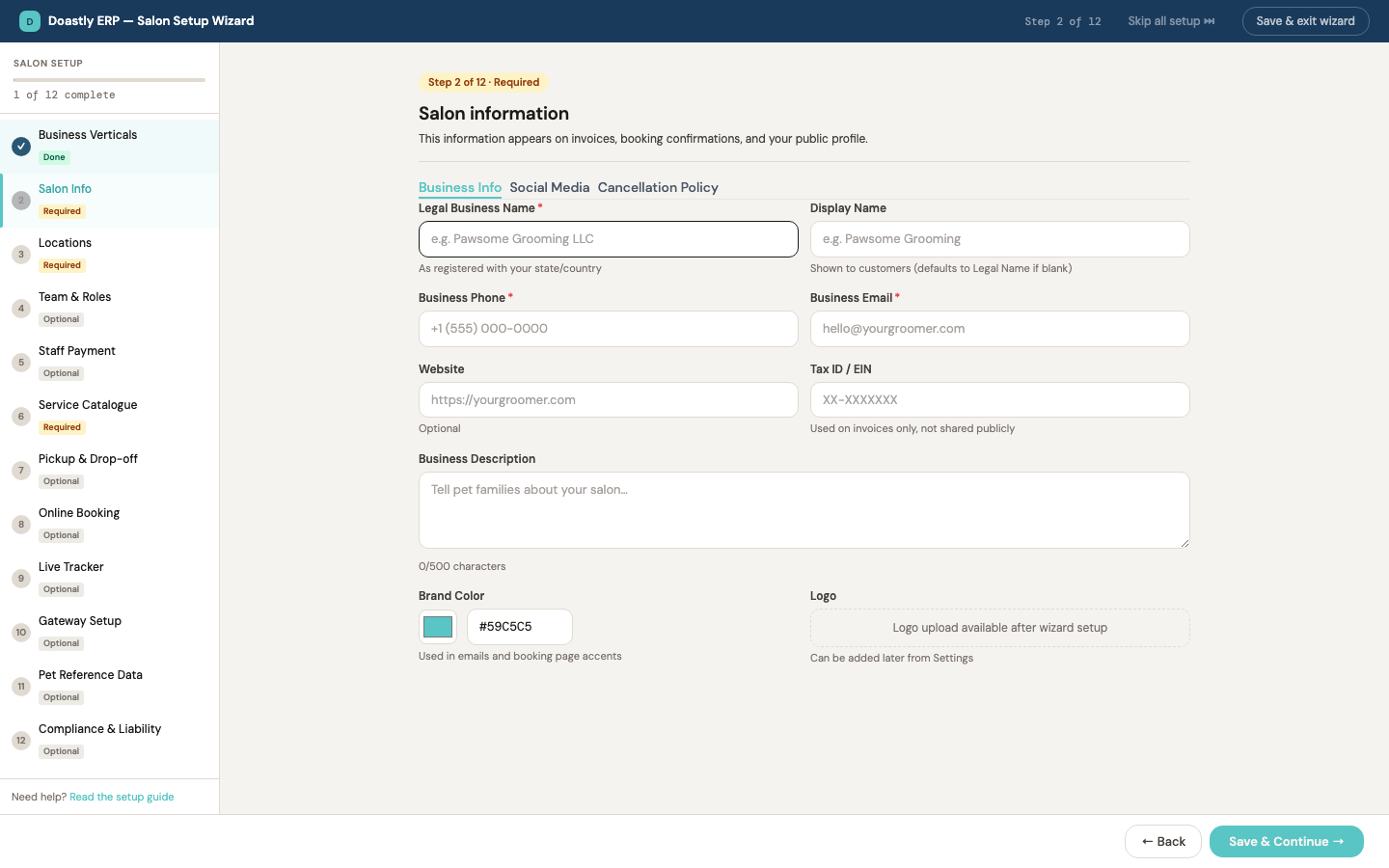
(dark mode also captured)
| Control | What it does |
|---|---|
| Doastly logo/brand + title | Non-interactive header showing the "D" badge and the wizard title. |
| Step N of N badge | Displays your current step number and the total number of steps (e.g. 3/12). |
| Skip all setup ⏭ | Opens the Skip-All confirm dialog so you can bypass the entire wizard. Shown only when skipping is allowed. |
| Save & exit | Saves the current step, then closes the wizard and refreshes your onboarding status. Disabled while a save is in progress. |
Wizard Shell — Step Nav sidebar
The left sidebar lists all twelve steps, tracks your progress, and lets you jump between steps at any time.
| Control | What it does |
|---|---|
| Progress bar + "N of 12 complete" counter | Shows a teal fill bar and a running count of completed steps. |
| 12 step nav items (Business Verticals … Compliance & Liability) | Each row is clickable; selecting one saves your current step, then jumps to that step. Each row shows a number or ✓ badge plus a Required, Optional, or Done pill. |
| Contact support link | Displays a help prompt with a teal support link. |
Wizard Shell — Footer, banners, and completion screen
The footer holds the step-to-step navigation, plus the banners and completion screen that appear at key moments.
| Control | What it does |
|---|---|
| Skip (optional step) | Advances one step without saving. Shown only on optional steps that are not the last step. |
| Back | Returns to the previous step. Disabled on the first step and while saving. |
| Save & Continue | Saves the current step and advances to the next one. Disabled while saving, or on the Service Catalogue step until at least one service is added. |
| Complete Setup ✓ | On the last step, finishes onboarding. Disabled until the required steps (Business Verticals, Salon Info, Locations, Service Catalogue) are done; the button tooltip names what's still missing. |
| Next (read-only mode) | Replaces Save & Continue with a plain Next button when you reopen an already-completed wizard. |
| Read-only banner → Go to Settings | On a completed, reopened wizard, this banner's button closes the wizard and opens Settings. |
| Complete-error banner | A red banner listing the steps you still need to finish (e.g. "Please complete first: Locations, Services"); it jumps you to the first missing step. |
| Completion screen — Go to Dashboard | After setup completes successfully, closes the wizard and opens your Dashboard. |
| Completion screen — Review Setup | Hides the completion screen and returns to the first step so you can review your entries. |
Skip-All Confirm Dialog (modal)
A confirmation dialog that appears when you choose to skip the entire setup, guarding against an accidental bypass.
| Control | What it does |
|---|---|
| Cancel (keep going) | Dismisses the dialog and returns you to the wizard. |
| Skip / confirm | Skips all setup, closes the wizard, and refreshes your onboarding status. Shows "Skipping…" while it works. |
Step 1 — Business Verticals
Choose which service lines and add-ons your salon runs. Your selections drive pricing and which later steps apply to you.
| Control | What it does |
|---|---|
| Wizard-ready today panel | Non-interactive info panel listing which selected verticals ship a complete setup wizard (e.g. "Grooming + Boarding have complete setup wizards"). |
| Pricing summary panel | Live-calculates your totals from the selected items, broken out into three labeled totals — Per location, Mobile van fleet (per-van), and Flat add-ons — plus a free-trial note. Each selected item lists its own price chip. Shows "Select a vertical above to see pricing." when nothing is chosen. |
| Business Vertical cards (Grooming, Boarding, Daycare, Mobile Grooming, Retail, etc.) | Click to add or remove a vertical from your plan. Unavailable verticals show a non-clickable "Coming soon" state. |
| Add-On Service cards (Payments "Included", Pickup & Drop-off, AI Marketing, etc.) | Click to add or remove an add-on. Free included add-ons (Payments) show an "Included" badge and stay always-on (cannot be deselected). |
| Min-one-vertical error | Shows a red "select at least one vertical" message when no selectable vertical is chosen; the step won't save until one is selected. |
| Loading / error states | Shows "Loading pricing…" while the catalog loads, and a friendly refresh message if the pricing catalog fails to load. |
Step 2 — Salon Info
Enter your salon's business details, social profiles, and cancellation policy across three tabs.
| Control | What it does |
|---|---|
| Business / Social / Cancellation tabs | Switch between the three sub-forms. The Business tab shows a ⚠ marker when required fields are incomplete. |
| Legal business name* | Your salon's legal name. Required. |
| Display name | The public-facing name shown to customers. Optional. |
| Phone* | Your salon's contact phone number. Required. |
| Email* | Your salon's contact email. Required and format-checked. |
| Website | Your salon's website address. Optional. |
| Tax ID | Your salon's EIN or tax ID. Optional. |
| Description (max 500) | A short salon description, with a live character counter. |
| Brand color (swatch + hex) | Sets your brand color via a color swatch and a hex field that stay in sync. |
| Logo upload placeholder | A placeholder note; logo upload is handled in Settings, not the wizard. |
| Instagram / Facebook / Google Business ID / Year founded (Social tab) | Your social handles (Instagram shown with an @ prefix), Google Business ID, and founding year. |
| Cancellation policy (Cancellation tab) | Free-text field for your cancellation policy. |
| Read-only: Manage in Settings link | On a completed wizard, links to Group Profile settings. |
Step 3 — Locations
Add each location your salon operates. At least one location is required to complete setup.
| Control | What it does |
|---|---|
| Location name* | The name of this location. Required. |
| Location type | Sets the location type: Storefront, Mobile, or Home. |
| Address line 1* + line 2 | Street address; line 1 is required, line 2 is optional. |
| City / State / Zip* | City, two-character state, and five-digit ZIP. All required. |
| Phone* / Email | Location phone (required) and email (optional). |
| Timezone* | Selects the location's timezone, with an auto-detected fallback. Required. |
| Add / Update / Complete Location | Validates the form and adds or updates the location in your saved list. Disabled until the form is complete. |
| Cancel edit | Clears the form and exits edit mode. |
| Saved location — Edit (pencil) | Loads a saved location back into the form for editing. |
| Saved location — Remove (trash) | Deletes a non-primary location, reassigning the primary if needed. |
| + Add another location | Resets the form to blank for a new location entry. |
| Incompletion notice / submit error + "Help us debug" link | Shows a notice if a saved location is incomplete; on a save failure, shows a retry error plus a support email link. |
| Read-only: Manage in Settings link | On a completed wizard, links to Location settings. |
Step 4 — Team & Roles
Invite your staff and assign their roles and locations. This step is optional.
| Control | What it does |
|---|---|
| Assign to location | Chooses "All locations" or a specific location for the invite. |
| First name / Last name | The team member's name. |
| Email* | The invitee's email. Required, format-checked, and blocked from duplicates or your own owner email. |
| Role | Sets the member's role: Owner, Manager, Groomer, Bather, Receptionist, or Driver. |
| Add member (invite) | Validates and adds the invite to your team list. |
| Invited member — Remove (×) | Removes an invite from the list. |
| Empty-state message | Shows "No team members yet" when the list is empty. |
| Read-only: Manage in Settings link | On a completed wizard, links to Staff settings. |
Step 5 — Staff Payment
Set the default pay configuration applied to your staff. These defaults can be adjusted per staff member later.
| Control | What it does |
|---|---|
| Commission % | The default commission percentage (0–100). |
| Hourly rate ($) | The default hourly rate in dollars. |
| Tip handling | How tips are handled: Groomer keeps, Pooled, or Custom split. |
| Pay period | The default pay period: Weekly, Biweekly, or Monthly. |
Step 6 — Service Catalogue
Build your list of services and packages. At least one service is required to complete setup.
| Control | What it does |
|---|---|
| Services / Packages tab bar | Switches between managing services and managing packages. |
| Service card — View / Edit / Delete | Opens a service for editing, or deletes it and re-links any affected packages. |
| + Add Service | Opens the new-service form. |
| Service name* | The service name. Required. |
| Pricing type selector | Sets how the service is priced — Flat, By size, By coat, By size×coat, By breed, By weight, or By time — and swaps the price inputs to match. |
| Price inputs (flat / size / coat / size×coat matrix / breed / starting) | The price fields for the chosen pricing type. Breed pricing lets you add and remove per-breed override rows. |
| Duration (min) | The service duration in minutes. |
| Mark as add-on service | Flags the service as an add-on. |
| Add Service / Save Changes + Cancel | Saves the new or edited service, or cancels and closes the form. |
| Package card — View / Edit / Delete | Opens a package for editing, or deletes it. |
| + Add Package | Opens the new-package form. Requires at least one service to exist. |
| Package name* / Description | The package name (required) and an optional description. |
| Services included (checkbox list) | Adds or removes services from the package. |
| Package pricing selector + inputs | Prices the package with the same pricing options as a service; flat pricing suggests the summed price of the included services. |
| Package duration (min, auto-suggested) | The package duration, auto-calculated from the selected services if left blank. |
| Required-service validation | Shows "At least one service is required" and blocks saving when no services exist. |
Step 7 — Pickup & Drop-off
Configure your pickup and drop-off delivery services, fees, and scheduling window.
| Control | What it does |
|---|---|
| Pickup service toggle | Turns pickup on or off; enabling it reveals the pickup fee and radius fields. |
| Pickup fee ($) / Max radius (miles) | The pickup fee and maximum service radius. Shown when pickup is enabled. |
| Drop-off service toggle | Turns drop-off on or off; enabling it reveals the drop-off fee and radius fields. |
| Drop-off fee ($) / Max radius (miles) | The drop-off fee and maximum service radius. Shown when drop-off is enabled. |
| Earliest pickup / Latest drop-off | Sets the scheduling window's earliest pickup and latest drop-off times. |
| Driver-role info note | A reminder that a Driver-role staff member is needed to activate pickup and drop-off. |
Step 8 — Online Booking
Set up how customers book online — confirmation mode, booking window, deposits, and cancellation fees.
| Control | What it does |
|---|---|
| Enable online booking toggle | Turns online booking on or off; enabling it reveals the confirmation, window, notice, and deposit sections. |
| Confirmation mode (Instant / Manual) | Chooses whether bookings auto-confirm instantly or require manual approval. |
| Booking window (1w/2w/1m/3m) | Sets how far ahead customers can book. |
| Advance notice (same-day/24h/48h/72h) | Sets the minimum notice required before an appointment. |
| Require deposit toggle | Turns deposits on or off; enabling it reveals the deposit amount and type. |
| Deposit amount + type (Fixed/Percentage) | Sets the deposit amount and whether it's a fixed dollar amount or a percentage. |
| Cancellation fee — Enable toggle | Turns the cancellation fee on or off (saved to the location's cancellation-fee settings; shown independent of the booking toggle). |
| Cutoff window (hours) / Fee amount ($) | Sets the cancellation cutoff window and the fee charged. |
| Charge on no-show toggle + No-show grace (min) | Charges a fee on no-shows; enabling it reveals the grace period in minutes. |
| Require card on file toggle | Requires customers to keep a card on file to book. |
| Allow goodwill override toggle | Lets staff waive the fee at checkout. |
| Read-only: Manage in Settings link | On a completed wizard, links to Booking settings. |
Step 9 — Live Tracker
Configure the live grooming tracker — tracking detail, stages, refresh rate, display fields, and late-pickup fees.
| Control | What it does |
|---|---|
| Granular per-service tracking toggle | Switches between DETAILED and BASIC tracker modes; enabling it reveals the stage editor. |
| Standard-tracking note (BASIC mode) | When granular tracking is off, an explanatory note describes the standard BASIC tracker behavior in place of the stage editor. |
| Stage chips (add / remove / drag-reorder) | Manages your tracking stages, which can be added, removed, and dragged to reorder. |
| Add-stage input + Add Stage button | Adds a new stage by name (pressing Enter also submits). |
| Refresh interval (30s/60s/2m/Manual) | Sets how often the tracker refreshes. |
| Display fields (pet name/breed/service/groomer/elapsed/notes) | Chooses which fields appear on each tracker card. |
| Overtime alert threshold | Sets when an overtime alert fires (1h–3h, or none). |
| Late pickup fee — Enable toggle | Turns the late-pickup fee on or off (saved per location, independently). |
| Late fee — Grace minutes / Amount ($) | Sets the grace period and fee amount for late pickups. |
| Late fee — Save button (+ feedback) | Saves the late-pickup fee configuration; shows a "✓ Saved" success state (auto-clearing) and, if enabled with a non-positive amount, an inline validation error. |
| Read-only: Manage in Settings link | On a completed wizard, links to Tracker settings. |
Step 10 — Gateway Setup
Connect your payment gateway and set your payment preferences. Doastly never holds funds — you bring your own Stripe or Square account.
| Control | What it does |
|---|---|
| Stripe / Square gateway selector cards | Chooses your gateway and swaps in its credential form; a configured gateway shows a "Configured ✓" badge. |
| Stripe publishable key / secret key / webhook secret | Your Stripe credentials, with secret and webhook fields masked. |
| Square app ID / access token / location ID / environment | Your Square credentials, with the access token masked and an environment choice of sandbox or production. |
| Default tip % / Tax rate % | Your default tip percentage and tax rate. |
| Accepted methods (card/apple/google/link/cash) | Chooses which payment methods you accept. |
| Email receipt toggle | Turns emailed receipts on or off. |
| Allow pet-family self-pay toggle | Lets pet families pay for themselves. |
| Save error + "Help us debug" link | Surfaces a friendly message for an invalid key, and on a save-verify failure shows a support email link. |
| Read-only: Manage in Settings link | On a completed wizard, links to Payment settings. |
Step 11 — Pet Reference Data
Set which species, sizes, and coat types your salon serves, plus your required vaccines.
| Control | What it does |
|---|---|
| Species pills (Dog/Cat/…) | Selects which species your salon serves. |
| Pet size pills (XS–XL, Giant) | Selects which pet sizes your salon serves. |
| Coat type pills | Selects which coat types your salon serves. |
| Breed Catalog — View catalog link | Links to the Pet Reference settings page to browse and add breeds after setup; shows a built-in breed count when available. |
| Required Vaccines — per-vaccine Required toggle | Marks each vaccine as required or not (applied when you save this step). |
Step 12 — Compliance & Liability
Set your check-in compliance rules for vaccines, waivers, and overrides.
| Control | What it does |
|---|---|
| Enforce vaccine compliance toggle | Requires valid vaccines at check-in. |
| Enforce waiver compliance toggle | Requires a signed waiver at check-in. |
| Allow compliance override toggle | Lets staff override compliance; enabling it reveals the manager-PIN option. |
| Override requires manager PIN toggle | Requires a manager PIN for overrides. Shown only when overrides are allowed. |
| Default compliance validity (days) | Sets the default number of days a compliance document stays valid. |
| Skip-warning + save-error banners | Shows an amber warning if you skip the step, and a red error if saving fails or no location exists. |
Step placeholder (fallback for unbuilt steps)
A fallback screen for steps that aren't built yet. It isn't reached in normal use, since all twelve steps are complete.
| Control | What it does |
|---|---|
| Coming-soon placeholder body | Shows a wrench icon and "coming soon" copy; saving simply marks the step complete and advances. |
The 12 setup steps
The Salon Setup Wizard walks a new owner through twelve steps; each is shown below (a fresh salon — required fields flagged, optional steps skippable).
(dark mode also captured)
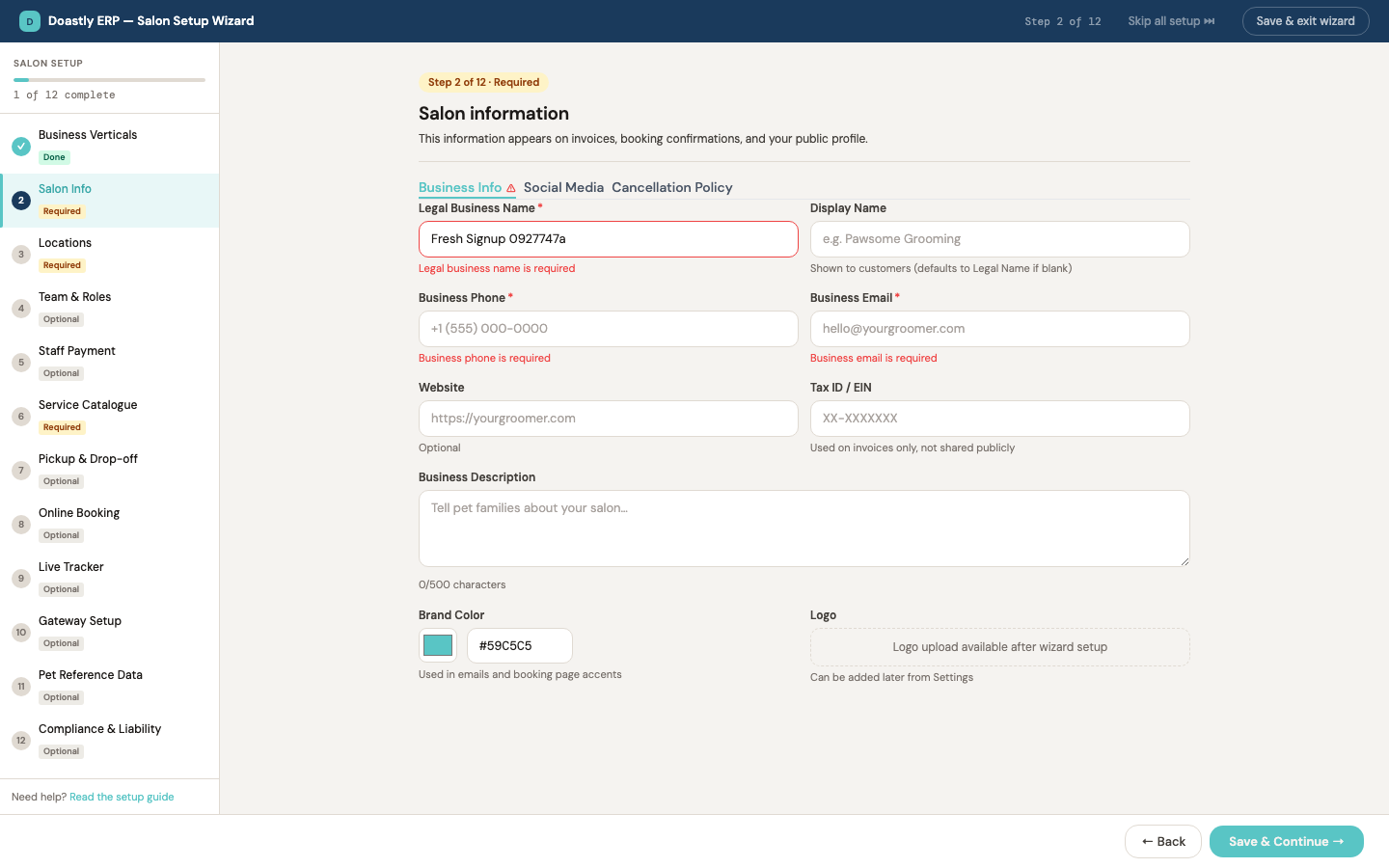
(dark mode also captured)
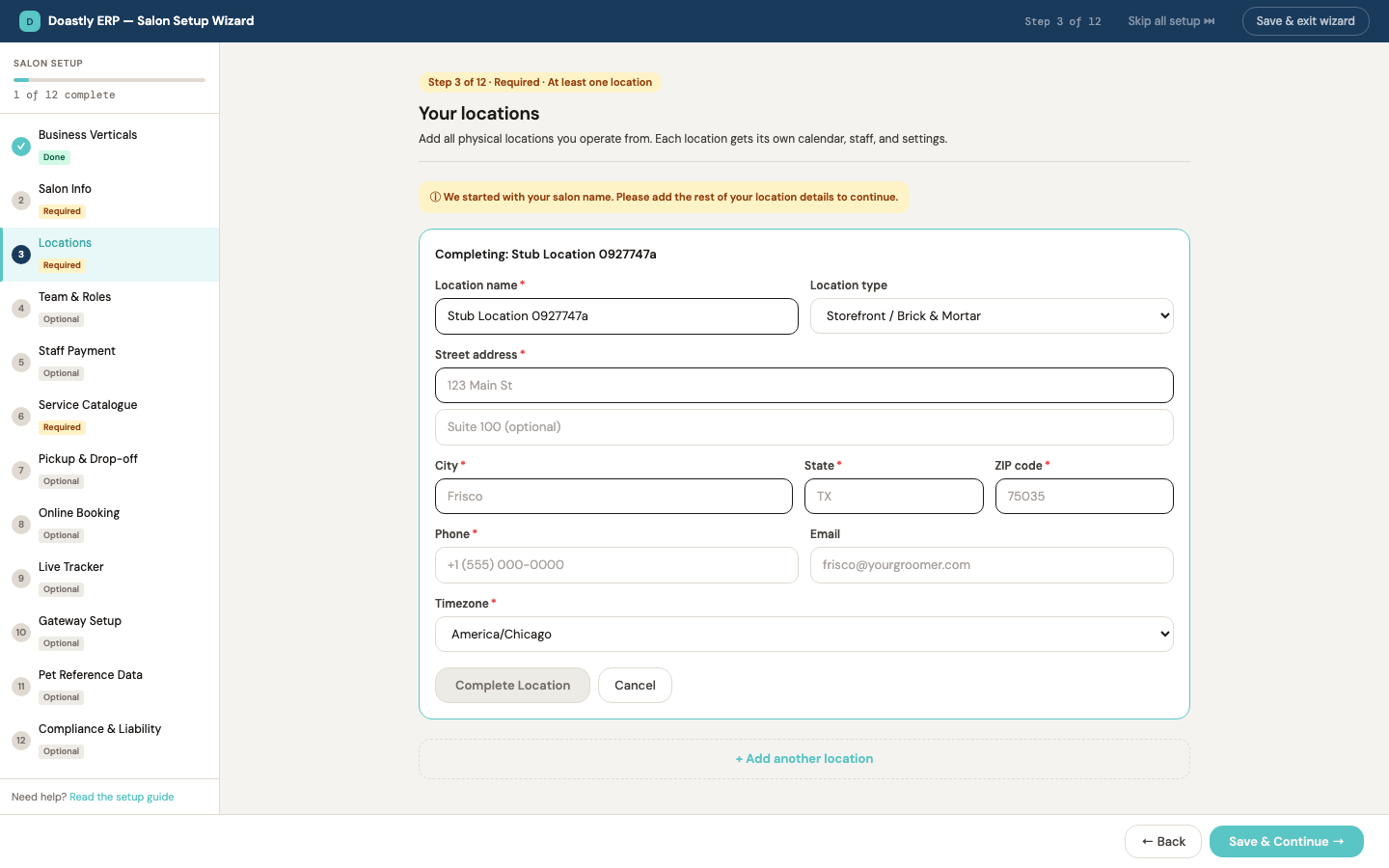
(dark mode also captured)
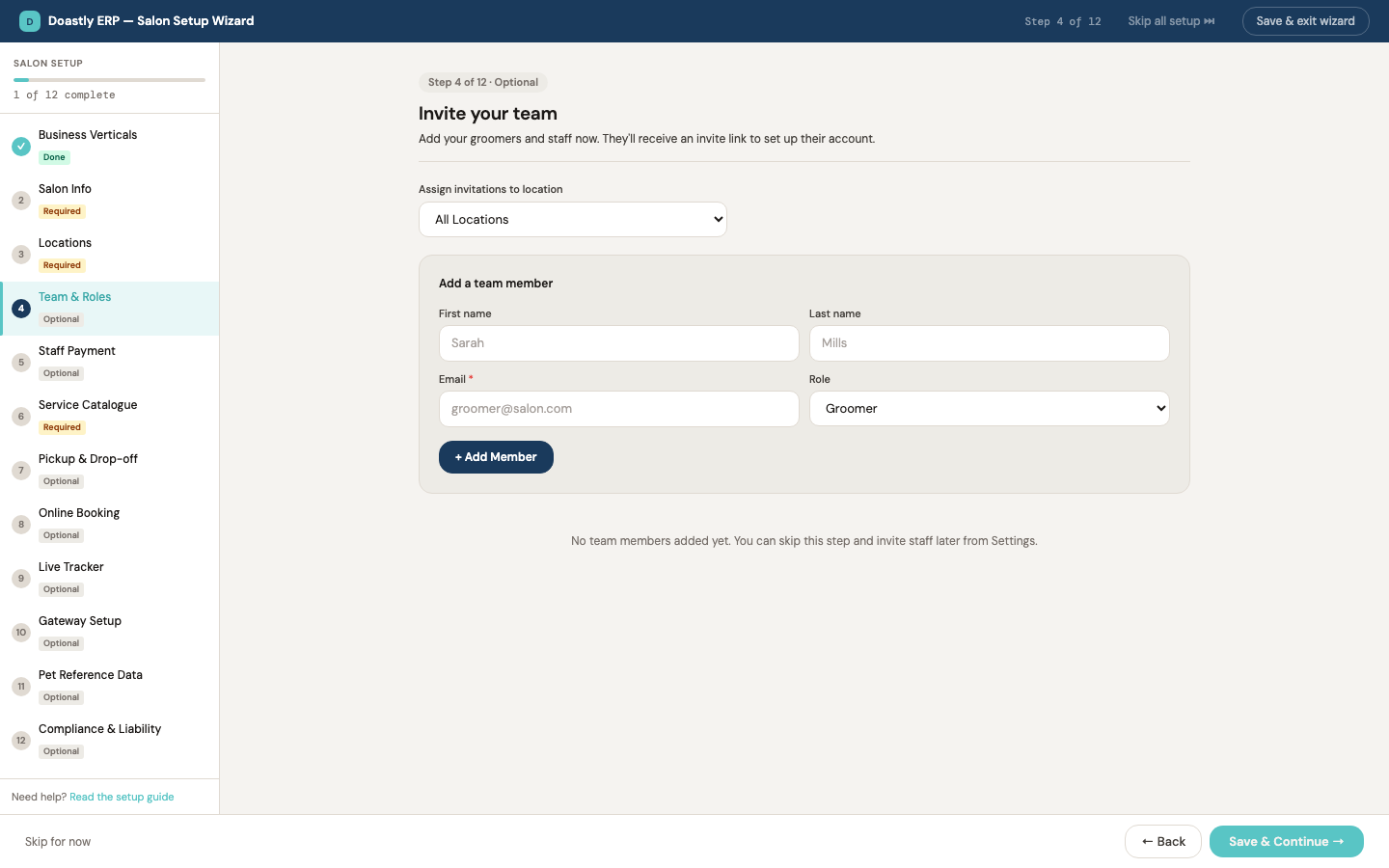
(dark mode also captured)
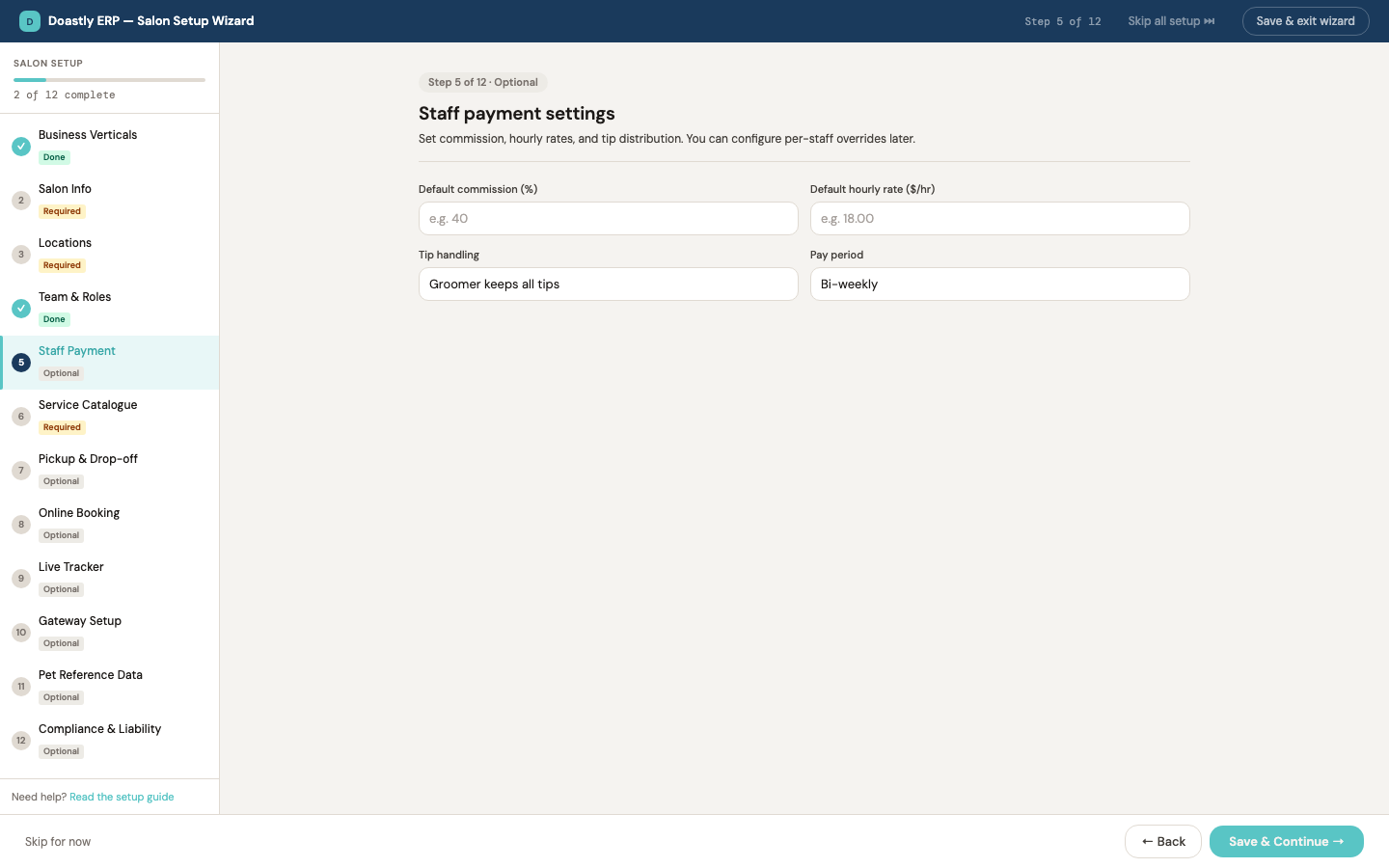
(dark mode also captured)
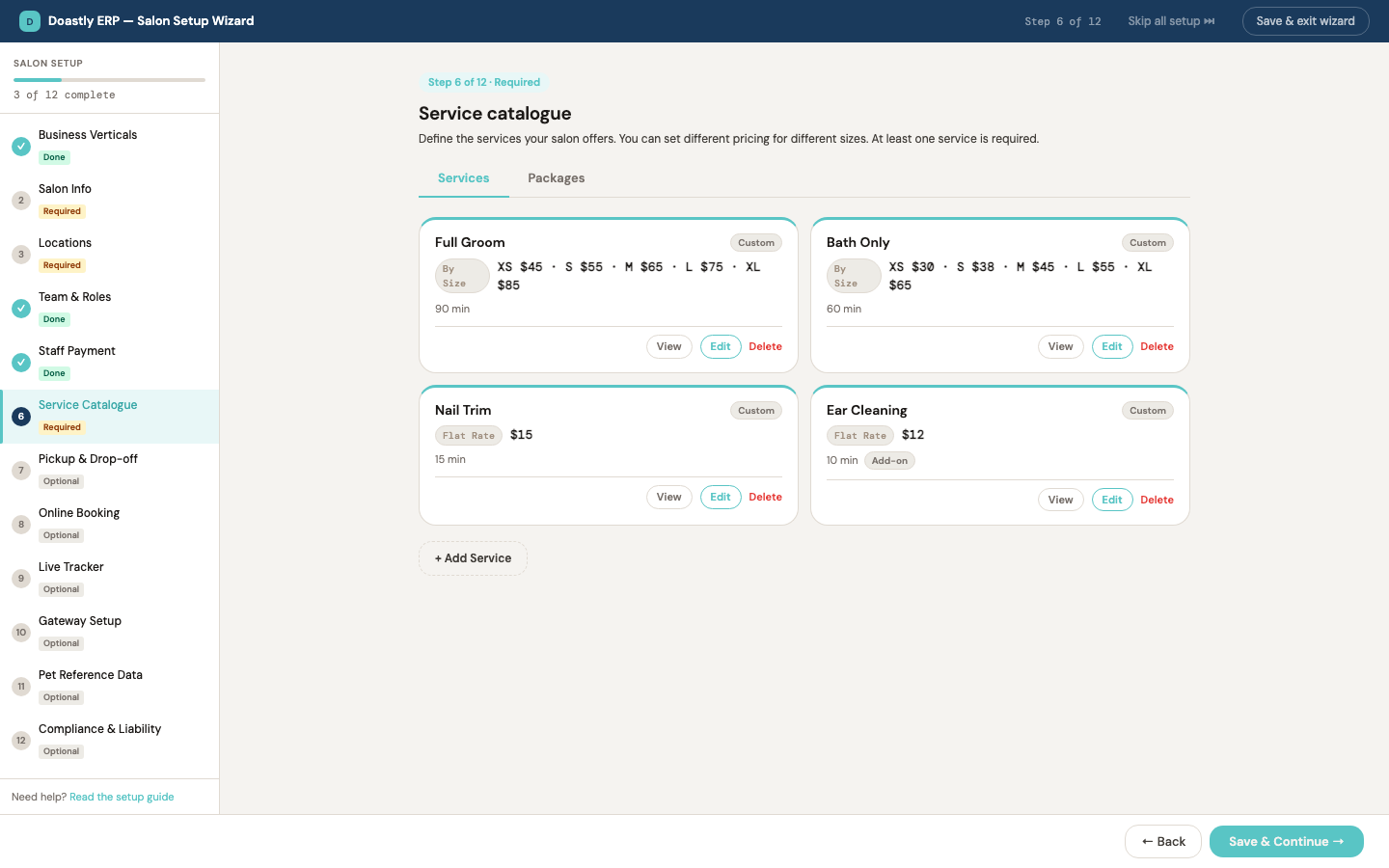
(dark mode also captured)
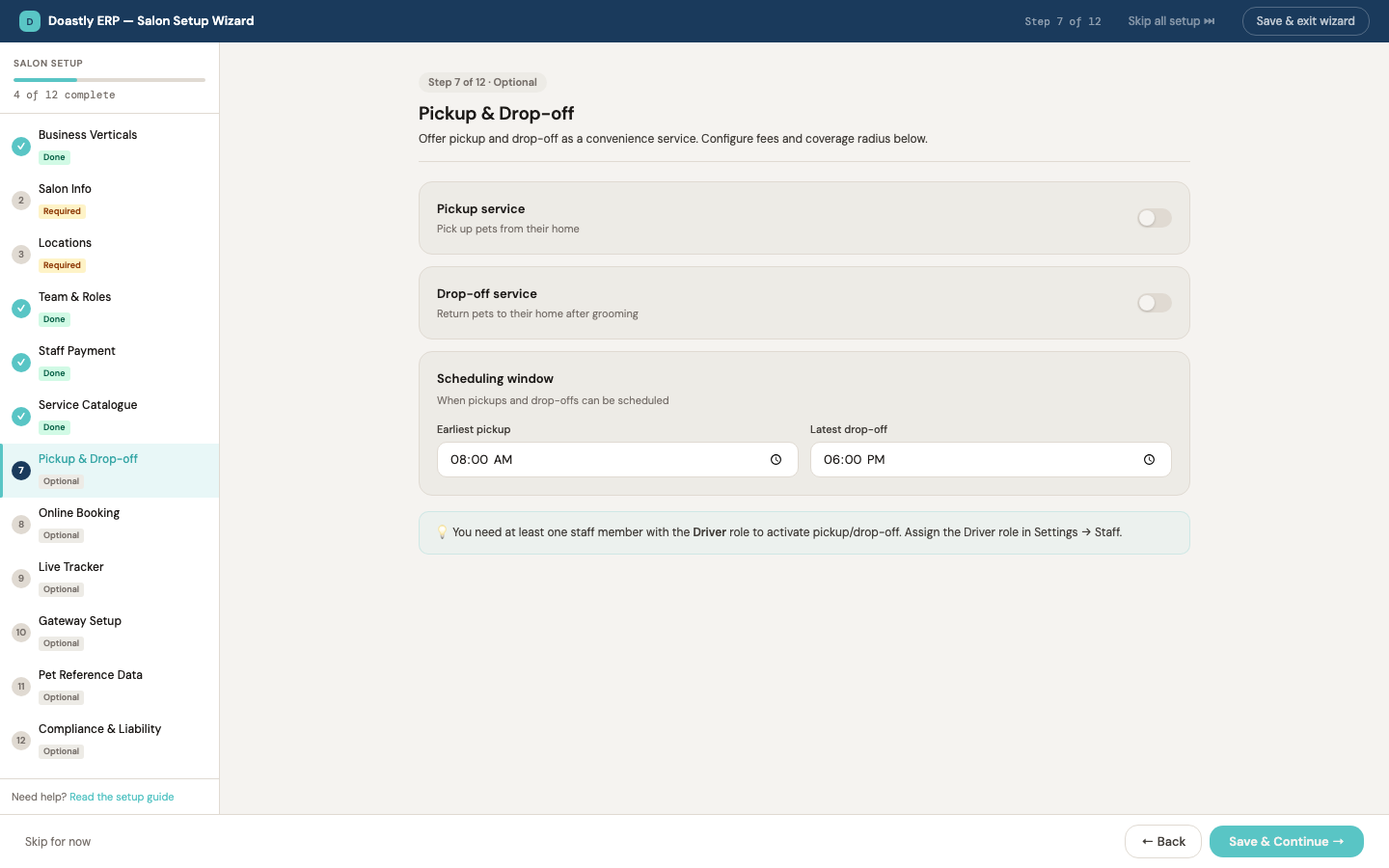
(dark mode also captured)
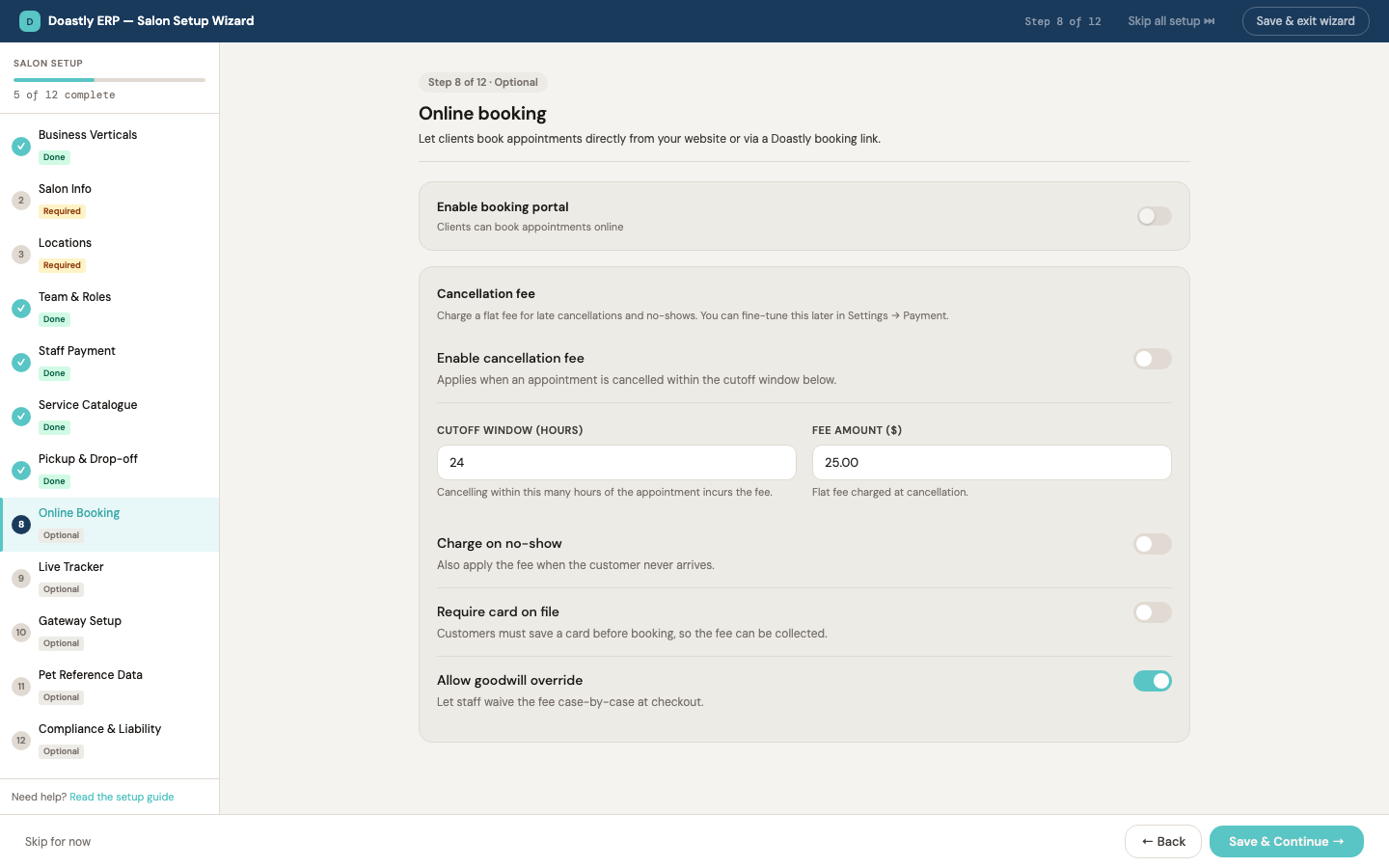
(dark mode also captured)
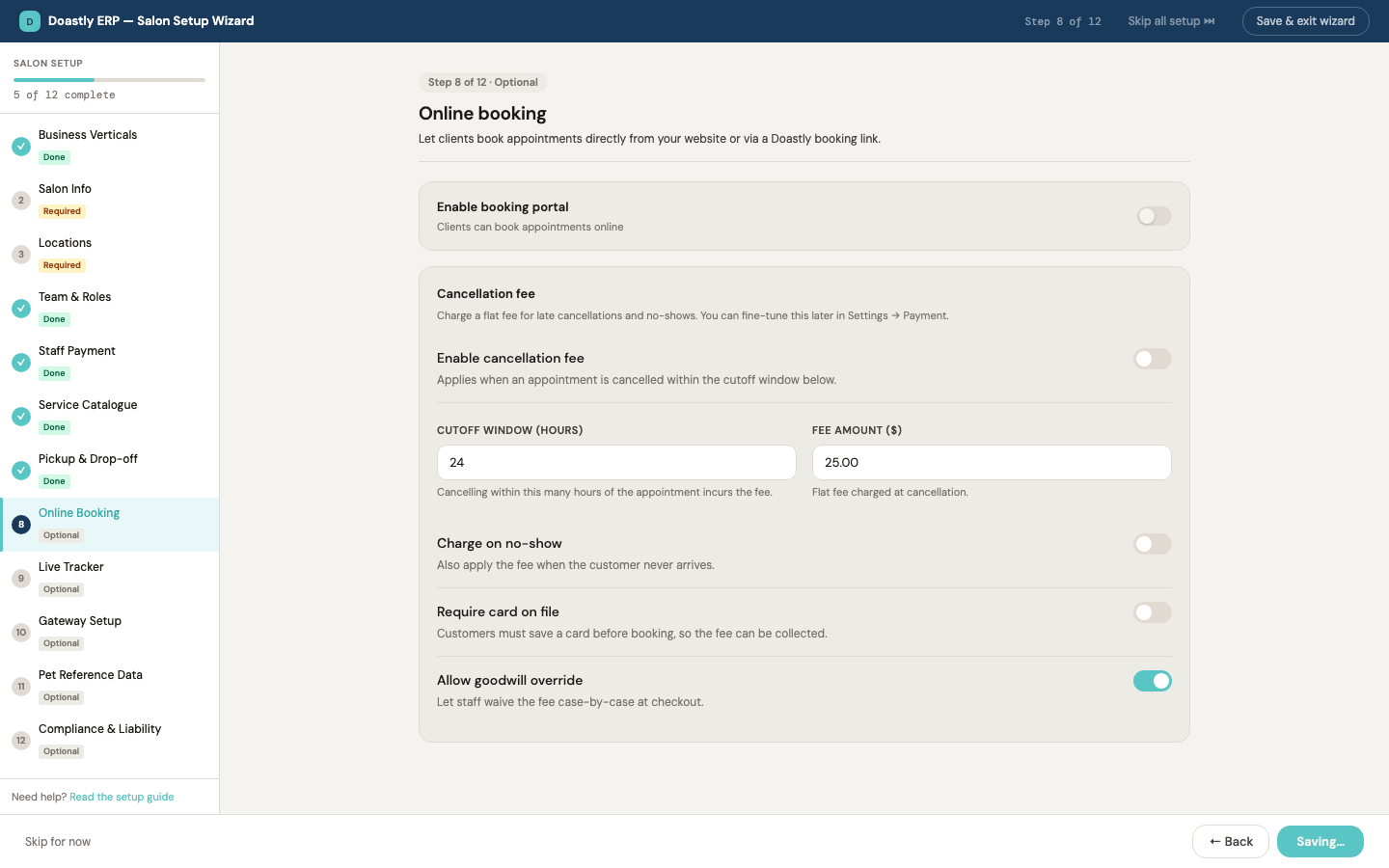
(dark mode also captured)
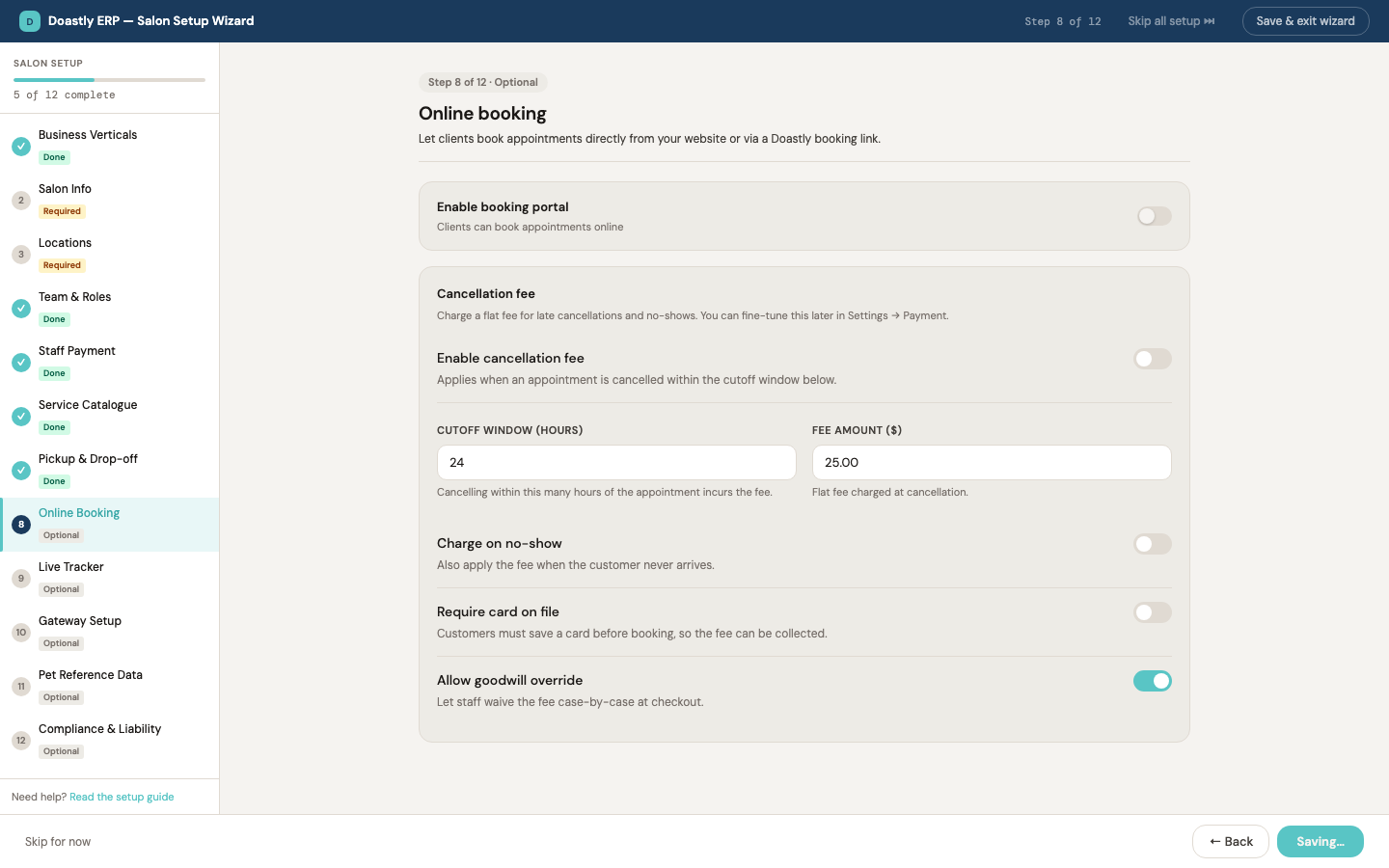
(dark mode also captured)
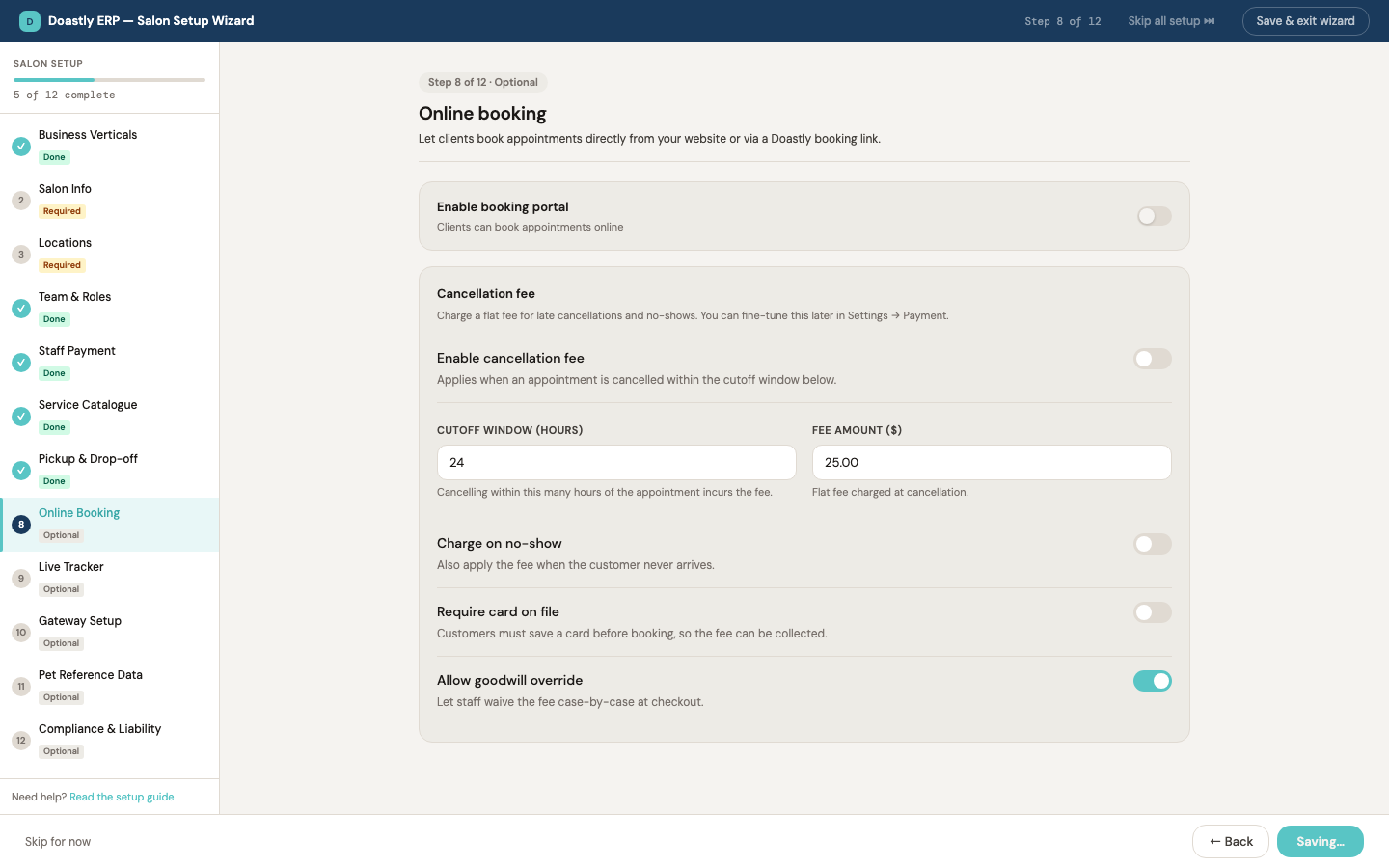
(dark mode also captured)
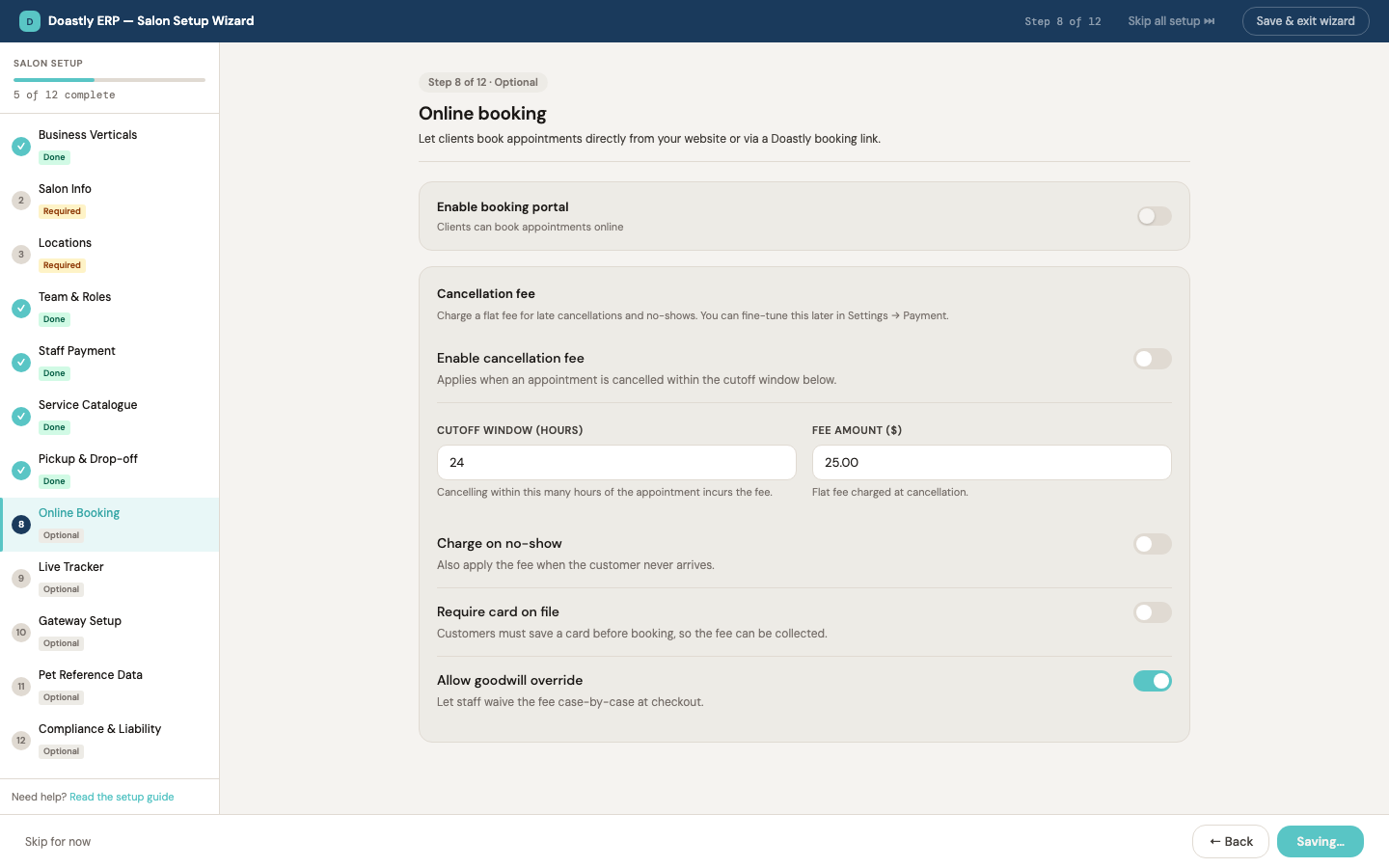
(dark mode also captured)
Platform Settings — Payment Gateways (BYOA)
Doastly is BYOA (Bring Your Own Account): salons connect their own Stripe or Square account so payments flow directly to them. This screen group is where you enter those credentials, register in-person card readers, and choose which gateway handles new transactions.
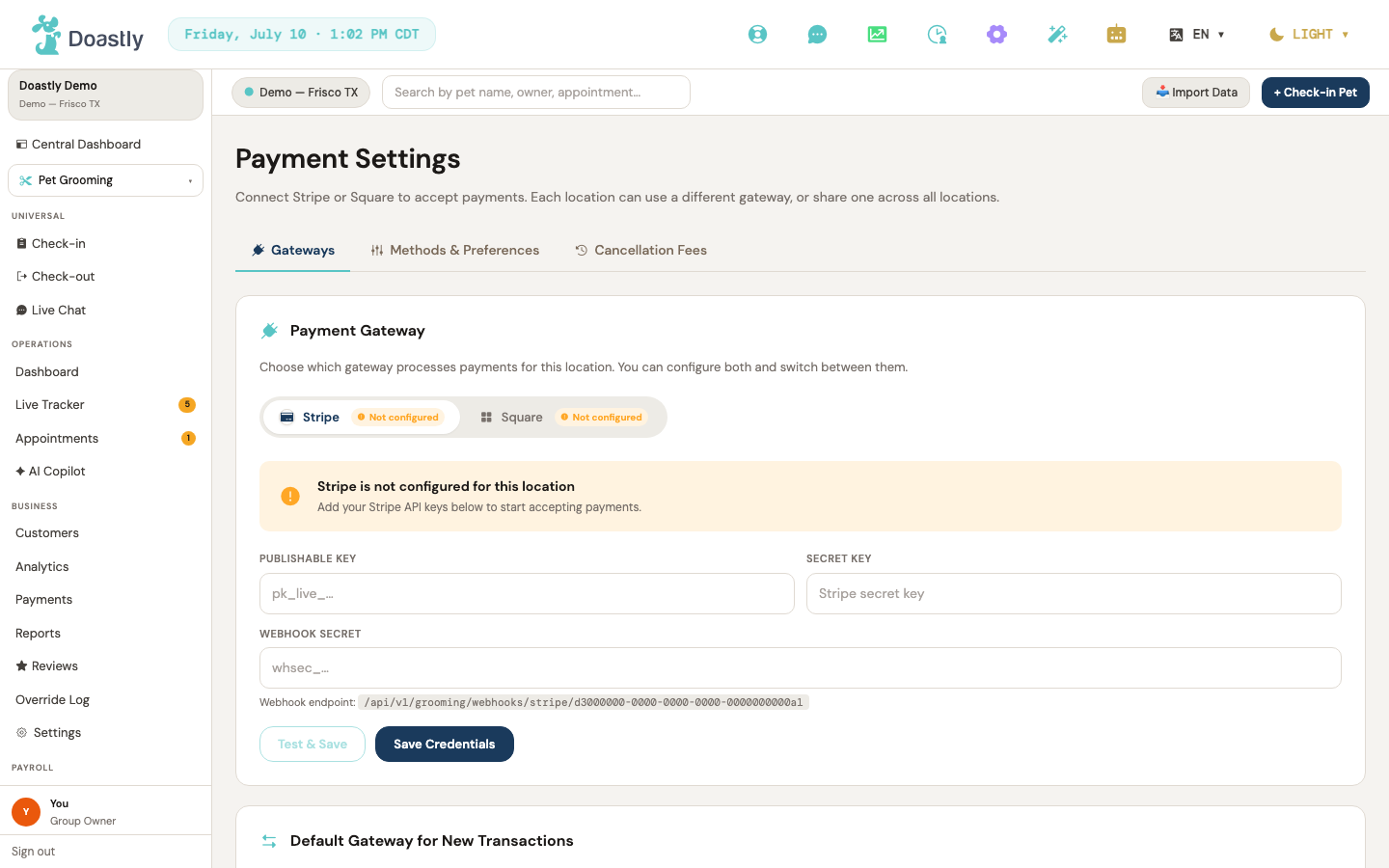
(dark mode also captured)
Payment Settings — outer tab strip
The top-level tab strip on the Payment Settings page. Gateways is the default tab; the other two live on the same strip but are covered elsewhere.
| Control | What it does |
|---|---|
| Gateways | Opens the Gateways panel (Stripe/Square credentials, readers, default gateway). Default tab. |
| Methods & Preferences | Opens the accepted methods, tip, tax, receipt email, and promo codes panel. Part of this strip but out of scope for this group. |
| Cancellation Fees | Opens the late-pickup fee and no-show policy panel. Part of this strip but out of scope for this group. |
Gateways tab — Payment Gateway card (gateway sub-picker + status)
The top card on the Gateways tab. Pick which gateway to configure; each pill shows whether that gateway is already set up.
| Control | What it does |
|---|---|
| Stripe (sub-pill) | Selects Stripe, showing its status row, credential form, and Terminal sections. Displays an Active or Not configured badge based on whether Stripe credentials are saved. |
| Square (sub-pill) | Selects Square, showing the Square panel. Displays an Active or Not configured badge based on whether Square credentials are saved. |
| Update (Stripe) | Appears only when Stripe is already configured and the form is hidden. Reopens the Stripe credential form for editing. |
Gateways tab — Stripe credentials form
Where you enter your Stripe API keys. These are stored encrypted and used to process card and digital payments through your Stripe account.
| Control | What it does |
|---|---|
| Publishable Key | Text field for your Stripe publishable key. |
| Secret Key | Password field for your Stripe secret key. If a key is already set, the label shows its last four digits and the placeholder reads "Keep existing (…XXXX)". A value here is required to enable Test & Save. |
| Webhook Secret | Password field for your Stripe webhook signing secret. Shows "✓ Configured" once set. |
| Test & Save | Saves the Stripe credentials (with the "apply to all locations" choice) and, on success, shows a verified banner. Disabled until a secret key is entered. |
| Save Credentials | Saves the Stripe credentials. Disabled only while a save is in progress — does not require a secret key. |
| Cancel | Appears only when editing an already-configured gateway. Closes the form without saving. |
Gateways tab — Stripe Terminal Location
Shown once Stripe is configured. A Stripe Terminal Location is the physical address your card readers belong to; pick an existing one or create a new one here.
| Control | What it does |
|---|---|
| Use existing Location | Selects "existing" mode and enables the location picker. Disabled while loading or when no locations exist. |
| Terminal location picker | Dropdown of your registered Stripe Terminal Locations; choosing one binds it and saves. Enabled only in existing mode when locations are available. |
| Create new Location | Selects "new" mode and reveals the inline create-location form. |
| Display name | Text field for the new Terminal Location's display name. Required to create. |
| Address line 1 | Text field for the street address. Required to create. |
| Address line 2 (optional) | Text field for an optional second address line (suite/unit). |
| City | Text field for the city. Required to create. |
| State | Text field for the state. Required to create. |
| Postal code | Text field for the postal/ZIP code. Required to create. |
| Country (ISO 2-letter) | Text field for the two-letter country code (defaults to US, upper-cased, max two characters). Required to create. |
| Create | Validates the required address fields, creates the Terminal Location, and auto-selects it. On success reloads the list and returns to existing mode. |
| Cancel (create form) | Discards the create form and returns to existing mode. |
Gateways tab — Stripe Terminal Readers
Shown once Stripe is configured. Register and manage the physical Stripe card readers used for in-person payments, and choose which one is the default. The list auto-refreshes about every half minute.
| Control | What it does |
|---|---|
| Set default (per reader) | Makes that reader the default for in-person charges. Shown only when the reader is not already the default; the current default shows a "★ Default" label instead. |
| Manage (per reader) | Unregisters the reader and removes it from the list. |
| Register a new reader | Opens or closes the reader registration form (registration code + name) and clears any prior error. |
| Registration Code | Text field for the Stripe reader's registration code (e.g. cool-tiger-3). Required to register. |
| Reader Name | Text field for the reader's label (e.g. Front Desk). Required to register. |
| Register | Validates the code and name, registers the reader, then clears and hides the form and reloads the list. |
| Cancel (register form) | Closes the registration form and clears the error. |
Gateways tab — Square panel (credentials + readers)
Shown when Square is selected. Enter your Square credentials, choose the environment, and register Square card readers. Saved secrets are locked and shown as "✓ Saved" until you choose to replace them.
| Control | What it does |
|---|---|
| Access Token | Password field for your Square access token. Once saved it shows a locked "✓ Saved" field with a Replace button. |
| Replace (access token) | Unlocks the saved access-token field so you can overwrite it. |
| Cancel (access token edit) | Cancels an in-progress access-token replace, clears the entered value, and re-locks the saved field. |
| Application ID | Text field for your Square application ID. Shows "✓ Saved" inline when populated. |
| Square Location ID | Text field for your Square location ID. |
| Webhook Secret | Password field for your Square webhook signature key. Once saved it shows a locked "✓ Saved" field with a Replace button. |
| Replace (webhook secret) | Unlocks the saved webhook-secret field so you can overwrite it. |
| Cancel (webhook edit) | Cancels an in-progress webhook-secret replace, clears the value, and re-locks the saved field. |
| Environment | Dropdown to choose Sandbox (testing) or Production for the Square environment. |
| Save Square Credentials | Saves all Square fields (with the "apply to all locations" choice). On success shows a saved banner and re-locks the token and webhook fields. |
| + Register Reader / Cancel (Square) | Opens or closes the Square Terminal reader registration form. Shown only when Square is configured. |
| Reader Name (Square) | Text field for the new Square reader's name (e.g. Front Desk). Required to register. |
| Register (Square reader) | Registers the reader and generates a device pairing code, then opens the pairing modal and tracks pairing status. |
| Set as default (per Square reader) | Makes that reader the default for in-person charges. Shown only when it is not the current default; the current default shows "★ Default". |
| Remove (per Square reader) | Unpairs the reader and removes it from the list (may show a local-unpair note). |
Gateways tab — Square Terminal pairing modal
An overlay shown while pairing a Square reader. It displays the device pairing code and tracks pairing progress until the reader connects.
| Control | What it does |
|---|---|
| Cancel | Closes the pairing modal and stops tracking pairing status. Shown in every state except once the reader is paired. |
Gateways tab — Default Gateway card
The lower card on the Gateways tab. Choose which configured gateway processes new transactions, and optionally push your gateway setup to every location in the salon group.
| Control | What it does |
|---|---|
| Default gateway at this location | Dropdown to set Stripe or Square as the default gateway for new transactions. Options are annotated "(active)" or "(not configured)"; the change saves immediately and reverts if the save fails. |
| Apply this gateway config to all locations in this salon group | Toggle that, when on, makes subsequent Stripe/Square saves and the default-gateway choice apply across every location in the salon group. |
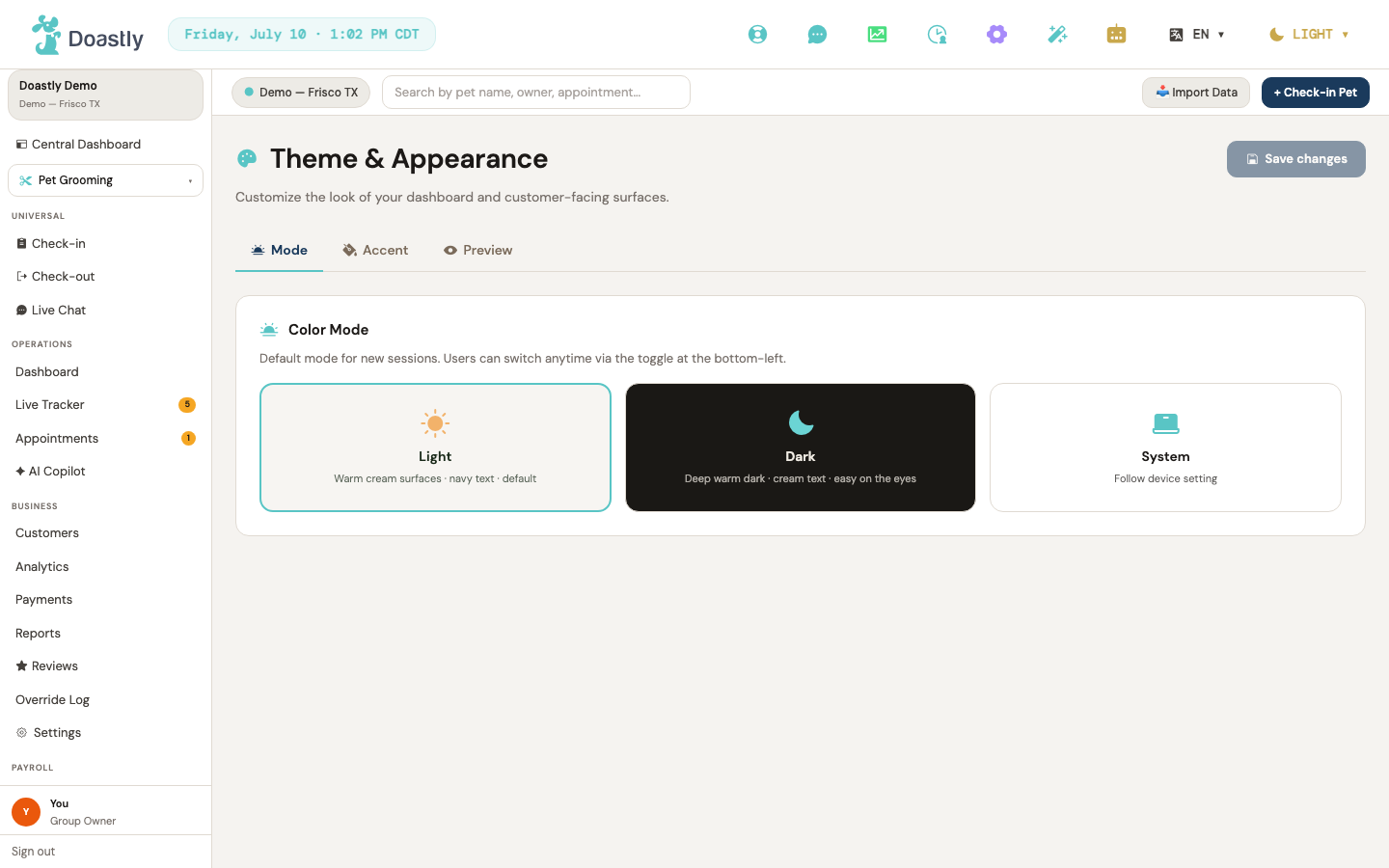
(dark mode also captured)
Platform Settings — Brand & Group Profile
Your salon group's brand identity and contact details. This page documents the Group Profile settings area.
The Settings hub itself is documented in "Platform Settings — remaining sub-pages" (Settings Index). Location Settings is documented in "Platform Settings — Locations." Theme & Appearance is documented in "Platform Settings — remaining sub-pages" (Theme & Appearance). This page covers Group Profile only.
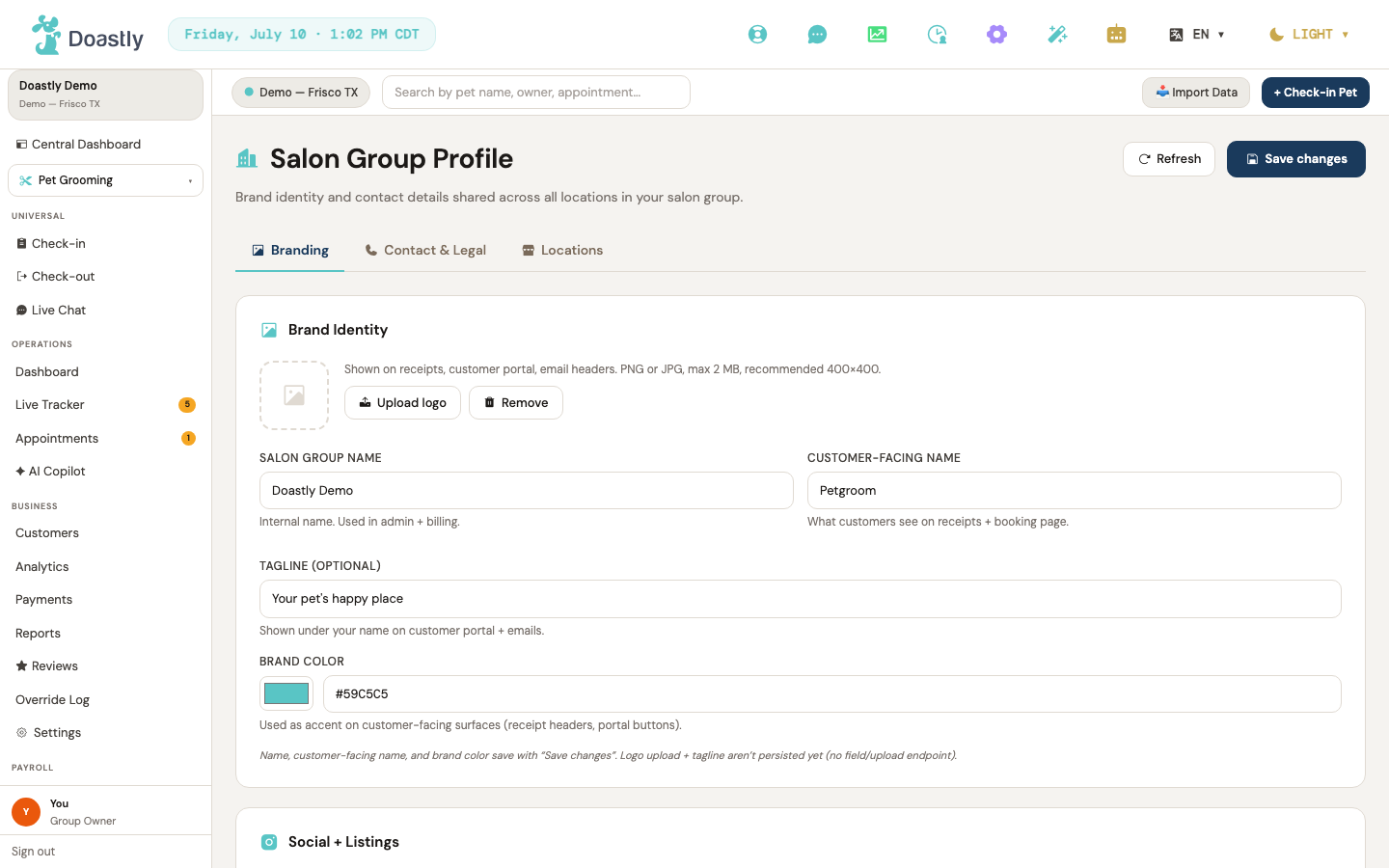
(dark mode also captured)
Salon Group Profile — Branding tab
Your salon group's brand identity. Use Save changes to persist edits. Note: logo upload and the tagline field are not yet saved — see the notes in the table.
| Control | What it does |
|---|---|
| Refresh | Decorative header button; it has no action. |
| Save changes | Saves your profile edits (name, customer-facing name, brand color, social handles, and more). |
| Branding tab | Shows the Branding tab (current tab). |
| Contact & Legal tab | Switches to the Contact & Legal tab. |
| Locations tab | Switches to the Locations tab. |
| Upload logo | Not yet functional — logo upload is not persisted. |
| Remove (logo) | Not yet functional — no action. |
| Salon group name | Sets your salon group's internal name. Saved via Save changes. |
| Customer-facing name | Sets the name customers see. Saved via Save changes. |
| Tagline (optional) | Sets a tagline. Not yet saved — resets on reload. |
| Brand color (color picker) | Picks your brand color. Saved via Save changes. |
| Brand color (hex text) | Sets the brand color by hex value; mirrors the color picker. |
| Instagram handle | Sets your Instagram handle. Saved via Save changes. |
| Facebook page | Sets your Facebook page. Saved via Save changes. |
| Google Business Profile ID | Sets your Google Business Profile ID. Saved via Save changes. |
| Dark mode default (Coming in Wave 2) | Preview of a coming-soon setting; not yet interactive. |
Salon Group Profile — Contact & Legal tab
Your salon group's contact details and legal information. Phone and email are saved; the remaining fields are not yet persisted, as noted below.
| Control | What it does |
|---|---|
| Main phone | Sets your main phone number. Saved via Save changes. |
| Main email | Sets your main email address. Saved via Save changes. |
| Website | Sets your website URL. Not yet saved — resets on reload. |
| Founded year | Sets the year founded. Not yet saved — resets on reload. |
| Cancellation policy URL | Sets a cancellation policy URL. Not yet saved — resets on reload. |
| Business address · Tax ID · ToS (Coming in Wave 2) | Preview of coming-soon legal fields; not yet interactive. |
Salon Group Profile — Locations tab
A read-only list of your locations with links to edit them in Location Settings. Adding a new location from here is coming in a later release.
| Control | What it does |
|---|---|
| Location row (per location) | Opens Location Settings to edit that location. |
| Add a new location | Not yet functional — per-location add is coming in a later release. |
| Manage in Location Settings → | Opens Location Settings. |
Platform Settings — Notifications
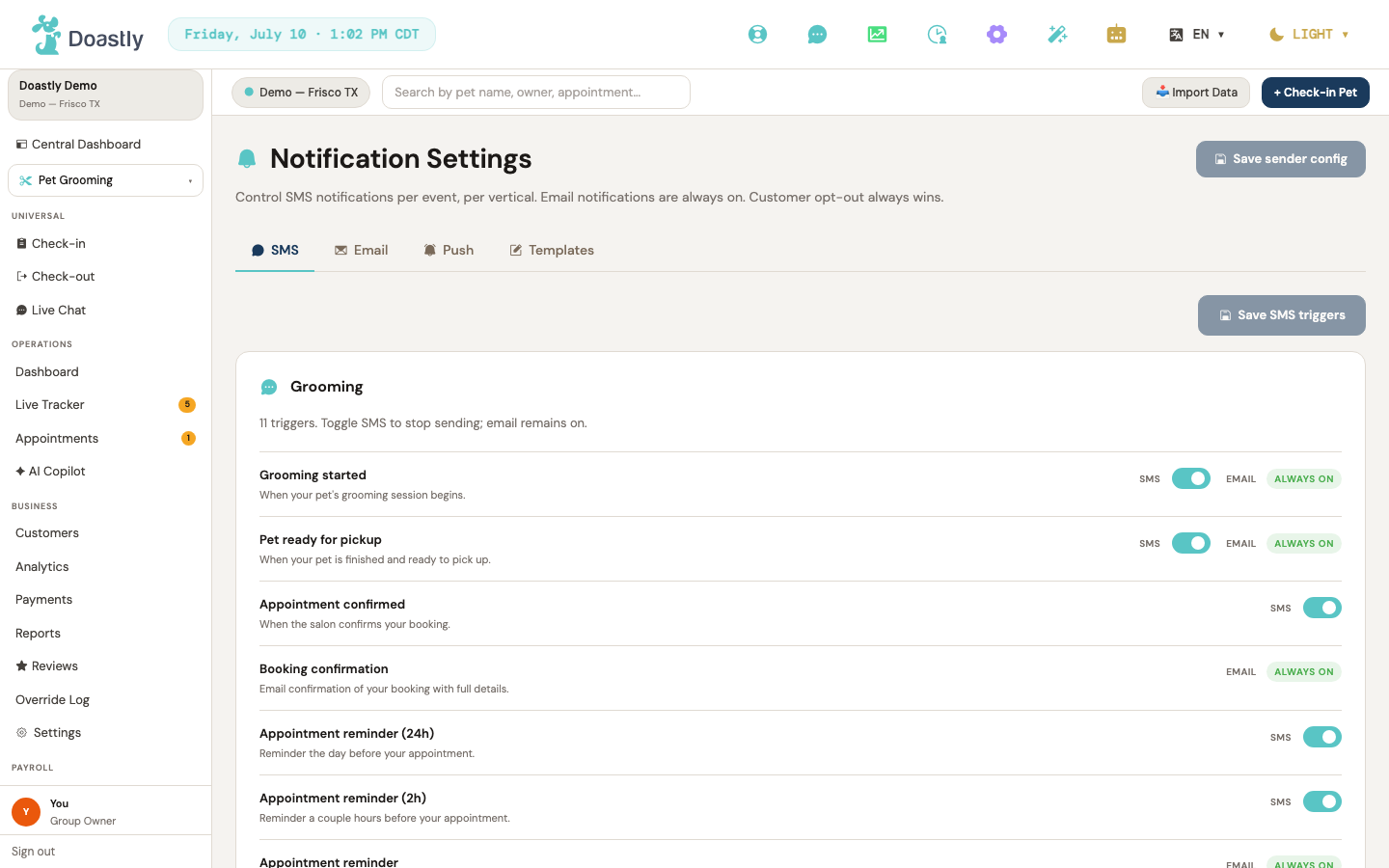
(dark mode also captured)
Notification Settings — Page shell (header + tab strip)
The Notifications settings page carries a shared sender configuration in the header and a tab strip that switches between the SMS, Email, Push, and Templates panels. The header Save button persists quiet hours and sender identity for both SMS and email in a single write.
| Control | What it does |
|---|---|
| Save sender config | Header primary button that saves the full notification config — quiet hours plus SMS and email sender identity — in one write. Disabled until you make a change; shows a brief "✓ Saved" confirmation on success. |
| ✓ Saved (sender config) | Teal confirmation that appears next to the Save button for a couple of seconds after the sender config saves successfully, then disappears. |
| Config error banner | Warning banner above the tab content, shown in plain language if the notification config fails to load or save. |
| SMS | Tab that opens the SMS panel (per-vertical SMS triggers, Quiet Hours, and SMS Sender). This is the default tab. |
| Tab that opens the Email panel (email sender identity and the branded-PDF toggle). | |
| Push | Tab that opens the Push panel, which currently shows a Wave 2 coming-soon notice. |
| Templates | Tab that opens the Templates panel, which currently shows a Wave 2 coming-soon notice. |
SMS Tab
The SMS tab lists your SMS triggers grouped by vertical, alongside the Quiet Hours and SMS Sender cards. Trigger on/off changes are staged and saved separately from the header sender config, using their own Save button.
| Control | What it does |
|---|---|
| Save SMS triggers (N) | Saves the pending on/off changes to your SMS triggers, where N is the number of unsaved changes. Separate from the header sender-config save; disabled while saving or when there are no pending changes. |
| ✓ Saved (SMS triggers) | Brief success confirmation shown after your SMS-trigger changes save. |
| SMS error banner | Warning banner shown if the trigger catalog fails to load or the SMS-trigger save fails. |
| Loading skeleton | Placeholder rows shown while the trigger catalog and your salon's preferences load. |
| Per-vertical trigger group card | One card per subscribed vertical that has at least one trigger — Grooming, Boarding, Daycare, Mobile Grooming, Pet Training, Retail Store, AI Marketing, plus the two cross-vertical groups Account & Platform and Birthdays & Anniversaries. Each card shows a short description line ("N triggers. Toggle SMS to stop sending; email remains on.") followed by that vertical's SMS trigger rows. Only verticals you're subscribed to appear, plus the platform and customer groups; a subscribed vertical with no triggers renders no card. |
| Empty state (no triggers) | Message card shown when no triggers exist for your subscribed verticals. |
SMS Tab — Trigger Row (repeated per trigger)
Each trigger row shows its available channels: an SMS on/off switch when SMS applies, and a locked "Always on" pill when email applies.
| Control | What it does |
|---|---|
| SMS toggle (per trigger) | On/off switch for a single trigger's SMS. Your change is staged until you press "Save SMS triggers." Appears only when the trigger supports SMS. |
| EMAIL — Always on (pill) | Non-interactive pill indicating email is always on at the salon level for this trigger; its tooltip notes that a customer's own opt-out still applies. Appears only when the trigger supports email. |
SMS Tab — Quiet Hours Card
Quiet Hours lets you suppress SMS during a set window. These settings are saved with the header "Save sender config" button, not the trigger save.
| Control | What it does |
|---|---|
| Suppress SMS during quiet hours | On/off switch that turns quiet-hours suppression on or off. Disabled while the config loads; saved via the header "Save sender config." |
| Quiet hours start | Time input for when the quiet-hours window begins. Disabled while loading or when quiet hours are off. |
| Quiet hours end | Time input for when the quiet-hours window ends. Disabled while loading or when quiet hours are off. |
SMS Tab — SMS Sender Card
The SMS Sender card sets the name and phone number your text messages come from. Both fields are saved with the header "Save sender config" button.
| Control | What it does |
|---|---|
| Sender name | Text field for the name your SMS messages come from. Saved via the header "Save sender config." |
| SMS sender phone | Text field for the sending phone number, with help text for the required format. Saved via the header "Save sender config." |
Email Tab
The Email tab sets your email sender identity and controls whether a branded PDF receipt is attached to checkout emails. The sender fields save with the header "Save sender config" button.
| Control | What it does |
|---|---|
| From email | Email field for the address your emails are sent from. Disabled while the config loads; saved via the header "Save sender config." |
| From name | Text field for the sender name shown on your emails. Saved via the header "Save sender config." |
| Reply-to address (optional) | Email field for a reply-to address; leaving it blank clears the setting. Saved via the header "Save sender config." |
| Attach branded PDF receipt to checkout emails | On/off switch (defaults on) for attaching a branded PDF receipt to checkout emails. Currently local-only — it does not yet save; an inline note flags this as a pending follow-up. |
Push Tab (Coming in Wave 2)
The Push tab is a coming-soon placeholder with no interactive controls.
| Control | What it does |
|---|---|
| Push notifications · Coming in Wave 2 notice | Coming-soon panel explaining that push notifications are planned for Wave 2. No controls are available yet. |
Templates Tab (Coming in Wave 2)
The Templates tab is a coming-soon placeholder with no interactive controls.
| Control | What it does |
|---|---|
| Template editor · Coming in Wave 2 notice | Coming-soon panel explaining that the template editor is planned for Wave 2. Until then, notification messages use the built-in default templates. No controls are available yet. |
Platform Settings — Locations
This is the canonical documentation for Location Settings. The Settings hub's location rows and "Add Location" modal are documented in "Platform Settings — remaining sub-pages" (Settings Index).
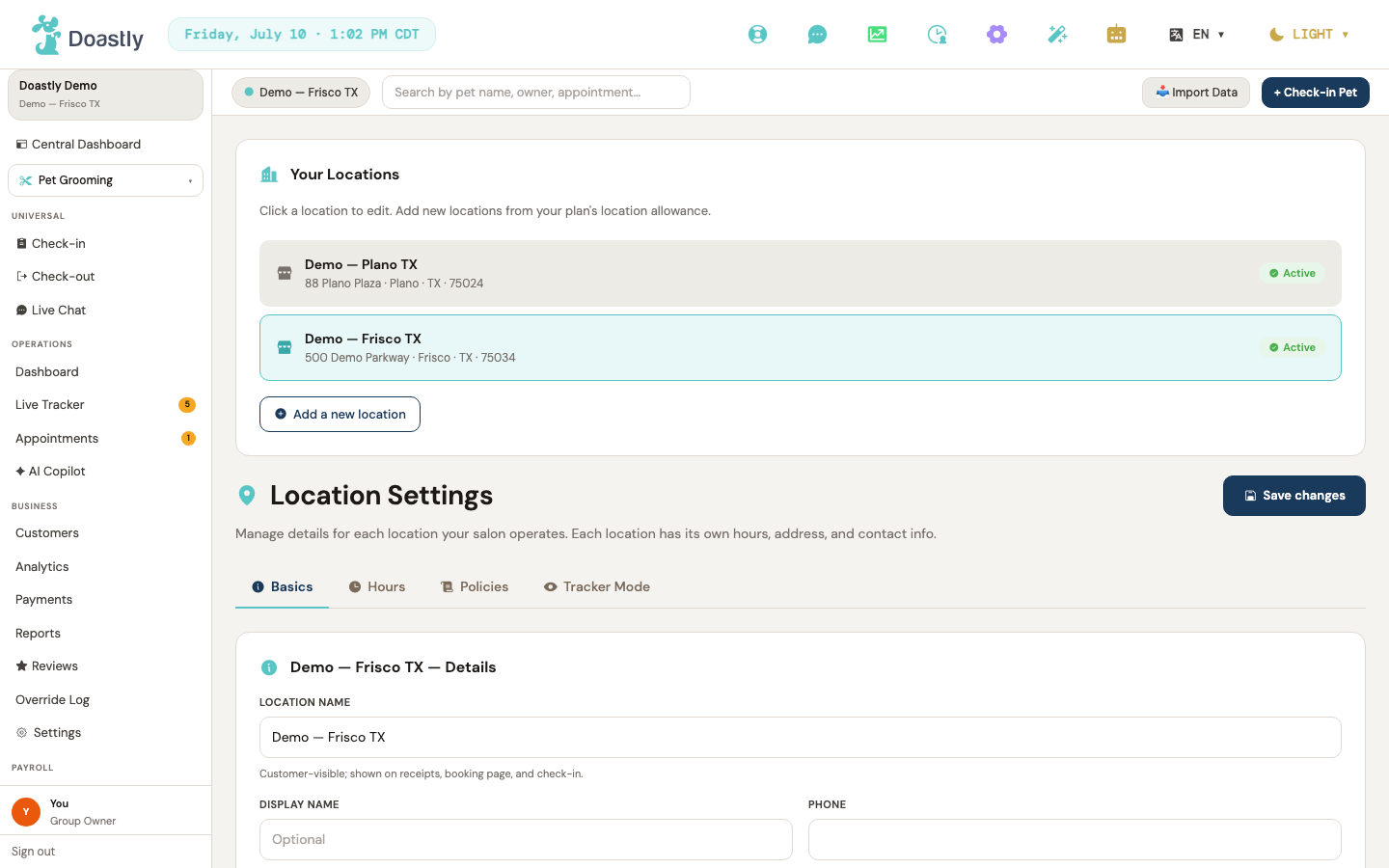
(dark mode also captured)
Location Settings — Page shell (Your Locations list + header)
The entry point for managing each business location. The left "Your Locations" list selects which location loads into the tabbed detail shell, and the header holds the primary Save action shared by the Basics and timezone fields.
| Control | What it does |
|---|---|
| Location row (selectable) | Click a location in the "Your Locations" list to make it the active location; its details load into the tabbed shell below. The selected row is highlighted teal with an "Active" pill. |
| Active pill (per row) | Non-interactive green "Active" badge on each row, indicating the location is active. Display only. |
| Primary location indicator (per row) | Non-interactive " · Primary location" text appended to the row's address sub-line when the location is the salon group's primary location. Display only. |
| Add a new location | Outline button with a plus-circle icon. On this page it is a non-functional stub — it has no action, so it does not open an add form or navigate anywhere. (Note: post-onboarding location creation is available via the "Add Location" modal on the Settings hub; that flow is simply not reachable from this button.) |
| Loading locations… | Placeholder shown inside the "Your Locations" list while the list is being fetched or when it is empty. |
| ✓ Saved indicator | Transient "Save changes" success confirmation shown in the header after a successful save; auto-clears after a couple of seconds. |
| Save changes | Header primary action. Saves the Basics fields (name, phone, email, timezone, address, city, state, ZIP, country, location type) to the selected location. Shows "Saving…" and disables while in flight. |
| Loading location details… | Placeholder shown while the selected location's detail record is being fetched. |
| Basics tab | Switches the tabbed shell to the Basics tab (name, contact, address, brand stub, Danger Zone). This is the default tab. |
| Hours tab | Switches to the Hours tab (timezone, business hours editor, holiday stub). |
| Policies tab | Switches to the Policies tab (cancellation and deposit policies — coming in Wave 2). |
| Tracker Mode tab | Switches to the Tracker Mode tab (current mode display, services-enabled toggles, editor stub). |
Location Settings — Basics tab
The core identity and contact details for the selected location. Most fields save together via the header Save changes button; the brand and Danger Zone areas are staged for later releases.
| Control | What it does |
|---|---|
| Location name | Editable location name, shown to customers on receipts, booking, and check-in. Saved via Save changes. |
| Display name | Optional alternate display name; falls back to the location name if left blank. Note: this field is not yet included in the save — it does not persist. |
| Phone | Location phone number. Saved via Save changes. |
| Location email address. Saved via Save changes. | |
| Street address | Location street address. Saved via Save changes. |
| City | Location city. Saved via Save changes. |
| State | Location state. Saved via Save changes. |
| ZIP | Location ZIP code. Saved via Save changes. |
| Country | Country selector; choose United States or Canada. Saved via Save changes. |
| Location type | Location type selector; choose Storefront or Mobile. Saved via Save changes. |
| Brand color · Logo · Door signage — Coming in Wave 2 | Non-interactive preview panel. Per-location brand color, logo, and door signage ship in a later release; today these are managed at the group level. |
| Deactivate this location | Danger Zone button (pause-circle icon). Currently a non-functional stub — pending wire-up. |
| Delete location | Danger Zone button (trash icon). Currently a non-functional stub — pending wire-up. |
| Danger Zone wiring disclosure | Non-interactive note stating that the Deactivate and Delete actions are pending wire-up. |
Location Settings — Hours tab
Sets the location's timezone and weekly operating hours. The timezone saves with the header Save changes button, while the weekly grid has its own Save hours action. Note the cross-control dependency: the Timezone select is on this tab but persists only via the header Save changes — clicking Save hours persists the weekly grid only, not the timezone.
| Control | What it does |
|---|---|
| Timezone | Timezone selector (Central, Eastern, Mountain, Pacific). Saved via the header Save changes button (NOT via Save hours). |
| Open time (per day, Mon–Sun) | Per-day opening time picker across seven day rows. Disabled and blank when the day is toggled closed. Saved via Save hours. |
| Close time (per day, Mon–Sun) | Per-day closing time picker across seven day rows. Disabled and blank when the day is toggled closed. Saved via Save hours. |
| Open/Closed toggle (per day, Mon–Sun) | Per-day toggle: ON marks the day open (time inputs enabled), OFF marks it closed (time inputs disabled and blank). One toggle per day. Defaults: Mon–Sat open, Sun closed. |
| Save hours | Saves the weekly hours grid. Disabled while saving. Shows "Saving…", then "✓ Saved" for a couple of seconds; on failure shows an inline error. |
| ✓ Saved (hours) | Transient success confirmation shown next to Save hours after a successful save. |
| Hours save error | Inline error banner shown if the save fails: "Failed to save hours. Please try again." |
| Holiday overrides · Coming in Wave 2 | Non-interactive preview panel. Per-date closures and reduced-hours overrides ship in a later release. |
Location Settings — Policies tab (Wave 2 stub)
A placeholder tab for location-level service policies. The controls themselves ship in Wave 2; a link is provided today to the one policy already available under Payment settings.
| Control | What it does |
|---|---|
| Policies · Wiring in Wave 2 | Non-interactive preview covering the whole tab. Cancellation policy, boarding deposit percentage, and the report-card-required toggle ship in a later release. |
| Payment · Cancellation Fees | Inline link that navigates to Payment settings (Cancellation Fees tab), where the late-pickup fee is already configurable today. |
Location Settings — Tracker Mode tab
Shows the location's current tracker mode and which service verticals are enabled. The mode editor is staged for Wave 2, and the services toggles are display-only until persistence is wired.
| Control | What it does |
|---|---|
| Current Tracker Mode (read-only) | Non-interactive display of the location's current tracker mode (defaults to BASIC), with an explanation of what the mode means. No editing here. |
| BASIC ↔ DETAILED toggle + per-service trackable list · Coming in Wave 2 | Non-interactive preview panel. The mode switch and per-service trackable list ship in a later release. |
| Grooming enabled toggle | Toggle for the Grooming vertical at this location. Defaults ON. Currently display-only — the setting resets on reload because persistence is pending. |
| Boarding enabled toggle | Toggle for the Boarding vertical at this location. Defaults ON. Currently display-only — the setting resets on reload because persistence is pending. |
| Daycare enabled toggle | Toggle for the Daycare vertical (labeled "— not subscribed"). Defaults OFF. Currently display-only — the setting resets on reload because persistence is pending. |
| Services-Enabled persistence disclosure | Non-interactive note stating that the services toggles reset on reload until persistence is wired. |
Platform Settings — Pet Reference
This is the canonical documentation for Pet Reference Data. A shorter summary appears in "Platform Settings — remaining sub-pages."
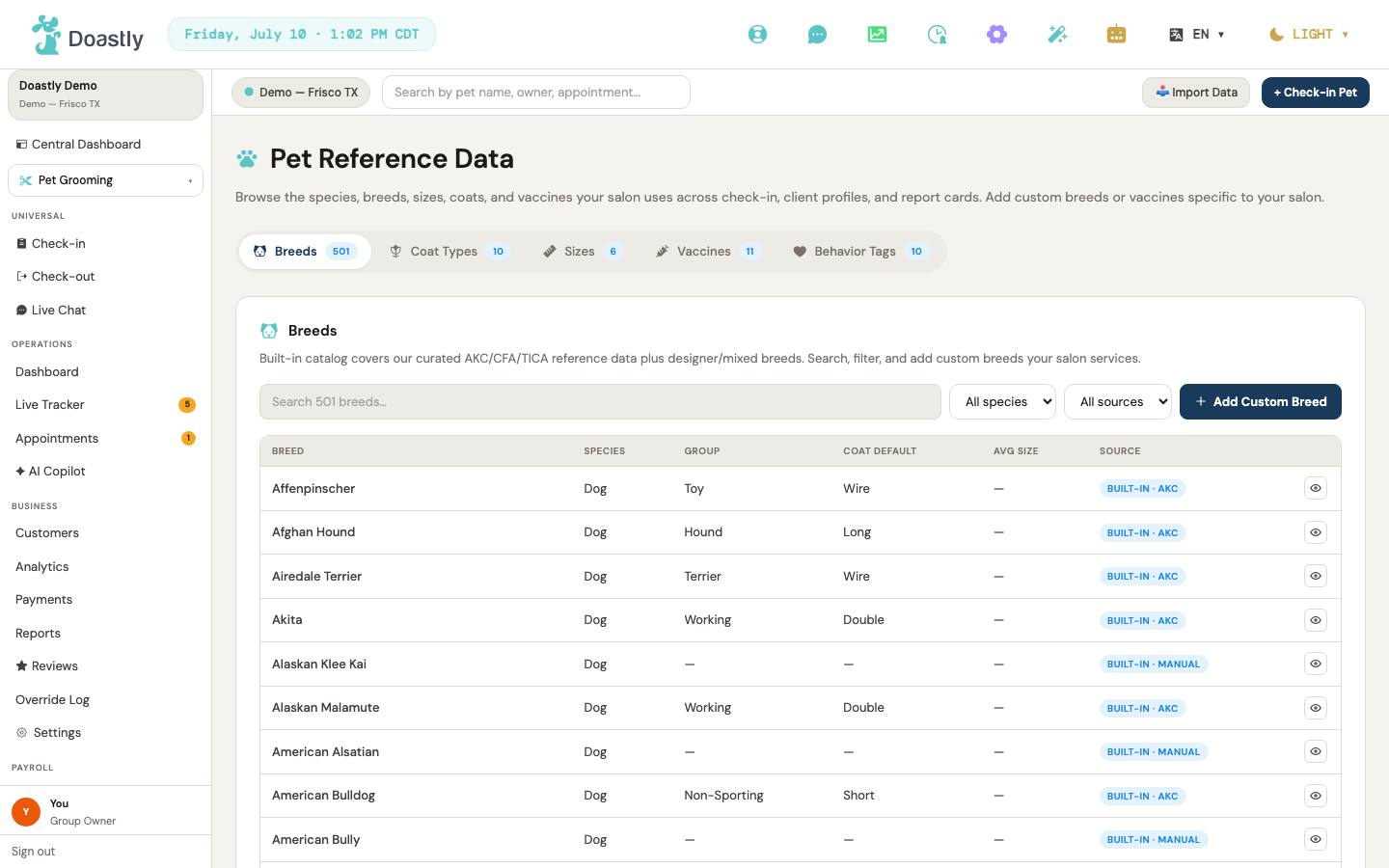
(dark mode also captured)
Pet Reference Data — Page Shell
The landing surface for the Pet Reference section. It browses the species, breeds, sizes, coats, and vaccines used across check-in, client profiles, and report cards (the intro copy names those five; behavior tags are surfaced only via the tab strip).
| Control | What it does |
|---|---|
| Pet Reference Data (heading + paw icon) | Page title with an intro paragraph: "Browse the species, breeds, sizes, coats, and vaccines your salon uses across check-in, client profiles, and report cards. Add custom breeds or vaccines specific to your salon." Static — no action. |
| Pet Reference tool | Mounts the full tool: the tab strip plus all five tab panels. Holds the active-tab state (defaults to Breeds) and feeds each tab's item count to the strip badges. All panels stay mounted; inactive ones are hidden. |
Tab Strip (pill nav)
The pill navigation that switches between the five reference categories. Each pill shows an item count once its tab has loaded.
| Control | What it does |
|---|---|
| Breeds | Opens the Breeds tab. Shows a dog icon and a count badge once loaded. |
| Coat Types | Opens the Coat Types tab. Shows a flower icon and a count badge once loaded. |
| Sizes | Opens the Sizes tab. Shows a ruler icon and a count badge once loaded. |
| Vaccines | Opens the Vaccines tab. Shows a syringe icon and a count badge once loaded. |
| Behavior Tags | Opens the Behavior Tags tab. Shows a heart icon and a count badge once loaded. |
| Count badge (per tab) | Displays the number of items in each tab. Shown only once that tab has loaded its data; hidden until then. |
Breeds Tab
Browse and filter the breed catalog, and add your own custom breeds. The list is read-only apart from adding custom entries.
| Control | What it does |
|---|---|
| Search breeds | Filters the breed list by name as you type (case-insensitive, brief debounce). The placeholder shows the total breed count ("Search N breeds…"). Resets the list to page 1. |
| All species | Filters breeds by species. Options are built from the species found in the loaded breeds (Dog, Cat, and so on), de-duplicated and sorted. Resets to page 1. |
| All sources | Filters by source: All, Built-in, or Custom. Resets to page 1. |
| Add Custom Breed / Cancel | Opens or closes the inline Add Custom Breed form. The label flips to Cancel while the form is open. |
| Breed Name * | (Add form) The name for the new custom breed. Required — an empty or duplicate name blocks the save. Clears the add error as you type. |
| Species (add form) | (Add form) Sets the species for the new breed: Dog, Cat, Rabbit, Bird, or Other (defaults to Dog). |
| Save Breed | (Add form) Saves the new custom breed. On success it is appended to the list, the count updates, and the form resets and closes. Shows "Saving…" while working and an inline error on failure or duplicate. |
| Breeds table (Breed / Species / Group / Coat default / Avg size / Source) | Read-only, paginated listing (20 per page) of the filtered breeds. Empty columns render as "—". The Source column marks each row Custom or Built-in; built-ins that carry a source attribution render as "Built-in · AKC/CFA/TICA" (etc.). Shows "No breeds match your filters." when nothing matches. |
| Row action (Edit custom / View built-in) | Per-row icon — a pencil for custom breeds, an eye for built-in ones. Display-only; it has a tooltip but no action yet. |
| Pagination footer — record-count summary | Left of the pager, shows "Showing X–Y of N breeds" (or "0 breeds" when the filtered list is empty). |
| « Prev | Goes to the previous page. Disabled on page 1. |
| Next » | Goes to the next page. Disabled on the last page. A "Page X of Y" indicator sits between the two buttons. |
Coat Types Tab
Turn coat types on or off for your salon. Custom coat types are not yet available.
| Control | What it does |
|---|---|
| Coat row status pill | Each row shows a pill next to the name: Built-in (on) or Optional (off). |
| Coat row meta line | Descriptive sub-line under each coat name (e.g. "Single layer · Short hair · Most common"); custom coats show "Salon-defined coat type". |
| Coat toggle (per row) | Turns a coat type on or off, switching its pill between Built-in and Optional. This change is local only — it is not saved. Hairless and Corded start off. |
| Add Custom Coat Type | Coming soon. The button is styled but has no action yet — clicking it does nothing. |
Sizes Tab
Adjust the weight ranges for each size and choose which sizes your salon serves. Sizes are platform-standard, so you cannot add custom ones.
| Control | What it does |
|---|---|
| Size row status pill | Each row shows a pill next to the name: Served (on) or Optional (off). |
| Size row meta line | Descriptive sub-line under each size name (e.g. "Small breeds · Beagle, Pug, Cavalier, Cocker"). |
| Min (lb) | Sets the minimum weight for a size. Edits a local draft; press Enter to save the row, which also enables the Save button. |
| Max (lb) | Sets the maximum weight for a size. Leave blank for an open/unlimited upper bound (placeholder "∞ (open)"). Edits a local draft; press Enter to save. |
| Save (per size row) | Saves the Min/Max change for that size. Dimmed and disabled until you change a value. Shows "Saving…" while working, and keeps your edits so you can retry if the save fails. |
| Served toggle (per size row) | Turns on or off whether your salon serves this size, switching its pill between Served and Optional. The change applies immediately and saves; it reverts if the save fails. |
Vaccines Tab
Set which vaccines are required at check-in and add custom vaccines. The Required setting drives the check-in compliance gate.
| Control | What it does |
|---|---|
| Vaccine row status pills | Each row shows TWO pills next to the name: Required/Optional (mandatory state) and Built-in/Custom (source). |
| Vaccine row meta line | Composed descriptive sub-line under each vaccine name — species + policy note (e.g. "Texas state law") + renewal ("Renews every N days" or "No expiry") + "Min validity at check-in: N days" + "Blocks check-in if expired" / "Doesn't block check-in". |
| Mandatory toggle (per vaccine) | Switches a vaccine between Required and Optional. Applies immediately and saves; reverts if the save fails. Required vaccines are enforced by the check-in compliance gate. |
| Delete custom vaccine (trash icon) | Deletes a custom vaccine. Shown only for custom vaccines. Removes it from the list and updates the count. |
| Custom vaccine name | (Add row) The name for the new custom vaccine. Required, and duplicates are blocked. Clears the error as you type. |
| Renew days | (Add row) How often the vaccine must be renewed, in days (defaults to 365). |
| Min validity | (Add row) The minimum remaining validity accepted at check-in, in days (defaults to 30). |
| Add Custom Vaccine | Saves the new custom vaccine (added as species "All", Optional by default). Adds it to the list, updates the count, and resets the fields. Shows "Saving…" and an inline error on failure. |
Behavior Tags Tab
Manage the behavior tags used on pet profiles. You can turn built-in tags on or off, and add, rename, or delete your own custom tags.
| Control | What it does |
|---|---|
| Tag row status pill | Each non-editing row shows a pill next to the name: Built-in or Custom. |
| Tag row meta line | Descriptive sub-line under each tag name (e.g. "Muzzle protocol · Two-staff handling"); custom tags show "Salon-defined behavior tag". |
| Rename (pencil, custom tags) | Opens inline edit mode for a custom tag, replacing its name with an editable text field. Shown only for custom tags. |
| Delete (trash, custom tags) | Deletes a custom tag. Shown only for custom tags. Removes it from the list and updates the count. |
| Edit label input (inline) | (Edit mode) The rename field, focused automatically. Press Enter to save, Escape to cancel. |
| Save edit (check icon) | (Edit mode) Saves the renamed tag and updates the list. If the name is unchanged or blank, it simply exits edit mode without saving. |
| Cancel edit (X icon) | (Edit mode) Cancels the rename and discards your changes. |
| Tag toggle (per row) | Turns a behavior tag on or off, switching its pill to Optional. This change is local only — it is not saved. Hidden while a tag is being edited. |
| Custom tag name | (Add row) The name for the new custom tag. Required, and duplicates are blocked. Press Enter to add; the error clears as you type. |
| Add Custom Tag | Saves the new custom tag. Adds it to the list, updates the count, and resets the field. Shows "Saving…" and an inline error on failure. |
Platform Settings — remaining sub-pages
Settings Index (Platform Settings hub)
The central hub for all salon-group and location configuration. Each row navigates to a dedicated settings page, and the top row launches the onboarding wizard. This is the canonical documentation for the Settings hub and its Add Location modal.
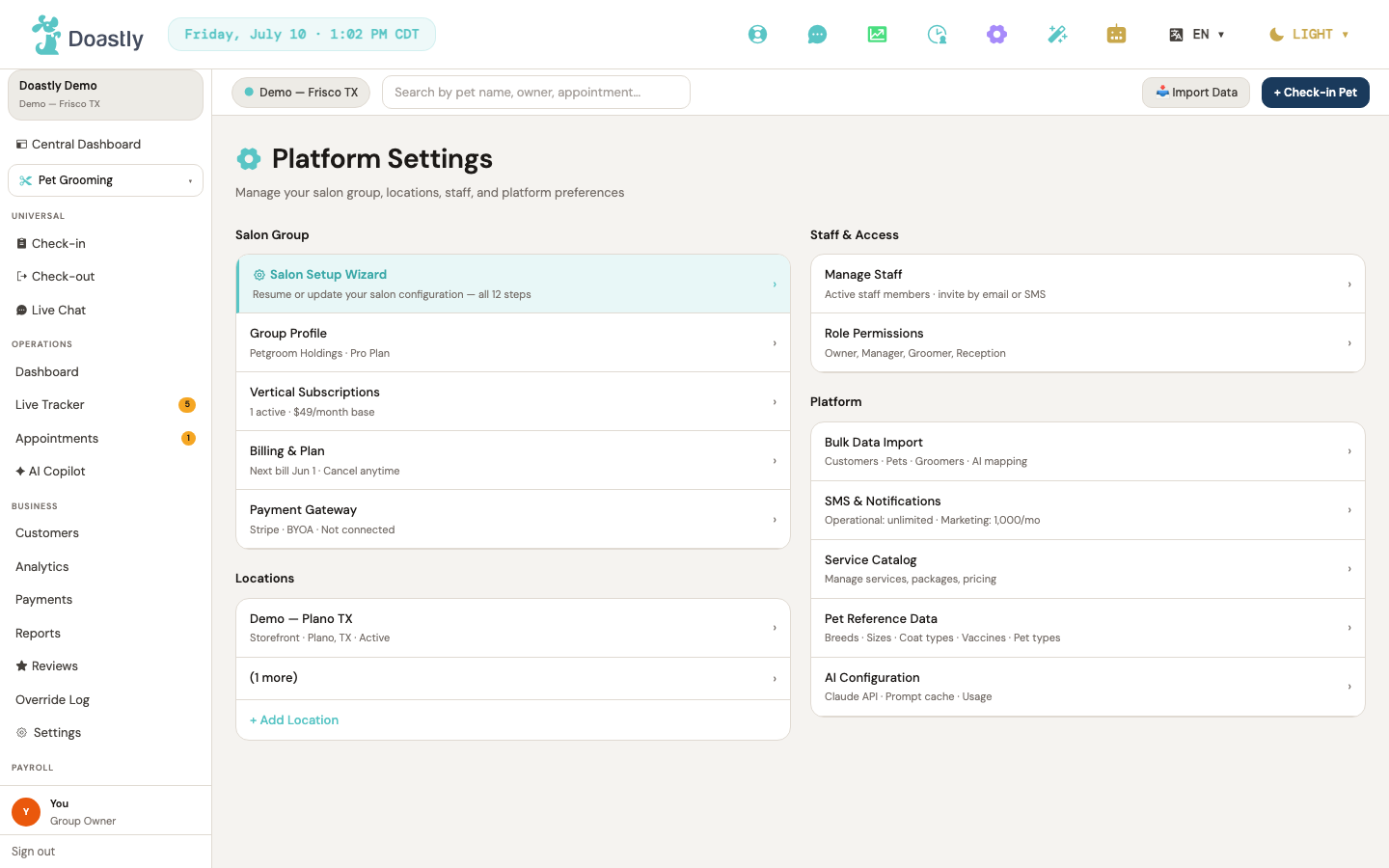
(dark mode also captured)
| Control | What it does |
|---|---|
| Salon Setup Wizard (highlighted teal row) | Opens the 12-step onboarding wizard at Step 1. |
| Group Profile | Opens the Group Profile settings page. |
| Vertical Subscriptions | Opens the Vertical Subscriptions page. |
| Billing & Plan | Opens the Billing payment-method page. |
| Payment Gateway | Opens the Payment Gateway settings page. |
| Default location row | Opens the location detail page for your primary (first) location. |
| (N more) / Hide all locations | Expands or collapses the list of your other (non-default) locations. |
| Additional location rows (per non-default location) | Opens the location detail page for that location. |
| + Add Location | Opens the Add Location form; on save, creates the location and refreshes your access so it appears everywhere. |
| Manage Staff | Opens the Manage Staff page. |
| Role Permissions | Opens the Role Permissions page. |
| Bulk Data Import | Opens the Bulk Data Import tool. |
| SMS & Notifications | Opens the SMS & Notifications settings page. |
| Service Catalog | Opens the full grooming Service Catalog manager. |
| Pet Reference Data | Opens the Pet Reference Data page. |
| AI Configuration | Opens the AI Copilot settings page. |
| Add Location modal backdrop | Clicking outside the form closes the Add Location modal without saving. |
Add Location Modal (from the Settings hub)
A modal for creating a new location. Location name is required; all other fields are optional. Saving creates the new location and refreshes your access so it appears everywhere immediately.
| Control | What it does |
|---|---|
| Location name * | Sets the location name. Required — you can't submit until it's filled in. |
| Location type | Chooses the type: Storefront, Mobile van, or Home-based. |
| Timezone | Sets the location's timezone from a list of common US zones. |
| Street address | Sets the street address. |
| City | Sets the city. |
| State | Sets the state. |
| ZIP code | Sets the ZIP code. |
| Country | Sets the country. |
| Phone | Sets the location phone number. |
| Sets the location email address. | |
| Tracker mode | Chooses the tracker mode: Basic or Detailed. |
| Set as primary location | Marks this location as your primary location. |
| Create Location | Saves the new location, then refreshes your access and the location list. |
| Cancel | Closes the modal without saving. |
Profile Settings — page shell (header + tabs)
Your personal account settings, split across three tabs. The header holds the save action that persists changes from any tab.
| Control | What it does |
|---|---|
| Personal Info tab | Shows your name, contact details, role, and location access. |
| Account & Security tab | Shows security options and account actions. |
| Preferences tab | Shows language, theme, and email preferences. |
| Refresh | Decorative header button; no action. |
| Save changes | Saves any edited personal details and/or preferences; enabled only when something has changed, and shows a "✓ Saved" confirmation. |
Profile Settings — Personal Info tab
Your name and contact details. Email and role are fixed at signup; other fields are editable and saved from the page header.
| Control | What it does |
|---|---|
| Upload photo | Disabled — photo upload is not yet available. |
| Remove (photo) | Disabled — not yet available. |
| First name | Edits your first name; saved via the header Save button. |
| Last name | Edits your last name; saved via the header Save button. |
| Read-only; set during signup — contact support to change it. | |
| Phone | Edits your phone number; saved via the header Save button. |
| Role at this salon group | Read-only; contact support to change your role. |
| Locations you can access | Read-only; shows that you can access all locations in your salon group. |
Profile Settings — Account & Security tab
Security options and account actions for your login. Some toggles are display-only for now; the sign-out and delete actions are live.
| Control | What it does |
|---|---|
| Two-factor authentication | Toggles 2FA on/off in the interface only; not yet saved to your account. |
| Email login alerts | Toggles login-alert emails in the interface only; not yet saved. |
| Session timeout (30 min) | Toggles a 30-minute session timeout in the interface only; not yet saved. |
| Sign out other sessions | After you confirm, signs you out of all other devices and sessions. |
| Delete account | After you type "DELETE" to confirm, soft-deletes your account (reversible for 30 days) and returns you to the login screen. |
Profile Settings — Preferences tab
Language, theme, and email preferences. Toggles and language are saved from the header; the theme override is a preview of an upcoming feature.
| Control | What it does |
|---|---|
| Preferred language | Chooses English or Español; applied and saved from the header Save button. |
| Per-profile theme override (stub) | Preview only — a per-profile theme override is coming in Wave 2. |
| Marketing emails | Toggles marketing emails on/off; saved from the header Save button. |
| Product updates | Toggles product-update emails on/off; saved from the header Save button. |
| Report card delivery emails | Toggles report-card delivery emails on/off; saved from the header Save button. |
| SMS alerts | Toggles SMS alerts on/off; saved from the header Save button. |
AI Copilot Settings — page shell (header + tabs)
Controls for Doastly's AI features, split across three tabs. The header holds the save action for the Models and Prompts tabs.
| Control | What it does |
|---|---|
| Models tab | Shows AI mode selection and per-feature toggles. |
| Prompts tab | Shows data-scoping controls and the prompt registry preview. |
| Usage & Cost tab | Shows real AI usage telemetry and cost breakdown. |
| Refresh | Decorative header button; no action. |
| Save changes | Currently a preview action — shows "✓ Saved" but does not yet persist changes. |
AI Copilot Settings — Models tab
Chooses how autonomous the AI is and which AI features are on. Selections apply in the interface only for now.
| Control | What it does |
|---|---|
| AI Mode cards (Assist / Operator-Approve / Autonomous) | Selects the AI operating mode; the active unlocked card shows a "Current" badge; locked cards are marked "v2.1+" and cannot be chosen yet. Interface-only. |
| Customer Booking Notes | Toggles AI-generated customer booking notes. Interface-only. |
| Groomer Copilot brief | Toggles the AI groomer copilot brief. Interface-only. |
| AI Report Card Narrator | Toggles the AI report-card narrator. Interface-only. |
| Schedule Optimizer | Toggles the AI schedule optimizer. Interface-only. |
| Next-Visit Nudges | Toggles AI next-visit nudges. Interface-only. |
| Churn Intervention | Toggles AI churn-intervention prompts. Interface-only. |
AI Copilot Settings — Prompts tab
Controls what data the AI can see and how it composes messages. Two data-scoping toggles are fixed by privacy rules and cannot be changed.
| Control | What it does |
|---|---|
| Cross-salon vaccine + health data | Locked on — health and vaccine data is always shared across salons for safety and cannot be turned off. |
| Cross-salon grooming sessions | Locked off — grooming session history is never shared across salons and cannot be turned on. |
| Allow AI to compose customer messages | Toggles whether the AI can draft customer messages. Interface-only. |
| Prompt Registry Editor (stub) | Preview only — the prompt registry editor is coming in Wave 2. |
AI Copilot Settings — Usage & Cost tab
Read-only telemetry on AI usage and spend, drawn from live data.
| Control | What it does |
|---|---|
| Usage metric cards (Haiku calls / Sonnet calls / Proposals approved / AI spend) | Displays live AI usage and spend figures. Read-only. |
| Cost by AI Task table | Lists cost per AI task, highest first; shows an empty state when there is no usage yet. Read-only. |
Live Chat Settings
Configures the optional Live Chat add-on, its AI drafts, approval routing, and quiet hours. The master switch gates all other controls.
| Control | What it does |
|---|---|
| Save changes | Saves your Live Chat settings; enabled only when something has changed. (Currently a preview — changes are not yet persisted.) |
| Live Chat enabled | Master switch that turns Live Chat on (activating the $9.90/mo line) and enables the other controls. |
| AI smart-reply drafts | Toggles AI-drafted replies (shows three suggested replies below the message input); disabled while Live Chat is off. |
| Require approval from role | Chooses which role must approve replies (No approval / Groomer / Bather / Receptionist); disabled while Live Chat is off. |
| Default start (customer local) | Sets the default quiet-hours start time; disabled while Live Chat is off. |
| Default end (customer local) | Sets the default quiet-hours end time; disabled while Live Chat is off. |
| SMS bridge quota bar | Read-only usage bar for the SMS bridge; shows a warning banner at 80% or more. |
Role Permissions
A read-only reference of what each role can do. Permissions themselves are enforced by the system and cannot be edited here.
| Control | What it does |
|---|---|
| Settings (back link) | Returns to the Settings hub. |
| Role Capabilities matrix | Read-only table of 7 capabilities across the 5 roles (Owner, Manager, Groomer, Receptionist, Driver); enforced by the system. |
Theme & Appearance — page shell (header + tabs)
Sets your salon group's default color mode, accent color, and receipt fonts, split across three tabs. The header saves all theme changes together. This is the canonical documentation for Theme & Appearance.
| Control | What it does |
|---|---|
| Mode tab | Shows the color-mode selection (Light / Dark / System). |
| Accent tab | Shows accent-color and receipt-font selection. |
| Preview tab | Shows live previews of your theme choices. |
| Save changes | Saves the accent color, mode, and both fonts as your group's theme; enabled only when something has changed. |
Theme & Appearance — Mode tab
Chooses the default color mode for your salon group.
| Control | What it does |
|---|---|
| Color Mode cards (Light / Dark / System) | Selects the default color mode; System follows the device setting. Saved from the header Save button. |
Theme & Appearance — Accent tab
Chooses your accent color and the fonts used on receipts.
| Control | What it does |
|---|---|
| Accent swatch buttons (preset palette) | Selects an accent color from the preset palette; the active swatch shows a check mark. |
| Custom color picker | Picks a custom accent color using the native color picker. |
| Custom hex input | Sets a custom accent color by typing a hex value (#RRGGBB). |
| Receipt font (screen) | Chooses the font used for on-screen receipts. Saved from the header Save button. |
| Receipt font (print / PDF) | Chooses the font used for printed and PDF receipts. Saved from the header Save button. |
Theme & Appearance — Preview tab
Live previews of how your theme choices look, in both light and dark contexts.
| Control | What it does |
|---|---|
| Receipt (Light Mode) preview card | Read-only preview showing your accent color on a light-mode receipt template. The "Pay Now" label is a mockup, not a working button. |
| Customer Portal (Dark Mode) preview card | Read-only preview showing your accent color on the dark-mode customer portal. The "View" label is a mockup, not a working button. |
Service Catalog (Settings view) — page shell + tabs
A read-only summary of your services and packages. All editing happens in the full catalog manager, linked from here.
| Control | What it does |
|---|---|
| Services tab | Shows your list of services and add-ons. |
| Packages tab | Shows your list of packages. |
| Manage Services | Opens the full grooming catalog manager, where services are edited. |
Service Catalog (Settings view) — Services tab
A read-only list of your services and add-ons. Every action links to the full catalog manager for editing.
| Control | What it does |
|---|---|
| Edit (per service row) | Opens the full catalog manager to edit that service. |
| Add your first service → (empty state) | Opens the full catalog manager to add your first service. |
| Open Full Catalog Manager | Opens the full grooming catalog manager. |
| Add-on Edit (per add-on row) | Opens the full catalog manager to edit that add-on. |
| Add your first add-on → (empty state) | Opens the full catalog manager to add your first add-on. |
Service Catalog (Settings view) — Packages tab
A read-only list of your packages. Editing links out to the full catalog manager.
| Control | What it does |
|---|---|
| Edit (per package row) | Opens the full catalog manager to edit that package. |
| Create your first package → (empty state) | Opens the full catalog manager to create your first package. |
Pet Reference Data (summary)
Manages the reference lists your salon uses for pets — breeds, coat types, sizes, vaccines, and behavior tags — each on its own tab. The full control-by-control reference is documented in "Platform Settings — Pet Reference."
| Control | What it does |
|---|---|
| Breeds tab | Shows the breeds reference list. |
| Coat Types tab | Shows the coat-types reference list. |
| Sizes tab | Shows the sizes reference list (Settings-only). |
| Vaccines tab | Shows the vaccines reference list. |
| Behavior Tags tab | Shows the behavior-tags reference list (Settings-only). |
Billing & Subscription
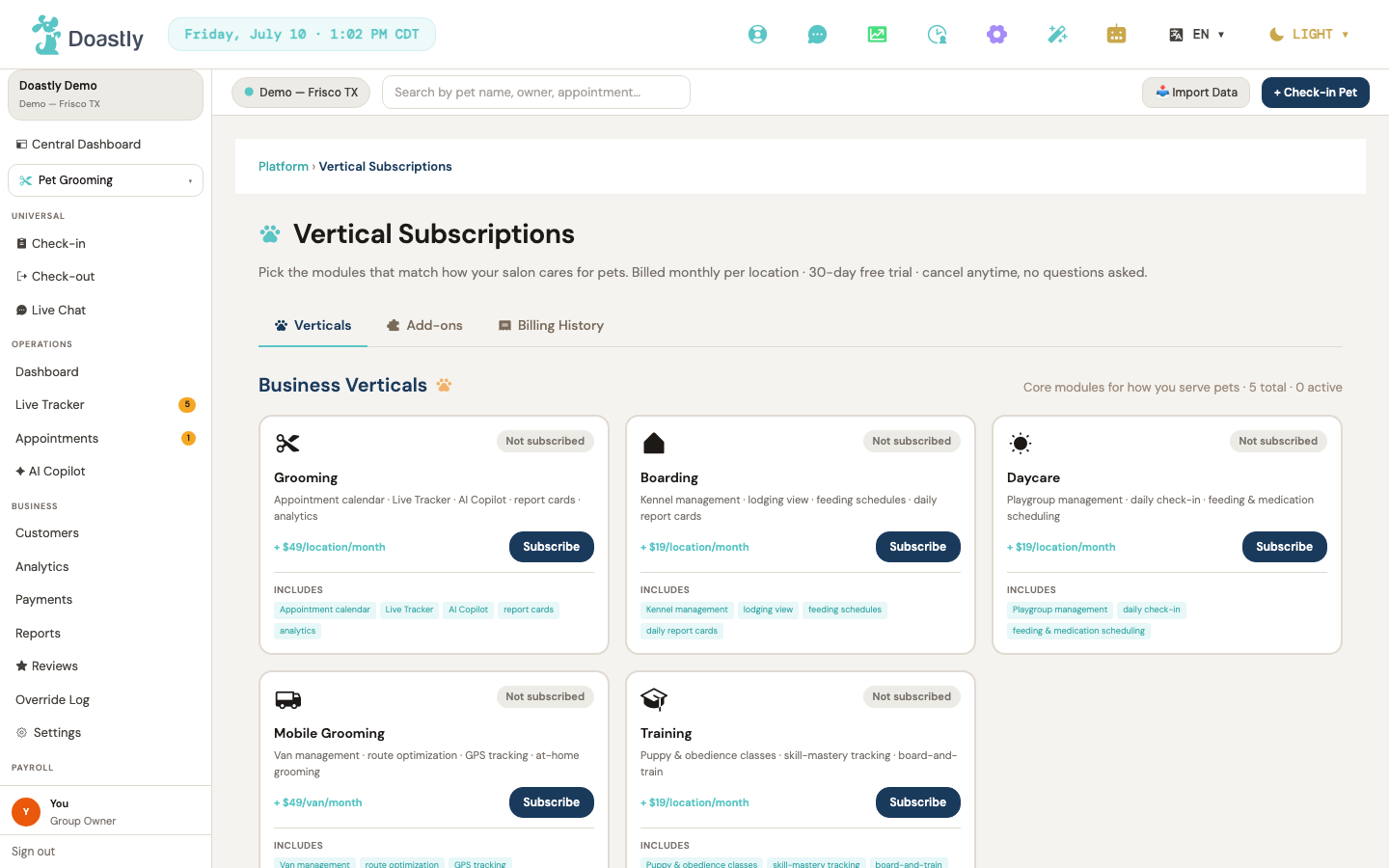
(dark mode also captured)
Billing (group) — page shell + tab strip
The Billing overview. A two-tab strip switches between the spend dashboard and full invoice history.
| Control | What it does |
|---|---|
| Dashboard (tab) | Selects the Dashboard tab. This is the default view. |
| Invoice History (tab) | Selects the Invoice History tab to show the searchable invoice list. |
Billing (group) — Dashboard tab
An at-a-glance summary of your billing account: key metric cards, a spend breakdown you can regroup, and a past-due prompt when relevant.
| Control | What it does |
|---|---|
| Update payment method → | Appears only inside the past-due banner. Opens the payment-method settings so you can update the card on file. |
| By Location (spend view toggle) | Regroups the spend breakdown by location. The active segment is highlighted. |
| By Vertical (spend view toggle) | Regroups the spend breakdown by product/vertical. |
| By Type (spend view toggle) | Regroups the spend breakdown by type — Verticals vs Add-ons. |
| Monthly run-rate / Next invoice / Account status / Payment method (KPI cards) | Read-only metric cards showing your monthly run-rate, next invoice date and estimate, account-status chip (trial, active, past due, canceled, or none), and the default card's last four digits, brand, and expiry. No click action. |
| Spend Breakdown bars | Read-only horizontal bars per row (label, amount, and proportional fill). Shows "No spend data yet." when empty. No click action. |
Billing (group) — Invoice History tab
The full invoice list with date, location, product, and status filters, CSV export, and per-invoice view and PDF actions.
| Control | What it does |
|---|---|
| FROM (date filter) | Sets the start date of the range, resets to page 1, and re-fetches the filtered invoices. |
| TO (date filter) | Sets the end date of the range, resets to page 1, and re-fetches the filtered invoices. |
| LOCATION (filter) | Filters invoices to a single location; "All locations" clears it. Only shown when you have more than one location. |
| PRODUCT (filter) | Filters invoices to a single product; "All products" clears it. Only shown when the billing catalog has items. |
| STATUS (filter) | Filters by invoice status: All, Paid, Open, Void, or Uncollectible. |
| ↓ Export CSV | Builds an export from the active filters and downloads an invoices CSV. Disabled and shows "Exporting…" while in progress. |
| View (per invoice row) | Opens the Stripe-hosted invoice in a new tab. Only shown when a hosted invoice link is available. |
| PDF (per invoice row) | Downloads the invoice PDF. Only shown when a PDF is available. |
| Invoice table | Read-only table of Invoice #, Period, Subtotal, Discount, Total, Status, and Issued date, plus row actions. Shows loading and empty states. |
| ← Prev (pagination) | Goes to the previous page. Disabled on page 1; only shown when there is more than one page. |
| Next → (pagination) | Goes to the next page. Disabled on the last page; only shown when there is more than one page. |
Billing & Payment Method (settings) — page shell + header + tab strip
The billing settings area. A header with two placeholder actions sits above a three-tab strip for plan details, payment methods, and invoices.
| Control | What it does |
|---|---|
| Refresh (header action) | Currently inert — the button is shown but has no action. Clicking it does nothing. |
| Download invoice (header action) | Currently inert — the button is shown but has no action. Clicking it does nothing. |
| Current Plan (tab) | Selects the Current Plan tab (the default) and shows plan status and billing address. |
| Payment Method (tab) | Selects the Payment Method tab to manage cards and billing mode. |
| Invoices (tab) | Selects the Invoices tab to show the invoice history. |
Billing settings — Current Plan tab
Shows your plan status and active modules, and lets you edit the billing address used on invoices.
| Control | What it does |
|---|---|
| Status / Active modules / Trial remaining / Card on file (metric cards) | Read-only metric cards computed from your billing account and subscriptions. Show loading skeletons while fetching. No click action. |
| Company name | Text field for the company name shown on invoices; included when you save the billing address. |
| Tax ID (EIN) | Text field for your tax ID; saved with the billing address. |
| Street address | Text field for the billing street; saved with the billing address. |
| City | Text field for the billing city; saved with the billing address. |
| State | Text field for the billing state; saved with the billing address. |
| ZIP | Text field for the billing ZIP; saved with the billing address. |
| Save billing address | Saves the billing address. Disabled and shows "Saving…" while in progress, then "✓ Saved" for a moment on success, or an inline error on failure. |
| How Billing Works explainer | Read-only info panel covering per-module pricing, pricing multiplied by locations, and the 30-day trial. Points to Subscriptions for cancelling. No click action. |
Billing settings — Payment Method tab
Manage the card on file and choose between group and per-location billing. In per-location mode, each location gets its own card.
| Control | What it does |
|---|---|
| Switch to Group Billing / Per-Location Billing | Opens the billing-mode switch confirmation modal. The label shows the opposite of your current mode. Disabled while loading or switching. |
| Cancel (mode-switch modal) | Closes the confirmation modal without switching. |
| Confirm Switch (mode-switch modal) | Switches the billing mode, reloads payment methods, and shows a confirmation toast. Shows "Switching…" while in progress, or an inline error on failure. |
| Add card / Replace card | Reveals the card entry form. Shows "Replace card" when a card exists, otherwise "Add card". In per-location mode, one appears per location. |
| Card details | Stripe card input for number, expiry, and CVC. Only appears when card processing is configured; otherwise an unavailable message is shown. |
| Save card | Saves the entered card as the card on file and shows a "Card saved." toast on success. Shows "Saving…" and is disabled while in progress, or an inline error if the card is declined. |
| Expiring-cards warning banner | Read-only banner shown when one or more cards are expiring, prompting you to update them below. |
| Card-saved toast | Transient confirmation message ("Card saved." / "Switched to …") that auto-dismisses after a few seconds. No click action. |
Billing settings — Invoices tab
A compact invoice history with per-row links to view or download each invoice.
| Control | What it does |
|---|---|
| View invoice (per row) | Opens the Stripe-hosted invoice in a new tab. Shown when a hosted invoice link is available. |
| Download PDF (per row) | Opens the invoice PDF in a new tab. Shown when there is no hosted link but a PDF is available. |
| Invoice History table | Read-only table of Date, Invoice, Period, Amount, and Status, plus a row action. Shows loading skeletons and a "No invoices yet." empty state. This surface has no pagination. |
Billing settings — Payment Method legacy redirect
A legacy link kept so old bookmarks still work.
| Control | What it does |
|---|---|
| (auto-redirect) | No interactive control. On load, it redirects to the Billing → Payment Method tab and briefly shows "Redirecting to Billing → Payment Method…". |
Reorder Queue
(dark mode also captured)
Reorder Queue
Lists retail items that need restocking as a single flat list, with out-of-stock rows visually highlighted (orange-tinted border and background) versus low-but-in-stock rows. There are no separate sections, tabs, or filters — rows are distinguished only by their per-row styling and the sub-label and button variant. Each row offers a one-click action to mark the item as ordered.
| Control | What it does |
|---|---|
| Back to inventory | Ghost-styled link that returns you to the Retail inventory landing page. |
| Order / Order now (single conditional button) | One button per row that marks the item as ordered. For low-but-in-stock rows it appears as a ghost button labeled "Order"; when the item is out of stock the same button automatically switches to a bolder primary style labeled "Order now". While saving it shows "Marking…" (disabled). On success the row instantly replaces the button with a non-interactive "✓ Reorder marked" indicator (teal). If something goes wrong, a plain-English message appears. |
Notes: There is a single button per row whose style and label switch based on whether the item is out of stock — not two separate controls. There is no search, filter, bulk-order, pagination, or supplier/purchase-order controls on this screen (this first version is an internal reorder reminder only, per the page subtitle). The empty state shows "No items need reordering right now."
Retail Reports
The Retail Reports screen is a read-only analytics surface for a store location. It loads automatically when opened and displays revenue, inventory, and top-seller metrics with no interactive controls.
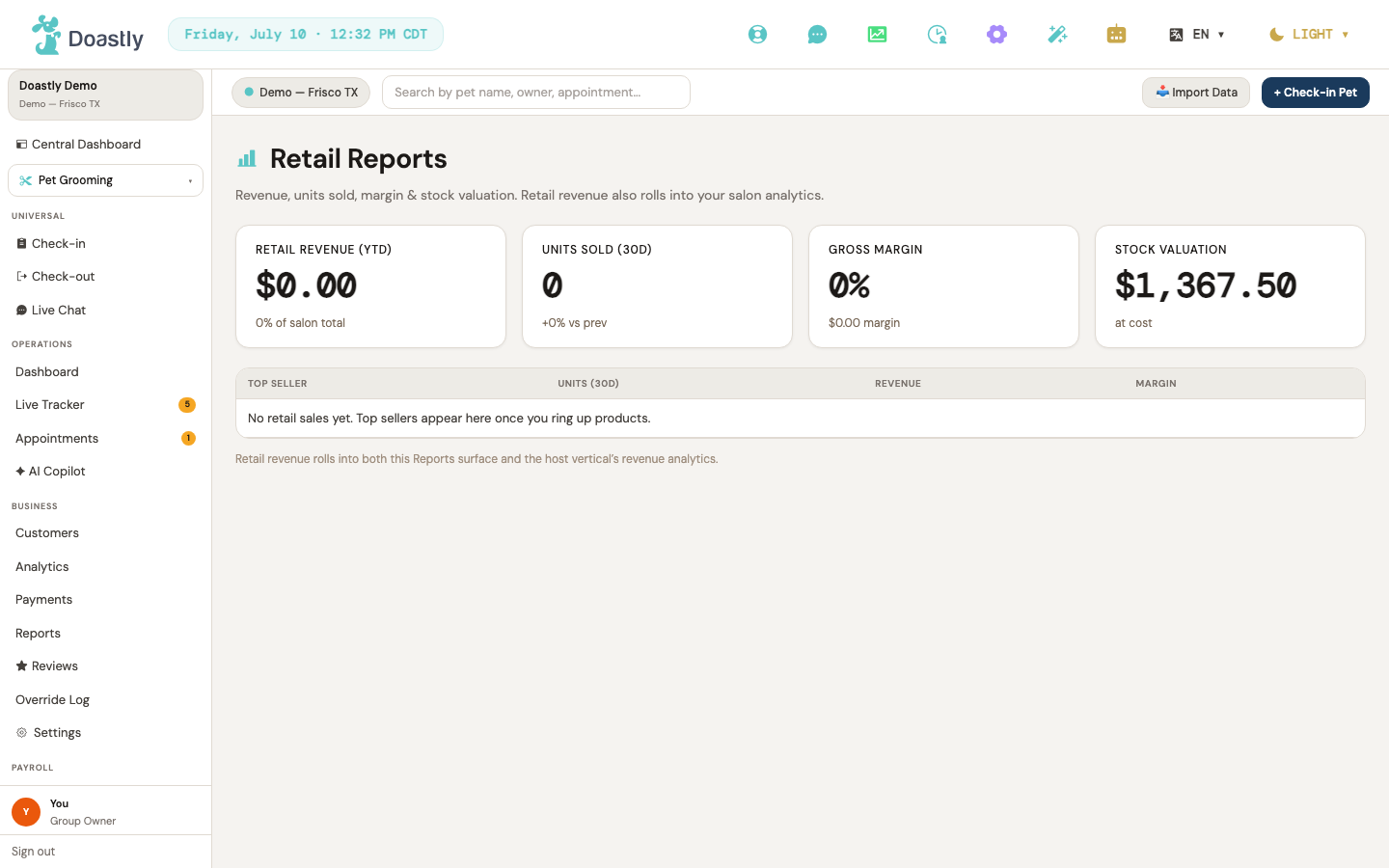
(dark mode also captured)
Retail Reports
This screen has no interactive controls — no date-range picker, filters, export, refresh, sorting, tabs, or clickable rows. All data loads automatically when you open it, for the current location, and is display-only. It is reached from the single Retail item in the sidebar. Access is restricted to Owner and Manager roles.
| Control | What it does |
|---|---|
| Page-header icon | Decorative chart icon; non-interactive, leads nowhere. |
| Page title and subtitle | Static text identifying the screen ("Retail Reports" plus subtitle); display-only. |
| Error banner | Appears only when the report data fails to load; display-only with no dismiss or retry action, so recovering requires reloading the page. |
| "Retail Revenue (YTD)" metric card | Shows year-to-date retail revenue as a label, value, and delta (the delta shows this revenue as a percent of the salon total); display-only, not clickable. |
| "Units Sold (30d)" metric card | Shows units sold over the last 30 days as a label, value, and delta; display-only, not clickable. |
| "Gross Margin" metric card | Shows the gross margin figure as a label, value, and delta; display-only, not clickable. |
| "Stock Valuation" metric card | Shows the current stock valuation as a label, value, and delta ("at cost"); display-only, not clickable. |
| Top Sellers table | Lists top-selling products across four columns — Top Seller (product name), Units (30d), Revenue, and Margin; rows are static with no sorting, filtering, or click-through. |
| Empty state row | Shows "No retail sales yet…" inside the Top Sellers table when there is no sales data; display-only. |
| Loading row | Shows "Loading…" inside the Top Sellers table while report data is being fetched; display-only. |
| Footer note | Static explanatory text below the table (notes that retail revenue rolls into both this surface and the host vertical's revenue analytics); display-only. |
Retail Settings
(dark mode also captured)
Retail Settings — tab strip + Categories tab (default)
The Retail Settings hub uses a horizontal tab strip to switch between configuration panels. The Categories tab is shown by default and lets you add or remove the product categories used across your inventory.
| Control | What it does |
|---|---|
| Categories (tab) | Opens the Categories panel; this is the default view when no tab is selected. |
| Brands (tab) | Switches to the Brands panel. |
| Stock thresholds (tab) | Switches to the Stock thresholds panel, which currently shows a "coming soon" notice. |
| Receipt (tab) | Switches to the Receipt panel, which currently shows a "coming soon" notice. |
| Category chip × (remove, per category) | Removes that category and refreshes the list. Disabled while a change is saving. |
| New name (category input) | Type a new category name here; press Enter to add it. Disabled while a change is saving. |
| + Add (category) | Adds the category you typed, clears the input, and refreshes the list. Disabled while saving or when the input is empty. |
Note: if a category or brand change fails to load or save, a plain-English error notice appears above the tab strip (e.g. "That change didn't save. Please try again."). This is a status message, not an interactive control.
Retail Settings — Brands tab
The Brands panel lets you add or remove the product brands used across your inventory. It works the same way as the Categories panel.
| Control | What it does |
|---|---|
| Brand chip × (remove, per brand) | Removes that brand and refreshes the list. Disabled while a change is saving. |
| New name (brand input) | Type a new brand name here; press Enter to add it. Disabled while a change is saving. |
| + Add (brand) | Adds the brand you typed, clears the input, and refreshes the list. Disabled while saving or when the input is empty. |
Retail Settings — Stock thresholds tab
The Stock thresholds panel is a placeholder for upcoming inventory settings. It has no interactive controls yet.
| Control | What it does |
|---|---|
| Coming-soon notice (thresholds) | Static panel explaining that a default low-stock threshold and markup percentage are coming soon; for now, set the low-stock threshold on each product from the inventory screen. |
Retail Settings — Receipt tab
The Receipt panel is a placeholder for upcoming receipt-formatting settings. It has no interactive controls yet.
| Control | What it does |
|---|---|
| Coming-soon notice (receipt) | Static panel explaining that a custom receipt line-item label is coming soon; for now, retail items appear on receipts under their product names. |
Add Product form
The Add Product window opens from the + Add Product button on the Retail inventory page and captures a new product record. SKU, name, brand, and category are required; the remaining fields are optional and fall back to sensible defaults on save.
| Control | What it does |
|---|---|
| Window backdrop / overlay | Clicking the dark area outside the dialog dismisses the window without saving. |
| SKU * | Required. Enter the product SKU. Leaving it blank on save shows "SKU, name, brand, and category are required." (shown at the top of the window). |
| Name * | Required. Enter the product name. Leaving it blank on save shows "SKU, name, brand, and category are required." |
| Brand * | Required. Enter the product brand. Leaving it blank on save shows "SKU, name, brand, and category are required." |
| Category * | Required. Enter the product category. Leaving it blank on save shows "SKU, name, brand, and category are required." |
| Barcode | Optional. Enter a barcode. Left empty, it is saved as no value. |
| Cost (¢) | Optional. Enter the product cost in cents. The field hints at a minimum of 0, but negative values are not hard-blocked on save. Defaults to 0 if left unset. |
| Price (¢) | Optional. Enter the retail price in cents. The field hints at a minimum of 0, but this is not enforced on save. Defaults to 0 if left unset. |
| Stock qty | Optional. Enter the on-hand stock quantity. The field hints at a minimum of 0. Defaults to 0 if left unset. |
| Low threshold | Optional. Enter the low-stock reorder threshold. The field hints at a minimum of 0. Defaults to 10 if left unset. |
| Cancel | Dismisses the window without saving. Disabled while a save is in progress. |
| Add Product (Saving…) | Validates the required fields, then saves the new product. On success the window closes and the inventory list reloads. While saving, the label changes to "Saving…" and the button is disabled; if the save fails, a friendly error message is shown at the top of the window. |
Retail Inventory (home / POS)
Selling a product: these Retail pages manage your catalog and stock — there is no standalone register. To sell an item, ring it up during a service Check-out: on the Check-out screen (when Retail is enabled) a Retail Ring-up section lets you search products and add them to that visit's bill. See the Check-out chapter.
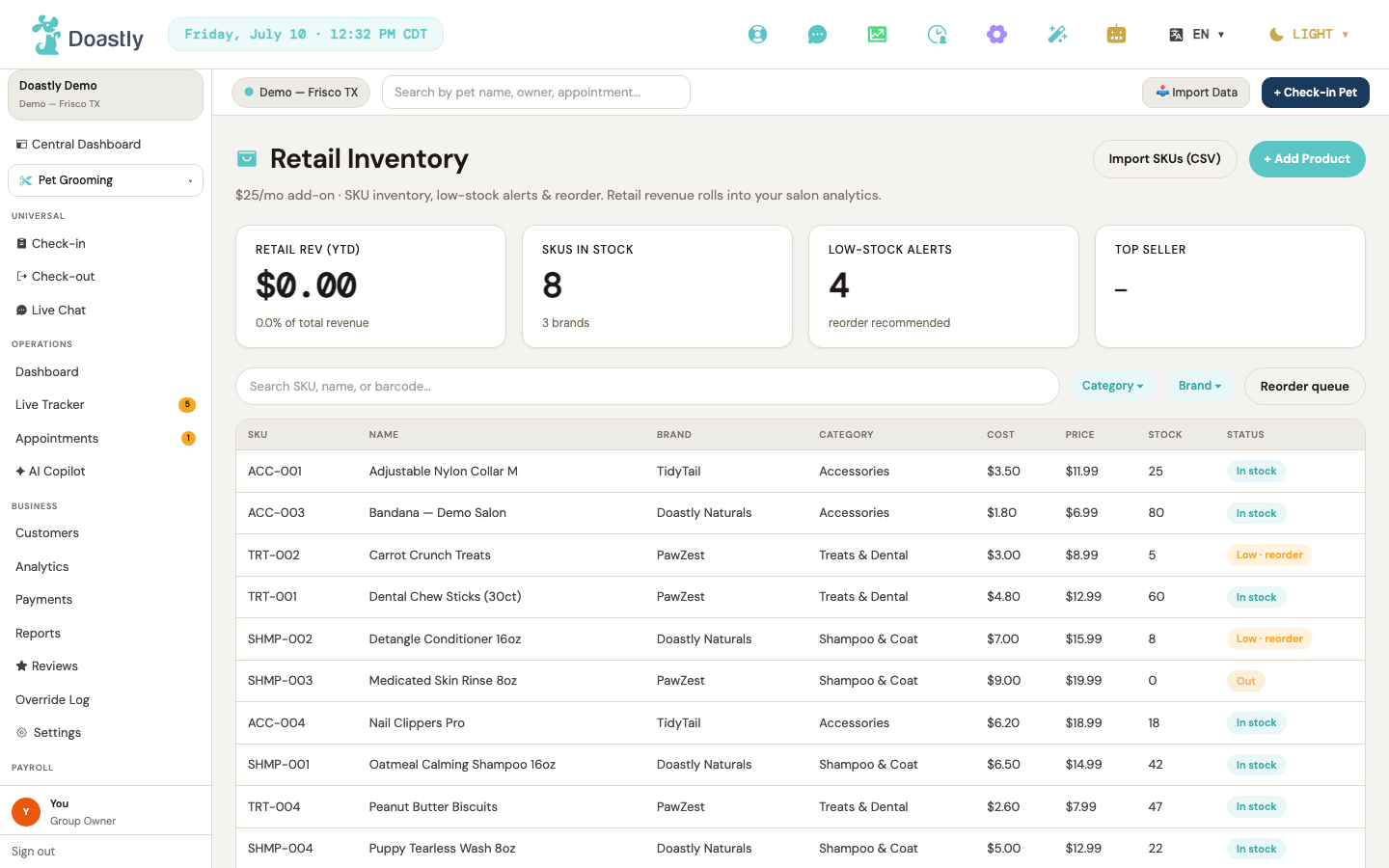
(dark mode also captured)
Retail Inventory home (list)
The main product catalog for a location, showing headline metrics, a searchable SKU table, and the entry points for adding or importing products.
| Control | What it does |
|---|---|
| Import SKUs (CSV) — hidden file picker | Hidden file picker that accepts a CSV file. When a file is chosen, it reads the file and imports the SKUs, showing an "Imported N SKUs" notice, then reloads the list. Not currently wired to the visible Import button (see below). |
| Import SKUs (CSV) | Shows a "Bulk SKU import (CSV) is coming soon. For now, add products with + Add product." notice. Does not open the file picker yet — this is a placeholder. |
| + Add Product | Opens the Add Product window. |
| Retail Rev (YTD) | Metric card showing year-to-date retail revenue and its share of total salon revenue. Display only. |
| SKUs in Stock | Metric card showing the number of in-stock products and the brand count. Display only. |
| Low-stock Alerts | Metric card showing the count of low- or out-of-stock products, highlighted (warn accent) when any exist. Display only. |
| Top Seller | Metric card showing the best-selling product and its units sold in the last 30 days. Display only. |
| Search SKU, name, or barcode… | Filters the product rows as you type. Note: despite the placeholder mentioning "barcode," the filter matches only on SKU, name, or brand — barcode is NOT searched. |
| Category ▾ | Category-filter chip. Not yet functional — placeholder. |
| Brand ▾ | Brand-filter chip. Not yet functional — placeholder. |
| Reorder queue | Link that opens the Reorder Queue. |
| SKU table rows | Lists the filtered products with SKU, name, brand, category, cost, price, stock, and status. Display only — rows are not clickable or editable. When no products match a search, "No products match your search." is shown; when the catalog is empty, "No products yet. Add your first product above." is shown in place of the rows. |
| Error banner (display) | Non-interactive banner shown when inventory fails to load, with a friendly message. Display only. |
| Import / notice banner (display) | Non-interactive banner that surfaces CSV import results and the Import-button "coming soon" notice. Display only. |
Add Product window
A form for adding a single product to the catalog, opened from the + Add Product button.
| Control | What it does |
|---|---|
| Backdrop (click-outside) | Clicking the dimmed area outside the form closes the window. |
| SKU * | The product's SKU. Required. |
| Name * | The product name. Required. |
| Brand * | The product brand. Required. |
| Category * | The product category. Required. |
| Barcode | The product barcode. Optional — saved as no value if not entered. |
| Cost (¢) | The product cost in cents. Minimum 0; defaults to 0. |
| Price (¢) | The product price in cents. Minimum 0; defaults to 0. |
| Stock qty | The starting stock quantity. Minimum 0; defaults to 0. |
| Low threshold | The stock level at which the product is flagged as low. Minimum 0; defaults to 10. |
| Cancel | Dismisses the window without saving. Disabled while a save is in progress. |
| Add Product / Saving… | Validates the required fields (SKU, name, brand, category), saves the new product, then closes the window and reloads the list. Disabled while saving. |
Global chrome (TopBar + Sidebar)
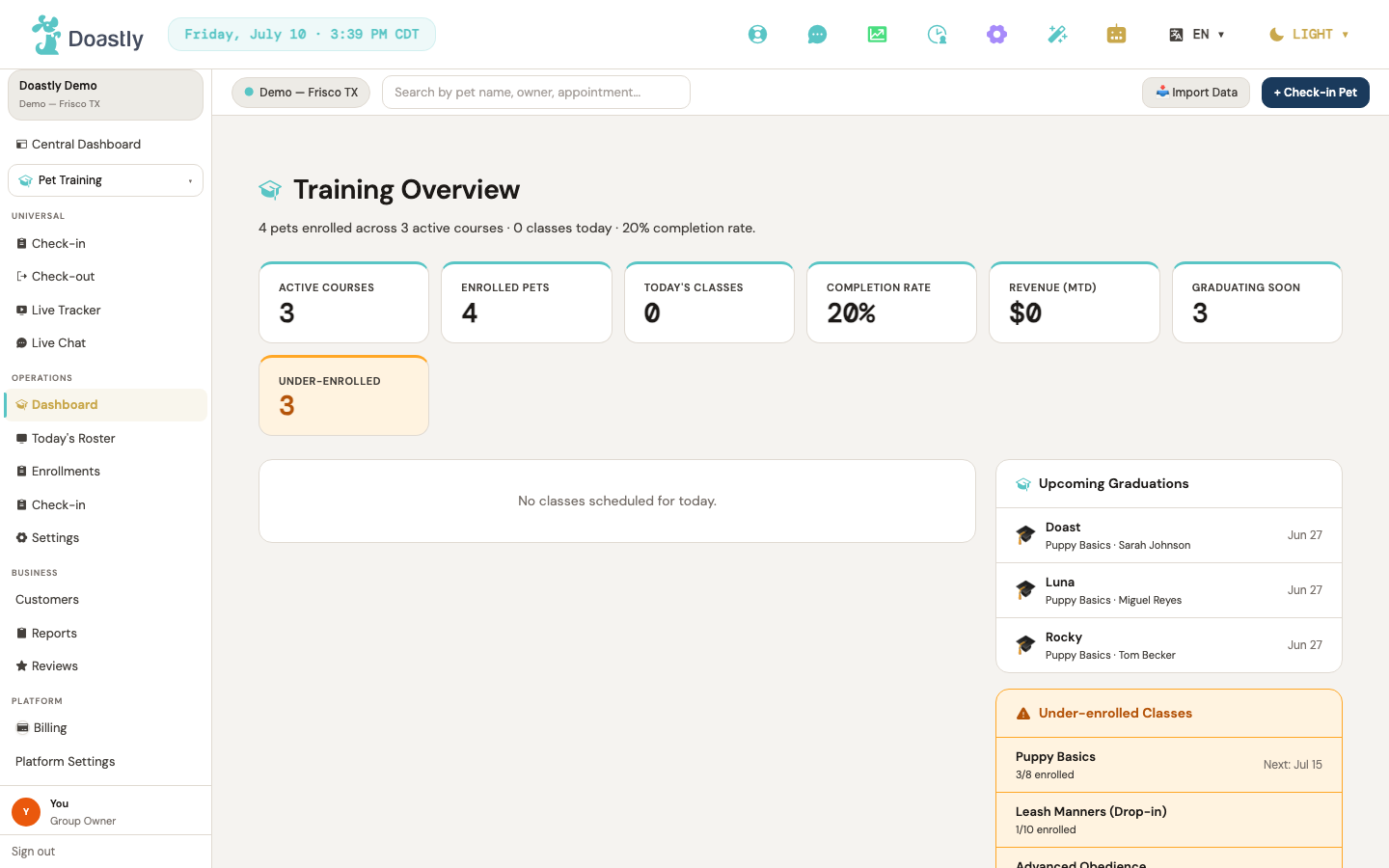
(dark mode also captured)
System bar (top — brand + icon actions row)
The top system bar spans the full width above the workspace, showing the Doastly brand on the left and a row of quick-access icon actions plus language and display-mode controls on the right. It is shared across every vertical, so the same bar appears whether you are working in Training or any other module.
| Control | What it does |
|---|---|
| Doastly logo | Static brand logo. Not a link or button — it does nothing when clicked. |
| Today's date/time pill | Read-only display of the current date and time in your location's timezone. Refreshes every minute; not interactive. |
| Get Help (lifebuoy icon) | Opens the Get Help / Contact Support window so you can raise a support ticket. |
| Live Chat (chat-circle icon) | Opens the live chat screen. |
| Analytics (chart icon) | Opens the analytics screen. Note: this currently opens the Grooming analytics screen rather than a Training-specific one — a shared-shell quirk. |
| Staff Clock (clock icon, with clocked-in count badge) | Opens the staff clock screen. The badge shows how many staff are currently clocked in and refreshes every minute. |
| Settings (gear icon) | Opens Location Settings. |
| Setup Wizard (magic-wand icon) | Opens the setup wizard overlay. |
| AI Companion (robot icon) | Shows an "AI Companion coming soon" message for about two seconds. Does not navigate anywhere. |
| Language switcher (translate icon + EN/ES ▾) | Opens the English/Spanish language menu. |
| Language option: English | Sets your language to English and reloads the page. |
| Language option: Español | Sets your language to Spanish and reloads the page. |
| Display mode dropdown (LIGHT/DARK ▾, sun/moon icon) | Opens the light/dark/auto display-mode menu. |
| Mode option: Light | Switches to light mode and closes the menu. |
| Mode option: Dark | Switches to dark mode and closes the menu. |
| Mode option: Auto | Follows your system light/dark setting and closes the menu. |
Get Help / Contact Support window (opened from the system bar lifebuoy)
Opened from the lifebuoy icon in the system bar, this window lets you file a support ticket without leaving your current screen. Fill in the details, optionally attach files, and submit.
| Control | What it does |
|---|---|
| Close (×) | Closes the window without submitting. |
| Subject | Text input for the ticket subject. |
| Category | Selects the ticket category: bug, how-to, billing, account, outage, or feature request. |
| What's happening? (text box) | Multiline field for describing the issue. |
| Attachments (file picker) | Attaches one or more files (images, PDF, or text, up to 10MB each) to the ticket. |
| Cancel | Closes the window without submitting. |
| Submit request | Uploads any attachments and creates the support ticket, then shows a success confirmation. |
| Done (success state) | Closes the window after the ticket has been created successfully. |
Top bar (secondary — location + search + quick actions)
The secondary bar sits below the system bar and carries the location switcher, a search box, and a couple of quick-action buttons. It gives you fast context switching and check-in access from anywhere in the app.
| Control | What it does |
|---|---|
| Location Switcher pill | For owners with more than one location, opens the location menu. For single-location accounts, it is a static identity pill with no menu. |
| Location option: All Locations (globe) | Switches to a cross-location view that reads data across all locations, refreshes the current view, and updates the rest of the app to match. |
| Location option: <each location> (pin) | Sets that location as active, refreshes the current view, and updates the rest of the app to match. |
| Search input ("Search by pet name, owner, appointment...") | Accepts search text as you type. Note: no search is currently wired up, so it does not yet return results. |
| 📥 Import Data | Button with no action wired up — currently inactive. |
| + Check-in Pet | Opens the shared à-la-carte check-in (/salon/checkin), which resolves the flow from the tenant's active verticals in the JWT — single-vertical tenants auto-route to their vertical, multi-vertical tenants get the picker (SalonTopBar.tsx:20-28). Hidden on the dashboard. Note: Training is not a recognized check-in vertical there, so a Training-only tenant lands on the empty-subscription state, not on a Grooming fallback (see the Check-in flow page for the full behavior). |
Sidebar — top region (group card, central, vertical switcher, universal)
The upper part of the sidebar shows which salon group and location you are in, a link to the cross-location dashboard, the vertical switcher, and universal actions that apply across modules.
| Control | What it does |
|---|---|
| Salon Group / Location card | Read-only display of your salon group and location names. Not interactive. |
| Central Dashboard | Opens the cross-location dashboard. |
| Vertical Switcher pill | Opens the vertical switcher dropdown, showing the current active vertical (Training when it is active). |
| Vertical option: <each subscribed vertical incl. Training> | Switches the active vertical, remembers your choice, and swaps the sidebar to that vertical's sections. The active vertical is marked with a ✓ "Active" tag. |
| Universal › Check-in | Opens the universal à-la-carte check-in. Hidden for Groomer, Bather, and Driver roles. |
| Universal › Check-out | Opens the universal check-out. Hidden for Groomer, Bather, and Driver roles. |
| Universal › Live Tracker | Opens the live tracker. Shown only for salons with more than one vertical. |
| Universal › Live Chat | Opens the live chat screen. |
Sidebar — TRAINING vertical section (Operations + Business, when Training active)
When Training is the active vertical, the sidebar shows its Operations and Business sections. Some items appear only for roles that manage staff or view analytics.
| Control | What it does |
|---|---|
| Operations › Dashboard | Opens the Training dashboard. Shown only for Owner and Manager roles. |
| Operations › Today's Roster (Live Tracker) | Opens the Training live tracker. |
| Operations › Enrollments | Opens the Training enrollments list. |
| Operations › Check-in | Opens Training check-in (the shared check-in in Training context). |
| Operations › Settings | Opens Training settings. Shown only for Owner and Manager roles. |
| Business › Customers | Opens the shared customers list. |
| Business › Reports | Opens Training reports. Shown only for roles that can view analytics. |
| Business › Reviews | Opens the shared reviews screen. Shown only for Owner and Manager roles. |
Sidebar — Platform section + addons + user footer
The lower part of the sidebar holds platform-level links (billing, settings, setup), any enabled add-on modules, and your user identity with a sign-out action.
| Control | What it does |
|---|---|
| Platform › Billing | Opens billing. Shown only for roles that manage staff. |
| Platform › Settings | Opens platform settings. |
| Platform › Salon Setup | Opens the setup wizard at Step 0. |
| Addon › Pickup & Dropoff | Opens delivery settings. Shown only when Pickup & Dropoff is enabled. |
| Addon › Pickup Dispatch | Opens the pickup dispatch screen. Shown only when Pickup & Dropoff is enabled. |
| Addon › Loyalty & Rewards | Opens loyalty. Shown only when Loyalty is enabled. |
| Addon › Retail Inventory | Opens retail inventory. Shown only when Retail Inventory is enabled. |
| Addon › Salon Theme | Opens theme settings. Always shown for roles that manage staff. |
| User footer card (avatar + name + role) | Read-only display of your avatar, name, and role. Not interactive. |
| Sign Out | Signs you out and returns you to the login screen. |
Note: the whole Platform section (Billing, Settings, Salon Setup, all addon links, and Salon Theme) is shown only for roles that manage staff (Owner / Manager); non-manager roles see none of it.
Dashboard (Training home)
(dark mode also captured)
Training Dashboard / Overview
The Training home screen. It opens with a heading and a strip of read-only KPI cards summarizing the training program, followed by panels for today's classes, upcoming graduations, and (when applicable) under-enrolled classes. Every element here is display-only — the dashboard shows status, it does not launch actions.
| Control | What it does |
|---|---|
| Try again | Shown only in the error state, when the dashboard fails to load or returns no data. Reloads the dashboard for the current location and re-renders it on success. |
| Training Overview (page heading) | Non-interactive page title with a graduation-cap icon and a subhead line summarizing enrolled pets, active courses, today's classes, and completion rate. No action. |
| Active Courses (KPI card) | Read-only metric card showing the number of active courses. Not clickable. |
| Enrolled Pets (KPI card) | Read-only metric card showing the number of enrolled pets. Not clickable. |
| Today's Classes (KPI card) | Read-only metric card showing the count of classes scheduled today. Not clickable. |
| Completion Rate (KPI card) | Read-only metric card showing the completion rate as a percentage. Not clickable. |
| Revenue (MTD) (KPI card) | Read-only metric card showing month-to-date revenue formatted as a dollar amount. Not clickable. |
| Graduating Soon (KPI card) | Read-only metric card showing the number of pets graduating soon. Not clickable. |
| Under-enrolled (KPI card) | Read-only warning-styled metric card showing the count of under-enrolled alerts. Appears only when there is at least one such alert. Not clickable. |
| Today's Classes (list widget) | Panel listing today's class sessions. Each row shows a status dot, course name, start time / duration / trainer, and enrolled-versus-capacity count. Rows are display-only. When nothing is scheduled, shows "No classes scheduled for today." |
| Upcoming Graduations (panel) | Panel listing pets graduating soon. Each row shows a graduation-cap marker, pet name, course and owner name, and completion date. Rows are display-only. When there are none, shows "No upcoming graduations." |
| Under-enrolled Classes (panel) | Warning panel listing under-enrolled courses, shown only when at least one exists. Each row shows the course name, enrolled-versus-capacity count, and next session date. Rows are display-only. |
Training Root (auto-redirect to Dashboard)
A routing-only screen with no interface of its own. Opening the Training area immediately forwards you to the Training Dashboard.
| Control | What it does |
|---|---|
| (no interactive controls — auto-redirect) | On load, automatically redirects to the Training Dashboard. Briefly shows "Redirecting to Training Dashboard…" while forwarding. No buttons, links, or fields. |
Training — Progress (completion + certificate)
Salon Enrollments list — completion & progress surface
There is no dedicated progress screen on the salon side. Completion is tracked on the Enrollments list using the status filter chips, per-row progress bars, and status badges. All completion and certificate data here is read-only display — the salon side has no "mark complete," "issue certificate," or "withdraw" action. (Columns are not sortable — no sort control is available.)
| Control | What it does |
|---|---|
| Status filter chip: All | Clears the status filter and shows every enrollment regardless of status, then reloads the list. Shows a count badge = the number of currently-loaded rows. |
| Status filter chip: Enrolled | Filters the list to enrollments with an Enrolled status and reloads the list. Shows a count badge. |
| Status filter chip: Completed | Filters the list to Completed enrollments — the primary completion view on the salon side. Reloads the list and shows a count badge. |
| Status filter chip: Withdrawn | Filters the list to Withdrawn enrollments and reloads the list. Shows a count badge. |
| Enrollment row | Click to toggle an inline detail row for that enrollment. Clicking the same row again collapses it. Expands in place — no navigation. |
| Progress bar (Progress column) | Shows sessions attended out of total sessions as a teal fill bar plus "N/M" text. Read-only indicator; not interactive. |
| Status badge | Shows the enrollment's completion status (Enrolled, Completed, or Withdrawn) as a colored pill. Read-only — no action is wired to it on the salon side. |
| Payment status cell | Shows the payment state (paid, pending, partial, or refunded) with color coding. Read-only display, no action. |
| Inline detail row | Appears beneath an expanded row with the pet, course, sessions-attended count, and payment status. Read-only summary with no sub-controls. |
| Header enrollment count (read-only) | Shows "N enrollments" (or "N of M enrollments" when the list is capped). Read-only display, no action. |
| List states (read-only) | Loading spinner ("Loading enrollments…"), an error alert banner on load failure, and an empty state ("No enrollments match the current filter.") when the filtered list is empty. No action. |
Chip count caveat: the chip badges are computed from the currently-loaded (already status-filtered) result set, not from a global per-status aggregate. When a status filter is active, only that status is loaded, so the other chips' badges read 0 and the "All" badge reflects only the filtered subset. Treat the badges as row-counts of the current view, not authoritative totals.
Pet Family — Enrollment progress + certificate detail
This customer-facing detail page is where completion becomes actionable: it shows the pet's session progress, skill mastery, and AI summary, and — once the enrollment is completed — the certificate section with the PDF download. Most of the page is read-only; the certificate download is the one interactive control. The backing endpoints (GET /enrollments/{id}/progress, GET /enrollments/{id}/certificate in petfamily_training.py:145-180, backed by real training_resolver_service.get_pf_progress/get_pf_certificate implementations) are built and live, not stubs.
| Control | What it does |
|---|---|
| Back (← arrow) | Returns to the previous page (typically, but not guaranteed to be, the pet-family training enrollments list). |
| Download Certificate PDF | Downloads the certificate as a PDF. Shows "Downloading…" while in progress. Only appears when the enrollment is Completed AND a certificate is ready — this is the certificate-download control. |
| "Graduated" status pill (header) | Appears in the header when the enrollment is Completed. Read-only completion indicator, no action. |
| Session progress bar + summary | Shows the completion percentage, sessions attended out of total, and skills-mastered count. Read-only. |
| AI progress summary section | Shows the AI narrative, a "being prepared…" pending state, or an empty fallback ("Progress summary will appear here after your pet's first session."). Read-only, no action. |
| Skill progress list | Lists each skill with a Mastered, Practicing, or Not started label. Renders only when at least one skill is present. Read-only display. |
| Last session notes + homework section | Shows the trainer's notes and homework from the last session when present. Read-only. |
| Certificate section | Appears only when the enrollment is Completed. Shows the completion summary and skills mastered, and holds the Download Certificate PDF button when the certificate is ready, or a "Certificate is being prepared by your trainer." message otherwise. |
| Page states (read-only) | Loading ("Loading training progress…") and error ("Training progress is temporarily unavailable. / Unable to load training progress.") states. No action. |
Enrollments / Roster
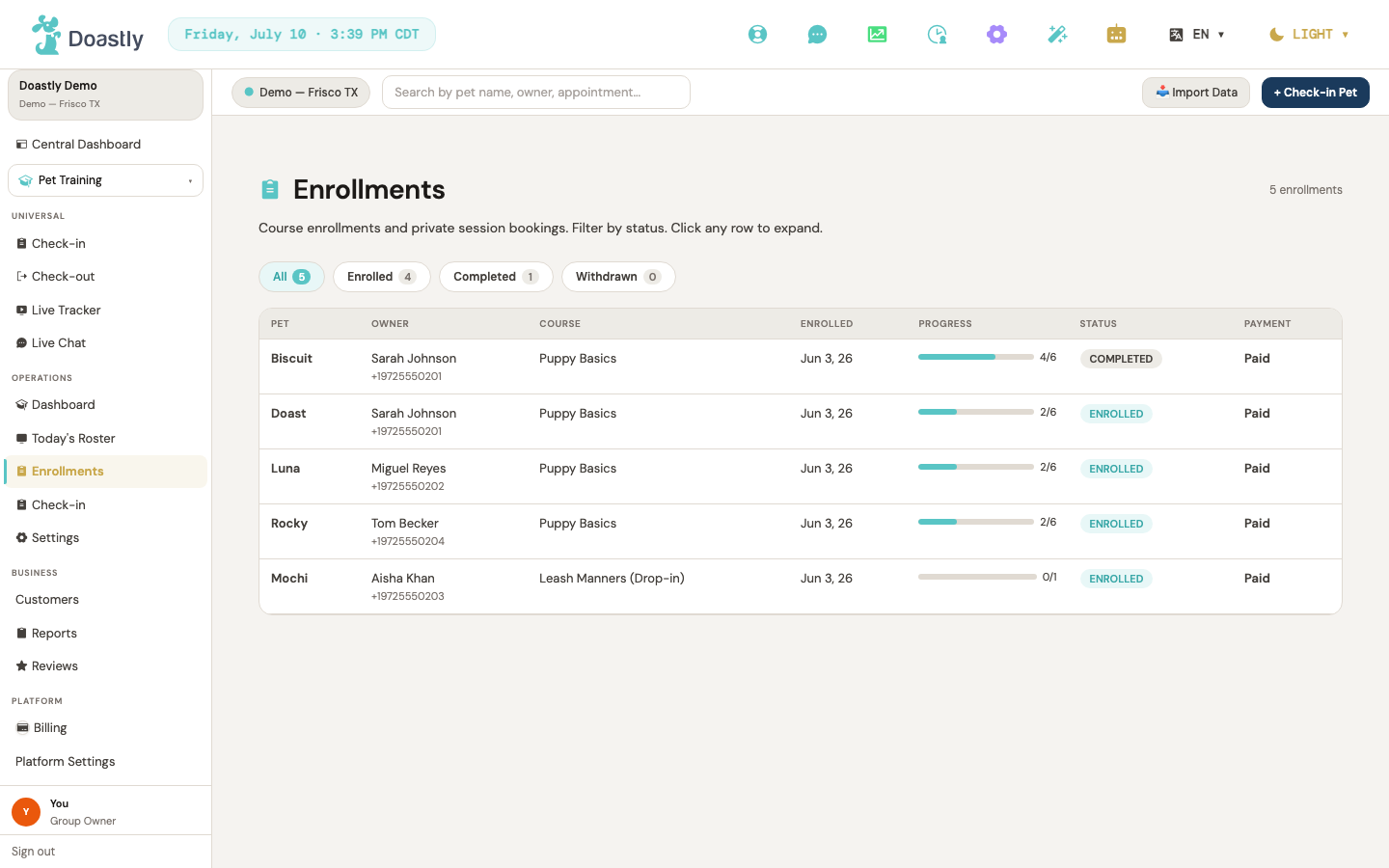
(dark mode also captured)
Training Enrollments (admin list)
The roster view for every training enrollment at your location. Filter by status along the top, then click any row to expand its inline detail; progress, status, and payment are shown read-only per row. The list columns are: Pet, Owner, Course, Enrolled, Progress, Status, Payment.
| Control | What it does |
|---|---|
| All | Clears the status filter and reloads the full list of enrollments. Its badge shows the number of enrollments currently loaded. |
| Enrolled | Filters the list to enrollments with an Enrolled status and reloads. |
| Completed | Filters the list to enrollments with a Completed status and reloads. |
| Withdrawn | Filters the list to enrollments with a Withdrawn status and reloads. |
| Status chip badges | Each chip carries a count badge. Note: the badges are computed from the enrollments currently loaded, not from a live server-side tally per status. When the 'All' filter is active the badges reflect a per-status breakdown of the full list; when a specific status filter is active the list holds only that status, so the other chips' badges show 0. |
| Enrollment row | Click to expand that enrollment's inline detail; click again to collapse it. It does not open a separate page — the detail appears in place. |
| Inline enrollment detail (expanded row) | Read-only summary shown when a row is expanded: pet name, course, sessions attended out of total, and payment status. No controls inside it. |
| Progress bar | Read-only teal bar showing sessions attended out of total sessions for that enrollment, with an "attended/total" numeric label beside it. |
| Status badge | Read-only colored pill showing the enrollment's status (Enrolled, Completed, or Withdrawn). |
| Payment status | Read-only colored text showing the payment state (paid, pending, partial, or refunded). |
| Owner (row column) | Read-only display of the pet owner's name and, when present, their phone number. |
| Enrolled (row column) | Read-only display of the enrollment date (e.g. "Mar 4, 25"). |
| Enrollment count indicator | Read-only header text showing how many enrollments are loaded. Reads "N enrollments" normally, and "N of M enrollments" only when more exist on the server than are currently loaded. Singular/plural aware ("1 enrollment"). |
| Empty state | When no enrollments match the active filter, the list area shows "No enrollments match the current filter." |
Customers (list + detail) — shared surface (Training vertical context)
Customers List
The main directory of every customer at your location. Search, filter by vaccine status, open a customer, or create a new one.
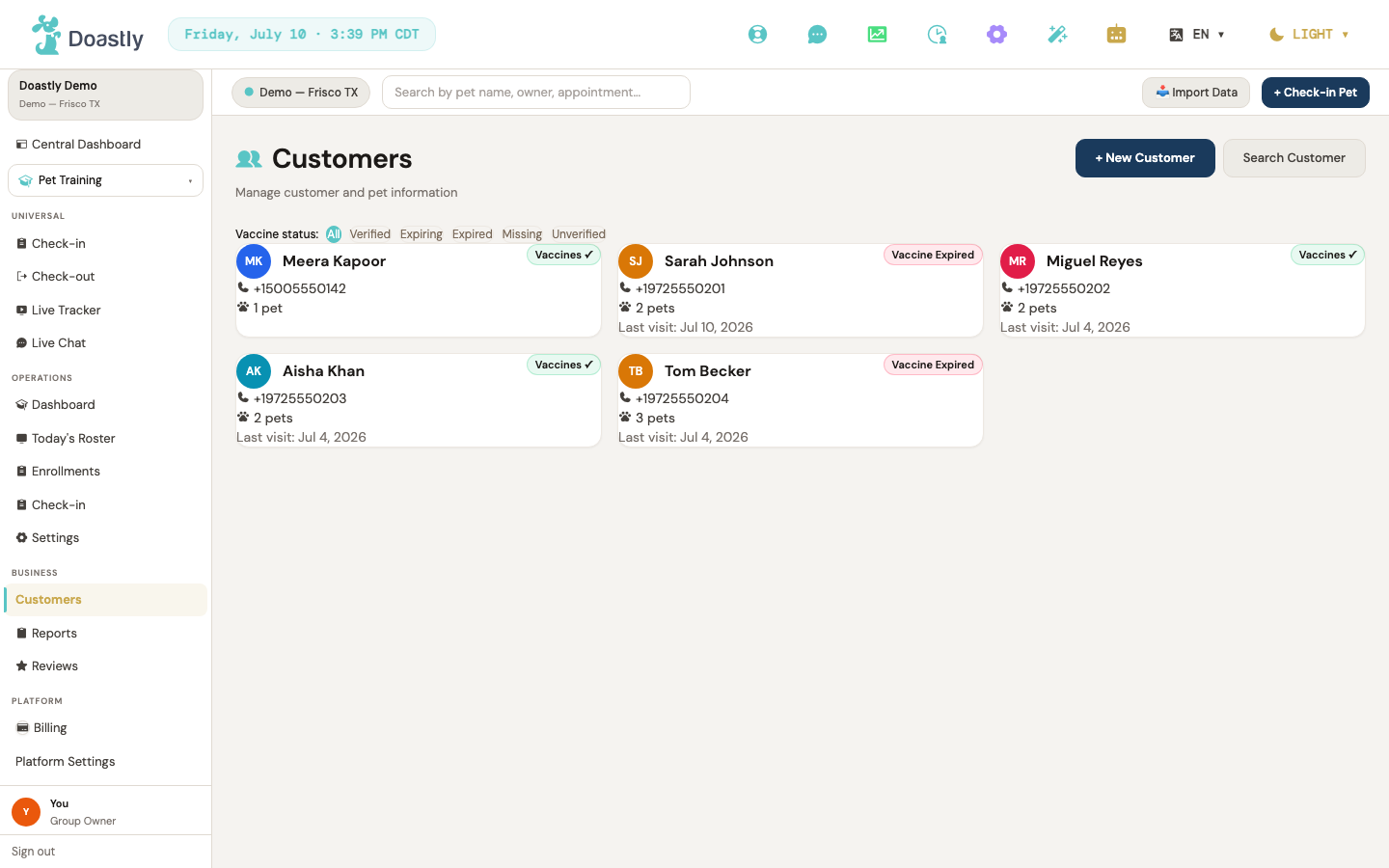
(dark mode also captured)
| Control | What it does |
|---|---|
| + New Customer | Opens the New Customer window to create a customer (and optionally chain into adding a pet). On success, takes you to the new customer's detail page. |
| Search / Hide search (toggle) | Shows or hides the phone-number search panel. The label flips between "Search" and "Hide search". |
| Vaccine filter chips (All / Verified / Expiring / Expired / Missing / Unverified) | Filters the customer grid by each customer's computed vaccine status. The active chip is highlighted in teal. |
| N of M count indicator | Shows how many customers match the current filter (filtered of total). Appears only when a filter other than All is active. |
| Search customers (empty state) | When the list is empty and no filter is applied, opens the search panel. |
| Clear filter (empty state) | When a filter returns no matches, resets the vaccine filter back to All. |
| Customer card | Opens that customer's detail page. Shows avatar, name, phone, pet count, last visit, and a vaccine badge. |
| Retry (error state) | Shown if the list fails to load; reloads the page. |
Customer Search panel
An inline panel for finding an existing customer by phone number.
| Control | What it does |
|---|---|
| Phone number input | Enter the phone number to search by. Placeholder: (555) 123-4567. |
| Search / Searching… | Runs the phone-number search. Disabled while the search is running. |
| Result card | Opens the matched customer's detail page. Shows name, phone, and pet count. |
| Add new (no-result state) | Shown when no customer matches the number. On this screen it takes no action. |
New Customer window
A two-step window for creating a customer, with the option to add their first pet right away. On the Customers page the pet is optional (a "pet gate" step appears); in walk-in / booking contexts the pet step is required and the gate is skipped.
Step 1 — Customer form:
| Control | What it does |
|---|---|
| Close (✕) | Closes the window without saving. |
| Backdrop click | Clicking the dimmed area behind the window closes it. |
| Customer-detail form | Collects the new customer's details (first name, last name, phone, email — all required) and creates the customer. Phone is auto-formatted when you leave the field. |
| Cancel | Closes the form/flow without saving. |
| Save Customer → | Submits the form and creates the customer. Shows "Saving…" while in progress; on success advances to the pet-gate step (optional-pet flow) or straight to the pet step (pet-required flow). |
Step 2 — Pet gate (optional-pet flow only):
| Control | What it does |
|---|---|
| Backdrop click | Completes the flow customer-only (no pet added). |
| Finish without pet | Saves the customer without adding a pet and closes the flow. |
| + Add a pet → | Moves to the Add Pet step to add a pet for the customer you just created. |
Customer Detail
The full record for a single customer — profile, KPIs, pets, sessions, waivers, and notes.
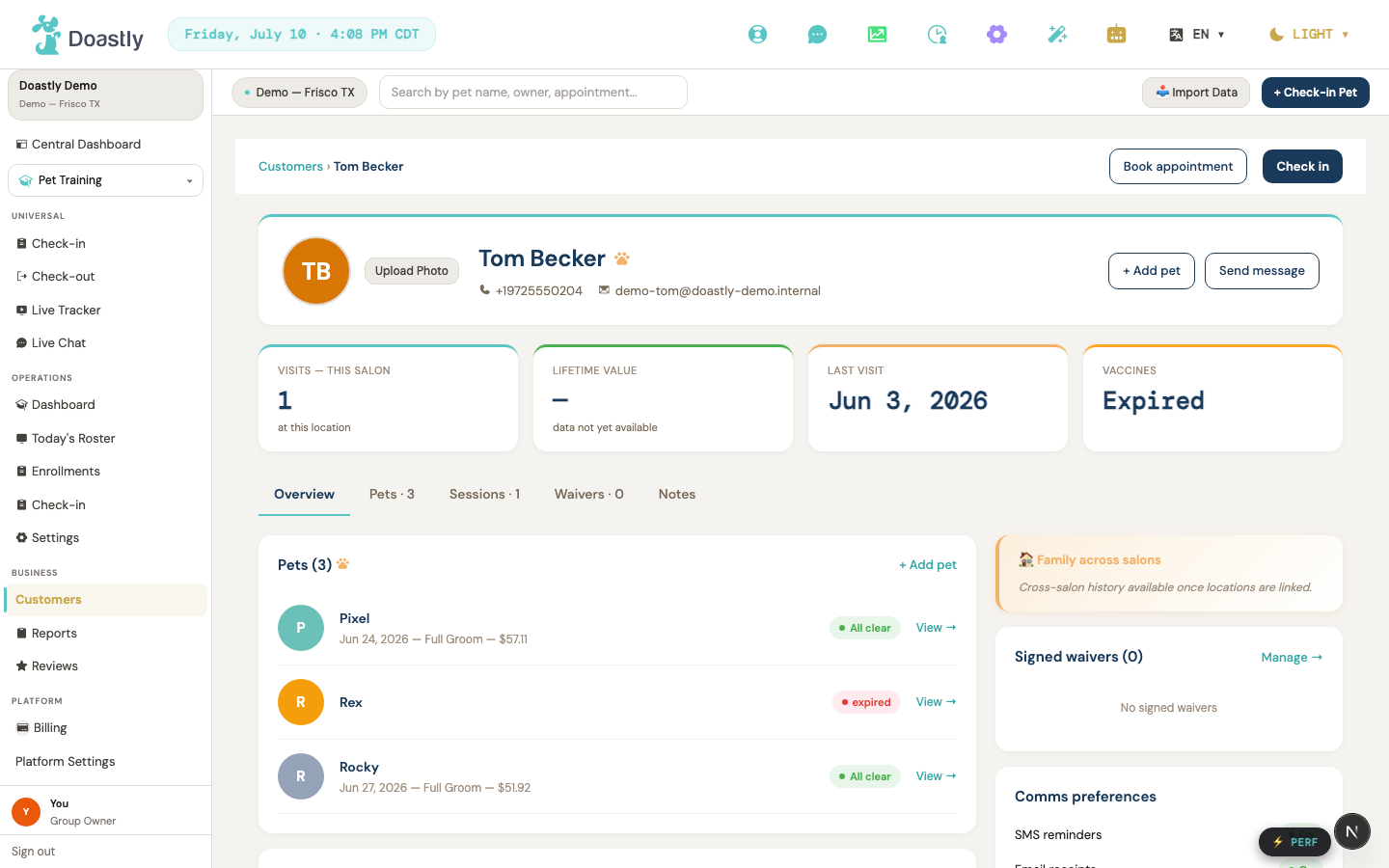
(dark mode also captured)
| Control | What it does |
|---|---|
| Customers (breadcrumb) | Returns to the Customers list. |
| Book appointment | Static button — no action is currently wired to it. |
| Check in | Opens the shared à-la-carte check-in (/salon/checkin), which resolves the flow from the tenant's active verticals — not a hardcoded Grooming route. Training is not a recognized check-in vertical there, so a Training-only tenant lands on the empty-subscription state rather than a Grooming flow. |
| Customer avatar upload/remove | Upload a photo for the customer, or remove the existing one. |
| + Add pet (profile card) | Opens the Add Pet window for this customer. |
| Send message | Static button — no action is currently wired to it. |
| Tab nav (Overview / Pets / Sessions / Waivers / Notes) | Switches between the detail tabs. Pets, Sessions, and Waivers tabs show counts. |
| KPI cards (Visits / Lifetime value / Last visit / Vaccines) | Read-only metrics. Lifetime value currently shows a placeholder ("—"). |
| Copilot card | Not shown on Training. The card is gated to Grooming only (page.tsx:63-66,217, fixed under #223) — Training never renders it at all, not a visible placeholder with a badge. |
Customer Detail — Overview tab (Pets + Sessions section)
The left side of the Overview tab, listing the customer's pets, their most recent sessions, and any boarding / daycare records.
| Control | What it does |
|---|---|
| + Add pet (section header) | Opens the Add Pet window. |
| Pet row | Opens that pet's detail page. Shows avatar initial, name, last-session summary, and a vaccine badge. |
| Full history → | Styled label in the Recent sessions header — no action is currently wired to it. |
| Session View → | Opens the session detail pane for that session. |
| Boarding stays list | Read-only list of this customer's boarding stays (with per-row record links). Renders below the Pets/Sessions section. |
| Daycare days list | Read-only list of this customer's daycare attendance days. Renders below the boarding list. |
Customer Detail — Overview right column
The right side of the Overview tab — cross-salon family info, signed waivers, and communication preferences.
| Control | What it does |
|---|---|
| Family across salons panel | Read-only informational panel. |
| Manage → (signed waivers) | Styled label in the waivers header — no action is currently wired to it. |
| Signed waiver rows | Read-only list (first 5) of signed waivers, showing template name, date, and signature method. |
| Comms preferences (SMS reminders / Email receipts / Email report cards / Marketing emails) | Read-only On/Off badges showing each preference. These are display-only, not editable toggles. |
Customer Detail — Pets / Sessions / Waivers / Notes tab panels
The content shown when you switch to the Pets, Sessions, or Waivers tabs.
| Control | What it does |
|---|---|
| Pet row (Pets tab) | Opens that pet's detail page. Shows avatar, name, and a vaccine badge. |
| Session View → (Sessions tab) | Opens the session detail pane for that session. |
| Record link (Sessions tab) | A compact link to the session record. |
| Showing N of M sessions | A note shown when there are more sessions than are currently loaded. |
| Waiver rows (Waivers tab) | Read-only list of signed waivers, each with a Signed badge. |
Customer Detail — Notes tab
Add and review internal notes about the customer.
| Control | What it does |
|---|---|
| Note text box | Draft a new note. Placeholder: "Add a note about this customer…". |
| Add note / Saving… | Saves the note and adds it to the top of the list. Disabled when the field is empty or a save is in progress. |
| Note items list | Read-only list of existing notes, newest first, with author and timestamp. |
Add Pet window
A window for adding a new pet to the customer, including photo and full profile details. Note: unlike the customer-form window, this window has NO backdrop-click-to-close — only the ✕ dismisses it.
| Control | What it does |
|---|---|
| Close (✕) | Closes the window without saving. |
| Photo dropzone / Upload Photo / Change Photo | Opens the file picker to choose a pet photo. A preview is shown once selected. |
| Remove (photo) | Clears the selected photo. |
| Retry Photo / Skip Photo | Shown if the photo fails to upload after the pet is saved. Retry re-attempts the upload; Skip finishes without the photo. |
| Pet Name * | Required. The pet's name. |
| Gender (M/F toggle) | Sets the pet's gender. Tap again to clear it. |
| Date of Birth | Sets the pet's birth date. |
| Color | Sets the pet's color. |
| Breed | Selects the pet's breed from the breed list. |
| Coat Type | Sets the pet's coat type. |
| Weight (lbs) | Sets the pet's weight, which drives the size calculation. |
| Neutered / Spayed (Unknown / Yes / No) | Sets the neutered/spayed status. |
| Allergies | Records allergies (a safety field). |
| Medications | Records medications. |
| Diet | Records diet details. |
| Behavioral Notes | Records notes about the pet's behavior. |
| Behavior Tags | Selects behavior tags for the pet. |
| Save (Add pet) | Saves the new pet and refreshes the customer's detail page. |
Pet Detail
The full record for a single pet — profile, vaccines, and compliance, plus grooming history and any boarding / daycare records.
| Control | What it does |
|---|---|
| ← Back to Customer | Returns to the pet owner's customer detail page. |
| Pet avatar upload/remove | Upload a photo for the pet, or remove the existing one. |
| Pet header (visits / last groom / vaccine / compliance) | Displays aggregate stats and vaccine/compliance status indicators. |
| Pet status row | Read-only large display of the pet's vaccine and compliance status. |
| Middle tabs (Pet Info / Vaccines / Compliance) | Switches between the pet's Info, Vaccines, and Compliance sections. |
| Boarding stays list | Read-only list of this pet's boarding stays (with record links). |
| Daycare days list | Read-only list of this pet's daycare attendance days. |
Pet Detail — Pet Info tab
Read-only view of the pet's safety fields, general profile, and behavior details.
| Control | What it does |
|---|---|
| Safety fields (Allergies / Medications / Diet) | Displays the pet's safety-critical fields, showing "None recorded" when empty. |
| General info grid + Behavior notes/tags | Displays breed, size, gender, weight, color, coat, neutered status, date of birth, and behavior notes/tags (display only). |
Pet Detail — Vaccines tab
The pet's vaccine records, with the option to add new ones.
| Control | What it does |
|---|---|
| + Add Vaccine | Reveals the Add Vaccine form. |
| Vaccine record rows | Lists each vaccine record with its own row-level actions (see below). |
Pet Detail — Vaccine record row (per record)
The actions and status shown on each individual vaccine record.
| Control | What it does |
|---|---|
| Status badges (Verified / Expired / Expiring soon) | Display-only badges computed from the verified flag and expiry date. |
| Verify / Verifying… | Marks the record as verified. Manager-only, and shown only for records that aren't yet verified. |
| Doc / Uploading… | Uploads a supporting document to the record, then refreshes it. |
| Del / … | Asks for confirmation, then deletes the record. |
| Document file links | Opens each attached document in a new tab. |
Pet Detail — Add Vaccine form
The form for adding a new vaccine record, with an optional document attachment.
| Control | What it does |
|---|---|
| Vaccine * (select + Other free-text) | Required. Choose a common vaccine, or select "Other" to type a custom name. |
| Date Administered * | Required. The date the vaccine was given. |
| Expiry Date | Optional. The vaccine's expiry date. |
| Administered By | Optional. The vet or clinic name. |
| Lot Number | Optional. The vaccine lot number. |
| Notes | Optional. Any additional notes. |
| Choose file / Change file (Vaccine Document) | Selects a document to attach (PDF, JPG, or PNG; max 10MB). |
| ✕ (clear selected file) | Clears the chosen document. |
| Cancel | Closes the form without saving. |
| Add Vaccine / Saving… | Creates the vaccine record and uploads the attached document, if any. |
Pet Detail — Compliance tab
The pet's compliance items and signing status.
| Control | What it does |
|---|---|
| Compliance section | Lists the pet's compliance items. During an active session, offers Sign and Sign-all actions; otherwise shows a read-only list of status chips. |
Pet Detail — Grooming History list + detail pane
A filterable, paginated list of the pet's past sessions, with a detail pane on selection (side-by-side on wide screens, a window on narrow screens).
| Control | What it does |
|---|---|
| Date From / Date To | Filters the history to a date range. |
| Status filter | Filters the history by session status ("All statuses" default). |
| Clear | Resets all history filters (shown only when a filter is active). |
| History row | Opens that session in the detail pane. |
| ‹ Prev / Next › | Pages through the history. Disabled at the first and last page. |
Analytics & Reports
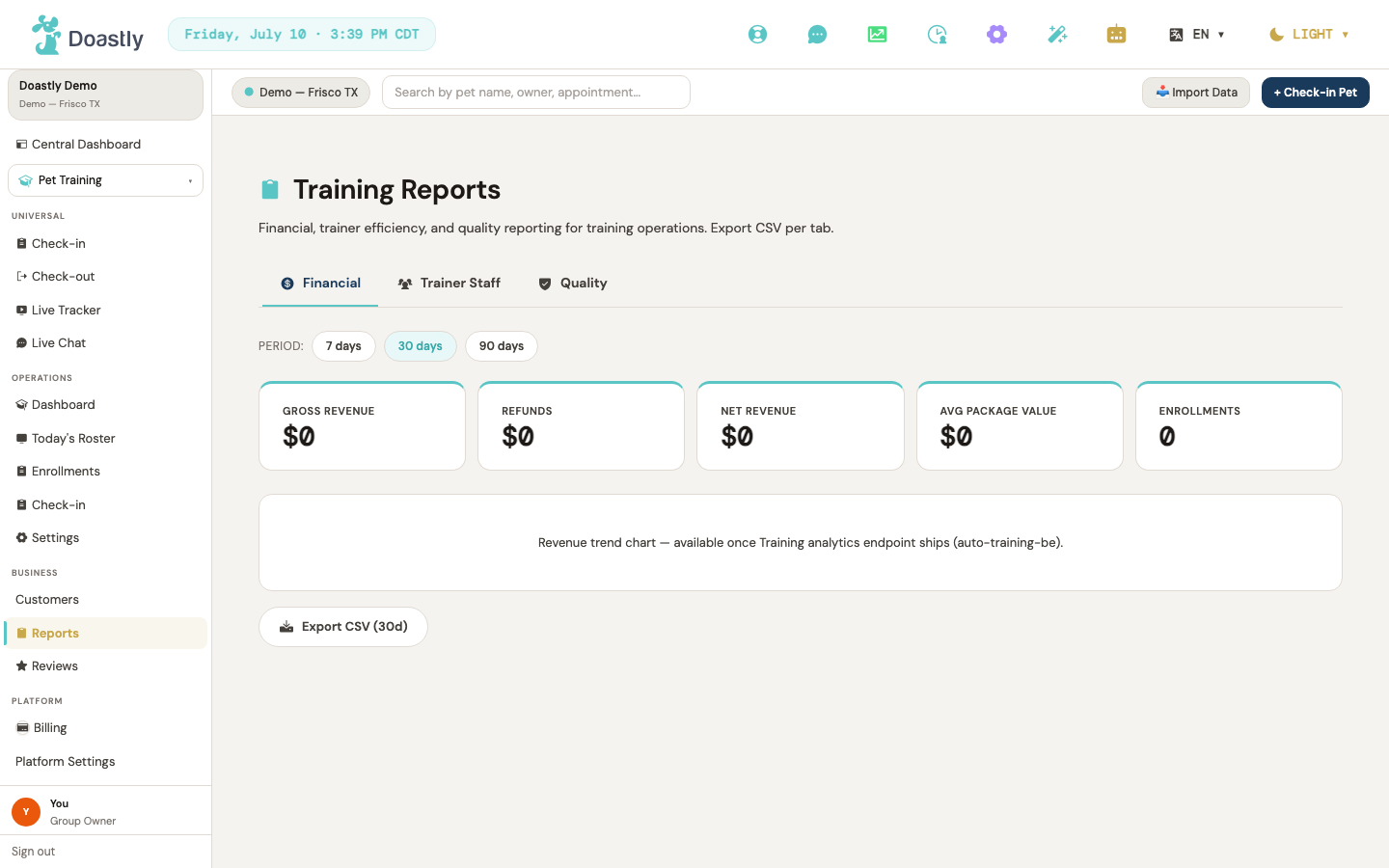
(dark mode also captured)
Training Reports — shell (tabs, period selector, states)
The Training Reports screen groups financial, staffing, and quality reporting under one header. A tab strip switches between report sections, and a period selector (7 / 30 / 90 days) sets the window that every tab pulls its figures from.
| Control | What it does |
|---|---|
| Financial (tab) | Opens the Financial report section. This is the default view. |
| Trainer Staff (tab) | Opens the Trainer Staff report section, which covers per-trainer activity for the Training vertical. |
| Quality (tab) | Opens the Quality report section — completion rate, skill mastery, certificates, and dropout. |
| 7 days (period) | Sets the reporting window to the last 7 days and re-loads the analytics for whichever tab is open. The active period is highlighted. |
| 30 days (period) | Sets the reporting window to the last 30 days and re-loads the analytics. This is the default period. |
| 90 days (period) | Sets the reporting window to the last 90 days and re-loads the analytics. |
| Loading state | While the analytics are loading, the tab area is replaced by a "Loading reports…" message. Display only. |
| Error banner (state) | If no active training location can be resolved, or the analytics fail to load, a plain-English notice appears above the tab content (for example, "No active training location for your account."). Display only. |
Financial tab (panel within Reports)
The Financial tab summarizes revenue and enrollment figures for the selected period, with an export option and a placeholder for the revenue trend chart.
| Control | What it does |
|---|---|
| Gross Revenue / Refunds / Net Revenue / Avg Package Value / Enrollments (KPI cards) | Read-only cards showing the financial figures for the selected period. Display only — nothing to click. |
| Revenue trend chart (placeholder) | A placeholder card reading "Revenue trend chart — available once Training analytics ship." Not yet interactive. |
| Export CSV (period) | Intended to download the current financial report as a CSV file. Not yet available — selecting it shows a notice that CSV export is coming soon. The label shows the active period, for example "Export CSV (30d)." |
| No financial data (empty state) | Shown when there is no financial data for the selected period: "No financial data for the selected period." Display only. |
Trainer Staff tab (panel within Reports)
The Trainer Staff tab lists per-trainer activity for the selected period, with an export option.
| Control | What it does |
|---|---|
| Trainer Performance table | Read-only table with one row per trainer, showing Trainer, Classes Led, Private Sessions, Utilization, and Certificates. Rows are display only and cannot be clicked through. |
| Export CSV | Intended to download the trainer-staff report as a CSV file. Not yet available — selecting it shows a notice that CSV export is coming soon. |
| No trainer data (empty state) | Shown when there is no trainer activity for the selected period: "No trainer data for the selected period." Display only. |
Quality tab (panel within Reports)
The Quality tab summarizes training outcome metrics for the selected period, with an export option and a placeholder for the trend chart.
| Control | What it does |
|---|---|
| Completion Rate / Avg Skill Mastery / Certificates Issued / Dropout Rate (KPI cards) | Read-only cards showing the quality figures (percentages and counts) for the selected period. Display only — nothing to click. |
| Skill mastery + certificate trend chart (placeholder) | A placeholder card reading "Skill mastery + certificate trend chart — available once Training analytics ship." Not yet interactive. |
| Export CSV (period) | Intended to download the current quality report as a CSV file. Not yet available — selecting it shows a notice that CSV export is coming soon. The label shows the active period. |
| No quality data (empty state) | Shown when there is no quality data for the selected period: "No quality data for the selected period." Display only. |
Payments
Training has no dedicated Payments screen (tracked as #290). Unlike Boarding and Grooming, the Training sidebar carries no Payments nav item. Training payment information appears as read-only display inside the Enrollments list, while the actual course billing lives on the shared Platform Billing screen (documented once under Grooming/Platform Billing — there is no Training-specific difference).
Payments (Training) — no dedicated screen exists
There is nothing to configure or collect here. Training payment is view-only within Enrollments, and all billing actions happen on the shared Platform Billing page.
| Control | What it does |
|---|---|
| _(none)_ | No dedicated Training Payments screen and no controls. Payment status is shown read-only in the Enrollments list (below); billing actions live on the shared Platform Billing page. |
Enrollments list — Payment column
The only Training surface that shows payment is the Enrollments list, where each enrollment displays its payment status. Everything here is read-only — there is no way to collect, refund, or mark a payment from this screen.
| Control | What it does |
|---|---|
| Payment (column header) | Static column label for the payment status shown on each enrollment row. Non-interactive. |
| Payment status text (per row) | Shows the enrollment's payment status as plain, bold, capitalized, color-styled text in the row cell — not a pill/badge (the pill styling belongs to the separate Status column, not Payment). The states are: paid (green), pending (amber), partial (muted), refunded (dimmed). An unrecognized value renders with no special color. Display only — clicking it does nothing, and there is no collect, refund, or mark-paid action. |
| Enrollment row | Clicking anywhere on the row expands or collapses that enrollment's inline detail, which includes the payment line. This toggles the detail view only; it is not a payment action. |
| Payment: \<status\> (inline detail) | When a row is expanded, the detail area repeats the payment status as bold text. Display only — no interactive payment control. |
Shared Platform Billing (cross-reference)
Actual course billing for Training is handled on the shared Platform Billing page, not a Training screen. This surface is documented once under Grooming/Platform Billing; its controls are enumerated there, and Training adds no differences.
| Control | What it does |
|---|---|
| _(none — cross-reference)_ | Training course billing is handled on the shared Platform Billing page. Its controls are documented under Grooming/Platform Billing; there is no Training-specific billing screen or difference. |
Reviews
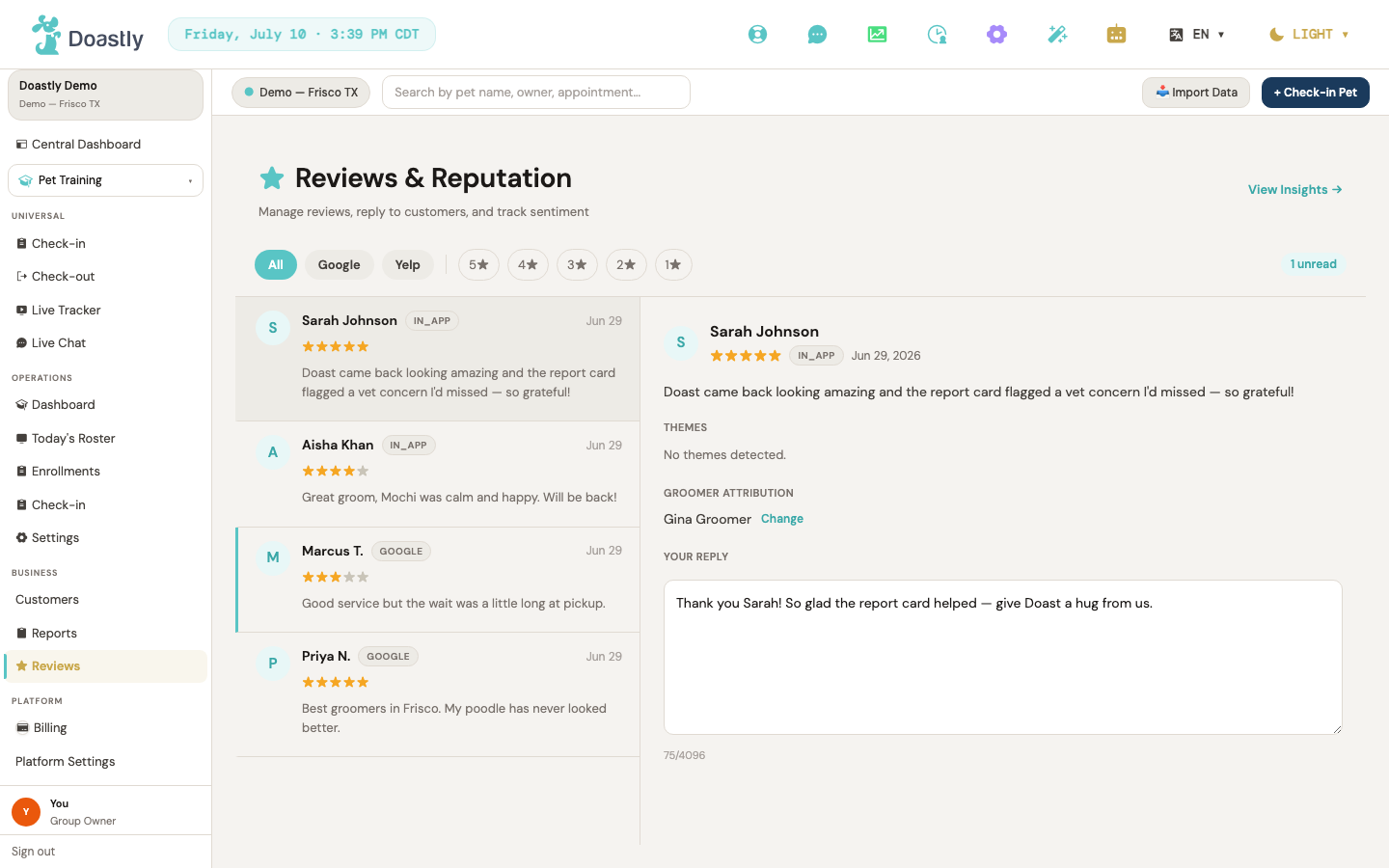
(dark mode also captured)
Reviews & Reputation — Inbox (list + detail split view)
The Reviews inbox at /salon/reviews shows all your reviews in a scrollable list on the left, with the selected review's details on the right. Use the tabs, filters, and search to narrow the list, then click any review to open it.
| Control | What it does |
|---|---|
| View Insights → | Opens the AI Review Insights page (/salon/reviews/insights). |
| All (platform tab) | Clears the platform filter and reloads the list to show reviews from every platform. |
| Google (platform tab) | Filters the list to Google reviews only. |
| Yelp (platform tab) | Filters the list to Yelp reviews only. |
| 5★ / 4★ / 3★ / 2★ / 1★ (star filter) | Five toggle buttons. Click a star value to show only reviews with that rating; click the active one again to clear the star filter. |
| All themes / theme selector | Dropdown shown only when AI theme tags exist. Pick a theme to filter the list to reviews carrying that tag; choose "All themes" to clear it. |
| N unread (badge) | Read-only indicator showing how many reviews are unread; appears only when at least one is unread. |
| Review card (per review row) | Opens the review in the detail panel on the right; if the review was unread, it is marked read. Each card shows the author, platform, date, star rating, a preview of the text, and up to three theme chips. |
Reviews & Reputation — Review Detail Panel (right pane)
The detail panel on the right of /salon/reviews shows the full text of the selected review and lets you attribute it to a groomer, edit the AI-drafted reply, and send it. Sending is available for Google reviews; other platforms are managed in their own portals.
| Control | What it does |
|---|---|
| Change (groomer attribution) | Opens the attribution editor, listing nearby grooming sessions you can link the review to. Hidden while editing is open. Attribution is hardcoded to grooming sessions (attribution_service.py:100-109 queries only GroomingSession) — a training-only salon has no grooming sessions to match, so this editor always lists zero candidates — tracked as #941. |
| Attribution candidate (per session) | Links the review to the chosen grooming session (shown as groomer — pet (customer), checkout date), then closes the editor. One button per candidate. |
| Mark as Unmatched | Clears the review's groomer attribution (sets it to unmatched) and closes the editor. |
| Regenerate | Rebuilds the AI reply draft and theme tags, replacing the current reply text. Shown only before a reply is sent; disabled while it runs (shows "Regenerating…"). |
| Reply textarea (AI-drafted reply / Your reply) | Editable reply body, up to 4,096 characters. Pre-filled with the existing reply or the AI draft; read-only once the review has been replied to. |
| N/4096 character counter | Read-only live count of the reply length against the 4,096-character limit. |
| Send Reply | Posts your reply to the platform and marks the review replied. Shown only for Google reviews not yet replied to; disabled while sending or when the draft is empty (shows "Sending…"). |
| Platform-managed reply notice | Info text shown for non-Google reviews that haven't been replied to: replies for that platform are managed in the platform's own business portal. |
AI Review Insights
The AI Review Insights page at /salon/reviews/insights summarizes your reputation for a chosen time period — KPI tiles, top complaint themes, and per-groomer performance. Pick a period at the top, then drill into any complaint theme to see the matching reviews.
| Control | What it does |
|---|---|
| ← Back to Inbox | Returns to the review inbox (/salon/reviews). |
| Today (period button) | Sets the insights period to today and reloads the data. |
| 7 days (period button) | Sets the insights period to the last 7 days and reloads the data. |
| 30 days (period button) | Sets the insights period to the last 30 days (the default) and reloads the data. |
| This month (period button) | Sets the insights period to the current month and reloads the data. |
| Google avg ★ / Total reviews / Reply rate / NPS (summary tiles) | Four read-only KPI tiles showing average score, review count, response rate, and NPS for the selected period. |
| Complaint theme bar (per theme) | Clickable bar for each complaint theme; navigates to the inbox with the theme as a query param (/salon/reviews?tag=<theme>). Note: the inbox currently does not read this tag param on load, so the list is not actually pre-filtered to the theme after the jump — you land on the full inbox. |
| Per-groomer performance table | Read-only table of groomer, review count, average rating, and top theme. No row-level actions. |
Settings (training 6 tabs)
The Training Settings area is a six-tab configuration shell for the Training vertical, available to Owner and Manager roles. Only the Courses & Curricula tab is functional today; the remaining five tabs show "coming soon" preview panels while the rest of the feature is being built. These placeholder panels are non-interactive but are NOT blank — each describes what will be configurable and clearly labels itself as coming soon.
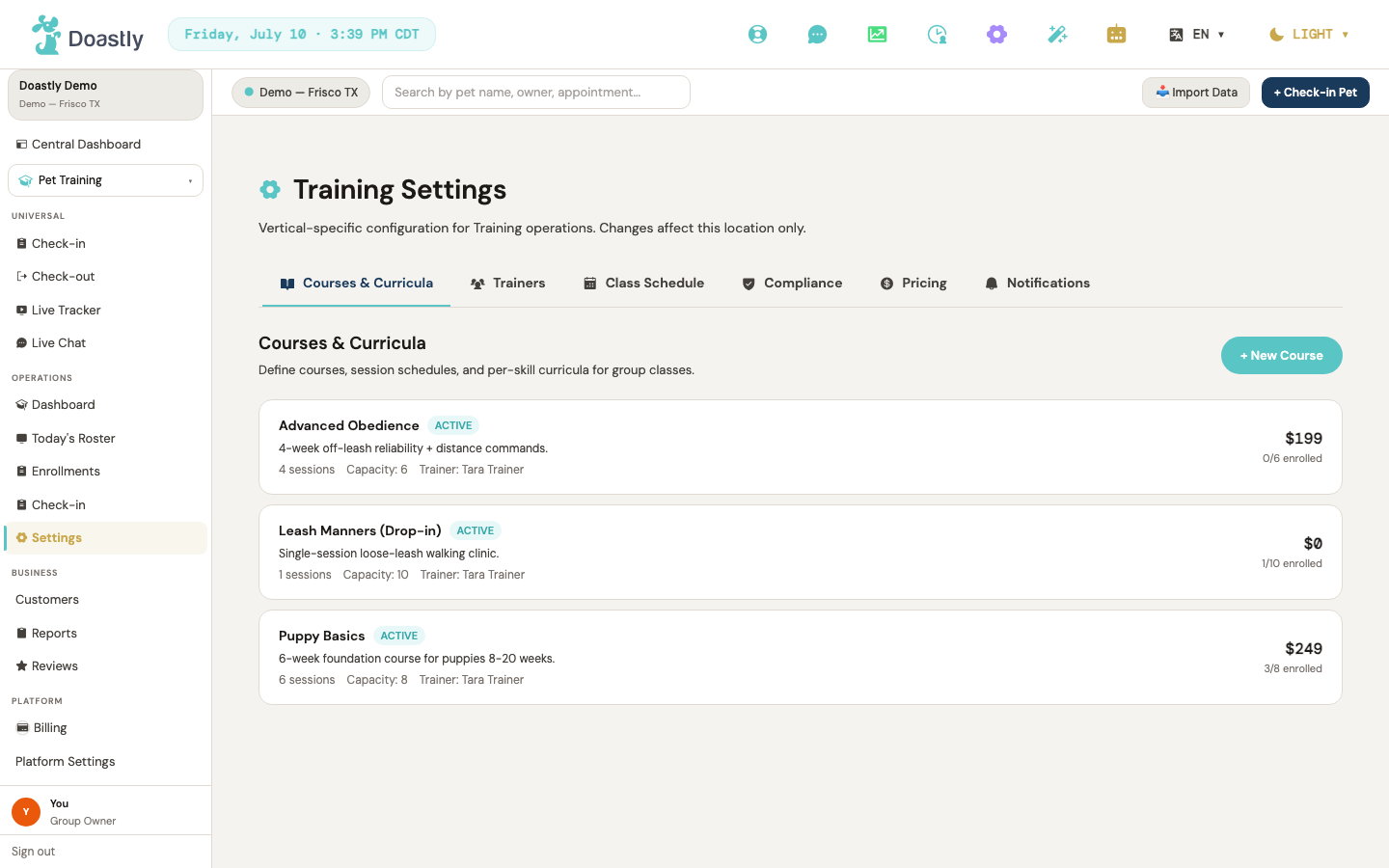
(dark mode also captured)
Training Settings — Shell / Tab Strip
The tab strip at the top of Training Settings switches between the six configuration areas. Courses & Curricula is the default tab; the tab you pick is reflected in the page address so a tabbed view can be linked or refreshed directly.
| Control | What it does |
|---|---|
| Courses & Curricula (tab) | Sets the active tab to Courses and loads the Courses & Curricula panel. This is the default tab shown on first load (and the fallback for any unrecognized tab). |
| Trainers (tab) | Opens the Trainers preview panel (coming soon). |
| Class Schedule (tab) | Opens the Class Schedule preview panel (coming soon). |
| Compliance (tab) | Opens the Compliance preview panel (coming soon). |
| Pricing (tab) | Opens the Pricing preview panel (coming soon). |
| Notifications (tab) | Opens the Notification Templates preview panel (coming soon). Note: the tab strip label is "Notifications" but the panel heading is "Notification Templates". |
Tab 1 — Courses & Curricula
The Courses & Curricula tab lists the active training courses for the current location, each shown as a read-only card. It is the only functional Settings tab today. Below the heading a subtitle reads "Define courses, session schedules, and per-skill curricula for group classes."
| Control | What it does |
|---|---|
| + New Course | Intended to open the New Course / curriculum builder. Currently coming soon — clicking it shows a message that the course create flow is on the way. No create form is available yet. |
| Course row (per active course) | Displays one read-only card per course, showing the course name, status pill (Active / Draft / Archived), description, session count, capacity, trainer name (if set), package price, and enrolled count against capacity. Display-only — the card has no click, edit, or open action. |
| Empty state | When the location has no active courses, a centered card renders with a 📚 icon and "No courses yet. Create your first course to get started." |
| Loading state | While the course list is loading, the panel shows "Loading courses…". |
| Error state | If the courses fail to load, the panel shows a friendly plain-English error message. |
Tab 2 — Trainers
The Trainers tab is a "coming soon" preview panel. Subtitle: "Manage staff designated as trainers — assign to courses, set specializations." No interactive controls, but the panel previews the planned capabilities.
| Control | What it does |
|---|---|
| _(no interactive controls)_ | Renders a preview panel listing planned capabilities: designate staff as Trainers; assign a trainer color for the schedule; an optional free-text certification field; and a "Require certified trainers" toggle — Coming in v2 (an inactive, clearly-labeled item, not a working toggle). Closes with a "coming soon" note. |
Tab 3 — Class Schedule
The Class Schedule tab is a "coming soon" preview panel. Subtitle: "Configure recurring class schedules — day/time/trainer per course." No interactive controls.
| Control | What it does |
|---|---|
| _(no interactive controls)_ | Renders a preview panel listing planned capabilities: recurring weekly class slots (day + time); default trainer per course; holiday/closure date overrides; capacity per time slot. Closes with a "coming soon" note. |
Tab 4 — Compliance
The Compliance tab is a "coming soon" preview panel. Subtitle: "Per-vertical vaccine requirements for training. Mirrors the Grooming/Boarding compliance gate." No interactive controls.
| Control | What it does |
|---|---|
| _(no interactive controls)_ | Renders a preview panel listing planned capabilities: required vaccines for training class attendance; grace period (days) before hard block; override-with-reason log settings; per-class-type compliance profile. Closes with a "coming soon" note. |
Tab 5 — Pricing
The Pricing tab is a "coming soon" preview panel. Subtitle: "Configure course package prices, drop-in class rates, and private session rates." No interactive controls.
| Control | What it does |
|---|---|
| _(no interactive controls)_ | Renders a preview panel listing planned capabilities: course package price per session count; drop-in single class price; private session rates (per 30/60 min); discount tiers for multi-course enrollments. Closes with a "coming soon" note. |
Tab 6 — Notifications
The Notifications tab (panel heading "Notification Templates") is a "coming soon" preview panel. Subtitle: "Configure SMS and email templates for Training — enrollment, reminders, certificates." No interactive controls.
| Control | What it does |
|---|---|
| _(no interactive controls)_ | Renders a preview panel listing planned capabilities: enrollment confirmation SMS/email; class reminder (24h + 2h before); private session reminder; certificate issued notification; and honoring customer opt-out / salon-disable settings. Closes with a "coming soon" note. |
Detail pages (Enrollment / Customer / Pet)
Salon Enrollment "detail" (inline expandable row)
There is no dedicated salon-side enrollment detail page. Clicking any enrollment row on the Enrollments list expands an inline read-only summary beneath it; clicking again collapses it.
| Control | What it does |
|---|---|
| Enrollment row (clickable table row) | Toggles the inline expanded detail row for that enrollment open or collapsed. |
| Expanded detail row (read-only summary) | Shows a single read-only line: pet, course, sessions attended out of total, and payment status. No actions are available inside — view, edit, mark-progress, withdraw, issue-certificate, and message-owner are not built here. |
| Empty state ("No enrollments match the current filter.") | Non-interactive message shown when no enrollments match the active filter. |
PetFamily Training hub (list → enrollment detail)
The pet owner's Training home. It has two tabs: browse available classes, or view your pet's current enrollments. Enrollment cards open the detail page below.
| Control | What it does |
|---|---|
| Browse Classes (tab) | Switches to the browse view with quick-action cards and the course catalog. |
| My Training (tab) | Switches to your enrollments, loading and showing a card for each. |
| Group Classes (quick-action card) | Opens the group class booking flow. |
| Private Session (quick-action card) | Opens the 1-on-1 booking flow. |
| Enrollment card (My Training list row) | Opens that enrollment's detail page. Shows pet, course, a Graduated/Enrolled badge, progress bar, and session and skill counts. |
| Browse classes (empty-state action) | Shown when you have no enrollments; opens the class booking flow. |
| Salon picker (dropdown) | Appears only if your family uses more than one salon; choosing a salon reloads the catalog for that salon. |
| Enroll (course card action) | Per course; opens the booking flow for that salon. Disabled and labeled "Full" when the class has no open spots. |
| Course card (catalog item) | Read-only card showing course name, trainer, price, description, skill chips, session count, and spots left. Holds the Enroll button above. |
PetFamily Enrollment detail (progress + certificate)
A read-only progress page for one enrollment: session progress, an AI summary, per-skill mastery, the last session's notes, and — once the course is complete — a downloadable certificate.
| Control | What it does |
|---|---|
| Back (← arrow) | Returns to the previous page (your My Training list). |
| Graduated badge | Read-only pill shown in the header when the enrollment is complete. |
| Session progress card | Read-only: progress bar, sessions completed out of total, and skills-mastered count. |
| AI progress summary card | Read-only AI narrative, or a "being prepared" or first-session placeholder when none is ready yet. |
| Skill progress list | Read-only per-skill rows labeled Mastered, Practicing, or Not started. Shown only when skills exist. |
| Last session card (trainer notes + homework) | Read-only; shown when the last session has notes or homework. |
| Download Certificate PDF | Downloads the graduation certificate as a PDF. Appears only when the course is complete and a certificate is ready; shows "Downloading…" while the file is fetched. |
| Certificate card | Read-only certificate block (pet, course, completion date, skills mastered) that hosts the Download button, or a "being prepared" placeholder. |
| Loading / Error states | Non-interactive "Loading training progress…" message or a plain-English error message. |
Customer detail (shared, reachable via Training → Customers)
The shared customer profile, reachable from the Training area via Customers. It shows the customer's profile, an AI Copilot card, a KPI strip, their pets, session history across verticals, waivers, and notes. Some header and section actions are display-only in the current build.
| Control | What it does |
|---|---|
| Customers (breadcrumb link) | Returns to the customer list. |
| Book appointment | Topbar button; not yet wired — no action currently. |
| Check in | Opens the shared à-la-carte check-in (/salon/checkin), which resolves the flow from the tenant's active verticals — not a hardcoded Grooming route. Training is not a recognized check-in vertical there, so a Training-only tenant lands on the empty-subscription state rather than a Grooming flow. |
| Customer avatar upload/remove | Uploads a new customer profile photo, or removes the existing one. |
| + Add pet (profile card) | Opens the Add Pet form to add a pet to this customer. |
| Send message | Profile-card button; not yet wired — no action currently. |
| Copilot card | Not shown on Training. Gated to Grooming only (page.tsx:63-66,217, fixed under #223) — Training never renders this card, not a visible placeholder. |
| KPI strip | Read-only: four metric cards — Visits (this salon), Lifetime value, Last visit, Vaccines. No action. |
| Overview / Pets / Sessions / Waivers / Notes (tabs) | Switches the detail body between sections; the Pets, Sessions, and Waivers tabs show counts. |
| Pet row (Overview & Pets tab) | Opens that pet's detail page. Shows a vaccine badge and "View →". |
| + Add pet (Pets section header) | Opens the same Add Pet form as the profile-card button. |
| Full history → (Recent sessions header) | Display-only link text; not yet wired — no action currently. |
| View → (session row, Overview & Sessions tab) | Opens the session detail pane for that session. |
| Record link (Sessions tab) | Opens that session's record page. |
| Family across salons (right-column panel) | Read-only right-column section ("Cross-salon history available once locations are linked."); display-only, no action. |
| Boarding stays list rows | Shows this customer's boarding stays; a row links to the boarding record when available. |
| Daycare attendances list rows | Shows this customer's daycare days. |
| Manage → (Signed waivers header) | Display-only link text; not yet wired — no action currently. |
| Comms preferences chips | Read-only On/Off chips (SMS reminders, Email receipts, Email report cards, Marketing emails); not toggleable here. |
| Notes text box | Draft field for writing a new customer note (Notes tab). |
| Add note | Saves the drafted note, adds it to the top of the list, and clears the field. Disabled while saving or when empty. |
| Session detail pane (window) | Read-only session detail pane opened by any "View →" action; closes to clear the selection. |
Pet detail (shared, reachable via Training → Customers → Pet)
The shared pet profile, reachable from a customer's pet row. It shows the pet's info, vaccines, compliance, and grooming history for this salon, plus boarding and daycare activity.
| Control | What it does |
|---|---|
| ← Back to Customer | Returns to the customer's detail page. |
| Pet avatar upload/remove | Uploads a new pet photo, or removes the existing one. |
| Pet Info / Vaccines / Compliance (middle tabs) | Switches between the Pet Info, Vaccines, and Compliance sub-panels. |
| Vaccines tab | Add a vaccine record, and (for managers) verify records; saving reloads the pet detail. |
| Compliance tab | When there's an active session, shows Sign and Sign-all buttons via the compliance window; otherwise a read-only chip list. |
| Grooming History list | Filter (by date, groomer, or service), page through, and select a session to open its detail pane. Scoped to this salon only. |
| Session detail pane (side/window) | Shows the selected session's detail inline on wide screens or as a window on narrow ones; closes to clear the selection. |
| Boarding stays list (this pet) | Shows this pet's boarding stays; rows link to the boarding record. |
| Daycare attendances list (this pet) | Shows this pet's daycare days. |
| Pet header / status row | Read-only header showing visit count, last grooming date, and vaccine/compliance status. |
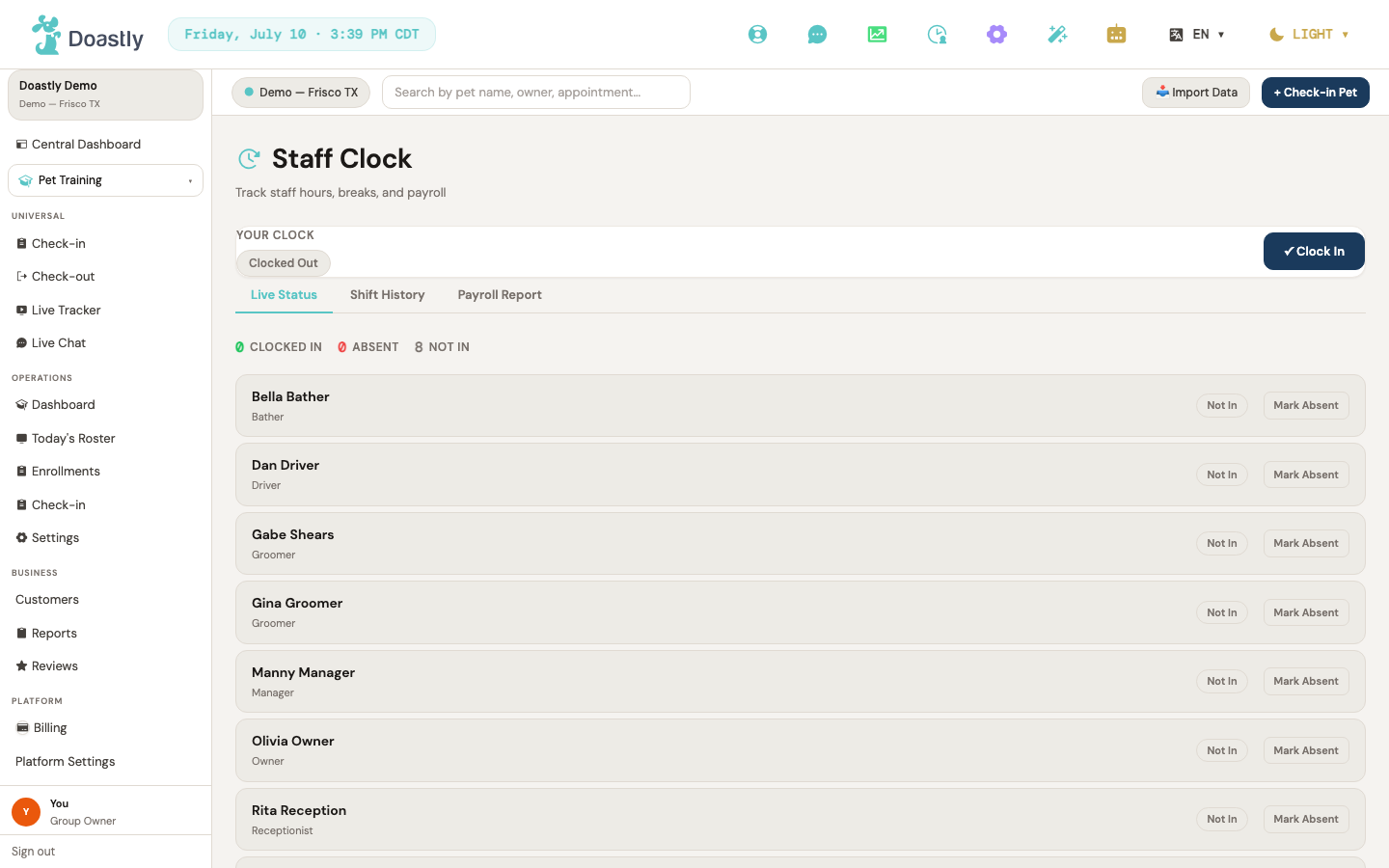
(dark mode also captured)
Staff & Payroll
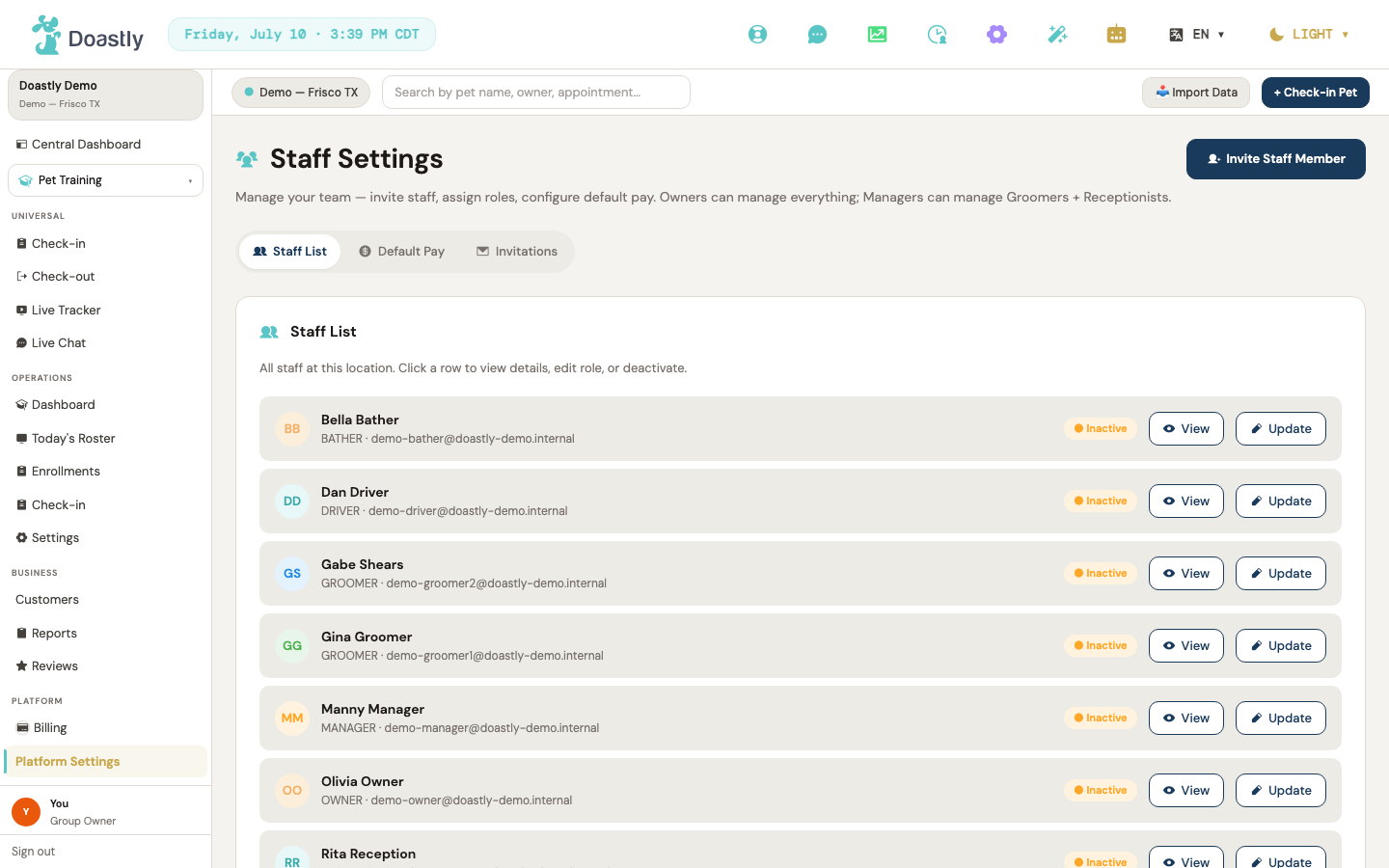
(dark mode also captured)
Staff Clock — page header & My Clock card
The Staff Clock page opens on your personal clock card, where you start, pause, and end your own shift, with tabs across the top to switch between the team roster, shift history, and payroll.
| Control | What it does |
|---|---|
| Clock In (my clock) | Starts your shift and reloads your status. Shows only when you are not clocked in; reads "Clocking In…" while it runs. Button label is "✓ Clock In". |
| Take Break / End Break (my clock) | Toggles your break — starts a break when you are working, ends it when you are on one. Shows only while you are clocked in. |
| Clock Out (my clock) | Ends your shift and reloads your status. Shows only while you are clocked in; reads "Clocking Out…" while it runs. |
| Live Status (tab) | Switches to the team live-status roster with per-staff rows and status counts. Tab label: "Live Status". |
| History (tab) | Switches to the Shift History view. Tab label: "Shift History". |
| Payroll (tab) | Switches to the payroll report. The tab is shown to Owner, Manager, and Receptionist — but the report itself loads only for an Owner or a Manager; a Receptionist sees "Manager or Owner role required" in place of the figures. |
Staff Clock — Live Status tab (team roster)
A live roster of everyone on the team, with their current clock state and per-staff actions for managers.
| Control | What it does |
|---|---|
| Status count chips (Clocked In / Absent / Not In) | Show live counts of each team clock state. Display only — not clickable. |
| Break (per-staff row) | Starts a break for that staff member. Manager-only; shows when the row is clocked in and not on break. |
| End Break (per-staff row) | Ends that staff member's break. Manager-only; shows when the row is on break. |
| Clock Out (per-staff row) | Ends that staff member's shift. Manager-only; shows when the row is clocked in. |
| Mark Absent (per-staff row) | Prompts for a reason, then marks that staff member absent. Manager-only; shows when the row is not clocked in and not already absent. |
| Unmark Absent (per-staff row) | Clears the absence for that staff member. Manager-only; shows when the row is marked absent. |
| Status pill (per-staff row) | Shows the row's state — Absent (with reason), On Break, Clocked In, or Not In. Display only — not clickable. |
| Live hours counter (per-staff row) | Ticking elapsed hours and minutes for clocked-in staff, refreshing every 30 seconds. Display only — not clickable. |
Staff Clock — Shift History tab
A filterable, paginated log of past shifts, with quick date ranges and CSV export.
| Control | What it does |
|---|---|
| Date From | Sets the start of the date range for the shift query. |
| Date To | Sets the end of the date range for the shift query. |
| All staff (staff filter) | Filters the history to one staff member. Manager-only. |
| Apply | Reruns the query with the current date and staff filters, resetting to page 1. |
| Last 7d / Last 14d / Last 30d | Sets the date range to the last 7, 14, or 30 days and reloads the shifts. |
| ↓ Export CSV | Fetches the shifts for the range, builds a CSV file, and downloads it. |
| ← Prev | Loads the previous page of history. Disabled on page 1; shown only when there is more than one page. |
| Next → | Loads the next page of history. Disabled on the last page; shown only when there is more than one page. |
| Edit (per-shift row) | Opens a shift for editing. Not shown on this surface — the button appears only if a parent screen supplies the edit action, which this tab does not. |
Staff Clock — Payroll Report tab (manager-only)
A manager-only payroll summary for a chosen period, with KPI totals, a per-staff breakdown, and CSV export.
| Control | What it does |
|---|---|
| This Month / Last Month / Custom | Sets the payroll period. This Month and Last Month load immediately; Custom reveals the custom date inputs. |
| Date From (custom) | Sets the start of the custom payroll range. Shown only when Custom is selected. |
| Date To (custom) | Sets the end of the custom payroll range. Shown only when Custom is selected. |
| Apply (custom) | Loads the payroll report for the custom range. Shown only when Custom is selected. |
| ↓ Export CSV | Builds a payroll CSV (staff, role, hours, shifts, sessions, revenue, tips, pay type, payout) and downloads it. Disabled when the report is empty. |
| KPI cards (Staff / Total Hours / Total Payout / Total Revenue) | Aggregate totals for the period. Display only — not clickable. |
| Payroll table rows | Per-staff breakdown of hours, shifts, sessions, revenue, tips, pay type, and payout. Display only — rows are not interactive. |
Staff Settings — header & tab strip
The Staff Settings page, open to owners and managers, with a header invite button and a tab strip for the staff list, default pay, and pending invitations.
| Control | What it does |
|---|---|
| Invite Staff Member (header) | Opens the Invite Staff window. |
| Staff List (tab) | Opens the staff list. The badge shows the active staff count. |
| Default Pay (tab) | Opens the Default Pay configuration. |
| Invitations (tab) | Opens the pending invitations panel. The badge shows the pending count. |
Staff Settings — Staff List tab
The roster of current staff, each row showing status and offering view and edit actions, with an invite button in the footer.
| Control | What it does |
|---|---|
| View (per staff row) | Opens the read-only View Staff window for that member. |
| Update (per staff row) | Opens the Edit Staff window for that member. |
| Deactivate (per staff row) | Shown on every active staff row. Deactivates that staff member after a confirmation prompt — they can no longer sign in, and their status pill flips to Inactive. The page itself is gated to Owner/Manager, but the staff list is not further filtered by row — either role can deactivate any active member at the location, not only staff a Manager directly manages. A deactivated member can be brought back by re-inviting them. |
| + Invite Staff Member (list footer) | Opens the Invite Staff window — a second entry point to the same window. |
| Status pill (per staff row) | Shows the member's state — Active, Invited, or Inactive. Display only — not clickable. |
| Compliance chip (Groomer rows) | Shows the worst driver-compliance status (Expiring soon, Expired, or Missing) for Groomer staff. Hidden when compliance is fine. Display only — not clickable. |
Staff Settings — Invite Staff window
The form for inviting a new staff member by name, email, and role.
| Control | What it does |
|---|---|
| Backdrop | Closes the window when clicked. |
| First Name * | Sets the first name. Required. |
| Last Name | Sets the last name. Optional. |
| Email * | Sets the email address the invite is sent to. Required. |
| Role * | Sets the role — Manager, Groomer, Receptionist, or Driver. |
| Cancel | Closes the window without sending an invite. |
| Send Invitation (submit) | Sends the invite, shows a success state, then closes automatically. Button label reads "Send Invitation"; reads "Sending…" while it runs. |
Staff Settings — Edit Staff window
The full editor for a staff member — photo, name, role, location, payroll, and tracker color.
Note: the window exposes Location, Payroll Type, and Rate inputs, but on Save only name, role, and tracker color are currently saved. Location and payroll edits are captured on screen but are not written back — treat those three as not-yet-saved in the current build.
| Control | What it does |
|---|---|
| Backdrop | Closes the window when clicked. |
| Avatar upload / remove | Uploads a new staff photo or removes the current one. On failure, shows an inline photo-error message under the avatar. |
| First name | Sets the first name. Required; up to 100 characters. |
| Last name | Sets the last name. Required; up to 100 characters. |
| Role | Sets the role — Owner, Manager, Groomer, Receptionist, or Driver. |
| Location | Sets the assigned location. Currently a stub — only "All Locations" and a single "Frisco TX Branch" option (not a live location list). Not saved on Save in the current build. |
| Payroll Type | Sets the pay model — Commission, Hourly, or Fixed. Changes the Rate field's label and placeholder. Not saved on Save in the current build. |
| Rate | Sets the pay rate — percent of revenue, dollars per hour, or dollars per month, depending on the payroll type. Not saved on Save in the current build. |
| Tracker Color swatches (12) | Selects the groomer's tracker color shown on their tracker cards. Clicking the selected swatch clears it. |
| Clear (tracker color) | Clears the selected tracker color. Shown only when a color is set. |
| Validation error message | Inline error ("First name and last name are both required.") shown when Save is pressed with either name blank. Display only. |
| Cancel | Closes the window without saving. |
| Save Changes | Validates that first and last name are filled, then saves any changed name, role, or color. Reads "Saving…" while it runs. |
Staff Settings — Edit Staff window → Driver Compliance section
Shown for Groomer staff to an admin viewer (Owner / Manager / Super Admin), this section captures the driving credentials required for mobile grooming. Not shown for non-groomer staff or non-admin viewers.
| Control | What it does |
|---|---|
| Can drive van | Flips the "can drive van" flag, saved with Save compliance. |
| Driver license number (masked) + Edit | Shows the license number masked; Edit reveals an input to enter a new number. |
| License state | Sets the US state that issued the license. |
| License expires | Sets the license expiry date; an inline chip flags expiring or expired status. |
| DOT medical card upload (Upload/Replace card) | Uploads the DOT medical card. Accepts images or PDFs up to 10 MB. |
| DOT card expires | Sets the DOT medical card expiry date; an inline chip flags its status. |
| Commercial insurance policy (masked) + Edit | Shows the insurance policy number masked; Edit reveals an input to enter a new number. |
| Insurance expires | Sets the commercial insurance expiry date; an inline chip flags its status. |
| Save compliance | Saves all compliance fields. Reads "Saving…" while it runs. |
Staff Settings — View Staff window (read-only)
A read-only summary of a staff member, showing email, phone, and payroll.
| Control | What it does |
|---|---|
| Backdrop | Closes the window when clicked. |
| Close | Closes the window. The body is read-only, showing email, phone, and payroll. |
Staff Settings — Default Pay tab
The salon's default pay settings, applied to new staff — commission, hourly rate, tip handling, and pay period.
| Control | What it does |
|---|---|
| Save Defaults | Saves the salon's default pay configuration. Shows "Saving…" then "Saved". |
| Commission % | Sets the default commission percentage (0–100). |
| Hourly Rate | Sets the default hourly rate in dollars. |
| Tip Handling | Sets how tips are handled — Groomer keeps, Pool, or Custom split formula. |
| Pay Period | Sets the pay period — Weekly, Biweekly, or Monthly. |
Staff Settings — Invitations tab (Pending Invitations)
The list of outstanding staff invitations, with per-row resend and cancel actions.
| Control | What it does |
|---|---|
| Resend (per pending-invite row) | Resends the invite and extends its expiry by about 14 days. Reads "Resending…" and locks that row while it runs. |
| Cancel (per pending-invite row) | Asks for confirmation, then revokes the invite link. |
| Try again (error state) | Reloads the pending invitations list after a load error. |
| Status pill ("● Pending", per row) | Marks the invite as still pending. Display only — not clickable. |
| Expiry text (per row) | Shows time to expiry ("Expires in N days" / "Expires today" / "Expires tomorrow" / "Expired"). Display only. |
| Action feedback banner | Confirmation message after Resend or Cancel ("Invite re-sent to …" / "Invite for … canceled."), or the friendly error text on failure. Display only. |
Training — Check-in flow
The Training vertical routes check-in through the same unified screen every other vertical uses. Because Training is not yet a first-class check-in vertical, a Training-only salon lands on an empty-subscription state and cannot complete a Training check-in through this flow today. The screens below document every control the flow presents.
Training Check-in redirect
A thin routing page. If the salon has the Training vertical, it briefly shows a spinner and then forwards to the unified check-in screen; if not, it offers a link to subscriptions. There are no controls to interact with directly on this page.
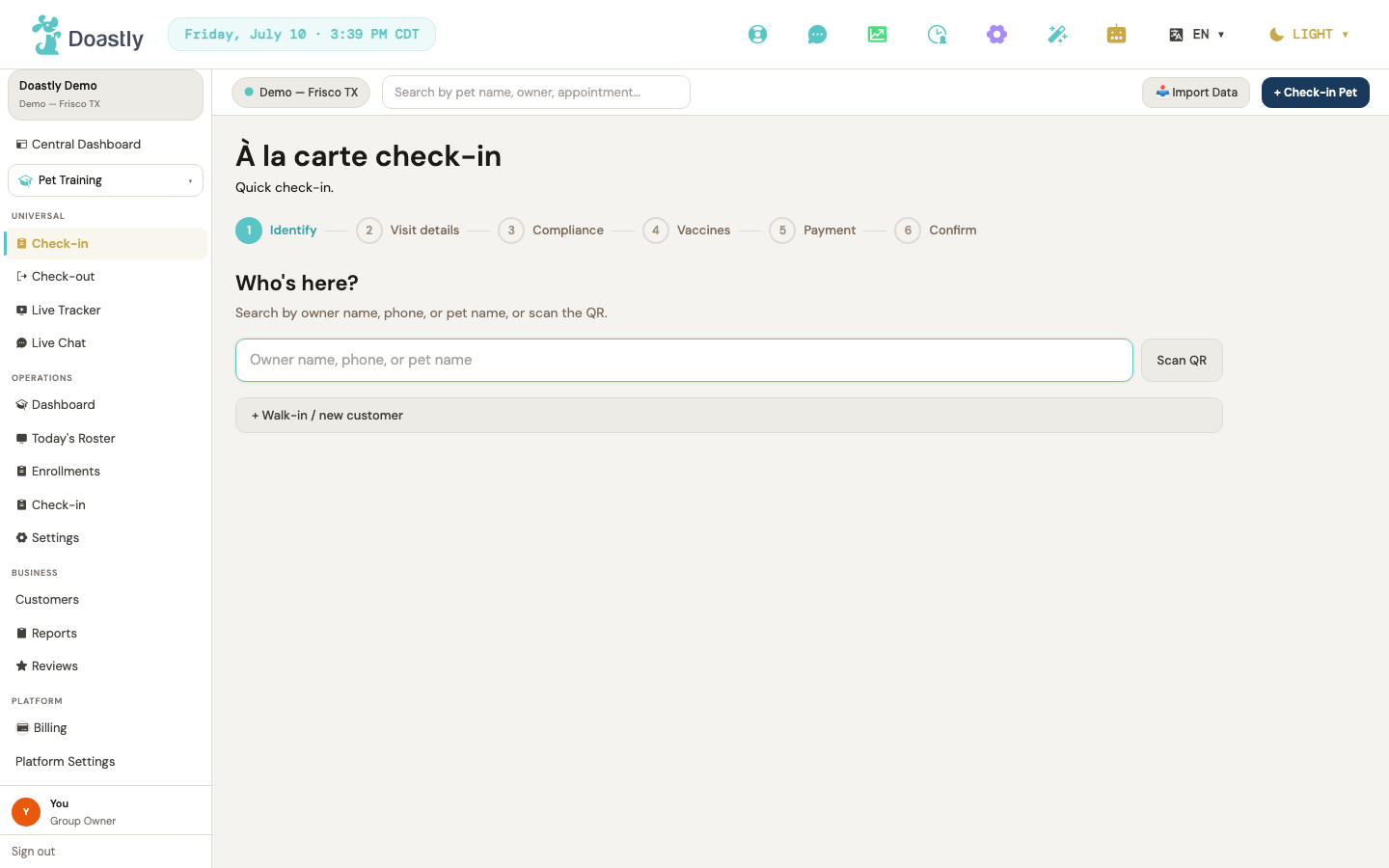
(dark mode also captured)
| Control | What it does |
|---|---|
| [No interactive controls on the page itself] | The page is a wrapper that forwards to the shared check-in; all controls come from that screen. |
| Loading placeholder (pre-load) | A brief loading placeholder shown while the page forwards; no interaction. |
| Manage subscription → | Appears only when the salon does not have Training in its plan. Opens Settings → Subscriptions. |
| Redirect spinner + "We unified Check-In to one screen." | Appears when the salon has Training. Shows a spinner, then automatically forwards to the shared check-in screen after about a second. No click needed. |
Shared à-la-carte Check-in — redirect target
The unified check-in screen the redirect lands on. Training is not recognized as a check-in vertical here, so a Training-only salon arrives with no active verticals and sees the empty-subscription state described in Step 0. The controls below belong to the shared flow.
| Control | What it does |
|---|---|
| Structural note — Training is not a first-class vertical here | The screen recognizes only Grooming, Boarding, Daycare, and Mobile. A Training-only salon reaches this page with no verticals and is shown the empty-subscription notice (see Step 0). |
| Loading fallback ("Loading…") | Shown briefly while the screen loads; no interaction. |
| À la carte check-in (header) | The page title. Adds the identified pet's name and owner once a pet is selected. |
| Progress necklace beads (Verticals / Identify / Visit details / Compliance / Vaccines / Payment / Confirm) | Visual step indicator; not clickable. Hides the "Verticals" bead in single-vertical mode. |
| ← Back to vertical selection (Identify step, multi-vertical) | Returns to Step 0 (vertical selection), keeping the selected pet and verticals. |
| ← Back to pet search (visit-details flow) | Clears the identified pet, tab selections, and gate state, and returns to the Identify step. |
| ⚡ Quick Check-in (visit-details quick bar) | Jumps straight to Confirm. Enabled only when at least one service or package is selected and compliance and vaccines are both green; otherwise disabled with an explaining tooltip. |
Step 0 — Vertical Select
The first step, where staff pick which services the visit covers. Training never appears as a chip here because it is not a recognized check-in vertical, and a Training-only salon sees the empty-subscription state instead of chips.
| Control | What it does |
|---|---|
| Vertical chip (Grooming / Boarding / Daycare / Mobile) | Multi-select chip that adds or removes a vertical from the visit. Only verticals in the salon's plan appear; Training never appears. |
| Selection count line | Live text reading "Pick at least one vertical to continue." or "N verticals selected." |
| Continue → | Advances to the Identify step. Disabled until at least one vertical is selected. |
| Manage subscription → (empty-subscription state) | Shown when the salon has no active verticals — the state a Training-only salon lands in. Opens Settings → Subscriptions. |
Step 1 — Identify Pet/Customer
Where staff find the arriving pet or create a new walk-in record. Selecting a pet advances to visit details; unresolved searches offer a walk-in path.
| Control | What it does |
|---|---|
| Search input (owner name / phone / pet name) | Searches customers and pets as you type (needs a minimum number of characters; a hint shows below the minimum). |
| Scan QR | A QR-scan button. Not yet wired up — a placeholder for a future scan-to-identify feature (tracked as #968). |
| Search result row (per pet) | Selects that pet and advances to visit details. Grayed out and disabled, showing "Pet already in session," when the pet already has an active session at this location. |
| Match-kind badge (per result) | On matches that hit by owner name or phone (not pet name), a small "Owner"/"Phone" badge indicates why the row matched. Non-interactive. |
| + Walk-in / new customer | Opens the Walk-in / New Customer window to create a customer and pet on the spot, then identifies the new pet. |
| No-results hint "Walk-in or new customer?" | Empty-state text shown when a search returns no matches. |
Walk-in / New Customer window (pet required)
A two-phase inline flow for creating a brand-new customer and pet during check-in. In the check-in context the pet is required, so it auto-advances customer → pet (the "add a pet now vs finish customer-only" gate is SKIPPED here — that gate only appears on the Customers page, where a pet is optional). A real pet record is returned before the flow continues.
| Control | What it does |
|---|---|
| Close (✕) / backdrop click | Dismisses the flow without saving. |
| Customer form | First name, last name, phone (10-digit US), and email — ALL four required. Saves the customer, then advances to the pet step. |
| Pet form | Collects the new pet (name / species / breed / etc.) and saves it, returning a real pet record so check-in can continue. No vaccine is collected in this window (add vaccines later via Pet Details). |
Persistent panels shell (post-identify)
Once a pet is identified, a set of read-only reference panels stays visible alongside every remaining step. The panels surface safety, vaccine, and document status; the only actions here are downloading a signed document and retrying a failed status fetch.
| Control | What it does |
|---|---|
| Pet name link (identity row) | Opens the Pet Detail window for the identified pet. |
| Pet Status panel | Read-only. Shows five profile safety fields (behavior/diet/meds/allergies/handling) plus any active sessions across verticals to guard against double check-in. In check-in mode the active-session rows are read-only (no add-to-visit / start-new-visit actions — those are checkout-mode only). |
| Pet Vaccines panel | Read-only. Shows a green/yellow/red vaccine badge, the mandatory checklist (Rabies, DHPP, Bordetella) with pass/fail/warning marks, and any extra vaccines. |
| Pet Documents / Compliance panel | Read-only status (green/yellow/red badge, list of signed documents). Holds the Download and Retry controls below. |
| Download (per signed doc) | Downloads a signed compliance document. Guards against oversized files (10 MB) and shows a plain-English message if a download fails. |
| Retry (compliance fetch-fail) | Reloads the page to re-fetch compliance status after a failed status check. |
Pet Detail window (opened from panels shell)
A window with the pet's full profile and history, opened from the pet name link in the panels shell. (Opened from check-in without an owner-view handler, so the "View Owner" affordance below does NOT appear in this context.)
| Control | What it does |
|---|---|
| Change photo (📷 button on avatar) | A small camera button overlaid on the avatar opens a file picker to upload/replace the pet photo (10 MB max). |
| View Owner → | Goes to the owning customer's detail page. Note: the label is "View Owner →" (not "View customer"), and it appears ONLY when opened from a screen that provides an owner-view action — it is ABSENT when opened from the check-in panels shell. |
| Inline-editable Profile fields | Breed, Size, Gender, Date of birth, Weight, Color, Coat type, Neutered/Spayed, Allergies, Medications, Diet, Behavior notes — each row is click-to-edit inline (there is NO single "Edit" mode toggle). |
| Behavior tags editor | Multi-select tag editor saved as a whole on change. |
| Vaccines section | Inline add/manage vaccines (with green/yellow/red badge). |
| Compliance section | Lists compliance items with Sign / Sign-all actions when an active session resolves; read-only chip list otherwise. |
| Prev / Next page (Recent Groomings) | Pages through the pet's Recent Groomings list ONLY; shown only when the total exceeds one page. |
| Close (✕ / backdrop) | Closes the window (refreshes vaccine status if a vaccine was edited). |
Step 2 — Visit details tab flow
When a visit spans two or more verticals, this step shows a tab per vertical plus a Review tab. Training has no visit-details content here, so it never appears as a tab.
| Control | What it does |
|---|---|
| Tab strip buttons (per selected vertical + Review) | Switches the visible tab. Only shown when two or more verticals are selected. Only Grooming, Boarding, Daycare, and Mobile have content; Training does not. |
| ← Back to vertical selection (tab strip) | Returns to Step 0, keeping the selected pet and verticals. |
| ← Back (per-tab) | Goes to the previous tab, or to Step 0 from the first tab, keeping entered data. |
| Review tab — ← Back | Returns to the previous tab. |
| Review tab — ← Cancel all | Returns to Step 0 (preserving selections). |
| Review tab — ⚡ Quick Check-in | Jumps to Confirm when eligible. |
| Review tab — Complete Check-in | Commits the cross-vertical check-in in one action. Reached only for the four recognized verticals. |
Step 3 — Compliance gate
Blocks the check-in until every mandatory document is signed. Staff sign each outstanding document here, then continue.
| Control | What it does |
|---|---|
| ⚡ Quick Check-in bar | Jumps to Confirm when compliance and vaccines are both green. |
| Sign → (per unsigned mandatory doc) | Opens the Sign Document window for that document, then re-checks compliance after signing. |
| ← Back | Returns to the service menu (multi-vertical) or the Identify step (single vertical). |
| Continue → / "Sign N documents to continue" | Acknowledges compliance and advances to the Vaccines step. Disabled while any mandatory document is unsigned. |
Sign Document window
Captures a signature for a single compliance document. Submit stays disabled until the name and signature are provided.
| Control | What it does |
|---|---|
| Full name * | The signer's full name; required to enable Sign Document. |
| Relationship to pet * | Dropdown: Owner, Guardian, Authorized Agent, or Vet Staff. |
| Signature pad (draw or type) * | Captures the signature; required to enable Sign Document. |
| Cancel | Closes the window without signing. |
| Sign Document | Submits the signature. Disabled until a name and signature are present. |
Step 4 — Vaccines gate
Blocks the check-in until all required vaccines are present and unexpired. Staff can add or upload missing vaccines here, then continue.
| Control | What it does |
|---|---|
| ⚡ Quick Check-in bar | Jumps to Confirm when compliance and vaccines are both green. |
| + Add / upload vaccine | Opens the Add Vaccine window to resolve missing or expired vaccines on the spot. |
| ← Back | Returns to the Compliance step. |
| Continue → / "Resolve N vaccine issues to continue" | Acknowledges vaccines and advances to the Payment step. Disabled until all required vaccines are present and unexpired. |
Add Vaccine window
A quick form to record a vaccine during check-in. Adding one refreshes the vaccine panel and re-checks the gate.
| Control | What it does |
|---|---|
| Vaccine * (dropdown) | Selects a common vaccine, or "Other." |
| Other vaccine name (input) | Free-text vaccine name, shown when "Other" is selected. |
| Administered * (date) | The date the vaccine was given; required. |
| Expires (date) | The optional expiry date. |
| Cancel | Closes the window without saving. |
| Add vaccine | Saves the vaccine, then refreshes the panel and re-checks the gate. |
Step 5 — Payment pre-auth
An optional card-on-file pre-authorization hold. Staff can add a card, or skip and bill at checkout; skipping never blocks the flow.
| Control | What it does |
|---|---|
| ⚡ Quick Check-in bar | Jumps to Confirm when compliance and vaccines are both green. |
| + Add card for pre-auth hold | Reveals the card form. Available only when the salon has card payments configured. |
| Card element | Collects card details for the pre-authorization hold. |
| Cancel (card form) | Hides the card form without authorizing. |
| Authorize hold | Creates a payment method for the hold and continues to Confirm. |
| ← Back | Returns to the Vaccines step. |
| Skip — bill at checkout | Skips pre-authorization and advances to Confirm. Never blocks the flow. |
Step 6 — Confirm arrival
The final step, where staff commit the check-in. Confirming records the arrival, updates the live tracker, and sends the single check-in SMS.
| Control | What it does |
|---|---|
| ← Back | Returns to the Payment step. |
| Confirm arrival ✓ | Records the check-in, updates the tracker, and sends one SMS. Disabled while the check-in is saving, if no vertical is selected, or if the pet is already checked in. |
| + New check-in (success card) | Resets the whole flow to start the next pet's check-in. |
Windows & Forms — Training vertical
New Course create trigger (Settings → Courses & Curricula tab)
The Courses & Curricula tab lists a salon's training courses and holds the intended entry point for building new ones. The builder is not wired yet, and course rows are display-only.
| Control | What it does |
|---|---|
| + New Course | Intended to open the course/curriculum builder (name, description, level, sessions, curriculum modules, pricing, capacity, trainer, prerequisites). Currently coming soon: clicking it shows a message that the course create flow is on the way and opens no window. Labeled as coming soon, not faked. |
| Course row (per course) | A read-only course card showing the name, status pill (Active / Draft / Archived), description, session count, capacity, trainer name, package price, and enrolled-vs-capacity. Not clickable — no edit window is wired. |
Enrollment detail (salon-side inline-expand window from Enrollments list)
On the salon Enrollments list, each row expands in place to reveal its details — there is no separate detail page or window; the expanded sub-row is the detail view.
List-level control (adjacent to the detail view): the Enrollments list also carries status filter chips — All / Enrolled / Completed / Withdrawn, each with a live count. Clicking a chip filters the list. These are the primary interactive controls on the list screen; the detail view itself (below) has no per-enrollment actions.
| Control | What it does |
|---|---|
| Status filter chips (All / Enrolled / Completed / Withdrawn) | Filter the enrollment list by status; each chip shows a live count. |
| Enrollment row (per row) | Clicking the row toggles its inline detail sub-row open or closed (clicking an already-open row closes it). |
| Inline detail panel | When open, shows a read-only summary strip: pet name, course name, sessions attended out of total, and payment status. No per-enrollment actions (edit, withdraw, issue certificate, message owner) are present. |
Training booking wizard (PetFamily new-enrollment / private-session form)
The booking wizard is the customer-facing form for enrolling a pet in a group class or booking a private training session. It runs as a three-step flow — select, choose pet, confirm — with the step-1 form changing based on the booking type.
| Control | What it does |
|---|---|
| Group class / Private session (type toggle) | Switches the booking type between group and private (step 1 only). Resets the selected course and any submit error, and changes the step labels ("Select class" vs "Pick a time") and which step-1 form shows. |
| Step bar (Select class/Pick a time · Your pet · Confirm) | A non-interactive three-step progress bar showing which step is active and which are done. |
| Class card (per course) | Selects a group course, showing its name, description, session count, spots left, package price, and optional drop-in price. Highlights the chosen card. |
| Enrollment type: Full course / Drop-in only | Chooses between full-course enrollment and drop-in only. Shown only when the selected course offers a drop-in price; sets which price applies at confirm. |
| Date (private) | Sets the private-session date (earliest is today). Required to continue. |
| Time (private) | Sets the private-session time. Required to continue. |
| Duration (private) | Sets the session length: 30, 45, 60, or 90 minutes. |
| Focus area (private, optional) | Free-text entry for the session focus (for example, leash manners, recall, or crate training). |
| Notes for trainer (private, optional) | Free-text notes passed to the trainer. |
| Pet card (per pet, step 2) | Selects which pet to enroll or book, showing its name and breed, and highlights the choice. If there are no pets, prompts you to add one from your profile (text prompt, not a button). |
| Confirm & enroll (group, step 3) | Submits the group enrollment. On success, shows the confirmation window; if the pet is already enrolled, shows a plain-English "already enrolled" message. The label reads "Enrolling…" while submitting. |
| Confirm session (private, step 3) | Submits the private-session booking. On success, shows the confirmation window; if the slot is taken, shows a "time slot no longer available" message. The label reads "Booking…" while submitting. |
| ← Back | On step 1, closes the form and returns to the previous screen; on steps 2 and 3, goes back one step and scrolls to the top. |
| Next / Choose pet → / Review → | Advances to the next step and scrolls to the top. Disabled until the current step's required selections are made. |
| Confirm review summary (group/private) | A read-only pre-submit summary of the booking (pet; class/type/total for group, or date/time/duration/focus/notes for private; computed total price) shown before you confirm. |
| Submit error banner | Shows a plain-English error above the form when a submit fails (no salon connected, slot conflict, or a generic problem). |
Booking success / confirmation window (post-enroll receipt)
After a successful enrollment or booking, the wizard replaces the form with a confirmation panel and two next-step links.
| Control | What it does |
|---|---|
| Success panel (Enrollment confirmed! / Session booked!) | Shown once the booking succeeds. The message reflects whether it was a group enrollment or a private session, and includes the pet's name. |
| View my training | Goes to the PetFamily training hub. |
| All appointments | Goes to the appointments list. |
PetFamily enrollment detail / certificate window (progress + certificate)
This is the customer's read-only view of a single enrollment — training progress, skills, trainer notes, and, once graduated, a downloadable certificate.
| Control | What it does |
|---|---|
| ← Back | Returns to the training hub or the previous screen. |
| Download Certificate PDF | Downloads the completion certificate as a PDF. Shown only when the enrollment is completed and a certificate is available; the label reads "Downloading…" while in progress. |
| Session progress / Skills mastery / Last session / AI summary / Certificate sections | Read-only panels showing the progress bar and sessions attended, the skill-mastery list, trainer notes and homework, the AI narrative (which shows a graceful message while pending or before the first session), a Graduated badge, and the certificate summary. No actions beyond Back and Download. |
PetFamily course catalog enroll triggers (Browse Classes — launches the booking form)
The training hub's Browse Classes view lists a salon's courses and provides the entry points into the booking wizard.
| Control | What it does |
|---|---|
| Group Classes (quick card) | Opens the booking wizard in group mode. |
| Private Session (quick card) | Opens the booking wizard in private mode. |
| Salon picker (catalog) | Switches which salon's course catalog is shown. Appears only when the family has visited more than one salon. |
| Enroll (per course card) | Opens the booking wizard with that salon pre-selected. Disabled and labeled "Full" when the course has no spots left. |
| My Training / Browse Classes tabs | Switches the hub between the course catalog (Browse Classes) and the enrollment list (My Training), where each enrollment links to the detail window above. |
Settings placeholder tab surfaces (Trainers / Schedule / Compliance / Pricing / Notifications — no real windows)
These Settings tabs are placeholders for upcoming trainer, schedule, compliance, pricing, and notification configuration. None of them are wired yet, and none open a create or edit window.
| Control | What it does |
|---|---|
| Trainers / Schedule / Compliance / Pricing / Notifications tab bodies | Each shows a "coming soon" placeholder — a title, description, and a list of planned features — with no interactive controls and no create or edit windows. Labeled as coming soon, not faked. The only creation surface in Settings is the New Course trigger on the Courses & Curricula tab, which is itself the coming-soon stub described above. |
Courses & Schedule (Training)
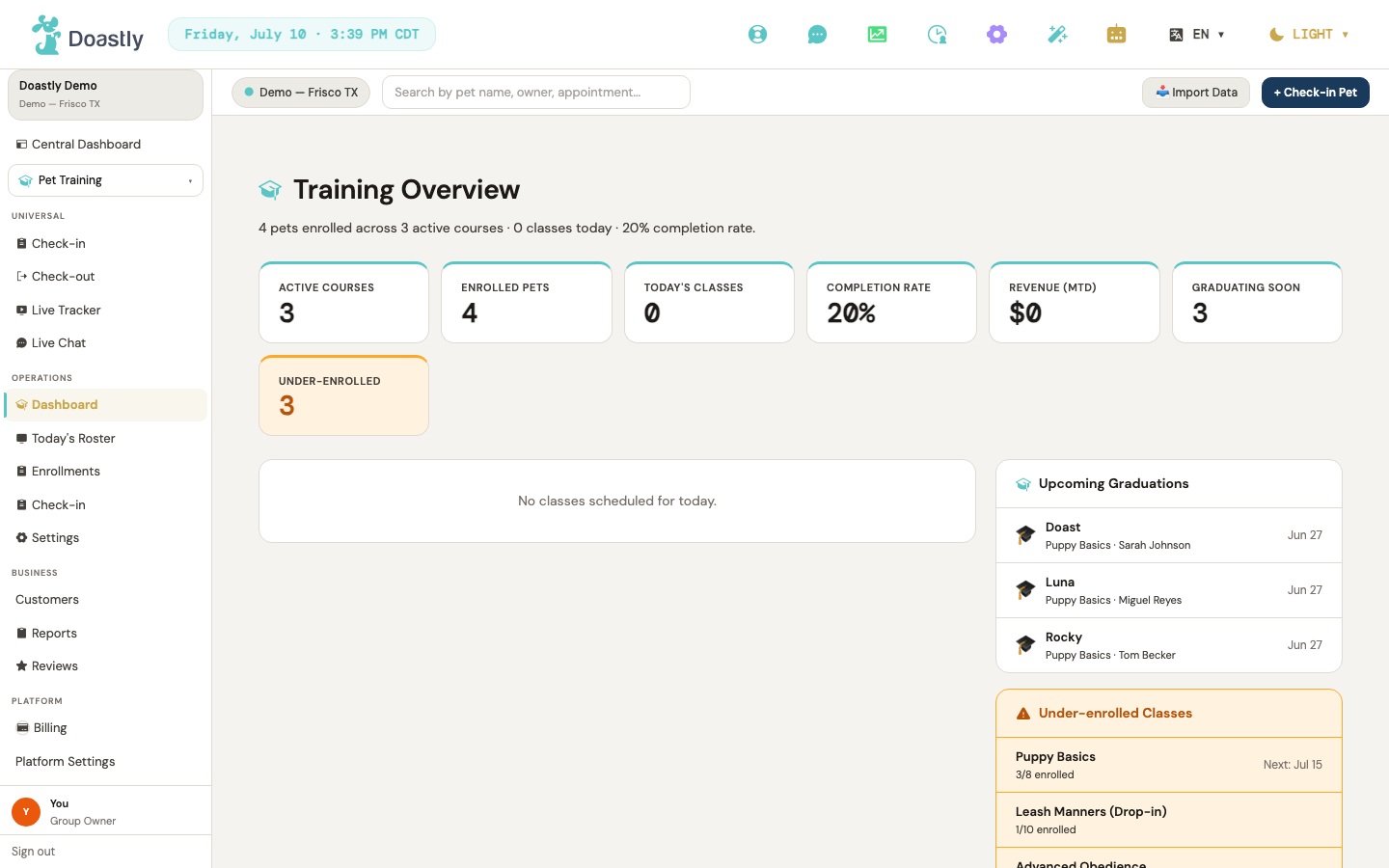
(dark mode also captured)
Training Settings — shell + tab strip
The container for all Training configuration. A horizontal tab strip switches between the six settings areas; the tab you pick is reflected in the page address so it can be bookmarked or shared.
| Control | What it does |
|---|---|
| Courses & Curricula (tab) | Opens the Courses & Curricula settings area. This is the default tab shown when you first open Training Settings. |
| Trainers (tab) | Opens the Trainers settings area. This area is a coming-soon placeholder. |
| Class Schedule (tab) | Opens the Class Schedule settings area. This area is a coming-soon placeholder. |
| Compliance (tab) | Opens the Compliance settings area. This area is a coming-soon placeholder. |
| Pricing (tab) | Opens the Pricing settings area. This area is a coming-soon placeholder. |
| Notifications (tab) | Opens the Notifications settings area. This area is a coming-soon placeholder. |
Courses & Curricula tab (Settings)
Lists the training courses configured for the salon and provides the entry point for creating a new one.
| Control | What it does |
|---|---|
| + New Course | Intended to open the course/curriculum builder. This is currently a coming-soon stub: selecting it shows a placeholder message that the course create flow is on the way and does not yet open a window or navigate anywhere. |
| Course row (per course) | A read-only card for each course showing its name, status (Active, Draft, or Archived), description, session count, capacity, assigned trainer, package price, and enrolled count against capacity. It is display-only — there is no click, edit, or detail action wired to it yet. |
Trainers tab (Settings)
A coming-soon placeholder for designating and assigning trainers. No configuration is possible here yet.
| Control | What it does |
|---|---|
| (no interactive controls) | Displays the "Trainers" title, a short description, an icon, and a static preview list of planned capabilities (designate staff as Trainers, assign a trainer color for the schedule, an optional free-text certification field, and a "Require certified trainers" toggle marked "Coming in v2"), along with a "coming soon" notice. There are no buttons, fields, toggles, or links. |
Class Schedule tab (Settings)
A coming-soon placeholder for setting up recurring class times. No configuration is possible here yet.
| Control | What it does |
|---|---|
| (no interactive controls) | Displays the "Class Schedule" title, a short description, an icon, and a static preview list of planned capabilities (recurring weekly slots, a default trainer per course, holiday overrides, and per-slot capacity), along with a "coming soon" notice. There are no buttons, fields, toggles, or links. |
Compliance tab (Settings)
A coming-soon placeholder for per-vertical vaccine/document requirements for training. No configuration is possible here yet.
| Control | What it does |
|---|---|
| (no interactive controls) | Displays the "Compliance" title, a short description, an icon, and a static preview list of planned capabilities (required vaccines for class attendance, grace period before hard block, override-with-reason log settings, and per-class-type compliance profile), along with a "coming soon" notice. There are no buttons, fields, toggles, or links. |
Pricing tab (Settings)
A coming-soon placeholder for course and package pricing, shown alongside the Courses configuration. No pricing can be set here yet.
| Control | What it does |
|---|---|
| (no interactive controls) | Displays a static preview of planned pricing options (course package price per session count, drop-in single class rate, private session rates per 30/60 min, and multi-course discount tiers) and a "coming soon" notice. There are no interactive elements. |
Notifications tab (Settings)
A coming-soon placeholder for Training SMS/email templates. No configuration is possible here yet.
| Control | What it does |
|---|---|
| (no interactive controls) | Displays the "Notification Templates" title, a short description, an icon, and a static preview list of planned templates (enrollment confirmation SMS/email, class reminder at 24h + 2h, private session reminder, certificate-issued notification, and a note that customer opt-out and salon-disable are honored), along with a "coming soon" notice. There are no buttons, fields, toggles, or links. |
PetFamily Courses catalog (customer-facing browse)
The customer-facing view where a pet family browses training courses offered by the salons they have access to, and starts an enrollment. This catalog is rendered inside the "Browse Classes" tab of the Pet Training page.
| Control | What it does |
|---|---|
| Salon picker (dropdown) | Chooses which of your accessible salons' courses to view; changing it reloads the course list for that salon. This appears only when your family has access to more than one salon. |
| Course card (per course) | Displays a course's name, trainer, price, description, skill tags, session count, and spots remaining. The card itself is not clickable — the enroll action inside it is the interactive element. |
| Enroll / Full (link) | Starts the enrollment flow for the course, opening the training booking page — the selected salon is carried through. When the class is full, the label reads "Full" and the link is disabled. |